
Connects to Kubernetes clusters to list contexts, namespaces, nodes, resources (pods, services, deployments), fetch resource details, list events, and get pod logs
Click on "Install Server".
Wait a few minutes for the server to deploy. Once ready, it will show a "Started" state.
In the chat, type
@followed by the MCP server name and your instructions, e.g., "@mcp-k8s-golist all pods in the default namespace"
That's it! The server will respond to your query, and you can continue using it as needed.
Here is a step-by-step guide with screenshots.
Features
MCP 💬 prompt 🗂️ resource 🤖 tool
🗂️🤖 List Kubernetes contexts
💬🤖 List Kubernetes namespaces
🤖 List, get, create and modify any Kubernetes resources
includes custom mappings for resources like pods, services, deployments
🤖 List Kubernetes nodes
💬 List Kubernetes pods
🤖 Get Kubernetes events
🤖 Get Kubernetes pod logs
🤖 Run command in Kubernetes pod
Related MCP server: kom
Browse With Inspector
To use latest published version with Inspector you can run this:
npx @modelcontextprotocol/inspector npx @strowk/mcp-k8sUse With Claude
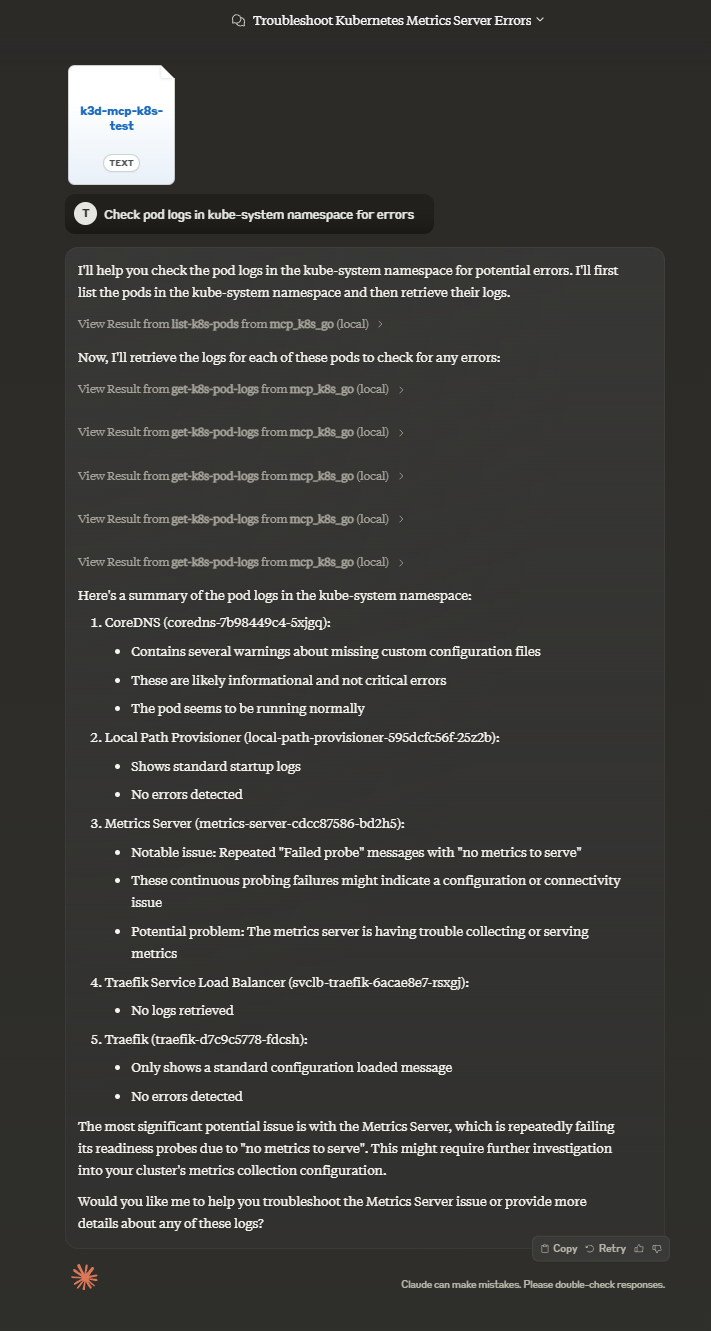
Following chat with Claude Desktop demonstrates how it looks when selected particular context as a resource and then asked to check pod logs for errors in kube-system namespace:
To use this MCP server with Claude Desktop (or any other client) you might need to choose which way of installation to use.
You have multiple options:
Smithery | mcp-get | Pre-built NPM | Pre-built in Github | From sources | Using Docker | |
Claude Setup | Auto | Auto | Manual | Manual | Manual | Manual |
Prerequisite | Node.js | Node.js | Node.js | None | Golang | Docker |
Using Smithery
To install MCP K8S Go for Claude Desktop automatically via Smithery:
npx -y @smithery/cli install @strowk/mcp-k8s --client claudeUsing mcp-get
To install MCP K8S Go for Claude Desktop automatically via mcp-get:
npx @michaellatman/mcp-get@latest install @strowk/mcp-k8sManually with prebuilt binaries
Prebuilt from npm
Use this if you have npm installed and want to use pre-built binaries:
npm install -g @strowk/mcp-k8sThen check version by running mcp-k8s --version and if this printed installed version, you can proceed to add configuration to claude_desktop_config.json file:
{
  "mcpServers": {
    "mcp_k8s": {
      "command": "mcp-k8s",
      "args": []
    }
  }
}
, or using npx with any client:
npx @strowk/mcp-k8sFor example for Claude:
{
  "mcpServers": {
    "mcp_k8s": {
      "command": "npx",
      "args": [
        "@strowk/mcp-k8s"
      ]
    }
  }
}
From GitHub releases
Head to GitHub releases and download the latest release for your platform.
Unpack the archive, which would contain binary named mcp-k8s-go, put that binary somewhere in your PATH and then add the following configuration to the claude_desktop_config.json file:
{
  "mcpServers": {
    "mcp_k8s": {
      "command": "mcp-k8s-go",
      "args": []
    }
  }
}
Building from source
You would need Golang installed to build this project:
go get github.com/strowk/mcp-k8s-go
go install github.com/strowk/mcp-k8s-go
, and then add the following configuration to the claude_desktop_config.json file:
{
  "mcpServers": {
    "mcp_k8s_go": {
      "command": "mcp-k8s-go",
      "args": []
    }
  }
}
Using Docker
This server is built and published to Docker Hub since 0.3.1-beta.2 release with multi-arch images available for linux/amd64 and linux/arm64 architectures.
You can use latest tag f.e like this:
docker run -i -v ~/.kube/config:/home/nonroot/.kube/config --rm mcpk8s/server:latestWindows users might need to replace ~/.kube/config with //c/Users/<username>/.kube/config at least in Git Bash.
For Claude:
{
  "mcpServers": {
    "mcp_k8s_go": {
      "command": "docker",
      "args": [
        "run",
        "-i",
        "-v",
        "~/.kube/config:/home/nonroot/.kube/config",
        "--rm",
        "mcpk8s/server:latest"
      ]
    }
  }
}
Environment Variables and Command-line Options
The following environment variables are used by the MCP server:
KUBECONFIG: Path to your Kubernetes configuration file (optional, defaults to ~/.kube/config)
The following command-line options are supported:
--allowed-contexts=<ctx1,ctx2,...>: Comma-separated list of allowed Kubernetes contexts that users can access. If not specified, all contexts are allowed.--readonly: Disables any tool which can write changes to the cluster--help: Display help information--version: Display version information--mask-secrets: Mask secrets in the output (default: true). Use--mask-secrets=falseto disable masking
For example if you are configuring Claude Desktop, you can add the following configuration to claude_desktop_config.json file:
{
    "mcpServers": {
        "mcp_k8s": {
            "command": "mcp-k8s",
            "args": [
                "--allowed-contexts=dev,prod",
                "--readonly"
            ]
        }
    }
}
, which would allow only dev and prod contexts to be used and would disable any tool which can write changes to the cluster.