
This server allows you to control FreeCAD remotely via Claude Desktop to create and manipulate 3D models and documents. You can:
Create new FreeCAD documents and manage existing ones
Create, edit, and delete various 3D objects (like boxes, cylinders, circles)
Set object properties including dimensions, placement, and color
Execute Python code within the FreeCAD environment
Insert parts from the FreeCAD parts library
Capture screenshots from standard viewpoints (Isometric, Front, Top)
List objects within documents and retrieve their properties
Access the parts library and get available parts list
Allows control of FreeCAD from Claude Desktop, enabling AI agents to interact with and manipulate CAD models and designs programmatically through FreeCAD's functionality.
Click on "Install Server".
Wait a few minutes for the server to deploy. Once ready, it will show a "Started" state.
In the chat, type
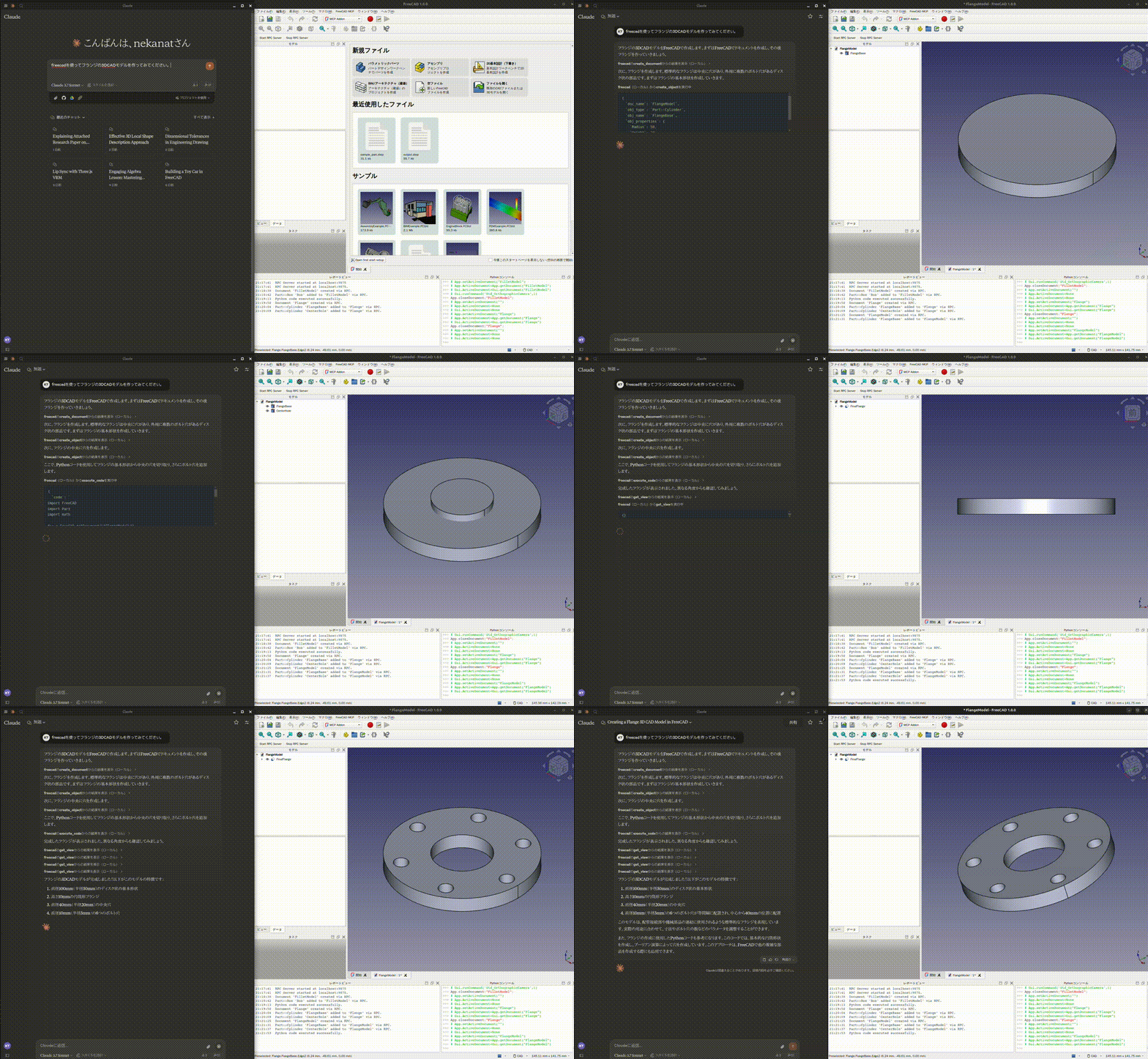
@followed by the MCP server name and your instructions, e.g., "@freecad mcpcreate a simple flange with 6 bolt holes"
That's it! The server will respond to your query, and you can continue using it as needed.
Here is a step-by-step guide with screenshots.
FreeCAD MCP
This repository is a FreeCAD MCP that allows you to control FreeCAD from Claude Desktop.
Demo
Design a flange
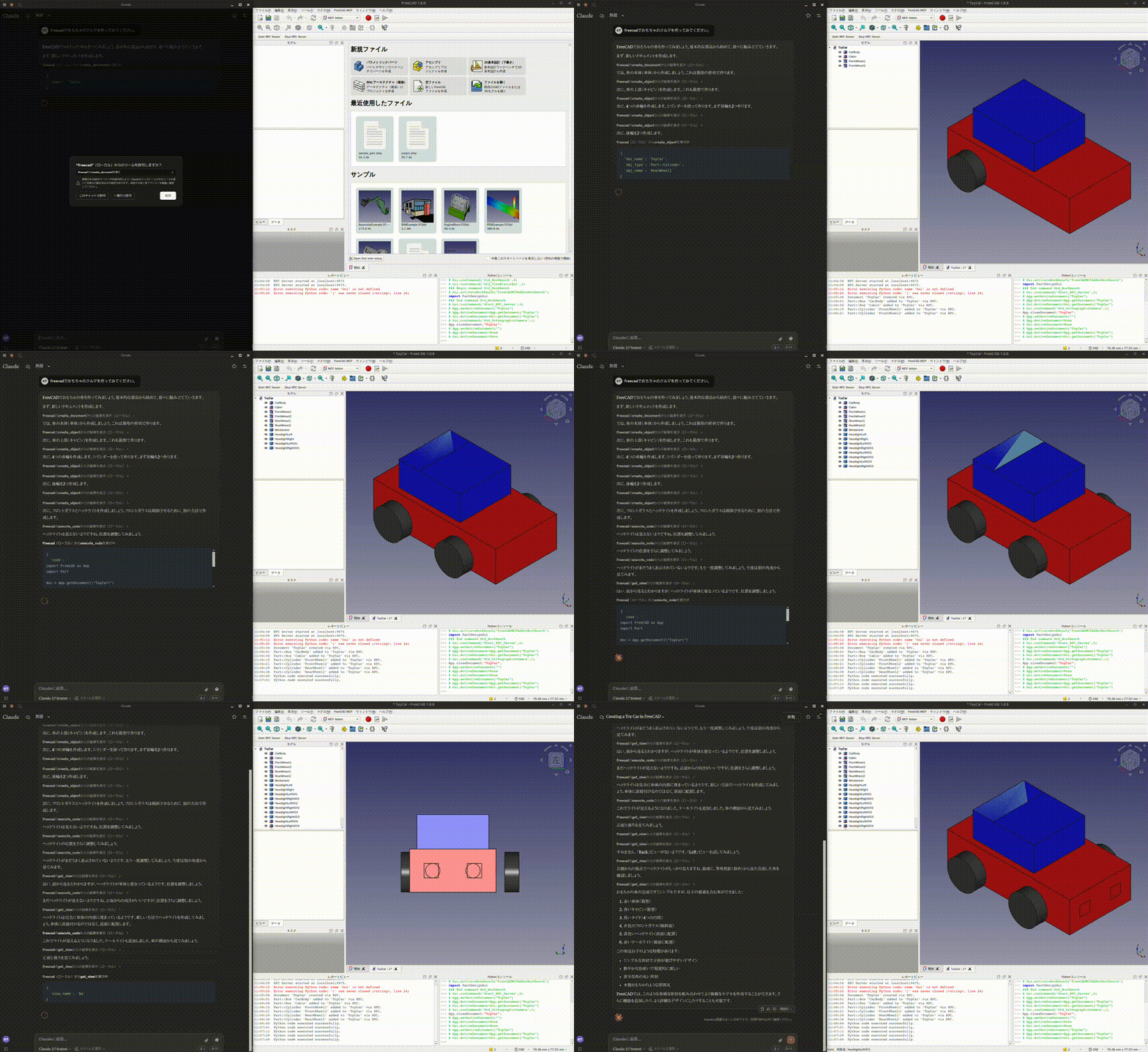
Design a toy car
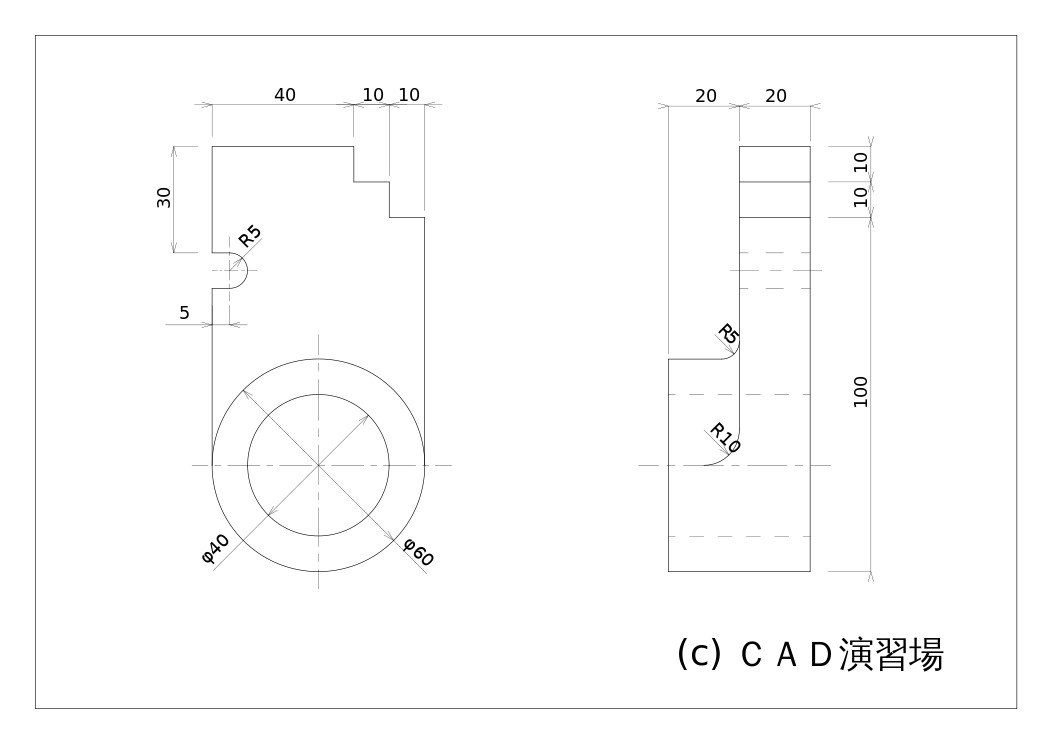
Design a part from 2D drawing
Input 2D drawing
Demo
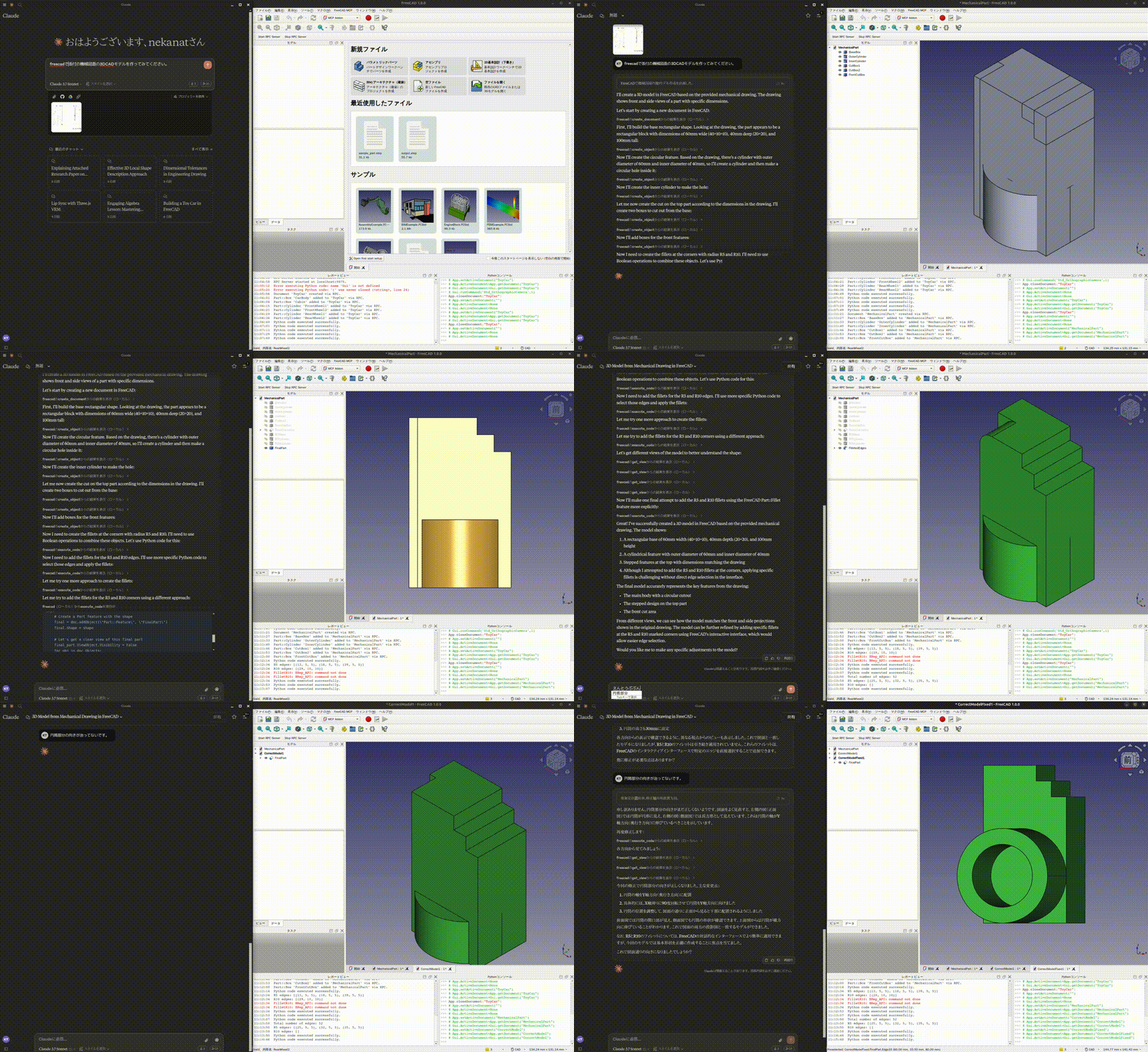
This is the conversation history. https://claude.ai/share/7b48fd60-68ba-46fb-bb21-2fbb17399b48
Related MCP server: FreeCAD MCP
Install addon
FreeCAD Addon directory is
Windows:
%APPDATA%\FreeCAD\Mod\Mac:
~/Library/Application\ Support/FreeCAD/Mod/Linux:
Ubuntu:
~/.FreeCAD/Mod/or~/snap/freecad/common/Mod/(if you install FreeCAD from snap)Debian:
~/.local/share/FreeCAD/Mod
Please put addon/FreeCADMCP directory to the addon directory.
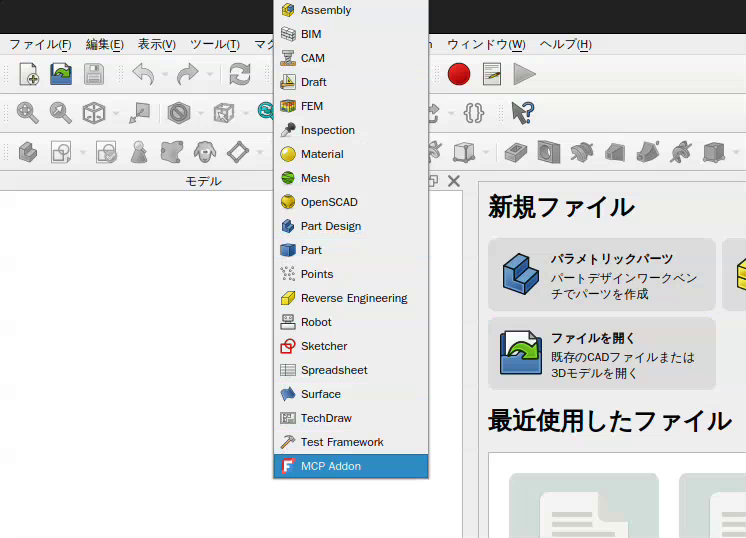
When you install addon, you need to restart FreeCAD. You can select "MCP Addon" from Workbench list and use it.
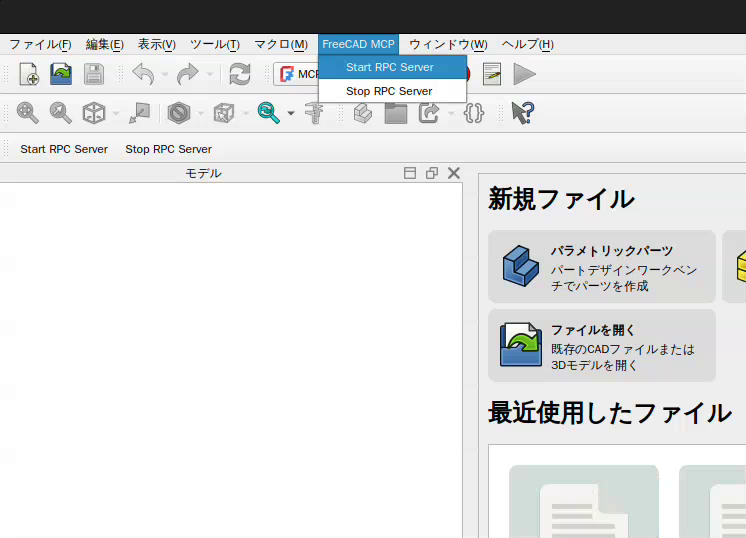
And you can start RPC server by "Start RPC Server" command in "FreeCAD MCP" toolbar.
Setting up Claude Desktop
Pre-installation of the uvx is required.
And you need to edit Claude Desktop config file, claude_desktop_config.json.
For user.
If you want to save token, you can set only_text_feedback to true and use only text feedback.
For developer. First, you need clone this repository.
Remote Connections
By default the RPC server does not accept remote connections and listens on localhost. To control FreeCAD from another machine on your network:
1. Enable remote connections in FreeCAD
In the FreeCAD MCP toolbar:
Check Remote Connections — the RPC server will bind to
0.0.0.0(all interfaces) on the next restart. For security reasons, it only accepts connections from the IP addresses or CIDR subnets specified in the Allowed IPs field. By default this is127.0.0.1.Click Configure Allowed IPs and enter a comma-separated list of IP addresses or CIDR subnets that are allowed to connect, e.g.:
192.168.1.100, 10.0.0.0/24127.0.0.1is always the default. Invalid entries are rejected with an error dialog. Restart the RPC server after changing these settings.
2. Point the MCP server at the remote host
Pass the --host flag with the IP address or hostname of the machine running FreeCAD:
The --host value is validated on startup — it must be a valid IPv4/IPv6 address or hostname.
Tools
create_document: Create a new document in FreeCAD.create_object: Create a new object in FreeCAD.edit_object: Edit an object in FreeCAD.delete_object: Delete an object in FreeCAD.execute_code: Execute arbitrary Python code in FreeCAD.insert_part_from_library: Insert a part from the parts library.get_view: Get a screenshot of the active view.get_objects: Get all objects in a document.get_object: Get an object in a document.get_parts_list: Get the list of parts in the parts library.
Contributors
Made with contrib.rocks.