
Provides access to Google Analytics 4 (GA4) metrics, enabling tools for fetching landing page data, generating trend reports, assessing data quality, and computing merged analytics outputs.
Enables interaction with Google Search Console to list sites and retrieve search performance data, including top queries and top pages.
Click on "Install Server".
Wait a few minutes for the server to deploy. Once ready, it will show a "Started" state.
In the chat, type
@followed by the MCP server name and your instructions, e.g., "@SEO Analytics MCPanalyze my top pages and give me actionable SEO insights"
That's it! The server will respond to your query, and you can continue using it as needed.
Here is a step-by-step guide with screenshots.
SEO Analytics MCP
MCP server for Google Search Console (GSC) + Google Analytics 4 (GA4).
How It Works
What .venv Means
.venvis this project's private Python environment.It contains its own Python interpreter and dependencies for this repo only.
run-local.shactivates.venvso the MCP server runs with the correct package versions.
What stdio Means
stdiomeans the MCP client and server communicate through standard input/output streams.The client starts
run-local.sh, sends tool requests in, and reads JSON responses out.No web server or HTTP endpoint is required for the default local setup.
Your MCP client (Claude/Codex) launches
run-local.shas a stdio server process.run-local.shprepares.venv, installs dependencies, loadsconfig/.env, and validatesconfig/service-account.json.The Python server (
seo-analytics-mcp) receives tool calls, fetches data from GSC/GA4 using the service account, and computes merged analysis outputs.Results are returned to the MCP client as structured JSON.
Deployment Model
This project is deployed as a local process on your machine via stdio.
It is not an HTTP API service by default and does not require cloud hosting.
To "deploy" it for another environment, clone the repo there, provide
config/.envandconfig/service-account.json, then register that machine'srun-local.shpath in the MCP client.
Prerequisites
Python 3.11+
Quick Start
Create local config files from templates:
Fill required values:
config/.envDEFAULT_GSC_SITE_URL(required format:sc-domain:example.com)DEFAULT_GA4_PROPERTY_ID
config/service-account.jsonReplace all
REPLACE_WITH_...fields with real Google service-account values.
Run the server:
The script creates/uses .venv, installs dependencies, loads config/.env, validates credentials, and starts seo-analytics-mcp over stdio.
MCP Client Setup
Use the local launcher script as the MCP server command:
Codex App
Add server:
Verify:
Remove:
Claude Code CLI
Add server:
Verify:
Remove:
Claude Desktop App (macOS)
Quit Claude Desktop completely.
Edit
~/Library/Application Support/Claude/claude_desktop_config.json.Add this server entry (merge into existing
mcpServersif present):
Start Claude Desktop again.
In a new chat, run tool
capabilitiesto confirm connection.
Main Tools
capabilitiesgsc_list_sitesgsc_top_pagesgsc_top_queriesga4_landing_pagesanalytics_merge_page_metricsanalytics_generate_action_itemsanalytics_trend_reportanalytics_data_quality_report
Screenshots
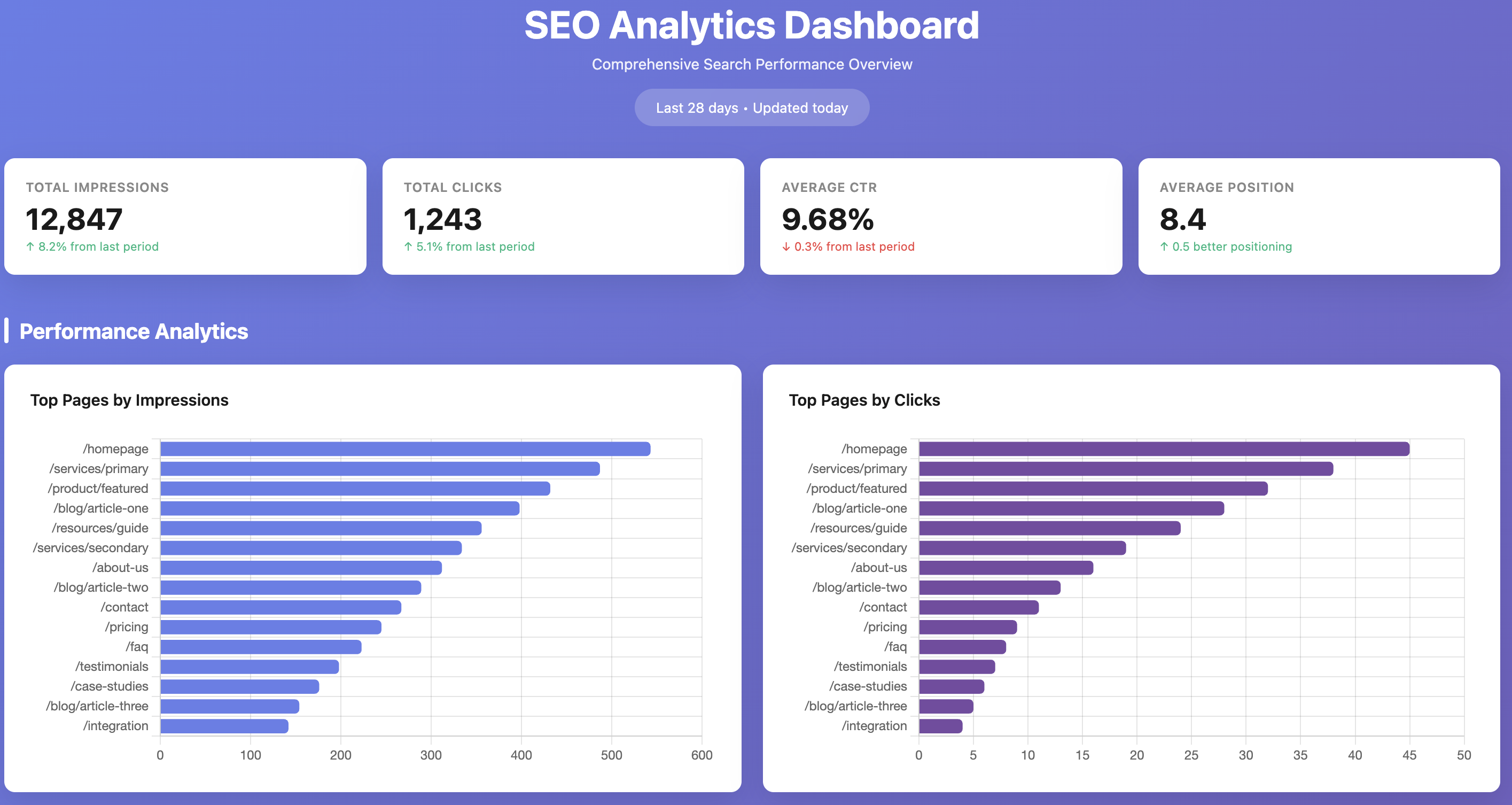
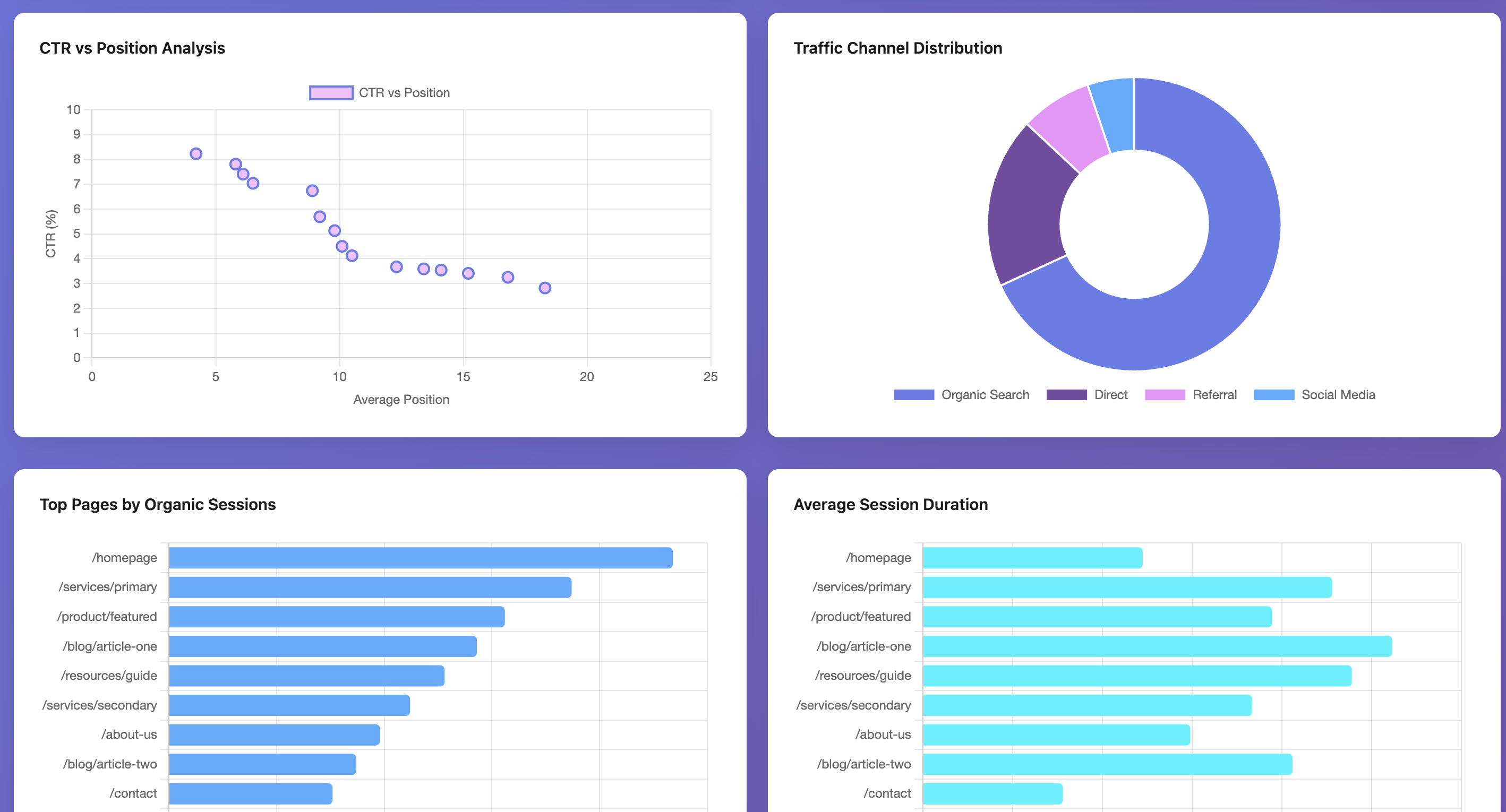
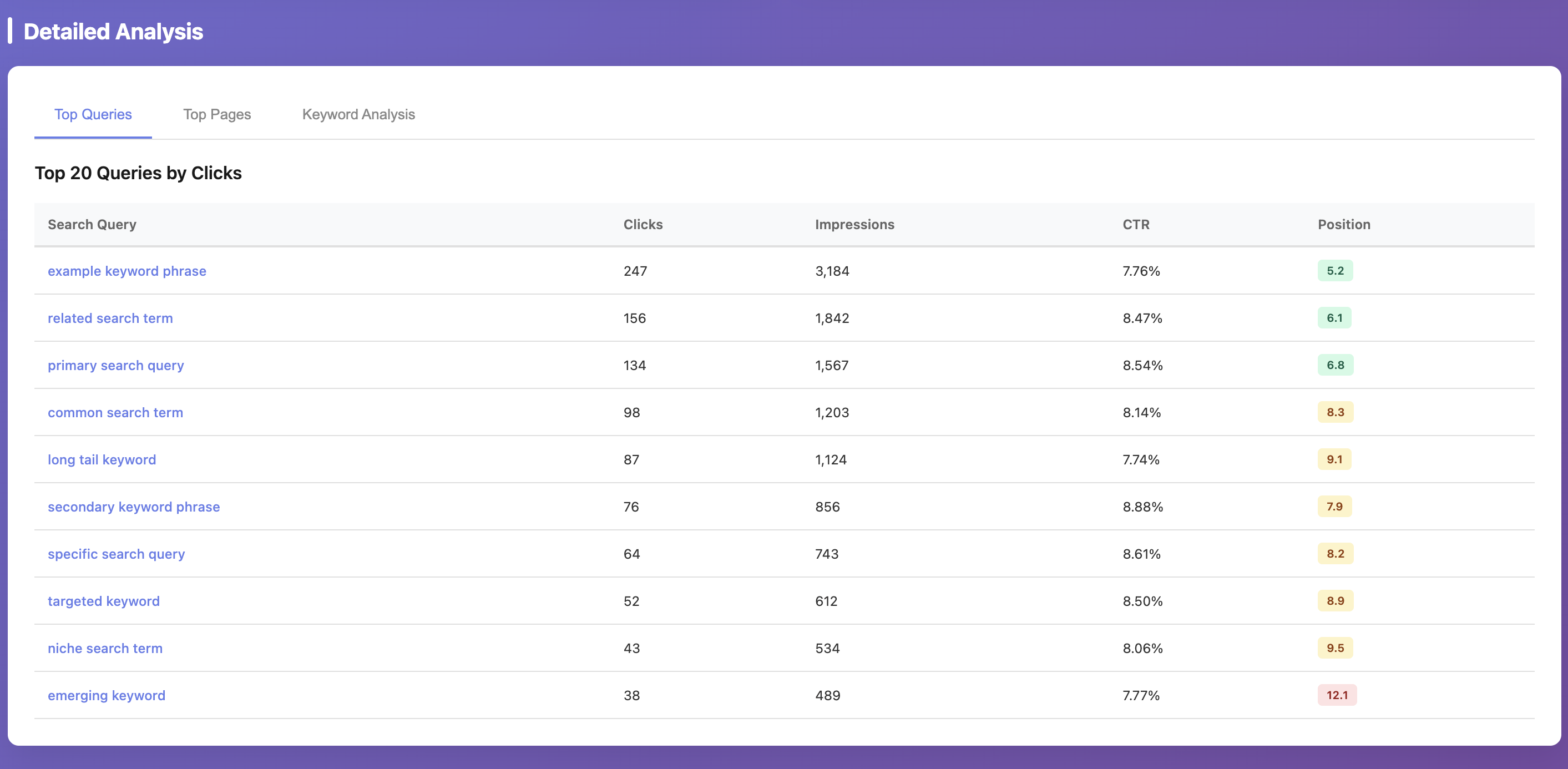
These screenshots are example outputs produced by using Claude Code with this MCP server. The MCP provides the underlying GSC/GA4 data and analytics tools; dashboard rendering is not generated by default by the server itself. For privacy reasons, values shown in the screenshots are randomized; the actual workflow was executed against real data.
Troubleshooting
service-account.json still contains placeholder valuesReplace all
REPLACE_WITH_...fields inconfig/service-account.json.
No such file or directory: .../credentials/service-account.jsonYou have a stale credential env override from an older setup.
Re-add the MCP server so it runs the latest
run-local.shand usesconfig/service-account.json.
Operation not permittedwhen Claude Desktop starts MCPmacOS is blocking execution from protected folders (commonly
~/Documents).Either grant Claude Desktop access in
System Settings -> Privacy & Security(Files and Foldersand/orFull Disk Access) or move the repo to a non-protected path like~/dev/analytics.After changing permissions/path, restart Claude Desktop and re-add the MCP entry if needed.
Missing property_id and DEFAULT_GA4_PROPERTY_ID is not setSet
DEFAULT_GA4_PROPERTY_IDinconfig/.env.
Missing site_url...Set
DEFAULT_GSC_SITE_URLinconfig/.env.
GSC permission error on
https://...propertyThis server enforces GSC properties in
sc-domain:<domain>format to avoid URL-prefix mismatch issues.Use a Domain property in Search Console and grant your service account access there.
Security
Never commit
config/service-account.jsonorconfig/.env.Commit only template files:
config/service-account.example.jsonconfig/.env.example