
The BrowserStack MCP server enables testing and debugging of web and mobile applications using BrowserStack's cloud infrastructure through manual, automated, and test management capabilities:
Manual Testing: Test mobile apps on real devices and websites across various browsers/OS combinations, including local sites
Automated Testing: Run tests using various frameworks (Playwright, Selenium, Jest, pytest) on BrowserStack's infrastructure
Test Management: Create projects, manage test cases, and organize test runs
Accessibility Testing: Scan websites for WCAG and ADA compliance issues
Debugging: Analyze and fix failures from previous test runs using Test Observability features
AI Integration: Interact with the BrowserStack Test Platform through AI tools
Recommended integration for running automated tests and debugging on BrowserStack's Test Platform, allowing execution of test suites on cloud infrastructure
Allows running Jest test suites on BrowserStack's cloud infrastructure for cross-browser and cross-device testing
Enables running and debugging Selenium test scripts on BrowserStack's device and browser grid, with access to Test Observability features
Provides video overview content of the platform features through linked educational content
Click on "Install Server".
Wait a few minutes for the server to deploy. Once ready, it will show a "Started" state.
In the chat, type
@followed by the MCP server name and your instructions, e.g., "@BrowserStack MCP serveropen my website on iPhone 15 Pro Max to test mobile layout"
That's it! The server will respond to your query, and you can continue using it as needed.
Here is a step-by-step guide with screenshots.
BrowserStack MCP Server
Manage test cases, execute manual or automated tests, debug issues, and even fix code—directly within tools like Cursor, Claude, or any MCP-enabled client, using plain English.
Test from anywhere:
Easily connect the BrowserStack Test Platform to your favourite AI tools, such as IDEs, LLMs, or agentic workflows.
Test with natural language:
Manage, execute, debug tests, and even fix code using plain English prompts.
Reduced context switching:
Stay in flow—keep all project context in one place and trigger actions directly from your IDE or LLM.
⚡️ One Click MCP Setup
Click on the buttons below to install MCP in your respective IDE:
Note : Ensure you are using Node version >= 18.0
Check your node version using
node --version. Recommended version:v22.15.0(LTS)To Upgrade Node :
On macOS
(Homebrew) - brew update && brew upgrade node or if using (nvm) - nvm install 22.15.0 && nvm use 22.15.0 && nvm alias default 22.15.0
On Windows
(nvm-windows) : nvm install 22.15.0 && nvm use 22.15.0
👉 Or directly download the Node.js LTS Installer
.
Related MCP server: Official Substack MCP Server
💡 Usage Examples
📱 Manual App Testing
Test mobile apps on real devices across the latest OS versions. Reproduce bugs and debug crashes without setup hassles. Below are some sample prompts to use your mobile apps on BrowserStack's extensive cloud of real devices
Unlike emulators, test your app's real-world performance on actual devices. With advanced App-Profiling features, you can debug crashes and performance issues in real-time.
Access all major devices and OS versions from our device grid, We have strict SLAs to provision our global datacenters with newly released devices on launch day.
🌐 Manual Web Testing
Similar to the app testing, you can use the following prompts to test your websites on BrowserStack's extensive cloud of real browsers and devices. Don't have Edge browser installed on your machine ? We've got you covered!
Test websites across different browsers and devices. We support every major browser across every major OS.
Seamlessly test websites hosted locally on your machine, no need to deploy to a remote server!
🧪 Automated Testing (Playwright, Selenium, A11y and more..)
Auto-analyze, diagnose, and even fix broken test scripts right in your IDE or LLM. Instantly fetch logs, identify root causes, and apply context-aware fixes. No more debugging loops. Below are few example prompts to run/debug/fix your automated tests on BrowserStack's Test Platform.
Fix test failures reported by your CI/CD pipeline by utilising our industry leading Test Observability features. Find more info here.
Run tests written in Jest, Playwright, Selenium, and more on BrowserStack's Test Platform
🌐 Accessibility
Catch accessibility issues early with automated, local a11y scans. Get one-click, AI-suggested fixes. No docs hunting, no CI surprises. Ensure WCAG and ADA compliance with our Accessibility Testing tool
📋 Test Management
Create and manage test cases, create test plans and trigger test runs using natural language. Below are a few example prompts to utilise capabilities of BrowserStack's Test Management with MCP server.
🧪 Access BrowserStack AI agents
Generate test cases from PRDs, convert manual tests to low-code automation, and auto-heal flaky scripts powered by BrowserStack’s AI agents, seamlessly integrated into your workflow. Below are few example prompts to access Browserstack AI agents
🛠️ Installation
📋 Prerequisites for MCP Setup
Note : Ensure you are using Node version >= 18.0
Check your node version using
node --version. Recommended version:v22.15.0(LTS)
One Click MCP Setup
Click on the buttons below to install MCP in your respective IDE:
Alternate ways to Setup MCP server
Create a BrowserStack Account
Sign up for BrowserStack if you don't have an account already.
ℹ️ If you have an open-source project, we'll be able to provide you with a free plan.
Once you have an account (and purchased appropriate plan), note down your
usernameandaccess_keyfrom Account Settings.
Note : Ensure you are using Node version >=
18.0Check your node version using
node --version. Recommended version:v22.15.0(LTS)
Install the MCP Server
VSCode (Copilot - Agent Mode):
.vscode/mcp.json:Locate or Create the Configuration File: In the root directory of your project, look for a folder named .vscode. This folder is usually hidden so you will need to find it as mentioned in the expand.
If this folder doesn't exist, create it.
Inside the .vscode folder, create a new file named mcp.json
Add the Configuration: Open the mcp.json file and then add the following JSON content.
Replace the username and <access_key> with your BrowserStack credentials.
{ "servers": { "browserstack": { "command": "npx", "args": ["-y", "@browserstack/mcp-server@latest"], "env": { "BROWSERSTACK_USERNAME": "<username>", "BROWSERSTACK_ACCESS_KEY": "<access_key>" } } } }In VSCode, make sure to click on
Startbutton in the MCP Server to start the server.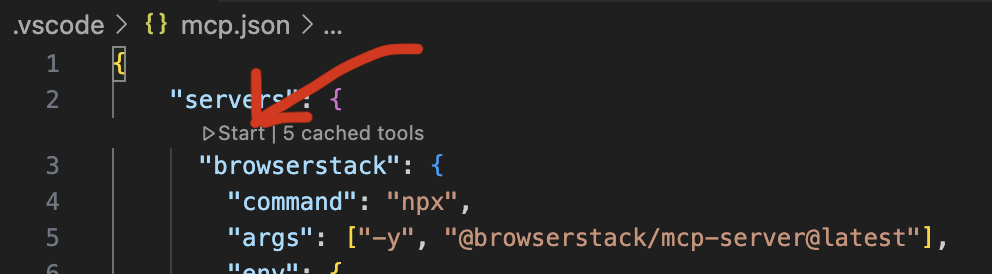
** Alternate way to setup MCP on VSCode Copilot
1.Click on the gear icon to Select Tools
For Cursor:
.cursor/mcp.json:
{ "mcpServers": { "browserstack": { "command": "npx", "args": ["-y", "@browserstack/mcp-server@latest"], "env": { "BROWSERSTACK_USERNAME": "<username>", "BROWSERSTACK_ACCESS_KEY": "<access_key>" } } } }Claude Desktop:
~/claude_desktop_config.json:
{ "mcpServers": { "browserstack": { "command": "npx", "args": ["-y", "@browserstack/mcp-server@latest"], "env": { "BROWSERSTACK_USERNAME": "<username>", "BROWSERSTACK_ACCESS_KEY": "<access_key>" } } } }Cline
Click the “MCP Servers” icon in the navigation bar Select the “Installed” tab. Click the “Configure MCP Servers” button at the bottom of the pane.
💡 List of BrowserStack MCP Tools
As of now we support 20 tools.
🧾 Test Management
createProjectOrFolder— Create a Test Management project and/or folders to organize test cases. Returns with Folder ID, Project ID and Test Management Link to access the TM Project Dashboard. Prompt example
createTestCase— Add a manual test case under a specific project/folder (uses project identifier like PR-xxxxx and a folder ID). Prompt example
listTestCases— List test cases for a project (supports filters like priority, status, tags). Prompt example
createTestRun— Create a test run (suite) for selected test cases in a project. Prompt example
listTestRuns— List test runs for a project (filter by dates, assignee, state). Prompt example
updateTestRun— Partially update a test run (status, tags, notes, associated test cases). Prompt example
addTestResult— Add a manual execution result (passed/failed/blocked/skipped) for a test case within a run. Prompt example
createTestCasesFromFile— Bulk-create test cases from an uploaded file (e.g., PDF). Prompt example
⚙️ BrowserStack SDK Setup / Automate Test
setupBrowserStackAutomateTests— Integrate BrowserStack SDK and run web tests on BrowserStack (optionally enable Percy). Prompt example
fetchAutomationScreenshots— Fetch screenshots captured during a given Automate/App Automate session. Prompt example
🔍 Observability
getFailureLogs— Retrieve error logs for Automate/App Automate sessions (optionally by Build ID for App Automate). Prompt example
📱 App Live
runAppLiveSession— Start a manual app testing session on a real device in the cloud. Prompt example
💻 Live
runBrowserLiveSession— Start a Live session for website testing on desktop or mobile browsers. Prompt example
📲 App Automate
takeAppScreenshot— Launch the app on a specified device and captures a quick verification screenshot. This tool is just to verify whether your app has been launched. Prompt example
runAppTestsOnBrowserStack— Run automated mobile tests (Espresso/XCUITest, etc.) on real devices. Prompt example
♿ Accessibility
accessibilityExpert— Ask A11y Expert (WCAG 2.0/2.1/2.2, mobile/web usability, best practices). Prompt example
startAccessibilityScan— Start a web accessibility scan and return the result link. Prompt example
🤖 BrowserStack AI Agents
fetchSelfHealedSelectors— Retrieve AI self-healed selectors to fix flaky tests due to DOM changes. Prompt example
createLCASteps— Generate Low Code Automation steps from a manual test case in Test Management. Prompt example
uploadProductRequirementFile— Upload a PRD/screenshot/PDF and get a file mapping ID (used withcreateTestCasesFromFile). Prompt example
🚀 Remote MCP Server
Remote MCP comes with all the functionalities of an MCP server without the hassles of complex setup or local installation.
Key benefits:
✅ Works seamlessly in enterprise networks without worrying about firewalls or binaries or where local installation is not allowed.
✅ Secure OAuth integration – no password sharing or manual credential handling.
Limitations:
❌ No Local Testing support (cannot test apps behind VPNs, firewalls, or localhost). If you have to do Local Testing, you would have to use a BrowserStack Local MCP server.
❌ Latency can be slightly higher, but nothing considerable — you generally won’t notice it in normal use.
Installation Steps:
On VSCode (Copilot - Agent Mode):
.vscode/mcp.json:Locate or Create the Configuration File:
In the root directory of your project, look for a folder named .vscode. This folder is usually hidden so you will need to find it as mentioned in the expand.
If this folder doesn't exist, create it.
Inside the .vscode folder, create a new file named mcp.json
To setup Remote BrowserStack MCP instead of local BrowserStack MCP you can add the following JSON content :
Alternative way to Setup Remote MCP
Step 1.Click on the gear icon to Select Tools
Step 2. A tool menu would appear at the top-centre, scroll down on the menu at the top and then Click on Add MCP Server
Step 3. Click on HTTP option
Step 4. Paste Remote MCP Server URL : https://mcp.browserstack.com/mcp
Step 5. Give server id as : browserstack
Step 6. In VSCode Click on start MCP Server and then click on "Allow"
🤝 Recommended MCP Clients
We recommend using Github Copilot or Cursor for automated testing + debugging use cases.
For manual testing use cases (Live Testing), we recommend using Claude Desktop.
⚠️ Important Notes
The BrowserStack MCP Server is under active development and currently supports a subset of the MCP spec. More features will be added soon.
Tool invocations rely on the MCP Client which in turn relies on an LLM, hence there can be some non-deterministic behaviour that can lead to unexpected results. If you have any suggestions or feedback, please open an issue to discuss.
📝 Contributing
We welcome contributions! Please open an issue to discuss any changes you'd like to make. 👉 Click here to view our Contributing Guidelines
📞 Support
For support, please:
Open an issue in our GitHub repository if you face any issues related to the MCP Server.
Contact our support team for any other queries.
🚀 More Features Coming Soon
Stay tuned for exciting updates! Have any suggestions? Please open an issue to discuss.