
The Teradata MCP Server is a comprehensive tool for managing, querying, and analyzing Teradata databases. Key capabilities include:
Query Execution: Run both
Enables configuration management through environment variables stored in .env files, supporting database connection parameters, LLM credentials, and server settings.
Supports integration with OpenAI models through API key configuration, enabling LLM capabilities within the server environment.
Provides database interaction capabilities with Teradata systems, offering tools for querying, data quality assessment, and database administration tasks such as executing queries, retrieving table structures, analyzing space usage, and performing data quality checks.
Click on "Install Server".
Wait a few minutes for the server to deploy. Once ready, it will show a "Started" state.
In the chat, type
@followed by the MCP server name and your instructions, e.g., "@Teradata MCP Servershow me the top 10 customers by total sales this month"
That's it! The server will respond to your query, and you can continue using it as needed.
Here is a step-by-step guide with screenshots.
Overview
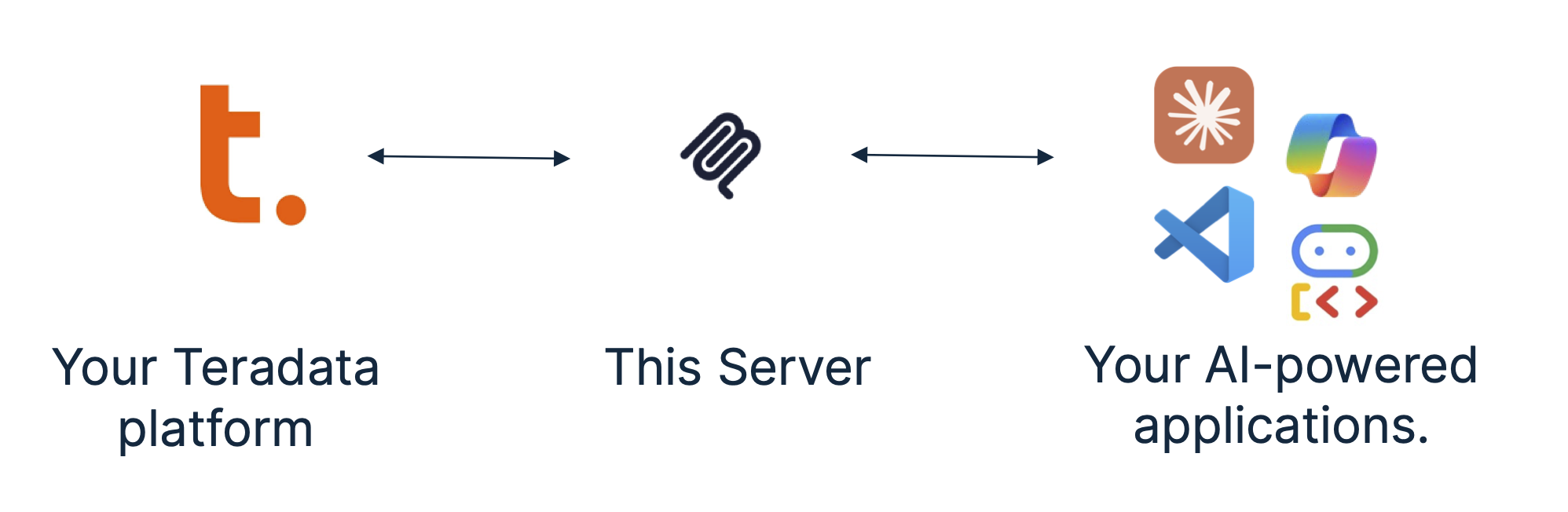
The Teradata MCP server provides sets of tools and prompts, grouped as modules for interacting with Teradata databases. Enabling AI agents and users to query, analyze, and manage their data efficiently.
Related MCP server: Supabase MCP Server
Key features
Available tools and prompts
We are providing groupings of tools and associated helpful prompts to support all type of agentic applications on the data platform.
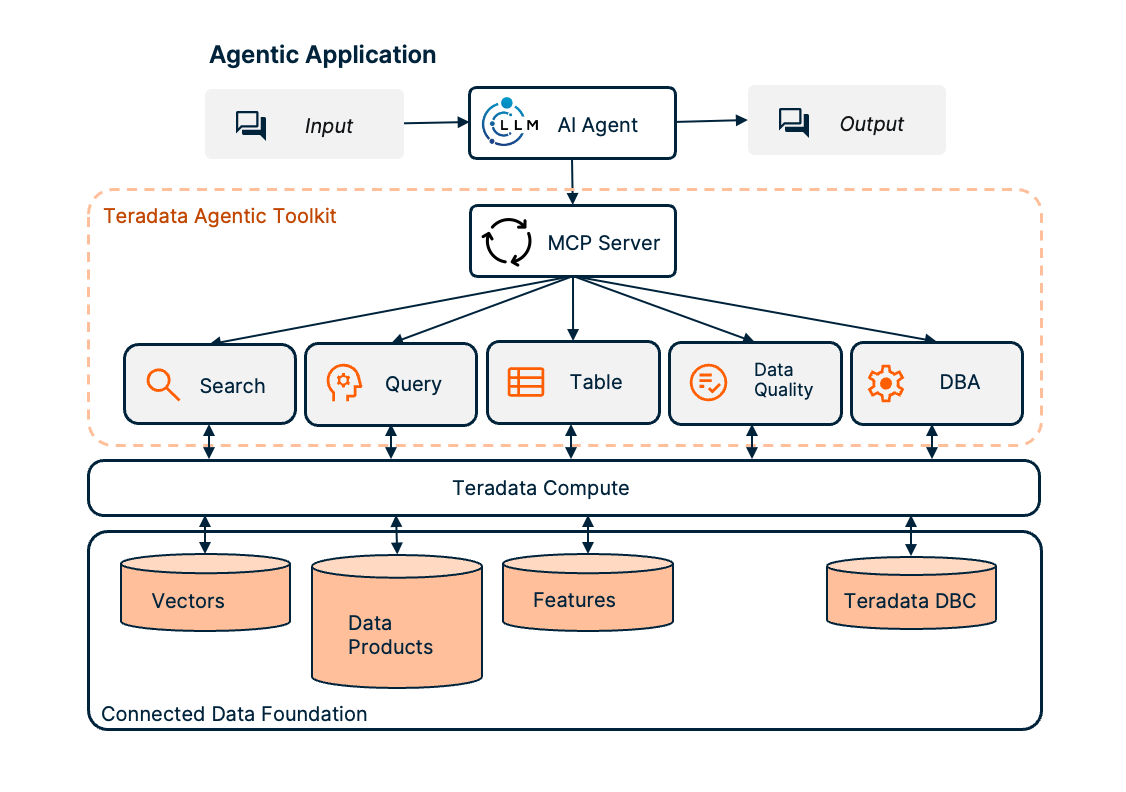
Search tools, prompts and resources to search and manage vector stores.
RAG Tools rapidly build RAG applications.
Query tools, prompts and resources to query and navigate your Teradata platform:
Table tools, to efficiently and predictably access structured data models:
Feature Store Tools to access and manage the Teradata Enterprise Feature Store.
Semantic layer definitions to easily implement domain-specific tools, prompts and resources for your own business data models.
Data Quality tools, prompts and resources accelerate exploratory data analysis:
DBA tools, prompts and resources to facilitate your platform administration tasks:
Data Scientist tools, prompts, and resources to build powerful AI agents and workflows for data-driven applications.
BAR tools, prompts and resources for database backup and restore operations:
BAR Tools integrate AI agents with Teradata DSA (Data Stream Architecture) for comprehensive backup management across multiple storage solutions including disk files, cloud storage (AWS S3, Azure Blob, Google Cloud), and enterprise systems (NetBackup, IBM Spectrum).
Quick start with Claude Desktop (no installation)
Prefer to use other tools? Check out our Quick Starts for VS Code/Copilot, Open WebUI, or dive into simple code examples! You can use Claude Desktop to give the Teradata MCP server a quick try, Claude can manage the server in the background using
uv. No permanent installation needed.
Pre-requisites
Get your Teradata database credentials or create a free sandbox at Teradata Clearscape Experience.
Install Claude Desktop.
Install uv. If you are on MacOS, Use Homebrew:
brew install uv, on Windows you may usepip install uvas an alternative to the installer.
Configure the claude_desktop_config.json (Settings>Developer>Edit Config) by adding the configuration below, updating the database username, password and URL:
Installation Instructions
Follow this process to install your server, connect it to your Teradata platform and integrated your tools.
Step 1. - Identify the running Teradata System, you need username, password and host details. If you do not have a Teradata system to connect to, then leverage Teradata Clearscape Experience
Step 2. - To install, configure and run the MCP server, refer to the Teradata MCP Server Documentation.
Step 3. - There are many client options available, the Client Guide explains how to configure and run a sample of different clients.
Check out our libraries of curated examples or video guides.
Contributing
Please refer to the Contributing guide and the Developer Guide.