
Schedulia MCP

## 📅 Schedulia MCP - Meeting Scheduling Assistant
## 🚀 Getting Started
### Prerequisites
✅ Git
✅ Python
✅ UV (Python Package Manager) - [UV Installation Guide](https://github.com/astral-sh/uv)
### ⚙️ Setup Instructions
1. Get Your API Key
- Get your API key from [schedulia.org](https://schedulia.org) 🔑
2. Clone Repository
```
git clone https://github.com/watanka/schedulia-mcp.git
cd schedulia-mcp
```
3. Run Server
```
uv run server.py --api-key={your-api-key} # Replace with your API key!
```
4. Configure MCP Server
```
{
"mcpServers": {
"schedulia-mcp": {
"command": "uv",
"args": [
"--directory",
"/path/to/mcp/server",
"run",
"server.py",
"--api-key",
"{your-api-key}"
]
}
}
}
```
5. Register MCP Server on your host(Claude Desktop, Cursor)
#### 🔧 Integration Options
For Claude Desktop users: [Configuration Guide](https://modelcontextprotocol.io/quickstart/user)
For Cursor users: [Configuration Guide ](https://docs.cursor.com/context/model-context-protocol#configuring-mcp-servers)
<br>
## 🛠️ Available Tools
### 📊 View Meeting Schedules
`view_meeting_schedules(date)`: Check all scheduled meetings for a specific date
<details>
<summary>How to Use</summary>
Ask to see your meetings using the `view_meeting_schedules` tool. You can specify a date or view all schedules.
**Prompt Examples:**
- "Please show me my meeting schedules"
- "Can you check my meetings for today using view_meeting_schedules?"
- "Use view_meeting_schedules to show my upcoming meetings"
**Example Response:**
```json
{
"id": 1,
"host": {"name": "John Doe", "email": "john@example.com"},
"participants": [
{"name": "Alice Smith", "email": "alice@example.com"}
],
"time": {
"start_time": "2024-03-20T14:00:00",
"end_time": "2024-03-20T15:00:00"
},
"title": "Project Review",
"description": "Weekly sync meeting"
}
```
</details>
### 📬 View Meeting Requests
`view_meeting_requests()`: Check all incoming meeting requests
<details>
<summary>How to Use</summary>
Use the `view_meeting_requests` tool to check any pending meeting invitations.
**Prompt Examples:**
- "Use view_meeting_requests to show my pending invitations"
- "Check my meeting requests using view_meeting_requests tool"
- "Show me all meeting requests in the system"
**Example Response:**
```json
{
"request_id": 1,
"sender": {"name": "Alice Smith", "email": "alice@example.com"},
"receiver_email": "john@example.com",
"available_times": [
{
"start_time": "2024-03-21T15:00:00",
"end_time": "2024-03-21T16:00:00"
}
],
"status": "PENDING",
"title": "Product Discussion"
}
```
</details>
### ✅ Respond to Meeting Request
`respond_to_meeting_request(request_id, accept, selected_time)`: Accept or decline meeting requests
<details>
<summary>How to Use</summary>
This is a two-step process using both `view_meeting_requests` and `respond_to_meeting_request` tools.
**Step 1 - View Requests:**
- "First, use view_meeting_requests to show me pending invitations"
- "Let me check the meeting requests using view_meeting_requests tool"
**Step 2 - Respond:**
- "Use respond_to_meeting_request to accept request ID 1 with the proposed time slot"
- "Please use respond_to_meeting_request to decline meeting request #2"
**Example Conversation:**
```
User: "First, show me my meeting requests using view_meeting_requests"
Assistant: "Here are your pending meeting requests: [shows requests]"
User: "Great, I want to accept request ID 1 using respond_to_meeting_request for the March 21st 15:00-16:00 slot"
```
</details>
### 📨 Send Meeting Request
`request_meeting(receiver_email, available_times, title, description)`: Create and send new meeting requests
<details>
<summary>How to Use</summary>
Use the `request_meeting` tool to create new meeting requests. You'll need to provide receiver's email, available times, title, and description.
**Prompt Examples:**
- "Use request_meeting to schedule a meeting with alice@example.com"
- "I need to send a meeting request using request_meeting tool for tomorrow"
- "Create a new meeting request with request_meeting for the team sync"
**Example Request:**
```
"Please use request_meeting to set up a meeting with following details:
- Receiver: alice@example.com
- Title: Project Kickoff
- Description: Initial project planning meeting
- Available times:
- March 25th, 2024 14:00-15:00
- March 26th, 2024 11:00-12:00"
```
**Example Response:**
```json
{
"request_id": 3,
"sender": {"name": "John Doe", "email": "john@example.com"},
"receiver_email": "alice@example.com",
"available_times": [
{
"start_time": "2024-03-25T14:00:00",
"end_time": "2024-03-25T15:00:00"
},
{
"start_time": "2024-03-26T11:00:00",
"end_time": "2024-03-26T12:00:00"
}
],
"status": "PENDING",
"title": "Project Kickoff",
"description": "Initial project planning meeting"
}
```
</details>
## Demo
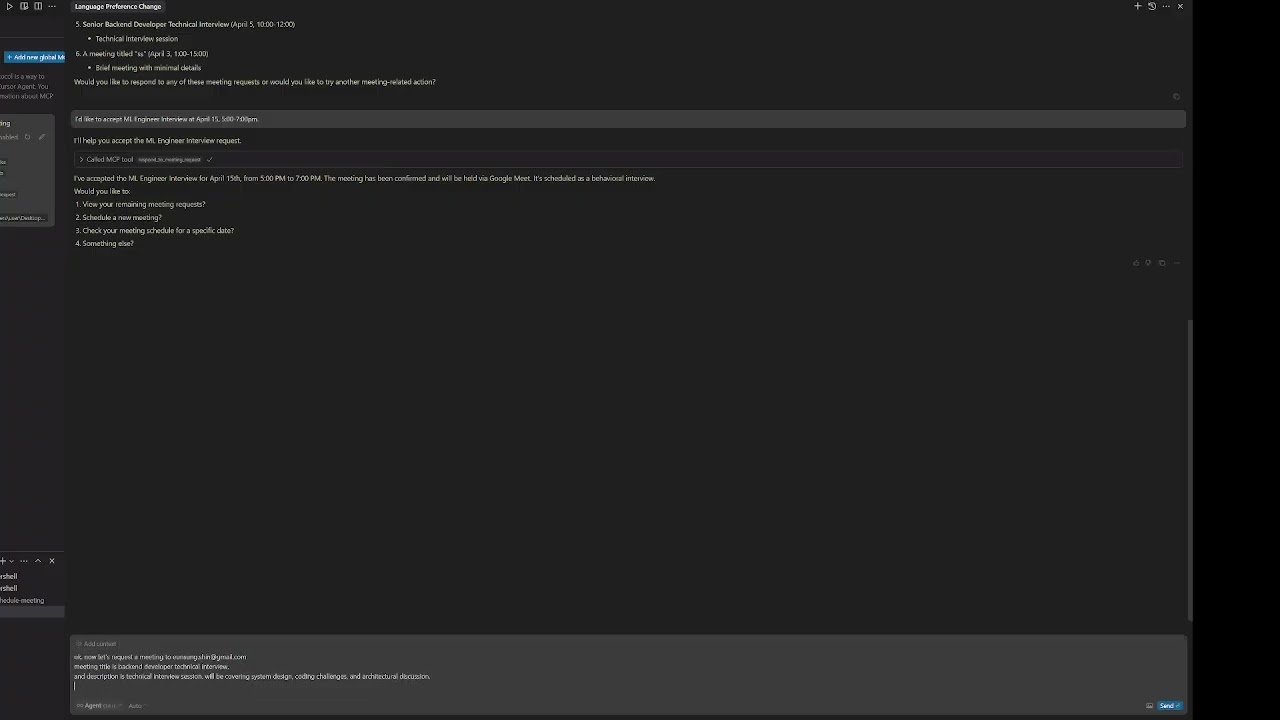
- Need help? Check out demo videos! 🎥
[](https://youtu.be/vLkg-0RX5mQ)
TDQS
Scored across 4 tools
Each tool has a clearly distinct purpose with no overlap: requesting meetings, responding to requests, viewing requests, and viewing schedules. The actions (request, respond, view) and targets (meeting_requests, meeting_schedules) are well-defined, making it easy for an agent to select the correct tool.
All tool names follow a consistent verb_noun pattern using snake_case (e.g., request_meeting, respond_to_meeting_request). The naming is predictable and readable throughout the set, with no deviations in style or convention.
With 4 tools, the count is reasonable for a scheduling/meeting domain, covering core actions like request, respond, and view. It might be slightly thin if advanced features (e.g., cancel_meeting, update_schedule) are expected, but it's well-scoped for basic functionality.
The tools cover key aspects of meeting management (requesting, responding, viewing), but there are notable gaps. For example, there's no tool to cancel or modify meetings, and no direct scheduling creation tool, which could limit agent workflows in a full meeting lifecycle.