📅 Schedulia MCP - Meeting Scheduling Assistant
Related MCP server: MCP Calendar Assistant
🚀 Getting Started
Prerequisites
✅ Git
✅ Python
✅ UV (Python Package Manager) - UV Installation Guide
⚙️ Setup Instructions
Get Your API Key
Clone Repository
git clone https://github.com/watanka/schedulia-mcp.git
cd schedulia-mcp
Run Server
uv run server.py --api-key={your-api-key} # Replace with your API key!
Configure MCP Server
{
    "mcpServers": {
        "schedulia-mcp": {
            "command": "uv",
            "args": [
                "--directory",
                "/path/to/mcp/server",
                "run",
                "server.py",
                "--api-key",
                "{your-api-key}"
            ]
        }
    }
}
Register MCP Server on your host(Claude Desktop, Cursor)
🔧 Integration Options
For Claude Desktop users: Configuration Guide
For Cursor users: Configuration Guide
🛠️ Available Tools
📊 View Meeting Schedules
view_meeting_schedules(date): Check all scheduled meetings for a specific date
Ask to see your meetings using the view_meeting_schedules tool. You can specify a date or view all schedules.
Prompt Examples:
"Please show me my meeting schedules"
"Can you check my meetings for today using view_meeting_schedules?"
"Use view_meeting_schedules to show my upcoming meetings"
Example Response:
{
    "id": 1,
    "host": {"name": "John Doe", "email": "john@example.com"},
    "participants": [
        {"name": "Alice Smith", "email": "alice@example.com"}
    ],
    "time": {
        "start_time": "2024-03-20T14:00:00",
        "end_time": "2024-03-20T15:00:00"
    },
    "title": "Project Review",
    "description": "Weekly sync meeting"
}
📬 View Meeting Requests
view_meeting_requests(): Check all incoming meeting requests
Use the view_meeting_requests tool to check any pending meeting invitations.
Prompt Examples:
"Use view_meeting_requests to show my pending invitations"
"Check my meeting requests using view_meeting_requests tool"
"Show me all meeting requests in the system"
Example Response:
{
    "request_id": 1,
    "sender": {"name": "Alice Smith", "email": "alice@example.com"},
    "receiver_email": "john@example.com",
    "available_times": [
        {
            "start_time": "2024-03-21T15:00:00",
            "end_time": "2024-03-21T16:00:00"
        }
    ],
    "status": "PENDING",
    "title": "Product Discussion"
}
✅ Respond to Meeting Request
respond_to_meeting_request(request_id, accept, selected_time): Accept or decline meeting requests
This is a two-step process using both view_meeting_requests and respond_to_meeting_request tools.
Step 1 - View Requests:
"First, use view_meeting_requests to show me pending invitations"
"Let me check the meeting requests using view_meeting_requests tool"
Step 2 - Respond:
Example Conversation:
User: "First, show me my meeting requests using view_meeting_requests"
Assistant: "Here are your pending meeting requests: [shows requests]"
User: "Great, I want to accept request ID 1 using respond_to_meeting_request for the March 21st 15:00-16:00 slot"
📨 Send Meeting Request
request_meeting(receiver_email, available_times, title, description): Create and send new meeting requests
Use the request_meeting tool to create new meeting requests. You'll need to provide receiver's email, available times, title, and description.
Prompt Examples:
"Use request_meeting to schedule a meeting with alice@example.com"
"I need to send a meeting request using request_meeting tool for tomorrow"
"Create a new meeting request with request_meeting for the team sync"
Example Request:
"Please use request_meeting to set up a meeting with following details:
- Receiver: alice@example.com
- Title: Project Kickoff
- Description: Initial project planning meeting
- Available times:
  - March 25th, 2024 14:00-15:00
  - March 26th, 2024 11:00-12:00"
Example Response:
{
    "request_id": 3,
    "sender": {"name": "John Doe", "email": "john@example.com"},
    "receiver_email": "alice@example.com",
    "available_times": [
        {
            "start_time": "2024-03-25T14:00:00",
            "end_time": "2024-03-25T15:00:00"
        },
        {
            "start_time": "2024-03-26T11:00:00",
            "end_time": "2024-03-26T12:00:00"
        }
    ],
    "status": "PENDING",
    "title": "Project Kickoff",
    "description": "Initial project planning meeting"
}
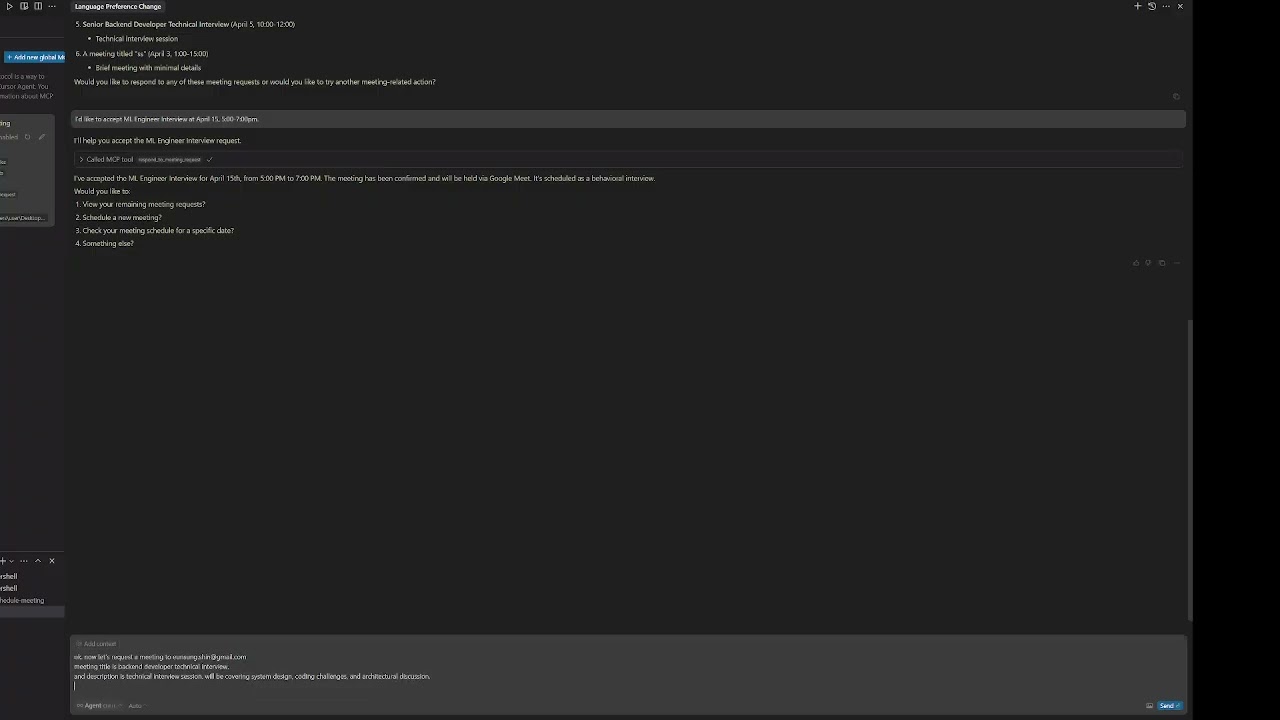
Demo