TypeScript
MIT

The interactive-mcp server facilitates interactive communication between LLMs and users via OS-level features:
Request User Input: Prompt users for information via pop-up windows, with support for predefined options, useful for clarification or confirmation
Send Notifications: Alert users when a message or task is completed
Intensive Chat: Start, manage, and end persistent command-line chat sessions for gathering sequential user input efficiently
Customizable Settings: Configure timeouts (default: 30 seconds) and disable specific tools as needed
Cross-Platform: Works across Windows, macOS, and Linux
Integration: Compatible with Claude Desktop, Cursor, VS Code, and other MCP clients
Supports running the MCP server on Linux platforms, enabling OS-level interactions like notifications and command-line prompts
Supports macOS-specific optimizations with Terminal.app profile settings for improved window management when the MCP server starts and stops
Provides a Model Context Protocol server that runs locally alongside MCP clients, with direct access to the user's operating system for notifications and interactive prompts
Click on "Deploy Server".
Wait a few minutes for the server to deploy. Once ready, it will show a "Started" state.
In the chat, type @ followed by the MCP server name and your instructions, e.g., "@interactive-mcp ask the user which programming language they prefer for this project"
That's it! The server will respond to your query, and you can continue using it as needed.
Here is a step-by-step guide with screenshots.


A MCP Server implemented in Node.js/TypeScript, facilitating interactive communication between LLMs and users. Note: This server is designed to run locally alongside the MCP client (e.g., Claude Desktop, VS Code), as it needs direct access to the user's operating system to display notifications and command-line prompts.
(Note: This project is in its early stages.)
Want a quick overview? Check out the introductory blog post: Stop Your AI Assistant From Guessing — Introducing interactive-mcp
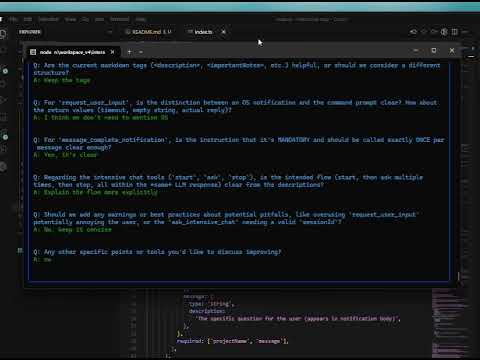
Demo Video |
|
This server exposes the following tools via the Model Context Protocol (MCP):
request_user_input: Asks the user a question and returns their answer. Can display predefined options.
message_complete_notification: Sends a simple OS notification.
start_intensive_chat: Initiates a persistent command-line chat session.
ask_intensive_chat: Asks a question within an active intensive chat session.
stop_intensive_chat: Closes an active intensive chat session.
Related MCP server: MCP Server TypeScript Template
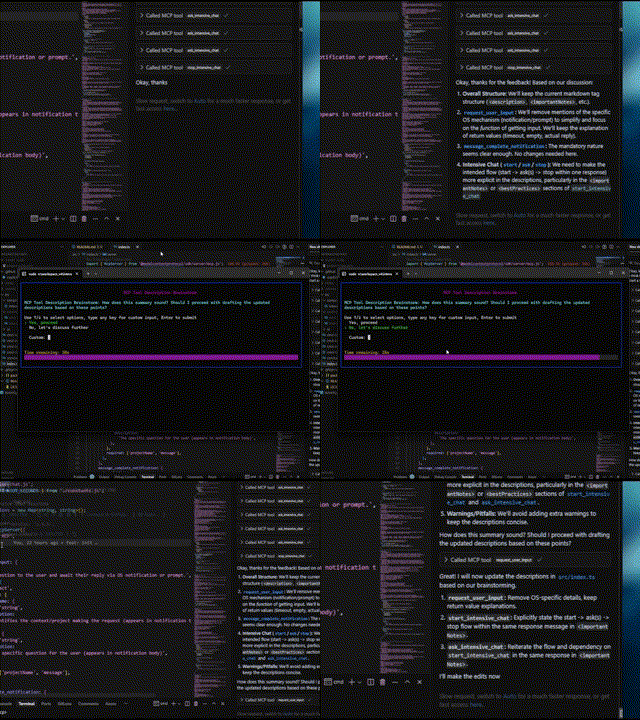
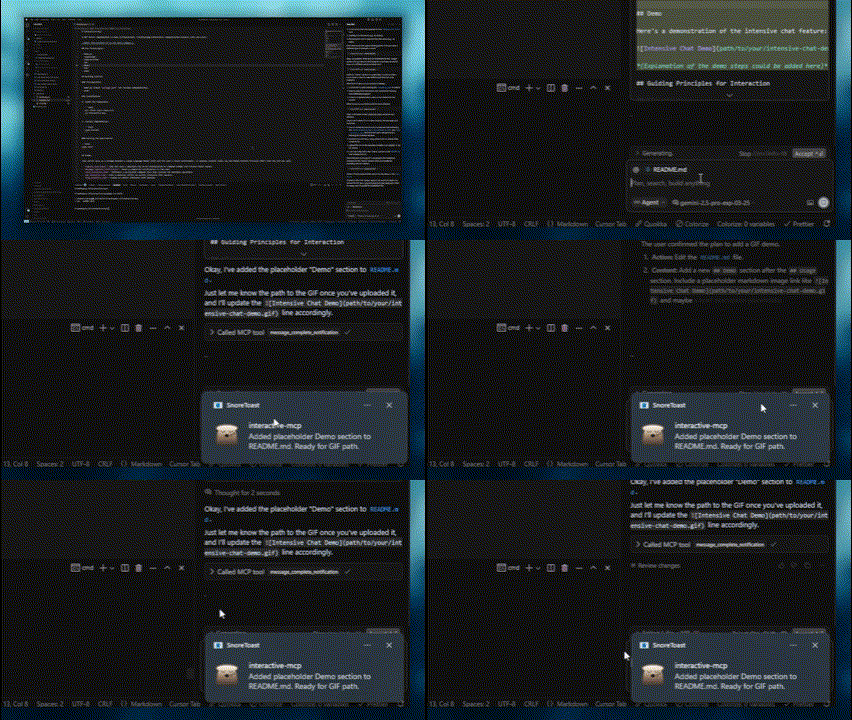
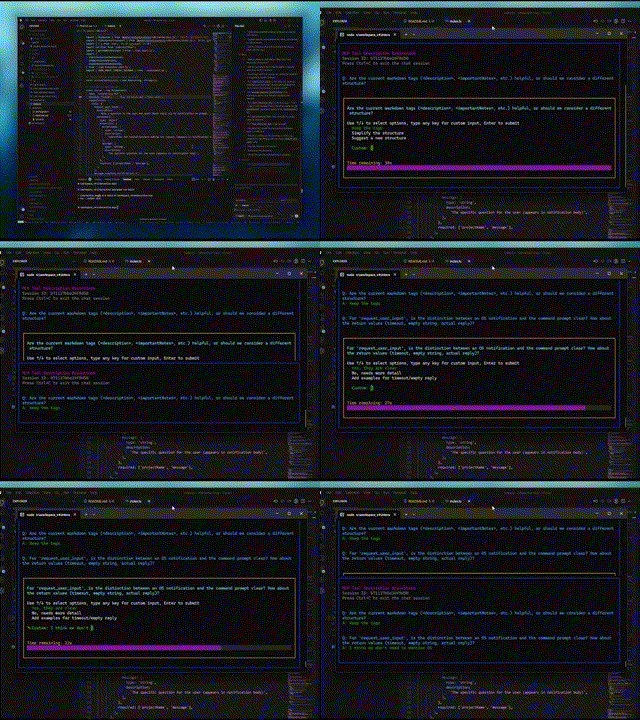
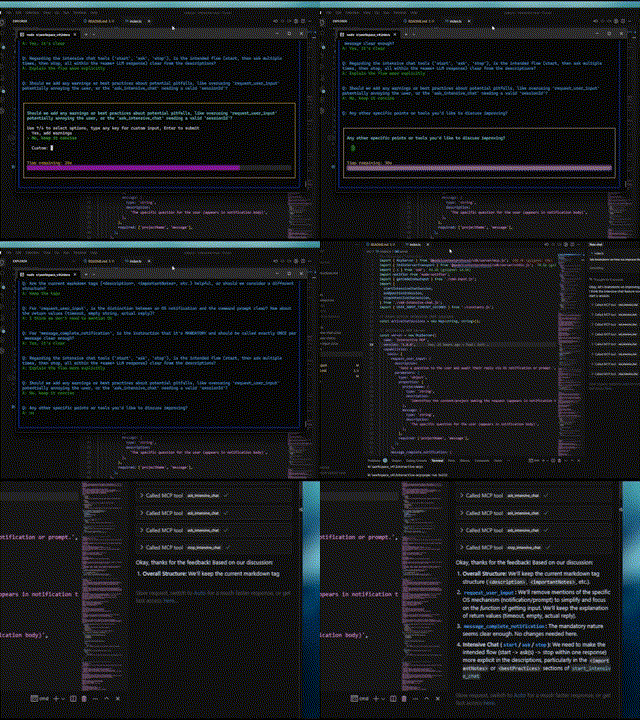
Here are demonstrations of the interactive features:
Normal Question | Completion Notification |
|
|
Intensive Chat Start | Intensive Chat End |
|
|
This server is ideal for scenarios where an LLM needs to interact directly with the user on their local machine, such as:
Interactive setup or configuration processes.
Gathering feedback during code generation or modification.
Clarifying instructions or confirming actions in pair programming.
Any workflow requiring user input or confirmation during LLM operation.
This section explains how to configure MCP clients to use the interactive-mcp server.
By default, user prompts will time out after 30 seconds. You can customize server options like timeout or disabled tools by adding command-line flags directly to the args array when configuring your client.
Please make sure you have the npx command available.
Add the following minimal configuration to your claude_desktop_config.json (Claude Desktop) or mcp.json (Cursor):
{
  "mcpServers": {
    "interactive": {
      "command": "npx",
      "args": ["-y", "interactive-mcp"]
    }
  }
}
Example with Custom Timeout (30s):
{
  "mcpServers": {
    "interactive": {
      "command": "npx",
      "args": ["-y", "interactive-mcp", "-t", "30"]
    }
  }
}Add the following minimal configuration to your User Settings (JSON) file or .vscode/mcp.json:
{
  "mcp": {
    "servers": {
      "interactive-mcp": {
        "command": "npx",
        "args": ["-y", "interactive-mcp"]
      }
    }
  }
}For a smoother experience on macOS using the default Terminal.app, consider this profile setting:
(Shell Tab): Under "When the shell exits" (Terminal > Settings > Profiles > [Your Profile] > Shell), select "Close if the shell exited cleanly" or "Close the window". This helps manage windows when the MCP server starts and stops.
This section is primarily for developers looking to modify or contribute to the server. If you just want to use the server with an MCP client, see the "Client Configuration" section above.
Node.js: Check package.json for version compatibility.
pnpm: Used for package management. Install via npm install -g pnpm after installing Node.js.
Clone the repository:
git clone https://github.com/ttommyth/interactive-mcp.git
cd interactive-mcp
Install dependencies:
pnpm installpnpm startThe interactive-mcp server accepts the following command-line options. These should typically be configured in your MCP client's JSON settings by adding them directly to the args array (see "Client Configuration" examples).
Option | Alias | Description |
|
| Sets the default timeout (in seconds) for user input prompts. Defaults to 30 seconds. |
|
| Disables specific tools or groups (comma-separated list). Prevents the server from advertising or registering them. Options: |
Example: Setting multiple options in the client config args array:
// Example combining options in client config's "args":
"args": [
  "-y", "interactive-mcp",
  "-t", "30", // Set timeout to 30 seconds
  "--disable-tools", "message_complete_notification,intensive_chat" // Disable notifications and intensive chat
]Build: pnpm build
Lint: pnpm lint
Format: pnpm format
When interacting with this MCP server (e.g., as an LLM client), please adhere to the following principles to ensure clarity and reduce unexpected changes:
Prioritize Interaction: Utilize the provided MCP tools (request_user_input, start_intensive_chat, etc.) frequently to engage with the user.
Seek Clarification: If requirements, instructions, or context are unclear, always ask clarifying questions before proceeding. Do not make assumptions.
Confirm Actions: Before performing significant actions (like modifying files, running complex commands, or making architectural decisions), confirm the plan with the user.
Provide Options: Whenever possible, present the user with predefined options through the MCP tools to facilitate quick decisions.
You can provide these instructions to an LLM client like this:
# Interaction

- Please use the interactive MCP tools
- Please provide options to interactive MCP if possible

# Reduce Unexpected Changes

- Do not make assumption.
- Ask more questions before executing, until you think the requirement is clear enough.Contributions are welcome! Please follow standard development practices. (Further details can be added later).
MIT (See LICENSE file for details - if applicable, or specify license directly).
Inputs: sessionId (required), question (required), predefinedOptions.
Inputs: projectName (required), message (required).
Inputs: projectName (required), message (required), predefinedOptions.
Inputs: sessionTitle (required).
Inputs: sessionId (required).
Recent tool additions, removals, and schema changes observed during successful MCP inspections.
Loading tool schema changelog…
Scored across 5 tools
Most tools have distinct purposes: start/stop/ask_intensive_chat form a clear lifecycle for intensive chat sessions, message_complete_notification is for signaling completion, and request_user_input is for general pop-up prompts. However, ask_intensive_chat and request_user_input both ask questions to the user, which could cause some confusion about when to use each, though their contexts differ (session-based vs. standalone).
All tool names follow a consistent snake_case pattern with clear verb_noun structure: start_intensive_chat, ask_intensive_chat, stop_intensive_chat, message_complete_notification, request_user_input. The naming is predictable and readable throughout the set.
With 5 tools, this server is well-scoped for interactive user input scenarios. It covers the core needs: starting, managing, and stopping intensive chat sessions, sending standalone user prompts, and signaling completion. Each tool has a clear role without being overly complex or insufficient.
The tool set provides complete coverage for interactive user input workflows. It supports both intensive chat sessions (with start, ask, and stop tools) and standalone user prompts, plus a notification tool for completion signaling. There are no obvious gaps; agents can handle various interactive scenarios effectively.
Remote MCP server exposing your Node Command fleet (files, shell, processes, browser) to AI hosts.
A comprehensive Model Context Protocol (MCP) server that enables AI assistants to interact with yo…
MCP server for AI dialogue using various LLM models via AceDataCloud
A TypeScript MCP server for Home Assistant, enabling programmatic management of entities, automati…