Android MCP Server






MCP server for controlling Android emulators and devices via ADB. Gives AI assistants the ability to see, interact with, and debug Android apps — taking screenshots, tapping elements, reading logs, and documenting bugs.
npm Package | GitHub | Issues
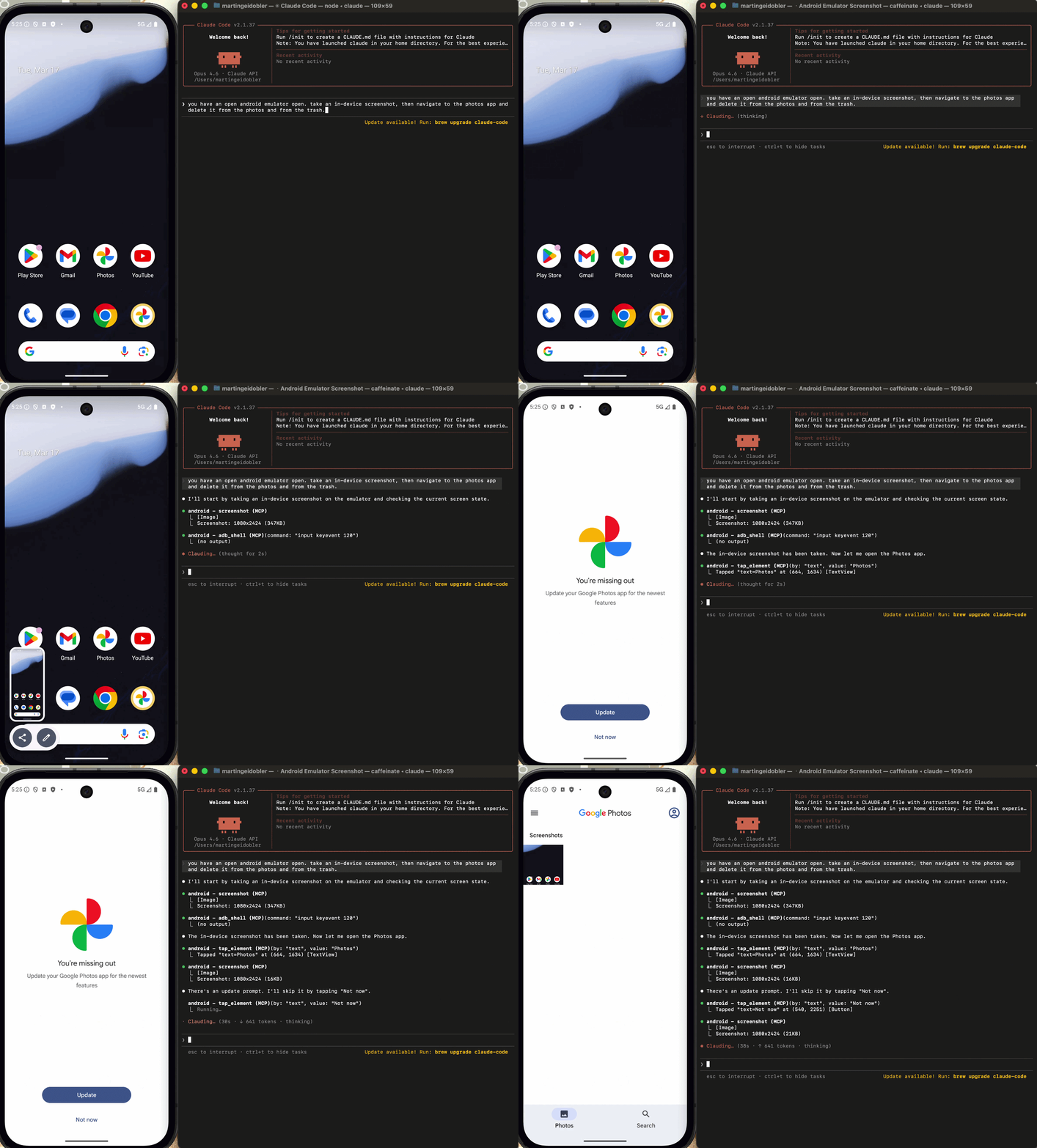 ^ Sped up for better viewing. More demos and test cases.
Features
25 tools for complete Android device control
Screenshot capture with intelligent compression (Sharp-based, max 1280px)
UI tree inspection — read element hierarchy with bounds, text, resource IDs, and state
Touch automation — tap, swipe, scroll, type text, press hardware keys
Element targeting — find and tap elements by resource-id, text, or content-desc
App lifecycle — install APKs, launch apps, inspect current activity
Logcat integration — filter by package, log level, or timestamp
Device management — list devices, start emulators, get device info
Compound actions — tap_and_wait combines tap + settle + UI tree in one round trip
Persistent ADB shell — reuses a single shell session for faster command execution
Device info caching — queries device properties once per session
Multi-device support — target specific devices by ID
Zero app modifications — works with any Android app via ADB, no SDK integration needed
Related MCP server: scrcpy-mcp
Prerequisites
Finding your ANDROID_HOME
The server auto-discovers the SDK at ~/Library/Android/sdk (macOS) or via ANDROID_HOME. If your SDK is elsewhere, set ANDROID_HOME in the MCP config (see below).
To check:
# macOS
ls ~/Library/Android/sdk/platform-tools/adb

# Or find it via Android Studio: Settings > Languages & Frameworks > Android SDK
Setup
claude mcp add --scope user android -- npx -y android-mcp-server
This registers the server globally so it's available in all projects. Use --scope project instead to limit it to the current project.
If your SDK is not in the default location:
claude mcp add --scope user --env ANDROID_HOME=/path/to/sdk android -- npx -y android-mcp-server
Add to your Claude Desktop config file:
{
  "mcpServers": {
    "android": {
      "command": "npx",
      "args": ["-y", "android-mcp-server"],
      "env": {
        "ANDROID_HOME": "/path/to/android/sdk"
      }
    }
  }
}
Add to your VS Code settings (.vscode/settings.json):
{
  "mcp": {
    "servers": {
      "android": {
        "command": "npx",
        "args": ["-y", "android-mcp-server"],
        "env": {
          "ANDROID_HOME": "/path/to/android/sdk"
        }
      }
    }
  }
}
Add to your Cursor MCP config (~/.cursor/mcp.json):
{
  "mcpServers": {
    "android": {
      "command": "npx",
      "args": ["-y", "android-mcp-server"],
      "env": {
        "ANDROID_HOME": "/path/to/android/sdk"
      }
    }
  }
}
Add to your Windsurf MCP config (~/.codeium/windsurf/mcp_config.json):
{
  "mcpServers": {
    "android": {
      "command": "npx",
      "args": ["-y", "android-mcp-server"],
      "env": {
        "ANDROID_HOME": "/path/to/android/sdk"
      }
    }
  }
}
Add to your project's .mcp.json (checked into version control so your team gets it too):
{
  "mcpServers": {
    "android": {
      "command": "npx",
      "args": ["-y", "android-mcp-server"],
      "env": {
        "ANDROID_HOME": "/path/to/android/sdk"
      }
    }
  }
}
git clone https://github.com/martingeidobler/android-mcp-server.git
cd android-mcp-server
npm install
npm run build
claude mcp add --scope user android -- node /path/to/android-mcp-server/dist/index.js
Available Tools
Device Management
Tool | Description |
list_devices
| List connected Android devices and emulators |
list_avds
| List available Android Virtual Devices |
start_emulator
| Start an AVD by name (waits up to 60s) |
Screenshot & UI Analysis
Tool | Description |
screenshot
| Take screenshot for visual analysis. Optional save_path to save to disk |
get_ui_tree
| Get UI element hierarchy with bounds, text, resource IDs, and state |
Interaction
Tool | Description |
tap
| Tap at screen coordinates |
tap_element
| Tap element by resource-id, text, or content-desc |
tap_and_wait
| Tap element, wait for UI to settle, return new UI tree — single round trip |
long_press
| Long press at coordinates (context menus, drag handles) |
double_tap
| Double tap at coordinates |
multi_tap
| Tap the same coordinates N times with a fixed interval (spam tapping) |
tap_sequence
| Multi-step action chain: taps, waits, text input, key presses, swipes in any order |
type_text
| Type text into focused input |
press_key
| Press key (back, home, enter, tab, delete, menu, etc.) |
swipe
| Swipe gesture between coordinates |
scroll_to_element
| Scroll until element is visible |
wait_for_element
| Wait for element to appear (with timeout) |
Diagnostics
Tool | Description |
get_logs
| Get logcat output, filterable by package, log level, and time |
clear_logs
| Clear logcat buffer (call before reproducing a bug for clean output) |
get_device_info
| Get model, Android version, API level, screen size, DPI |
App Management
Tool | Description |
launch_app
| Launch app by package name |
install_apk
| Install APK file |
get_current_activity
| Get foreground app and activity |
pull_file
| Pull a file from the device to local filesystem |
adb_shell
| Run arbitrary ADB shell command |
Example Workflows
Bug documentation
"Clear the logs, open the settings screen, tap the save button, then show me the logs and a screenshot"
Claude will: clear_logs → launch_app → tap_element → get_logs(package_name="com.example.app", level="E") → screenshot(save_path="./bugs/settings-crash.png")
UI testing
"Navigate through the login flow and verify each screen matches the designs"
Claude will use screenshot + get_ui_tree to see and understand each screen, tap_element/type_text to interact, and its vision capabilities to compare against mockups or descriptions.
Smoke testing
"Install the APK, launch the app, and tap through the main screens to check nothing crashes"
Claude will: install_apk → launch_app → navigate with tap_element → get_logs(level="E") to check for errors after each screen.
Element interaction
"Open Settings, search for 'display', tap the first result, then go back"
Claude will: launch_app(package_name="com.android.settings") → tap_and_wait(by="text", value="Search settings") → type_text("display") → tap_and_wait(by="text", value="Display") → press_key(key="back")
Demos & Prompting Guide
DEMOS.md — copy-paste prompt scenarios you can try right now
PROMPTING.md — best practices, performance tips, and common pitfalls
How It Works
The server communicates over stdio using the Model Context Protocol. All device interaction goes through ADB — no modifications to your app are required. Screenshots are captured in memory, compressed, and returned as base64 images that the AI can see and analyze visually.
Contributing
Contributions are welcome! Please see CONTRIBUTING.md for guidelines.
License
MIT - see LICENSE.
