

MIT

MCP-Gateway
by trtyr
MCP 网关
English |简体中文
执照
该项目根据 GNU 通用公共许可证 v3.0 获得许可 - 有关更多详细信息,请参阅LICENSE文件。
Related MCP server: Maya MCP
项目概述
MCP 网关是一个使用 Python 构建的应用程序。它充当中央网关,连接并聚合来自多个后端 MCP 服务器的功能(无论它们通过 Stdio 还是 SSE 协议通信)。最终,它通过统一的SSE端点 ( /sse ) 将这些聚合的功能暴露给上游 MCP 客户端。
核心优势:
简化的客户端配置: MCP 客户端只需连接到 MCP 网关的单一地址即可访问所有后端服务的功能,无需单独配置每个后端服务器。
**能力聚合与编排:**聚合来自不同来源的具有多种功能的 MCP 工具,为构建更强大、专注于特定任务领域的定制代理提供基础。
项目文件结构
.
├── config.json                     # Core configuration file: Defines the backend MCP servers to connect to and manage.
├── main.py                         # Program entry point: Parses command-line arguments, sets up logging, and starts the web server.
├── bridge_app.py                   # Starlette application core: Handles forwarding of MCP requests and SSE connection management.
├── client_manager.py               # Client manager: Responsible for establishing and maintaining connection sessions with backend MCP servers.
├── capability_registry.py          # Capability registry: Dynamically discovers, registers, and manages capabilities provided by all backend MCP servers.
├── config_loader.py                # Configuration loader: Responsible for loading and strictly validating the format and content of the `config.json` file.
├── errors.py                       # Custom exceptions: Defines project-specific error types, such as configuration errors and backend server errors.
├── rich_handler.py                 # Rich logging handler: Provides beautified, structured console log output.
├── servers/                        # Contains built-in/example backend MCP server scripts.
│   ├── bash_server.py              # <-- Built-in Bash command execution tool (Linux/macOS/WSL)
│   ├── cmd_server.py               # <-- Built-in Windows CMD command execution tool (Windows Only)
│   ├── powershell_server.py        # <-- Built-in Windows PowerShell command execution tool (Windows Only)
│   └── wmi_server.py               # <-- Built-in Windows WMI query tool (Windows Only)
└── logs/                           # Log directory: Stores runtime log files (created automatically).
内置 MCP 服务器
该项目附带四个后端 MCP 服务器工具,可直接使用并在config.json中启用,无需额外配置:
Bash 命令执行工具(
bash_server.py) :在 Linux、macOS 或 WSL 环境中执行 Bash 命令。Windows CMD 命令执行工具(
cmd_server.py) :在 Windows 环境中执行 CMD 命令。Windows PowerShell 命令执行工具(
powershell_server.py) :在 Windows 环境中执行 PowerShell 命令。Windows WMI 查询工具(
wmi_server.py) :在 Windows 环境中执行 WMI 查询。
如果你在Linux环境下遇到如下错误:
error: Distribution `pywin32==310 @ registry+https://pypi.org/simple` can't be installed because it doesn't have a source distribution or wheel for the current platform>请卸载
wmi模块:uv remove wmi
安装和设置
本项目使用 Python 编写。建议使用uv进行环境和依赖管理。
克隆存储库
git clone https://github.com/trtyr/MCP-Gateway.git
cd MCP-Gateway
创建并激活虚拟环境
# Create virtual environment
uv venv

# Activate virtual environment
# Linux/macOS
source .venv/bin/activate
# Windows (Command Prompt/PowerShell)
.venv\Scripts\activate
安装依赖项
# Install all required dependencies based on pyproject.toml
uv sync
完成这些步骤后,项目就可以运行了。
快速入门
获取项目帮助
您可以使用-h或--help参数查看所有可用的启动选项:
# Windows
uv run python .\main.py -h
# Linux/macOS
uv run python ./main.py -h
输出将类似于此:
usage: main.py [-h] [--host HOST] [--port PORT] [--log-level {debug,info,warning,error,critical}]

Start MCP_Bridge_Server v3.0.0

options:
  -h, --help            show this help message and exit
  --host HOST           Host address (default: 0.0.0.0)
  --port PORT           Port (default: 9000)
  --log-level {debug,info,warning,error,critical}
                        Set file logging level (default: info)
启动项目
使用uv run python main.py启动服务器。您可以指定host 、 port和log-level :
# Listen on all network interfaces on port 9000, set log level to debug
uv run python .\main.py --host 0.0.0.0 --port 9000 --log-level debug
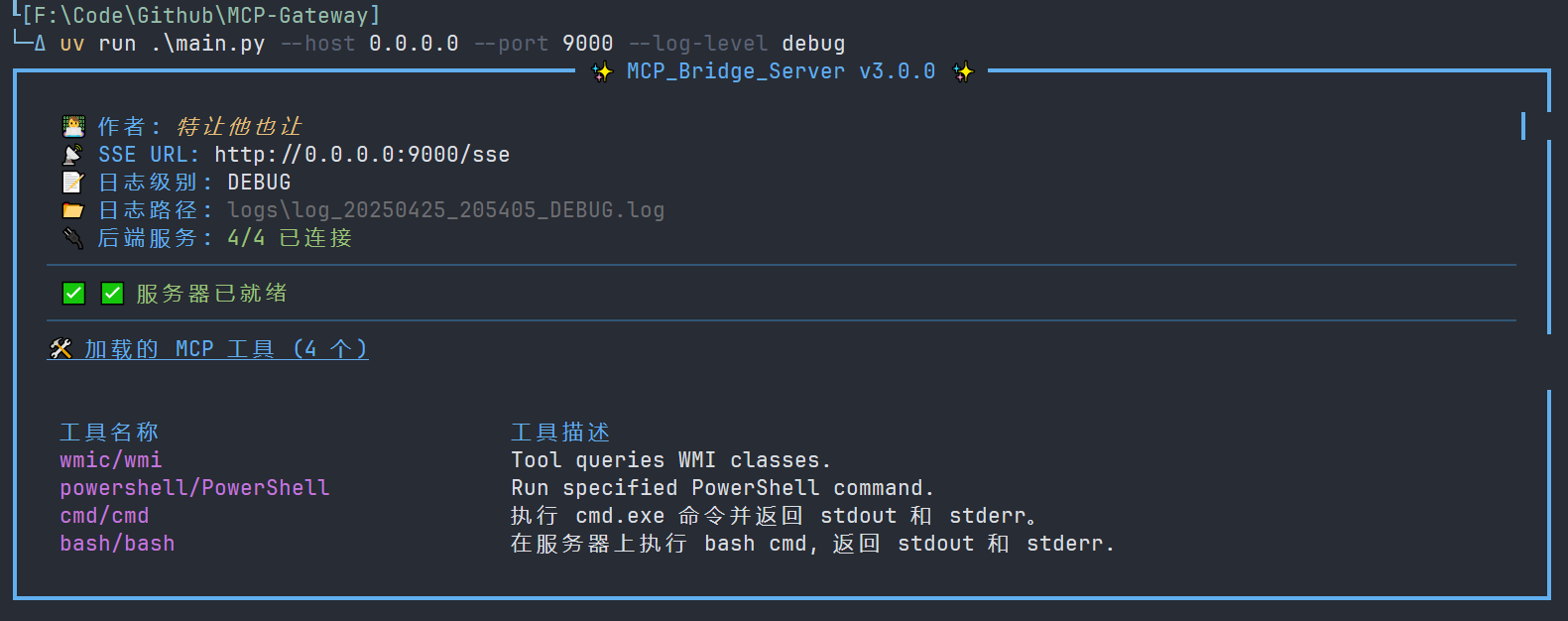
启动后,你会看到类似下图的丰富美化的控制台输出,显示了服务器状态、连接信息以及加载的工具:
MCP 客户端连接
启动 MCP 网关后,您可以使用任何与 MCP 兼容的客户端(例如 Cline、Cursor、Claude Desktop 或自定义客户端)连接到网关提供的 SSE 端点。
默认地址是http://<Server_IP_Address>:9000/sse (如果使用默认端口)。
示例(使用 ChatWise Connect):
选择
SSE连接类型。输入网关的 SSE URL(例如,
http://127.0.0.1:9000/sse)。单击
Connect。
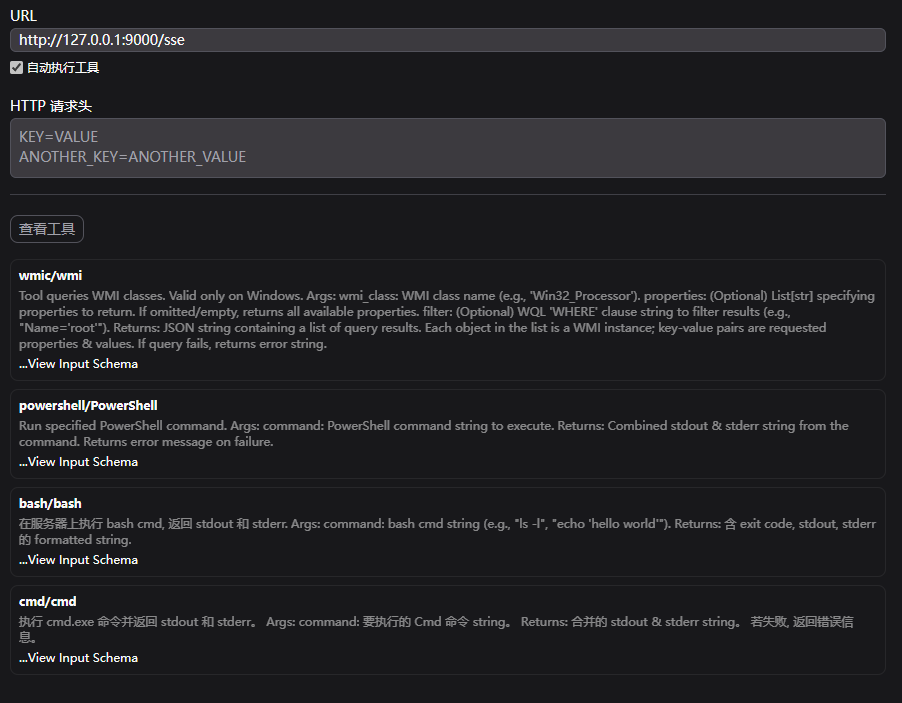
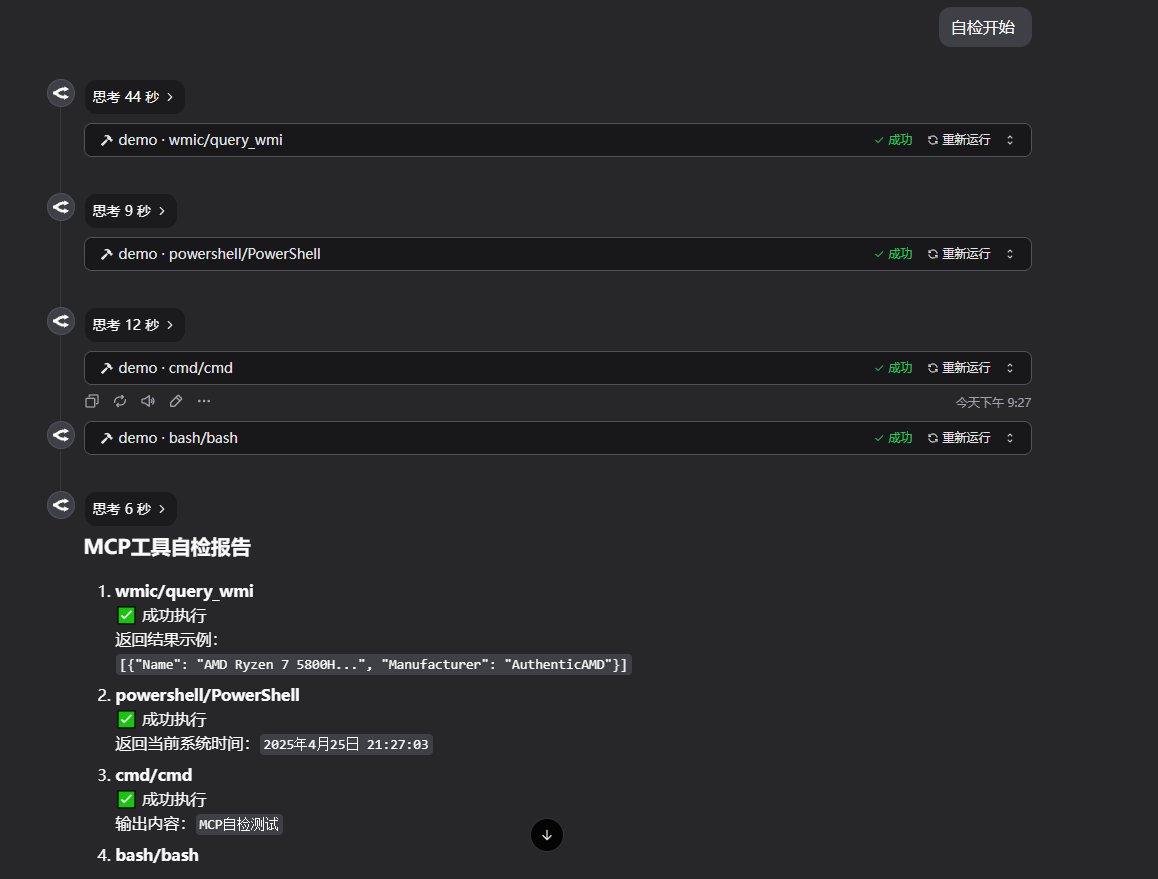
连接成功后,您可以在客户端看到通过 Gateway 聚合的所有后端 MCP 工具:
日志
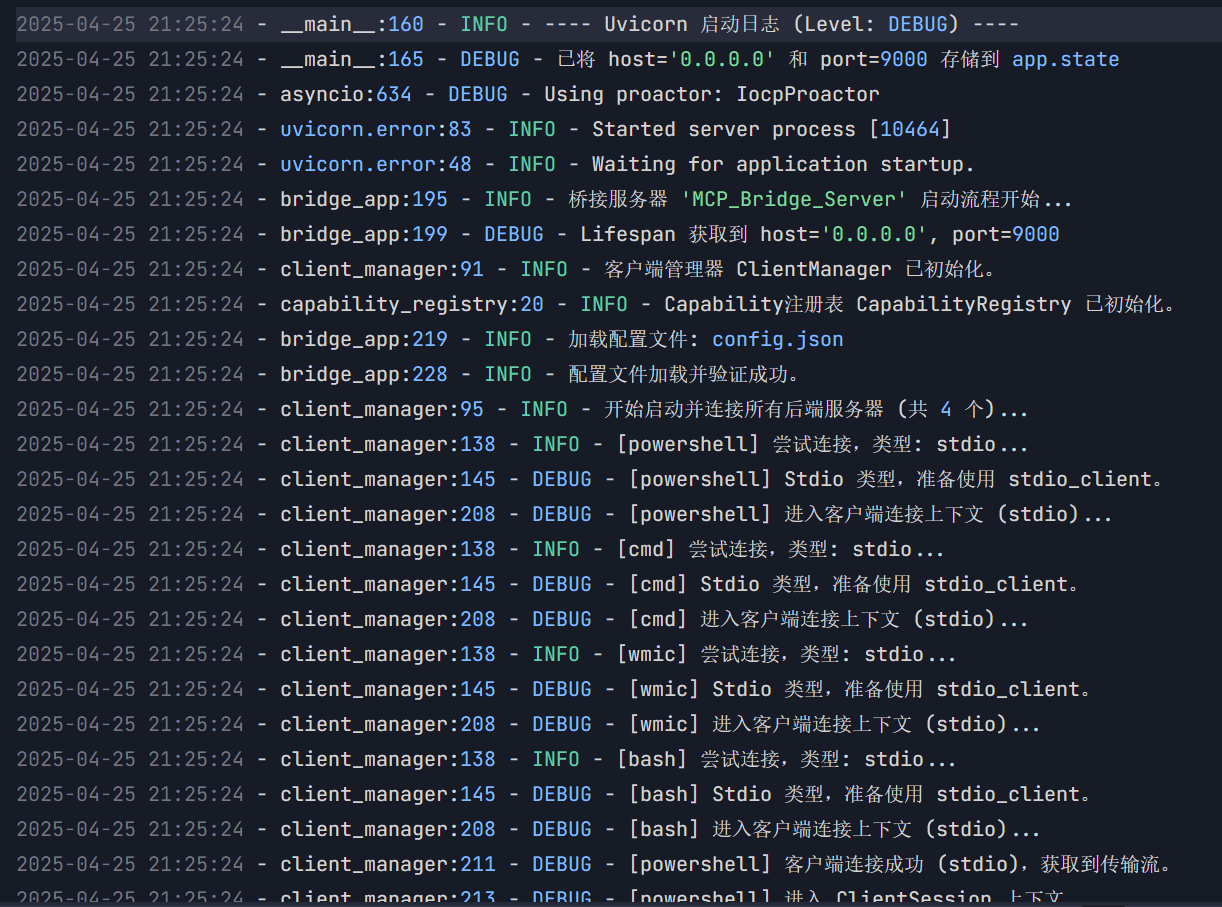
运行时日志会自动保存在项目根目录下的logs文件夹中。日志文件名包含时间戳和日志级别,方便您追踪问题。
logs/
├── log_20240801_103000_INFO.log
└── log_20240801_110000_DEBUG.log
...
配置文件( config.json )
核心配置文件config.json位于项目根目录,它定义了 MCP 网关需要连接和管理的后端 MCP 服务器。
每个条目代表一个后端服务器。键是你分配给该后端服务器的唯一名称(此名称将用作其功能的前缀),值是一个包含服务器配置的对象。
支持两种类型的后端服务器连接:
stdio:通过标准输入/输出(stdin/stdout)与本地启动的 MCP 服务器进程进行通信。sse:通过服务器发送事件 (SSE) 协议与远程或本地运行的 MCP 服务器通信。
Stdio 类型配置
适用于生命周期需要由网关管理的本地 MCP 服务器进程。
配置字段:
type(必需):必须是"stdio"。command(必需):用于启动服务器进程的可执行命令(例如,python、uv、node或脚本/可执行文件的绝对路径)。args(必需):传递给command参数列表(字符串列表)。env(可选):为子进程设置的环境变量字典(Dict[str, str])。如果省略,子进程将继承网关的环境变量。
例子:
{
  "powershell": {
    "type": "stdio",
    "command": "python",
    "args": ["servers/powershell_server.py"]
  },
  "my_custom_tool": {
    "type": "stdio",
    "command": "/path/to/my/custom_mcp_server",
    "args": ["--port", "ignored_for_stdio", "--some-flag"],
    "env": {
      "API_KEY": "your_secret_key"
    }
  }
}
工作原理: MCP 网关启动时,会使用指定的command和args (以及可选的env )启动一个子进程。网关通过此子进程的标准输入和输出与后端 MCP 服务器通信。网关关闭时,会尝试终止这些子进程。
SSE类型配置
适用于连接已经运行的 MCP 服务器(本地或远程),或者网关在连接之前需要启动本地 SSE 服务器进程的情况。
配置字段:
type(必需):必须是"sse"。url(必需):后端 MCP 服务器的 SSE 端点 URL(完整的 HTTP/HTTPS 地址)。command(可选):如果指定,网关将在启动时运行此命令以启动本地 SSE 服务器。args(可选,仅在指定command时):传递给command的参数列表。env(可选,仅在指定command时):为本地启动的子进程设置的环境变量。
示例 1:连接到已运行的远程 SSE 服务器
{
  "remote_search_service": {
    "type": "sse",
    "url": "https://mcp.example.com/search/sse"
  }
}
示例 2:网关启动本地 SSE 服务器并连接
{
  "local_sse_server": {
    "type": "sse",
    "url": "http://127.0.0.1:8080/sse",
    "command": "uv",
    "args": ["run", "python", "servers/my_local_sse_app.py", "--port", "8080"],
    "env": { "MODE": "production" }
  }
}
工作原理:
仅提供
url:网关直接尝试连接到指定的url。url、command、argsprovided :网关首先使用command和args启动一个本地进程(期望此进程监听与url对应的地址和端口)。然后,它会等待一小段时间(在client_manager.py中定义的LOCAL_SSE_STARTUP_DELAY),然后再尝试连接到url。当网关关闭时,它会尝试终止此本地进程。
配置添加示例
以下是如何将第三方 MCP 服务器添加到config.json示例。
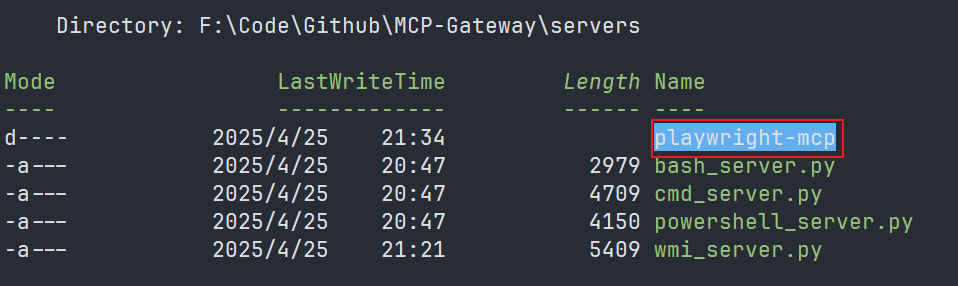
Stdio 示例:Playwright MCP
假设您想要集成 Playwright 的 MCP 服务器( @playwright/mcp )。
了解启动方法:Playwright MCP 通常使用
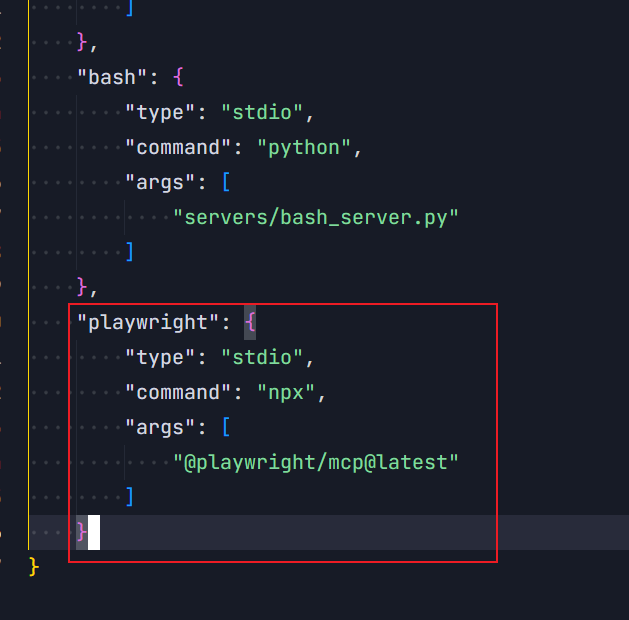
npx @playwright/mcp@latest启动。这是一个通过npx执行的 Node.js 包。配置
config.json:{ // ... other server configurations ... "playwright": { "type": "stdio", "command": "npx", "args": ["@playwright/mcp@latest"] } // ... other server configurations ... }这里,
command是npx,args包含 Playwright MCP 包名称和版本。重启网关:保存
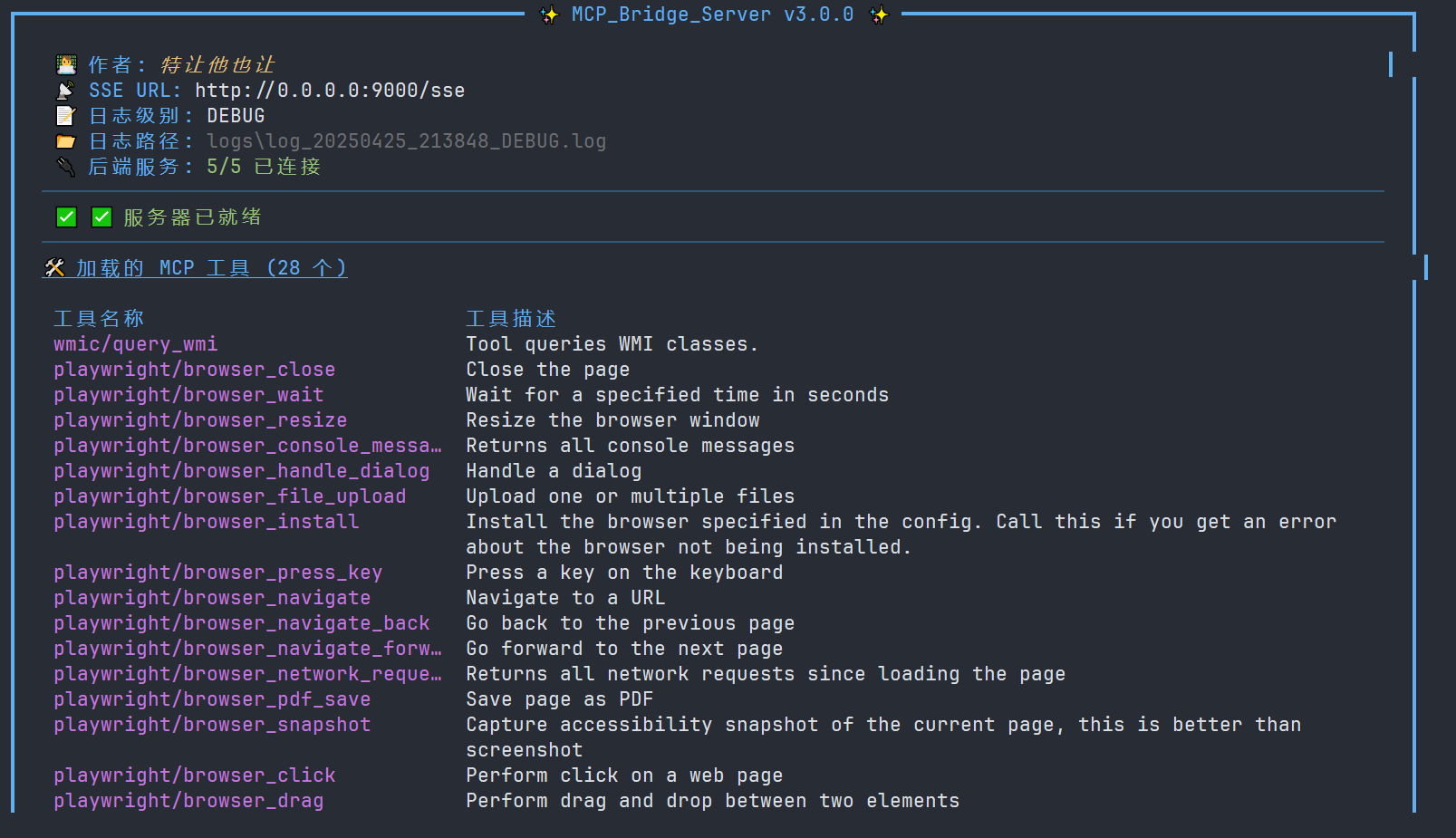
config.json并重启 MCP 网关。
启动后,您应该在控制台日志和客户端中看到名为playwright/... (例如playwright/browse )的工具。
SSE 示例:ENScan_GO(本地启动)
假设您想要集成 ENScan_GO,这是一个可以使用./enscan --mcp启动并在http://localhost:8080提供 SSE 服务的 Go 程序。
获取可执行文件:下载 ENScan_GO 可执行文件(例如,
enscan-v1.2.1-windows-amd64.exe)并将其放在可访问的位置(例如,servers/目录或系统 PATH)。配置
config.json:{ // ... other server configurations ... "enscan": { "type": "sse", "url": "http://127.0.0.1:8080/sse", // Address ENScan_GO listens on // Note: Ensure path separators are correct on Windows, or use an absolute path "command": "servers/enscan-v1.2.1-windows-amd64.exe", // Path to the executable "args": ["--mcp"] // Startup arguments } // ... other server configurations ... }在这里,我们将
type指定为sse,提供它监听的url,并使用command和args来告诉网关如何启动这个本地 SSE 服务器。重启网关:保存
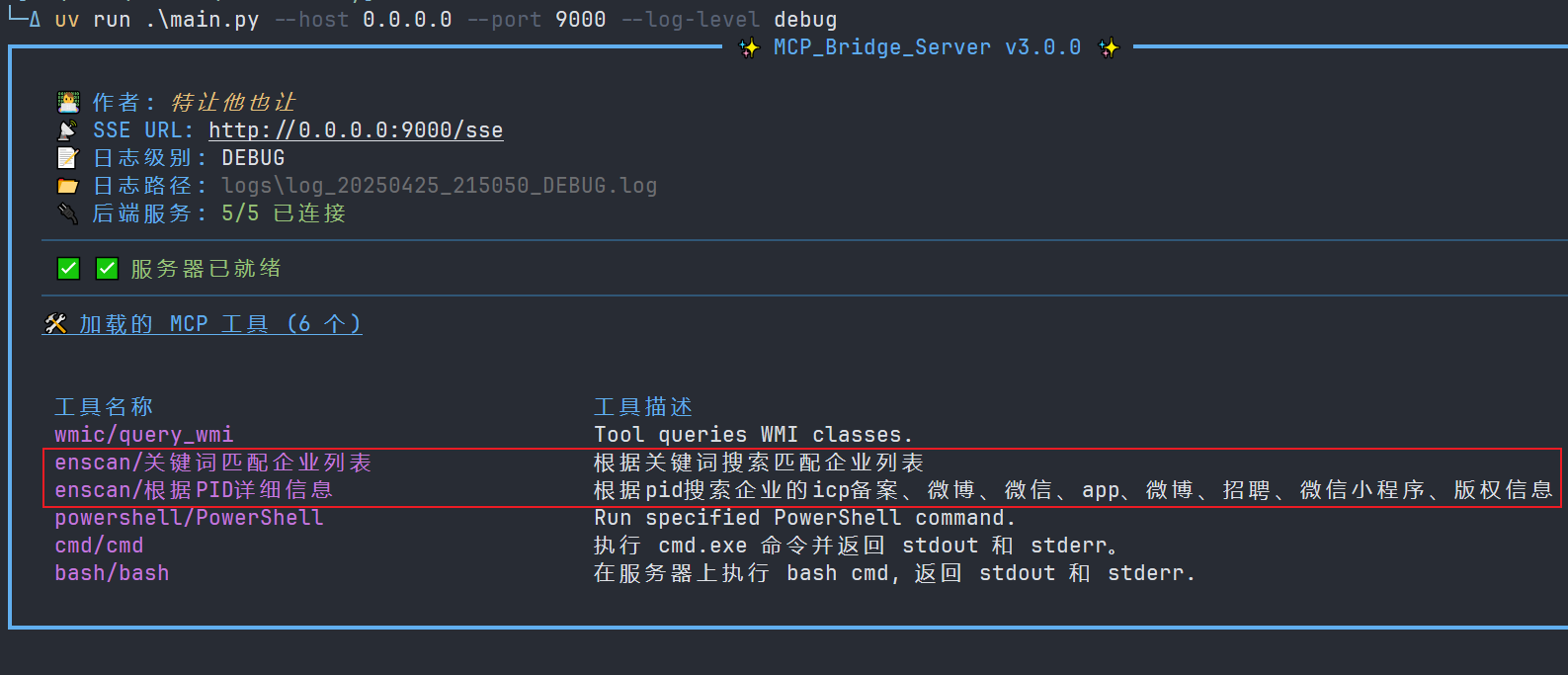
config.json并重启 MCP 网关。
网关将首先启动 ENScan_GO 进程,然后连接到http://127.0.0.1:8080/sse 。启动后,您应该看到名为enscan/...的工具。
Tool Schema Changelog
Recent tool additions, removals, and schema changes observed during successful MCP inspections. Dates show when Glama detected each change.
No tool schema history has been recorded yet.
Related MCP Connectors
MCP Server for an Agent Task Marketplace
Self-hosted MCP gateway: turn any API, database or MCP server into AI connectors — no code.
Related MCP Servers
- AlicenseNot gradedqualityDmaintenanceModel Context Protocol (MCP) server implementation for Autodesk Maya99MIT
- -
- AlicenseBqualityBmaintenanceMCP server that enables AI agents to perform comprehensive web audits using Google Lighthouse with 13+ tools for performance, accessibility, SEO, and security analysis.111,18667MIT
Latest Blog Posts
- Who's Calling? MCP Hosts Are an Identity Blind Spot (And the Spec Knows It)By Om-Shree-0709 on .mcpAgent IdentityOAuth 2.1
- Your AI Chatbot Just Exposed Your CEO's Salary to an InternBy Om-Shree-0709 on .Agent IdentityMCP SecurityOAuth Delegation
- Why MCP Servers Need Execution Sandboxing (And Why Your Current Stack Isn't Enough)By Om-Shree-0709 on .Agentic AiPrompt InjectionWebAssembly
MCP directory API
We provide all the information about MCP servers via our MCP API.
curl -X GET 'https://glama.ai/api/mcp/v1/servers/trtyr/MCP-Gateway'
If you have feedback or need assistance with the MCP directory API, please join our Discord server