
cognee-mcp
<div align="center">
<a href="https://github.com/topoteretes/cognee">
<img src="https://raw.githubusercontent.com/topoteretes/cognee/refs/heads/dev/assets/cognee-logo-transparent.png" alt="Cognee Logo" height="60">
</a>
<br />
cognee‑mcp - Run cognee’s memory engine as a Model Context Protocol server
<p align="center">
<a href="https://www.youtube.com/watch?v=1bezuvLwJmw&t=2s">Demo</a>
.
<a href="https://cognee.ai">Learn more</a>
·
<a href="https://discord.gg/NQPKmU5CCg">Join Discord</a>
·
<a href="https://www.reddit.com/r/AIMemory/">Join r/AIMemory</a>
</p>
[](https://GitHub.com/topoteretes/cognee/network/)
[](https://GitHub.com/topoteretes/cognee/stargazers/)
[](https://GitHub.com/topoteretes/cognee/commit/)
[](https://github.com/topoteretes/cognee/tags/)
[](https://pepy.tech/project/cognee)
[](https://github.com/topoteretes/cognee/blob/main/LICENSE)
[](https://github.com/topoteretes/cognee/graphs/contributors)
<a href="https://www.producthunt.com/posts/cognee?embed=true&utm_source=badge-top-post-badge&utm_medium=badge&utm_souce=badge-cognee" target="_blank"><img src="https://api.producthunt.com/widgets/embed-image/v1/top-post-badge.svg?post_id=946346&theme=light&period=daily&t=1744472480704" alt="cognee - Memory for AI Agents  in 5 lines of code | Product Hunt" style="width: 250px; height: 54px;" width="250" height="54" /></a>
<a href="https://trendshift.io/repositories/13955" target="_blank"><img src="https://trendshift.io/api/badge/repositories/13955" alt="topoteretes%2Fcognee | Trendshift" style="width: 250px; height: 55px;" width="250" height="55"/></a>
Build memory for Agents and query from any client that speaks MCP – in your terminal or IDE.
</div>
## ✨ Features
- Multiple transports – choose Streamable HTTP --transport http (recommended for web deployments), SSE --transport sse (real‑time streaming), or stdio (classic pipe, default)
- **Cloud Mode** – connect to [Cognee Cloud](https://www.cognee.ai) via `--serve-url` or `COGNEE_SERVICE_URL` env var (see [Connection Modes](#-connection-modes))
- **API Mode** – connect to an already running Cognee FastAPI server (see [Connection Modes](#-connection-modes))
- **Minimal Memory API** – exposes only `remember`, `recall`, and `forget` for agent memory workflows
- Integrated logging – all actions written to a rotating file (see get_log_file_location()) and mirrored to console in dev
- Session-aware memory – store fast session cache entries or permanent graph memory through one `remember` tool
- Focused recall – query memory through one `recall` tool with optional session and search controls
- **Code graph search** – inspect indexed symbols, dependencies, architecture, and change impact with `code_search`
- Simple deletion – remove one data item, a dataset, or all owned memory through one `forget` tool
Please refer to our documentation [here](https://docs.cognee.ai/how-to-guides/deployment/mcp) for further information.
### Code graph search
Use `code_search` for deterministic queries against an indexed code dataset. Select an operation and pass its operation-specific filters in `arguments`:
```json
{
"operation": "query_facts",
"arguments": {"kinds": ["module", "symbol"], "limit": 100},
"datasets": "sample-code-dataset"
}
```
Supported operations are `query_facts`, `explore`, `traverse`, `find_path`, `impact_analysis`, `insights`, `architecture` and `delta`, plus the navigation operations `capabilities`, `search`, `neighbors`, `subgraph`, `flows`, `hubs` and `ask`. `search` and `ask` take a question in plain words as `query`.
## 🚀 Quick Start
1. Clone cognee repo
```
git clone https://github.com/topoteretes/cognee.git
```
2. Navigate to cognee-mcp subdirectory
```
cd cognee/cognee-mcp
```
3. Install uv if you don't have one
```
pip install uv
```
4. Install all the dependencies you need for cognee mcp server with uv
```
uv sync --dev --all-extras --reinstall
```
5. Activate the virtual environment in cognee mcp directory
```
source .venv/bin/activate
```
6. Set up your OpenAI API key in .env for a quick setup with the default cognee configurations
```
LLM_API_KEY="YOUR_OPENAI_API_KEY"
```
7. Run cognee mcp server with stdio (default)
```
python src/server.py
```
or stream responses over SSE
```
python src/server.py --transport sse
```
or run with Streamable HTTP transport (recommended for web deployments)
```
python src/server.py --transport http --host 127.0.0.1 --port 8000 --path /mcp
```
You can do more advanced configurations by creating .env file using our <a href="https://github.com/topoteretes/cognee/blob/main/.env.template">template.</a>
To use different LLM providers / database configurations, and for more info check out our <a href="https://docs.cognee.ai">documentation</a>.
> **No API key?** If your MCP host grants the `sampling` capability, `LLM_PROVIDER="mcp-sampling"`
> delegates completions to the host's own model, so no `LLM_API_KEY` is needed (embeddings still
> need a provider). Host support varies — as of early 2026 Claude Code does not yet grant sampling
> ([anthropics/claude-code#1785](https://github.com/anthropics/claude-code/issues/1785)). See the
> "MCP sampling" section of the .env template.
## 🐳 Docker Usage
If you'd rather run cognee-mcp in a container, you have two options:
1. **Build locally**
1. Make sure you are in /cognee root directory and have a fresh `.env` containing only your `LLM_API_KEY` (and your chosen settings).
2. Remove any old image and rebuild:
```bash
docker rmi cognee/cognee-mcp:main || true
docker build --no-cache -f cognee-mcp/Dockerfile -t cognee/cognee-mcp:main .
```
3. Run it:
```bash
# For HTTP transport (recommended for web deployments)
docker run -e TRANSPORT_MODE=http --env-file ./.env -p 8000:8000 --rm -it cognee/cognee-mcp:main
# For SSE transport
docker run -e TRANSPORT_MODE=sse --env-file ./.env -p 8000:8000 --rm -it cognee/cognee-mcp:main
# For stdio transport (default)
docker run -e TRANSPORT_MODE=stdio --env-file ./.env --rm -it cognee/cognee-mcp:main
```
**Installing optional dependencies at runtime:**
You can install optional dependencies when running the container by setting the `EXTRAS` environment variable:
```bash
# Install a single optional dependency group at runtime
docker run \
-e TRANSPORT_MODE=http \
-e EXTRAS=aws \
--env-file ./.env \
-p 8000:8000 \
--rm -it cognee/cognee-mcp:main
# Install multiple optional dependency groups at runtime (comma-separated)
docker run \
-e TRANSPORT_MODE=sse \
-e EXTRAS=aws,postgres,neo4j \
--env-file ./.env \
-p 8000:8000 \
--rm -it cognee/cognee-mcp:main
```
**Available optional dependency groups:**
- `aws` - S3 storage support
- `postgres` / `postgres-binary` - PostgreSQL database support
- `neo4j` - Neo4j graph database support
- `neptune` - AWS Neptune support
- `turso` - Turso vector/graph store support
- `scraping` - Web scraping capabilities
- `langchain` - LangChain integration
- `llama-index` - LlamaIndex integration
- `anthropic` - Anthropic models
- `groq` - Groq models
- `mistral` - Mistral models
- `ollama` / `huggingface` - Local model support
- `docs` - Document processing
- `tracing` - OpenTelemetry tracing
- `redis` - Redis support
- And more (see [pyproject.toml](https://github.com/topoteretes/cognee/blob/main/pyproject.toml) for full list)
2. **Pull from Docker Hub** (no build required):
The image is published to Docker Hub on every push to `main`. If you have **not** cloned the
repo, create the `.env` file the run commands expect first — it needs at least your LLM key:
```bash
# Pull the prebuilt image
docker pull cognee/cognee-mcp:main
# Create a minimal .env in the current directory (no repo checkout required)
echo 'LLM_API_KEY="YOUR_OPENAI_API_KEY"' > .env
```
```bash
# With HTTP transport (recommended for web deployments)
docker run -e TRANSPORT_MODE=http --env-file ./.env -p 8000:8000 --rm -it cognee/cognee-mcp:main
# With SSE transport
docker run -e TRANSPORT_MODE=sse --env-file ./.env -p 8000:8000 --rm -it cognee/cognee-mcp:main
# With stdio transport (default)
docker run -e TRANSPORT_MODE=stdio --env-file ./.env --rm -it cognee/cognee-mcp:main
```
**With runtime installation of optional dependencies:**
```bash
# Install optional dependencies from Docker Hub image
docker run \
-e TRANSPORT_MODE=http \
-e EXTRAS=aws,postgres \
--env-file ./.env \
-p 8000:8000 \
--rm -it cognee/cognee-mcp:main
```
### **Important: Docker vs Direct Usage**
**Docker uses environment variables**, not command line arguments:
- ✅ Docker: `-e TRANSPORT_MODE=http`
- ❌ Docker: `--transport http` (won't work)
**Direct Python usage** uses command line arguments:
- ✅ Direct: `python src/server.py --transport http`
- ❌ Direct: `-e TRANSPORT_MODE=http` (won't work)
### **Docker API Mode**
To connect the MCP Docker container to a Cognee API server running on your host machine:
#### **Simple Usage (Automatic localhost handling):**
```bash
# Start your Cognee API server on the host
python -m cognee.api.client
# Run MCP container in API mode - localhost is automatically converted!
docker run \
-e TRANSPORT_MODE=sse \
-e API_URL=http://localhost:8000 \
-e API_TOKEN=your_auth_token \
-p 8001:8000 \
--rm -it cognee/cognee-mcp:main
```
**Note:** The container will automatically convert `localhost` to `host.docker.internal` on Mac/Windows/Docker Desktop. You'll see a message in the logs showing the conversion.
#### **Explicit host.docker.internal (Mac/Windows):**
```bash
# Or explicitly use host.docker.internal
docker run \
-e TRANSPORT_MODE=sse \
-e API_URL=http://host.docker.internal:8000 \
-e API_TOKEN=your_auth_token \
-p 8001:8000 \
--rm -it cognee/cognee-mcp:main
```
#### **On Linux (use host network or container IP):**
```bash
# Option 1: Use host network (simplest)
docker run \
--network host \
-e TRANSPORT_MODE=sse \
-e API_URL=http://localhost:8000 \
-e API_TOKEN=your_auth_token \
--rm -it cognee/cognee-mcp:main
# Option 2: Use host IP address
# First, get your host IP: ip addr show docker0
docker run \
-e TRANSPORT_MODE=sse \
-e API_URL=http://172.17.0.1:8000 \
-e API_TOKEN=your_auth_token \
-p 8001:8000 \
--rm -it cognee/cognee-mcp:main
```
**Environment variables for API mode:**
- `API_URL`: URL of the running Cognee API server
- `API_TOKEN`: Authentication token (optional, required if API has authentication enabled)
**Note:** When running in API mode:
- Database migrations are automatically skipped (API server handles its own DB)
- Some features are limited (see [API Mode Limitations](#api-mode))
## 🔗 MCP Client Configuration
After starting your Cognee MCP server with Docker, you need to configure your MCP client to connect to it.
> ### ⚠️ Host/Origin protection (why you might get HTTP 421 or 403)
>
> Both the **http** and **sse** transports validate the `Host` and `Origin` headers to
> block DNS-rebinding attacks, on every bind address including loopback — rebinding
> targets loopback services specifically, so `127.0.0.1` is not a mitigation.
>
> * A `Host` the server does not recognise returns **`421 Misdirected Request`**
> * An `Origin` it does not recognise returns **`403 Forbidden`**
>
> When you bind a non-loopback address (`--host 0.0.0.0`, which is what the Docker
> entrypoint does), only `localhost` / `127.0.0.1` / `[::1]` are accepted by default, so
> reaching the server by **LAN IP or a custom hostname returns 421** — the guard working,
> not a bug.
>
> Allow specific hosts (the `:*` port glob is required):
> ```bash
> -e MCP_ALLOWED_HOSTS="192.168.1.50:*,myserver.local:*"
> ```
> Or turn the guard off entirely (only on a trusted network):
> ```bash
> -e MCP_DISABLE_DNS_REBINDING_PROTECTION=true
> ```
>
> **Implementation note.** FastMCP installs this guard on its streamable-http app only —
> `create_sse_app()` accepts no such option, so the allow-lists were silently dropped for
> SSE. cognee-mcp mounts the same middleware on the SSE app itself, with the same
> allow-lists, so both transports behave identically.
### **SSE Transport Configuration** (Legacy — prefer HTTP below; both are guarded)
**Start the server with SSE transport:**
```bash
docker run -e TRANSPORT_MODE=sse --env-file ./.env -p 8000:8000 --rm -it cognee/cognee-mcp:main
```
**Configure your MCP client:**
#### **Claude CLI (Easiest)**
```bash
claude mcp add cognee-sse -t sse http://localhost:8000/sse
```
**Verify the connection:**
```bash
claude mcp list
```
You should see your server connected:
```
Checking MCP server health...
cognee-sse: http://localhost:8000/sse (SSE) - ✓ Connected
```
#### **Manual Configuration**
**Claude (`~/.claude.json`)**
```json
{
"mcpServers": {
"cognee": {
"type": "sse",
"url": "http://localhost:8000/sse"
}
}
}
```
**Cursor (`~/.cursor/mcp.json`)**
```json
{
"mcpServers": {
"cognee-sse": {
"url": "http://localhost:8000/sse"
}
}
}
```
### **HTTP Transport Configuration** (Recommended)
**Start the server with HTTP transport:**
```bash
docker run -e TRANSPORT_MODE=http --env-file ./.env -p 8000:8000 --rm -it cognee/cognee-mcp:main
```
**Configure your MCP client:**
#### **Claude CLI (Easiest)**
```bash
claude mcp add cognee-http -t http http://localhost:8000/mcp
```
**Verify the connection:**
```bash
claude mcp list
```
You should see your server connected:
```
Checking MCP server health...
cognee-http: http://localhost:8000/mcp (HTTP) - ✓ Connected
```
#### **Manual Configuration**
**Claude (`~/.claude.json`)**
```json
{
"mcpServers": {
"cognee": {
"type": "http",
"url": "http://localhost:8000/mcp"
}
}
}
```
**Cursor (`~/.cursor/mcp.json`)**
```json
{
"mcpServers": {
"cognee-http": {
"url": "http://localhost:8000/mcp"
}
}
}
```
### **Dual Configuration Example**
You can configure both transports simultaneously for testing:
```json
{
"mcpServers": {
"cognee-sse": {
"type": "sse",
"url": "http://localhost:8000/sse"
},
"cognee-http": {
"type": "http",
"url": "http://localhost:8000/mcp"
}
}
}
```
**Note:** Only enable the server you're actually running to avoid connection errors.
## 🌐 Connection Modes
The MCP server supports three connection modes:
### **Direct Mode** (Default)
The MCP server directly imports and uses the cognee library with local databases (SQLite, LanceDB, Ladybug). This is the default mode with full feature support.
### **Cloud Mode**
Connect to [Cognee Cloud](https://www.cognee.ai) or a remote Cognee instance. The server calls `cognee.serve()` at startup, and all SDK operations transparently route to the cloud. No local databases needed.
**Via CLI flags:**
```bash
python src/server.py --serve-url https://your-instance.cognee.ai --serve-api-key ck_...
```
**Via environment variables (zero-config):**
```bash
export COGNEE_SERVICE_URL="https://your-instance.cognee.ai"
export COGNEE_API_KEY="ck_..."
python src/server.py
```
**Cloud Mode with Docker:**
```bash
docker run \
-e TRANSPORT_MODE=sse \
-e COGNEE_SERVICE_URL=https://your-instance.cognee.ai \
-e COGNEE_API_KEY=ck_... \
-p 8000:8000 \
--rm -it cognee/cognee-mcp:main
```
**Cloud Mode arguments / environment variables:**
- `--serve-url` / `COGNEE_SERVICE_URL`: Cognee Cloud or remote instance URL
- `--serve-api-key` / `COGNEE_API_KEY`: API key for the instance
Database migrations are automatically skipped in Cloud mode.
### **API Mode**
The MCP server connects to an already running Cognee FastAPI server via HTTP requests. This is useful when:
- You have a centralized Cognee API server running
- You want to separate the MCP server from the knowledge graph backend
- You need multiple MCP servers to share the same knowledge graph
**Starting the MCP server in API mode:**
```bash
# Start your Cognee FastAPI server first (default port 8000)
cd /path/to/cognee
python -m cognee.api.client
# Then start the MCP server in API mode
cd cognee-mcp
python src/server.py --api-url http://localhost:8000 --api-token YOUR_AUTH_TOKEN
```
**API Mode with different transports:**
```bash
# With SSE transport
python src/server.py --transport sse --api-url http://localhost:8000 --api-token YOUR_TOKEN
# With HTTP transport
python src/server.py --transport http --api-url http://localhost:8000 --api-token YOUR_TOKEN
```
**API Mode with Docker:**
```bash
# On Mac/Windows (use host.docker.internal to access host)
docker run \
-e TRANSPORT_MODE=sse \
-e API_URL=http://host.docker.internal:8000 \
-e API_TOKEN=YOUR_TOKEN \
-p 8001:8000 \
--rm -it cognee/cognee-mcp:main
# On Linux (use host network)
docker run \
--network host \
-e TRANSPORT_MODE=sse \
-e API_URL=http://localhost:8000 \
-e API_TOKEN=YOUR_TOKEN \
--rm -it cognee/cognee-mcp:main
```
**Command-line arguments for API mode:**
- `--api-url`: Base URL of the running Cognee FastAPI server (e.g., `http://localhost:8000`)
- `--api-token`: Authentication token for the API (optional, required if API has authentication enabled)
**Docker environment variables for API mode:**
- `API_URL`: Base URL of the running Cognee FastAPI server
- `API_TOKEN`: Authentication token (optional, required if API has authentication enabled)
**API Mode behavior:**
The MCP server intentionally exposes only the memory API: `remember`, `recall`, and `forget` (plus the `cognify_status` progress check).
In API mode these tools call the Cognee API server endpoints directly. Operational helpers such as
`cognify`, `search`, `list_data`, `delete`, `prune`, `improve`, and document retrieval helpers are
kept internal and are not exposed as MCP tools.
## 💻 Basic Usage
The MCP server exposes its functionality through tools. Call them from any MCP client (Cursor, Claude Desktop, Cline, Roo and more).
### Available Tools
The MCP server exposes four tools (three memory tools pinned in `tools/list`, plus `cognify_status`):
- **remember**: Store data in memory. Pass `data` for text, or `filename` + `content_base64` to ingest an uploaded file (up to 10 MB). With `session_id`: fast session cache (text only). Without `session_id`: permanent graph memory
- **recall**: Search memory with auto-routing. Searches session cache first when `session_id` is provided, then falls through to the permanent graph
- **forget**: Delete memory by dataset name or id, a single data item by `data_id` (paired with its `dataset_id`, both shown by `recall` with `include_references=True`), or delete all owned memory with `everything=True`
- **cognify_status**: Check the progress of background ingestion started by `remember(background=True)`. Unadvertised by default; discoverable via `search_tools` and callable by name
### Recall result summaries
`recall` (the MCP memory-search tool) starts every successful response with a
summary, followed by the same result body as before:
```text
3 memories found (2 from sessions, 1 from project docs)
[session] ...
```
The count is the number of returned memory entries, not `top_k`, underlying
chunks used to synthesize an answer, or system status messages. Source and dataset
hints use metadata already present in the returned entries; no recency lookup or
extra LLM call is made.
Empty results distinguish an empty memory graph, indexing in progress, indexing
failure, and no match. When available, progress is displayed as, for example,
`still indexing — 12/40 items processed, retry shortly`. These are data items,
not an inferred chunk count. A graph with no recorded indexing run is reported
as not yet indexed. If the status check fails or exceeds its two-second budget,
the summary explicitly says memory status is unavailable. Successful hits do
not trigger status checks.
The MCP content remains a single `TextContent` block. Text consumers can separate
line one from the unchanged body with `text.partition("\n")`. Machine consumers
can read `content[0]._meta["cognee/memory"]`, containing `count` and `state`.
`state` is one of four values, one per action a caller can take:
| state | meaning |
| --- | --- |
| `found` | memory contributed; `count` is how many entries |
| `indexing` | ingestion is still running — retry shortly |
| `build_failed` | ingestion failed — check `cognify_status` |
| `none` | nothing to return |
`indexing` additionally carries `completed`/`total` when the pipeline reports
them. Tool errors retain their existing `Error:` response.
### Tool surface (`COGNEE_MCP_TOOL_MODE`)
Advertising every tool up front costs agent context and hurts tool-selection accuracy, so by default the server pins a small set in `tools/list` and makes the rest discoverable through FastMCP's built-in `search_tools`. **Unadvertised tools stay callable by name.**
```bash
COGNEE_MCP_TOOL_MODE=default # pinned: remember, recall, forget
COGNEE_MCP_TOOL_MODE=minimal # pinned: remember, recall, forget
COGNEE_MCP_TOOL_MODE=all # no search transform; advertise every tool
```
Also settable per-process with `--tool-mode`. In `default`/`minimal` an agent calls `search_tools(query=...)` to find a tool and either calls it by name or goes through the `call_tool` proxy. Tiers are declared per tool via `@registry.tool(tags={...})` in `src/server.py`, so the pinned set is derived from the decorators rather than a separate list.
`search_tools` returns up to `TOOL_SEARCH_MAX_RESULTS` (10) tools, sized for a catalog that will grow. The window only costs context on turns that actually call search; `tools/list` stays constant either way. See `tests/test_tool_search_benchmark.py` for the recall sweep behind the number.
#### Writing a tool so search can find it
Search works well on natural-language queries. Every phrasing below returns its target ranked first (covered by `tests/test_tool_search.py`):
| query | returns |
|---|---|
| "is my background ingestion finished?" | `cognify_status` |
| "check the progress of a pipeline job" | `cognify_status` |
The one thing to know when **adding** a tool: matching is purely lexical. FastMCP's BM25 tokenizer does no stemming and drops tools that score zero, so a query shares no credit with a word it doesn't literally contain. Multi-word queries paper over this (they usually contain some matching token), which is why the table above passes, but terse queries won't.
So: **write descriptions in the words an agent would use, including both singular and plural.** Recall is bounded by vocabulary, not by `TOOL_SEARCH_MAX_RESULTS`. If lexical matching ever stops being enough, `BaseSearchTransform` leaves `_search()` abstract — a semantic ranker over cognee's own embeddings can be dropped in without touching the rest of the plumbing.
### Agent Scoping (per-client default datasets)
By default, each MCP client gets its own auto-named dataset (e.g. Cursor → `cursor_vscode_memory`, Claude Code → `claude_code_memory`) so different agents don't share memory unintentionally. The dataset is created on demand the first time a client writes to it.
`remember` and `cognify_status` route to the agent-scoped dataset when `dataset_name` is omitted (the internal `cognify`/`improve` helpers, which are not exposed as tools, do the same). Pass `dataset_name` explicitly to override (e.g. `dataset_name="main_dataset"` still works).
To disable agent scoping and have all clients share `main_dataset` as the default, set in `.env`:
```bash
COGNEE_MCP_AGENT_SCOPED=false
```
When disabled, no per-client datasets are autocreated.
### Per-dataset isolation (`ENABLE_BACKEND_ACCESS_CONTROL`)
Agent scoping decides which dataset *name* a tool defaults to. Whether two datasets are actually isolated at the storage layer is governed by cognee's `ENABLE_BACKEND_ACCESS_CONTROL` flag:
- **`true` (default)** — each `(user, dataset)` pair gets its own per-dataset Kuzu + LanceDB under `.cognee_system/databases/<dataset_uuid>/`, and search is strictly per-dataset.
- **`false`** — all datasets share one Kuzu graph DB and one LanceDB. The dataset filter is honored for top-level data points, but `GRAPH_COMPLETION` traversal can pull connected nodes from any dataset. Use for single-user local dev; also disables the API auth requirement unless `REQUIRE_AUTHENTICATION=true` is set explicitly.
**Switching modes wipes nothing automatically — but data does not migrate.** Data ingested in one mode lives at a different on-disk path than the other and won't be visible after the flip. Clean-slate when changing the flag:
```bash
# Stop server, then:
DATA_ROOT="/absolute/path/to/data-root"
rm -rf "$DATA_ROOT/.cognee_system" "$DATA_ROOT/.data_storage"
# Edit .env to flip ENABLE_BACKEND_ACCESS_CONTROL, restart, re-cognify.
```
(Set `DATA_ROOT` to whatever you used for `DATA_ROOT_DIRECTORY` / `SYSTEM_ROOT_DIRECTORY`, or your cognee install dir if you didn't set those.)
**Examples:**
```bash
# Store permanent memory
remember(data="Cognee MCP now exposes a focused memory API.", dataset_name="main_dataset")
# Store permanent memory without the automatic improve stage (add + cognify still run)
remember(data="A new fact", dataset_name="main_dataset", self_improvement=False)
# The opt-out also applies to file uploads and background=True ingestion
remember(data="A new fact", self_improvement=False, background=True)
# Store session memory without a background graph bridge in direct mode
remember(data="Temporary working note", session_id="agent-session-1", self_improvement=False)
# Recall from memory
recall(query="What changed in the MCP server?", session_id="agent-session-1")
# Delete one dataset
forget(dataset="main_dataset")
# Forget one item: recall it with references, then forget it by its ids
recall(query="What is the vault recovery phrase?", include_references=True)
# -> [graph] amber-falcon-42
#
# Evidence:
# - chunk 1 of document text_<hash> (data_id: <uuid>, chunk_id: <uuid>): "The vault recovery phrase is ..."
# dataset: main_dataset (dataset_id=<uuid>)
forget(data_id="<uuid>", dataset_id="<uuid>")
```
`include_references=True` shows the ids `forget` needs; without it the output is
unchanged. The default answer cites its sources in an `Evidence:` block (best
match first) and gets a `dataset:` line. CHUNKS, SUMMARIES, RAG and
graph-completion hits get `refs: data_id=..., dataset_id=..., document=...`
lines instead (at most five per hit, best match first). A chunk hit names the
one item its text came from, while a graph-completion answer lists every item
in its context, so use the default type or `search_type="CHUNKS"` to find one
fact. Session hits are not stored data and carry no ids. With backend access
control off, ids are only shown when recall is scoped to a single dataset.
`self_improvement` defaults to `True`; only an explicit `False` is forwarded, so
`True` leaves the core default in charge. In permanent mode, `False` disables
automatic improvement without skipping ingestion or graph building.
In **direct session mode**, it disables the automatic session-to-graph bridge while
still storing the session entry. In **API session mode**, MCP uses typed QA entries,
which stay in the session cache for all flag values; the flag does not enable a
graph bridge there. It does not control separately requested skill improvement.
### Select an uploaded ontology for a write
Pass `ontology_key` to `remember` to ground permanent-memory extraction with one
or more previously uploaded OWL ontologies:
```python
remember(data="Alice works at Acme.", dataset_name="workspace_a", ontology_key="workspace_a_v2")
remember(
data="Acme develops software.",
ontology_key=["organizations", "software"],
background=True,
)
```
In API mode, upload the ontologies first through `POST /api/v1/ontologies` using
the same authenticated user as the MCP server. Keys are sent as repeated
`ontology_key` form fields. In local mode, keys resolve through `OntologyService`
in the default user's local ontology store; remote uploads are not copied locally.
Unknown or inaccessible keys fail the write. Background failures are reported by
`cognify_status`.
Omitting `ontology_key` (or passing an empty list) preserves the configured
server ontology, including `ONTOLOGY_FILE_PATH`. Ontology selection is only for
permanent writes: combining a nonempty key with `session_id` returns an error
because session-cache writes do not perform extraction.
## Development and Debugging
### Debugging
Use the **`fastmcp`** CLI, not `mcp`. Since the FastMCP 3 migration this server is a
standalone `fastmcp.FastMCP` instance, which the `mcp` CLI does not recognise —
`mcp dev src/server.py` fails with *"Ignoring object 'src/server.py:mcp' as it's not a
valid server object"*.
Inspect the server without launching anything (fast sanity check — name, version, tool count):
```bash
uv run fastmcp inspect src/server.py:mcp
```
Run it against the MCP Inspector UI:
```bash
uv run fastmcp dev src/server.py:mcp
```
Open the inspector with a longer timeout — cognee's first call can be slow while the
databases initialise:
```
http://localhost:5173?timeout=120000
```
To apply new changes while developing cognee:
1. Update dependencies in the cognee folder if needed
2. `uv sync --group dev --reinstall`
3. `uv run fastmcp dev src/server.py:mcp`
> The `:mcp` suffix names the server object in the file. Without it the CLI has to guess,
> and the guess is not reliable across FastMCP versions.
### Development
In order to use local cognee:
1. Uncomment the following line in the cognee-mcp [`pyproject.toml`](pyproject.toml) file and set the cognee root path.
```
#"cognee[postgres-binary,docs,neo4j] @ file:/path/to/your/cognee"
```
Replace `/path/to/your/cognee` with the absolute path to your cognee checkout, and
comment out the released `"cognee[...]>=1.5.0,<2.0.0"` line directly below it —
otherwise both requirements apply and uv resolves the published package instead.
2. Install dependencies with uv in the mcp folder
```
uv sync --reinstall
```
Re-run this after every change to the local cognee checkout.
> **Note:** editing that line modifies the tracked `pyproject.toml` and rewrites
> `uv.lock` with a machine-local absolute path. Revert both before committing —
> `git checkout -- pyproject.toml uv.lock` — or the path leaks into the repo.
## Code of Conduct
We are committed to making open source an enjoyable and respectful experience for our community. See <a href="https://github.com/topoteretes/cognee/blob/main/CODE_OF_CONDUCT.md"><code>CODE_OF_CONDUCT</code></a> for more information.
## 💫 Contributors
<a href="https://github.com/topoteretes/cognee/graphs/contributors">
<img alt="contributors" src="https://contrib.rocks/image?repo=topoteretes/cognee"/>
</a>
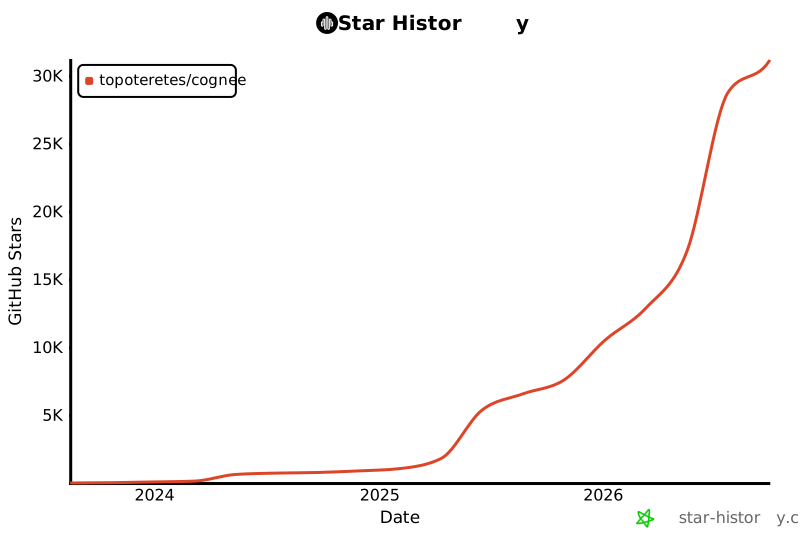
## Star History
[](https://star-history.com/#topoteretes/cognee&Date)
TDQS
Scored across 6 tools
The core memory verbs (remember/forget/recall) are cleanly separated by write/delete/read semantics, and the meta-pair search_tools/call_tool is unambiguous. The only mild overlap is recall vs code_search, since both are retrieval tools, but code_search explicitly scopes itself to the code graph and excludes conversational memory, which resolves most confusion.
All names are snake_case and fall into two coherent families: bare verbs for memory operations (remember, forget, recall) and verb_noun for infrastructure (call_tool, search_tools, code_search). This is a defensible grouping rather than chaos, though the bare-verb vs verb_noun split keeps it from being a fully uniform pattern.
Six tools is well within the sweet spot and each one covers a distinct responsibility: store, retrieve, delete, code-graph query, plus dynamic tool discovery and invocation. Nothing feels padded or missing at the surface-count level.
The lifecycle is largely covered: remember (create), recall (read), forget (delete), and a specialized code_search, with file upload and session modes handled via parameters. Gaps exist around explicitly updating existing memory and enumerating datasets/items (forget accepts a dataset name/id but nothing lists them), which agents can work around by re-storing or semantic recall.