
Google Images Search MCP
by srigi
README.md
# 🖼️ Google Images Search MCP
<img src="https://i.postimg.cc/sgpqkgtR/PM.webp" alt="logo" width="50%">
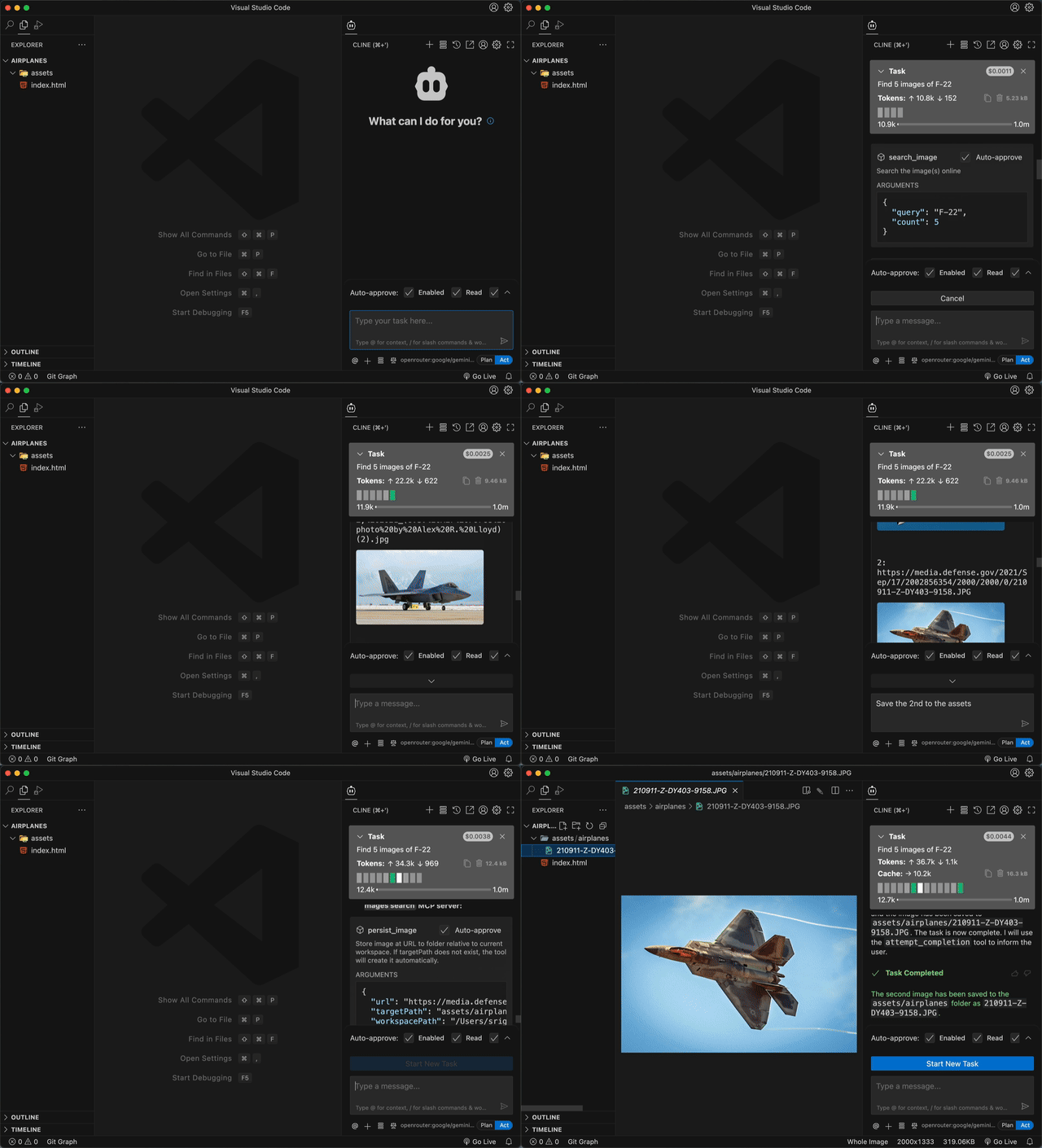
> **Search. See. Save.** – The only MCP that shows Google Images results directly in your chat as actual images, not just links!
Unlike other tools that return text descriptions or links, this MCP displays search results as actual images in your conversation. Works with [**Cline**](https://cline.bot/) and [**Windsurf**](https://windsurf.com/editor).
Perfect for getting visual inspiration, finding assets for projects, or quickly browsing images without leaving your IDE.
## Demo
## Usage & Requirements
### Requirements
- Node.js v20+
- Google Cloud Platform account (free tier sufficient)
- Compatible IDE: Cline or Windsurf
### Setup Guide
Follow these steps to set up this MCP:
#### Step 1: create Google Custom search engine
1. Go to [Google Programmable Search Engine](https://programmablesearchengine.google.com/controlpanel/all)
2. Click **"Add"** to create a new search engine
3. In **"Sites to search"**, enter `*` (asterisk) to search the entire web
4. Give your search engine a name (e.g., "My Image Search")
5. In the search engine settings, enable **"Image search"** option
6. Click **"Create"**
7. Copy the **Search engine ID** - you'll need this for configuration
#### Step 2: Get Google API Key
1. Go to [Google Cloud Console API Credentials](https://console.cloud.google.com/apis/credentials)
2. If you don't have a project, create one
3. Click **"+ CREATE CREDENTIALS"** → **"API key"**
4. Copy the generated API key
5. (Optional) Restrict the API key to "Custom Search API" for security
#### Step 3: Configure MCP in Your IDE
Add the following configuration to your MCP settings:
```json
{
"mcpServers": {
"googleImagesSearch": {
"command": "npx",
"args": ["-y", "@srigi/mcp-google-images-search"],
"env": {
"API_KEY": "your-google-api-key-here",
"SEARCH_ENGINE_ID": "your-search-engine-id-here"
},
"autoApprove": ["search_image", "persist_image"]
}
}
}
```
Replace `your-google-api-key-here` and `your-search-engine-id-here` with the values from steps 1 and 2.
### Usage Example
Here's how to use the MCP once configured:
1. **Search for images**: Ask your AI assistant to search for images
```
Find 5 images of F-22
```
2. **Get more results**: Request additional search results
```
Find 5 more images
```
3. **Save an image**: Ask to save a specific result to your project
```
Save the 3rd image to the "assets" folder
```
The MCP will display the search results as actual images in your chat history, and you can easily save any of them to your local project directory.
## 🚀 Development
Want to contribute? Great! Quality contributions are welcomed.
**Requirements**: Node.js v20+, [direnv](https://direnv.net/), PNPM v10
**Quick start**:
1. Copy `.envrc (example)` to `.envrc` and add your Google API credentials
2. Run `pnpm install && pnpm dev`
3. Update your MCP configuration for development:
```json
{
"mcpServers": {
"googleImagesSearch": {
"command": "node",
"args": ["/absolute/path/to/project/src/index.js", "--debug", "--pretty-print"],
"env": {
"API_KEY": "your-google-api-key-here",
"SEARCH_ENGINE_ID": "your-search-engine-id-here"
},
"autoApprove": ["search_image", "persist_image"]
}
}
}
```
**Debug and logging options**:
- No `--debug` flag provided - logging is disabled
- `--debug` without argument - enable logging into `debug.log` in current working directory the running MCP
- `--debug /absolute/path/to/debug.log` - enable logging and write logs to the specified absolute path
- `--pretty-print` - Format logs for better readability (formatted JSON output)
_note: only absolute path is allowed when providing a path to `--debug`. Relative paths will cause the server to exit with an error!_
**Writing TypeScript code**:
The `pnpm dev` auto-recompile all changes to `.ts` files. But you must reload your MCP server manually for changes to be reflected in your IDE.
Use `pnpm dev:inspector` for interactive testing in the browser.
## 🛠️ Available Tools
**🔍 search_image** - Find images using Google's vast database
- `query` (required) - What you're looking for
- `count` (1-10, default: 2) - How many results
- `safe` ('off'/'medium'/'high') - Filter level
- `startIndex` - For pagination
**💾 persist_image** - Download and save images to your project
- `url` (required) - Image URL to download
- `targetPath` (required) - Where to save it (folder or full path)
**Security features**: Path validation, MIME type checking, 10MB size limit, supports all major image formats (JPEG, PNG, GIF, WebP, SVG, etc.)
---
**🔗 Links**: [GitHub](https://github.com/srigi/mcp-google-images-search) • [NPM](https://www.npmjs.com/package/@srigi/mcp-google-images-search) • [Issues](https://github.com/srigi/mcp-google-images-search/issues)
TDQS
B3.3/5.0
Scored across 2 tools
Disambiguation5/5
The two tools have clearly distinct purposes: search_image retrieves images online, persist_image saves a specific image from a URL. There is no overlap or ambiguity between them.
Naming Consistency5/5
Both tool names follow a consistent verb_noun pattern (search_image, persist_image) using snake_case, which is predictable and clear.
Tool Count3/5
With only 2 tools, the set is minimal for a search-and-persist workflow. While it covers the core actions, it feels slightly thin compared to typical server scopes of 3-15 tools.
Completeness4/5
The tools cover the essential workflow: search for images and persist a chosen image. No obvious gaps for the stated purpose, though additional functions like listing persisted images or metadata retrieval could be useful.
Maintenance
ActivityInactive
ResponsivenessUnresponsive