
F
licenseA
qualityD
maintenanceMCP server that provides automated Google search capabilities, allowing query execution, result limiting, and optional related keywords retrieval.
1
-

Provides a Google Images search capability, allowing users to search for images and display actual image results directly in the chat interface.
Utilizes Google Cloud Platform for API credentials and authentication to access the Google Programmable Search Engine API for image searches.
Click on "Deploy Server".
Wait a few minutes for the server to deploy. Once ready, it will show a "Started" state.
In the chat, type @ followed by the MCP server name and your instructions, e.g., "@Google Images Search MCP find 3 images of modern office interiors"
That's it! The server will respond to your query, and you can continue using it as needed.
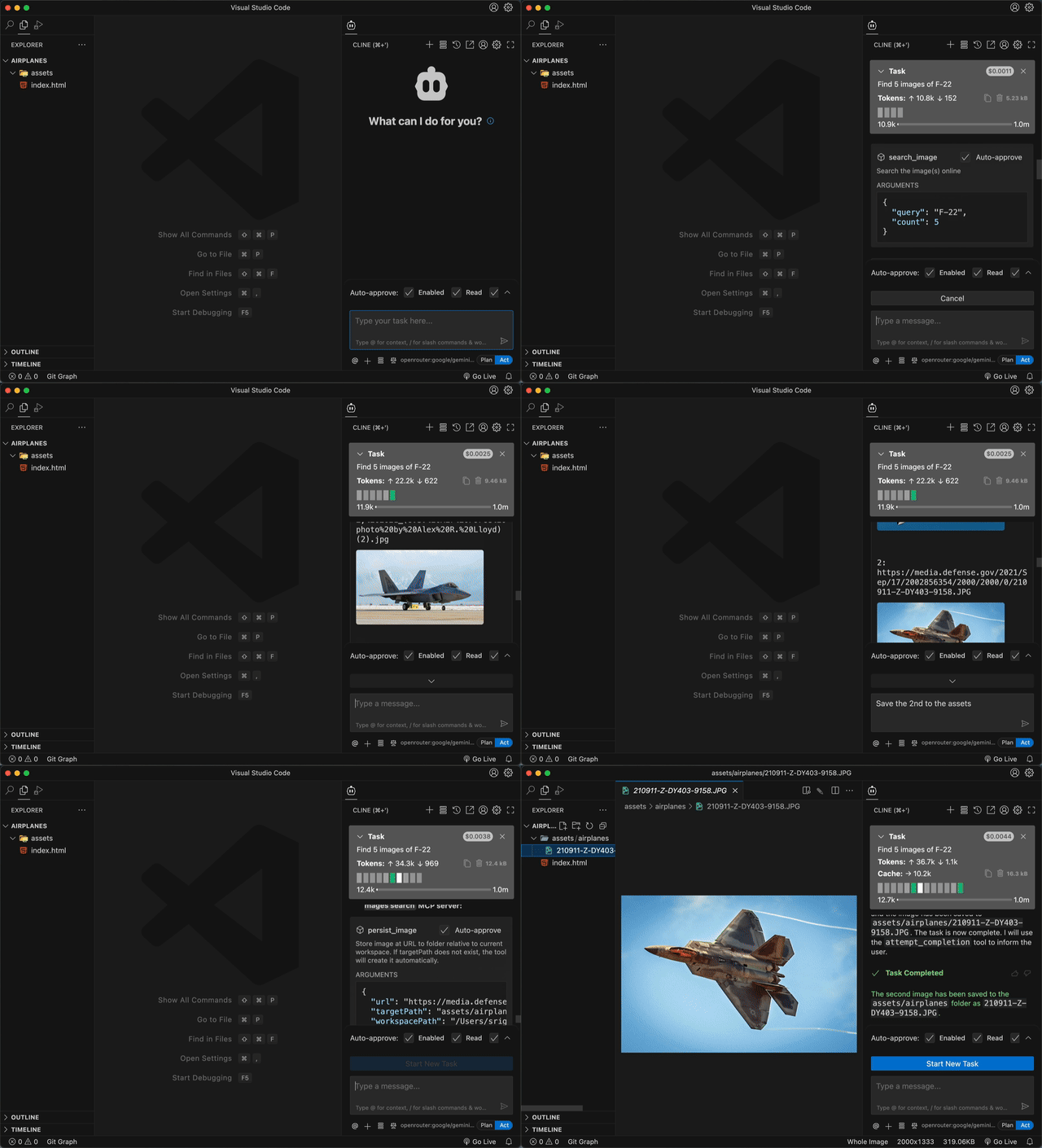
Here is a step-by-step guide with screenshots.
Search. See. Save. – The only MCP that shows Google Images results directly in your chat as actual images, not just links!
Unlike other tools that return text descriptions or links, this MCP displays search results as actual images in your conversation. Works with Cline and Windsurf.
Perfect for getting visual inspiration, finding assets for projects, or quickly browsing images without leaving your IDE.
Related MCP server: DuckDuckGo MCP Server
Node.js v20+
Google Cloud Platform account (free tier sufficient)
Compatible IDE: Cline or Windsurf
Follow these steps to set up this MCP:
Click "Add" to create a new search engine
In "Sites to search", enter * (asterisk) to search the entire web
Give your search engine a name (e.g., "My Image Search")
In the search engine settings, enable "Image search" option
Click "Create"
Copy the Search engine ID - you'll need this for configuration
If you don't have a project, create one
Click "+ CREATE CREDENTIALS" → "API key"
Copy the generated API key
(Optional) Restrict the API key to "Custom Search API" for security
Add the following configuration to your MCP settings:
{
  "mcpServers": {
    "googleImagesSearch": {
      "command": "npx",
      "args": ["-y", "@srigi/mcp-google-images-search"],
      "env": {
        "API_KEY": "your-google-api-key-here",
        "SEARCH_ENGINE_ID": "your-search-engine-id-here"
      },
      "autoApprove": ["search_image", "persist_image"]
    }
  }
}
Replace your-google-api-key-here and your-search-engine-id-here with the values from steps 1 and 2.
Here's how to use the MCP once configured:
Search for images: Ask your AI assistant to search for images
Find 5 images of F-22Get more results: Request additional search results
Find 5 more imagesSave an image: Ask to save a specific result to your project
Save the 3rd image to the "assets" folderThe MCP will display the search results as actual images in your chat history, and you can easily save any of them to your local project directory.
Want to contribute? Great! Quality contributions are welcomed.
Requirements: Node.js v20+, direnv, PNPM v10
Quick start:
Copy .envrc (example) to .envrc and add your Google API credentials
Run pnpm install && pnpm dev
Update your MCP configuration for development:
{
  "mcpServers": {
    "googleImagesSearch": {
      "command": "node",
      "args": ["/absolute/path/to/project/src/index.js", "--debug", "--pretty-print"],
      "env": {
        "API_KEY": "your-google-api-key-here",
        "SEARCH_ENGINE_ID": "your-search-engine-id-here"
      },
      "autoApprove": ["search_image", "persist_image"]
    }
  }
}
Debug and logging options:
No --debug flag provided - logging is disabled
--debug without argument - enable logging into debug.log in current working directory the running MCP
--debug /absolute/path/to/debug.log - enable logging and write logs to the specified absolute path
--pretty-print - Format logs for better readability (formatted JSON output)
note: only absolute path is allowed when providing a path to --debug. Relative paths will cause the server to exit with an error!
Writing TypeScript code:
The pnpm dev auto-recompile all changes to .ts files. But you must reload your MCP server manually for changes to be reflected in your IDE.
Use pnpm dev:inspector for interactive testing in the browser.
🔍 search_image - Find images using Google's vast database
query (required) - What you're looking for
count (1-10, default: 2) - How many results
safe ('off'/'medium'/'high') - Filter level
startIndex - For pagination
💾 persist_image - Download and save images to your project
url (required) - Image URL to download
targetPath (required) - Where to save it (folder or full path)
Security features: Path validation, MIME type checking, 10MB size limit, supports all major image formats (JPEG, PNG, GIF, WebP, SVG, etc.)
Store image at URL to folder relative to current workspace. If targetPath does not exist, the tool will create it automatically.
| Name | Required | Description | Default |
|---|---|---|---|
| url | Yes | URL of the image | |
| targetPath | Yes | Folder where to save the image (relative to the current workspace) | |
| workspacePath | Yes | The current workspace absolute path |
Does the description disclose side effects, auth requirements, rate limits, or destructive behavior?
Without annotations, the description carries the full burden. It discloses a key behavior (auto-creation of targetPath), but does not mention what happens if the file already exists (overwrite?) or what occurs if the URL is invalid. This leaves important side effects unspecified.
Agents need to know what a tool does to the world before calling it. Descriptions should go beyond structured annotations to explain consequences.
Is the description appropriately sized, front-loaded, and free of redundancy?
Two sentences, zero waste. The key information is front-loaded, and the conditional behavior follows naturally. No redundancy or filler.
Shorter descriptions cost fewer tokens and are easier for agents to parse. Every sentence should earn its place.
Given the tool's complexity, does the description cover enough for an agent to succeed on first attempt?
The description covers the core operation and auto-creation, but omits details about how the image file is named (e.g., derived from URL) and potential error handling. Given the tool's simplicity and full schema coverage, these gaps could mislead an agent about the exact output.
Complex tools with many parameters or behaviors need more documentation. Simple tools need less. This dimension scales expectations accordingly.
Does the description clarify parameter syntax, constraints, interactions, or defaults beyond what the schema provides?
Schema coverage is 100%, so baseline is 3. The description adds value beyond the schema by explicitly stating that targetPath need not pre-exist and will be created automatically. This clarifies the parameter's semantics beyond the schema's 'Folder where to save the image'.
Input schemas describe structure but not intent. Descriptions should explain non-obvious parameter relationships and valid value ranges.
Does the description clearly state what the tool does and how it differs from similar tools?
The description clearly states the action ('Store image at URL') and the destination ('folder relative to current workspace'), making the tool's purpose unambiguous. It distinguishes from sibling 'search_image' by focusing on persistence rather than discovery.
Agents choose between tools based on descriptions. A clear purpose with a specific verb and resource helps agents select the right tool.
Does the description explain when to use this tool, when not to, or what alternatives exist?
The description gives clear context: it saves an image to a workspace-relative folder and automatically creates the target directory if missing. It does not explicitly mention alternatives or exclusions, but the 'relative to current workspace' and 'auto-create' instructions provide sufficient usage context for most cases.
Agents often have multiple tools that could apply. Explicit usage guidance like "use X instead of Y when Z" prevents misuse.
Search the image(s) online
| Name | Required | Description | Default |
|---|---|---|---|
| count | No | Number of results to return (1-10, default: 2) | |
| query | Yes | Search query for images | |
| safe | No | Safe search setting (default: off) | |
| startIndex | No | Starting index of next search result page (not needed for initial search request) |
Does the description disclose side effects, auth requirements, rate limits, or destructive behavior?
With no annotations, the description carries the full burden of behavioral disclosure. It does not mention safe search settings, pagination, result limits, or any side effects. The agent is left unaware of how the search behaves or what the response contains.
Agents need to know what a tool does to the world before calling it. Descriptions should go beyond structured annotations to explain consequences.
Is the description appropriately sized, front-loaded, and free of redundancy?
The description is a single short sentence with no wasted words. It is front-loaded with the core action, but it is too sparse to be truly helpful, making it concise but under-specified.
Shorter descriptions cost fewer tokens and are easier for agents to parse. Every sentence should earn its place.
Given the tool's complexity, does the description cover enough for an agent to succeed on first attempt?
Given the tool has 4 parameters and no output schema, the description is severely incomplete. It fails to mention the result format, pagination behavior, or safe search implications, leaving critical gaps for an agent to invoke and interpret the tool correctly.
Complex tools with many parameters or behaviors need more documentation. Simple tools need less. This dimension scales expectations accordingly.
Does the description clarify parameter syntax, constraints, interactions, or defaults beyond what the schema provides?
Schema description coverage is 100%, so the input schema fully documents all parameters. The description adds no semantic detail beyond the schema, but the baseline of 3 applies because the schema carries the burden effectively.
Input schemas describe structure but not intent. Descriptions should explain non-obvious parameter relationships and valid value ranges.
Does the description clearly state what the tool does and how it differs from similar tools?
The description 'Search the image(s) online' identifies a clear verb and resource, but it is vague about the scope and output. It does not differentiate from the sibling tool 'persist_image' beyond the search action, and 'online' adds little specificity.
Agents choose between tools based on descriptions. A clear purpose with a specific verb and resource helps agents select the right tool.
Does the description explain when to use this tool, when not to, or what alternatives exist?
There is no guidance on when to use this tool versus alternatives. The sibling 'persist_image' exists, but the description does not mention any selection criteria or exclusions, leaving the agent without context for choosing this tool.
Agents often have multiple tools that could apply. Explicit usage guidance like "use X instead of Y when Z" prevents misuse.
Recent tool additions, removals, and schema changes observed during successful MCP inspections.
v0.3.0persist_image2 fields changedInput schema / $schemaAdded value: +"http://json-schema.org/draft-07/schema#"Input schema / additionalPropertiesAdded value: +falsesearch_image2 fields changedInput schema / $schemaAdded value: +"http://json-schema.org/draft-07/schema#"Input schema / additionalPropertiesAdded value: +falsev1.0.0persist_imagesearch_imageScored across 2 tools
The two tools have clearly distinct purposes: search_image retrieves images online, persist_image saves a specific image from a URL. There is no overlap or ambiguity between them.
Both tool names follow a consistent verb_noun pattern (search_image, persist_image) using snake_case, which is predictable and clear.
With only 2 tools, the set is minimal for a search-and-persist workflow. While it covers the core actions, it feels slightly thin compared to typical server scopes of 3-15 tools.
The tools cover the essential workflow: search for images and persist a chosen image. No obvious gaps for the stated purpose, though additional functions like listing persisted images or metadata retrieval could be useful.
MCP server for Google search results via SERP API
MCP server for Flux AI image generation