
Anki MCP Server
# Anki MCP Server
A Model Context Protocol (MCP) server that enables LLMs to interact with Anki flashcard software through AnkiConnect.

## Features
### Tools
- `anki_check_connection` - Check whether AnkiConnect is reachable
- `anki_list_decks` - List all available Anki decks, optionally with deck IDs
- `anki_create_deck` - Create a new Anki deck
- `anki_list_tags` - List all tags currently used in the collection
- `anki_add_note_tags` - Add tags to one or more notes
- `anki_remove_note_tags` - Remove tags from one or more notes
- `anki_create_note` - Create a new note
- `anki_batch_create_notes` - Create multiple notes at once
- `anki_search_notes` - Search for notes using Anki query syntax
- `anki_get_note_info` - Get detailed information about a note
- `anki_update_note` - Update an existing note's fields and/or tags
- `anki_delete_note` - Delete one or multiple notes
- `anki_list_note_types` - List all available note types
- `anki_create_note_type` - Create a new note type
- `anki_get_note_type_info` - Get detailed structure of a note type
- `anki_sync` - Trigger AnkiWeb sync; requires `{"confirm": true}` because a full sync can merge or overwrite local and remote collections. Success means Anki accepted the request, not that AnkiWeb received the data; a blocking dialog in Anki can silently keep the sync queued
Legacy unprefixed tool names such as `create_note` and `list_decks` remain callable for existing clients, but new agent integrations should use the `anki_*` names.
### Resources
- `anki://decks/all` - Complete list of available decks with deck IDs
- `anki://tags/all` - Complete list of tags
- `anki://note-types/all` - List of all available note types
- `anki://note-types/all-with-schemas` - Detailed structure information for all note types
- `anki://note-types/{modelName}` - Detailed structure information for a specific note type
## Prerequisites
1. [Anki](https://apps.ankiweb.net/) installed on your system
2. [AnkiConnect](https://ankiweb.net/shared/info/2055492159) add-on installed in Anki
3. Node.js 20.11 or newer
## Configuration
### Install via Desktop Extension (.mcpb)
This repository supports Anthropic Desktop Extensions (MCPB). The easiest way to use this server in Claude Desktop is by installing the packaged `.mcpb` bundle.
1. Generate the `.mcpb` file locally using the provided script:
```bash
npm run mcpb
```
2. Open Claude Desktop Settings → Extensions and drag the generated `.mcpb` file in, then click Install.
This validates `manifest.json` and outputs a `.mcpb` archive you can install as above. Learn more about Desktop Extensions in Anthropic's announcement: [Desktop Extensions: One-click MCP server installation for Claude Desktop](https://www.anthropic.com/engineering/desktop-extensions).
### Usage with Claude Desktop
Add the server to your claude_desktop_config.json:
```json
{
"mcpServers": {
"anki": {
"command": "npx",
"args": ["--yes", "anki-mcp-server"]
}
}
}
```
#### Using Custom AnkiConnect Port
If your AnkiConnect is running on a different port, you can specify it using the `--port` parameter:
```json
{
"mcpServers": {
"anki": {
"command": "npx",
"args": ["--yes", "anki-mcp-server", "--port", "8080"]
}
}
}
```
### Configuration for Cline
Add the server to your Cline MCP settings file inside VSCode's settings `cline_mcp_settings.json`
```json
{
"mcpServers": {
"anki": {
"command": "npx",
"args": ["--yes", "anki-mcp-server"]
}
}
}
```
#### Using Custom AnkiConnect Port
For Cline, you can also specify a custom port:
```json
{
"mcpServers": {
"anki": {
"command": "npx",
"args": ["--yes", "anki-mcp-server", "--port", "8080"]
}
}
}
```
## Agent Skills (Claude Code)
Install the Anki skill to give Claude Code built-in knowledge of all Anki tools and workflows:
```bash
npx skills add nailuoGG/anki-mcp-server@anki
```
Once installed, Claude Code will automatically use the skill when you ask it to create flashcards, manage decks, or batch import notes.
> **Note:** Do not use the `.mcpb` packaged version as the MCP server — it outputs Electron metadata to stdout which breaks the MCP stdio protocol. Use `npx -y anki-mcp-server` instead.
## Development
### Packaging a Desktop Extension (.mcpb)
Create a distributable Desktop Extension bundle for Claude Desktop:
```bash
npm run mcpb
```
This will build the project and generate a `.mcpb` archive from the current repository, validating `manifest.json`. Test by dragging it into Claude Desktop's Extensions settings. Reference: [Desktop Extensions: One-click MCP server installation for Claude Desktop](https://www.anthropic.com/engineering/desktop-extensions).
### Publishing to MCP Registry
This server is automatically published to the MCP Registry when a new version is released. The publishing process includes:
1. **Automated CI/CD**: GitHub Actions automatically publishes to both NPM and MCP Registry on successful releases
2. **Schema Validation**: The `server.json` file is validated against the MCP schema before publishing
3. **Version Synchronization**: Versions are kept in sync between `package.json`, `manifest.json`, and `server.json`
4. **Comprehensive Testing**: Multi-version Node.js testing, linting, and validation before publishing
5. **Beta Support**: Automated beta releases for testing new features
#### Manual Validation
You can validate the MCP server configuration locally:
```bash
npm run validate-mcp
```
This will download the latest MCP schema and validate your `server.json` file.
#### Manual Publishing
If you need to publish manually, you can use the MCP Publisher CLI:
```bash
# Install MCP Publisher
curl -L "https://github.com/modelcontextprotocol/registry/releases/download/v1.1.0/mcp-publisher_1.1.0_$(uname -s | tr '[:upper:]' '[:lower:]')_$(uname -m | sed 's/x86_64/amd64/;s/aarch64/arm64/').tar.gz" | tar xz mcp-publisher
chmod +x mcp-publisher
sudo mv mcp-publisher /usr/local/bin/
# Login to MCP Registry
mcp-publisher login github-oidc
# Publish to MCP Registry
mcp-publisher publish
```
### Setup
1. Install dependencies:
```bash
npm install
```
2. Build the server:
```bash
npm run build
```
3. For development with auto-rebuild:
```bash
npm run watch
```
### Testing
Run the test suite:
```bash
npm test
```
This executes unit tests for MCP tool schemas, structured tool results, note creation, search/update/delete workflows, and error handling. These tests use mocked AnkiConnect clients; use MCP Inspector with a running Anki instance for manual integration checks.
### MCP Evaluations
Read-only agent evaluation assets live in `evals/`. Load the fixture into a disposable Anki profile, then run the XML questions against the MCP server to verify that agents can discover decks, tags, note type schemas, resources, and structured tool results.
### Debugging
Since MCP servers communicate over stdio, we recommend using the [MCP Inspector](https://github.com/modelcontextprotocol/inspector):
```bash
npm run inspector
```
This provides a browser-based interface for:
- Monitoring MCP messages
- Testing tool invocations
- Viewing server logs
- Debugging communication issues
## Example Usage
1. Create a new deck:
```
Create a new Anki deck called "Programming"
```
2. Add a basic card:
```
Create an Anki card in the "Programming" deck with:
Front: What is a closure in JavaScript?
Back: A closure is the combination of a function and the lexical environment within which that function was declared.
```
3. Add a cloze deletion card:
```
Create a cloze card in the "Programming" deck with:
Text: In JavaScript, {{c1::const}} declares a block-scoped variable that cannot be {{c2::reassigned}}.
```
4. Delete a single note:
```
Delete note ID 1234567890
```
5. Delete multiple notes at once:
```
Delete note IDs 1234567890, 9876543210, and 1122334455
```
6. Add tags to notes:
```
Add tags "review" and "mcp" to note IDs 1234567890 and 9876543210
```
## Contributing
1. Fork the repository
2. Create your feature branch
3. Run tests: `npm test`
4. Submit a pull request
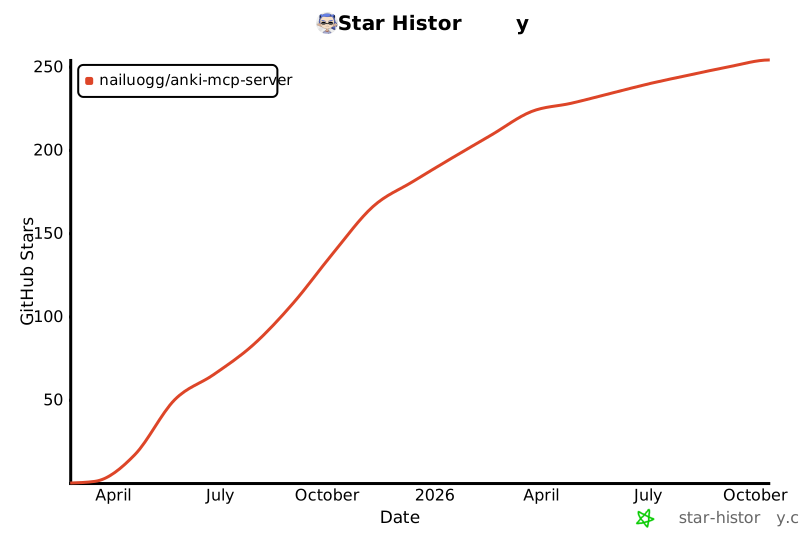
## Star History
[](https://star-history.com/#nailuoGG/anki-mcp-server&Date)
## Credits
Icon courtesy of [macOS Icons](https://macosicons.com/#/?icon=mWDBpVXqbc)
## License
MIT License - see LICENSE file for details
TDQS
Scored across 16 tools
Each tool targets a distinct resource+action, and descriptions explicitly say when NOT to use a tool (e.g. update vs inspect vs delete notes), which strongly aids selection. Minor potential confusion exists between anki_create_note/anki_batch_create_notes and anki_list_note_types/anki_get_note_type_info, but the descriptions disambiguate these well.
All 16 tools consistently follow anki_<verb>_<noun> snake_case (get_note_info, list_decks, create_note, add_note_tags, remove_note_tags). The pattern is predictable throughout with no stylistic deviations.
16 tools is at the upper end of the comfortable range but each earns its place across notes, decks, tags, and note types. Slightly heavy, but not excessive for a full collection-management surface.
Strong coverage: notes have create/batch-create/get/update/delete/search, plus deck and tag management, note-type inspection/creation, sync, and connection check. Minor gaps remain (no deck delete/rename, no note-type update/delete, no single-note get by search shortcut), but core workflows are covered.