
vLLM MCP Server
# vLLM MCP Server
[](https://www.python.org/downloads/)
[](https://opensource.org/licenses/Apache-2.0)
A [Model Context Protocol (MCP)](https://modelcontextprotocol.io/) server that exposes vLLM capabilities to AI assistants like Claude, Cursor, and other MCP-compatible clients.
## Features
- 🚀 **Chat & Completion**: Send chat messages and text completions to vLLM
- 📋 **Model Management**: List and inspect available models
- 📊 **Server Monitoring**: Check server health and performance metrics
- 🐳 **Platform-Aware Container Control**: Supports both Podman and Docker. Automatically detects your platform (Linux/macOS/Windows) and GPU availability, selecting the appropriate container image and optimal settings (e.g., `max_model_len`)
- 📈 **Benchmarking**: Run GuideLLM benchmarks (optional)
- 💬 **Pre-defined Prompts**: Use curated system prompts for common tasks
## Demo
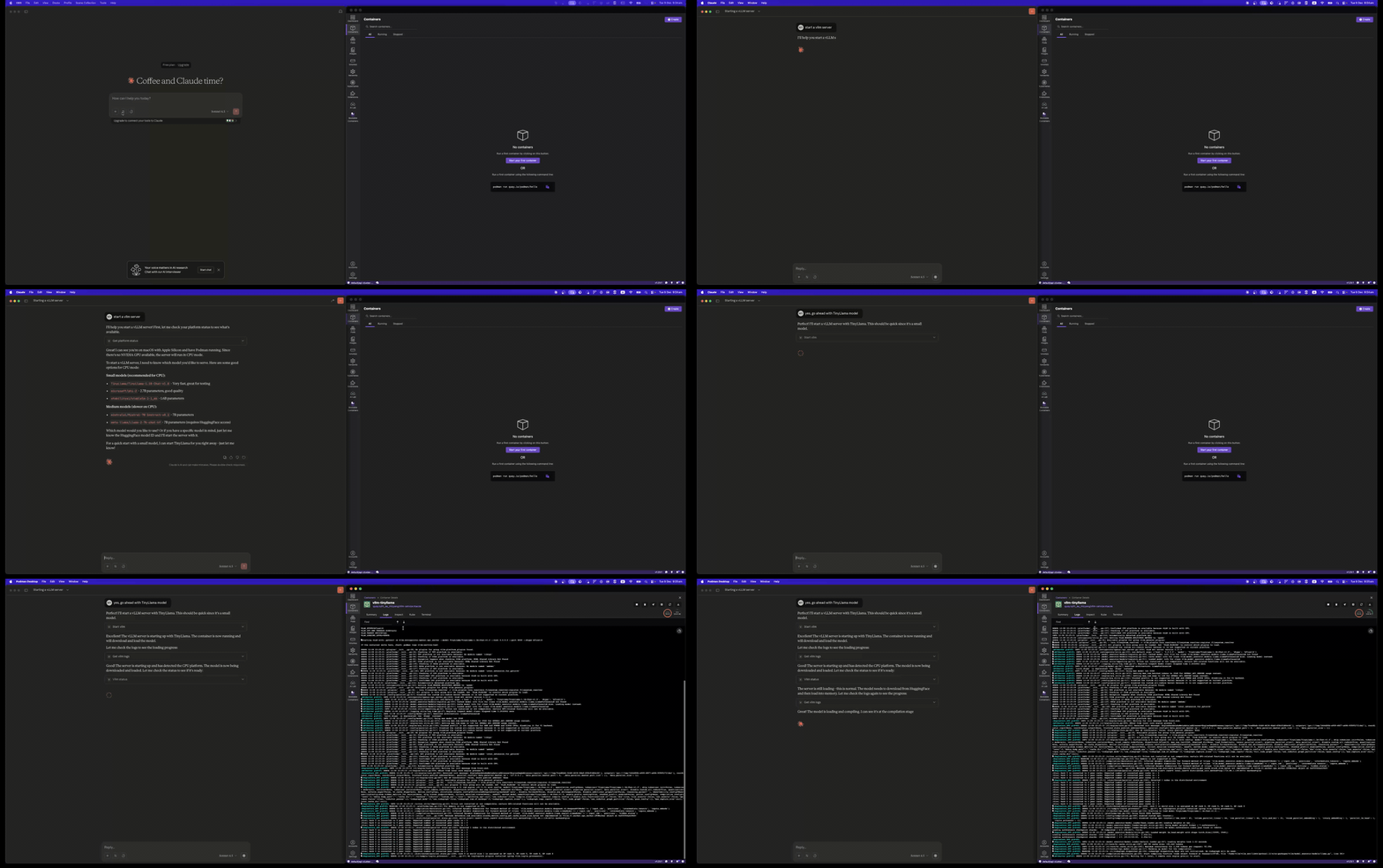
### Start vLLM Server
Use the `start_vllm` tool to launch a vLLM container with automatic platform detection:
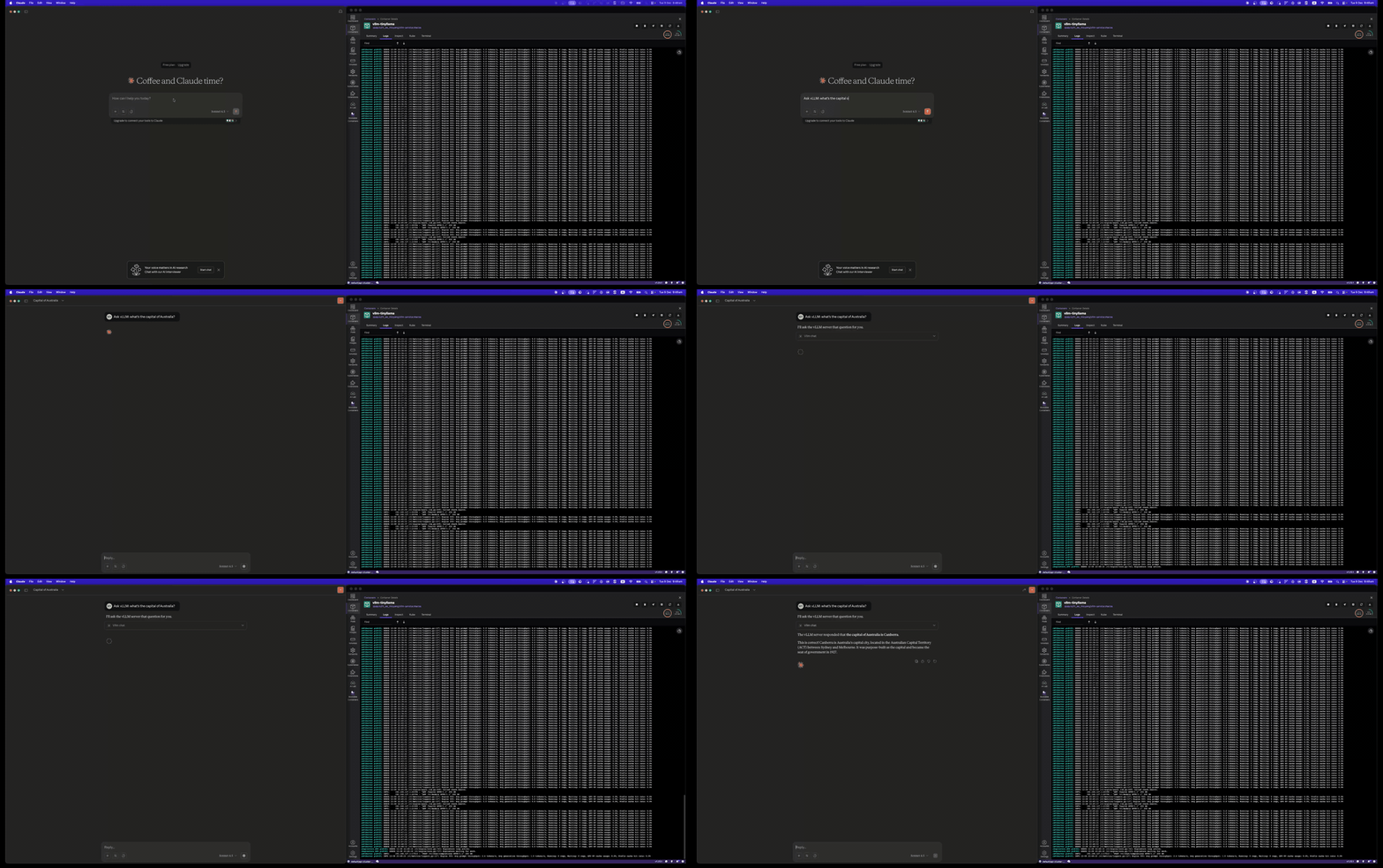
### Chat with vLLM
Send chat messages using the `vllm_chat` tool:
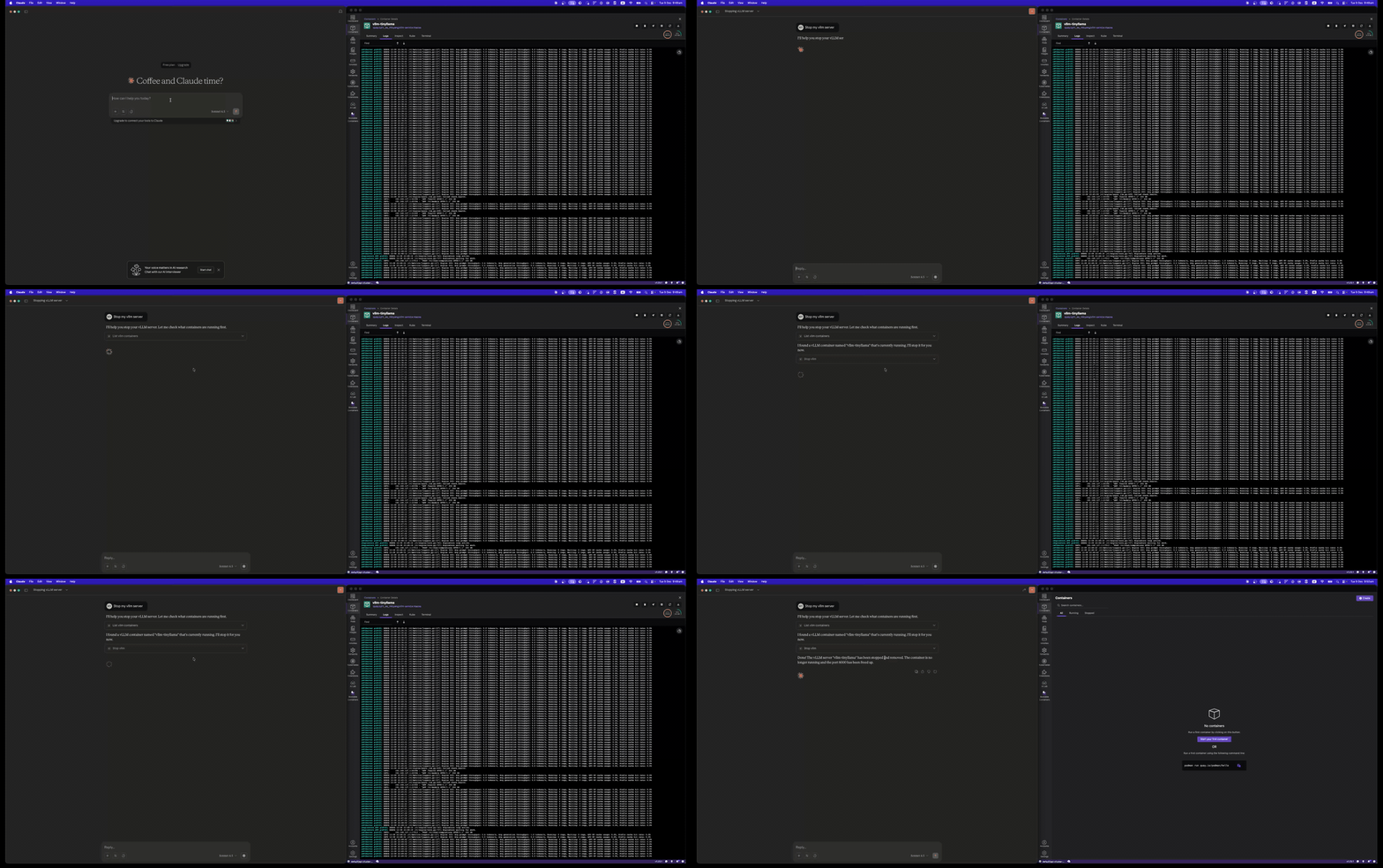
### Stop vLLM Server
Clean up with the `stop_vllm` tool:
## Installation
### Using uvx (Recommended)
```bash
uvx vllm-mcp-server
```
### Using pip
```bash
pip install vllm-mcp-server
```
### From Source
```bash
git clone https://github.com/micytao/vllm-mcp-server.git
cd vllm-mcp-server
pip install -e .
```
## Quick Start
### 1. Start a vLLM Server
You can either start a vLLM server manually or let the MCP server manage it via Docker.
#### Option A: Let MCP Server Manage Docker (Recommended)
The MCP server can automatically start/stop vLLM containers with platform detection. Just configure your MCP client (step 2) and use the `start_vllm` tool.
#### Option B: Manual Container Setup (Podman or Docker)
Replace `podman` with `docker` if using Docker.
**Linux/Windows with NVIDIA GPU:**
```bash
podman run --device nvidia.com/gpu=all -p 8000:8000 \
vllm/vllm-openai:latest \
--model TinyLlama/TinyLlama-1.1B-Chat-v1.0
```
**macOS (Apple Silicon / Intel):**
```bash
podman run -p 8000:8000 \
quay.io/rh_ee_micyang/vllm-mac:v0.11.0 \
--model TinyLlama/TinyLlama-1.1B-Chat-v1.0 \
--device cpu --dtype bfloat16
```
**Linux/Windows CPU-only:**
```bash
podman run -p 8000:8000 \
quay.io/rh_ee_micyang/vllm-cpu:v0.11.0 \
--model TinyLlama/TinyLlama-1.1B-Chat-v1.0 \
--device cpu --dtype bfloat16
```
#### Option C: Native vLLM Installation
```bash
vllm serve TinyLlama/TinyLlama-1.1B-Chat-v1.0
```
### 2. Configure Your MCP Client
#### Cursor
Add to `~/.cursor/mcp.json`:
```json
{
"mcpServers": {
"vllm": {
"command": "uvx",
"args": ["vllm-mcp-server"],
"env": {
"VLLM_BASE_URL": "http://localhost:8000",
"VLLM_MODEL": "TinyLlama/TinyLlama-1.1B-Chat-v1.0",
"VLLM_HF_TOKEN": "hf_your_token_here"
}
}
}
}
```
> **Note:** `VLLM_HF_TOKEN` is required for gated models like Llama. Get your token from [HuggingFace Settings](https://huggingface.co/settings/tokens).
#### Claude Desktop
Add to your Claude Desktop configuration:
```json
{
"mcpServers": {
"vllm": {
"command": "uvx",
"args": ["vllm-mcp-server"],
"env": {
"VLLM_BASE_URL": "http://localhost:8000",
"VLLM_HF_TOKEN": "hf_your_token_here"
}
}
}
}
```
### 3. Use the Tools
Once configured, you can use these tools in your AI assistant:
**Server Management:**
- `start_vllm` - Start a vLLM container (auto-detects platform & GPU)
- `stop_vllm` - Stop a running container
- `get_platform_status` - Check platform, Docker, and GPU status
- `vllm_status` - Check vLLM server health
**Inference:**
- `vllm_chat` - Send chat messages
- `vllm_complete` - Generate text completions
**Model Management:**
- `list_models` - List available models
- `get_model_info` - Get model details
## Configuration
Configure the server using environment variables:
| Variable | Description | Default |
|----------|-------------|---------|
| `VLLM_BASE_URL` | vLLM server URL | `http://localhost:8000` |
| `VLLM_API_KEY` | API key (if required) | `None` |
| `VLLM_MODEL` | Default model to use | `None` (auto-detect) |
| `VLLM_HF_TOKEN` | HuggingFace token for gated models (e.g., Llama) | `None` |
| `VLLM_DEFAULT_TEMPERATURE` | Default temperature | `0.7` |
| `VLLM_DEFAULT_MAX_TOKENS` | Default max tokens | `1024` |
| `VLLM_DEFAULT_TIMEOUT` | Request timeout (seconds) | `60.0` |
| `VLLM_CONTAINER_RUNTIME` | Container runtime (`podman`, `docker`, or auto) | `None` (auto-detect, prefers Podman) |
| `VLLM_DOCKER_IMAGE` | Container image (GPU mode) | `vllm/vllm-openai:latest` |
| `VLLM_DOCKER_IMAGE_MACOS` | Container image (macOS) | `quay.io/rh_ee_micyang/vllm-mac:v0.11.0` |
| `VLLM_DOCKER_IMAGE_CPU` | Container image (CPU mode) | `quay.io/rh_ee_micyang/vllm-cpu:v0.11.0` |
| `VLLM_CONTAINER_NAME` | Container name | `vllm-server` |
| `VLLM_GPU_MEMORY_UTILIZATION` | GPU memory fraction | `0.9` |
## Available Tools
### P0 (Core)
#### `vllm_chat`
Send chat messages to vLLM with multi-turn conversation support.
```json
{
"messages": [
{"role": "system", "content": "You are a helpful assistant."},
{"role": "user", "content": "Hello!"}
],
"temperature": 0.7,
"max_tokens": 1024
}
```
#### `vllm_complete`
Generate text completions.
```json
{
"prompt": "def fibonacci(n):",
"max_tokens": 200,
"stop": ["\n\n"]
}
```
### P1 (Model Management)
#### `list_models`
List all available models on the vLLM server.
#### `get_model_info`
Get detailed information about a specific model.
```json
{
"model_id": "TinyLlama/TinyLlama-1.1B-Chat-v1.0"
}
```
### P2 (Status)
#### `vllm_status`
Check the health and status of the vLLM server.
### P3 (Server Control - Platform Aware)
The server control tools support both **Podman** (preferred) and **Docker**, automatically detecting your platform and GPU availability:
| Platform | GPU Support | Container Image | Default `max_model_len` |
|----------|-------------|-----------------|------------------------|
| Linux (GPU) | ✅ NVIDIA | `vllm/vllm-openai:latest` | 8096 |
| Linux (CPU) | ❌ | `quay.io/rh_ee_micyang/vllm-cpu:v0.11.0` | 2048 |
| macOS (Apple Silicon) | ❌ | `quay.io/rh_ee_micyang/vllm-mac:v0.11.0` | 2048 |
| macOS (Intel) | ❌ | `quay.io/rh_ee_micyang/vllm-mac:v0.11.0` | 2048 |
| Windows (GPU) | ✅ NVIDIA | `vllm/vllm-openai:latest` | 8096 |
| Windows (CPU) | ❌ | `quay.io/rh_ee_micyang/vllm-cpu:v0.11.0` | 2048 |
> **Note:** The `max_model_len` is automatically set based on the detected mode (CPU vs GPU). CPU mode uses 2048 to match vLLM's `max_num_batched_tokens` limit, while GPU mode uses 8096 for larger context. You can override this by explicitly passing `max_model_len` to `start_vllm`.
#### `start_vllm`
Start a vLLM server in a Docker container with automatic platform detection.
```json
{
"model": "TinyLlama/TinyLlama-1.1B-Chat-v1.0",
"port": 8000,
"gpu_memory_utilization": 0.9,
"cpu_only": false,
"tensor_parallel_size": 1,
"max_model_len": null,
"dtype": "auto"
}
```
> **Note:** If `max_model_len` is not specified (or `null`), it defaults to **2048 for CPU mode** or **8096 for GPU mode**.
#### `stop_vllm`
Stop a running vLLM Docker container.
```json
{
"container_name": "vllm-server",
"remove": true,
"timeout": 10
}
```
#### `restart_vllm`
Restart a vLLM container.
#### `list_vllm_containers`
List all vLLM Docker containers.
```json
{
"all": true
}
```
#### `get_vllm_logs`
Get container logs to monitor loading progress.
```json
{
"container_name": "vllm-server",
"tail": 100
}
```
#### `get_platform_status`
Get detailed platform, Docker, and GPU status information.
#### `run_benchmark`
Run a GuideLLM benchmark against the server.
```json
{
"rate": "sweep",
"max_seconds": 120,
"data": "emulated"
}
```
## Resources
The server exposes these MCP resources:
- `vllm://status` - Current server status
- `vllm://metrics` - Performance metrics
- `vllm://config` - Current configuration
- `vllm://platform` - Platform, Docker, and GPU information
## Prompts
Pre-defined prompts for common tasks:
- `coding_assistant` - Expert coding help
- `code_reviewer` - Code review feedback
- `technical_writer` - Documentation writing
- `debugger` - Debugging assistance
- `architect` - System design help
- `data_analyst` - Data analysis
- `ml_engineer` - ML/AI development
## Development
### Setup
```bash
# Clone the repository
git clone https://github.com/micytao/vllm-mcp-server.git
cd vllm-mcp-server
# Install uv if you haven't already
curl -LsSf https://astral.sh/uv/install.sh | sh
# Create virtual environment and install dependencies
uv venv
source .venv/bin/activate # or `.venv\Scripts\activate` on Windows
# Install with dev dependencies
uv pip install -e ".[dev]"
```
### Local Development with Cursor
For debugging and local development, configure Cursor to run from source using `uv run` instead of `uvx`:
Add to `~/.cursor/mcp.json`:
```json
{
"mcpServers": {
"vllm": {
"command": "uv",
"args": [
"--directory",
"/path/to/vllm-mcp-server",
"run",
"vllm-mcp-server"
],
"env": {
"VLLM_BASE_URL": "http://localhost:8000",
"VLLM_HF_TOKEN": "hf_your_token_here",
"VLLM_CONTAINER_RUNTIME": "podman"
}
}
}
}
```
This runs the MCP server directly from your local source code, so any changes you make will be reflected immediately after restarting Cursor.
### Running Tests
```bash
uv run pytest
```
### Code Formatting
```bash
uv run ruff check --fix .
uv run ruff format .
```
## Architecture
```
vllm-mcp-server/
├── src/vllm_mcp_server/
│ ├── server.py # Main MCP server entry point
│ ├── tools/ # MCP tool implementations
│ │ ├── chat.py # Chat/completion tools
│ │ ├── models.py # Model management tools
│ │ ├── server_control.py # Docker container control
│ │ └── benchmark.py # GuideLLM integration
│ ├── resources/ # MCP resource implementations
│ │ ├── server_status.py # Server health resource
│ │ └── metrics.py # Prometheus metrics resource
│ ├── prompts/ # Pre-defined prompts
│ │ └── system_prompts.py # Curated system prompts
│ └── utils/ # Utilities
│ ├── config.py # Configuration management
│ └── vllm_client.py # vLLM API client
├── tests/ # Test suite
├── examples/ # Configuration examples
├── pyproject.toml # Project configuration
└── README.md # This file
```
## License
Apache License 2.0 - see [LICENSE](LICENSE) for details.
## Contributing
Contributions are welcome! Please feel free to submit a Pull Request.
## Acknowledgments
- [vLLM](https://github.com/vllm-project/vllm) - Fast LLM inference engine
- [MCP](https://modelcontextprotocol.io/) - Model Context Protocol
- [GuideLLM](https://github.com/neuralmagic/guidellm) - LLM benchmarking tool
TDQS
Scored across 12 tools
Most tools have distinct purposes, but there is some potential confusion between vllm_chat and vllm_complete for text generation tasks, and between get_model_info and list_models for model information. Descriptions help clarify, but the overlap could cause misselection in ambiguous scenarios.
The naming is mixed with inconsistent patterns: some use verb_noun (e.g., get_model_info, list_models), others use noun_verb (e.g., vllm_chat, vllm_complete), and there are variations like run_benchmark. While readable, the lack of a uniform convention reduces predictability.
With 12 tools, the count is well-scoped for managing a vLLM server, covering model operations, container management, and inference tasks. Each tool appears to serve a specific role without unnecessary duplication, fitting the server's purpose effectively.
The tool set provides comprehensive coverage for vLLM server management, including deployment (start/stop/restart), monitoring (status/logs), and usage (chat/completion). A minor gap is the lack of tools for model updates or configuration changes, but core workflows are well-supported.