vLLM MCP Server


A Model Context Protocol (MCP) server that exposes vLLM capabilities to AI assistants like Claude, Cursor, and other MCP-compatible clients.
Features
🚀 Chat & Completion: Send chat messages and text completions to vLLM
📋 Model Management: List and inspect available models
📊 Server Monitoring: Check server health and performance metrics
🐳 Platform-Aware Container Control: Supports both Podman and Docker. Automatically detects your platform (Linux/macOS/Windows) and GPU availability, selecting the appropriate container image and optimal settings (e.g., max_model_len)
📈 Benchmarking: Run GuideLLM benchmarks (optional)
💬 Pre-defined Prompts: Use curated system prompts for common tasks
Related MCP server: ContainMind
Demo
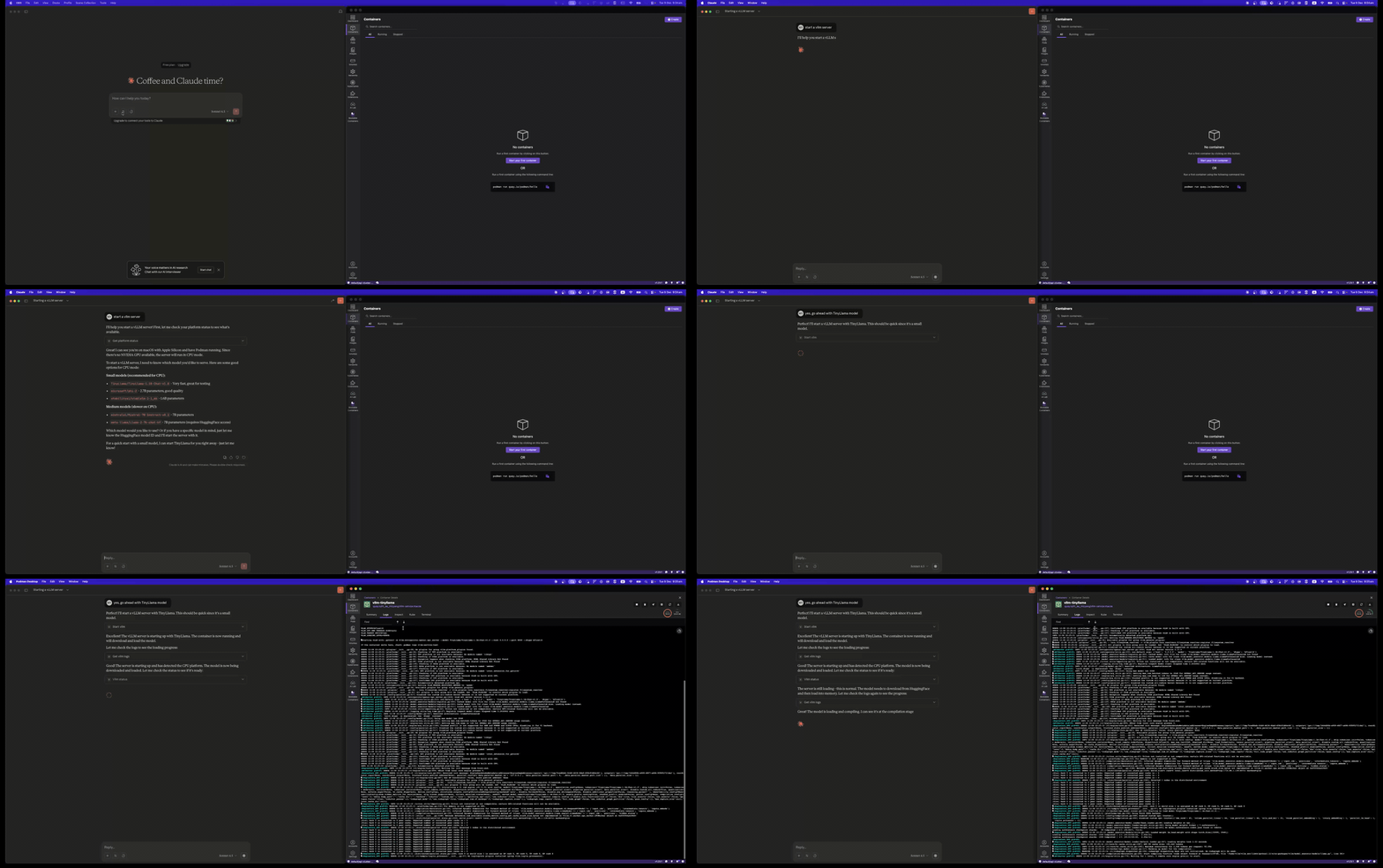
Start vLLM Server
Use the start_vllm tool to launch a vLLM container with automatic platform detection:
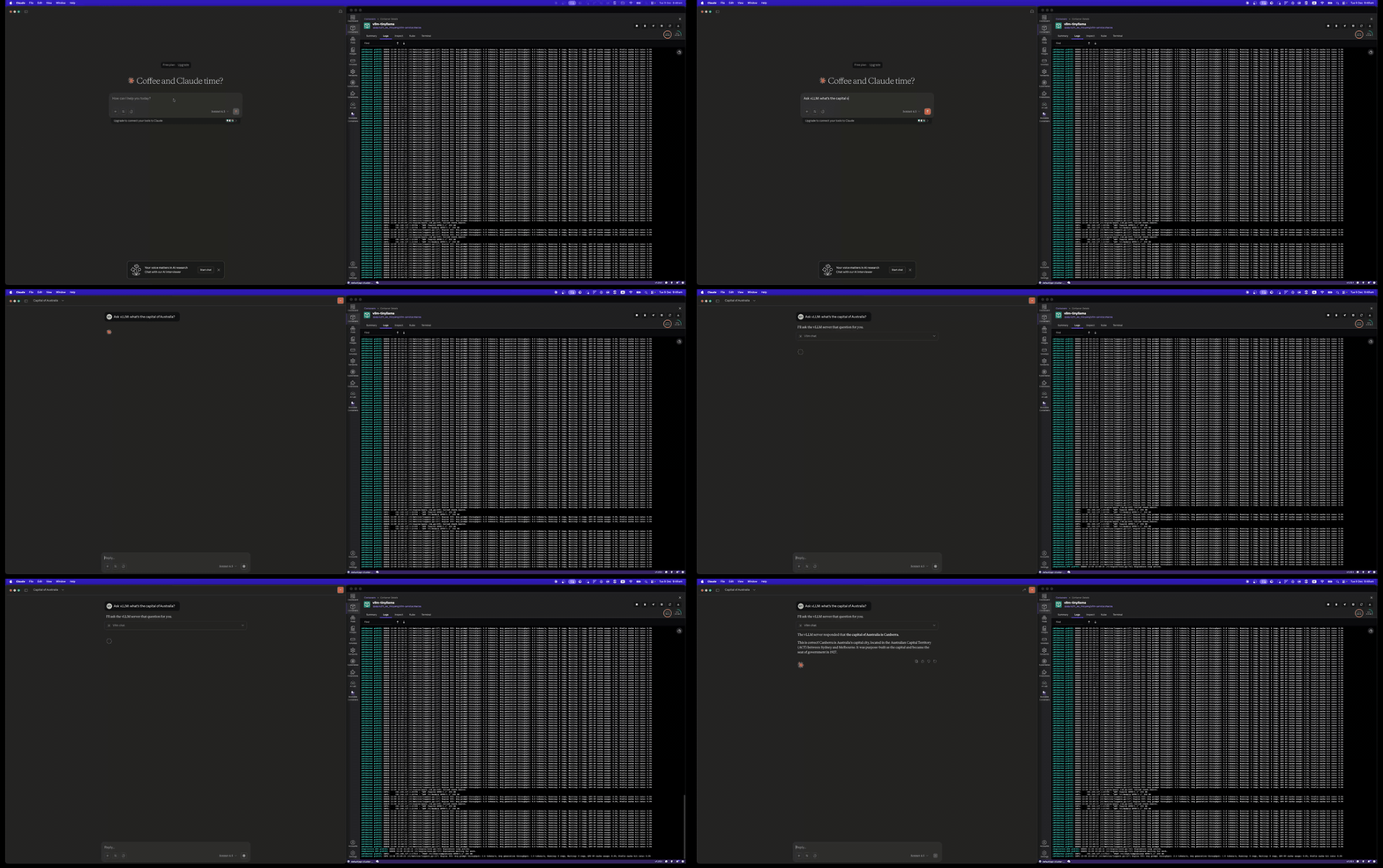
Chat with vLLM
Send chat messages using the vllm_chat tool:
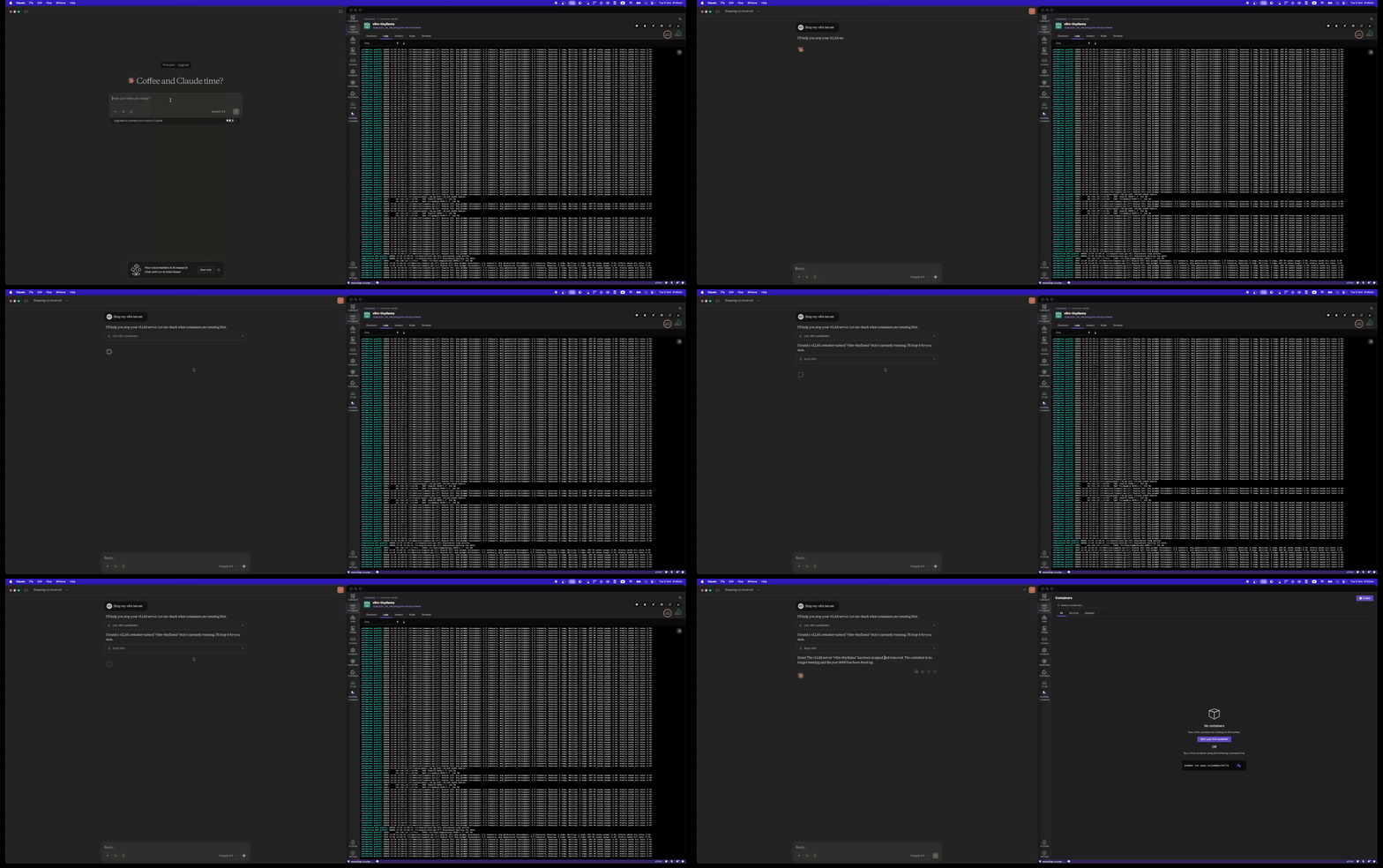
Stop vLLM Server
Clean up with the stop_vllm tool:
Installation
Using uvx (Recommended)
Using pip
pip install vllm-mcp-server
From Source
git clone https://github.com/micytao/vllm-mcp-server.git
cd vllm-mcp-server
pip install -e .
Quick Start
1. Start a vLLM Server
You can either start a vLLM server manually or let the MCP server manage it via Docker.
Option A: Let MCP Server Manage Docker (Recommended)
The MCP server can automatically start/stop vLLM containers with platform detection. Just configure your MCP client (step 2) and use the start_vllm tool.
Option B: Manual Container Setup (Podman or Docker)
Replace podman with docker if using Docker.
Linux/Windows with NVIDIA GPU:
podman run --device nvidia.com/gpu=all -p 8000:8000 \
  vllm/vllm-openai:latest \
  --model TinyLlama/TinyLlama-1.1B-Chat-v1.0
macOS (Apple Silicon / Intel):
podman run -p 8000:8000 \
  quay.io/rh_ee_micyang/vllm-mac:v0.11.0 \
  --model TinyLlama/TinyLlama-1.1B-Chat-v1.0 \
  --device cpu --dtype bfloat16
Linux/Windows CPU-only:
podman run -p 8000:8000 \
  quay.io/rh_ee_micyang/vllm-cpu:v0.11.0 \
  --model TinyLlama/TinyLlama-1.1B-Chat-v1.0 \
  --device cpu --dtype bfloat16
Option C: Native vLLM Installation
vllm serve TinyLlama/TinyLlama-1.1B-Chat-v1.0
2. Configure Your MCP Client
Cursor
Add to ~/.cursor/mcp.json:
{
  "mcpServers": {
    "vllm": {
      "command": "uvx",
      "args": ["vllm-mcp-server"],
      "env": {
        "VLLM_BASE_URL": "http://localhost:8000",
        "VLLM_MODEL": "TinyLlama/TinyLlama-1.1B-Chat-v1.0",
        "VLLM_HF_TOKEN": "hf_your_token_here"
      }
    }
  }
}
Note: VLLM_HF_TOKEN is required for gated models like Llama. Get your token from HuggingFace Settings.
Claude Desktop
Add to your Claude Desktop configuration:
{
  "mcpServers": {
    "vllm": {
      "command": "uvx",
      "args": ["vllm-mcp-server"],
      "env": {
        "VLLM_BASE_URL": "http://localhost:8000",
        "VLLM_HF_TOKEN": "hf_your_token_here"
      }
    }
  }
}
3. Use the Tools
Once configured, you can use these tools in your AI assistant:
Server Management:
start_vllm - Start a vLLM container (auto-detects platform & GPU)
stop_vllm - Stop a running container
get_platform_status - Check platform, Docker, and GPU status
vllm_status - Check vLLM server health
Inference:
Model Management:
Configuration
Configure the server using environment variables:
Variable | Description | Default |
VLLM_BASE_URL
| vLLM server URL | http://localhost:8000
|
VLLM_API_KEY
| API key (if required) | None
|
VLLM_MODEL
| Default model to use | None (auto-detect)
|
VLLM_HF_TOKEN
| HuggingFace token for gated models (e.g., Llama) | None
|
VLLM_DEFAULT_TEMPERATURE
| Default temperature | 0.7
|
VLLM_DEFAULT_MAX_TOKENS
| Default max tokens | 1024
|
VLLM_DEFAULT_TIMEOUT
| Request timeout (seconds) | 60.0
|
VLLM_CONTAINER_RUNTIME
| Container runtime (podman, docker, or auto) | None (auto-detect, prefers Podman)
|
VLLM_DOCKER_IMAGE
| Container image (GPU mode) | vllm/vllm-openai:latest
|
VLLM_DOCKER_IMAGE_MACOS
| Container image (macOS) | quay.io/rh_ee_micyang/vllm-mac:v0.11.0
|
VLLM_DOCKER_IMAGE_CPU
| Container image (CPU mode) | quay.io/rh_ee_micyang/vllm-cpu:v0.11.0
|
VLLM_CONTAINER_NAME
| Container name | vllm-server
|
VLLM_GPU_MEMORY_UTILIZATION
| GPU memory fraction | 0.9
|
Available Tools
P0 (Core)
vllm_chat
Send chat messages to vLLM with multi-turn conversation support.
{
  "messages": [
    {"role": "system", "content": "You are a helpful assistant."},
    {"role": "user", "content": "Hello!"}
  ],
  "temperature": 0.7,
  "max_tokens": 1024
}
vllm_complete
Generate text completions.
{
  "prompt": "def fibonacci(n):",
  "max_tokens": 200,
  "stop": ["\n\n"]
}
P1 (Model Management)
list_models
List all available models on the vLLM server.
get_model_info
Get detailed information about a specific model.
{
  "model_id": "TinyLlama/TinyLlama-1.1B-Chat-v1.0"
}
P2 (Status)
vllm_status
Check the health and status of the vLLM server.
P3 (Server Control - Platform Aware)
The server control tools support both Podman (preferred) and Docker, automatically detecting your platform and GPU availability:
Platform | GPU Support | Container Image | Default max_model_len |
Linux (GPU) | ✅ NVIDIA | vllm/vllm-openai:latest
| 8096 |
Linux (CPU) | ❌ | quay.io/rh_ee_micyang/vllm-cpu:v0.11.0
| 2048 |
macOS (Apple Silicon) | ❌ | quay.io/rh_ee_micyang/vllm-mac:v0.11.0
| 2048 |
macOS (Intel) | ❌ | quay.io/rh_ee_micyang/vllm-mac:v0.11.0
| 2048 |
Windows (GPU) | ✅ NVIDIA | vllm/vllm-openai:latest
| 8096 |
Windows (CPU) | ❌ | quay.io/rh_ee_micyang/vllm-cpu:v0.11.0
| 2048 |
Note: The max_model_len is automatically set based on the detected mode (CPU vs GPU). CPU mode uses 2048 to match vLLM's max_num_batched_tokens limit, while GPU mode uses 8096 for larger context. You can override this by explicitly passing max_model_len to start_vllm.
start_vllm
Start a vLLM server in a Docker container with automatic platform detection.
{
  "model": "TinyLlama/TinyLlama-1.1B-Chat-v1.0",
  "port": 8000,
  "gpu_memory_utilization": 0.9,
  "cpu_only": false,
  "tensor_parallel_size": 1,
  "max_model_len": null,
  "dtype": "auto"
}
Note: If max_model_len is not specified (or null), it defaults to 2048 for CPU mode or 8096 for GPU mode.
stop_vllm
Stop a running vLLM Docker container.
{
  "container_name": "vllm-server",
  "remove": true,
  "timeout": 10
}
restart_vllm
Restart a vLLM container.
list_vllm_containers
List all vLLM Docker containers.
get_vllm_logs
Get container logs to monitor loading progress.
{
  "container_name": "vllm-server",
  "tail": 100
}
get_platform_status
Get detailed platform, Docker, and GPU status information.
run_benchmark
Run a GuideLLM benchmark against the server.
{
  "rate": "sweep",
  "max_seconds": 120,
  "data": "emulated"
}
Resources
The server exposes these MCP resources:
vllm://status - Current server status
vllm://metrics - Performance metrics
vllm://config - Current configuration
vllm://platform - Platform, Docker, and GPU information
Prompts
Pre-defined prompts for common tasks:
coding_assistant - Expert coding help
code_reviewer - Code review feedback
technical_writer - Documentation writing
debugger - Debugging assistance
architect - System design help
data_analyst - Data analysis
ml_engineer - ML/AI development
Development
Setup
# Clone the repository
git clone https://github.com/micytao/vllm-mcp-server.git
cd vllm-mcp-server

# Install uv if you haven't already
curl -LsSf https://astral.sh/uv/install.sh | sh

# Create virtual environment and install dependencies
uv venv
source .venv/bin/activate  # or `.venv\Scripts\activate` on Windows

# Install with dev dependencies
uv pip install -e ".[dev]"
Local Development with Cursor
For debugging and local development, configure Cursor to run from source using uv run instead of uvx:
Add to ~/.cursor/mcp.json:
{
  "mcpServers": {
    "vllm": {
      "command": "uv",
      "args": [
        "--directory",
        "/path/to/vllm-mcp-server",
        "run",
        "vllm-mcp-server"
      ],
      "env": {
        "VLLM_BASE_URL": "http://localhost:8000",
        "VLLM_HF_TOKEN": "hf_your_token_here",
        "VLLM_CONTAINER_RUNTIME": "podman"
      }
    }
  }
}
This runs the MCP server directly from your local source code, so any changes you make will be reflected immediately after restarting Cursor.
Running Tests
Code Formatting
uv run ruff check --fix .
uv run ruff format .
Architecture
vllm-mcp-server/
├── src/vllm_mcp_server/
│   ├── server.py              # Main MCP server entry point
│   ├── tools/                 # MCP tool implementations
│   │   ├── chat.py            # Chat/completion tools
│   │   ├── models.py          # Model management tools
│   │   ├── server_control.py  # Docker container control
│   │   └── benchmark.py       # GuideLLM integration
│   ├── resources/             # MCP resource implementations
│   │   ├── server_status.py   # Server health resource
│   │   └── metrics.py         # Prometheus metrics resource
│   ├── prompts/               # Pre-defined prompts
│   │   └── system_prompts.py  # Curated system prompts
│   └── utils/                 # Utilities
│       ├── config.py          # Configuration management
│       └── vllm_client.py     # vLLM API client
├── tests/                     # Test suite
├── examples/                  # Configuration examples
├── pyproject.toml             # Project configuration
└── README.md                  # This file
License
Apache License 2.0 - see LICENSE for details.
Contributing
Contributions are welcome! Please feel free to submit a Pull Request.
Acknowledgments
vLLM - Fast LLM inference engine
MCP - Model Context Protocol
GuideLLM - LLM benchmarking tool

