

F
licenseNot graded
qualityD
maintenanceEnables seamless content conversion between multiple formats including Markdown, HTML, and DOCX directly within development environments.
3 npm
-

Click on "Deploy Server".
Wait a few minutes for the server to deploy. Once ready, it will show a "Started" state.
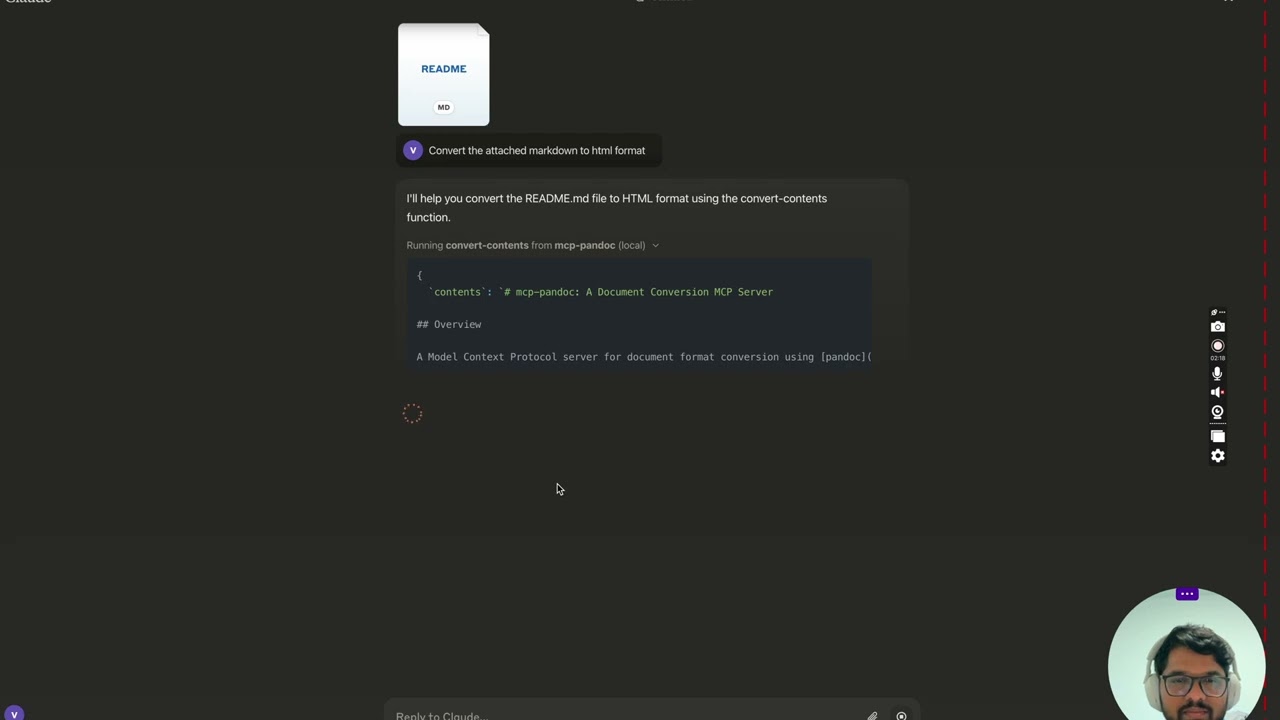
In the chat, type @ followed by the MCP server name and your instructions, e.g., "@Pandoc Document Conversion convert this markdown to HTML"
That's it! The server will respond to your query, and you can continue using it as needed.
Here is a step-by-step guide with screenshots.
Officially included in the Model Context Protocol servers open-source project. 🎉
A Model Context Protocol server for document format conversion using pandoc. This server provides tools to transform content between different document formats while preserving formatting and structure.
Please note that mcp-pandoc is currently in early development. PDF support is under development, and the functionality and available tools are subject to change and expansion as we continue to improve the server.
Credit: This project uses the Pandoc Python package for document conversion, forming the foundation for this project.
Related MCP server: Document Conversion Assistant
More to come...
convert-contents
Transforms content between supported formats
Inputs:
contents (string): Source content to convert (required if input_file not provided)
input_file (string): Complete path to input file (required if contents not provided)
input_format (string): Source format of the content (defaults to markdown)
output_format (string): Target format (defaults to markdown)
output_file (string): Complete path for output file (required for pdf, docx, rst, latex, epub formats)
Supported input/output formats:
markdown
html
docx
rst
latex
epub
txt
Note: For advanced formats (pdf, docx, rst, latex, epub), an output_file path is required
Currently supported formats:
Basic formats (direct conversion):
Plain text (.txt)
Markdown (.md)
HTML (.html)
Advanced formats (requires complete file paths):
PDF (.pdf) - requires TeX Live installation
DOCX (.docx)
RST (.rst)
LaTeX (.tex)
EPUB (.epub)
Note: For advanced formats:
Complete file paths with filename and extension are required
PDF conversion requires TeX Live installation (see Critical Requirements section -> For macOS: brew install texlive)
When no output path is specified:
Basic formats: Displays converted content in the chat
Advanced formats: May save in system temp directory (/tmp/ on Unix systems)
NOTE: Ensure to complete installing required packages mentioned below under "Critical Requirements".
To use the published one
{
  "mcpServers": {
    "mcp-pandoc": {
      "command": "uvx",
      "args": ["mcp-pandoc"]
    }
  }
}Pandoc Installation
Required: Install pandoc - the core document conversion engine
Installation:
# macOS
brew install pandoc

# Ubuntu/Debian
sudo apt-get install pandoc

# Windows
# Download installer from: https://pandoc.org/installing.htmlVerify: pandoc --version
UV package installation
Required: Install uv package (includes uvx command)
Installation:
# macOS
brew install uv

# Windows/Linux
pip install uvVerify: uvx --version
PDF Conversion Prerequisites: Only needed if you need to convert & save pdf
TeX Live must be installed before attempting PDF conversion
Installation commands:
# Ubuntu/Debian
sudo apt-get install texlive-xetex

# macOS
brew install texlive

# Windows
# Install MiKTeX or TeX Live from:
# https://miktex.org/ or https://tug.org/texlive/
File Path Requirements
When saving or converting files, you MUST provide complete file paths including filename and extension
The tool does not automatically generate filenames or extensions
✅ Correct Usage:
# Converting content to PDF
"Convert this text to PDF and save as /path/to/document.pdf"

# Converting between file formats
"Convert /path/to/input.md to PDF and save as /path/to/output.pdf"
❌ Incorrect Usage:
# Missing filename and extension
"Save this as PDF in /documents/"

# Missing complete path
"Convert this to PDF"

# Missing extension
"Save as /documents/story"PDF Conversion Fails
Error: "xelatex not found"
Solution: Install TeX Live first (see installation commands above)
File Conversion Fails
Error: "Invalid file path"
Solution: Provide complete path including filename and extension
Example: /path/to/document.pdf instead of just /path/to/
Format Conversion Fails
Error: "Unsupported format"
Solution: Use only supported formats:
Basic: txt, html, markdown
Advanced: pdf, docx, rst, latex, epub
On MacOS: open ~/Library/Application\ Support/Claude/claude_desktop_config.json
On Windows: %APPDATA%/Claude/claude_desktop_config.json
a) Only for local development & contribution to this repo
ℹ️ Replace with your locally cloned project path
"mcpServers": {
  "mcp-pandoc": {
    "command": "uv",
    "args": [
      "--directory",
      "<DIRECTORY>/mcp-pandoc",
      "run",
      "mcp-pandoc"
    ]
  }
}
b) Published Servers Configuration - Consumers should use this config
"mcpServers": {
  "mcp-pandoc": {
    "command": "uvx",
    "args": [
      "mcp-pandoc"
    ]
  }
}Run the following bash command to install published mcp-pandoc pypi for Claude Desktop automatically via Smithery:
npx -y @smithery/cli install mcp-pandoc --client claudeIf you face any issue, use the "Published Servers Configuration" above directly instead of this cli.
Note: To use locally configured mcp-pandoc, follow "Development/Unpublished Servers Configuration" step above.
To prepare the package for distribution:
Sync dependencies and update lockfile:
uv syncBuild package distributions:
uv buildThis will create source and wheel distributions in the dist/ directory.
Publish to PyPI:
uv publishNote: You'll need to set PyPI credentials via environment variables or command flags:
Token: --token or UV_PUBLISH_TOKEN
Or username/password: --username/UV_PUBLISH_USERNAME and --password/UV_PUBLISH_PASSWORD
Since MCP servers run over stdio, debugging can be challenging. For the best debugging experience, we strongly recommend using the MCP Inspector.
You can launch the MCP Inspector via npm with this command:
npx @modelcontextprotocol/inspector uv --directory /Users/vivekvells/Desktop/code/ai/mcp-pandoc run mcp-pandocUpon launching, the Inspector will display a URL that you can access in your browser to begin debugging.
We welcome contributions to enhance mcp-pandoc! Here's how you can get involved:
Report Issues: Found a bug or have a feature request? Open an issue on our GitHub Issues page.
Submit Pull Requests: Improve the codebase or add features by creating a pull request.
Converts content between different formats. Transforms input content from any supported format into the specified output format.
🚨 CRITICAL REQUIREMENTS - PLEASE READ:
PDF Conversion:
You MUST install TeX Live BEFORE attempting PDF conversion:
Ubuntu/Debian: sudo apt-get install texlive-xetex
macOS: brew install texlive
Windows: Install MiKTeX or TeX Live from https://miktex.org/ or https://tug.org/texlive/
PDF conversion will FAIL without this installation
File Paths - EXPLICIT REQUIREMENTS:
When asked to save or convert to a file, you MUST provide:
Complete directory path
Filename
File extension
Example request: 'Write a story and save as PDF'
You MUST specify: '/path/to/story.pdf' or 'C:\Documents\story.pdf'
The tool will NOT automatically generate filenames or extensions
File Location After Conversion:
After successful conversion, the tool will display the exact path where the file is saved
Look for message: 'Content successfully converted and saved to: [file_path]'
You can find your converted file at the specified location
If no path is specified, files may be saved in system temp directory (/tmp/ on Unix systems)
For better control, always provide explicit output file paths
Supported formats:
Basic formats: txt, html, markdown
Advanced formats (REQUIRE complete file paths): pdf, docx, rst, latex, epub
✅ CORRECT Usage Examples:
'Convert this text to HTML' (basic conversion)
Tool will show converted content
'Save this text as PDF at /documents/story.pdf'
Correct: specifies path + filename + extension
Tool will show: 'Content successfully converted and saved to: /documents/story.pdf'
❌ INCORRECT Usage Examples:
'Save this as PDF in /documents/'
Missing filename and extension
'Convert to PDF'
Missing complete file path
When requesting conversion, ALWAYS specify:
The content or input file
The desired output format
For advanced formats: complete output path + filename + extension Example: 'Convert this markdown to PDF and save as /path/to/output.pdf'
Note: After conversion, always check the success message for the exact file location.
| Name | Required | Description | Default |
|---|---|---|---|
| contents | No | The content to be converted (required if input_file not provided) | |
| input_file | No | Complete path to input file including filename and extension (e.g., '/path/to/input.md') | |
| input_format | No | Source format of the content (defaults to markdown) | markdown |
| output_format | No | Desired output format (defaults to markdown) | markdown |
| output_file | No | Complete path where to save the output including filename and extension (required for pdf, docx, rst, latex, epub formats) |
Does the description disclose side effects, auth requirements, rate limits, or destructive behavior?
With no annotations provided, the description carries the full burden of behavioral disclosure. It effectively describes behavioral traits such as installation prerequisites for PDF conversion, file path requirements, file location after conversion (e.g., saved in system temp directory if no path specified), and success message details. This covers critical operational aspects beyond basic functionality.
Agents need to know what a tool does to the world before calling it. Descriptions should go beyond structured annotations to explain consequences.
Is the description appropriately sized, front-loaded, and free of redundancy?
The description is front-loaded with a clear purpose but includes extensive bullet points and examples, making it lengthy. While all information is relevant, it could be more streamlined; some details like installation steps and repetitive examples add bulk without always being concise. It earns its place but lacks optimal brevity.
Shorter descriptions cost fewer tokens and are easier for agents to parse. Every sentence should earn its place.
Given the tool's complexity, does the description cover enough for an agent to succeed on first attempt?
Given the complexity (5 parameters, no output schema, no annotations), the description is highly complete. It covers purpose, usage guidelines, behavioral traits, parameter requirements, examples, and post-conversion actions. It compensates well for the lack of structured data, ensuring the agent has all necessary context to use the tool correctly.
Complex tools with many parameters or behaviors need more documentation. Simple tools need less. This dimension scales expectations accordingly.
Does the description clarify parameter syntax, constraints, interactions, or defaults beyond what the schema provides?
The schema description coverage is 100%, so the baseline is 3. The description adds significant value by explaining parameter semantics beyond the schema, such as the necessity of complete file paths for output_file in advanced formats, examples of usage, and clarification on when parameters are required (e.g., output_file for pdf, docx, etc.). However, it doesn't deeply elaborate on all parameter interactions beyond what's implied in the guidelines.
Input schemas describe structure but not intent. Descriptions should explain non-obvious parameter relationships and valid value ranges.
Does the description clearly state what the tool does and how it differs from similar tools?
The description clearly states the tool's purpose as converting content between different formats, specifying it transforms input content from any supported format into a specified output format. It distinguishes between basic and advanced formats, providing specific examples like txt, html, markdown, pdf, docx, etc., making the verb+resource explicit and comprehensive.
Agents choose between tools based on descriptions. A clear purpose with a specific verb and resource helps agents select the right tool.
Does the description explain when to use this tool, when not to, or what alternatives exist?
The description provides explicit usage guidelines, including critical requirements for PDF conversion (e.g., installing TeX Live), file path specifications (complete directory path, filename, extension), and when to use certain parameters. It offers correct and incorrect usage examples, specifies requirements for advanced formats, and details what to check after conversion, covering when/when-not scenarios thoroughly.
Agents often have multiple tools that could apply. Explicit usage guidance like "use X instead of Y when Z" prevents misuse.
Recent tool additions, removals, and schema changes observed during successful MCP inspections.
v1.0.0convert-contentsScored across 1 tool
With only one tool, there is no possibility of ambiguity or overlap between tools. The tool 'convert-contents' has a single, clearly defined purpose: converting content between formats.
Since there is only one tool, naming consistency is inherently perfect. The tool name 'convert-contents' follows a clear verb_noun pattern, but with no other tools to compare, consistency is not an issue.
The server is named 'Pandoc Document Conversion' and has only one tool. For a document conversion domain, a single tool is too few to provide comprehensive coverage, as it lacks specialized tools for different conversion scenarios or formats, making it feel thin and under-scoped.
The tool surface is severely incomplete for the domain of document conversion. While 'convert-contents' handles format conversion, there are obvious gaps such as tools for listing supported formats, validating input, batch processing, or handling metadata, which are common in such systems.
Parse 17 document formats and generate DOCX, PPTX, XLSX, ODF, HTML, Markdown and Quarto files.
Clean, repair, and convert AI-generated Markdown to HTML/PDF/DOCX/PNG; save and share documents.
Parse PDF/Word/PPT/HTML to Markdown; tables as JSON, image extraction, RAG chunking, page ranges.
Markdown in, any format out. PDFs merged, split, watermarked. Runs on our own doc engines.