
MCP Image Placeholder Server
This server allows you to generate placeholder images for testing or development purposes with customizable dimensions.
Multiple Providers: Choose either
placeholdorlorem-picsumto generate imagesCustomizable Dimensions: Specify width and height (1-10000 pixels)
Return Image URLs: Get immediate URLs for the generated images
Referenced in an example usage where tailwindcss is loaded from unpkg.com for creating a modern page with a photo gallery
Click on "Install Server".
Wait a few minutes for the server to deploy. Once ready, it will show a "Started" state.
In the chat, type
@followed by the MCP server name and your instructions, e.g., "@MCP Image Placeholder Servergenerate a 400x300 placeholder image for my website mockup"
That's it! The server will respond to your query, and you can continue using it as needed.
Here is a step-by-step guide with screenshots.
MCP Image Placeholder Server
This is a Model Context Protocol (MCP) server that provides a tool for generating placeholder images from different providers.
Features
Generates placeholder images from supported providers
Supports two image providers:
placehold: Provides simple placeholder imageslorem-picsum: Provides real images as placeholder images
Validates input parameters
Returns image URLs for immediate use
Related MCP server: Image-Gen-Server
Requirements
Python 3.9+
uvpackage manager
Installation
Clone this repository
Usage
The server exposes one tool:
image_placeholder
Generate a placeholder image URL based on specified parameters.
Parameters:
provider: The image provider to use (placeholdorlorem-picsum)width: The width of the image (1-10000)height: The height of the image (1-10000)
Returns:
URL string of the generated image
Example Usage:
# Generate a 300x200 placeholder image
url = image_placeholder(provider="placehold", width=300, height=200)

# Generate a 500px square lorem-picsum image
url = image_placeholder(provider="lorem-picsum", width=500)
Configuration
To connect this server to Claude for Desktop:
Add the following to your
claude_desktop_config.json:{ "mcpServers": { "image-placeholder": { "command": "uv", "args": [ "--directory", "/ABSOLUTE/PATH/TO/PROJECT", "run", "main.py" ] } } }Restart Claude for Desktop
To connect this server to Cursor:
Open Cursor Settings
Head to the
FeaturessectionScroll down to the
MCP ServerssectionClick on the
Add new MCP serverbuttonEnter the following information:
Name:
image-placeholderType:
commandServer URL:
uv --directory /ABSOLUTE/PATH/TO/PROJECT run main.py
Click on the
Add ↵button
Troubleshooting
If the tool is not detected, use absolute path of the uv command, e.g.
/ABSOLUTE/PATH/TO/uv --directory /ABSOLUTE/PATH/TO/PROJECT run main.pyExample Usage and Output (Cursor)
Prompt:
Create a new directory named "example" and a file named output.html.

Then create a single modern looking page using tailwindcss: https://unpkg.com/@tailwindcss/browser@4

Show a nice header, content, and footer, showing a photo gallery.

Save this into output.html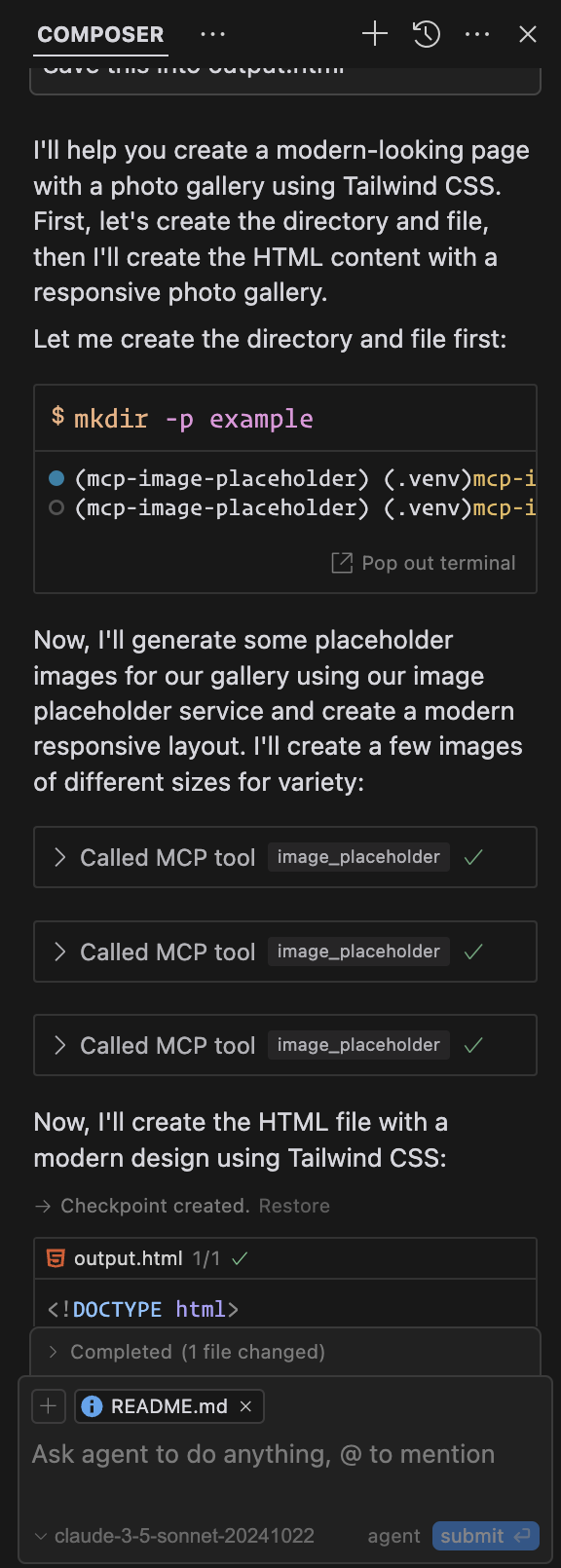
Output: Example Output (Cursor)
License
Resources
Unclaimed servers have limited discoverability.
Looking for Admin?
If you are the server author, to access and configure the admin panel.
Tools
Latest Blog Posts
MCP directory API
We provide all the information about MCP servers via our MCP API.
curl -X GET 'https://glama.ai/api/mcp/v1/servers/husniadil/mcp-image-placeholder'
If you have feedback or need assistance with the MCP directory API, please join our Discord server