Click on "Install Server".
Wait a few minutes for the server to deploy. Once ready, it will show a "Started" state.
In the chat, type
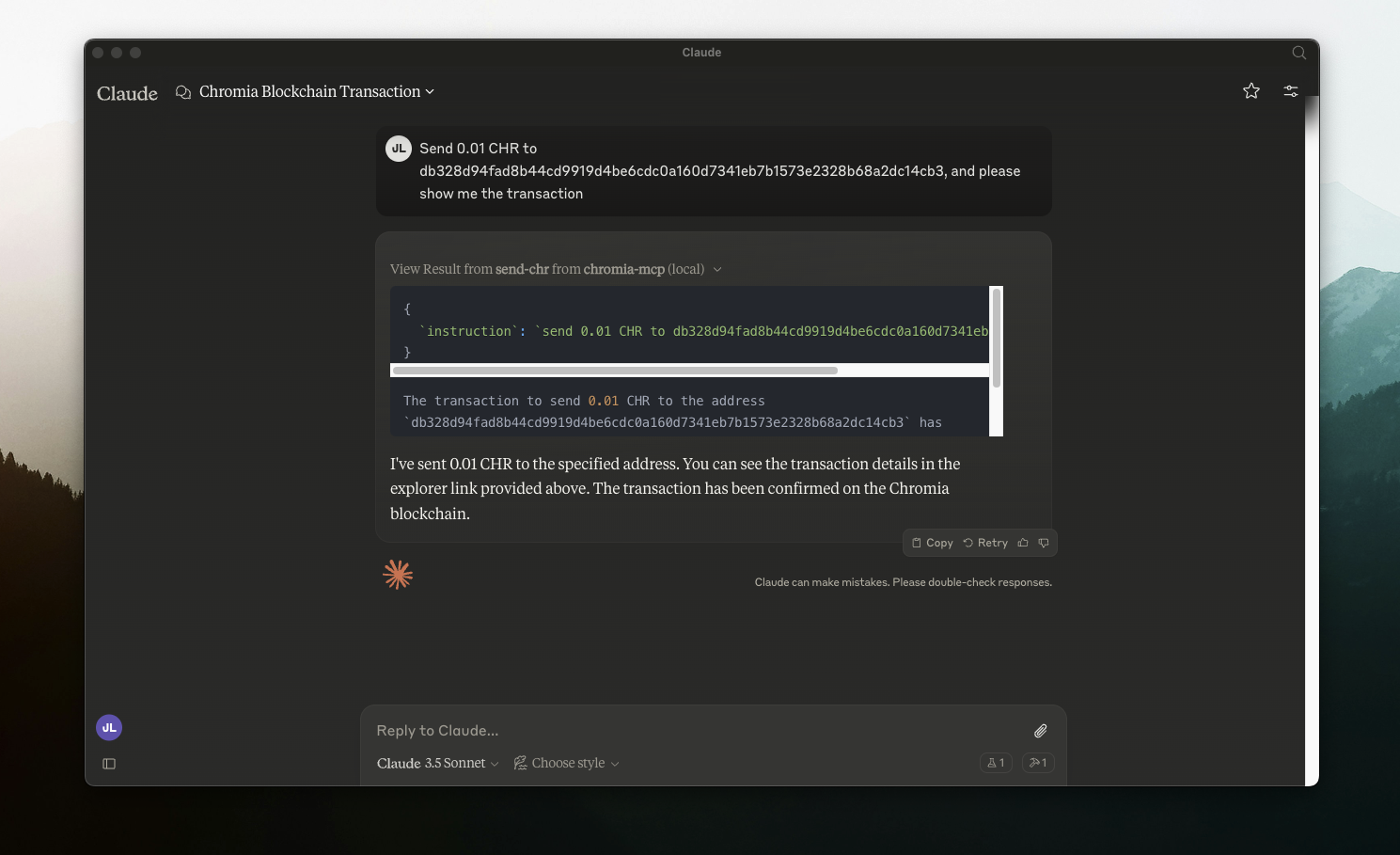
@followed by the MCP server name and your instructions, e.g., "@chromia-mcpsend 50 CHR to 0xabc123def456ghi789jkl012mno345pqr678stu901"
That's it! The server will respond to your query, and you can continue using it as needed.
Here is a step-by-step guide with screenshots.
Chromia MCP
This tool that enables Claude AI to interact with Chromia Wallet for sending $CHR transactions.
Introduction on MCP: https://modelcontextprotocol.io/quickstart

Setting up
git clone this repo
setup
.envand install
cp .env.sample .env
npm i
npm run buildsetup Claude's Desktop App (mac setup)
nano ~/Library/Application\ Support/Claude/claude_desktop_config.json{
"mcpServers": {
"chromia-mcp": {
"command": "node",
"args": [
"/PATH_TO_FOLDER/chromia-mcp/build/index.js"
]
}
}
}Restart Claude Desktop App
This server cannot be installed
Resources
Looking for Admin?
Admins can modify the Dockerfile, update the server description, and track usage metrics. If you are the server author, to access the admin panel.