
@chargebee/mcp
Official# Chargebee Model Context Protocol (MCP) Server

[](https://www.npmjs.com/package/@chargebee/mcp)
> ⚠️ Deprecation Notice
>
> This package is deprecated and will no longer receive updates or support.
Please migrate to our new KnowledgeBase MCP Server, which provides enhanced capabilities and improved accuracy.
> Learn more and upgrade here: [Chargebee MCP Server Documentation](https://www.chargebee.com/docs/billing/2.0/ai-in-chargebee/chargebee-mcp)
---
Model Context Protocol (MCP) is a [standardized protocol](https://modelcontextprotocol.io/introduction) designed to manage context between large language models (LLMs) and external systems.
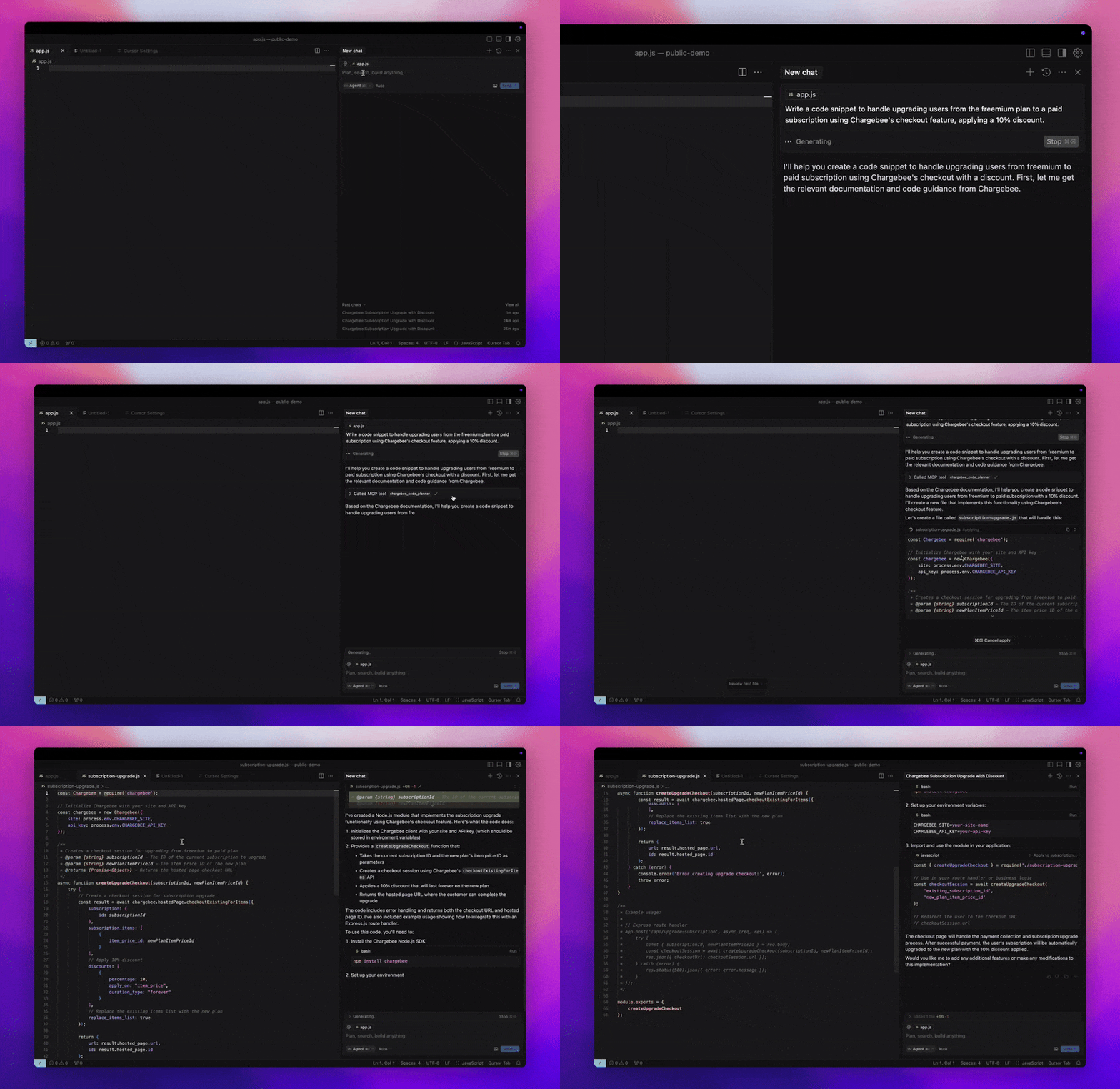
The [Chargebee MCP Server](https://npmjs.com/package/@chargebee/mcp) offers a robust set of tools to improve developer efficiency. It integrates with AI-powered code editors like Cursor, Windsurf, and Cline, as well as general-purpose tools such as Claude Desktop. It is compatible with any MCP Client.
With this MCP Server, you can:
- Get immediate answers about the Chargebee products and API services.
- Receive context-aware code snippets tailored to your integration needs.
- Access Chargebee's knowledge base, including:
- Documentation
- FAQs
- Release notes
- And much more
## Prerequisites
- [Node.js LTS](https://nodejs.org/en/download/) - The Chargebee MCP server requires the Node.js LTS version to function correctly.
## Setup
To run the Chargebee MCP server using [Node.js npx](https://docs.npmjs.com/cli/v10/commands/npx), execute the following command:
```sh
npx -y @chargebee/mcp@latest
```
## Available Tools
| Tool | Description |
| -------------------------------------| -------------------------------------------------------------------------------------------------|
| `chargebee_documentation_search` | Search Chargebee's documentation to retrieve detailed information and usage guides. |
| `chargebee_code_planner` | Generate structured code outlines and sample code for integrating Chargebee's APIs and features. |
## Installation
### Cursor
To add this server to Cursor IDE:
1. Navigate to `Cursor Settings` > `MCP`.
2. Click `+ Add new Global MCP Server`.
3. Add the following configuration to your global `.cursor/mcp.json` file:
```json
{
"mcpServers": {
"chargebee": {
"command": "npx",
"args": [
"-y",
"@chargebee/mcp"
]
}
}
}
```
Refer to the [Cursor documentation](https://docs.cursor.com/context/model-context-protocol) for additional details. Note: You can also add this to your project-specific Cursor configuration (supported in Cursor 0.46+).
### Windsurf
To set up MCP with Cascade:
1. Open Windsurf and navigate to `Settings` > `Advanced Settings` or use the Command Palette > `Open Windsurf Settings Page`.
2. Scroll to the Cascade section to add a new server, view existing servers, or access the raw JSON config file at `mcp_config.json`.
3. Click “Add custom server +” to include the Chargebee MCP server directly in `mcp_config.json`:
```json
{
"mcpServers": {
"chargebee": {
"command": "npx",
"args": [
"-y",
"@chargebee/mcp"
]
}
}
}
```
Refer to the [Windsurf documentation](https://docs.codeium.com/windsurf/mcp) for more information.
### VS Code
Install the Chargebee MCP server in VS Code using one of these buttons:
[<img alt="Install in VS Code Insiders" src="https://img.shields.io/badge/VS_Code_Insiders-VS_Code_Insiders?style=flat-square&label=Install%20Server&color=24bfa5">](https://insiders.vscode.dev/redirect?url=vscode%3Amcp%2Finstall%3F%257B%2522name%2522%253A%2522chargebee%2522%252C%2522command%2522%253A%2522npx%2522%252C%2522args%2522%253A%255B%2522-y%2522%252C%2522%2540chargebee%252Fmcp%2522%255D%257D)
Alternatively, you can install the Chargebee MCP server using the VS Code CLI:
```bash
# For VS Code
code --add-mcp '{"name":"chargebee","command":"npx","args":["-y","@chargebee/mcp"]}'
```
```bash
# For VS Code Insiders
code-insiders --add-mcp '{"name":"chargebee","command":"npx","args":["-y","@chargebee/mcp"]}'
```
After installation, the Chargebee MCP server will be available for use with your GitHub Copilot agent in VS Code.
### Claude
Add the following configuration to your `claude_desktop_config.json` file. Refer to the [Claude Desktop documentation](https://modelcontextprotocol.io/quickstart/user) for more details:
```json
{
"mcpServers": {
"chargebee": {
"command": "npx",
"args": [
"-y",
"@chargebee/mcp"
]
}
}
}
```
### Cline
Manually add the following JSON to your `cline_mcp_settings.json` file via the Cline MCP Server settings:
```json
{
"mcpServers": {
"chargebee": {
"command": "npx",
"args": [
"-y",
"@chargebee/mcp"
]
}
}
}
```
### Roo Code
Access the MCP settings by selecting `Edit MCP Settings` in Roo Code settings or using the `Roo Code: Open MCP Config` command in the VS Code command palette:
```json
{
"mcpServers": {
"chargebee": {
"command": "npx",
"args": [
"-y",
"@chargebee/mcp"
]
}
}
}
```
## Contribution
To contribute to this project, refer to the [contribution guide](CONTRIBUTING.md).
## License
[MIT](https://github.com/chargebee/agentkit/blob/main/LICENSE)
TDQS
Scored across 2 tools
The two tools have explicitly distinct purposes: one for implementation guidance and code generation, the other for general documentation queries. Descriptions clearly separate their use cases, eliminating ambiguity.
Both tools follow a consistent 'chargebee_<descriptive_noun>' pattern, making it easy to infer their roles. The naming is uniform and predictable.
With only two tools, the server is very focused, but that matches its specific purpose of handling integration assistance and documentation search. While minimal, the count is reasonable for the intended scope.
The tool set covers both implementation needs (code planner) and conceptual understanding (documentation search), leaving no obvious gaps for its stated goal of answering Chargebee integration questions.