
mac-use-mcp

# mac-use-mcp
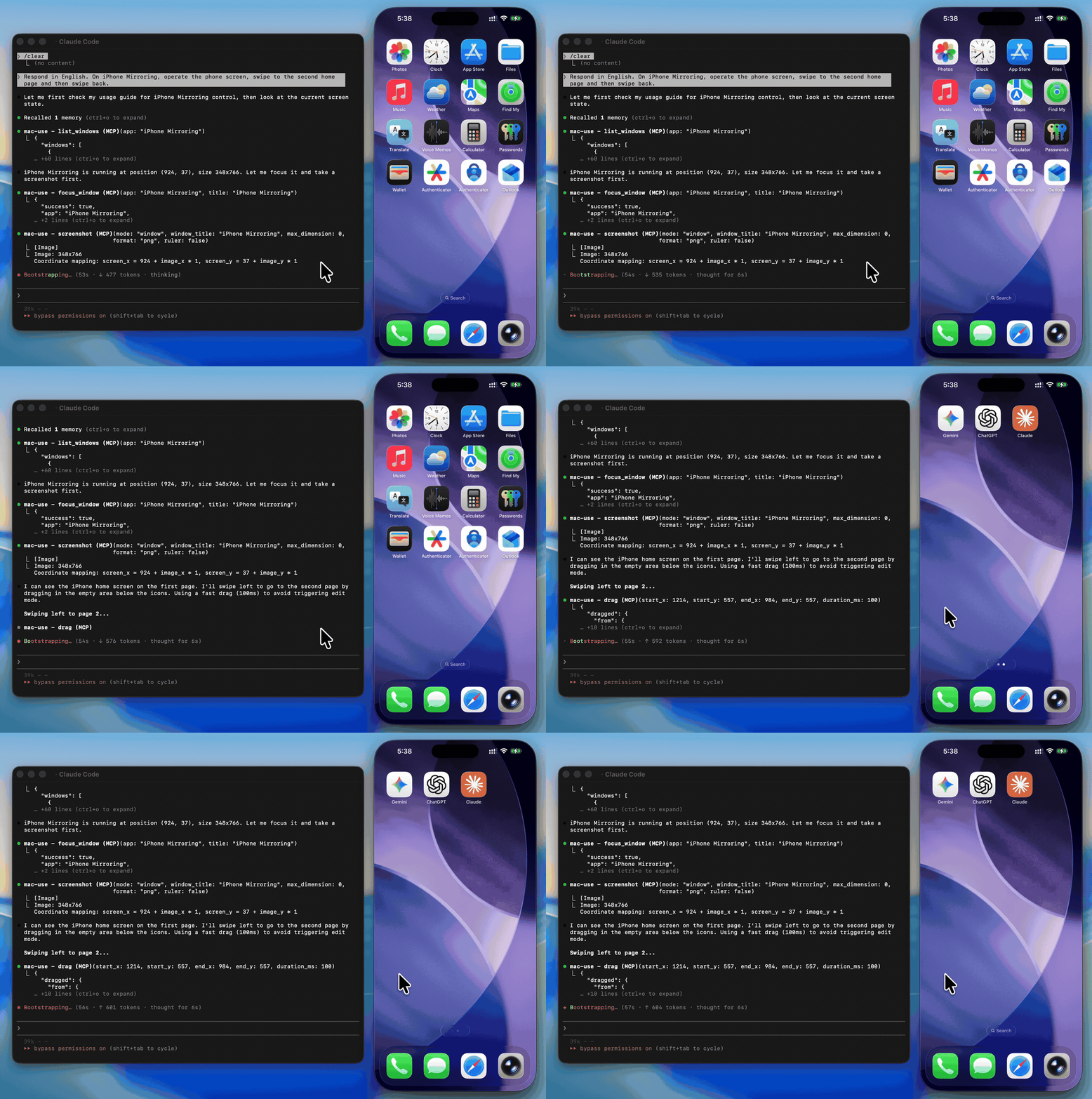
> [!WARNING]
> **This tool has full control over mouse, keyboard, and screen.** Please use in a sandboxed environment to protect your privacy and avoid accidental data loss by your agents. You are responsible for any actions performed through this tool.
Zero-native-dependency macOS desktop automation via MCP.
Give AI agents eyes and hands on macOS — click, type, screenshot, and inspect any application.
[](https://github.com/antbotlab/mac-use-mcp/actions/workflows/ci.yml)
[](https://www.npmjs.com/package/mac-use-mcp)
[](https://www.npmjs.com/package/mac-use-mcp)
[](./LICENSE)
[](https://www.typescriptlang.org/)


## Use Cases
- **Automated UI testing** — click buttons, verify element states with `get_ui_elements`, validate screen content via `screenshot`
- **Desktop workflow automation** — launch apps with `open_application`, fill forms with `type_text`, navigate menus via `click_menu`
- **Screenshot-based monitoring** — capture screen regions periodically with `screenshot` for visual diffing or alerting
- **Accessibility inspection** — query UI element trees with `get_ui_elements` for QA and compliance checks
- **AI agent computer use** — give LLMs eyes and hands on macOS via `screenshot`, `click`, `type_text`, and more
## Why mac-use-mcp?
- **Just works** — `npx mac-use-mcp` and grant two macOS permissions. No node-gyp, no Xcode tools, no build step.
- **18 tools, one server** — screenshots, clicks, keystrokes, window management, accessibility inspection, and clipboard.
- **macOS 13+ on Intel and Apple Silicon** — no native addons, no architecture headaches.
## Install
**Requirements:** macOS 13+ and Node.js 22+. The server communicates over **stdio** transport.
> This package only works on macOS. It will refuse to install on other operating systems.
No build steps. No native dependencies. Just run:
```bash
npx mac-use-mcp
```
> `npx` will prompt to install the package on first run. Use `npx -y mac-use-mcp` to skip the confirmation.
> [!TIP]
> **Model selection matters.** Desktop automation involves screenshot–action loops that add up in token usage. A fast model with solid reasoning, good vision, and reliable tool calling is recommended:
>
> | Model | Provider |
> |-------|----------|
> | Gemini 3 Flash | Google |
> | Claude Sonnet 4.6 | Anthropic |
> | GPT-5 mini | OpenAI |
> | MiniMax-M2.5 | MiniMax |
> | Kimi K2.5 | Moonshot AI |
> | Qwen3.5 | Alibaba |
> | GLM-4.7 | Zhipu AI |
## Permission Setup
mac-use-mcp requires two macOS permissions to function. Grant them once and you're set.
### Accessibility
Required for mouse and keyboard control.
1. Open **System Settings** > **Privacy & Security** > **Accessibility**
2. Click the **+** button
3. Add your MCP client application (e.g., Claude Desktop, your terminal emulator)
4. Ensure the toggle is enabled
### Screen Recording
Required for screenshots.
1. Open **System Settings** > **Privacy & Security** > **Screen Recording**
2. Click the **+** button
3. Add your MCP client application
4. Ensure the toggle is enabled
5. Restart the application if prompted
### Verify permissions
After granting both permissions and configuring your MCP client (see next section), use the `check_permissions` tool to confirm everything is working:
```
> check_permissions
✓ Accessibility: granted
✓ Screen Recording: granted
```
## MCP Client Configuration
<details open>
<summary><strong>Claude Code</strong></summary>
```bash
claude mcp add mac-use-mcp -- npx mac-use-mcp
```
</details>
<details>
<summary><strong>Claude Desktop</strong></summary>
Add to `~/Library/Application Support/Claude/claude_desktop_config.json`:
```json
{
"mcpServers": {
"mac-use-mcp": {
"command": "npx",
"args": ["mac-use-mcp"]
}
}
}
```
</details>
<details>
<summary><strong>OpenAI Codex</strong></summary>
Add to `~/.codex/config.toml`:
```toml
[mcp_servers.mac-use]
command = "npx"
args = ["-y", "mac-use-mcp"]
```
Or via CLI:
```bash
codex mcp add mac-use -- npx -y mac-use-mcp
```
</details>
<details>
<summary><strong>Google Antigravity</strong></summary>
Add to `~/.gemini/antigravity/mcp_config.json`:
```json
{
"mcpServers": {
"mac-use-mcp": {
"command": "npx",
"args": ["mac-use-mcp"]
}
}
}
```
</details>
<details>
<summary><strong>Gemini CLI</strong></summary>
Add to `~/.gemini/settings.json`:
```json
{
"mcpServers": {
"mac-use-mcp": {
"command": "npx",
"args": ["mac-use-mcp"]
}
}
}
```
</details>
<details>
<summary><strong>VS Code / Copilot</strong></summary>
Add to `.vscode/mcp.json` in your workspace (or open the Command Palette and run **MCP: Open User Configuration** for global setup):
```json
{
"servers": {
"mac-use-mcp": {
"command": "npx",
"args": ["mac-use-mcp"]
}
}
}
```
</details>
<details>
<summary><strong>Cursor</strong></summary>
Add to `~/.cursor/mcp.json` (global) or `.cursor/mcp.json` (project-level):
```json
{
"mcpServers": {
"mac-use-mcp": {
"command": "npx",
"args": ["mac-use-mcp"]
}
}
}
```
</details>
<details>
<summary><strong>Windsurf</strong></summary>
Add to `~/.codeium/windsurf/mcp_config.json`:
```json
{
"mcpServers": {
"mac-use-mcp": {
"command": "npx",
"args": ["mac-use-mcp"]
}
}
}
```
</details>
<details>
<summary><strong>Cline</strong></summary>
Open Cline's MCP settings (in the Cline extension panel, click the MCP servers icon), then add:
```json
{
"mcpServers": {
"mac-use-mcp": {
"command": "npx",
"args": ["mac-use-mcp"]
}
}
}
```
</details>
<details>
<summary><strong>Kiro</strong></summary>
Add to `~/.aws/amazonq/mcp.json`:
```json
{
"mcpServers": {
"mac-use-mcp": {
"command": "npx",
"args": ["mac-use-mcp"]
}
}
}
```
</details>
## Tools
This Node.js MCP server exposes 18 tools for mouse, keyboard, and screen control to any MCP-compatible client.
### Screen
| Tool | Description |
| --- | --- |
| `screenshot` | Capture the screen, a region, or a window by title (PNG or JPEG) |
| `get_screen_info` | Get display count, resolution, origin, and scale factor for each display |
| `get_cursor_position` | Get current cursor coordinates |
### Input
| Tool | Description |
| --- | --- |
| `click` | Click at screen coordinates with button, click count, and modifier options |
| `move_mouse` | Move the cursor to a position |
| `scroll` | Scroll up, down, left, or right at a position |
| `drag` | Drag from one point to another over a configurable duration |
| `type_text` | Type text at the cursor position (supports Unicode, CJK, and emoji) |
| `press_key` | Press a key or key combination (e.g., `"cmd+c"`, `"Return"`) |
### Window & App
| Tool | Description |
| --- | --- |
| `list_windows` | List all visible windows with positions and sizes |
| `focus_window` | Activate an app and bring a specific window to the front |
| `open_application` | Launch an application by name |
| `click_menu` | Click a menu bar item by path (e.g., "File > Save As...") |
App names support fuzzy matching — `"chrome"` resolves to `"Google Chrome"`, `"code"` to `"Code"`, etc.
### Accessibility
| Tool | Description |
| --- | --- |
| `get_ui_elements` | Query UI elements via Accessibility API — find buttons, text fields, and other controls by role or title |
### Clipboard
| Tool | Description |
| --- | --- |
| `clipboard_read` | Read the current system clipboard as plain text |
| `clipboard_write` | Write text to the system clipboard |
### Utility
| Tool | Description |
| --- | --- |
| `wait` | Pause for a specified duration (in milliseconds, 0–10 000, default 500) |
| `check_permissions` | Verify Accessibility and Screen Recording access |
## Examples
Common workflow patterns using mac-use-mcp tools:
### Screenshot a specific window
```
1. focus_window({ app: "Safari" })
2. screenshot({ mode: "window", window_title: "Safari" })
```
### Click a button in a dialog
```
1. get_ui_elements({ app: "Finder", role: "AXButton" })
→ finds "OK" button at position (500, 300)
2. click({ x: 500, y: 300 })
```
### Automate a menu action
```
1. open_application({ name: "TextEdit" })
2. click_menu({ app: "TextEdit", path: "Format > Make Plain Text" })
```
### Copy text between apps
```
1. focus_window({ app: "Safari" })
2. press_key({ key: "cmd+a" }) # select all
3. press_key({ key: "cmd+c" }) # copy
4. focus_window({ app: "Notes" })
5. press_key({ key: "cmd+v" }) # paste
```
## How It Works
- **Swift binary** handles mouse input (CGEvent), screen capture (CGWindowListCreateImage), window enumeration (CGWindowListCopyWindowInfo), and UI element queries (Accessibility API)
- **AppleScript** handles keyboard input (System Events `key code`), window focus, and menu clicks
- **Node.js MCP server** orchestrates everything over stdio, translating MCP tool calls into system operations
- **No native Node.js addons** — the Swift binary is pre-compiled and ships with the npm package
- **Serial execution queue** prevents race conditions between system operations
## Known Limitations
- **Screen Recording prompt on Sequoia**: macOS 15 shows a monthly system prompt asking to reconfirm Screen Recording access. This is an OS-level behavior and cannot be suppressed.
- **Secure input fields**: Password fields and other secure text inputs block synthetic keyboard events. This is a macOS security feature.
- **Keyboard input on macOS 26+**: CGEvent keyboard synthesis is silently blocked. Keyboard input uses AppleScript (`System Events key code`) as a workaround, which may behave differently in some edge cases.
- **System dialogs**: Some system-level dialogs (e.g., FileVault unlock, Login Window) cannot be interacted with programmatically due to macOS security restrictions.
- **Headless / CI**: Requires a graphical session. Headless macOS environments (e.g., standard GitHub Actions runners) are not supported.
## Troubleshooting
<details>
<summary><strong>Permission prompts keep appearing</strong></summary>
Grant Accessibility and Screen Recording permissions to your terminal app in System Settings > Privacy & Security. A restart of the terminal may be required.
</details>
<details>
<summary><strong>macOS Sequoia permission dialogs</strong></summary>
macOS 15 (Sequoia) introduced stricter permission prompts. Allow the prompts when they appear. The `check_permissions` tool can verify your current permission status.
</details>
<details>
<summary><strong>Secure input fields</strong></summary>
Some password fields and secure text inputs block programmatic key events. This is a macOS security feature. Use `clipboard_write` + `press_key("cmd+v")` as a workaround.
</details>
<details>
<summary><strong>Screen recording shows black screenshots</strong></summary>
Ensure Screen Recording permission is granted to your terminal app (not just Accessibility). Restart the terminal after granting.
</details>
## Related Projects
- [Playwright MCP](https://github.com/microsoft/playwright-mcp) — Browser automation via accessibility tree. Complements mac-use-mcp for web-only tasks.
- [Peekaboo](https://github.com/steipete/Peekaboo) — macOS screen automation with ScreenCaptureKit. Requires macOS 15+ and a Swift build.
- [awesome-mcp-servers](https://github.com/punkpeye/awesome-mcp-servers) — Curated list of MCP servers across the ecosystem.
## Contributing
See [CONTRIBUTING.md](CONTRIBUTING.md) for development setup and guidelines.
[Changelog](CHANGELOG.md)
## Security
To report a vulnerability, see [SECURITY.md](SECURITY.md).
## Support
- Found a bug? [Open an issue](https://github.com/antbotlab/mac-use-mcp/issues)
- Have a feature idea? [Open an issue](https://github.com/antbotlab/mac-use-mcp/issues)
- Like the project? Give it a star — it helps others discover mac-use-mcp.
## License
[MIT](./LICENSE) © 2026 antbotlab
---
macOS is a trademark of Apple Inc., registered in the U.S. and other countries and regions.
TDQS
Scored across 18 tools
Each tool has a clearly distinct purpose with no significant overlap. For example, click handles screen coordinate clicks, click_menu handles menu navigation, and drag handles dragging gestures, all serving unique functions. Even clipboard_read and clipboard_write are clearly separated from type_text, which uses clipboard paste for typing.
All tool names follow a consistent snake_case verb_noun pattern, such as check_permissions, click_menu, and get_screen_info. There are no deviations in naming conventions, making the set predictable and easy to understand.
With 18 tools, the server provides comprehensive coverage for macOS UI automation, including input simulation, window management, clipboard operations, and system queries. Each tool serves a specific, necessary function without redundancy, fitting well within the typical 3-15 range for such a domain.
The toolset offers complete coverage for macOS UI automation, including permissions checking, mouse/keyboard input, window/app control, clipboard management, and system information retrieval. There are no obvious gaps; tools like wait and type_text address edge cases, ensuring agents can handle full workflows without dead ends.