
-

qontoctl
qontoctl is a CLI and MCP server for the Qonto banking API, enabling AI assistants and users to manage nearly all aspects of a Qonto business account.
Accounts: List, create, update, close bank accounts; download IBAN certificates and bank statements.
Transactions: List, search, filter transactions; manage attachments (list, add, remove).
Cards: List, create (individual or bulk up to 50), lock/unlock, report lost/stolen, discard; update limits, nickname, options (ATM, NFC, online, foreign), and restrictions; get secure iframe URL for card details (PAN, CVV, expiry); list available designs.
SEPA Transfers: List, create, cancel transfers; download proof PDFs; verify payees (single and bulk).
Internal & Bulk Transfers: Create internal transfers between accounts; list, view, and create bulk transfers.
Recurring Transfers: Create, cancel, list, and view recurring transfers.
International Transfers: Check eligibility, list supported currencies, create quotes, manage international beneficiaries (list, add, update, remove), and create international transfers.
SEPA Beneficiaries: List, add, update, trust/untrust beneficiaries.
Clients & Invoicing: Full lifecycle for client invoices (create, update, finalize, send, mark paid, cancel); manage quotes (create, update, delete, send); list credit notes; manage clients (list, create, update, delete).
Supplier Invoices & E-Invoicing: List, view, bulk-create supplier invoices; retrieve e-invoicing settings.
Payment Links: List, create, deactivate payment links; list payments and available methods; manage provider connection.
Memberships & Organization: List memberships, show current user, invite members; retrieve organization details.
Requests: List, approve, decline organization requests; create flash card and virtual card requests.
Insurance: Show, create, update insurance contracts; upload/remove documents.
Attachments & Labels: Upload/show attachments; list/show labels.
SCA Sessions: View session status; mock SCA decisions (sandbox only).
Authentication: Configure OAuth2 and API key profiles; manage login, refresh, revoke, and profile lifecycle.
MCP Integration: Exposes all operations as MCP tools for AI assistants (Claude, Cursor, Windsurf) with natural language interaction.
Allows for the management of SEPA beneficiaries and transfers, enabling actions such as listing, adding, and trusting beneficiaries, as well as creating, canceling, and downloading proofs for SEPA transfers.
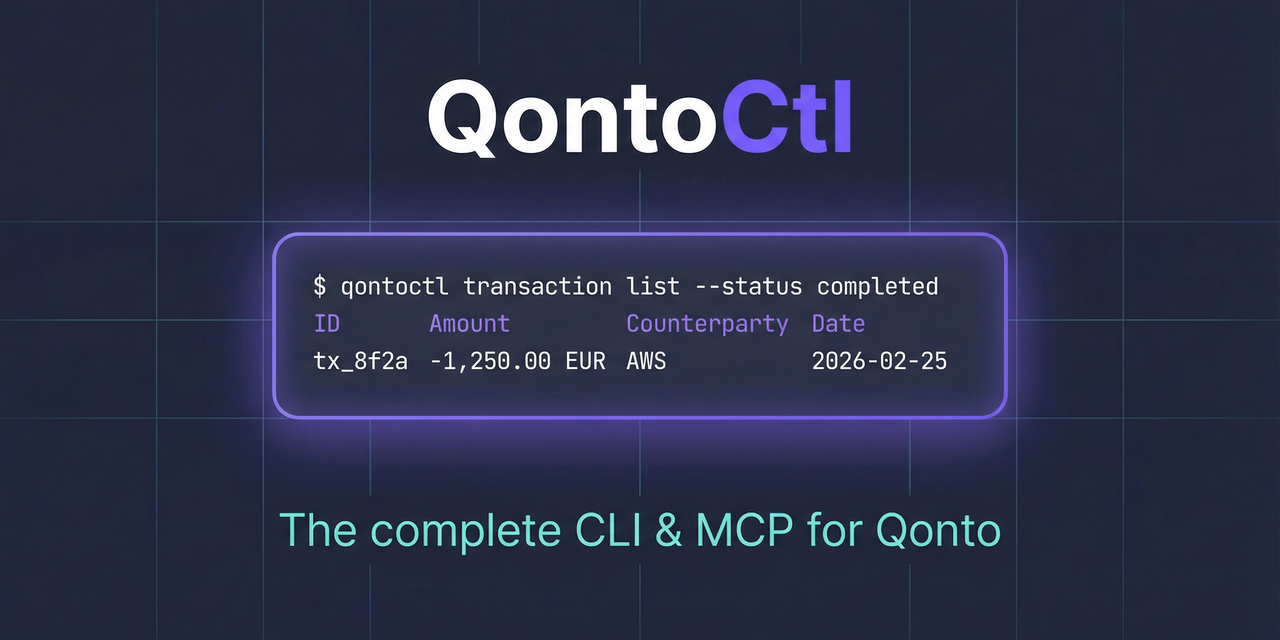

CLI and MCP server for the Qonto banking API.
This project is brought to you by Alexey Pelykh.
Unofficial project. QontoCtl is independent and not affiliated with, endorsed by, or supported by Qonto. See the Disclaimer.
What It Does
QontoCtl lets AI assistants (Claude, etc.) interact with Qonto through the Model Context Protocol. It can:
Organizations — retrieve organization details and settings
Accounts — list, create, update, close bank accounts; download IBAN certificates
Transactions — list, search, filter bank transactions; manage transaction attachments
Bank Statements — list, view, and download bank statements
Labels — manage transaction labels and categories
Memberships — view team members, show current membership, invite new members
SEPA Beneficiaries — list, add, update, trust/untrust SEPA beneficiaries
SEPA Transfers — list, create, cancel transfers; download proofs; verify payees
Internal Transfers — create transfers between accounts in the same organization
Bulk Transfers — list, view, and create bulk SEPA transfer batches
Recurring Transfers — list, view, create, cancel recurring transfers
International Transfers (SWIFT) — create SWIFT transfers and manage international beneficiaries
Cards — list, create, update, lock/unlock, report lost/stolen, discard cards
Teams — list and create teams
Webhooks — create and manage webhook subscriptions
Payment Links — create, deactivate, and manage Stripe-backed payment links
Insurance — show, create, update insurance contracts and manage documents
Terminals (POS) — list Qonto Terminals and initiate terminal payments
Products — list catalogue products
Clients — list, create, update, delete clients
Client Invoices — full lifecycle: create, update, finalize, send, mark paid, cancel, upload files
Quotes — create, update, delete, send quotes
Credit Notes — list and view credit notes
Supplier Invoices — list, view, and bulk-create supplier invoices
Requests — list organization requests
Attachments — upload and view attachments
E-Invoicing — retrieve e-invoicing settings
Related MCP server: Seline MCP
QontoCtl and Qonto's official MCP
QontoCtl is an independent, unofficial project — not affiliated with or endorsed by Qonto.
Qonto ships its own official MCP server — hosted, free on every plan, and installable in a tap from Claude, ChatGPT, Cursor, and more. If you want to talk to your finances — "show my balances", "chart last month's spending", "draft an invoice" — it's an excellent, well-made option.
QontoCtl is built for a different job: automating Qonto, not just chatting with it.
The official MCP is a hosted assistant you log into as a user. QontoCtl is a local, open-source toolkit — a CLI, an MCP server, and a library — that runs on your own machine with your own credentials, including as a headless service account.
Official MCP | QontoCtl | |
Runs headless — CI, cron, scripts, no chat | Interactive only | ✅ CLI + MCP + library |
Authentication | OAuth, per-user | ✅ API key (service account) or OAuth |
Executes SEPA / internal / recurring transfers | Prepares approval requests | ✅ Yes, with SCA handled* |
API coverage | Curated subset | ✅ Comprehensive |
Self-hosted · your credentials · open source | Qonto-hosted | ✅ AGPL-3.0, local-first |
Comparison based on Qonto's public MCP documentation as of July 2026.
* Transfers to untrusted payees still require your Strong Customer Authentication approval, as they must. QontoCtl handles the SCA continuation so scripted flows — to trusted beneficiaries and between your own accounts — complete without a human at the terminal.
QontoCtl also supports multiple Qonto organizations from one setup via named profiles — handy for accountants, holding companies, and anyone running the books for several entities.
The official MCP talks to Qonto. QontoCtl automates it. Many people will use both — the official MCP in a chat window, QontoCtl in a pipeline.
Prerequisites
Node.js >= 24
A Qonto business account with API access
Installation
npm install -g qontoctlOr run directly with npx:
npx qontoctl --helpOr install via Homebrew:
brew install qontoctl/tap/qontoctlQuick Start
# 1. Install
npm install -g qontoctl

# 2. Create a profile with your Qonto API credentials
qontoctl profile add mycompany

# 3. Test the connection
qontoctl profile test --profile mycompany

# 4. List your accounts
qontoctl account list --profile mycompany
MCP Integration
QontoCtl implements the Model Context Protocol (MCP), letting AI assistants interact with your Qonto account through natural language.
MCP Client Configuration
Add to your Claude Desktop configuration (claude_desktop_config.json):
{
    "mcpServers": {
        "qontoctl": {
            "command": "npx",
            "args": ["qontoctl", "mcp"]
        }
    }
}
claude mcp add qontoctl -- npx qontoctl mcpAdd to .cursor/mcp.json in your project root:
{
    "mcpServers": {
        "qontoctl": {
            "command": "npx",
            "args": ["qontoctl", "mcp"]
        }
    }
}
Add to ~/.codeium/windsurf/mcp_config.json:
{
    "mcpServers": {
        "qontoctl": {
            "command": "npx",
            "args": ["qontoctl", "mcp"]
        }
    }
}
Pointing MCP at a non-default config file
The MCP server has no CLI flags. To load credentials from a config file other than ~/.qontoctl.yaml, set QONTOCTL_CONFIG_FILE in the host's env block:
{
    "mcpServers": {
        "qontoctl": {
            "command": "npx",
            "args": ["qontoctl", "mcp"],
            "env": {
                "QONTOCTL_CONFIG_FILE": "/abs/path/to/qontoctl.yaml",
            },
        },
    },
}
The path is captured at server startup. See docs/configuration.md for the full resolution chain.
Available MCP Tools
Tool | Description |
Organization | |
| Show organization details including name, slug, and bank accounts |
Accounts | |
| List all bank accounts for the organization |
| Show details of a specific bank account |
| Download IBAN certificate PDF for a bank account |
| Create a new bank account |
| Update an existing bank account |
| Close a bank account |
Transactions | |
| List transactions for a bank account with optional filters |
| Show details of a specific transaction |
| List attachments for a transaction |
| Attach a file to a transaction |
| Remove attachment(s) from a transaction |
Statements | |
| List bank statements with optional filters |
| Show details of a specific bank statement |
Labels | |
| List all labels in the organization |
| Show details of a specific label |
Memberships | |
| List all memberships in the organization |
| Show the current authenticated user's membership |
| Invite a new member to the organization |
SEPA Beneficiaries | |
| List SEPA beneficiaries in the organization |
| Show details of a specific SEPA beneficiary |
| Create a new SEPA beneficiary |
| Update an existing SEPA beneficiary |
| Trust one or more SEPA beneficiaries |
| Untrust one or more SEPA beneficiaries |
SEPA Transfers | |
| List SEPA transfers with optional filters |
| Show details of a specific SEPA transfer |
| Create a SEPA transfer |
| Cancel a pending SEPA transfer |
| Download SEPA transfer proof PDF |
| Verify a payee (Verification of Payee / VoP) |
| Bulk verify payees (VoP) |
Internal Transfers | |
| Create an internal transfer between two bank accounts |
Bulk Transfers | |
| List bulk transfers |
| Show details of a specific bulk transfer |
| Create a bulk SEPA transfer (auto-resolves VoP via bulk_verify_payee) |
Recurring Transfers | |
| List recurring transfers |
| Show details of a specific recurring transfer |
Terminals (POS) | |
| List Qonto Terminals linked to the organization |
| Initiate a payment on a terminal (returns 202 Accepted) |
Products | |
| List catalogue products with optional pagination and sort |
Clients | |
| List clients with optional pagination |
| Show details of a specific client |
| Create a new client |
| Update an existing client |
| Delete a client |
Client Invoices | |
| List client invoices with optional filters |
| Show details of a specific client invoice |
| Create a draft client invoice with client and line items |
| Update a draft client invoice |
| Delete a draft client invoice |
| Finalize a client invoice (assign number) |
| Send a client invoice to the client via email |
| Mark a client invoice as paid |
| Unmark a client invoice paid status |
| Cancel a finalized client invoice |
| Upload a file to a client invoice |
| Show upload details for a client invoice |
Quotes | |
| List quotes with optional filters |
| Show details of a specific quote |
| Create a new quote with client and line items |
| Update an existing quote |
| Delete a quote |
| Send a quote to the client via email |
Credit Notes | |
| List credit notes in the organization |
| Show details of a specific credit note |
Supplier Invoices | |
| List supplier invoices with optional filters |
| Show details of a specific supplier invoice |
| Create supplier invoices by uploading files |
Requests | |
| List all requests in the organization |
SCA Sessions | |
| Show the status of an SCA session ( |
| Simulate an SCA decision in the Qonto sandbox (sandbox-only) |
Attachments | |
| Upload an attachment file (PDF, JPEG, PNG) |
| Show details of a specific attachment |
E-Invoicing | |
| Retrieve e-invoicing settings for the organization |
Example Prompts
Once configured, you can ask your AI assistant things like:
"Show my Qonto account balances"
"List recent transactions over 1000 EUR"
"What were last month's card payments?"
"Show all team members in my organization"
"List bank statements for January 2026"
"Create a summary of this week's debits"
SCA Continuation
Some Qonto write operations — creating a transfer, modifying a card, approving a request — require Strong Customer Authentication (SCA): the user has to approve the request in the Qonto mobile app before it executes. QontoCtl wraps every SCA-gated MCP write tool with a continuation flow so the LLM client never has to reimplement polling.
How a wrapped write tool behaves
When an SCA-gated tool (e.g. transfer_create, card_create, beneficiary_trust, request_approve) hits a 428 SCA challenge, the wrapper polls the SCA session inline. If the user approves within the polling window, the tool returns the operation's success result transparently — the LLM never sees the SCA round-trip. If polling times out (or polling is disabled), the tool returns a structured SCA-pending response carrying the session token and instructions to continue.
Every wrapped tool exposes two optional input fields for this flow:
wait— maximum seconds to poll inline before falling back to the pending response.sca_session_token— bind a previously approved SCA challenge to a retry.
The wait knob
Value | Behavior |
| Poll for up to 30 seconds, then fall back to the structured pending response. |
| Poll for the specified number of seconds (capped at 120). |
| Skip polling entirely. Return the SCA-pending response immediately on the first 428. |
The 120 upper bound is the hard ceiling enforced via Zod at the input boundary. The practical ceiling is your MCP host's request timeout — Claude Desktop hardcodes ≈ 60 s and Cursor's effective limit is ≈ 30 s, so values above those will surface as host-side timeouts before the wrapper resolves. Use a small wait (e.g. 5-10) when the LLM expects the user to be present and willing to approve immediately. Use wait: false (or wait: 0) for pure two-step flows where the LLM and the user converse out-of-band between the SCA challenge and the retry.
Two-step fallback (out-of-band continuation)
When polling does not resolve, the SCA-pending response carries:
A user-facing message:
"SCA required. The user must approve this operation on their Qonto mobile app."A
Session token: <token>line (token validity: 15 minutes from issuance).Step-by-step instructions to continue.
The LLM (or the user) can then:
Poll session status with the
sca_session_showtool, passing the captured token. It returnswaiting,allow, ordeny.Retry the original tool once the status is
allow, passing the same parameters plussca_session_token: "<token>". The wrapper invokes the operation exactly once with the token bound — no second poll happens.
PSD2 dynamic linking. The SCA session token is bound to the original request parameters (amount, payee). Reusing a token against a different operation is rejected by Qonto. Reissue an SCA challenge by calling the original tool again whenever the parameters need to change.
Caller-supplied retry (sca_session_token)
When sca_session_token is set on a wrapped write tool, the wrapper:
Invokes the operation exactly once.
Skips polling entirely.
Forwards the token via the
X-Qonto-Sca-Session-Tokenheader.
This is the path used by step (2) of the two-step fallback. It is also useful when the LLM client implements its own polling cadence and only needs the wrapper to retry with an already-captured approval.
Sandbox testing
Sandbox accounts cannot enroll a real paired device, so SCA challenges in sandbox use a mock flow. After receiving a pending response, simulate the user's decision with the sca_session_mock_decision tool (sandbox-only — refuses to run when no staging token is configured). See docs/sandbox-testing.md for the full sandbox setup.
Migration note
Earlier QontoCtl builds (pre-@qontoctl/mcp SCA continuation) returned a free-form text response on 428 with no continuation hooks. Callers parsing that response should adopt the structured flow:
Before | After |
Free-form text mentioned the SCA endpoint but offered no MCP-exposed way to continue. | The SCA-pending response is still text content but its shape is stable: |
Polling required driving the Qonto HTTP API directly. | Use the |
Re-running the operation orphaned the prior approval. | Retry the original tool with the captured |
No way to opt-in to inline polling — every 428 was a dead end. | Pass |
The pending response's textual format is stable, so callers that need to extract the token programmatically can match against the Session token: line — but using sca_session_show directly avoids relying on the response prose.
CLI Usage
First command to try when something doesn't work:
qontoctl diagnose— a read-only healthcheck across config, credentials, scopes, organization metadata, and host routing.
Commands
Command | Description |
| Read-only healthcheck (see troubleshooting) |
| Show organization details |
| List bank accounts |
| Show bank account details |
| Download IBAN certificate PDF |
| Create a new bank account |
| Update a bank account |
| Close a bank account |
| List transactions with filters |
| Show transaction details |
| List attachments for a transaction |
| Attach a file to a transaction |
| Remove attachment(s) from a transaction |
| List bank statements |
| Show statement details |
| Download statement PDF |
| List all labels |
| Show label details |
| List organization memberships |
| Show current user's membership |
| Invite a new member |
| List SEPA beneficiaries |
| Show beneficiary details |
| Create a new beneficiary |
| Update a beneficiary |
| Trust one or more beneficiaries |
| Untrust one or more beneficiaries |
| List SEPA transfers |
| Show SEPA transfer details |
| Create a SEPA transfer |
| Cancel a pending SEPA transfer |
| Download SEPA transfer proof PDF |
| Verify a payee (VoP) |
| Bulk verify payees from CSV |
| Create an internal transfer |
| List bulk transfers |
| Show bulk transfer details |
| Create a bulk SEPA transfer from JSON |
| List recurring transfers |
| Show recurring transfer details |
| List Qonto Terminals (POS) |
| Initiate a payment on a terminal |
| List catalogue products |
| List clients |
| Show client details |
| Create a new client |
| Update a client |
| Delete a client |
| List client invoices |
| Show client invoice details |
| Create a draft client invoice |
| Update a draft client invoice |
| Delete a draft client invoice |
| Finalize client invoice and assign number |
| Send client invoice to client via email |
| Mark client invoice as paid |
| Unmark client invoice paid status |
| Cancel a finalized client invoice |
| Upload a file to a client invoice |
| Show upload details for a client invoice |
| List quotes |
| Show quote details |
| Create a new quote |
| Update a quote |
| Delete a quote |
| Send quote to client via email |
| List credit notes |
| Show credit note details |
| List supplier invoices |
| Show supplier invoice details |
| Create supplier invoices from files |
| Show e-invoicing settings |
| List all requests |
| Upload an attachment file |
| Show attachment details |
| Configure OAuth client credentials |
| Start OAuth login flow |
| Display OAuth token status (focused; for whole-integration health, use |
| Refresh the OAuth access token |
| Revoke OAuth consent and clear tokens |
| Create a named profile |
| List all profiles |
| Show profile details (secrets redacted) |
| Remove a named profile |
| Test credentials |
| Generate bash completions |
| Generate zsh completions |
| Generate fish completions |
| Start MCP server on stdio |
Global Options
Option | Description |
| Explicit path to a config file (overrides |
| Configuration profile to use |
| Output format: |
| Fetch a specific page of results |
| Results per page |
| Disable auto-pagination |
| Enable verbose output |
| Enable debug output (implies |
Configuration
QontoCtl supports two authentication methods:
API Key — production-only access using your organization slug and secret key. Supports the endpoints listed as "API key ✔" in the Qonto auth table (most reads plus many writes — internal transfers, clients, attachments, …). Cannot be used against the Qonto sandbox.
OAuth 2.0 — full access including OAuth-only endpoints (cards, teams, webhooks, e-invoicing, payment links, insurance, international transfers, recurring transfers, SCA flows) and the Qonto sandbox via staging-token; see the OAuth App Setup Guide.
Profile Format
All configuration files use the same YAML format:
# API Key authentication
api-key:
    organization-slug: acme-corp-4821
    secret-key: your-secret-key

# OAuth 2.0 authentication (see docs/oauth-setup.md)
oauth:
    client-id: your-client-id
    client-secret: your-client-secret
Resolution Order
The CLI resolves the config file in this order (highest priority first):
--config <path>flagQONTOCTL_CONFIG_FILEenv var~/.qontoctl/{name}.yaml(when--profile <name>is given)~/.qontoctl.yaml(home default)
When --config is supplied alongside QONTOCTL_CONFIG_FILE or --profile and the resolved paths disagree, --config wins and a warning is emitted on stderr so the override is visible.
No current-directory discovery. The CLI does not scan the working directory for
.qontoctl.yaml. For repo-local config, use adirenvshim that exportsQONTOCTL_CONFIG_FILE="$PWD/.qontoctl.yaml", or pass--config ./.qontoctl.yamlexplicitly per invocation.
Per-field overrides apply on top of the loaded file:
Without
--profile:QONTOCTL_*env vars override file valuesWith
--profile acme:QONTOCTL_ACME_*env vars override file values
For the full reference (precedence rules per entry point, profile semantics, migration from CWD discovery), see docs/configuration.md.
Environment Variables
Environment variables override file values. They carry inputs (static configuration) the tool reads but never writes back; runtime-mutable state (refresh tokens, token expiry, granted scopes) lives in the file only. See the note on QONTOCTL_ACCESS_TOKEN below.
Without --profile:
Variable | Description |
| Organization slug |
| API secret key |
| OAuth client ID |
| OAuth client secret |
| OAuth access token (read-only — see below) |
| Custom API endpoint |
| Staging token (activates sandbox URLs) |
With --profile <name>, prefix becomes QONTOCTL_{NAME}_ (uppercased, hyphens replaced with underscores). For example, --profile acme reads QONTOCTL_ACME_ORGANIZATION_SLUG.
QONTOCTL_ACCESS_TOKENsemantics: when set, the env-supplied bearer is used for the current invocation only. Proactive token refresh is not attempted, and refreshed tokens are not persisted to disk (mirrorsAWS_SESSION_TOKEN). If the token has expired the API surfaces a401; re-issue the token externally.
QONTOCTL_REFRESH_TOKENis intentionally not supported. Refresh tokens are runtime-mutable state — every refresh produces a new value the tool must write back somewhere — and env vars carry inputs, not state. Use file-based credentials (~/.qontoctl.yamlor a profile) for OAuth flows that need refresh, or stick with API-key env vars in CI.
Debug Mode
The --verbose and --debug flags enable wire-level logging to stderr:
qontoctl --verbose transaction list   # request/response summaries
qontoctl --debug transaction list     # full headers and response bodies
Security note:
--debuglogs full API response bodies. Known sensitive fields (IBAN, BIC, balance) are automatically redacted, but responses may still contain other financial data. Do not use--debugin shared environments or pipe debug output to files accessible by others.
Disclaimer
qontoctl is an independent project not affiliated with, endorsed by, or officially connected to Qonto. It runs on your own machine with your own credentials.
"Qonto" and the Qonto logo are trademarks of Olinda SAS (the company operating Qonto); qontoctl uses the name only to describe the service it interoperates with.
License
What AGPL means for you
Using qontoctl as a CLI tool or MCP server does not make your code AGPL-licensed. Running the tool, scripting around it, or connecting it to your applications is normal use — no license obligations arise.
Using
@qontoctl/coreas a library (importing it into your code) means your combined work is covered by AGPL-3.0. If you distribute that combined work, you must make its source available under AGPL-compatible terms.Modifying and distributing qontoctl itself requires you to share your changes under AGPL-3.0.
Commercial licensing is available if AGPL does not fit your use case — contact the maintainer.
Available Tools
73 toolsaccount_closeA
Close a bank account. SCA: this operation may require Strong Customer Authentication; the tool polls inline by default (wait=30s) and falls back to a structured pending response so the caller can continue via sca_session_show + sca_session_token.
ParametersJSON Schema
| Name | Required | Description | Default |
|---|---|---|---|
| id | Yes | Bank account UUID | |
| wait | No | Maximum seconds (0-120) to poll inline for SCA approval before returning a structured pending response. Use false or 0 for a pure two-step flow (return immediately on SCA required). Default 30. | |
| sca_session_token | No | SCA session token from a prior call to bind a previously approved SCA challenge to this retry. When set, no polling occurs and the operation runs exactly once with the token attached. |
TDQS
A4/5.0
Behavior4/5
Does the description disclose side effects, auth requirements, rate limits, or destructive behavior?
No annotations are provided, so the description carries full burden. It discloses SCA requirement, polling behavior (default 30s wait), fallback to pending response, and the retry token flow. This is good transparency, though it could mention that closing is a destructive action.
Agents need to know what a tool does to the world before calling it. Descriptions should go beyond structured annotations to explain consequences.
Conciseness4/5
Is the description appropriately sized, front-loaded, and free of redundancy?
The description is a single sentence that conveys key information about the operation and SCA handling. It is concise and front-loaded, but could be structured with more explicit sections.
Shorter descriptions cost fewer tokens and are easier for agents to parse. Every sentence should earn its place.
Completeness3/5
Given the tool's complexity, does the description cover enough for an agent to succeed on first attempt?
Given the lack of an output schema, the description does not explain what the tool returns on success or failure beyond SCA flow. It covers the SCA scenario well but leaves out the basic success response.
Complex tools with many parameters or behaviors need more documentation. Simple tools need less. This dimension scales expectations accordingly.
Parameters3/5
Does the description clarify parameter syntax, constraints, interactions, or defaults beyond what the schema provides?
The input schema has 100% coverage with descriptions for all 3 parameters. The description adds overall context about SCA and polling but does not add significant meaning beyond the schema for individual parameters.
Input schemas describe structure but not intent. Descriptions should explain non-obvious parameter relationships and valid value ranges.
Purpose5/5
Does the description clearly state what the tool does and how it differs from similar tools?
The description clearly states 'Close a bank account,' which is a specific verb and resource. It distinguishes from sibling tools like account_create, account_update, etc., which have different purposes.
Agents choose between tools based on descriptions. A clear purpose with a specific verb and resource helps agents select the right tool.
Usage Guidelines4/5
Does the description explain when to use this tool, when not to, or what alternatives exist?
The description provides context on when to use the SCA-related features (polling vs. two-step flow) and mentions fallback options, but does not explicitly state when not to use this tool or compare to alternatives. Since there are no sibling close tools, the guidance is adequate.
Agents often have multiple tools that could apply. Explicit usage guidance like "use X instead of Y when Z" prevents misuse.
account_iban_certificateA
Download IBAN certificate PDF for a bank account
ParametersJSON Schema
| Name | Required | Description | Default |
|---|---|---|---|
| id | Yes | Bank account UUID |
TDQS
A3.5/5.0
Behavior3/5
Does the description disclose side effects, auth requirements, rate limits, or destructive behavior?
No annotations are provided, so the description itself must carry the behavioral disclosure. It clearly indicates a read/download operation, but does not detail error handling, authentication requirements, or response format beyond the basic action.
Agents need to know what a tool does to the world before calling it. Descriptions should go beyond structured annotations to explain consequences.
Conciseness5/5
Is the description appropriately sized, front-loaded, and free of redundancy?
The description is a single sentence of eight words, front-loading the action and resource with no unnecessary information.
Shorter descriptions cost fewer tokens and are easier for agents to parse. Every sentence should earn its place.
Completeness3/5
Given the tool's complexity, does the description cover enough for an agent to succeed on first attempt?
Given the absence of an output schema, the description is adequate but could be more complete by explicitly stating that the tool returns a PDF binary or a download link.
Complex tools with many parameters or behaviors need more documentation. Simple tools need less. This dimension scales expectations accordingly.
Parameters3/5
Does the description clarify parameter syntax, constraints, interactions, or defaults beyond what the schema provides?
Schema coverage is 100% with a clear description for the 'id' parameter. The tool description reinforces that the id identifies the bank account, adding minimal extra meaning beyond the schema.
Input schemas describe structure but not intent. Descriptions should explain non-obvious parameter relationships and valid value ranges.
Purpose5/5
Does the description clearly state what the tool does and how it differs from similar tools?
The description uses the specific verb 'Download' and resource 'IBAN certificate PDF' for a bank account, clearly distinguishing it from sibling tools like account_show or attachment_show.
Agents choose between tools based on descriptions. A clear purpose with a specific verb and resource helps agents select the right tool.
Usage Guidelines2/5
Does the description explain when to use this tool, when not to, or what alternatives exist?
The description provides no guidance on when to use this tool versus alternatives, no prerequisites, and no mention of when not to use it.
Agents often have multiple tools that could apply. Explicit usage guidance like "use X instead of Y when Z" prevents misuse.
account_listA
List all bank accounts for the organization
ParametersJSON Schema
| Name | Required | Description | Default |
|---|---|---|---|
No parameters | |||
TDQS
A4/5.0
Behavior3/5
Does the description disclose side effects, auth requirements, rate limits, or destructive behavior?
No annotations provided, so description carries full burden. 'List' implies read-only, but no explicit mention of being non-destructive or any behavioral traits like pagination, rate limits, or required permissions.
Agents need to know what a tool does to the world before calling it. Descriptions should go beyond structured annotations to explain consequences.
Conciseness5/5
Is the description appropriately sized, front-loaded, and free of redundancy?
Single sentence, no waste. Front-loaded with key information.
Shorter descriptions cost fewer tokens and are easier for agents to parse. Every sentence should earn its place.
Completeness4/5
Given the tool's complexity, does the description cover enough for an agent to succeed on first attempt?
For a simple list tool with no parameters and no output schema, the description is adequate. Missing mention of pagination or any ordering, but acceptable given the straightforward nature.
Complex tools with many parameters or behaviors need more documentation. Simple tools need less. This dimension scales expectations accordingly.
Parameters4/5
Does the description clarify parameter syntax, constraints, interactions, or defaults beyond what the schema provides?
No parameters in schema. Baseline for zero parameters is 4. Description does not need to add parameter info.
Input schemas describe structure but not intent. Descriptions should explain non-obvious parameter relationships and valid value ranges.
Purpose5/5
Does the description clearly state what the tool does and how it differs from similar tools?
Description clearly states the tool lists all bank accounts for the organization. Verb 'List', resource 'bank accounts', and scope 'for the organization' are precise. Distinguishes from siblings like account_show or account_create.
Agents choose between tools based on descriptions. A clear purpose with a specific verb and resource helps agents select the right tool.
Usage Guidelines3/5
Does the description explain when to use this tool, when not to, or what alternatives exist?
The description implies usage for retrieving a list, but no explicit when-to-use or alternatives. Siblings like account_show suggest differing use cases, but no guidance on when to use account_list vs account_show.
Agents often have multiple tools that could apply. Explicit usage guidance like "use X instead of Y when Z" prevents misuse.
account_showB
Show details of a specific bank account
ParametersJSON Schema
| Name | Required | Description | Default |
|---|---|---|---|
| id | Yes | Bank account UUID |
TDQS
B3.4/5.0
Behavior2/5
Does the description disclose side effects, auth requirements, rate limits, or destructive behavior?
Absent annotations, the description fails to disclose behavioral traits like idempotency, read-only nature, or permission requirements. It does not state that the operation is safe and non-destructive.
Agents need to know what a tool does to the world before calling it. Descriptions should go beyond structured annotations to explain consequences.
Conciseness5/5
Is the description appropriately sized, front-loaded, and free of redundancy?
The description is a single, clear sentence with no redundant information. Every word adds value.
Shorter descriptions cost fewer tokens and are easier for agents to parse. Every sentence should earn its place.
Completeness4/5
Given the tool's complexity, does the description cover enough for an agent to succeed on first attempt?
Given the tool's simplicity (one parameter, no output schema), the description covers the essential purpose. However, still lacks behavioral context that would be helpful for an agent.
Complex tools with many parameters or behaviors need more documentation. Simple tools need less. This dimension scales expectations accordingly.
Parameters3/5
Does the description clarify parameter syntax, constraints, interactions, or defaults beyond what the schema provides?
Schema coverage is 100% with a single parameter 'id' described as 'Bank account UUID'. The description does not add semantic meaning beyond what the schema already provides, so score remains at baseline.
Input schemas describe structure but not intent. Descriptions should explain non-obvious parameter relationships and valid value ranges.
Purpose5/5
Does the description clearly state what the tool does and how it differs from similar tools?
The description 'Show details of a specific bank account' uses a specific verb ('Show') and clearly identifies the resource ('a specific bank account'). It effectively distinguishes the tool from siblings like 'account_list' and 'account_create'.
Agents choose between tools based on descriptions. A clear purpose with a specific verb and resource helps agents select the right tool.
Usage Guidelines2/5
Does the description explain when to use this tool, when not to, or what alternatives exist?
No guidance is provided on when to use this tool versus alternatives such as 'account_list' for listing all accounts. There is no mention of prerequisites or context where this tool is appropriate.
Agents often have multiple tools that could apply. Explicit usage guidance like "use X instead of Y when Z" prevents misuse.
beneficiary_addA
Create a new SEPA beneficiary. SCA: this operation may require Strong Customer Authentication; the tool polls inline by default (wait=30s) and falls back to a structured pending response so the caller can continue via sca_session_show + sca_session_token.
ParametersJSON Schema
| Name | Required | Description | Default |
|---|---|---|---|
| bic | No | BIC/SWIFT code | |
| iban | Yes | IBAN | |
| name | Yes | Beneficiary name | |
| wait | No | Maximum seconds (0-120) to poll inline for SCA approval before returning a structured pending response. Use false or 0 for a pure two-step flow (return immediately on SCA required). Default 30. | |
| No | Email address | ||
| activity_tag | No | Activity tag | |
| sca_session_token | No | SCA session token from a prior call to bind a previously approved SCA challenge to this retry. When set, no polling occurs and the operation runs exactly once with the token attached. |
TDQS
A4.2/5.0
Behavior4/5
Does the description disclose side effects, auth requirements, rate limits, or destructive behavior?
No annotations are provided, so the description carries full burden. It explains that SCA may be required, describes the default polling (wait=30s), fallback to pending response, and how to proceed with sca_session_show and sca_session_token. It does not mention any side effects beyond creation.
Agents need to know what a tool does to the world before calling it. Descriptions should go beyond structured annotations to explain consequences.
Conciseness4/5
Is the description appropriately sized, front-loaded, and free of redundancy?
The description is two sentences, front-loaded with purpose. The second sentence is somewhat long but contains necessary technical detail. It is efficient with no wasted words.
Shorter descriptions cost fewer tokens and are easier for agents to parse. Every sentence should earn its place.
Completeness3/5
Given the tool's complexity, does the description cover enough for an agent to succeed on first attempt?
While the description covers SCA behavior well, it does not describe the return value upon successful creation. Given there is no output schema, the caller would benefit from knowing what the tool returns (e.g., the beneficiary object). This is a notable gap.
Complex tools with many parameters or behaviors need more documentation. Simple tools need less. This dimension scales expectations accordingly.
Parameters4/5
Does the description clarify parameter syntax, constraints, interactions, or defaults beyond what the schema provides?
Schema coverage is 100%, so parameters are already described in the input schema. The description adds context about the SCA process, explaining the purpose of the 'wait' and 'sca_session_token' parameters beyond their schema descriptions.
Input schemas describe structure but not intent. Descriptions should explain non-obvious parameter relationships and valid value ranges.
Purpose5/5
Does the description clearly state what the tool does and how it differs from similar tools?
The description starts with 'Create a new SEPA beneficiary', which is a specific verb and resource. It clearly distinguishes from sibling tools like beneficiary_list, beneficiary_show, etc., which are for different operations.
Agents choose between tools based on descriptions. A clear purpose with a specific verb and resource helps agents select the right tool.
Usage Guidelines4/5
Does the description explain when to use this tool, when not to, or what alternatives exist?
The description explains SCA behavior and the polling mechanism, giving guidance on when to use the inline polling versus a two-step flow. However, it does not explicitly state when this tool should be preferred over alternatives, or when not to use it.
Agents often have multiple tools that could apply. Explicit usage guidance like "use X instead of Y when Z" prevents misuse.
beneficiary_listC
List SEPA beneficiaries in the organization
ParametersJSON Schema
| Name | Required | Description | Default |
|---|---|---|---|
| iban | No | Filter by IBAN | |
| page | No | Page number | |
| status | No | Filter by status | |
| sort_by | No | Sort order (e.g. updated_at:desc) | |
| trusted | No | Filter by trust status | |
| per_page | No | Items per page (max 100) | |
| updated_at_to | No | Updated to date (ISO 8601) | |
| updated_at_from | No | Updated from date (ISO 8601) |
TDQS
C2.8/5.0
Behavior2/5
Does the description disclose side effects, auth requirements, rate limits, or destructive behavior?
With no annotations, the description bears full responsibility for behavioral disclosure. It only states 'List' (a read operation) but omits critical behaviors like pagination, default sorting, and filtering behavior which are indicated only in the schema.
Agents need to know what a tool does to the world before calling it. Descriptions should go beyond structured annotations to explain consequences.
Conciseness3/5
Is the description appropriately sized, front-loaded, and free of redundancy?
The description is a single sentence of 6 words, which is concise but underspecified. It conveys the core purpose but fails to include essential usage or behavioral context that would justify its brevity.
Shorter descriptions cost fewer tokens and are easier for agents to parse. Every sentence should earn its place.
Completeness2/5
Given the tool's complexity, does the description cover enough for an agent to succeed on first attempt?
Given the tool has 8 optional parameters, no output schema, and no annotations, the description is incomplete. It does not explain the return value, pagination, or the meaning of filters, leaving significant gaps for the agent.
Complex tools with many parameters or behaviors need more documentation. Simple tools need less. This dimension scales expectations accordingly.
Parameters3/5
Does the description clarify parameter syntax, constraints, interactions, or defaults beyond what the schema provides?
The input schema has 100% description coverage for all parameters. The description adds no additional meaning beyond the schema, so the baseline score of 3 is appropriate.
Input schemas describe structure but not intent. Descriptions should explain non-obvious parameter relationships and valid value ranges.
Purpose4/5
Does the description clearly state what the tool does and how it differs from similar tools?
The description clearly states 'List SEPA beneficiaries in the organization' using a specific verb and resource, and it distinguishes from siblings like beneficiary_add (create) and beneficiary_show (single view). However, it could be more explicit about the scope or filtering capabilities.
Agents choose between tools based on descriptions. A clear purpose with a specific verb and resource helps agents select the right tool.
Usage Guidelines2/5
Does the description explain when to use this tool, when not to, or what alternatives exist?
No usage guidance is provided. The description does not mention when to use this tool versus alternatives such as beneficiary_show for a single beneficiary or beneficiary_add for creation.
Agents often have multiple tools that could apply. Explicit usage guidance like "use X instead of Y when Z" prevents misuse.
beneficiary_trustA
Trust one or more SEPA beneficiaries (requires Embed-partner-only beneficiary.trust OAuth scope; standard third-party apps will receive 403). SCA: this operation may require Strong Customer Authentication; the tool polls inline by default (wait=30s) and falls back to a structured pending response so the caller can continue via sca_session_show + sca_session_token.
ParametersJSON Schema
| Name | Required | Description | Default |
|---|---|---|---|
| ids | Yes | Beneficiary IDs to trust | |
| wait | No | Maximum seconds (0-120) to poll inline for SCA approval before returning a structured pending response. Use false or 0 for a pure two-step flow (return immediately on SCA required). Default 30. | |
| sca_session_token | No | SCA session token from a prior call to bind a previously approved SCA challenge to this retry. When set, no polling occurs and the operation runs exactly once with the token attached. |
TDQS
A4.6/5.0
Behavior5/5
Does the description disclose side effects, auth requirements, rate limits, or destructive behavior?
Despite no annotations, the description thoroughly explains the SCA behavior: inline polling with default wait, fallback to pending response, and how to resume with sca_session_show/sca_session_token. Also discloses the OAuth scope requirement and 403 for unauthorized apps.
Agents need to know what a tool does to the world before calling it. Descriptions should go beyond structured annotations to explain consequences.
Conciseness4/5
Is the description appropriately sized, front-loaded, and free of redundancy?
Two sentences, concise but dense. The first sentence combines scope requirement and SCA info, which is a bit heavy. Still, every word adds value; no filler.
Shorter descriptions cost fewer tokens and are easier for agents to parse. Every sentence should earn its place.
Completeness4/5
Given the tool's complexity, does the description cover enough for an agent to succeed on first attempt?
Covers OAuth prerequisites, SCA flow, and fallback. Missing output description, but the structured pending response is hinted. For a tool with no output schema, this is adequate for an agent to understand the flow.
Complex tools with many parameters or behaviors need more documentation. Simple tools need less. This dimension scales expectations accordingly.
Parameters5/5
Does the description clarify parameter syntax, constraints, interactions, or defaults beyond what the schema provides?
Adds significant value beyond the input schema: explains the wait parameter's default (30s), range (0-120), and behavior (false for pure two-step). Clarifies sca_session_token usage for binding prior SCA approval. Schema coverage is 100% but description enriches parameter understanding.
Input schemas describe structure but not intent. Descriptions should explain non-obvious parameter relationships and valid value ranges.
Purpose5/5
Does the description clearly state what the tool does and how it differs from similar tools?
The description uses the specific verb 'Trust' and resource 'SEPA beneficiaries', clearly distinguishing it from sibling tools like beneficiary_untrust. It also notes the OAuth scope requirement, making the purpose precise.
Agents choose between tools based on descriptions. A clear purpose with a specific verb and resource helps agents select the right tool.
Usage Guidelines4/5
Does the description explain when to use this tool, when not to, or what alternatives exist?
Explicitly states the tool is only for embed-partner apps with a specific scope, and that standard apps get 403. Implicitly differentiates from beneficiary_untrust. Could be improved by explicitly stating when to use this instead of other beneficiary tools.
Agents often have multiple tools that could apply. Explicit usage guidance like "use X instead of Y when Z" prevents misuse.
beneficiary_untrustA
Untrust one or more SEPA beneficiaries (requires Embed-partner-only beneficiary.trust OAuth scope; standard third-party apps will receive 403). SCA: this operation may require Strong Customer Authentication; the tool polls inline by default (wait=30s) and falls back to a structured pending response so the caller can continue via sca_session_show + sca_session_token.
ParametersJSON Schema
| Name | Required | Description | Default |
|---|---|---|---|
| ids | Yes | Beneficiary IDs to untrust | |
| wait | No | Maximum seconds (0-120) to poll inline for SCA approval before returning a structured pending response. Use false or 0 for a pure two-step flow (return immediately on SCA required). Default 30. | |
| sca_session_token | No | SCA session token from a prior call to bind a previously approved SCA challenge to this retry. When set, no polling occurs and the operation runs exactly once with the token attached. |
TDQS
A4.3/5.0
Behavior4/5
Does the description disclose side effects, auth requirements, rate limits, or destructive behavior?
No annotations are provided, so the description carries the full burden. It details SCA polling behavior, fallback to pending response, and the use of sca_session_token, which is valuable for an agent.
Agents need to know what a tool does to the world before calling it. Descriptions should go beyond structured annotations to explain consequences.
Conciseness4/5
Is the description appropriately sized, front-loaded, and free of redundancy?
The description is concise (three sentences) and front-loaded with purpose and scope, effectively covering key points without extra words.
Shorter descriptions cost fewer tokens and are easier for agents to parse. Every sentence should earn its place.
Completeness4/5
Given the tool's complexity, does the description cover enough for an agent to succeed on first attempt?
Despite no output schema, the description explains the SCA flow and pending response. It could be improved by describing the success response, but overall it is fairly complete.
Complex tools with many parameters or behaviors need more documentation. Simple tools need less. This dimension scales expectations accordingly.
Parameters4/5
Does the description clarify parameter syntax, constraints, interactions, or defaults beyond what the schema provides?
Schema coverage is 100%, and the description adds meaning by explaining how wait and sca_session_token interact with the SCA flow, going beyond the schema descriptions.
Input schemas describe structure but not intent. Descriptions should explain non-obvious parameter relationships and valid value ranges.
Purpose5/5
Does the description clearly state what the tool does and how it differs from similar tools?
The description clearly states the action ('Untrust one or more SEPA beneficiaries') and specifies the required OAuth scope, distinguishing it from sibling tools like beneficiary_trust.
Agents choose between tools based on descriptions. A clear purpose with a specific verb and resource helps agents select the right tool.
Usage Guidelines4/5
Does the description explain when to use this tool, when not to, or what alternatives exist?
The description explains when to use (requires Embed-partner scope) and how SCA is handled, but does not explicitly mention when not to use or provide alternatives.
Agents often have multiple tools that could apply. Explicit usage guidance like "use X instead of Y when Z" prevents misuse.
beneficiary_updateA
Update an existing SEPA beneficiary. SCA: this operation may require Strong Customer Authentication; the tool polls inline by default (wait=30s) and falls back to a structured pending response so the caller can continue via sca_session_show + sca_session_token.
ParametersJSON Schema
| Name | Required | Description | Default |
|---|---|---|---|
| id | Yes | Beneficiary ID (UUID) | |
| bic | No | BIC/SWIFT code | |
| iban | No | IBAN | |
| name | No | Beneficiary name | |
| wait | No | Maximum seconds (0-120) to poll inline for SCA approval before returning a structured pending response. Use false or 0 for a pure two-step flow (return immediately on SCA required). Default 30. | |
| No | Email address | ||
| activity_tag | No | Activity tag | |
| sca_session_token | No | SCA session token from a prior call to bind a previously approved SCA challenge to this retry. When set, no polling occurs and the operation runs exactly once with the token attached. |
TDQS
A4.8/5.0
Behavior5/5
Does the description disclose side effects, auth requirements, rate limits, or destructive behavior?
No annotations provided, so the description fully discloses SCA requirements, polling defaults (wait=30s), fallback to pending response, and how to retry with a session token. This is comprehensive behavioral transparency.
Agents need to know what a tool does to the world before calling it. Descriptions should go beyond structured annotations to explain consequences.
Conciseness5/5
Is the description appropriately sized, front-loaded, and free of redundancy?
Two sentences, front-loaded with the core purpose, and the second sentence efficiently packs SCA behavior details without wasted words.
Shorter descriptions cost fewer tokens and are easier for agents to parse. Every sentence should earn its place.
Completeness5/5
Given the tool's complexity, does the description cover enough for an agent to succeed on first attempt?
With 8 parameters (1 required) and no output schema, the description covers the critical SCA and polling behavior adequately. No missing context for an update operation.
Complex tools with many parameters or behaviors need more documentation. Simple tools need less. This dimension scales expectations accordingly.
Parameters5/5
Does the description clarify parameter syntax, constraints, interactions, or defaults beyond what the schema provides?
Schema already has 100% coverage for parameters, but the description adds significant meaning by explaining the wait parameter's default and behavior, the use of false for a two-step flow, and the sca_session_token's role in binding to a prior SCA challenge.
Input schemas describe structure but not intent. Descriptions should explain non-obvious parameter relationships and valid value ranges.
Purpose5/5
Does the description clearly state what the tool does and how it differs from similar tools?
Clearly states 'Update an existing SEPA beneficiary' with a specific verb and resource, distinguishing from sibling tools like beneficiary_add, beneficiary_list, etc.
Agents choose between tools based on descriptions. A clear purpose with a specific verb and resource helps agents select the right tool.
Usage Guidelines4/5
Does the description explain when to use this tool, when not to, or what alternatives exist?
Explains SCA handling, polling behavior, and fallback mechanism, and suggests using sca_session_show and sca_session_token for continuation. Provides context for when to use sca_session_token parameter, but does not explicitly exclude alternative tools.
Agents often have multiple tools that could apply. Explicit usage guidance like "use X instead of Y when Z" prevents misuse.
bulk_transfer_showA
Show details of a specific bulk transfer
ParametersJSON Schema
| Name | Required | Description | Default |
|---|---|---|---|
| id | Yes | Bulk transfer UUID |
TDQS
A3.7/5.0
Behavior3/5
Does the description disclose side effects, auth requirements, rate limits, or destructive behavior?
With no annotations provided, the description carries the full burden. It describes a read-only operation ('Show') and implies no side effects. However, it lacks details about what 'details' are returned and any behavioral traits like permissions or rate limits. The description is adequate but minimal.
Agents need to know what a tool does to the world before calling it. Descriptions should go beyond structured annotations to explain consequences.
Conciseness5/5
Is the description appropriately sized, front-loaded, and free of redundancy?
The description is a single concise sentence with no redundant words. It is front-loaded with the action and resource, making it easy for an agent to parse quickly.
Shorter descriptions cost fewer tokens and are easier for agents to parse. Every sentence should earn its place.
Completeness3/5
Given the tool's complexity, does the description cover enough for an agent to succeed on first attempt?
For a simple 'show' tool with one parameter and no output schema, the description is minimally complete. However, it does not specify what 'details' are included (e.g., status, amount, dates), leaving the agent to infer. This is adequate but not comprehensive.
Complex tools with many parameters or behaviors need more documentation. Simple tools need less. This dimension scales expectations accordingly.
Parameters3/5
Does the description clarify parameter syntax, constraints, interactions, or defaults beyond what the schema provides?
The input schema provides a single required parameter 'id' with description 'Bulk transfer UUID', achieving 100% schema coverage. The description adds no additional meaning beyond the schema, so the baseline score of 3 is appropriate.
Input schemas describe structure but not intent. Descriptions should explain non-obvious parameter relationships and valid value ranges.
Purpose5/5
Does the description clearly state what the tool does and how it differs from similar tools?
The description 'Show details of a specific bulk transfer' clearly identifies the verb 'Show' and the resource 'details of a specific bulk transfer'. It distinguishes itself from sibling tools like bulk_transfer_create and bulk_transfer_list, which handle creation and listing, respectively.
Agents choose between tools based on descriptions. A clear purpose with a specific verb and resource helps agents select the right tool.
Usage Guidelines3/5
Does the description explain when to use this tool, when not to, or what alternatives exist?
The description implies usage when a specific bulk transfer ID is known to retrieve its details, but it offers no explicit guidance on when to use this tool versus alternatives or any prerequisites. Given the presence of sibling tools, some exclusion criteria or context would be helpful.
Agents often have multiple tools that could apply. Explicit usage guidance like "use X instead of Y when Z" prevents misuse.
card_appearancesB
List available card appearances (designs by type and level)
ParametersJSON Schema
| Name | Required | Description | Default |
|---|---|---|---|
No parameters | |||
TDQS
B3.4/5.0
Behavior2/5
Does the description disclose side effects, auth requirements, rate limits, or destructive behavior?
No annotations are present, so the description carries full burden. It only states what the tool lists, but does not disclose whether it is read-only, requires authentication, or has rate limits. For a simple list with no parameters, minimal behavioral context is needed, but description adds no value beyond purpose.
Agents need to know what a tool does to the world before calling it. Descriptions should go beyond structured annotations to explain consequences.
Conciseness5/5
Is the description appropriately sized, front-loaded, and free of redundancy?
The description is a single sentence of 7 words, front-loaded with the verb 'List'. No unnecessary words or information. It is highly concise.
Shorter descriptions cost fewer tokens and are easier for agents to parse. Every sentence should earn its place.
Completeness4/5
Given the tool's complexity, does the description cover enough for an agent to succeed on first attempt?
For a tool with no parameters and no output schema, the description provides sufficient context: it lists card appearances (designs by type and level). It distinguishes from siblings. Could be more complete by explaining what a 'card appearance' entails or if there are any filters, but it is adequate.
Complex tools with many parameters or behaviors need more documentation. Simple tools need less. This dimension scales expectations accordingly.
Parameters3/5
Does the description clarify parameter syntax, constraints, interactions, or defaults beyond what the schema provides?
The input schema has zero parameters and its description coverage is 100%. The description does not add any parameter-specific information, which is expected. However, it clarifies what the output contains, which is beyond the schema. Baseline for 0 params with high coverage is 3.
Input schemas describe structure but not intent. Descriptions should explain non-obvious parameter relationships and valid value ranges.
Purpose5/5
Does the description clearly state what the tool does and how it differs from similar tools?
The description clearly states the tool lists available card appearances and specifies they are designs by type and level. Verb 'List' and resource 'card appearances' are explicit. It distinguishes from sibling tools like card_list (which lists cards) and card_create (which creates cards).
Agents choose between tools based on descriptions. A clear purpose with a specific verb and resource helps agents select the right tool.
Usage Guidelines2/5
Does the description explain when to use this tool, when not to, or what alternatives exist?
No guidance is provided on when to use this tool versus alternatives. The description does not specify prerequisites, context, or exclusions. Among many card-related siblings, the lack of usage direction is a notable gap.
Agents often have multiple tools that could apply. Explicit usage guidance like "use X instead of Y when Z" prevents misuse.
card_bulk_createA
Bulk create cards (up to 50). SCA: this operation may require Strong Customer Authentication; the tool polls inline by default (wait=30s) and falls back to a structured pending response so the caller can continue via sca_session_show + sca_session_token.
ParametersJSON Schema
| Name | Required | Description | Default |
|---|---|---|---|
| wait | No | Maximum seconds (0-120) to poll inline for SCA approval before returning a structured pending response. Use false or 0 for a pure two-step flow (return immediately on SCA required). Default 30. | |
| cards | Yes | Array of card definitions | |
| sca_session_token | No | SCA session token from a prior call to bind a previously approved SCA challenge to this retry. When set, no polling occurs and the operation runs exactly once with the token attached. |
TDQS
A4.5/5.0
Behavior4/5
Does the description disclose side effects, auth requirements, rate limits, or destructive behavior?
No annotations provided; description discloses SCA polling, default wait, fallback, and token reuse. Lacks details on idempotency or partial failures, but covers key behavioral traits.
Agents need to know what a tool does to the world before calling it. Descriptions should go beyond structured annotations to explain consequences.
Conciseness5/5
Is the description appropriately sized, front-loaded, and free of redundancy?
Two sentences, no wasted words. Front-loaded with purpose, then behavior. Efficient.
Shorter descriptions cost fewer tokens and are easier for agents to parse. Every sentence should earn its place.
Completeness4/5
Given the tool's complexity, does the description cover enough for an agent to succeed on first attempt?
Covers main behavior and SCA flow. No output schema, but response is implied (success or pending). Could mention error handling for partial failures, but adequate for agent use.
Complex tools with many parameters or behaviors need more documentation. Simple tools need less. This dimension scales expectations accordingly.
Parameters5/5
Does the description clarify parameter syntax, constraints, interactions, or defaults beyond what the schema provides?
Schema coverage is 100% but description adds meaning: explains wait's role (polling control), sca_session_token for binding, and cards limit. Context beyond schema.
Input schemas describe structure but not intent. Descriptions should explain non-obvious parameter relationships and valid value ranges.
Purpose5/5
Does the description clearly state what the tool does and how it differs from similar tools?
Clear verb+resource+constraint: 'Bulk create cards (up to 50).' Distinct from sibling card_create (single card).
Agents choose between tools based on descriptions. A clear purpose with a specific verb and resource helps agents select the right tool.
Usage Guidelines4/5
Does the description explain when to use this tool, when not to, or what alternatives exist?
Explains SCA handling, polling behavior, and fallback to pending response with guidance on sca_session_show and sca_session_token. Does not explicitly contrast with card_create but context implies for bulk use.
Agents often have multiple tools that could apply. Explicit usage guidance like "use X instead of Y when Z" prevents misuse.
card_discardA
Discard a card (irreversible). SCA: this operation may require Strong Customer Authentication; the tool polls inline by default (wait=30s) and falls back to a structured pending response so the caller can continue via sca_session_show + sca_session_token.
ParametersJSON Schema
| Name | Required | Description | Default |
|---|---|---|---|
| id | Yes | Card ID (UUID) | |
| wait | No | Maximum seconds (0-120) to poll inline for SCA approval before returning a structured pending response. Use false or 0 for a pure two-step flow (return immediately on SCA required). Default 30. | |
| sca_session_token | No | SCA session token from a prior call to bind a previously approved SCA challenge to this retry. When set, no polling occurs and the operation runs exactly once with the token attached. |
TDQS
A4/5.0
Behavior5/5
Does the description disclose side effects, auth requirements, rate limits, or destructive behavior?
The description fully discloses irreversibility, SCA requirements, default polling behavior (wait=30s), fallback to structured pending response, and continuation via sca_session_show and sca_session_token. No annotations exist, so the description carries the full burden and meets it thoroughly.
Agents need to know what a tool does to the world before calling it. Descriptions should go beyond structured annotations to explain consequences.
Conciseness5/5
Is the description appropriately sized, front-loaded, and free of redundancy?
Two concise sentences with no waste. The first states purpose and key constraint (irreversible), the second covers SCA behavior. Information is front-loaded and efficient.
Shorter descriptions cost fewer tokens and are easier for agents to parse. Every sentence should earn its place.
Completeness4/5
Given the tool's complexity, does the description cover enough for an agent to succeed on first attempt?
Given no output schema, the description covers the essential SCA flow and irreversibility. It lacks details on the normal success response or error scenarios, but for an SCA-sensitive operation, it provides sufficient context for an agent to proceed.
Complex tools with many parameters or behaviors need more documentation. Simple tools need less. This dimension scales expectations accordingly.
Parameters3/5
Does the description clarify parameter syntax, constraints, interactions, or defaults beyond what the schema provides?
Schema coverage is 100%, so baseline is 3. The description does not add meaning beyond the schema for any parameter (id, wait, sca_session_token). It implicitly refers to SCA-related params but provides no additional semantics.
Input schemas describe structure but not intent. Descriptions should explain non-obvious parameter relationships and valid value ranges.
Purpose5/5
Does the description clearly state what the tool does and how it differs from similar tools?
The description clearly states the action 'Discard a card (irreversible)', which is a specific verb-resource pair. It distinguishes from sibling tools like card_lock, card_report_lost, etc., which handle different card states.
Agents choose between tools based on descriptions. A clear purpose with a specific verb and resource helps agents select the right tool.
Usage Guidelines2/5
Does the description explain when to use this tool, when not to, or what alternatives exist?
No explicit guidance on when to use this tool versus alternatives like card_lock or card_report_lost. The description does not mention when not to use it or provide context for choosing this tool over others.
Agents often have multiple tools that could apply. Explicit usage guidance like "use X instead of Y when Z" prevents misuse.
card_listC
List cards in the organization
ParametersJSON Schema
| Name | Required | Description | Default |
|---|---|---|---|
| page | No | Page number | |
| query | No | Search by name, ID, last digits, etc. | |
| sort_by | No | Sort order (e.g. status:asc, created_at:desc) | |
| per_page | No | Items per page (max 100) | |
| statuses | No | Filter by card status | |
| holder_ids | No | Filter by cardholder membership IDs | |
| card_levels | No | Filter by card level | |
| bank_account_ids | No | Filter by bank account IDs |
TDQS
C2.9/5.0
Behavior2/5
Does the description disclose side effects, auth requirements, rate limits, or destructive behavior?
With no annotations, the description must disclose behavioral traits. It only states the basic function without mentioning that this is a read-only operation, that it returns a list, or any side effects or authorization requirements.
Agents need to know what a tool does to the world before calling it. Descriptions should go beyond structured annotations to explain consequences.
Conciseness4/5
Is the description appropriately sized, front-loaded, and free of redundancy?
The description is a single sentence and very concise. It is not verbose, but it could include additional high-level context without becoming overly long.
Shorter descriptions cost fewer tokens and are easier for agents to parse. Every sentence should earn its place.
Completeness2/5
Given the tool's complexity, does the description cover enough for an agent to succeed on first attempt?
Given 8 parameters and no output schema, the description is too minimal. It fails to mention that the tool returns a list of cards, supports pagination, filtering, and sorting, which are essential for the agent to understand the tool's capabilities.
Complex tools with many parameters or behaviors need more documentation. Simple tools need less. This dimension scales expectations accordingly.
Parameters3/5
Does the description clarify parameter syntax, constraints, interactions, or defaults beyond what the schema provides?
Schema description coverage is 100%, so baseline is 3. The main description adds no parameter-specific information, but the schema itself includes clear descriptions for each parameter (e.g., filtering by status, sorting).
Input schemas describe structure but not intent. Descriptions should explain non-obvious parameter relationships and valid value ranges.
Purpose4/5
Does the description clearly state what the tool does and how it differs from similar tools?
The description clearly states the action (List) and resource (cards) with scope (in the organization). It differentiates from siblings like card_show (single card) and card_create, but could be more precise by mentioning filtering/pagination capabilities.
Agents choose between tools based on descriptions. A clear purpose with a specific verb and resource helps agents select the right tool.
Usage Guidelines2/5
Does the description explain when to use this tool, when not to, or what alternatives exist?
No usage guidelines provided. The description does not indicate when to choose card_list over other listing tools (e.g., account_list) or when not to use it, leaving the agent without context for selection among a large group of sibling tools.
Agents often have multiple tools that could apply. Explicit usage guidance like "use X instead of Y when Z" prevents misuse.
card_report_lostA
Report a physical card as lost (irreversible). SCA: this operation may require Strong Customer Authentication; the tool polls inline by default (wait=30s) and falls back to a structured pending response so the caller can continue via sca_session_show + sca_session_token.
ParametersJSON Schema
| Name | Required | Description | Default |
|---|---|---|---|
| id | Yes | Card ID (UUID) | |
| wait | No | Maximum seconds (0-120) to poll inline for SCA approval before returning a structured pending response. Use false or 0 for a pure two-step flow (return immediately on SCA required). Default 30. | |
| sca_session_token | No | SCA session token from a prior call to bind a previously approved SCA challenge to this retry. When set, no polling occurs and the operation runs exactly once with the token attached. |
TDQS
A4.7/5.0
Behavior5/5
Does the description disclose side effects, auth requirements, rate limits, or destructive behavior?
With no annotations provided, the description fully bears the burden of behavioral disclosure. It states irreversibility, SCA requirement, polling behavior, wait parameter, and fallback mechanism. It also mentions that setting sca_session_token skips polling. All key behaviors are disclosed.
Agents need to know what a tool does to the world before calling it. Descriptions should go beyond structured annotations to explain consequences.
Conciseness5/5
Is the description appropriately sized, front-loaded, and free of redundancy?
Two sentences; the first delivers the core purpose and key property (irreversible), the second covers all SCA details. Every sentence adds value, and no unnecessary words. Front-loaded and efficient.
Shorter descriptions cost fewer tokens and are easier for agents to parse. Every sentence should earn its place.
Completeness5/5
Given the tool's complexity, does the description cover enough for an agent to succeed on first attempt?
Despite the absence of an output schema, the description explains the return behavior (polling or pending response) and provides a complete picture for an agent to handle the SCA flow. Given the complexity of SCA, the description is remarkably complete.
Complex tools with many parameters or behaviors need more documentation. Simple tools need less. This dimension scales expectations accordingly.
Parameters4/5
Does the description clarify parameter syntax, constraints, interactions, or defaults beyond what the schema provides?
Schema coverage is 100%, so baseline is 3. The description adds meaning by explaining the SCA polling flow and how wait and sca_session_token interact. This enriches the schema descriptions (e.g., 'polls inline by default', 'fall back to pending response'), going beyond mere parameter names.
Input schemas describe structure but not intent. Descriptions should explain non-obvious parameter relationships and valid value ranges.
Purpose5/5
Does the description clearly state what the tool does and how it differs from similar tools?
The description clearly states 'Report a physical card as lost (irreversible).' It uses a specific verb ('Report') and resource ('physical card'), and highlights the irreversible nature. This distinguishes it from siblings like card_report_stolen or card_discard.
Agents choose between tools based on descriptions. A clear purpose with a specific verb and resource helps agents select the right tool.
Usage Guidelines4/5
Does the description explain when to use this tool, when not to, or what alternatives exist?
The description explains the SCA flow, including default polling behavior (wait=30s), fallback to pending response, and how to continue via sca_session_show + sca_session_token. It does not explicitly state when not to use this tool versus alternatives, but the context is clear enough for an agent to infer usage.
Agents often have multiple tools that could apply. Explicit usage guidance like "use X instead of Y when Z" prevents misuse.
card_update_limitsA
Update a card's spending limits. SCA: this operation may require Strong Customer Authentication; the tool polls inline by default (wait=30s) and falls back to a structured pending response so the caller can continue via sca_session_show + sca_session_token.
ParametersJSON Schema
| Name | Required | Description | Default |
|---|---|---|---|
| id | Yes | Card ID (UUID) | |
| wait | No | Maximum seconds (0-120) to poll inline for SCA approval before returning a structured pending response. Use false or 0 for a pure two-step flow (return immediately on SCA required). Default 30. | |
| atm_daily_limit | No | Daily ATM withdrawal limit (EUR) | |
| atm_monthly_limit | No | Monthly ATM withdrawal limit (EUR) | |
| sca_session_token | No | SCA session token from a prior call to bind a previously approved SCA challenge to this retry. When set, no polling occurs and the operation runs exactly once with the token attached. | |
| payment_daily_limit | No | Daily payment limit (EUR) | |
| payment_monthly_limit | No | Monthly payment limit (EUR) | |
| atm_daily_limit_option | No | Enable daily ATM limit | |
| payment_lifespan_limit | No | Total spending cap (flash cards, EUR) | |
| payment_transaction_limit | No | Per-transaction limit (EUR) | |
| payment_daily_limit_option | No | Enable daily payment limit | |
| payment_transaction_limit_option | No | Enable per-transaction limit |
TDQS
A4.4/5.0
Behavior4/5
Does the description disclose side effects, auth requirements, rate limits, or destructive behavior?
With no annotations provided, the description carries the full burden of behavioral disclosure. It transparently explains the SCA polling mechanism (default wait=30s), fallback to structured pending response, and the retry flow with session token. It does not mention idempotency or potential side effects beyond limits update, but covers the main behavioral nuance.
Agents need to know what a tool does to the world before calling it. Descriptions should go beyond structured annotations to explain consequences.
Conciseness5/5
Is the description appropriately sized, front-loaded, and free of redundancy?
The description is two sentences long, with the first sentence stating the core purpose concisely. The second sentence packs essential SCA behavior details without redundancy. Every sentence adds value, and it is front-loaded.
Shorter descriptions cost fewer tokens and are easier for agents to parse. Every sentence should earn its place.
Completeness4/5
Given the tool's complexity, does the description cover enough for an agent to succeed on first attempt?
Given 12 parameters and no output schema, the description adequately covers the SCA flow. It lacks details on what happens after a successful update (e.g., return values or confirmation), but the primary complexity (SCA handling) is well addressed. Minor gap in describing post-update behavior.
Complex tools with many parameters or behaviors need more documentation. Simple tools need less. This dimension scales expectations accordingly.
Parameters4/5
Does the description clarify parameter syntax, constraints, interactions, or defaults beyond what the schema provides?
Schema coverage is 100%, so baseline is 3. The description adds value by explaining the interaction of the 'wait' and 'sca_session_token' parameters in the SCA flow, which goes beyond the schema descriptions. Individual limit parameters are well-described in the schema, so no further elaboration is needed.
Input schemas describe structure but not intent. Descriptions should explain non-obvious parameter relationships and valid value ranges.
Purpose5/5
Does the description clearly state what the tool does and how it differs from similar tools?
The description clearly states 'Update a card's spending limits', which is a specific verb+resource combination. It distinguishes from sibling tools like card_update_nickname, card_update_options, and card_update_restrictions by focusing on limits.
Agents choose between tools based on descriptions. A clear purpose with a specific verb and resource helps agents select the right tool.
Usage Guidelines4/5
Does the description explain when to use this tool, when not to, or what alternatives exist?
The description explains when SCA is required and provides detailed guidance on the polling behavior and two-step flow using sca_session_show and sca_session_token. However, it does not explicitly state when to use this tool versus alternatives, but the purpose is clear enough.
Agents often have multiple tools that could apply. Explicit usage guidance like "use X instead of Y when Z" prevents misuse.
card_update_nicknameA
Update a card's nickname. SCA: this operation may require Strong Customer Authentication; the tool polls inline by default (wait=30s) and falls back to a structured pending response so the caller can continue via sca_session_show + sca_session_token.
ParametersJSON Schema
| Name | Required | Description | Default |
|---|---|---|---|
| id | Yes | Card ID (UUID) | |
| wait | No | Maximum seconds (0-120) to poll inline for SCA approval before returning a structured pending response. Use false or 0 for a pure two-step flow (return immediately on SCA required). Default 30. | |
| nickname | Yes | New nickname (1-40 characters) | |
| sca_session_token | No | SCA session token from a prior call to bind a previously approved SCA challenge to this retry. When set, no polling occurs and the operation runs exactly once with the token attached. |
TDQS
A4.2/5.0
Behavior5/5
Does the description disclose side effects, auth requirements, rate limits, or destructive behavior?
With no annotations provided, the description fully carries the burden. It explicitly discloses SCA polling behavior: default inline polling with wait=30s, fallback to structured pending response, and the use of sca_session_token for retry. This is comprehensive for a mutation tool involving authentication.
Agents need to know what a tool does to the world before calling it. Descriptions should go beyond structured annotations to explain consequences.
Conciseness5/5
Is the description appropriately sized, front-loaded, and free of redundancy?
The description is two concise sentences. The first sentence states the purpose, and the second provides essential behavioral context. Every sentence adds value with no unnecessary words.
Shorter descriptions cost fewer tokens and are easier for agents to parse. Every sentence should earn its place.
Completeness4/5
Given the tool's complexity, does the description cover enough for an agent to succeed on first attempt?
Given the lack of annotations and output schema, the description covers the critical SCA flow. It does not mention return values, success conditions, or error states, but for a simple update with well-documented parameters, it is mostly complete. An agent can reasonably invoke the tool correctly.
Complex tools with many parameters or behaviors need more documentation. Simple tools need less. This dimension scales expectations accordingly.
Parameters4/5
Does the description clarify parameter syntax, constraints, interactions, or defaults beyond what the schema provides?
Schema coverage is 100%, so baseline is 3. The description adds value by explaining the interaction between wait, sca_session_token, and the polling/fallback flow, which is beyond the schema descriptions. However, it does not clarify the meaning of id or nickname beyond what the schema provides.
Input schemas describe structure but not intent. Descriptions should explain non-obvious parameter relationships and valid value ranges.
Purpose5/5
Does the description clearly state what the tool does and how it differs from similar tools?
The description clearly states 'Update a card's nickname' which is a specific verb+resource. It distinguishes from sibling tools like card_update_limits or card_update_restrictions by targeting the nickname field explicitly.
Agents choose between tools based on descriptions. A clear purpose with a specific verb and resource helps agents select the right tool.
Usage Guidelines2/5
Does the description explain when to use this tool, when not to, or what alternatives exist?
No guidance on when to use this tool versus other card update tools or alternatives. The description focuses on SCA behavior but does not explain the context for updating a nickname (e.g., when to use it, prerequisites, or why not use another tool).
Agents often have multiple tools that could apply. Explicit usage guidance like "use X instead of Y when Z" prevents misuse.
card_update_restrictionsA
Update a card's restrictions (active days, merchant categories). SCA: this operation may require Strong Customer Authentication; the tool polls inline by default (wait=30s) and falls back to a structured pending response so the caller can continue via sca_session_show + sca_session_token.
ParametersJSON Schema
| Name | Required | Description | Default |
|---|---|---|---|
| id | Yes | Card ID (UUID) | |
| wait | No | Maximum seconds (0-120) to poll inline for SCA approval before returning a structured pending response. Use false or 0 for a pure two-step flow (return immediately on SCA required). Default 30. | |
| categories | No | Allowed merchant categories (empty array disables) | |
| active_days | No | Active weekdays (1=Monday, 7=Sunday) | |
| sca_session_token | No | SCA session token from a prior call to bind a previously approved SCA challenge to this retry. When set, no polling occurs and the operation runs exactly once with the token attached. |
TDQS
A3.9/5.0
Behavior4/5
Does the description disclose side effects, auth requirements, rate limits, or destructive behavior?
With no annotations, the description carries full burden. It clearly discloses SCA requirement, polling behavior (default wait=30s), fallback to pending response, and the two-step flow via sca_session_token. However, it does not clarify whether unspecified restrictions are overwritten or merged, and lacks detail on authorization beyond SCA.
Agents need to know what a tool does to the world before calling it. Descriptions should go beyond structured annotations to explain consequences.
Conciseness5/5
Is the description appropriately sized, front-loaded, and free of redundancy?
Two concise sentences with no fluff. First sentence states purpose, second sentence provides critical SCA behavior. Information is front-loaded and every sentence earns its place.
Shorter descriptions cost fewer tokens and are easier for agents to parse. Every sentence should earn its place.
Completeness3/5
Given the tool's complexity, does the description cover enough for an agent to succeed on first attempt?
Given no output schema, the description does not describe the success response format beyond mentioning a 'structured pending response' for SCA. It also omits prerequisites or state constraints. While adequate for basic use, it leaves gaps for complete agent understanding.
Complex tools with many parameters or behaviors need more documentation. Simple tools need less. This dimension scales expectations accordingly.
Parameters3/5
Does the description clarify parameter syntax, constraints, interactions, or defaults beyond what the schema provides?
Schema description coverage is 100%, so baseline is 3. The description reiterates the parameter themes (active days, merchant categories) but adds no deeper meaning beyond the schema's own descriptions for id, wait, categories, active_days, and sca_session_token.
Input schemas describe structure but not intent. Descriptions should explain non-obvious parameter relationships and valid value ranges.
Purpose5/5
Does the description clearly state what the tool does and how it differs from similar tools?
The description explicitly states the verb 'Update' and the resource 'card's restrictions' with specific fields (active days, merchant categories). It distinguishes from sibling tools like card_update_limits and card_update_nickname by focusing solely on restrictions.
Agents choose between tools based on descriptions. A clear purpose with a specific verb and resource helps agents select the right tool.
Usage Guidelines3/5
Does the description explain when to use this tool, when not to, or what alternatives exist?
The description does not explicitly compare to sibling tools or provide when-to-use vs when-not-to-use guidance. It only implicitly suggests use for updating restrictions, but lacks context on when to prefer this over card_update_limits or other update tools.
Agents often have multiple tools that could apply. Explicit usage guidance like "use X instead of Y when Z" prevents misuse.
client_invoice_finalizeA
Finalize a client invoice (assign number, transition from draft to unpaid)
ParametersJSON Schema
| Name | Required | Description | Default |
|---|---|---|---|
| id | Yes | Client invoice ID (UUID) |
TDQS
A3.5/5.0
Behavior2/5
Does the description disclose side effects, auth requirements, rate limits, or destructive behavior?
No annotations are provided, so the description carries full burden. It mentions state transition and number assignment but omits details like irreversibility, idempotency, or side effects. This minimal disclosure is insufficient for a state-changing operation.
Agents need to know what a tool does to the world before calling it. Descriptions should go beyond structured annotations to explain consequences.
Conciseness5/5
Is the description appropriately sized, front-loaded, and free of redundancy?
The description is a single sentence of 12 words, concise and front-loaded. Every word adds value, with no wasted space.
Shorter descriptions cost fewer tokens and are easier for agents to parse. Every sentence should earn its place.
Completeness3/5
Given the tool's complexity, does the description cover enough for an agent to succeed on first attempt?
For a simple tool with one parameter and no output schema, the description is mostly adequate but lacks completeness. It should mention the required invoice status (draft) and any behavioral traits like idempotency or permissions.
Complex tools with many parameters or behaviors need more documentation. Simple tools need less. This dimension scales expectations accordingly.
Parameters3/5
Does the description clarify parameter syntax, constraints, interactions, or defaults beyond what the schema provides?
Schema coverage is 100% (1 parameter described in schema). The description adds no extra meaning beyond 'id is a client invoice ID', so it meets the baseline without improvement.
Input schemas describe structure but not intent. Descriptions should explain non-obvious parameter relationships and valid value ranges.
Purpose5/5
Does the description clearly state what the tool does and how it differs from similar tools?
The description clearly specifies the action (finalize), resource (client invoice), and the specific operations (assign number, transition from draft to unpaid). It distinguishes itself well from sibling tools like client_invoice_create or client_invoice_send.
Agents choose between tools based on descriptions. A clear purpose with a specific verb and resource helps agents select the right tool.
Usage Guidelines3/5
Does the description explain when to use this tool, when not to, or what alternatives exist?
The phrase 'transition from draft to unpaid' implies the invoice should be in draft status, but there is no explicit guidance on when to use this tool vs alternatives, prerequisites, or restrictions. It barely meets the threshold for implied usage.
Agents often have multiple tools that could apply. Explicit usage guidance like "use X instead of Y when Z" prevents misuse.
client_invoice_mark_paidB
Mark a client invoice as paid
ParametersJSON Schema
| Name | Required | Description | Default |
|---|---|---|---|
| id | Yes | Client invoice ID (UUID) |
TDQS
B3.1/5.0
Behavior2/5
Does the description disclose side effects, auth requirements, rate limits, or destructive behavior?
No annotations provided; description lacks disclosure of behavioral traits such as irreversibility (though sibling client_invoice_unmark_paid exists), permissions needed, or side effects.
Agents need to know what a tool does to the world before calling it. Descriptions should go beyond structured annotations to explain consequences.
Conciseness4/5
Is the description appropriately sized, front-loaded, and free of redundancy?
Single concise sentence that is front-loaded with the core action. Could be slightly more informative without sacrificing brevity.
Shorter descriptions cost fewer tokens and are easier for agents to parse. Every sentence should earn its place.
Completeness2/5
Given the tool's complexity, does the description cover enough for an agent to succeed on first attempt?
Despite low complexity (1 param, no output schema), description omits important context like reversibility (hinted by sibling tool), confirmation, or post-action state. Incomplete for agents needing to understand consequences.
Complex tools with many parameters or behaviors need more documentation. Simple tools need less. This dimension scales expectations accordingly.
Parameters3/5
Does the description clarify parameter syntax, constraints, interactions, or defaults beyond what the schema provides?
Schema coverage is 100% (id described as 'Client invoice ID (UUID)'). Description adds no additional meaning beyond the schema, so baseline score of 3 applies.
Input schemas describe structure but not intent. Descriptions should explain non-obvious parameter relationships and valid value ranges.
Purpose5/5
Does the description clearly state what the tool does and how it differs from similar tools?
The description uses a specific verb ('Mark') and resource ('a client invoice as paid'), clearly distinguishing it from sibling tools like client_invoice_cancel or client_invoice_finalize.
Agents choose between tools based on descriptions. A clear purpose with a specific verb and resource helps agents select the right tool.
Usage Guidelines2/5
Does the description explain when to use this tool, when not to, or what alternatives exist?
No guidance on when to use this tool versus alternatives (e.g., client_invoice_finalize, client_invoice_unmark_paid). No context provided about prerequisites or typical workflow.
Agents often have multiple tools that could apply. Explicit usage guidance like "use X instead of Y when Z" prevents misuse.
client_invoice_sendB
Send a finalized client invoice to the client via email. Requires send_to (one or more recipient emails) and email_title; optional email_body and copy_to_self (default true).
ParametersJSON Schema
| Name | Required | Description | Default |
|---|---|---|---|
| id | Yes | Client invoice ID (UUID) | |
| send_to | Yes | Recipient email addresses (at least one required) | |
| email_body | No | Email body (optional) | |
| email_title | Yes | Email subject (required) | |
| copy_to_self | No | BCC the authenticated user (defaults to true server-side) |
TDQS
B3.3/5.0
Behavior2/5
Does the description disclose side effects, auth requirements, rate limits, or destructive behavior?
With no annotations, the description must disclose behavioral traits like idempotency, side effects (e.g., marking invoice as sent), and prerequisites (invoice must be finalized). It only repeats parameter details from the schema, missing crucial behavioral context for a sending action.
Agents need to know what a tool does to the world before calling it. Descriptions should go beyond structured annotations to explain consequences.
Conciseness4/5
Is the description appropriately sized, front-loaded, and free of redundancy?
The description is a single sentence that efficiently lists required and optional parameters. It is concise without being too sparse, but could be slightly improved by front-loading the prerequisite condition (finalized).
Shorter descriptions cost fewer tokens and are easier for agents to parse. Every sentence should earn its place.
Completeness2/5
Given the tool's complexity, does the description cover enough for an agent to succeed on first attempt?
Given 5 parameters, no output schema, and no annotations, the description should explain what happens after sending (e.g., email delivery, invoice status change) and prerequisites. It only covers parameter requirements, leaving the user uninformed about the tool's complete behavior.
Complex tools with many parameters or behaviors need more documentation. Simple tools need less. This dimension scales expectations accordingly.
Parameters3/5
Does the description clarify parameter syntax, constraints, interactions, or defaults beyond what the schema provides?
Schema coverage is 100%, so baseline is 3. The description restates that send_to requires one or more emails and copy_to_self defaults to true, but adds no new meaning beyond the schema's own descriptions. It does not clarify format, constraints, or usage tips.
Input schemas describe structure but not intent. Descriptions should explain non-obvious parameter relationships and valid value ranges.
Purpose5/5
Does the description clearly state what the tool does and how it differs from similar tools?
The description clearly states the action ('Send a finalized client invoice via email') and distinguishes from sibling tools that handle creation, finalization, cancellation, etc. The verb 'send' combined with the resource 'finalized client invoice' and method 'email' leaves no ambiguity.
Agents choose between tools based on descriptions. A clear purpose with a specific verb and resource helps agents select the right tool.
Usage Guidelines3/5
Does the description explain when to use this tool, when not to, or what alternatives exist?
The description implicitly requires a finalized invoice but does not explicitly state when to use this tool versus alternatives like client_invoice_finalize or when not to send (e.g., if already sent). No when-to-use or when-not-to-use guidance beyond the requirement field.
Agents often have multiple tools that could apply. Explicit usage guidance like "use X instead of Y when Z" prevents misuse.
client_invoice_showB
Show details of a specific client invoice
ParametersJSON Schema
| Name | Required | Description | Default |
|---|---|---|---|
| id | Yes | Client invoice ID (UUID) |
TDQS
B3.4/5.0
Behavior2/5
Does the description disclose side effects, auth requirements, rate limits, or destructive behavior?
No annotations are provided, so the description must disclose behavioral traits. It only states 'Show details,' implying a read operation, but does not mention idempotency, authentication needs, or error behavior for missing invoices. The minimal disclosure is insufficient.
Agents need to know what a tool does to the world before calling it. Descriptions should go beyond structured annotations to explain consequences.
Conciseness5/5
Is the description appropriately sized, front-loaded, and free of redundancy?
The description is a single, concise sentence that immediately conveys the tool's purpose. It is well-structured and front-loaded without any unnecessary words.
Shorter descriptions cost fewer tokens and are easier for agents to parse. Every sentence should earn its place.
Completeness4/5
Given the tool's complexity, does the description cover enough for an agent to succeed on first attempt?
Given the tool's simplicity (one required parameter, no output schema) and the presence of sibling invoice tools, the description is reasonably complete. It clearly identifies the tool's function, though it could benefit from noting that it retrieves a single invoice by ID (implied but not explicit).
Complex tools with many parameters or behaviors need more documentation. Simple tools need less. This dimension scales expectations accordingly.
Parameters3/5
Does the description clarify parameter syntax, constraints, interactions, or defaults beyond what the schema provides?
Schema description coverage is 100%, so the baseline is 3. The description adds no additional meaning beyond the schema's parameter definition (id as UUID). It neither clarifies nor enriches the parameter semantics.
Input schemas describe structure but not intent. Descriptions should explain non-obvious parameter relationships and valid value ranges.
Purpose5/5
Does the description clearly state what the tool does and how it differs from similar tools?
The description 'Show details of a specific client invoice' uses a specific verb ('Show') and resource ('client invoice'), clearly indicating the tool's action and target. It effectively distinguishes itself from siblings like client_invoice_list (list all) and client_invoice_create (create new).
Agents choose between tools based on descriptions. A clear purpose with a specific verb and resource helps agents select the right tool.
Usage Guidelines2/5
Does the description explain when to use this tool, when not to, or what alternatives exist?
The description provides no guidance on when to use this tool versus alternatives, such as client_invoice_list or client_invoice_show. It lacks explicit context, exclusions, or prerequisites, leaving the agent without direction for selection.
Agents often have multiple tools that could apply. Explicit usage guidance like "use X instead of Y when Z" prevents misuse.
client_invoice_unmark_paidA
Unmark a client invoice paid status (transition back to unpaid)
ParametersJSON Schema
| Name | Required | Description | Default |
|---|---|---|---|
| id | Yes | Client invoice ID (UUID) |
TDQS
A3.6/5.0
Behavior2/5
Does the description disclose side effects, auth requirements, rate limits, or destructive behavior?
With no annotations provided, the description carries full burden for behavioral disclosure. It only states the core state transition but omits important traits like whether this is reversible, what permissions are needed, or if it affects other records (e.g., payment history). For a mutation tool, this is inadequate.
Agents need to know what a tool does to the world before calling it. Descriptions should go beyond structured annotations to explain consequences.
Conciseness5/5
Is the description appropriately sized, front-loaded, and free of redundancy?
Single sentence of 10 words, immediately front-loading the action. No redundant phrasing; every word earns its place.
Shorter descriptions cost fewer tokens and are easier for agents to parse. Every sentence should earn its place.
Completeness4/5
Given the tool's complexity, does the description cover enough for an agent to succeed on first attempt?
Given the tool's simplicity (one parameter, no output schema, no nesting), the description is largely complete. It explains the action clearly. A minor gap is no mention of return value, but the tool's straightforward nature and sibling tools (like client_invoice_show) provide sufficient inferential context.
Complex tools with many parameters or behaviors need more documentation. Simple tools need less. This dimension scales expectations accordingly.
Parameters3/5
Does the description clarify parameter syntax, constraints, interactions, or defaults beyond what the schema provides?
Schema coverage is 100% with the 'id' parameter already well-described as 'Client invoice ID (UUID)'. The description adds no additional meaning beyond the schema, meeting the baseline 3 for high coverage.
Input schemas describe structure but not intent. Descriptions should explain non-obvious parameter relationships and valid value ranges.
Purpose5/5
Does the description clearly state what the tool does and how it differs from similar tools?
Description uses specific verb 'unmark' and explicit resource 'client invoice paid status', clearly distinguishing it from the sibling tool 'client_invoice_mark_paid'. The parenthetical '(transition back to unpaid)' reinforces the exact action.
Agents choose between tools based on descriptions. A clear purpose with a specific verb and resource helps agents select the right tool.
Usage Guidelines3/5
Does the description explain when to use this tool, when not to, or what alternatives exist?
No explicit when-to-use or when-not-to-use guidance. Usage is implied by the action (reversal of mark paid), but no mention of prerequisites like invoice must currently be paid, or alternatives like canceling the invoice. Sibling context helps but description could be clearer.
Agents often have multiple tools that could apply. Explicit usage guidance like "use X instead of Y when Z" prevents misuse.
client_invoice_upload_showB
Show upload details for a client invoice
ParametersJSON Schema
| Name | Required | Description | Default |
|---|---|---|---|
| id | Yes | Client invoice ID (UUID) | |
| upload_id | Yes | Upload ID (UUID) |
TDQS
B3.2/5.0
Behavior3/5
Does the description disclose side effects, auth requirements, rate limits, or destructive behavior?
The description implies a read-only operation (show), which is appropriate for a retrieval tool. However, with no annotations, it does not disclose any behavioral traits beyond what is obvious from the name. For a simple operation, this is minimally acceptable.
Agents need to know what a tool does to the world before calling it. Descriptions should go beyond structured annotations to explain consequences.
Conciseness4/5
Is the description appropriately sized, front-loaded, and free of redundancy?
The description is a single, concise sentence with no extraneous words. While brevity is valued, it could be slightly more informative without sacrificing clarity.
Shorter descriptions cost fewer tokens and are easier for agents to parse. Every sentence should earn its place.
Completeness3/5
Given the tool's complexity, does the description cover enough for an agent to succeed on first attempt?
Given the simplicity of the tool (two required UUID parameters, no output schema), the description is adequate but not complete. It does not specify what 'upload details' include (e.g., file name, date, status), which could aid the agent.
Complex tools with many parameters or behaviors need more documentation. Simple tools need less. This dimension scales expectations accordingly.
Parameters3/5
Does the description clarify parameter syntax, constraints, interactions, or defaults beyond what the schema provides?
Schema coverage is 100% and both parameters have clear descriptions in the schema (UUID types). The description adds no additional meaning beyond what the schema already provides, resulting in a baseline score.
Input schemas describe structure but not intent. Descriptions should explain non-obvious parameter relationships and valid value ranges.
Purpose4/5
Does the description clearly state what the tool does and how it differs from similar tools?
The description clearly states the action 'show' and the resource 'upload details for a client invoice'. However, it does not differentiate from sibling tools like client_invoice_show (shows invoice details) or client_invoice_upload (uploads), leaving potential ambiguity.
Agents choose between tools based on descriptions. A clear purpose with a specific verb and resource helps agents select the right tool.
Usage Guidelines2/5
Does the description explain when to use this tool, when not to, or what alternatives exist?
No guidance on when to use this tool versus alternatives. It does not mention prerequisites, such as having uploaded a file first, or any context where viewing upload details is appropriate.
Agents often have multiple tools that could apply. Explicit usage guidance like "use X instead of Y when Z" prevents misuse.
client_listB
List clients with optional pagination
ParametersJSON Schema
| Name | Required | Description | Default |
|---|---|---|---|
| page | No | Page number | |
| per_page | No | Items per page (max 100) |
TDQS
B3.4/5.0
Behavior3/5
Does the description disclose side effects, auth requirements, rate limits, or destructive behavior?
No annotations are provided, so the description carries full burden. It implies a read-only operation ('List clients') which is correct. However, it does not mention potential side effects or behavior like ordering or default limits. The description is safe but minimal.
Agents need to know what a tool does to the world before calling it. Descriptions should go beyond structured annotations to explain consequences.
Conciseness5/5
Is the description appropriately sized, front-loaded, and free of redundancy?
The description is a single concise sentence with no redundant words. It immediately conveys the tool's purpose.
Shorter descriptions cost fewer tokens and are easier for agents to parse. Every sentence should earn its place.
Completeness2/5
Given the tool's complexity, does the description cover enough for an agent to succeed on first attempt?
The tool has no output schema, so the description should explain what the response contains (e.g., list of client objects with key fields). It does not mention ordering, filtering, or any default behavior. For a list tool, this is a notable gap.
Complex tools with many parameters or behaviors need more documentation. Simple tools need less. This dimension scales expectations accordingly.
Parameters3/5
Does the description clarify parameter syntax, constraints, interactions, or defaults beyond what the schema provides?
Schema coverage is 100% with clear descriptions for both parameters (page number, per_page max 100). The description adds 'optional pagination', reinforcing that they can be omitted, but this is already implied by the schema (not required). No additional semantics beyond the schema.
Input schemas describe structure but not intent. Descriptions should explain non-obvious parameter relationships and valid value ranges.
Purpose5/5
Does the description clearly state what the tool does and how it differs from similar tools?
The description clearly states the action ('List clients') and the resource ('clients'), with an additional detail on optional pagination. It distinguishes from sibling tools like client_show, client_create, etc., by indicating a list operation.
Agents choose between tools based on descriptions. A clear purpose with a specific verb and resource helps agents select the right tool.
Usage Guidelines2/5
Does the description explain when to use this tool, when not to, or what alternatives exist?
The description does not provide guidance on when to use this tool versus alternatives, such as client_show for a single client or filtering options. No context on typical use cases or exclusions is given.
Agents often have multiple tools that could apply. Explicit usage guidance like "use X instead of Y when Z" prevents misuse.
client_showB
Show details of a specific client
ParametersJSON Schema
| Name | Required | Description | Default |
|---|---|---|---|
| id | Yes | Client ID (UUID) |
TDQS
B3.4/5.0
Behavior2/5
Does the description disclose side effects, auth requirements, rate limits, or destructive behavior?
No annotations provided; description does not mention read-only nature, side effects, authorization, or rate limits. Minimal disclosure beyond basic purpose.
Agents need to know what a tool does to the world before calling it. Descriptions should go beyond structured annotations to explain consequences.
Conciseness4/5
Is the description appropriately sized, front-loaded, and free of redundancy?
Single sentence, very concise and front-loaded. Could include more context without becoming verbose.
Shorter descriptions cost fewer tokens and are easier for agents to parse. Every sentence should earn its place.
Completeness3/5
Given the tool's complexity, does the description cover enough for an agent to succeed on first attempt?
Simple tool with 1 parameter and no output schema. Description does not specify return format or what 'details' entails, leaving gaps.
Complex tools with many parameters or behaviors need more documentation. Simple tools need less. This dimension scales expectations accordingly.
Parameters3/5
Does the description clarify parameter syntax, constraints, interactions, or defaults beyond what the schema provides?
Schema coverage is 100% with description 'Client ID (UUID)' for the only parameter. Description adds no additional meaning beyond schema.
Input schemas describe structure but not intent. Descriptions should explain non-obvious parameter relationships and valid value ranges.
Purpose5/5
Does the description clearly state what the tool does and how it differs from similar tools?
Clearly states verb 'Show' and resource 'client', specifying 'details of a specific client'. Distinguishes from sibling tools like client_list (list) and client_create (create).
Agents choose between tools based on descriptions. A clear purpose with a specific verb and resource helps agents select the right tool.
Usage Guidelines3/5
Does the description explain when to use this tool, when not to, or what alternatives exist?
Implies usage for retrieving details of a single client by ID, but no explicit when-to-use, when-not-to-use, or alternatives among many sibling tools.
Agents often have multiple tools that could apply. Explicit usage guidance like "use X instead of Y when Z" prevents misuse.
client_updateC
Update an existing client
ParametersJSON Schema
| Name | Required | Description | Default |
|---|---|---|---|
| id | Yes | Client ID (UUID) | |
| city | No | City | |
| name | No | Client name | |
| No | Email address | ||
| locale | No | Locale (e.g. en, fr) | |
| address | No | Street address | |
| currency | No | Currency code (ISO 4217) | |
| zip_code | No | Postal/zip code | |
| last_name | No | Last name | |
| first_name | No | First name | |
| vat_number | No | VAT number | |
| country_code | No | ISO 3166-1 alpha-2 country code | |
| tax_identification_number | No | Tax identification number |
TDQS
C2.8/5.0
Behavior2/5
Does the description disclose side effects, auth requirements, rate limits, or destructive behavior?
With no annotations provided, the description carries full burden. It merely states 'update existing client' without disclosing behavioral traits such as idempotency, partial update semantics, error handling, permissions, or side effects.
Agents need to know what a tool does to the world before calling it. Descriptions should go beyond structured annotations to explain consequences.
Conciseness3/5
Is the description appropriately sized, front-loaded, and free of redundancy?
The description is very concise (one sentence) and front-loaded, but it lacks detail that would justify its brevity. For a tool with 13 parameters, more context would improve utility without being verbose.
Shorter descriptions cost fewer tokens and are easier for agents to parse. Every sentence should earn its place.
Completeness2/5
Given the tool's complexity, does the description cover enough for an agent to succeed on first attempt?
Given the complexity (13 parameters, no output schema, no annotations), the description is insufficient. It fails to explain return values, error scenarios, or update behavior beyond the basic action.
Complex tools with many parameters or behaviors need more documentation. Simple tools need less. This dimension scales expectations accordingly.
Parameters3/5
Does the description clarify parameter syntax, constraints, interactions, or defaults beyond what the schema provides?
The input schema covers 100% of parameters with descriptions, so the tool description does not need to add parameter details. However, it adds no extra meaning (e.g., relationships between fields, update patterns), meeting the baseline expectation.
Input schemas describe structure but not intent. Descriptions should explain non-obvious parameter relationships and valid value ranges.
Purpose4/5
Does the description clearly state what the tool does and how it differs from similar tools?
The description states 'Update an existing client', which clearly indicates the verb and resource. It distinguishes from sibling tools like client_create, client_delete, and client_show, but relies heavily on the tool name itself, adding minimal extra context.
Agents choose between tools based on descriptions. A clear purpose with a specific verb and resource helps agents select the right tool.
Usage Guidelines2/5
Does the description explain when to use this tool, when not to, or what alternatives exist?
No guidance is provided on when to use this tool versus alternatives like client_create or client_update-related siblings. There are no prerequisites, conditions, or exclusions mentioned.
Agents often have multiple tools that could apply. Explicit usage guidance like "use X instead of Y when Z" prevents misuse.
credit_note_showB
Show details of a specific credit note
ParametersJSON Schema
| Name | Required | Description | Default |
|---|---|---|---|
| id | Yes | Credit note ID (UUID) |
TDQS
B3.3/5.0
Behavior2/5
Does the description disclose side effects, auth requirements, rate limits, or destructive behavior?
The description does not disclose any behavioral traits beyond 'Show details'. There are no annotations, so the description carries full burden, yet it lacks information about read-versus-write, error handling, authentication requirements, or whether the tool is safe to call (e.g., no side effects). The verb 'Show' implies a read-only but doesn't explicitly confirm non-destructive behavior.
Agents need to know what a tool does to the world before calling it. Descriptions should go beyond structured annotations to explain consequences.
Conciseness5/5
Is the description appropriately sized, front-loaded, and free of redundancy?
The description is optimally concise: a single sentence ('Show details of a specific credit note') with no wasted words. It front-loads the action and resource immediately.
Shorter descriptions cost fewer tokens and are easier for agents to parse. Every sentence should earn its place.
Completeness3/5
Given the tool's complexity, does the description cover enough for an agent to succeed on first attempt?
Given the tool 's simplicity (one required parameter, no output schema, no nested objects), the description covers the basic purpose. However, it lacks detail on what 'details' includes (e.g., which fields are returned) and whether any special conditions apply. For a minimal tool, it is adequate but not comprehensive.
Complex tools with many parameters or behaviors need more documentation. Simple tools need less. This dimension scales expectations accordingly.
Parameters3/5
Does the description clarify parameter syntax, constraints, interactions, or defaults beyond what the schema provides?
The schema already provides a clear description for the required parameter 'id' ('Credit note ID (UUID)'). The tool description adds no additional semantic meaning beyond what the schema offers. With 100% schema coverage, the baseline is 3.
Input schemas describe structure but not intent. Descriptions should explain non-obvious parameter relationships and valid value ranges.
Purpose5/5
Does the description clearly state what the tool does and how it differs from similar tools?
The description clearly states 'Show details of a specific credit note', with a specific verb ('Show') and resource ('credit note'), which distinguishes it from sibling tools like credit_note_list (which lists all credit notes).
Agents choose between tools based on descriptions. A clear purpose with a specific verb and resource helps agents select the right tool.
Usage Guidelines2/5
Does the description explain when to use this tool, when not to, or what alternatives exist?
No usage guidelines are provided. The description does not mention when to use this tool over alternatives (e.g., credit_note_list) or any prerequisites. The need for a specific ID is implied by the required parameter, but no explicit context is given.
Agents often have multiple tools that could apply. Explicit usage guidance like "use X instead of Y when Z" prevents misuse.
diagnoseA
Run a read-only healthcheck against the configured qontoctl profile. Returns a DiagnosticReport with per-check status (ok/warn/fail/skip), detail, and suggested actions. Use this first when something doesn't work.
ParametersJSON Schema
| Name | Required | Description | Default |
|---|---|---|---|
| profile | No | Configuration profile to use (omit for the default profile) |
TDQS
A4.1/5.0
Behavior3/5
Does the description disclose side effects, auth requirements, rate limits, or destructive behavior?
Describes the tool as read-only, which is important behavioral info. However, no annotations are provided, so the description carries full burden. It does not detail potential impacts, rate limits, or prerequisites beyond being read-only.
Agents need to know what a tool does to the world before calling it. Descriptions should go beyond structured annotations to explain consequences.
Conciseness5/5
Is the description appropriately sized, front-loaded, and free of redundancy?
Two sentences, front-loaded with the action and return value. No extraneous information.
Shorter descriptions cost fewer tokens and are easier for agents to parse. Every sentence should earn its place.
Completeness5/5
Given the tool's complexity, does the description cover enough for an agent to succeed on first attempt?
For a simple diagnostic tool with one optional parameter, the description covers purpose, use case, and return structure (status per check, detail, suggested actions). No gaps.
Complex tools with many parameters or behaviors need more documentation. Simple tools need less. This dimension scales expectations accordingly.
Parameters3/5
Does the description clarify parameter syntax, constraints, interactions, or defaults beyond what the schema provides?
The only parameter 'profile' is fully documented in the input schema. The description reiterates that it uses the 'configured qontoctl profile', adding no new semantics beyond the schema. Baseline of 3 is appropriate since schema coverage is 100%.
Input schemas describe structure but not intent. Descriptions should explain non-obvious parameter relationships and valid value ranges.
Purpose5/5
Does the description clearly state what the tool does and how it differs from similar tools?
Clearly states the action: run a read-only healthcheck against a profile, and returns a diagnostic report. It is distinct from all sibling tools which are about accounts, transactions, etc.
Agents choose between tools based on descriptions. A clear purpose with a specific verb and resource helps agents select the right tool.
Usage Guidelines4/5
Does the description explain when to use this tool, when not to, or what alternatives exist?
Explicitly says 'Use this first when something doesn't work', providing clear when-to-use guidance. Lacks explicit when-not-to-use, but context implies it's for initial troubleshooting.
Agents often have multiple tools that could apply. Explicit usage guidance like "use X instead of Y when Z" prevents misuse.
einvoicing_settingsB
Retrieve e-invoicing settings for the organization
ParametersJSON Schema
| Name | Required | Description | Default |
|---|---|---|---|
No parameters | |||
TDQS
B3.2/5.0
Behavior2/5
Does the description disclose side effects, auth requirements, rate limits, or destructive behavior?
No annotations are provided, so the description should fully convey behavioral traits. It indicates a read operation but provides no details on return type, side effects, permissions, or scope. Minimal disclosure.
Agents need to know what a tool does to the world before calling it. Descriptions should go beyond structured annotations to explain consequences.
Conciseness5/5
Is the description appropriately sized, front-loaded, and free of redundancy?
A single, direct sentence with no unnecessary words. Perfectly concise for the purpose.
Shorter descriptions cost fewer tokens and are easier for agents to parse. Every sentence should earn its place.
Completeness2/5
Given the tool's complexity, does the description cover enough for an agent to succeed on first attempt?
Given the lack of output schema and annotations, the description should provide more context about what the settings include or how the output is structured. The current description is too vague for complete understanding.
Complex tools with many parameters or behaviors need more documentation. Simple tools need less. This dimension scales expectations accordingly.
Parameters3/5
Does the description clarify parameter syntax, constraints, interactions, or defaults beyond what the schema provides?
The tool has no parameters, and schema coverage is trivially 100%. The description adds no extra semantics beyond the schema, merely stating 'settings for the organization' without specifying which settings. Baseline adequacy with no added value.
Input schemas describe structure but not intent. Descriptions should explain non-obvious parameter relationships and valid value ranges.
Purpose5/5
Does the description clearly state what the tool does and how it differs from similar tools?
The description clearly states 'Retrieve e-invoicing settings for the organization', using a specific verb and resource. Among sibling tools, no other tool targets e-invoicing settings, so it is well-distinguished.
Agents choose between tools based on descriptions. A clear purpose with a specific verb and resource helps agents select the right tool.
Usage Guidelines2/5
Does the description explain when to use this tool, when not to, or what alternatives exist?
No guidance on when to use this tool versus alternatives. The description lacks any contextual tips or exclusions, leaving the agent without decision support.
Agents often have multiple tools that could apply. Explicit usage guidance like "use X instead of Y when Z" prevents misuse.
insurance_createC
Create a new insurance contract
ParametersJSON Schema
| Name | Required | Description | Default |
|---|---|---|---|
| name | Yes | Contract display name (e.g. 'ProLiability Plan 2026') | |
| type | Yes | Insurance category (e.g. 'business_liability', 'health') | |
| origin | Yes | Contract origin | |
| status | Yes | Contract status | |
| start_date | No | Coverage start date (YYYY-MM-DD) | |
| contract_id | Yes | Partner-generated contract identifier | |
| price_value | Yes | Price amount as a decimal string (e.g. '99.99') | |
| service_url | No | Customer portal access URL | |
| renewal_date | No | Policy renewal date (YYYY-MM-DD) | |
| provider_slug | Yes | Insurance provider identifier (e.g. 'axa') | |
| price_currency | Yes | Price currency code (ISO 4217, e.g. 'EUR') | |
| expiration_date | No | Contract expiration date (YYYY-MM-DD) | |
| payment_frequency | Yes | Payment frequency | |
| troubleshooting_url | No | Support / troubleshooting URL |
TDQS
C2.9/5.0
Behavior2/5
Does the description disclose side effects, auth requirements, rate limits, or destructive behavior?
With no annotations, the description is too simplistic; it does not disclose behavioral traits like required authentication, side effects, or what happens upon creation.
Agents need to know what a tool does to the world before calling it. Descriptions should go beyond structured annotations to explain consequences.
Conciseness4/5
Is the description appropriately sized, front-loaded, and free of redundancy?
The description is a single concise sentence with no wasted words, but it is on the minimal side.
Shorter descriptions cost fewer tokens and are easier for agents to parse. Every sentence should earn its place.
Completeness2/5
Given the tool's complexity, does the description cover enough for an agent to succeed on first attempt?
Given 14 parameters with 9 required and no output schema, the description lacks completeness about creation outcomes, prerequisites, or success indicators.
Complex tools with many parameters or behaviors need more documentation. Simple tools need less. This dimension scales expectations accordingly.
Parameters3/5
Does the description clarify parameter syntax, constraints, interactions, or defaults beyond what the schema provides?
Schema description coverage is 100%, so the schema already documents parameters; the description adds no additional meaning beyond stating the tool's purpose.
Input schemas describe structure but not intent. Descriptions should explain non-obvious parameter relationships and valid value ranges.
Purpose4/5
Does the description clearly state what the tool does and how it differs from similar tools?
The description clearly states 'Create a new insurance contract' with a specific verb and resource, but does not differentiate from sibling tools like insurance_update or insurance_show.
Agents choose between tools based on descriptions. A clear purpose with a specific verb and resource helps agents select the right tool.
Usage Guidelines2/5
Does the description explain when to use this tool, when not to, or what alternatives exist?
No guidance on when to use this tool versus alternatives, no exclusions or context provided.
Agents often have multiple tools that could apply. Explicit usage guidance like "use X instead of Y when Z" prevents misuse.
insurance_remove_documentB
Remove a document from an insurance contract
ParametersJSON Schema
| Name | Required | Description | Default |
|---|---|---|---|
| contract_id | Yes | Insurance contract ID (UUID) | |
| document_id | Yes | Document ID (UUID) |
TDQS
B3.3/5.0
Behavior2/5
Does the description disclose side effects, auth requirements, rate limits, or destructive behavior?
No annotations are provided, so the description must carry the full burden. It only states 'Remove' without disclosing whether the operation is irreversible, what happens if the document does not exist, permission requirements, or any side effects on the contract.
Agents need to know what a tool does to the world before calling it. Descriptions should go beyond structured annotations to explain consequences.
Conciseness5/5
Is the description appropriately sized, front-loaded, and free of redundancy?
The description is a single, concise sentence that contains no extraneous information. It is well-structured and front-loads the essential purpose.
Shorter descriptions cost fewer tokens and are easier for agents to parse. Every sentence should earn its place.
Completeness3/5
Given the tool's complexity, does the description cover enough for an agent to succeed on first attempt?
For a simple removal operation with two fully described parameters and no output schema, the description is adequate. However, it lacks behavioral details (e.g., idempotency, error conditions) that would make it more complete for an AI agent.
Complex tools with many parameters or behaviors need more documentation. Simple tools need less. This dimension scales expectations accordingly.
Parameters3/5
Does the description clarify parameter syntax, constraints, interactions, or defaults beyond what the schema provides?
The input schema has 100% coverage with descriptions for both parameters. The description does not add any additional meaning or context beyond the schema fields, so a baseline score of 3 is appropriate.
Input schemas describe structure but not intent. Descriptions should explain non-obvious parameter relationships and valid value ranges.
Purpose5/5
Does the description clearly state what the tool does and how it differs from similar tools?
The description clearly states the action ('Remove') and the resource ('document from an insurance contract'). It directly distinguishes from the sibling 'insurance_upload_document' tool, which performs the opposite operation.
Agents choose between tools based on descriptions. A clear purpose with a specific verb and resource helps agents select the right tool.
Usage Guidelines2/5
Does the description explain when to use this tool, when not to, or what alternatives exist?
No guidance is provided on when to use this tool versus alternatives or when not to use it. There is no mention of prerequisites, conditions, or related tools beyond what is implied by the name.
Agents often have multiple tools that could apply. Explicit usage guidance like "use X instead of Y when Z" prevents misuse.
insurance_updateC
Update an insurance contract
ParametersJSON Schema
| Name | Required | Description | Default |
|---|---|---|---|
| id | Yes | Insurance contract ID (UUID) | |
| name | No | Contract display name | |
| type | No | Insurance category | |
| origin | No | Contract origin | |
| status | No | Contract status | |
| start_date | No | Coverage start date (YYYY-MM-DD) | |
| contract_id | No | Partner-generated contract identifier | |
| price_value | No | Price amount as a decimal string (must be paired with price_currency) | |
| service_url | No | Customer portal access URL | |
| renewal_date | No | Policy renewal date (YYYY-MM-DD) | |
| provider_slug | No | Insurance provider identifier | |
| price_currency | No | Price currency code (must be paired with price_value) | |
| expiration_date | No | Contract expiration date (YYYY-MM-DD) | |
| payment_frequency | No | Payment frequency | |
| troubleshooting_url | No | Support / troubleshooting URL |
TDQS
C2.6/5.0
Behavior1/5
Does the description disclose side effects, auth requirements, rate limits, or destructive behavior?
No annotations are provided, so the description must disclose behavioral traits. It fails to mention whether updates are partial or full, permissions required, side effects, or idempotency. This is a critical gap for a mutation tool with 15 parameters.
Agents need to know what a tool does to the world before calling it. Descriptions should go beyond structured annotations to explain consequences.
Conciseness3/5
Is the description appropriately sized, front-loaded, and free of redundancy?
The description is extremely concise (4 words), which is good for front-loading, but for a tool with 15 parameters and no annotations, it lacks necessary substance. It is not overly verbose but could benefit from one or two additional sentences.
Shorter descriptions cost fewer tokens and are easier for agents to parse. Every sentence should earn its place.
Completeness2/5
Given the tool's complexity, does the description cover enough for an agent to succeed on first attempt?
Given the tool's complexity (15 parameters, no annotations, no output schema), the description is insufficient. It does not explain the update behavior (e.g., partial vs. full replacement, error handling, or response format). The agent is left with many unknowns.
Complex tools with many parameters or behaviors need more documentation. Simple tools need less. This dimension scales expectations accordingly.
Parameters3/5
Does the description clarify parameter syntax, constraints, interactions, or defaults beyond what the schema provides?
Schema coverage is 100%, so the input schema already describes each parameter. The description adds no additional meaning beyond what is in the schema, such as relationships between parameters (e.g., price_value must be paired with price_currency, already in schema). Baseline 3 is appropriate.
Input schemas describe structure but not intent. Descriptions should explain non-obvious parameter relationships and valid value ranges.
Purpose4/5
Does the description clearly state what the tool does and how it differs from similar tools?
The description 'Update an insurance contract' clearly states the verb and resource. It distinguishes itself from sibling tools like insurance_create and insurance_show, but could be more specific about the scope of updates.
Agents choose between tools based on descriptions. A clear purpose with a specific verb and resource helps agents select the right tool.
Usage Guidelines2/5
Does the description explain when to use this tool, when not to, or what alternatives exist?
No guidance is provided on when to use this tool versus alternatives (e.g., insurance_create for new contracts, show for viewing). There are no when-to-use, when-not-to-use, or prerequisite conditions.
Agents often have multiple tools that could apply. Explicit usage guidance like "use X instead of Y when Z" prevents misuse.
intl_quote_createB
Create an international transfer quote with exchange rate
ParametersJSON Schema
| Name | Required | Description | Default |
|---|---|---|---|
| amount | Yes | Amount to send or receive | |
| currency | Yes | Target currency code (e.g. USD, GBP) | |
| direction | No | Whether amount is to send or receive (default: send) | send |
TDQS
B3/5.0
Behavior2/5
Does the description disclose side effects, auth requirements, rate limits, or destructive behavior?
No annotations exist, so the description must cover behavioral traits. It only mentions creating a quote with an exchange rate, but does not disclose idempotency, expiration, required permissions, or side effects.
Agents need to know what a tool does to the world before calling it. Descriptions should go beyond structured annotations to explain consequences.
Conciseness3/5
Is the description appropriately sized, front-loaded, and free of redundancy?
One 7-word sentence is concise, but it lacks structure and may be too terse. It adequately states purpose but omits important details that could fit without bloating.
Shorter descriptions cost fewer tokens and are easier for agents to parse. Every sentence should earn its place.
Completeness2/5
Given the tool's complexity, does the description cover enough for an agent to succeed on first attempt?
Given no output schema and sibling tools like 'intl_transfer_create' and 'intl_beneficiary_add', the description should explain what a quote is, how it relates to transfers, and what the response contains. It fails to provide this context.
Complex tools with many parameters or behaviors need more documentation. Simple tools need less. This dimension scales expectations accordingly.
Parameters3/5
Does the description clarify parameter syntax, constraints, interactions, or defaults beyond what the schema provides?
Schema description coverage is 100%, so baseline is 3. The description adds 'with exchange rate' but does not elaborate on parameters beyond what the schema already provides.
Input schemas describe structure but not intent. Descriptions should explain non-obvious parameter relationships and valid value ranges.
Purpose5/5
Does the description clearly state what the tool does and how it differs from similar tools?
The description explicitly states 'Create an international transfer quote with exchange rate', providing a specific verb and resource. It distinguishes from sibling tools like 'quote_create' (likely domestic) and 'intl_transfer_create' (the actual transfer).
Agents choose between tools based on descriptions. A clear purpose with a specific verb and resource helps agents select the right tool.
Usage Guidelines2/5
Does the description explain when to use this tool, when not to, or what alternatives exist?
No guidance on when to use this tool versus alternatives such as 'quote_create' or 'intl_eligibility'. No prerequisites or context are mentioned, leaving the agent to infer usage.
Agents often have multiple tools that could apply. Explicit usage guidance like "use X instead of Y when Z" prevents misuse.
intl_transfer_createA
Create an international transfer. SCA: this operation may require Strong Customer Authentication; the tool polls inline by default (wait=30s) and falls back to a structured pending response so the caller can continue via sca_session_show + sca_session_token.
ParametersJSON Schema
| Name | Required | Description | Default |
|---|---|---|---|
| wait | No | Maximum seconds (0-120) to poll inline for SCA approval before returning a structured pending response. Use false or 0 for a pure two-step flow (return immediately on SCA required). Default 30. | |
| fields | No | Additional transfer fields as key-value pairs | |
| quote_id | Yes | Quote ID (UUID) | |
| beneficiary_id | Yes | International beneficiary ID (UUID) | |
| sca_session_token | No | SCA session token from a prior call to bind a previously approved SCA challenge to this retry. When set, no polling occurs and the operation runs exactly once with the token attached. |
TDQS
A3.7/5.0
Behavior4/5
Does the description disclose side effects, auth requirements, rate limits, or destructive behavior?
With no annotations, the description effectively discloses key behavioral traits: SCA requirement, inline polling (default 30s), fallback to pending response, and the two-step continuation via sca_session_show and sca_session_token. It also explains the sca_session_token parameter's effect. It does not mention idempotency or rate limits.
Agents need to know what a tool does to the world before calling it. Descriptions should go beyond structured annotations to explain consequences.
Conciseness5/5
Is the description appropriately sized, front-loaded, and free of redundancy?
The description is two sentences, front-loaded with purpose, and every clause adds value. It efficiently conveys the core operation and SCA flow without redundancy.
Shorter descriptions cost fewer tokens and are easier for agents to parse. Every sentence should earn its place.
Completeness3/5
Given the tool's complexity, does the description cover enough for an agent to succeed on first attempt?
The description covers the SCA flow but lacks details about the response structure (e.g., transfer ID, status) despite having no output schema. For a creation tool, this omission can hinder an agent's ability to process the result. It does mention a 'structured pending response' but does not define it.
Complex tools with many parameters or behaviors need more documentation. Simple tools need less. This dimension scales expectations accordingly.
Parameters3/5
Does the description clarify parameter syntax, constraints, interactions, or defaults beyond what the schema provides?
Schema description coverage is 100%, so baseline is 3. The description adds minimal new semantic meaning beyond the schema; only the behavior of sca_session_token (suppressing polling) is extra. The wait parameter semantics are already well described in the schema.
Input schemas describe structure but not intent. Descriptions should explain non-obvious parameter relationships and valid value ranges.
Purpose4/5
Does the description clearly state what the tool does and how it differs from similar tools?
The description clearly states 'Create an international transfer', providing a specific verb and resource. However, it does not differentiate from sibling tools like internal_transfer_create or bulk_transfer_create, which also create transfers.
Agents choose between tools based on descriptions. A clear purpose with a specific verb and resource helps agents select the right tool.
Usage Guidelines3/5
Does the description explain when to use this tool, when not to, or what alternatives exist?
The description implies the tool is for creating international transfers, but it does not explicitly state when to use this tool over alternatives, nor does it provide exclusions or prerequisites. The SCA handling guidance is present but not usage context.
Agents often have multiple tools that could apply. Explicit usage guidance like "use X instead of Y when Z" prevents misuse.
label_listC
List all labels in the organization
ParametersJSON Schema
| Name | Required | Description | Default |
|---|---|---|---|
| page | No | Page number | |
| per_page | No | Items per page (max 100) |
TDQS
C2.8/5.0
Behavior2/5
Does the description disclose side effects, auth requirements, rate limits, or destructive behavior?
No annotations are present, so the description must disclose behavioral aspects. It only says 'List all labels' but does not mention that it returns a paginated list, whether it requires authentication, or any rate limits. The pagination parameters in the schema hint at behavior, but the description does not clarify.
Agents need to know what a tool does to the world before calling it. Descriptions should go beyond structured annotations to explain consequences.
Conciseness3/5
Is the description appropriately sized, front-loaded, and free of redundancy?
The description is very concise (one sentence). While brevity is valued, it sacrifices important details such as pagination and return format. It is not optimally structured with front-loading of key information.
Shorter descriptions cost fewer tokens and are easier for agents to parse. Every sentence should earn its place.
Completeness2/5
Given the tool's complexity, does the description cover enough for an agent to succeed on first attempt?
The tool is simple with two optional parameters and no output schema. However, the description fails to explain what the result looks like (e.g., list of label objects, pagination metadata). For a list endpoint, return value context is important. The description is incomplete.
Complex tools with many parameters or behaviors need more documentation. Simple tools need less. This dimension scales expectations accordingly.
Parameters3/5
Does the description clarify parameter syntax, constraints, interactions, or defaults beyond what the schema provides?
The schema covers both parameters with descriptions (page and per_page), so the baseline is 3. The description adds no additional meaning beyond the schema. It does not explain the default behavior if parameters are omitted or how pagination affects results.
Input schemas describe structure but not intent. Descriptions should explain non-obvious parameter relationships and valid value ranges.
Purpose4/5
Does the description clearly state what the tool does and how it differs from similar tools?
The description 'List all labels in the organization' clearly states the action (list) and resource (labels). It implies a read operation and distinguishes from sibling tool 'label_show' which likely returns a single label. However, it does not mention pagination or the organizational scope explicitly.
Agents choose between tools based on descriptions. A clear purpose with a specific verb and resource helps agents select the right tool.
Usage Guidelines2/5
Does the description explain when to use this tool, when not to, or what alternatives exist?
No guidance is provided on when to use this tool versus alternatives like 'label_show' or other list tools. The description does not specify prerequisites, context, or when to choose pagination parameters.
Agents often have multiple tools that could apply. Explicit usage guidance like "use X instead of Y when Z" prevents misuse.
membership_inviteB
Invite a new member to the organization
ParametersJSON Schema
| Name | Required | Description | Default |
|---|---|---|---|
| role | Yes | Role for the new member | |
| Yes | Email address of the invitee | ||
| team_id | No | Team ID | |
| last_name | No | Last name | |
| first_name | No | First name |
TDQS
B3.1/5.0
Behavior2/5
Does the description disclose side effects, auth requirements, rate limits, or destructive behavior?
No annotations are provided, and the description does not disclose behavioral traits such as whether an email is sent, expiration of invitation, or error handling for duplicate emails. The tool's side effects are unclear.
Agents need to know what a tool does to the world before calling it. Descriptions should go beyond structured annotations to explain consequences.
Conciseness4/5
Is the description appropriately sized, front-loaded, and free of redundancy?
The description is a single, concise sentence with no superfluous words. However, it could be structured better to include key constraints or outcomes.
Shorter descriptions cost fewer tokens and are easier for agents to parse. Every sentence should earn its place.
Completeness2/5
Given the tool's complexity, does the description cover enough for an agent to succeed on first attempt?
Given 5 parameters (2 required, 3 optional) and no output schema, the description should clarify return values and usage of optional fields. It does not explain what the tool returns or how team_id, first_name, last_name affect the invite.
Complex tools with many parameters or behaviors need more documentation. Simple tools need less. This dimension scales expectations accordingly.
Parameters3/5
Does the description clarify parameter syntax, constraints, interactions, or defaults beyond what the schema provides?
Schema coverage is 100%, so the schema already describes each parameter. The description does not add further meaning beyond the schema's basic descriptions like 'Email address of the invitee'.
Input schemas describe structure but not intent. Descriptions should explain non-obvious parameter relationships and valid value ranges.
Purpose5/5
Does the description clearly state what the tool does and how it differs from similar tools?
The description clearly states the action ('invite') and the resource ('a new member to the organization'), distinguishing it from sibling tools like membership_list and membership_show.
Agents choose between tools based on descriptions. A clear purpose with a specific verb and resource helps agents select the right tool.
Usage Guidelines2/5
Does the description explain when to use this tool, when not to, or what alternatives exist?
No guidance on when to use this tool versus alternatives, nor any prerequisites or post-conditions. The description lacks context about membership existence or permissions.
Agents often have multiple tools that could apply. Explicit usage guidance like "use X instead of Y when Z" prevents misuse.
membership_listB
List all memberships in the organization
ParametersJSON Schema
| Name | Required | Description | Default |
|---|---|---|---|
| page | No | Page number | |
| per_page | No | Items per page (max 100) |
TDQS
B3.1/5.0
Behavior2/5
Does the description disclose side effects, auth requirements, rate limits, or destructive behavior?
No annotations are present, so the description must carry the full burden. It only says 'List all memberships' and does not disclose whether the operation is read-only, any side effects, rate limits, or pagination behavior. Minimal transparency beyond the operation name.
Agents need to know what a tool does to the world before calling it. Descriptions should go beyond structured annotations to explain consequences.
Conciseness4/5
Is the description appropriately sized, front-loaded, and free of redundancy?
The description is a single, concise sentence with no unnecessary words. It is front-loaded with the core action. However, it is slightly under-specified for a list tool, but still concise.
Shorter descriptions cost fewer tokens and are easier for agents to parse. Every sentence should earn its place.
Completeness2/5
Given the tool's complexity, does the description cover enough for an agent to succeed on first attempt?
Given no output schema and no annotations, the description lacks details about return format, default pagination values, or any other context needed to use the tool effectively. The schema covers parameters but not the overall behavior or response structure.
Complex tools with many parameters or behaviors need more documentation. Simple tools need less. This dimension scales expectations accordingly.
Parameters3/5
Does the description clarify parameter syntax, constraints, interactions, or defaults beyond what the schema provides?
Schema description coverage is 100%: both 'page' and 'per_page' have descriptions. The tool description adds no additional meaning beyond the schema. Baseline score of 3 applies as the schema already documents the parameters adequately.
Input schemas describe structure but not intent. Descriptions should explain non-obvious parameter relationships and valid value ranges.
Purpose5/5
Does the description clearly state what the tool does and how it differs from similar tools?
The description states 'List all memberships in the organization', which uses a specific verb ('List') and clearly identifies the resource ('memberships') and scope ('in the organization'). It distinguishes from sibling tools like membership_invite and membership_show.
Agents choose between tools based on descriptions. A clear purpose with a specific verb and resource helps agents select the right tool.
Usage Guidelines2/5
Does the description explain when to use this tool, when not to, or what alternatives exist?
No guidance is provided on when to use this tool versus alternatives. There is no mention of filtering, pagination details, or when to prefer membership_show or membership_invite. The description only states what it does, not when to use it.
Agents often have multiple tools that could apply. Explicit usage guidance like "use X instead of Y when Z" prevents misuse.
membership_showA
Show the current authenticated user's membership
ParametersJSON Schema
| Name | Required | Description | Default |
|---|---|---|---|
No parameters | |||
TDQS
A4/5.0
Behavior3/5
Does the description disclose side effects, auth requirements, rate limits, or destructive behavior?
No annotations provided; the description only states it shows membership, lacking details on return structure, authentication requirements, or that it is a read-only operation.
Agents need to know what a tool does to the world before calling it. Descriptions should go beyond structured annotations to explain consequences.
Conciseness5/5
Is the description appropriately sized, front-loaded, and free of redundancy?
Single, concise sentence with no wasted words; adequately structured.
Shorter descriptions cost fewer tokens and are easier for agents to parse. Every sentence should earn its place.
Completeness4/5
Given the tool's complexity, does the description cover enough for an agent to succeed on first attempt?
Given zero parameters and no output schema, the description is fairly complete for a simple retrieval tool, though it could detail the returned membership object.
Complex tools with many parameters or behaviors need more documentation. Simple tools need less. This dimension scales expectations accordingly.
Parameters4/5
Does the description clarify parameter syntax, constraints, interactions, or defaults beyond what the schema provides?
No parameters exist, so schema coverage is 100%; the description need not add parameter info, but does not elaborate on the result beyond 'membership'.
Input schemas describe structure but not intent. Descriptions should explain non-obvious parameter relationships and valid value ranges.
Purpose5/5
Does the description clearly state what the tool does and how it differs from similar tools?
The description clearly states the verb (Show), resource (membership), and scope (current authenticated user), distinguishing it from sibling tools like membership_list.
Agents choose between tools based on descriptions. A clear purpose with a specific verb and resource helps agents select the right tool.
Usage Guidelines3/5
Does the description explain when to use this tool, when not to, or what alternatives exist?
The description implies usage for viewing one's own membership, but does not explicitly guide when to use this tool versus membership_list or membership_invite.
Agents often have multiple tools that could apply. Explicit usage guidance like "use X instead of Y when Z" prevents misuse.
org_showA
Show organization details including name, slug, and bank accounts
ParametersJSON Schema
| Name | Required | Description | Default |
|---|---|---|---|
No parameters | |||
TDQS
A3.7/5.0
Behavior3/5
Does the description disclose side effects, auth requirements, rate limits, or destructive behavior?
No annotations are provided, so the description carries the burden. It mentions the action and included fields but does not disclose idempotency, side effects, or requirements. For a read-only operation, this is minimal but acceptable.
Agents need to know what a tool does to the world before calling it. Descriptions should go beyond structured annotations to explain consequences.
Conciseness5/5
Is the description appropriately sized, front-loaded, and free of redundancy?
The description is a single, clear sentence with no unnecessary words. It is perfectly concise and front-loaded.
Shorter descriptions cost fewer tokens and are easier for agents to parse. Every sentence should earn its place.
Completeness4/5
Given the tool's complexity, does the description cover enough for an agent to succeed on first attempt?
Given the tool has no parameters and no output schema, the description covers the essential functionality. It specifies the included fields, which is sufficient for a simple retrieval tool.
Complex tools with many parameters or behaviors need more documentation. Simple tools need less. This dimension scales expectations accordingly.
Parameters4/5
Does the description clarify parameter syntax, constraints, interactions, or defaults beyond what the schema provides?
The input schema has no parameters, so the description does not need to add parameter details. Baseline 4 is appropriate as there is nothing to add beyond what the schema already provides.
Input schemas describe structure but not intent. Descriptions should explain non-obvious parameter relationships and valid value ranges.
Purpose4/5
Does the description clearly state what the tool does and how it differs from similar tools?
The description clearly states the action 'Show organization details' and lists specific fields (name, slug, bank accounts). It distinguishes the tool from siblings as there are no other org-specific tools.
Agents choose between tools based on descriptions. A clear purpose with a specific verb and resource helps agents select the right tool.
Usage Guidelines3/5
Does the description explain when to use this tool, when not to, or what alternatives exist?
No explicit guidance on when to use this tool versus alternatives. However, the simplicity of the tool implies usage for retrieving organization details, which is adequate.
Agents often have multiple tools that could apply. Explicit usage guidance like "use X instead of Y when Z" prevents misuse.
payment_link_connectC
Establish payment link connection with provider
ParametersJSON Schema
| Name | Required | Description | Default |
|---|---|---|---|
| user_website_url | Yes | Website URL (max 255 chars) | |
| user_phone_number | Yes | Phone number in E.164 format | |
| business_description | No | Business description (min 80 chars) | |
| partner_callback_url | Yes | Redirect URL after connection completes | |
| user_bank_account_id | Yes | Bank account ID to link |
TDQS
C2.9/5.0
Behavior2/5
Does the description disclose side effects, auth requirements, rate limits, or destructive behavior?
No annotations are provided, so the description must disclose behavioral traits. It only states 'establish connection' without mentioning side effects, idempotency, failure modes, or what the tool does internally. Minimal transparency.
Agents need to know what a tool does to the world before calling it. Descriptions should go beyond structured annotations to explain consequences.
Conciseness4/5
Is the description appropriately sized, front-loaded, and free of redundancy?
Single sentence with no wasted words. Efficient but could benefit from more structure or separation of key points.
Shorter descriptions cost fewer tokens and are easier for agents to parse. Every sentence should earn its place.
Completeness2/5
Given the tool's complexity, does the description cover enough for an agent to succeed on first attempt?
Given the lack of annotations and output schema, the description is too brief. It does not explain the connection process, expected return, or what constitutes success. Incomplete for a tool with 5 params.
Complex tools with many parameters or behaviors need more documentation. Simple tools need less. This dimension scales expectations accordingly.
Parameters3/5
Does the description clarify parameter syntax, constraints, interactions, or defaults beyond what the schema provides?
Schema coverage is 100%, so all parameters are described in the schema. The description adds no extra meaning beyond the schema, achieving the baseline. No improvement or degradation.
Input schemas describe structure but not intent. Descriptions should explain non-obvious parameter relationships and valid value ranges.
Purpose4/5
Does the description clearly state what the tool does and how it differs from similar tools?
The description states the verb 'establish' and resource 'payment link connection with provider', clearly indicating the action. However, it does not explicitly differentiate from siblings like payment_link_create or payment_link_connection_status, though the name and context imply it.
Agents choose between tools based on descriptions. A clear purpose with a specific verb and resource helps agents select the right tool.
Usage Guidelines2/5
Does the description explain when to use this tool, when not to, or what alternatives exist?
No guidance on when to use this tool versus alternatives. No prerequisites, conditions, or when-not advice is given. The description lacks any usage context.
Agents often have multiple tools that could apply. Explicit usage guidance like "use X instead of Y when Z" prevents misuse.
payment_link_connection_statusB
Get payment link connection status
ParametersJSON Schema
| Name | Required | Description | Default |
|---|---|---|---|
No parameters | |||
TDQS
B3/5.0
Behavior2/5
Does the description disclose side effects, auth requirements, rate limits, or destructive behavior?
With no annotations provided, the description bears full responsibility for behavioral disclosure. The one-line description merely states the action without explaining whether it is read-only, what data is returned, or any side effects. The agent lacks insight into the tool's behavior.
Agents need to know what a tool does to the world before calling it. Descriptions should go beyond structured annotations to explain consequences.
Conciseness4/5
Is the description appropriately sized, front-loaded, and free of redundancy?
The description is extremely concise, consisting of a single, front-loaded phrase with no wasted words. However, it could benefit from slightly more context without losing conciseness.
Shorter descriptions cost fewer tokens and are easier for agents to parse. Every sentence should earn its place.
Completeness2/5
Given the tool's complexity, does the description cover enough for an agent to succeed on first attempt?
Given the lack of output schema, annotations, and parameter details, the description is insufficient for an agent to fully understand what the tool provides. 'Connection status' is ambiguous, and the agent cannot determine the format or content of the response.
Complex tools with many parameters or behaviors need more documentation. Simple tools need less. This dimension scales expectations accordingly.
Parameters4/5
Does the description clarify parameter syntax, constraints, interactions, or defaults beyond what the schema provides?
The tool has zero parameters, so schema coverage is 100% trivially. According to guidelines, a baseline of 4 is appropriate. The description adds no parameter information, but none is needed.
Input schemas describe structure but not intent. Descriptions should explain non-obvious parameter relationships and valid value ranges.
Purpose4/5
Does the description clearly state what the tool does and how it differs from similar tools?
The description clearly states the verb 'Get' and resource 'payment link connection status', indicating a read operation. However, 'connection status' is somewhat vague and does not explicitly differentiate it from sibling tools like payment_link_show or payment_link_methods, which could have overlapping functionality.
Agents choose between tools based on descriptions. A clear purpose with a specific verb and resource helps agents select the right tool.
Usage Guidelines2/5
Does the description explain when to use this tool, when not to, or what alternatives exist?
No guidance is provided on when to use this tool versus alternatives. There is no mention of prerequisites, context, or exclusion criteria, leaving the agent to infer usage solely from the name.
Agents often have multiple tools that could apply. Explicit usage guidance like "use X instead of Y when Z" prevents misuse.
payment_link_createB
Create a new payment link (basket or invoice type)
ParametersJSON Schema
| Name | Required | Description | Default |
|---|---|---|---|
| payment_link | Yes | Payment link data. For basket: {potential_payment_methods, items, reusable?}. For invoice: {invoice_id, invoice_number, debitor_name, amount, potential_payment_methods} |
TDQS
B3.4/5.0
Behavior2/5
Does the description disclose side effects, auth requirements, rate limits, or destructive behavior?
No annotations; description only says 'Create' implying mutation. Lacks details on side effects, required permissions, success/error behavior. Minimal disclosure beyond the action.
Agents need to know what a tool does to the world before calling it. Descriptions should go beyond structured annotations to explain consequences.
Conciseness5/5
Is the description appropriately sized, front-loaded, and free of redundancy?
Single sentence, direct and to-the-point with no unnecessary words. Excellent conciseness.
Shorter descriptions cost fewer tokens and are easier for agents to parse. Every sentence should earn its place.
Completeness2/5
Given the tool's complexity, does the description cover enough for an agent to succeed on first attempt?
No output schema, no error handling or validation details. For a tool with nested object parameter and two types, more context is needed for complete understanding.
Complex tools with many parameters or behaviors need more documentation. Simple tools need less. This dimension scales expectations accordingly.
Parameters3/5
Does the description clarify parameter syntax, constraints, interactions, or defaults beyond what the schema provides?
Schema coverage is 100%; description adds the basket/invoice type distinction, which is helpful but not extensive. Baseline 3 due to high schema coverage.
Input schemas describe structure but not intent. Descriptions should explain non-obvious parameter relationships and valid value ranges.
Purpose5/5
Does the description clearly state what the tool does and how it differs from similar tools?
Description clearly states verb (Create), resource (payment link), and specifies two types (basket or invoice). Distinct from sibling tools like payment_link_show, payment_link_list, etc.
Agents choose between tools based on descriptions. A clear purpose with a specific verb and resource helps agents select the right tool.
Usage Guidelines3/5
Does the description explain when to use this tool, when not to, or what alternatives exist?
No explicit guidance on when to use this tool vs alternatives, such as when to choose basket vs invoice type. Usage context is implied but not detailed.
Agents often have multiple tools that could apply. Explicit usage guidance like "use X instead of Y when Z" prevents misuse.
payment_link_deactivateC
Deactivate a payment link
ParametersJSON Schema
| Name | Required | Description | Default |
|---|---|---|---|
| id | Yes | Payment link ID (UUID) |
TDQS
C2.8/5.0
Behavior2/5
Does the description disclose side effects, auth requirements, rate limits, or destructive behavior?
No annotations provided, so description must disclose behavior. It only states the action without describing side effects, reversibility, or implications (e.g., whether it cancels pending payments). This is insufficient for a mutation tool.
Agents need to know what a tool does to the world before calling it. Descriptions should go beyond structured annotations to explain consequences.
Conciseness3/5
Is the description appropriately sized, front-loaded, and free of redundancy?
Extremely concise (one sentence), but it lacks necessary contextual details. Conciseness is achieved at the cost of completeness.
Shorter descriptions cost fewer tokens and are easier for agents to parse. Every sentence should earn its place.
Completeness2/5
Given the tool's complexity, does the description cover enough for an agent to succeed on first attempt?
Given the lack of annotations and output schema, the description should provide more context about the tool's behavior. It fails to explain what 'deactivate' means in practice, e.g., whether it is reversible, effect on existing payments, or required status of the link.
Complex tools with many parameters or behaviors need more documentation. Simple tools need less. This dimension scales expectations accordingly.
Parameters3/5
Does the description clarify parameter syntax, constraints, interactions, or defaults beyond what the schema provides?
Schema coverage is 100% with one parameter 'id' described. The description adds no additional meaning beyond the schema, meeting the baseline expectation.
Input schemas describe structure but not intent. Descriptions should explain non-obvious parameter relationships and valid value ranges.
Purpose4/5
Does the description clearly state what the tool does and how it differs from similar tools?
Clearly states verb 'deactivate' and resource 'payment link', distinguishing it from sibling tools like create, list, show, connect, etc. However, it does not elaborate on what deactivation entails, which slightly reduces clarity.
Agents choose between tools based on descriptions. A clear purpose with a specific verb and resource helps agents select the right tool.
Usage Guidelines2/5
Does the description explain when to use this tool, when not to, or what alternatives exist?
No guidance on when to use this tool versus alternatives. The description does not mention prerequisites, expected state of the payment link, or when not to use it.
Agents often have multiple tools that could apply. Explicit usage guidance like "use X instead of Y when Z" prevents misuse.
payment_link_listC
List payment links
ParametersJSON Schema
| Name | Required | Description | Default |
|---|---|---|---|
| page | No | Page number | |
| status | No | Filter by status | |
| sort_by | No | Sort order | |
| per_page | No | Items per page (max 100) |
TDQS
C2.4/5.0
Behavior2/5
Does the description disclose side effects, auth requirements, rate limits, or destructive behavior?
No annotations are provided, so the description must disclose behavioral traits. It does not mention pagination, default sorting, filtering capabilities, authentication needs, or any side effects. The description is silent on all behavioral aspects.
Agents need to know what a tool does to the world before calling it. Descriptions should go beyond structured annotations to explain consequences.
Conciseness2/5
Is the description appropriately sized, front-loaded, and free of redundancy?
Extremely concise (3 words) but at the cost of missing crucial details. It is not well-structured; a single sentence without any context or formatting.
Shorter descriptions cost fewer tokens and are easier for agents to parse. Every sentence should earn its place.
Completeness2/5
Given the tool's complexity, does the description cover enough for an agent to succeed on first attempt?
For a tool with 4 parameters including pagination, status enum, and sorting, the description is incomplete. It does not explain output format, default behavior, or limits. Lacks context for proper usage.
Complex tools with many parameters or behaviors need more documentation. Simple tools need less. This dimension scales expectations accordingly.
Parameters3/5
Does the description clarify parameter syntax, constraints, interactions, or defaults beyond what the schema provides?
The input schema has 100% coverage with descriptions for all 4 parameters. The description does not add any additional meaning beyond what the schema provides, but the schema is sufficient. Baseline 3 is appropriate.
Input schemas describe structure but not intent. Descriptions should explain non-obvious parameter relationships and valid value ranges.
Purpose3/5
Does the description clearly state what the tool does and how it differs from similar tools?
Description 'List payment links' clearly states verb and resource, but it is essentially a tautology of the tool name. It does not differentiate from sibling tools like payment_link_show (single) or payment_link_payments (payments on a link), though it distinguishes from creation/deactivation tools.
Agents choose between tools based on descriptions. A clear purpose with a specific verb and resource helps agents select the right tool.
Usage Guidelines2/5
Does the description explain when to use this tool, when not to, or what alternatives exist?
No guidance on when to use this tool versus alternatives (e.g., payment_link_show for a specific link, payment_link_payments for payments). No context on prerequisites or typical scenarios.
Agents often have multiple tools that could apply. Explicit usage guidance like "use X instead of Y when Z" prevents misuse.
payment_link_methodsA
List available payment methods for payment links
ParametersJSON Schema
| Name | Required | Description | Default |
|---|---|---|---|
No parameters | |||
TDQS
A3.6/5.0
Behavior2/5
Does the description disclose side effects, auth requirements, rate limits, or destructive behavior?
No annotations are provided, so the description carries the full burden. It only states 'List available payment methods' without disclosing any behavioral traits such as read-only nature, authentication requirements, or expected outcome. This lack of detail limits the agent's understanding of side effects or constraints.
Agents need to know what a tool does to the world before calling it. Descriptions should go beyond structured annotations to explain consequences.
Conciseness5/5
Is the description appropriately sized, front-loaded, and free of redundancy?
The description is a single sentence that is concise and front-loaded. Every word serves a purpose, with no filler or redundant information.
Shorter descriptions cost fewer tokens and are easier for agents to parse. Every sentence should earn its place.
Completeness4/5
Given the tool's complexity, does the description cover enough for an agent to succeed on first attempt?
Given the absence of parameters and output schema, the description covers the essential purpose. However, it does not specify the format or scope of the returned methods. A slightly fuller description could improve completeness, but it is adequate for a simple list tool.
Complex tools with many parameters or behaviors need more documentation. Simple tools need less. This dimension scales expectations accordingly.
Parameters4/5
Does the description clarify parameter syntax, constraints, interactions, or defaults beyond what the schema provides?
There are no parameters in the schema, so schema description coverage is effectively 100%. Per guidelines, with 0 parameters the baseline score is 4. The description adds no parameter-specific info, but none is needed.
Input schemas describe structure but not intent. Descriptions should explain non-obvious parameter relationships and valid value ranges.
Purpose5/5
Does the description clearly state what the tool does and how it differs from similar tools?
The description 'List available payment methods for payment links' uses a specific verb 'List' and clearly identifies the resource 'available payment methods for payment links'. It distinguishes itself from sibling tools like payment_link_create or payment_link_list by focusing on methods rather than creating or listing payment links.
Agents choose between tools based on descriptions. A clear purpose with a specific verb and resource helps agents select the right tool.
Usage Guidelines2/5
Does the description explain when to use this tool, when not to, or what alternatives exist?
The description provides no guidance on when to use this tool versus alternatives. It does not mention prerequisites, exclusions, or context where this tool is preferred. The intended use case (e.g., before creating a payment link) is only implied by the name.
Agents often have multiple tools that could apply. Explicit usage guidance like "use X instead of Y when Z" prevents misuse.
payment_link_paymentsC
List payments for a specific payment link
ParametersJSON Schema
| Name | Required | Description | Default |
|---|---|---|---|
| id | Yes | Payment link ID (UUID) | |
| page | No | Page number | |
| per_page | No | Items per page (max 100) |
TDQS
C2.9/5.0
Behavior2/5
Does the description disclose side effects, auth requirements, rate limits, or destructive behavior?
No annotations are provided, so the description must carry behavioral weight. It only says 'List payments', omitting that this is a read-only operation, pagination behavior (though schema covers), or error conditions. Missing key behavioral cues like 'returns a paginated list' or 'requires authentication'.
Agents need to know what a tool does to the world before calling it. Descriptions should go beyond structured annotations to explain consequences.
Conciseness4/5
Is the description appropriately sized, front-loaded, and free of redundancy?
The description is extremely concise (5 words), with no unnecessary words. However, it sacrifices completeness for brevity. A slightly longer description could include key behavioral info without being verbose. Still, it's efficiently front-loaded.
Shorter descriptions cost fewer tokens and are easier for agents to parse. Every sentence should earn its place.
Completeness2/5
Given the tool's complexity, does the description cover enough for an agent to succeed on first attempt?
Given no output schema, no annotations, and a simple list operation, the description should at least mention the return format (e.g., list of payment objects). It fails to provide enough context for an AI agent to understand what the output looks like or handle errors.
Complex tools with many parameters or behaviors need more documentation. Simple tools need less. This dimension scales expectations accordingly.
Parameters3/5
Does the description clarify parameter syntax, constraints, interactions, or defaults beyond what the schema provides?
Schema description coverage is 100%, so baseline is 3. The description adds no extra meaning beyond the schema; it does not elaborate on the purpose of pagination parameters or the required id. The schema already describes each param adequately.
Input schemas describe structure but not intent. Descriptions should explain non-obvious parameter relationships and valid value ranges.
Purpose4/5
Does the description clearly state what the tool does and how it differs from similar tools?
The description clearly states the action ('List payments') and the resource ('for a specific payment link'). It distinguishes itself from sibling tools like payment_link_show (details) and payment_link_list (all links). However, it could be more explicit about the return type.
Agents choose between tools based on descriptions. A clear purpose with a specific verb and resource helps agents select the right tool.
Usage Guidelines2/5
Does the description explain when to use this tool, when not to, or what alternatives exist?
No guidance on when to use this tool vs alternatives, nor any context about prerequisites (e.g., having a valid payment link ID). Implicitly, it's used to retrieve payments for a known link, but there is no explicit when/when-not recommendation.
Agents often have multiple tools that could apply. Explicit usage guidance like "use X instead of Y when Z" prevents misuse.
payment_link_showA
Show details of a specific payment link
ParametersJSON Schema
| Name | Required | Description | Default |
|---|---|---|---|
| id | Yes | Payment link ID (UUID) |
TDQS
A3.7/5.0
Behavior3/5
Does the description disclose side effects, auth requirements, rate limits, or destructive behavior?
No annotations are provided, so the description carries the full burden. 'Show details' implies a read-only operation with no side effects, which is minimally adequate, but it does not disclose any potential restrictions or authentication needs.
Agents need to know what a tool does to the world before calling it. Descriptions should go beyond structured annotations to explain consequences.
Conciseness5/5
Is the description appropriately sized, front-loaded, and free of redundancy?
The description is a single sentence with no wasted words. It is appropriately sized for the tool's simplicity.
Shorter descriptions cost fewer tokens and are easier for agents to parse. Every sentence should earn its place.
Completeness3/5
Given the tool's complexity, does the description cover enough for an agent to succeed on first attempt?
Given the tool's simplicity and no output schema, the description is minimally complete. It does not specify what details are returned, but 'details' is sufficient for a straightforward retrieval tool.
Complex tools with many parameters or behaviors need more documentation. Simple tools need less. This dimension scales expectations accordingly.
Parameters3/5
Does the description clarify parameter syntax, constraints, interactions, or defaults beyond what the schema provides?
The input schema already describes the 'id' parameter as a 'Payment link ID (UUID)' with 100% coverage. The description adds no additional meaning beyond what the schema provides, meeting the baseline.
Input schemas describe structure but not intent. Descriptions should explain non-obvious parameter relationships and valid value ranges.
Purpose5/5
Does the description clearly state what the tool does and how it differs from similar tools?
The description 'Show details of a specific payment link' clearly states the action (show) and the resource (payment link), and it distinguishes from siblings like payment_link_create (create), payment_link_deactivate (deactivate), and payment_link_list (list).
Agents choose between tools based on descriptions. A clear purpose with a specific verb and resource helps agents select the right tool.
Usage Guidelines3/5
Does the description explain when to use this tool, when not to, or what alternatives exist?
The description does not explicitly mention when to use this tool versus alternatives like payment_link_list. Although the requirement of an ID implies it's for a single entity, no usage context or exclusions are provided.
Agents often have multiple tools that could apply. Explicit usage guidance like "use X instead of Y when Z" prevents misuse.
quote_deleteB
Delete a quote
ParametersJSON Schema
| Name | Required | Description | Default |
|---|---|---|---|
| id | Yes | Quote ID (UUID) |
TDQS
B3.3/5.0
Behavior2/5
Does the description disclose side effects, auth requirements, rate limits, or destructive behavior?
With no annotations, the description only states the action without disclosing irreversibility, side effects, or required permissions.
Agents need to know what a tool does to the world before calling it. Descriptions should go beyond structured annotations to explain consequences.
Conciseness5/5
Is the description appropriately sized, front-loaded, and free of redundancy?
Single concise sentence, no wasted words, front-loaded.
Shorter descriptions cost fewer tokens and are easier for agents to parse. Every sentence should earn its place.
Completeness3/5
Given the tool's complexity, does the description cover enough for an agent to succeed on first attempt?
Adequate for basic function but lacks consequences (e.g., permanent) and error context.
Complex tools with many parameters or behaviors need more documentation. Simple tools need less. This dimension scales expectations accordingly.
Parameters3/5
Does the description clarify parameter syntax, constraints, interactions, or defaults beyond what the schema provides?
Schema coverage is 100% and the description adds no extra meaning beyond the schema's 'Quote ID (UUID)'.
Input schemas describe structure but not intent. Descriptions should explain non-obvious parameter relationships and valid value ranges.
Purpose5/5
Does the description clearly state what the tool does and how it differs from similar tools?
The description 'Delete a quote' clearly states the verb 'delete' and resource 'quote', distinguishing it from siblings like quote_create or quote_list.
Agents choose between tools based on descriptions. A clear purpose with a specific verb and resource helps agents select the right tool.
Usage Guidelines2/5
Does the description explain when to use this tool, when not to, or what alternatives exist?
No guidance on when to use or not use this tool, such as prerequisites (e.g., quote must exist) or that deletion is irreversible.
Agents often have multiple tools that could apply. Explicit usage guidance like "use X instead of Y when Z" prevents misuse.
quote_sendB
Send a quote to the client via email. Requires send_to (one or more recipient emails) and email_title; copy_to_self BCCs the authenticated user (defaults to true server-side).
ParametersJSON Schema
| Name | Required | Description | Default |
|---|---|---|---|
| id | Yes | Quote ID (UUID) | |
| send_to | Yes | Recipient email addresses (at least one required) | |
| email_body | No | Email body text (optional) | |
| email_title | Yes | Email subject (required) | |
| copy_to_self | No | BCC the authenticated user (default: true server-side) |
TDQS
B3.4/5.0
Behavior2/5
Does the description disclose side effects, auth requirements, rate limits, or destructive behavior?
No annotations are provided, and the description does not disclose side effects (e.g., whether the quote status changes), irreversibility, or what happens upon success/failure. The only behavioral detail is the default BCC behavior.
Agents need to know what a tool does to the world before calling it. Descriptions should go beyond structured annotations to explain consequences.
Conciseness5/5
Is the description appropriately sized, front-loaded, and free of redundancy?
Two concise sentences front-load the core information with no wasted words. Structure is clear and efficient.
Shorter descriptions cost fewer tokens and are easier for agents to parse. Every sentence should earn its place.
Completeness2/5
Given the tool's complexity, does the description cover enough for an agent to succeed on first attempt?
Tool has no output schema and description omits details about return values, error states, or confirmation of sending. Given the complexity of email sending, more context is needed for complete understanding.
Complex tools with many parameters or behaviors need more documentation. Simple tools need less. This dimension scales expectations accordingly.
Parameters3/5
Does the description clarify parameter syntax, constraints, interactions, or defaults beyond what the schema provides?
Schema coverage is 100% so parameters are already documented. The description adds context about default behavior of copy_to_self but does not significantly enhance understanding beyond the schema.
Input schemas describe structure but not intent. Descriptions should explain non-obvious parameter relationships and valid value ranges.
Purpose5/5
Does the description clearly state what the tool does and how it differs from similar tools?
The description clearly states 'Send a quote to the client via email', which specifies the verb (send) and resource (quote), distinguishing it from sibling tools like quote_create, quote_show, etc.
Agents choose between tools based on descriptions. A clear purpose with a specific verb and resource helps agents select the right tool.
Usage Guidelines3/5
Does the description explain when to use this tool, when not to, or what alternatives exist?
The description lists required parameters and mentions default behavior of copy_to_self, but does not explicitly contrast with similar tools like client_invoice_send or provide when-not-to-use guidance.
Agents often have multiple tools that could apply. Explicit usage guidance like "use X instead of Y when Z" prevents misuse.
quote_showB
Show details of a specific quote
ParametersJSON Schema
| Name | Required | Description | Default |
|---|---|---|---|
| id | Yes | Quote ID (UUID) |
TDQS
B3.1/5.0
Behavior2/5
Does the description disclose side effects, auth requirements, rate limits, or destructive behavior?
No annotations are present, so the description carries full burden. It only states 'Show details', implying a read operation without disclosing any side effects, auth requirements, or output characteristics.
Agents need to know what a tool does to the world before calling it. Descriptions should go beyond structured annotations to explain consequences.
Conciseness4/5
Is the description appropriately sized, front-loaded, and free of redundancy?
The description is a concise single sentence, front-loaded with essential information. It could be considered too brief, but it efficiently conveys the core purpose without fluff.
Shorter descriptions cost fewer tokens and are easier for agents to parse. Every sentence should earn its place.
Completeness2/5
Given the tool's complexity, does the description cover enough for an agent to succeed on first attempt?
For a simple show tool with one parameter and no output schema, the description is minimally adequate but lacks detail on what 'details' entail or any return value structure, reducing contextual completeness.
Complex tools with many parameters or behaviors need more documentation. Simple tools need less. This dimension scales expectations accordingly.
Parameters3/5
Does the description clarify parameter syntax, constraints, interactions, or defaults beyond what the schema provides?
Schema coverage is 100% with the 'id' parameter fully described as 'Quote ID (UUID)'. The description adds no additional meaning, so baseline 3 is appropriate.
Input schemas describe structure but not intent. Descriptions should explain non-obvious parameter relationships and valid value ranges.
Purpose5/5
Does the description clearly state what the tool does and how it differs from similar tools?
The description 'Show details of a specific quote' clearly states the verb 'show' and the resource 'quote', distinguishing it from sibling tools like quote_list (list) and quote_create/update/delete (mutations).
Agents choose between tools based on descriptions. A clear purpose with a specific verb and resource helps agents select the right tool.
Usage Guidelines2/5
Does the description explain when to use this tool, when not to, or what alternatives exist?
No usage guidelines are provided. The description does not indicate when to use this tool versus alternatives (e.g., quote_list for browsing or quote_show for a specific id) or any exclusions.
Agents often have multiple tools that could apply. Explicit usage guidance like "use X instead of Y when Z" prevents misuse.
recurring_transfer_cancelA
Cancel a recurring transfer. SCA: this operation may require Strong Customer Authentication; the tool polls inline by default (wait=30s) and falls back to a structured pending response so the caller can continue via sca_session_show + sca_session_token.
ParametersJSON Schema
| Name | Required | Description | Default |
|---|---|---|---|
| id | Yes | Recurring transfer UUID | |
| wait | No | Maximum seconds (0-120) to poll inline for SCA approval before returning a structured pending response. Use false or 0 for a pure two-step flow (return immediately on SCA required). Default 30. | |
| sca_session_token | No | SCA session token from a prior call to bind a previously approved SCA challenge to this retry. When set, no polling occurs and the operation runs exactly once with the token attached. |
TDQS
A4.4/5.0
Behavior4/5
Does the description disclose side effects, auth requirements, rate limits, or destructive behavior?
No annotations provided. The description discloses significant behavioral details: SCA requirement, polling behavior, default wait time, fallback mechanism, and token binding for retries. This goes beyond a simple 'cancel' and helps the agent understand the impact.
Agents need to know what a tool does to the world before calling it. Descriptions should go beyond structured annotations to explain consequences.
Conciseness5/5
Is the description appropriately sized, front-loaded, and free of redundancy?
The description is two sentences, with the first sentence stating the core purpose and the second sentence adding essential SCA details. No fluff, and the information is front-loaded.
Shorter descriptions cost fewer tokens and are easier for agents to parse. Every sentence should earn its place.
Completeness4/5
Given the tool's complexity, does the description cover enough for an agent to succeed on first attempt?
Given no output schema and three parameters, the description covers the main behavior (cancellation and SCA handling) adequately. It does not discuss return values, but the SCA flow explanation provides enough context for an agent to handle responses.
Complex tools with many parameters or behaviors need more documentation. Simple tools need less. This dimension scales expectations accordingly.
Parameters4/5
Does the description clarify parameter syntax, constraints, interactions, or defaults beyond what the schema provides?
Schema coverage is 100%, so baseline is 3. The description adds value by explaining the SCA polling behavior for the 'wait' parameter and the role of 'sca_session_token' for binding prior approval. This clarifies the parameters' purpose beyond the schema descriptions.
Input schemas describe structure but not intent. Descriptions should explain non-obvious parameter relationships and valid value ranges.
Purpose5/5
Does the description clearly state what the tool does and how it differs from similar tools?
The description clearly states the tool's purpose: 'Cancel a recurring transfer.' It is specific about the action and resource. Siblings like recurring_transfer_create, recurring_transfer_list, recurring_transfer_show are distinct, so no confusion.
Agents choose between tools based on descriptions. A clear purpose with a specific verb and resource helps agents select the right tool.
Usage Guidelines4/5
Does the description explain when to use this tool, when not to, or what alternatives exist?
The description provides context on when to use this tool by explaining the SCA flow: polling inline (default wait=30s), fallback to pending response, and use of sca_session_show + sca_session_token for continuing. However, it does not explicitly state when not to use it or mention alternatives.
Agents often have multiple tools that could apply. Explicit usage guidance like "use X instead of Y when Z" prevents misuse.
recurring_transfer_showA
Show details of a specific recurring transfer
ParametersJSON Schema
| Name | Required | Description | Default |
|---|---|---|---|
| id | Yes | Recurring transfer UUID |
TDQS
A3.5/5.0
Behavior3/5
Does the description disclose side effects, auth requirements, rate limits, or destructive behavior?
Without annotations, the description must stand alone. It discloses the tool performs a read operation but does not mention error handling, permissions, or return behavior.
Agents need to know what a tool does to the world before calling it. Descriptions should go beyond structured annotations to explain consequences.
Conciseness5/5
Is the description appropriately sized, front-loaded, and free of redundancy?
The description is a single, efficient sentence with no wasted words, front-loading the purpose.
Shorter descriptions cost fewer tokens and are easier for agents to parse. Every sentence should earn its place.
Completeness3/5
Given the tool's complexity, does the description cover enough for an agent to succeed on first attempt?
Given no output schema, the description adequately specifies the tool's function but could be enriched with typical output fields or example data.
Complex tools with many parameters or behaviors need more documentation. Simple tools need less. This dimension scales expectations accordingly.
Parameters3/5
Does the description clarify parameter syntax, constraints, interactions, or defaults beyond what the schema provides?
The input schema has full coverage (100%) for the single parameter 'id'. The description adds no additional meaning beyond the schema's own description.
Input schemas describe structure but not intent. Descriptions should explain non-obvious parameter relationships and valid value ranges.
Purpose5/5
Does the description clearly state what the tool does and how it differs from similar tools?
The description 'Show details of a specific recurring transfer' uses a specific verb and resource, clearly distinguishing it from sibling tools like 'recurring_transfer_list' or 'recurring_transfer_cancel'.
Agents choose between tools based on descriptions. A clear purpose with a specific verb and resource helps agents select the right tool.
Usage Guidelines2/5
Does the description explain when to use this tool, when not to, or what alternatives exist?
The description provides no guidance on when to use this tool instead of alternatives, nor does it mention any prerequisites or caveats.
Agents often have multiple tools that could apply. Explicit usage guidance like "use X instead of Y when Z" prevents misuse.
request_approveA
Approve a pending request. SCA: this operation may require Strong Customer Authentication; the tool polls inline by default (wait=30s) and falls back to a structured pending response so the caller can continue via sca_session_show + sca_session_token.
ParametersJSON Schema
| Name | Required | Description | Default |
|---|---|---|---|
| id | Yes | Request UUID | |
| wait | No | Maximum seconds (0-120) to poll inline for SCA approval before returning a structured pending response. Use false or 0 for a pure two-step flow (return immediately on SCA required). Default 30. | |
| debit_iban | No | IBAN of account to debit or link to the card | |
| request_type | Yes | Type of request to approve | |
| sca_session_token | No | SCA session token from a prior call to bind a previously approved SCA challenge to this retry. When set, no polling occurs and the operation runs exactly once with the token attached. |
TDQS
A4.5/5.0
Behavior4/5
Does the description disclose side effects, auth requirements, rate limits, or destructive behavior?
With no annotations, the description discloses SCA requirements, inline polling, fallback to pending response, and two-step flow via sca_session_token. It covers key behavioral traits beyond basic purpose.
Agents need to know what a tool does to the world before calling it. Descriptions should go beyond structured annotations to explain consequences.
Conciseness5/5
Is the description appropriately sized, front-loaded, and free of redundancy?
Two sentences, each purposeful: first states purpose, second explains SCA flow. No wasted words, front-loaded with essential information.
Shorter descriptions cost fewer tokens and are easier for agents to parse. Every sentence should earn its place.
Completeness4/5
Given the tool's complexity, does the description cover enough for an agent to succeed on first attempt?
Covers SCA handling, polling, and continuation flow. Lacks explicit return value description, but no output schema exists. Adequate for the tool's complexity.
Complex tools with many parameters or behaviors need more documentation. Simple tools need less. This dimension scales expectations accordingly.
Parameters5/5
Does the description clarify parameter syntax, constraints, interactions, or defaults beyond what the schema provides?
The description adds significant meaning beyond the input schema, explaining the behavior of wait (polling, default 30, fallback) and sca_session_token (no polling, single execution). Schema coverage is 100%, but description enhances understanding.
Input schemas describe structure but not intent. Descriptions should explain non-obvious parameter relationships and valid value ranges.
Purpose5/5
Does the description clearly state what the tool does and how it differs from similar tools?
The description clearly states the tool approves a pending request, and the sibling list includes request_decline, distinguishing it. The verb 'approve' and resource 'pending request' are specific.
Agents choose between tools based on descriptions. A clear purpose with a specific verb and resource helps agents select the right tool.
Usage Guidelines4/5
Does the description explain when to use this tool, when not to, or what alternatives exist?
The description explains SCA handling, polling defaults, and fallback to pending response, providing clear guidance on when and how to use. It does not explicitly exclude other tools, but the context is sufficient.
Agents often have multiple tools that could apply. Explicit usage guidance like "use X instead of Y when Z" prevents misuse.
request_create_flash_cardA
Create a flash card request. SCA: this operation may require Strong Customer Authentication; the tool polls inline by default (wait=30s) and falls back to a structured pending response so the caller can continue via sca_session_show + sca_session_token.
ParametersJSON Schema
| Name | Required | Description | Default |
|---|---|---|---|
| note | No | Description to help the approver | |
| wait | No | Maximum seconds (0-120) to poll inline for SCA approval before returning a structured pending response. Use false or 0 for a pure two-step flow (return immediately on SCA required). Default 30. | |
| pre_expires_at | No | Card expiration datetime (ISO 8601, must be future, max 1 year) | |
| sca_session_token | No | SCA session token from a prior call to bind a previously approved SCA challenge to this retry. When set, no polling occurs and the operation runs exactly once with the token attached. | |
| payment_lifespan_limit | No | Spending limit (e.g. 250.00) |
TDQS
A4.2/5.0
Behavior4/5
Does the description disclose side effects, auth requirements, rate limits, or destructive behavior?
No annotations exist, so the description carries full burden. It discloses SCA requirement, default polling, fallback, and two-step flow. Could add permissions or response type but is otherwise strong.
Agents need to know what a tool does to the world before calling it. Descriptions should go beyond structured annotations to explain consequences.
Conciseness5/5
Is the description appropriately sized, front-loaded, and free of redundancy?
Two efficient sentences: first states purpose, second covers SCA behavior and fallback. No redundant phrases.
Shorter descriptions cost fewer tokens and are easier for agents to parse. Every sentence should earn its place.
Completeness4/5
Given the tool's complexity, does the description cover enough for an agent to succeed on first attempt?
Given no output schema and the complexity of SCA handling, the description provides enough context for an agent to understand the flow and failure mode. Could clarify return shape or error cases, but the reference to 'structured pending response' suffices.
Complex tools with many parameters or behaviors need more documentation. Simple tools need less. This dimension scales expectations accordingly.
Parameters3/5
Does the description clarify parameter syntax, constraints, interactions, or defaults beyond what the schema provides?
Schema description coverage is 100%, so the schema itself documents all 5 parameters. The description adds minimal extra meaning (only mentions wait default and sca_session_token role) beyond what the schema already provides, meriting the baseline score.
Input schemas describe structure but not intent. Descriptions should explain non-obvious parameter relationships and valid value ranges.
Purpose5/5
Does the description clearly state what the tool does and how it differs from similar tools?
The description starts with a clear verb-resource pair ('Create a flash card request') and distinguishes this from siblings like request_create_virtual_card (different card type) and card_list, card_discard, etc.
Agents choose between tools based on descriptions. A clear purpose with a specific verb and resource helps agents select the right tool.
Usage Guidelines4/5
Does the description explain when to use this tool, when not to, or what alternatives exist?
It explicitly covers SCA handling, default polling behavior, fallback to pending response, and references sca_session_show and sca_session_token for the two-step flow. Lacks explicit 'when not to use', but the context is clear.
Agents often have multiple tools that could apply. Explicit usage guidance like "use X instead of Y when Z" prevents misuse.
request_create_virtual_cardA
Create a virtual card request. SCA: this operation may require Strong Customer Authentication; the tool polls inline by default (wait=30s) and falls back to a structured pending response so the caller can continue via sca_session_show + sca_session_token.
ParametersJSON Schema
| Name | Required | Description | Default |
|---|---|---|---|
| note | No | Description to help the approver (max 125 chars) | |
| wait | No | Maximum seconds (0-120) to poll inline for SCA approval before returning a structured pending response. Use false or 0 for a pure two-step flow (return immediately on SCA required). Default 30. | |
| card_level | No | Card level | virtual |
| card_design | No | Card design identifier | |
| sca_session_token | No | SCA session token from a prior call to bind a previously approved SCA challenge to this retry. When set, no polling occurs and the operation runs exactly once with the token attached. | |
| payment_monthly_limit | No | Monthly spending limit (e.g. 5.00) |
TDQS
A4.3/5.0
Behavior4/5
Does the description disclose side effects, auth requirements, rate limits, or destructive behavior?
Without annotations, the description transparently discloses SCA behavior: potential requirement for SCA, default polling with wait parameter, fallback to pending response, and use of sca_session_token for retry. Additional context like rate limits or side effects is omitted, but the core behavioral traits are well covered.
Agents need to know what a tool does to the world before calling it. Descriptions should go beyond structured annotations to explain consequences.
Conciseness5/5
Is the description appropriately sized, front-loaded, and free of redundancy?
The description is two sentences with no superfluous words. The first sentence states the primary function, and the second adds the critical SCA usage detail. It is front-loaded and efficient.
Shorter descriptions cost fewer tokens and are easier for agents to parse. Every sentence should earn its place.
Completeness3/5
Given the tool's complexity, does the description cover enough for an agent to succeed on first attempt?
The description explains the SCA flow well but does not mention the return format or what the response contains (e.g., card details, request status). With no output schema, this gap leaves the agent uncertain about the tool's output. Some context about side effects or next steps is missing.
Complex tools with many parameters or behaviors need more documentation. Simple tools need less. This dimension scales expectations accordingly.
Parameters4/5
Does the description clarify parameter syntax, constraints, interactions, or defaults beyond what the schema provides?
Schema coverage is 100%, but the description adds significant meaning beyond schema: it explains the SCA flow for the 'wait' parameter, the role of 'sca_session_token', and the purpose of 'note' for approvers. This compensates for the baseline and provides actionable context.
Input schemas describe structure but not intent. Descriptions should explain non-obvious parameter relationships and valid value ranges.
Purpose5/5
Does the description clearly state what the tool does and how it differs from similar tools?
The description clearly states the action 'Create a virtual card request' and distinguishes from siblings like 'request_create_flash_card' by focusing on virtual card specifics. The purpose is specific and unambiguous.
Agents choose between tools based on descriptions. A clear purpose with a specific verb and resource helps agents select the right tool.
Usage Guidelines4/5
Does the description explain when to use this tool, when not to, or what alternatives exist?
The description provides explicit guidance on SCA handling: polling inline by default, fallback response, and how to continue with sca_session_show+sca_session_token. It does not explicitly contrast with alternatives (e.g., flash card) but still gives clear usage context.
Agents often have multiple tools that could apply. Explicit usage guidance like "use X instead of Y when Z" prevents misuse.
sca_session_showA
Show the status of a Strong Customer Authentication (SCA) session. Use this to poll an SCA session token returned by a previous tool call that triggered an SCA challenge. Returns one of: waiting (the user has not yet responded), allow (approved — retry the original request), or deny (rejected). Tokens expire after 15 minutes.
ParametersJSON Schema
| Name | Required | Description | Default |
|---|---|---|---|
| token | Yes | SCA session token from a prior SCA-required response |
TDQS
A4.3/5.0
Behavior4/5
Does the description disclose side effects, auth requirements, rate limits, or destructive behavior?
The description discloses the possible return values (waiting, allow, deny) and token expiration after 15 minutes. Without annotations, it provides key behavioral context for a status-checking tool, though it does not mention idempotency or rate limits.
Agents need to know what a tool does to the world before calling it. Descriptions should go beyond structured annotations to explain consequences.
Conciseness5/5
Is the description appropriately sized, front-loaded, and free of redundancy?
The description is two sentences, front-loads the purpose, and every sentence adds value: stating the verb/resource, usage instructions, and return behavior. No wasted words.
Shorter descriptions cost fewer tokens and are easier for agents to parse. Every sentence should earn its place.
Completeness5/5
Given the tool's complexity, does the description cover enough for an agent to succeed on first attempt?
For a simple polling tool with no output schema, the description adequately explains return values, token expiration, and usage context. It is complete for the tool's complexity.
Complex tools with many parameters or behaviors need more documentation. Simple tools need less. This dimension scales expectations accordingly.
Parameters3/5
Does the description clarify parameter syntax, constraints, interactions, or defaults beyond what the schema provides?
The sole parameter 'token' is described in the schema as 'SCA session token from a prior SCA-required response'. The description adds minimal extra context (mentioning the token source) but the schema already covers the meaning well, so baseline score of 3 is appropriate.
Input schemas describe structure but not intent. Descriptions should explain non-obvious parameter relationships and valid value ranges.
Purpose5/5
Does the description clearly state what the tool does and how it differs from similar tools?
The description clearly states the tool shows the status of an SCA session, specifies it polls a token from a previous call, and lists possible return values. This distinguishes it from sibling tools which deal with other entities like accounts, transfers, etc.
Agents choose between tools based on descriptions. A clear purpose with a specific verb and resource helps agents select the right tool.
Usage Guidelines4/5
Does the description explain when to use this tool, when not to, or what alternatives exist?
The description explicitly instructs to use this for polling an SCA session token from a prior call. It implies the context of use but does not provide explicit exclusions or alternatives; however, given the unique functionality, this is sufficient.
Agents often have multiple tools that could apply. Explicit usage guidance like "use X instead of Y when Z" prevents misuse.
statement_showB
Show details of a specific bank statement
ParametersJSON Schema
| Name | Required | Description | Default |
|---|---|---|---|
| id | Yes | Statement ID |
TDQS
B3.3/5.0
Behavior2/5
Does the description disclose side effects, auth requirements, rate limits, or destructive behavior?
No annotations are provided, so the description must disclose behavioral traits. It only states 'Show details' without mentioning read-only nature, permissions, side effects, or return format. Minimal transparency.
Agents need to know what a tool does to the world before calling it. Descriptions should go beyond structured annotations to explain consequences.
Conciseness4/5
Is the description appropriately sized, front-loaded, and free of redundancy?
The description is a single sentence with no unnecessary words. It is front-loaded but could benefit from a bit more detail about what 'details' includes. Still, it is efficient.
Shorter descriptions cost fewer tokens and are easier for agents to parse. Every sentence should earn its place.
Completeness2/5
Given the tool's complexity, does the description cover enough for an agent to succeed on first attempt?
The tool is simple with one parameter and no output schema, but the description lacks information about the response structure, error conditions, or any assumptions (e.g., statement must exist). Incomplete for an agent to use without guessing.
Complex tools with many parameters or behaviors need more documentation. Simple tools need less. This dimension scales expectations accordingly.
Parameters3/5
Does the description clarify parameter syntax, constraints, interactions, or defaults beyond what the schema provides?
Schema description coverage is 100%, with the 'id' parameter described as 'Statement ID'. The description adds no additional meaning such as format, source, or constraints. Baseline score of 3 is appropriate.
Input schemas describe structure but not intent. Descriptions should explain non-obvious parameter relationships and valid value ranges.
Purpose5/5
Does the description clearly state what the tool does and how it differs from similar tools?
The description clearly states it shows details of a specific bank statement, with a clear verb and resource. It distinguishes from siblings like account_show and credit_note_show, which are for different entities.
Agents choose between tools based on descriptions. A clear purpose with a specific verb and resource helps agents select the right tool.
Usage Guidelines3/5
Does the description explain when to use this tool, when not to, or what alternatives exist?
No explicit guidance on when to use this tool vs alternatives. However, the naming convention and sibling list imply it's for viewing a single statement. Missing context on prerequisites or scenarios.
Agents often have multiple tools that could apply. Explicit usage guidance like "use X instead of Y when Z" prevents misuse.
supplier_invoice_bulk_createB
Create supplier invoices by uploading files from the filesystem
ParametersJSON Schema
| Name | Required | Description | Default |
|---|---|---|---|
| file_paths | Yes | Absolute paths to invoice files (PDF, PNG, JPG) |
TDQS
B3.3/5.0
Behavior2/5
Does the description disclose side effects, auth requirements, rate limits, or destructive behavior?
No annotations provided, so the description should fully disclose behavior. It only states 'uploading files' but does not explain what happens upon completion (e.g., returns a list of created invoice IDs), whether the operation is synchronous, or how invalid files are handled. The description is minimal and leaves many behavioral aspects unspecified.
Agents need to know what a tool does to the world before calling it. Descriptions should go beyond structured annotations to explain consequences.
Conciseness5/5
Is the description appropriately sized, front-loaded, and free of redundancy?
The description is a single sentence with no superfluous words. It is immediately clear, front-loaded with the action, and efficiently describes the core functionality.
Shorter descriptions cost fewer tokens and are easier for agents to parse. Every sentence should earn its place.
Completeness3/5
Given the tool's complexity, does the description cover enough for an agent to succeed on first attempt?
Given the simple parameter structure and lack of output schema, the description covers the basic action. However, it does not mention return values, error handling, or processing mode (synchronous/batch). For a tool with such low complexity, the description is acceptable but could be more informative.
Complex tools with many parameters or behaviors need more documentation. Simple tools need less. This dimension scales expectations accordingly.
Parameters3/5
Does the description clarify parameter syntax, constraints, interactions, or defaults beyond what the schema provides?
With 100% schema description coverage, the schema already explains the file_paths parameter clearly (absolute paths, accepted formats). The tool description adds no further semantic value beyond what the schema provides, so a baseline score of 3 is appropriate.
Input schemas describe structure but not intent. Descriptions should explain non-obvious parameter relationships and valid value ranges.
Purpose5/5
Does the description clearly state what the tool does and how it differs from similar tools?
The description clearly states the action (create) and resource (supplier invoices) and distinguishes it from other operations like viewing or managing individual invoices. The verb 'Create' and object 'supplier invoices' are specific, and 'uploading files from the filesystem' adds unique context versus other sibling tools.
Agents choose between tools based on descriptions. A clear purpose with a specific verb and resource helps agents select the right tool.
Usage Guidelines2/5
Does the description explain when to use this tool, when not to, or what alternatives exist?
No guidance on when to use this tool versus alternatives (e.g., single invoice creation, manual entry). There is no mention of prerequisites, batch processing behavior, or error scenarios. The description lacks any usage context or exclusions.
Agents often have multiple tools that could apply. Explicit usage guidance like "use X instead of Y when Z" prevents misuse.
supplier_invoice_showC
Show details of a specific supplier invoice
ParametersJSON Schema
| Name | Required | Description | Default |
|---|---|---|---|
| id | Yes | Supplier invoice ID (UUID) |
TDQS
C2.8/5.0
Behavior2/5
Does the description disclose side effects, auth requirements, rate limits, or destructive behavior?
No annotations provided. The description only says 'Show details' without mentioning read-only nature, permissions, or what details are returned. With no output schema, more context is needed.
Agents need to know what a tool does to the world before calling it. Descriptions should go beyond structured annotations to explain consequences.
Conciseness3/5
Is the description appropriately sized, front-loaded, and free of redundancy?
The description is a single sentence, concise but lacks essential details. It is not wasteful but could be more informative without being verbose.
Shorter descriptions cost fewer tokens and are easier for agents to parse. Every sentence should earn its place.
Completeness2/5
Given the tool's complexity, does the description cover enough for an agent to succeed on first attempt?
No output schema and minimal description. The tool lacks information on return values, error handling, or idempotency, making it incomplete for a simple show operation.
Complex tools with many parameters or behaviors need more documentation. Simple tools need less. This dimension scales expectations accordingly.
Parameters3/5
Does the description clarify parameter syntax, constraints, interactions, or defaults beyond what the schema provides?
Schema coverage is 100% (parameter 'id' has description). The description adds no additional meaning beyond the schema, so baseline score of 3 is appropriate.
Input schemas describe structure but not intent. Descriptions should explain non-obvious parameter relationships and valid value ranges.
Purpose4/5
Does the description clearly state what the tool does and how it differs from similar tools?
The description clearly states the action 'Show details' and the resource 'supplier invoice', distinguishing it from siblings like 'supplier_invoice_bulk_create'. It is specific and not a tautology.
Agents choose between tools based on descriptions. A clear purpose with a specific verb and resource helps agents select the right tool.
Usage Guidelines2/5
Does the description explain when to use this tool, when not to, or what alternatives exist?
No guidance on when to use this tool versus alternatives (e.g., other show tools) or prerequisites. Usage is implied but not explicitly stated.
Agents often have multiple tools that could apply. Explicit usage guidance like "use X instead of Y when Z" prevents misuse.
team_createB
Create a new team in the organization
ParametersJSON Schema
| Name | Required | Description | Default |
|---|---|---|---|
| name | Yes | Name for the new team (2-100 characters) |
TDQS
B3.1/5.0
Behavior2/5
Does the description disclose side effects, auth requirements, rate limits, or destructive behavior?
With no annotations, the description must fully explain behavioral traits. It only indicates a write operation ('Create') but omits details on side effects, permissions, reversibility, or return value.
Agents need to know what a tool does to the world before calling it. Descriptions should go beyond structured annotations to explain consequences.
Conciseness5/5
Is the description appropriately sized, front-loaded, and free of redundancy?
The description is a single sentence with no redundant words, efficiently conveying the tool's purpose.
Shorter descriptions cost fewer tokens and are easier for agents to parse. Every sentence should earn its place.
Completeness3/5
Given the tool's complexity, does the description cover enough for an agent to succeed on first attempt?
For a simple create tool with one parameter and no output schema, the description is adequate but could be improved by mentioning what the response contains (e.g., team ID) or any immediate effects.
Complex tools with many parameters or behaviors need more documentation. Simple tools need less. This dimension scales expectations accordingly.
Parameters3/5
Does the description clarify parameter syntax, constraints, interactions, or defaults beyond what the schema provides?
The input schema has 100% coverage with a detailed description for the sole parameter 'name'. The tool description adds no further meaning beyond what the schema provides, meeting the baseline.
Input schemas describe structure but not intent. Descriptions should explain non-obvious parameter relationships and valid value ranges.
Purpose4/5
Does the description clearly state what the tool does and how it differs from similar tools?
The description clearly states the verb 'Create' and the resource 'team', making the purpose evident. However, it does not explicitly distinguish from sibling tools like team_list, though the action is inherently different.
Agents choose between tools based on descriptions. A clear purpose with a specific verb and resource helps agents select the right tool.
Usage Guidelines2/5
Does the description explain when to use this tool, when not to, or what alternatives exist?
No guidance is provided on when to use this tool versus alternatives, nor any prerequisites or conditions for calling it. The description lacks contextual usage hints.
Agents often have multiple tools that could apply. Explicit usage guidance like "use X instead of Y when Z" prevents misuse.
team_listA
List all teams in the organization
ParametersJSON Schema
| Name | Required | Description | Default |
|---|---|---|---|
| page | No | Page number | |
| per_page | No | Items per page (max 100) |
TDQS
A3.7/5.0
Behavior3/5
Does the description disclose side effects, auth requirements, rate limits, or destructive behavior?
No annotations provided, so description must convey behavioral traits. It states 'list all teams' but does not mention pagination behavior even though the input schema includes pagination parameters. It also does not indicate if the list is comprehensive or limited by access.
Agents need to know what a tool does to the world before calling it. Descriptions should go beyond structured annotations to explain consequences.
Conciseness5/5
Is the description appropriately sized, front-loaded, and free of redundancy?
Extremely concise single sentence, front-loaded with the primary action and resource. No extraneous words.
Shorter descriptions cost fewer tokens and are easier for agents to parse. Every sentence should earn its place.
Completeness3/5
Given the tool's complexity, does the description cover enough for an agent to succeed on first attempt?
Given no output schema, the description does not explain the return format (e.g., array of team objects, pagination metadata). For a simple list tool, agents may infer structure, but it remains incomplete without specifying response fields.
Complex tools with many parameters or behaviors need more documentation. Simple tools need less. This dimension scales expectations accordingly.
Parameters3/5
Does the description clarify parameter syntax, constraints, interactions, or defaults beyond what the schema provides?
Schema coverage is 100% with descriptions for both page and per_page, so baseline is 3. Description does not add any additional context about how these parameters affect the listing (e.g., pagination ordering).
Input schemas describe structure but not intent. Descriptions should explain non-obvious parameter relationships and valid value ranges.
Purpose5/5
Does the description clearly state what the tool does and how it differs from similar tools?
Description clearly states verb 'list' and resource 'teams', specifying scope 'in the organization'. No ambiguity and distinguishes from sibling tools as no other team listing tool exists.
Agents choose between tools based on descriptions. A clear purpose with a specific verb and resource helps agents select the right tool.
Usage Guidelines3/5
Does the description explain when to use this tool, when not to, or what alternatives exist?
Description implies usage for listing teams but provides no explicit guidance on when to use versus alternatives, nor any preconditions or postconditions. While no alternative listing tool exists, the description does not clarify context such as required permissions or scope.
Agents often have multiple tools that could apply. Explicit usage guidance like "use X instead of Y when Z" prevents misuse.
terminal_payment_createA
Initiate a payment on a Qonto Terminal (POS). Returns 202 Accepted — the terminal must still physically accept the card before the payment settles. An offline terminal may hold the request open for up to ~120 seconds.
ParametersJSON Schema
| Name | Required | Description | Default |
|---|---|---|---|
| amount | Yes | Payment amount as a decimal string with up to 2 decimal places (e.g. "12.50"). Range: 0.10–100000.00. | |
| currency | No | ISO 4217 currency code (Qonto Terminals: EUR only) | EUR |
| metadata | No | Free-form JSON metadata (max 1 KB, echoed back in response and webhook events) | |
| terminal_id | Yes | Terminal ID (UUID) — retrieve via terminal_list |
TDQS
A4/5.0
Behavior4/5
Does the description disclose side effects, auth requirements, rate limits, or destructive behavior?
Discloses asynchronous behavior (202 Accepted), need for physical card acceptance, and offline terminal timeout, which is good given no annotations.
Agents need to know what a tool does to the world before calling it. Descriptions should go beyond structured annotations to explain consequences.
Conciseness5/5
Is the description appropriately sized, front-loaded, and free of redundancy?
Two concise sentences: first states purpose, second adds critical behavioral context. No fluff.
Shorter descriptions cost fewer tokens and are easier for agents to parse. Every sentence should earn its place.
Completeness4/5
Given the tool's complexity, does the description cover enough for an agent to succeed on first attempt?
Covers key process and timing but omits details on errors or response body; acceptable for a straightforward initiation tool.
Complex tools with many parameters or behaviors need more documentation. Simple tools need less. This dimension scales expectations accordingly.
Parameters3/5
Does the description clarify parameter syntax, constraints, interactions, or defaults beyond what the schema provides?
Schema covers all parameters fully; description does not add extra parameter information beyond the schema.
Input schemas describe structure but not intent. Descriptions should explain non-obvious parameter relationships and valid value ranges.
Purpose5/5
Does the description clearly state what the tool does and how it differs from similar tools?
Clear verb 'Initiate' and resource 'payment on a Qonto Terminal (POS)' distinguishes it from other payment creation tools.
Agents choose between tools based on descriptions. A clear purpose with a specific verb and resource helps agents select the right tool.
Usage Guidelines3/5
Does the description explain when to use this tool, when not to, or what alternatives exist?
Provides context about async nature and offline terminal behavior, but does not explicitly state when to use versus alternatives.
Agents often have multiple tools that could apply. Explicit usage guidance like "use X instead of Y when Z" prevents misuse.
transaction_attachment_addB
Attach a file to a transaction from the filesystem
ParametersJSON Schema
| Name | Required | Description | Default |
|---|---|---|---|
| file_path | Yes | Absolute path to the file to attach | |
| transaction_id | Yes | Transaction UUID |
TDQS
B3.2/5.0
Behavior2/5
Does the description disclose side effects, auth requirements, rate limits, or destructive behavior?
No annotations are provided, so the description carries full burden. It does not disclose what happens on failure (e.g., invalid file path, missing transaction), permissions required, or side effects. The agent cannot anticipate error conditions.
Agents need to know what a tool does to the world before calling it. Descriptions should go beyond structured annotations to explain consequences.
Conciseness4/5
Is the description appropriately sized, front-loaded, and free of redundancy?
The description is a single concise sentence that fits within the typical token limit. No superfluous words, though it could be slightly more informative without losing brevity.
Shorter descriptions cost fewer tokens and are easier for agents to parse. Every sentence should earn its place.
Completeness3/5
Given the tool's complexity, does the description cover enough for an agent to succeed on first attempt?
Given two required parameters and no output schema, the description could mention whether it returns a success indicator or error details. It is adequate but leaves gaps for a novice agent.
Complex tools with many parameters or behaviors need more documentation. Simple tools need less. This dimension scales expectations accordingly.
Parameters3/5
Does the description clarify parameter syntax, constraints, interactions, or defaults beyond what the schema provides?
Schema description coverage is 100%, so parameters are documented. The description adds minimal value beyond the schema, merely restating 'attach' without elaborating on file types, size limits, or how the file is referenced. Baseline 3 is appropriate.
Input schemas describe structure but not intent. Descriptions should explain non-obvious parameter relationships and valid value ranges.
Purpose5/5
Does the description clearly state what the tool does and how it differs from similar tools?
The description clearly states the action ('attach'), the resource ('file to a transaction'), and the source ('from the filesystem'). It distinguishes from sibling tools like transaction_attachment_list and transaction_attachment_remove, making the tool's purpose unambiguous.
Agents choose between tools based on descriptions. A clear purpose with a specific verb and resource helps agents select the right tool.
Usage Guidelines2/5
Does the description explain when to use this tool, when not to, or what alternatives exist?
No guidance is provided on when to use this tool versus alternatives, nor any prerequisites (e.g., transaction must exist, file must be accessible). The agent has no help selecting this tool over others.
Agents often have multiple tools that could apply. Explicit usage guidance like "use X instead of Y when Z" prevents misuse.
transaction_attachment_listA
List attachments for a transaction
ParametersJSON Schema
| Name | Required | Description | Default |
|---|---|---|---|
| transaction_id | Yes | Transaction UUID |
TDQS
A3.6/5.0
Behavior2/5
Does the description disclose side effects, auth requirements, rate limits, or destructive behavior?
No annotations are provided, so the description should disclose behavioral traits. It only states 'list', implying read-only, but does not mention any ordering, filtering, pagination, or error handling. This is insufficient for an agent to fully understand behavior.
Agents need to know what a tool does to the world before calling it. Descriptions should go beyond structured annotations to explain consequences.
Conciseness5/5
Is the description appropriately sized, front-loaded, and free of redundancy?
The description is a single, short sentence that conveys the essential information with no wasted words. Highly concise.
Shorter descriptions cost fewer tokens and are easier for agents to parse. Every sentence should earn its place.
Completeness4/5
Given the tool's complexity, does the description cover enough for an agent to succeed on first attempt?
Given the tool's low complexity (one required parameter, no nested objects, no output schema), the description is mostly complete. However, it could briefly mention what the response contains (e.g., a list of attachment IDs or details). Still, it covers the core functionality adequately.
Complex tools with many parameters or behaviors need more documentation. Simple tools need less. This dimension scales expectations accordingly.
Parameters3/5
Does the description clarify parameter syntax, constraints, interactions, or defaults beyond what the schema provides?
Schema coverage is 100% with a single parameter described as 'Transaction UUID'. The description adds no additional meaning beyond the schema, so it meets the baseline for high coverage.
Input schemas describe structure but not intent. Descriptions should explain non-obvious parameter relationships and valid value ranges.
Purpose5/5
Does the description clearly state what the tool does and how it differs from similar tools?
The description clearly states the verb 'List' and the resource 'attachments for a transaction', making the tool's purpose immediately obvious. It also distinguishes itself from sibling tools like transaction_attachment_add and transaction_attachment_remove.
Agents choose between tools based on descriptions. A clear purpose with a specific verb and resource helps agents select the right tool.
Usage Guidelines3/5
Does the description explain when to use this tool, when not to, or what alternatives exist?
The description lacks explicit guidance on when to use this tool versus alternatives or any prerequisites. However, the purpose is self-evident, so it meets a basic threshold but provides no extra context.
Agents often have multiple tools that could apply. Explicit usage guidance like "use X instead of Y when Z" prevents misuse.
transaction_listB
List transactions for a bank account with optional filters
ParametersJSON Schema
| Name | Required | Description | Default |
|---|---|---|---|
| iban | No | Bank account IBAN (alternative to bank_account_id) | |
| page | No | Page number (default: 1) | |
| side | No | Filter by side (credit or debit) | |
| status | No | Filter by status | |
| sort_by | No | Sort order (e.g. settled_at:desc, created_at:asc) | |
| per_page | No | Results per page (default: 100, max: 100) | |
| created_at_to | No | Filter by created date (to, ISO 8601) | |
| emitted_at_to | No | End of emission date range (ISO 8601) | |
| settled_at_to | No | End of settlement date range (ISO 8601) | |
| updated_at_to | No | End of update date range (ISO 8601) | |
| operation_type | No | Filter by operation type (card, transfer, income, direct_debit, etc.) | |
| bank_account_id | No | Bank account UUID | |
| created_at_from | No | Filter by created date (from, ISO 8601) | |
| emitted_at_from | No | Start of emission date range (ISO 8601) | |
| settled_at_from | No | Start of settlement date range (ISO 8601) | |
| updated_at_from | No | Start of update date range (ISO 8601) |
TDQS
B3.1/5.0
Behavior2/5
Does the description disclose side effects, auth requirements, rate limits, or destructive behavior?
No annotations are provided, so the description carries full burden. It does not disclose pagination behavior, default sorting, authentication needs, or how filters combine. The minimal description leaves many behavioral aspects unspecified.
Agents need to know what a tool does to the world before calling it. Descriptions should go beyond structured annotations to explain consequences.
Conciseness4/5
Is the description appropriately sized, front-loaded, and free of redundancy?
The description is a single, front-loaded sentence with no wasted words. However, it is perhaps too short given the tool's complexity, but conciseness is still high.
Shorter descriptions cost fewer tokens and are easier for agents to parse. Every sentence should earn its place.
Completeness2/5
Given the tool's complexity, does the description cover enough for an agent to succeed on first attempt?
With 16 parameters, no output schema, and no annotations, the description is insufficient. It omits pagination, default behavior, return structure, and how to use the many filters effectively. The agent would lack critical context.
Complex tools with many parameters or behaviors need more documentation. Simple tools need less. This dimension scales expectations accordingly.
Parameters3/5
Does the description clarify parameter syntax, constraints, interactions, or defaults beyond what the schema provides?
Schema coverage is 100%, so each parameter is described in the schema. The description merely says 'with optional filters', adding no extra meaning beyond the schema. Baseline score of 3 is appropriate.
Input schemas describe structure but not intent. Descriptions should explain non-obvious parameter relationships and valid value ranges.
Purpose4/5
Does the description clearly state what the tool does and how it differs from similar tools?
The description clearly states it lists transactions with optional filters, distinguishing it from transaction_show which shows a single transaction. However, it does not explicitly differentiate from other list tools like transfer_list or card_list.
Agents choose between tools based on descriptions. A clear purpose with a specific verb and resource helps agents select the right tool.
Usage Guidelines3/5
Does the description explain when to use this tool, when not to, or what alternatives exist?
The description implies the tool is for listing transactions, but provides no guidance on when to use it versus alternatives, no prerequisites, and no exclusion criteria. Usage context is only inferred.
Agents often have multiple tools that could apply. Explicit usage guidance like "use X instead of Y when Z" prevents misuse.
transaction_showA
Show details of a specific transaction
ParametersJSON Schema
| Name | Required | Description | Default |
|---|---|---|---|
| id | Yes | Transaction UUID |
TDQS
A3.5/5.0
Behavior2/5
Does the description disclose side effects, auth requirements, rate limits, or destructive behavior?
No annotations provided, so the description must carry the full burden. It only says 'Show details', implying a read-only operation, but it does not disclose any behavioral traits such as authentication requirements, response format limits, or potential side effects. The description adds no value beyond the tool's name.
Agents need to know what a tool does to the world before calling it. Descriptions should go beyond structured annotations to explain consequences.
Conciseness5/5
Is the description appropriately sized, front-loaded, and free of redundancy?
The description is a single, well-formed sentence with no unnecessary words. It effectively communicates the tool's purpose without any fluff, earning its place.
Shorter descriptions cost fewer tokens and are easier for agents to parse. Every sentence should earn its place.
Completeness3/5
Given the tool's complexity, does the description cover enough for an agent to succeed on first attempt?
The tool has no output schema and one parameter. The description does not specify what 'details' are returned, leaving the agent uncertain about the response structure. However, given the simplicity and common pattern of show tools, it is minimally adequate but could be improved by listing key fields.
Complex tools with many parameters or behaviors need more documentation. Simple tools need less. This dimension scales expectations accordingly.
Parameters3/5
Does the description clarify parameter syntax, constraints, interactions, or defaults beyond what the schema provides?
Schema description coverage is 100% (the only parameter 'id' is described as 'Transaction UUID'). The description does not add any additional meaning or context to the parameter, so it meets the baseline but does not exceed it.
Input schemas describe structure but not intent. Descriptions should explain non-obvious parameter relationships and valid value ranges.
Purpose5/5
Does the description clearly state what the tool does and how it differs from similar tools?
The description 'Show details of a specific transaction' uses a specific verb and resource, clearly indicating the action and object. It effectively distinguishes from sibling tools like transaction_list (list) and other show tools (e.g., account_show).
Agents choose between tools based on descriptions. A clear purpose with a specific verb and resource helps agents select the right tool.
Usage Guidelines3/5
Does the description explain when to use this tool, when not to, or what alternatives exist?
No explicit guidance on when or when not to use this tool vs alternatives. While the purpose is clear, the large sibling set includes many show tools; the description does not differentiate transaction_show from them. A simple tool with one required ID parameter makes usage relatively obvious, but some context would help.
Agents often have multiple tools that could apply. Explicit usage guidance like "use X instead of Y when Z" prevents misuse.
transfer_bulk_verify_payeeC
Bulk verify payees (Verification of Payee / VoP)
ParametersJSON Schema
| Name | Required | Description | Default |
|---|---|---|---|
| entries | Yes | Array of { iban, name } entries to verify |
TDQS
C2.4/5.0
Behavior1/5
Does the description disclose side effects, auth requirements, rate limits, or destructive behavior?
With no annotations provided, the description carries the full burden of behavioral disclosure, but it says nothing about whether the tool is read-only, modifies state, requires authorization, or any side effects. This is a critical gap for a verification tool.
Agents need to know what a tool does to the world before calling it. Descriptions should go beyond structured annotations to explain consequences.
Conciseness2/5
Is the description appropriately sized, front-loaded, and free of redundancy?
The description is extremely short but fails to provide essential context. It is not front-loaded with critical information and lacks structure beyond a single phrase.
Shorter descriptions cost fewer tokens and are easier for agents to parse. Every sentence should earn its place.
Completeness2/5
Given the tool's complexity, does the description cover enough for an agent to succeed on first attempt?
Given the absence of annotations and output schema, the description is insufficient. It does not explain return values, errors, rate limits, or the scope of verification, leaving the agent underinformed.
Complex tools with many parameters or behaviors need more documentation. Simple tools need less. This dimension scales expectations accordingly.
Parameters3/5
Does the description clarify parameter syntax, constraints, interactions, or defaults beyond what the schema provides?
Schema coverage is 100%, and the schema describes the 'entries' parameter as an array of objects with iban and name. The description adds no additional meaning, so the baseline of 3 is appropriate.
Input schemas describe structure but not intent. Descriptions should explain non-obvious parameter relationships and valid value ranges.
Purpose4/5
Does the description clearly state what the tool does and how it differs from similar tools?
The description clearly states the tool performs bulk verification of payees and provides the acronym VoP. However, it does not distinguish from sibling tools like beneficiary_trust, which may also involve verification.
Agents choose between tools based on descriptions. A clear purpose with a specific verb and resource helps agents select the right tool.
Usage Guidelines2/5
Does the description explain when to use this tool, when not to, or what alternatives exist?
No guidance is provided on when to use this tool versus alternatives. There is no mention of prerequisites, when to use bulk vs single verification, or exclusions.
Agents often have multiple tools that could apply. Explicit usage guidance like "use X instead of Y when Z" prevents misuse.
transfer_createA
Create a SEPA transfer. Provide either beneficiary_id (existing beneficiary) or beneficiary (inline beneficiary object with name and iban), but not both. SCA: this operation may require Strong Customer Authentication; the tool polls inline by default (wait=30s) and falls back to a structured pending response so the caller can continue via sca_session_show + sca_session_token.
ParametersJSON Schema
| Name | Required | Description | Default |
|---|---|---|---|
| note | No | Optional note | |
| wait | No | Maximum seconds (0-120) to poll inline for SCA approval before returning a structured pending response. Use false or 0 for a pure two-step flow (return immediately on SCA required). Default 30. | |
| amount | Yes | Amount to transfer | |
| reference | Yes | Transfer reference | |
| beneficiary | No | Inline beneficiary object (mutually exclusive with beneficiary_id) | |
| attachment_ids | No | Attachment IDs (max 5, required for transfers > 30k EUR) | |
| beneficiary_id | No | Existing beneficiary UUID (mutually exclusive with beneficiary) | |
| scheduled_date | No | Scheduled date (YYYY-MM-DD) | |
| bank_account_id | Yes | Bank account UUID to debit | |
| vop_proof_token | No | VoP proof token from verify-payee (auto-resolved when omitted) | |
| sca_session_token | No | SCA session token from a prior call to bind a previously approved SCA challenge to this retry. When set, no polling occurs and the operation runs exactly once with the token attached. |
TDQS
A4.1/5.0
Behavior4/5
Does the description disclose side effects, auth requirements, rate limits, or destructive behavior?
With no annotations, the description carries full burden. It discloses SCA requirements, polling behavior (default wait=30s), fallback to pending response, and continuation via sca_session_show/sca_session_token. Could add error handling details.
Agents need to know what a tool does to the world before calling it. Descriptions should go beyond structured annotations to explain consequences.
Conciseness5/5
Is the description appropriately sized, front-loaded, and free of redundancy?
Two sentences with no fluff. First sentence covers purpose and key constraint, second covers SCA flow. Front-loaded and efficient.
Shorter descriptions cost fewer tokens and are easier for agents to parse. Every sentence should earn its place.
Completeness4/5
Given the tool's complexity, does the description cover enough for an agent to succeed on first attempt?
Covers main behavioral aspects and parameter nuances for a create tool with 11 parameters. Mentions pending response but lacks details on full success/error responses. Good for a tool with no output schema.
Complex tools with many parameters or behaviors need more documentation. Simple tools need less. This dimension scales expectations accordingly.
Parameters4/5
Does the description clarify parameter syntax, constraints, interactions, or defaults beyond what the schema provides?
Schema coverage is 100%, baseline 3. Description adds value by explaining mutual exclusivity, wait parameter semantics, and sca_session_token usage. Goes beyond schema.
Input schemas describe structure but not intent. Descriptions should explain non-obvious parameter relationships and valid value ranges.
Purpose4/5
Does the description clearly state what the tool does and how it differs from similar tools?
The description clearly states 'Create a SEPA transfer', specifying the verb and resource. It also clarifies mutual exclusivity of beneficiary parameters. However, it does not explicitly differentiate from sibling tool 'intl_transfer_create' for international transfers.
Agents choose between tools based on descriptions. A clear purpose with a specific verb and resource helps agents select the right tool.
Usage Guidelines4/5
Does the description explain when to use this tool, when not to, or what alternatives exist?
Provides clear guidance on providing either beneficiary_id or beneficiary, and describes SCA handling with default polling and fallback. Lacks explicit when-to-use vs alternative transfer tools like intl_transfer_create.
Agents often have multiple tools that could apply. Explicit usage guidance like "use X instead of Y when Z" prevents misuse.
transfer_listB
List SEPA transfers with optional filters
ParametersJSON Schema
| Name | Required | Description | Default |
|---|---|---|---|
| page | No | Page number (default: 1) | |
| status | No | Filter by status | |
| sort_by | No | Sort order (e.g. updated_at:desc, scheduled_date:asc) | |
| per_page | No | Results per page (default: 100, max: 100) | |
| updated_at_to | No | End of update date range (ISO 8601) | |
| beneficiary_id | No | Filter by beneficiary UUID | |
| updated_at_from | No | Start of update date range (ISO 8601) | |
| scheduled_date_to | No | End of scheduled date range (YYYY-MM-DD) | |
| scheduled_date_from | No | Start of scheduled date range (YYYY-MM-DD) |
TDQS
B3.4/5.0
Behavior2/5
Does the description disclose side effects, auth requirements, rate limits, or destructive behavior?
No annotations are provided, so the description should disclose behavioral traits. It only states the purpose without confirming read-only nature, side effects, or pagination behavior.
Agents need to know what a tool does to the world before calling it. Descriptions should go beyond structured annotations to explain consequences.
Conciseness5/5
Is the description appropriately sized, front-loaded, and free of redundancy?
Single sentence with 4 words, front-loaded. Every word earns its place, no unnecessary information.
Shorter descriptions cost fewer tokens and are easier for agents to parse. Every sentence should earn its place.
Completeness2/5
Given the tool's complexity, does the description cover enough for an agent to succeed on first attempt?
For a list tool with 9 parameters and no output schema, more context is needed (e.g., default sorting, pagination explanation, return format). Description is minimal and lacks operational details.
Complex tools with many parameters or behaviors need more documentation. Simple tools need less. This dimension scales expectations accordingly.
Parameters3/5
Does the description clarify parameter syntax, constraints, interactions, or defaults beyond what the schema provides?
Schema coverage is 100% with clear parameter descriptions. The tool description adds no extra meaning beyond the schema, so baseline score of 3 applies.
Input schemas describe structure but not intent. Descriptions should explain non-obvious parameter relationships and valid value ranges.
Purpose5/5
Does the description clearly state what the tool does and how it differs from similar tools?
Description clearly states verb 'List', resource 'SEPA transfers', and mentions optional filters. It distinguishes from sibling tools like transfer_create and transfer_show.
Agents choose between tools based on descriptions. A clear purpose with a specific verb and resource helps agents select the right tool.
Usage Guidelines3/5
Does the description explain when to use this tool, when not to, or what alternatives exist?
No explicit guidance on when to use or alternatives. The purpose is implied as a listing tool, but lacks when-not-to-use or comparison with siblings.
Agents often have multiple tools that could apply. Explicit usage guidance like "use X instead of Y when Z" prevents misuse.
transfer_proofA
Download SEPA transfer proof PDF (returns base64-encoded content)
ParametersJSON Schema
| Name | Required | Description | Default |
|---|---|---|---|
| id | Yes | Transfer UUID |
TDQS
A4/5.0
Behavior4/5
Does the description disclose side effects, auth requirements, rate limits, or destructive behavior?
States it returns base64-encoded content, a key behavioral trait. No annotations provided, so description carries burden; missing info on side effects or permissions, but output format is disclosed.
Agents need to know what a tool does to the world before calling it. Descriptions should go beyond structured annotations to explain consequences.
Conciseness5/5
Is the description appropriately sized, front-loaded, and free of redundancy?
Single sentence, no padding, front-loaded with action and output format.
Shorter descriptions cost fewer tokens and are easier for agents to parse. Every sentence should earn its place.
Completeness4/5
Given the tool's complexity, does the description cover enough for an agent to succeed on first attempt?
Simple tool with one parameter; description explains output (base64 PDF). Lacks error behavior or prerequisites, but adequate for straightforward download.
Complex tools with many parameters or behaviors need more documentation. Simple tools need less. This dimension scales expectations accordingly.
Parameters3/5
Does the description clarify parameter syntax, constraints, interactions, or defaults beyond what the schema provides?
Single parameter 'id' with schema description 'Transfer UUID'. Description adds no extra meaning; schema coverage is 100%, so baseline 3.
Input schemas describe structure but not intent. Descriptions should explain non-obvious parameter relationships and valid value ranges.
Purpose5/5
Does the description clearly state what the tool does and how it differs from similar tools?
Description uses specific verb 'Download' with resource 'SEPA transfer proof PDF', clearly distinguishing it from sibling tools like transfer_show or transfer_list.
Agents choose between tools based on descriptions. A clear purpose with a specific verb and resource helps agents select the right tool.
Usage Guidelines3/5
Does the description explain when to use this tool, when not to, or what alternatives exist?
No explicit guidance on when to use vs alternatives; purpose implies usage after transfer completion, but lacks direct instructions or exclusions.
Agents often have multiple tools that could apply. Explicit usage guidance like "use X instead of Y when Z" prevents misuse.
transfer_showB
Show details of a specific SEPA transfer
ParametersJSON Schema
| Name | Required | Description | Default |
|---|---|---|---|
| id | Yes | Transfer UUID |
TDQS
B3.2/5.0
Behavior2/5
Does the description disclose side effects, auth requirements, rate limits, or destructive behavior?
With no annotations provided, the description carries the full burden of disclosing behavioral traits. It does not state that the operation is read-only, idempotent, or has no side effects. Users must infer it is a read operation from the verb 'Show', but this is not explicit.
Agents need to know what a tool does to the world before calling it. Descriptions should go beyond structured annotations to explain consequences.
Conciseness4/5
Is the description appropriately sized, front-loaded, and free of redundancy?
The description is a single short sentence with no wasted words. It is front-loaded but could benefit from slightly more detail without losing conciseness.
Shorter descriptions cost fewer tokens and are easier for agents to parse. Every sentence should earn its place.
Completeness3/5
Given the tool's complexity, does the description cover enough for an agent to succeed on first attempt?
The tool is simple with one parameter and no output schema. The description minimally covers showing details, but does not explain what 'details' entails (e.g., fields returned). It is adequate but not comprehensive for a complete understanding.
Complex tools with many parameters or behaviors need more documentation. Simple tools need less. This dimension scales expectations accordingly.
Parameters3/5
Does the description clarify parameter syntax, constraints, interactions, or defaults beyond what the schema provides?
The input schema has one parameter with full description coverage (100%). The description adds no additional meaning beyond the schema's 'Transfer UUID' for the 'id' parameter, so it does not enhance understanding.
Input schemas describe structure but not intent. Descriptions should explain non-obvious parameter relationships and valid value ranges.
Purpose5/5
Does the description clearly state what the tool does and how it differs from similar tools?
The description clearly states the tool shows details of a specific SEPA transfer, using a specific verb ('Show') and resource ('details of a specific SEPA transfer'). It distinguishes from sibling tools like transfer_list (which lists transfers) and transfer_create (which creates transfers).
Agents choose between tools based on descriptions. A clear purpose with a specific verb and resource helps agents select the right tool.
Usage Guidelines2/5
Does the description explain when to use this tool, when not to, or what alternatives exist?
The description provides no guidance on when to use this tool versus alternatives such as transfer_list, transfer_proof, or recurring_transfer_show. There is no mention of prerequisites, filters, or context for selection.
Agents often have multiple tools that could apply. Explicit usage guidance like "use X instead of Y when Z" prevents misuse.
webhook_updateC
Update an existing webhook subscription
ParametersJSON Schema
| Name | Required | Description | Default |
|---|---|---|---|
| id | Yes | Webhook subscription ID (UUID) | |
| types | No | Event types to subscribe to | |
| secret | No | Secret for webhook signature verification | |
| description | No | Description of the webhook subscription | |
| callback_url | No | Callback URL for webhook delivery |
TDQS
C2.9/5.0
Behavior2/5
Does the description disclose side effects, auth requirements, rate limits, or destructive behavior?
No annotations are present, and the description offers no behavioral details such as whether updates are partial or full, error handling, idempotency, or side effects. This is inadequate for a mutation tool.
Agents need to know what a tool does to the world before calling it. Descriptions should go beyond structured annotations to explain consequences.
Conciseness4/5
Is the description appropriately sized, front-loaded, and free of redundancy?
The description is a single clear sentence, front-loading the purpose. It is concise without redundancy, though it could be slightly more informative without losing conciseness.
Shorter descriptions cost fewer tokens and are easier for agents to parse. Every sentence should earn its place.
Completeness2/5
Given the tool's complexity, does the description cover enough for an agent to succeed on first attempt?
Given 5 parameters and no output schema or annotations, the description lacks critical context about the operation's behavior, such as what fields are updated, partial update semantics, and return value, leaving the agent underinformed.
Complex tools with many parameters or behaviors need more documentation. Simple tools need less. This dimension scales expectations accordingly.
Parameters3/5
Does the description clarify parameter syntax, constraints, interactions, or defaults beyond what the schema provides?
All 5 parameters have schema descriptions (100% coverage), so the baseline is 3. The tool description adds no additional meaning beyond what the schema provides.
Input schemas describe structure but not intent. Descriptions should explain non-obvious parameter relationships and valid value ranges.
Purpose4/5
Does the description clearly state what the tool does and how it differs from similar tools?
The description clearly states the tool updates an existing webhook subscription, with a specific verb and resource. Sibling tools do not include other webhook-specific tools, so differentiation is implicit but sufficient.
Agents choose between tools based on descriptions. A clear purpose with a specific verb and resource helps agents select the right tool.
Usage Guidelines2/5
Does the description explain when to use this tool, when not to, or what alternatives exist?
No guidance is provided on when to use this tool versus alternatives, nor any prerequisites or exclusion criteria. The description merely states the action without contextual usage notes.
Agents often have multiple tools that could apply. Explicit usage guidance like "use X instead of Y when Z" prevents misuse.
Tool Schema Changelog
Recent tool additions, removals, and schema changes observed during successful MCP inspections.
61 tool updates
v3.0.1- Removed
account_create - Removed
account_update - Removed
attachment_show - Removed
attachment_upload - Removed
beneficiary_show - Removed
bulk_transfer_create - Removed
bulk_transfer_list - Removed
card_create - Removed
card_iframe_url - Removed
card_lock - Removed
card_report_stolen - Removed
card_show - Removed
card_unlock - Removed
card_update_options - Removed
client_create - Removed
client_delete - Removed
client_invoice_cancel - Removed
client_invoice_create - Removed
client_invoice_delete - Removed
client_invoice_list - Removed
client_invoice_update - Removed
client_invoice_upload - Removed
credit_note_list - Removed
insurance_show - Removed
insurance_upload_document - Removed
internal_transfer_create - Removed
intl_beneficiary_add - Removed
intl_beneficiary_list - Removed
intl_beneficiary_remove - Removed
intl_beneficiary_requirements - Removed
intl_beneficiary_update - Removed
intl_currencies - Removed
intl_eligibility - Removed
intl_transfer_requirements - Removed
label_show - Removed
product_list - Removed
quote_create - Removed
quote_list - Removed
quote_update - Removed
recurring_transfer_create - Removed
recurring_transfer_list - Added
request_create_flash_card - Added
request_create_virtual_card - Removed
request_decline - Removed
request_list - Added
sca_session_show - Added
statement_show - Added
supplier_invoice_bulk_create - Added
supplier_invoice_show - Added
team_create - Added
team_list - Added
terminal_payment_create - Removed
transaction_attachment_remove - Added
transaction_list - Added
transaction_show - Added
transfer_bulk_verify_payee - Added
transfer_create - Added
transfer_list - Added
transfer_proof - Added
transfer_show - Added
webhook_update
100 tool updates
v2.0.5- Added
account_close - Added
account_create - Added
account_iban_certificate - Added
account_list - Added
account_show - Added
account_update - Added
attachment_show - Added
attachment_upload - Added
beneficiary_add - Added
beneficiary_list - Added
beneficiary_show - Added
beneficiary_trust - Added
beneficiary_untrust - Added
beneficiary_update - Added
bulk_transfer_create - Added
bulk_transfer_list - Added
bulk_transfer_show - Added
card_appearances - Added
card_bulk_create - Added
card_create - Added
card_discard - Added
card_iframe_url - Added
card_list - Added
card_lock - Added
card_report_lost - Added
card_report_stolen - Added
card_show - Added
card_unlock - Added
card_update_limits - Added
card_update_nickname - Added
card_update_options - Added
card_update_restrictions - Added
client_create - Added
client_delete - Added
client_invoice_cancel - Added
client_invoice_create - Added
client_invoice_delete - Added
client_invoice_finalize - Added
client_invoice_list - Added
client_invoice_mark_paid - Added
client_invoice_send - Added
client_invoice_show - Added
client_invoice_unmark_paid - Added
client_invoice_update - Added
client_invoice_upload - Added
client_invoice_upload_show - Added
client_list - Added
client_show - Added
client_update - Added
credit_note_list - Added
credit_note_show - Added
diagnose - Added
einvoicing_settings - Added
insurance_create - Added
insurance_remove_document - Added
insurance_show - Added
insurance_update - Added
insurance_upload_document - Added
internal_transfer_create - Added
intl_beneficiary_add - Added
intl_beneficiary_list - Added
intl_beneficiary_remove - Added
intl_beneficiary_requirements - Added
intl_beneficiary_update - Added
intl_currencies - Added
intl_eligibility - Added
intl_quote_create - Added
intl_transfer_create - Added
intl_transfer_requirements - Added
label_list - Added
label_show - Added
membership_invite - Added
membership_list - Added
membership_show - Added
org_show - Added
payment_link_connect - Added
payment_link_connection_status - Added
payment_link_create - Added
payment_link_deactivate - Added
payment_link_list - Added
payment_link_methods - Added
payment_link_payments - Added
payment_link_show - Added
product_list - Added
quote_create - Added
quote_delete - Added
quote_list - Added
quote_send - Added
quote_show - Added
quote_update - Added
recurring_transfer_cancel - Added
recurring_transfer_create - Added
recurring_transfer_list - Added
recurring_transfer_show - Added
request_approve - Added
request_decline - Added
request_list - Added
transaction_attachment_add - Added
transaction_attachment_list - Added
transaction_attachment_remove
128 tool updates
v2.0.3- Removed
account_close - Removed
account_create - Removed
account_iban_certificate - Removed
account_list - Removed
account_show - Removed
account_update - Removed
attachment_show - Removed
attachment_upload - Removed
beneficiary_add - Removed
beneficiary_list - Removed
beneficiary_show - Removed
beneficiary_trust - Removed
beneficiary_untrust - Removed
beneficiary_update - Removed
bulk_transfer_create - Removed
bulk_transfer_list - Removed
bulk_transfer_show - Removed
card_appearances - Removed
card_bulk_create - Removed
card_create - Removed
card_discard - Removed
card_iframe_url - Removed
card_list - Removed
card_lock - Removed
card_report_lost - Removed
card_report_stolen - Removed
card_show - Removed
card_unlock - Removed
card_update_limits - Removed
card_update_nickname - Removed
card_update_options - Removed
card_update_restrictions - Removed
client_create - Removed
client_delete - Removed
client_invoice_cancel - Removed
client_invoice_create - Removed
client_invoice_delete - Removed
client_invoice_finalize - Removed
client_invoice_list - Removed
client_invoice_mark_paid - Removed
client_invoice_send - Removed
client_invoice_show - Removed
client_invoice_unmark_paid - Removed
client_invoice_update - Removed
client_invoice_upload - Removed
client_invoice_upload_show - Removed
client_list - Removed
client_show - Removed
client_update - Removed
credit_note_list - Removed
credit_note_show - Removed
diagnose - Removed
einvoicing_settings - Removed
insurance_create - Removed
insurance_remove_document - Removed
insurance_show - Removed
insurance_update - Removed
insurance_upload_document - Removed
internal_transfer_create - Removed
intl_beneficiary_add - Removed
intl_beneficiary_list - Removed
intl_beneficiary_remove - Removed
intl_beneficiary_requirements - Removed
intl_beneficiary_update - Removed
intl_currencies - Removed
intl_eligibility - Removed
intl_quote_create - Removed
intl_transfer_create - Removed
intl_transfer_requirements - Removed
label_list - Removed
label_show - Removed
membership_invite - Removed
membership_list - Removed
membership_show - Removed
org_show - Removed
payment_link_connect - Removed
payment_link_connection_status - Removed
payment_link_create - Removed
payment_link_deactivate - Removed
payment_link_list - Removed
payment_link_methods - Removed
payment_link_payments - Removed
payment_link_show - Removed
product_list - Removed
quote_create - Removed
quote_delete - Removed
quote_list - Removed
quote_send - Removed
quote_show - Removed
quote_update - Removed
recurring_transfer_cancel - Removed
recurring_transfer_create - Removed
recurring_transfer_list - Removed
recurring_transfer_show - Removed
request_approve - Removed
request_create_flash_card - Removed
request_create_multi_transfer - Removed
request_create_virtual_card - Removed
request_decline - Removed
request_list - Removed
sca_session_mock_decision - Removed
sca_session_show - Removed
statement_list - Removed
statement_show - Removed
supplier_invoice_bulk_create - Removed
supplier_invoice_list - Removed
supplier_invoice_show - Removed
team_create - Removed
team_list - Removed
terminal_list - Removed
terminal_payment_create - Removed
transaction_attachment_add - Removed
transaction_attachment_list - Removed
transaction_attachment_remove - Removed
transaction_list - Removed
transaction_show - Removed
transfer_bulk_verify_payee - Removed
transfer_cancel - Removed
transfer_create - Removed
transfer_list - Removed
transfer_proof - Removed
transfer_show - Removed
transfer_verify_payee - Removed
webhook_create - Removed
webhook_delete - Removed
webhook_list - Removed
webhook_show - Removed
webhook_update
128 tool updates
v2.0.0- Added
account_close - Added
account_create - Added
account_iban_certificate - Added
account_list - Added
account_show - Added
account_update - Added
attachment_show - Added
attachment_upload - Added
beneficiary_add - Added
beneficiary_list - Added
beneficiary_show - Added
beneficiary_trust - Added
beneficiary_untrust - Added
beneficiary_update - Added
bulk_transfer_create - Added
bulk_transfer_list - Added
bulk_transfer_show - Added
card_appearances - Added
card_bulk_create - Added
card_create - Added
card_discard - Added
card_iframe_url - Added
card_list - Added
card_lock - Added
card_report_lost - Added
card_report_stolen - Added
card_show - Added
card_unlock - Added
card_update_limits - Added
card_update_nickname - Added
card_update_options - Added
card_update_restrictions - Added
client_create - Added
client_delete - Added
client_invoice_cancel - Added
client_invoice_create - Added
client_invoice_delete - Added
client_invoice_finalize - Added
client_invoice_list - Added
client_invoice_mark_paid - Added
client_invoice_send - Added
client_invoice_show - Added
client_invoice_unmark_paid - Added
client_invoice_update - Added
client_invoice_upload - Added
client_invoice_upload_show - Added
client_list - Added
client_show - Added
client_update - Added
credit_note_list - Added
credit_note_show - Added
diagnose - Added
einvoicing_settings - Added
insurance_create - Added
insurance_remove_document - Added
insurance_show - Added
insurance_update - Added
insurance_upload_document - Added
internal_transfer_create - Added
intl_beneficiary_add - Added
intl_beneficiary_list - Added
intl_beneficiary_remove - Added
intl_beneficiary_requirements - Added
intl_beneficiary_update - Added
intl_currencies - Added
intl_eligibility - Added
intl_quote_create - Added
intl_transfer_create - Added
intl_transfer_requirements - Added
label_list - Added
label_show - Added
membership_invite - Added
membership_list - Added
membership_show - Added
org_show - Added
payment_link_connect - Added
payment_link_connection_status - Added
payment_link_create - Added
payment_link_deactivate - Added
payment_link_list - Added
payment_link_methods - Added
payment_link_payments - Added
payment_link_show - Added
product_list - Added
quote_create - Added
quote_delete - Added
quote_list - Added
quote_send - Added
quote_show - Added
quote_update - Added
recurring_transfer_cancel - Added
recurring_transfer_create - Added
recurring_transfer_list - Added
recurring_transfer_show - Added
request_approve - Added
request_create_flash_card - Added
request_create_multi_transfer - Added
request_create_virtual_card - Added
request_decline - Added
request_list - Added
sca_session_mock_decision - Added
sca_session_show - Added
statement_list - Added
statement_show - Added
supplier_invoice_bulk_create - Added
supplier_invoice_list - Added
supplier_invoice_show - Added
team_create - Added
team_list - Added
terminal_list - Added
terminal_payment_create - Added
transaction_attachment_add - Added
transaction_attachment_list - Added
transaction_attachment_remove - Added
transaction_list - Added
transaction_show - Added
transfer_bulk_verify_payee - Added
transfer_cancel - Added
transfer_create - Added
transfer_list - Added
transfer_proof - Added
transfer_show - Added
transfer_verify_payee - Added
webhook_create - Added
webhook_delete - Added
webhook_list - Added
webhook_show - Added
webhook_update
TDQS
B3.3/5.0
Scored across 73 tools
Disambiguation5/5
Every tool has a clearly distinct purpose, with unique resource-action pairs. Even similar operations like beneficiary_trust and beneficiary_untrust are opposites, preventing confusion.
Naming Consistency4/5
The dominant pattern is 'resource_verb' (e.g., account_list, card_discard). Some tools like request_create_flash_card and transfer_bulk_verify_payee use compound verbs, but the overall convention is maintained.
Tool Count3/5
73 tools is high but appropriate for the breadth of financial operations covered. However, the count may overwhelm agents, placing it at the upper boundary of reasonable scope.
Completeness3/5
The tool surface covers many domains (accounts, cards, transfers, invoices, etc.) but lacks key create operations (e.g., client invoice creation, individual supplier invoice creation) and some updates, leading to notable gaps.
Maintenance
ActivityInactive
ResponsivenessResponsive
Related MCP Connectors
MCP server for Product Management
MCP server for Modern Treasury — payment orders, transactions, counterparties and ledgers.
MCP server for medicaid-intelligence
Related MCP Servers
- MIT
- AlicenseNot gradedqualityAmaintenanceMCP server for Holded — invoicing, accounting, CRM, projects, and team77 npm1MIT
- AlicenseBqualityDmaintenanceMCP server for Maasy AI Marketing Copilot2160 npmMIT