Hello3DMCP Server
Click on "Deploy Server".
Wait a few minutes for the server to deploy. Once ready, it will show a "Started" state.
In the chat, type
@followed by the MCP server name and your instructions, e.g., "@Hello3DMCP Server Make the model bright blue and rotate it 45 degrees"
That's it! The server will respond to your query, and you can continue using it as needed.
Here is a step-by-step guide with screenshots.
Hello3DMCP Server - MCP Server for 3D Model Control
MCP server that provides Model Context Protocol (MCP) tools for controlling a 3D model visualization application via WebSocket. This server bridges MCP clients (like ChatGPT, Claude Desktop, Cursor) with the frontend 3D application.
Features
MCP Protocol Support: Works with any MCP-compatible client (ChatGPT, Claude Desktop, Cursor, etc.)
Dual Transport Modes: Supports both STDIO (subprocess) and HTTP/SSE (remote) modes
WebSocket Bridge: Real-time bidirectional communication with frontend applications
Session Management: Multi-user support with isolated sessions
State Management: Query and cache application state for accurate relative operations
Related MCP server: BlenderMCP
Quick Start
Prerequisites
Node.js (v18 or higher)
npm
Frontend application running (see hello3dmcp-frontend)
Installation
Install dependencies:
npm installConfigure environment (optional):
cp .env.example .env # Edit .env with your settingsStart the server:
npm startOr:
node server.js
The server starts on:
MCP endpoint:
http://localhost:3000/mcp(HTTP mode)WebSocket server:
ws://localhost:3001
Configuration
Environment Variables
Create a .env file (or use environment variables):
# MCP server port (default: 3000)
MCP_PORT=3000
# WebSocket server port (default: 3001)
WS_PORT=3001
# Browser URL for the 3D app frontend
# Used when generating connection URLs for MCP clients
# Default: http://localhost:5173
BROWSER_URL=http://localhost:5173Command-Line Arguments
You can override environment variables via command-line:
# Set browser URL
node server.js --browser-url https://your-app.netlify.app
# Or using short form
node server.js -u https://your-app.netlify.app
# Show help
node server.js --helpConfiguration Priority:
Command-line argument (
--browser-urlor-u) - highest priorityEnvironment variable (
BROWSER_URL).envfile (BROWSER_URL)Default (
http://localhost:5173) - lowest priority
Connecting MCP Clients
Quick Comparison: MCP Client Options
Client | Cost | Works with Localhost | Requires Public URL | Best For |
MCP Inspector | Free | ✅ Yes | ❌ No | Testing & debugging tools |
Cursor | Free | ✅ Yes | ❌ No | Full IDE with AI assistant |
VS Code + MCP | Free | ✅ Yes | ❌ No | VS Code users |
Claude Code | Free | ✅ Yes | ❌ No | CLI-based testing |
Continue.dev | Free | ✅ Yes | ❌ No | VS Code extension users |
Claude Desktop | Free | ✅ Yes | ❌ No | Desktop app with Claude |
ChatGPT | Paid (Plus) | ❌ No | ✅ Yes (tunnel needed) | OpenAI integration |
Claude Desktop Installation
Install the MCP package (.mcpb) file:
Build the package:
npm run buildThis creates
hello3dmcp-server.mcpbin your project root.Install in Claude Desktop:
Open Claude Desktop → Settings → Extensions → Advanced Settings
Click "Install Extension"
Select the
hello3dmcp-server.mcpbfileRestart Claude Desktop
Get connection URL:
Ask Claude: "How do I connect to the 3D app?" or "Get browser URL"
Claude will provide a URL with your unique session ID
Open that URL in your browser
Benefits: No manual configuration needed, self-contained package, easy updates.
ChatGPT Setup
ChatGPT requires a publicly accessible server.
Start server:
node server.js --browser-url https://your-frontend.netlify.appCreate tunnel:
ngrok http 3000 # or lt --port 3000 --subdomain hello3dmcp-serverConfigure ChatGPT:
Open ChatGPT → Settings → Personalization → Model Context Protocol
Add server:
Name:
hello3dmcp-serverURL:
https://your-tunnel-url/mcp⚠️ Include/mcpat the end!Transport: HTTP or Streamable HTTP
Cursor
Option 1: Deeplink (macOS)
open 'cursor://anysphere.cursor-deeplink/mcp/install?name=hello3dmcp-server&config=eyJ1cmwiOiJodHRwOi8vbG9jYWxob3N0OjMwMDAvbWNwIn0='Option 2: Manual Configuration
Open Cursor Settings → Features → Model Context Protocol
Add server:
{ "mcpServers": { "hello3dmcp-server": { "url": "http://localhost:3000/mcp" } } }
MCP Inspector
The MCP Inspector is a developer tool for testing and debugging MCP servers. It provides an interactive web interface to explore server capabilities, test tools, and view resources.
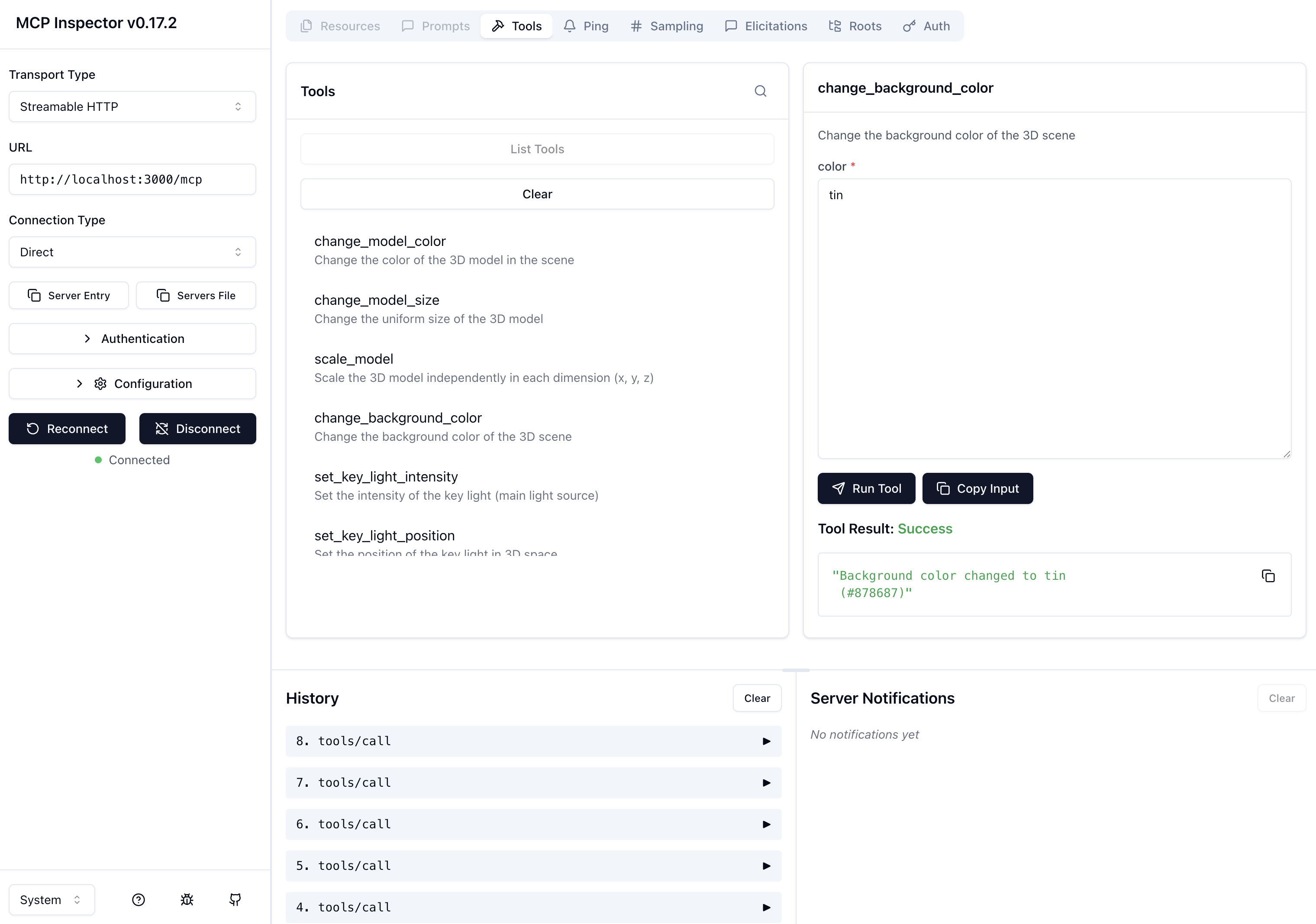
Example: MCP Inspector connected to the server, showing tools being tested.
Testing Options:
You can test either the source code (development) or the bundled version (production):
Option 1: Test Source Code (Development)
Start the server from source:
npm start # or node server.jsServer should be running on
http://localhost:3000/mcpStart the MCP Inspector:
npx @modelcontextprotocol/inspector http://localhost:3000/mcp
Option 2: Test Bundled Version (Production)
Build the bundle:
npm run build:bundleThis creates
dist/hello3dmcp-server.jsStart the bundled server:
npm run start:prod # or node dist/hello3dmcp-server.jsServer should be running on
http://localhost:3000/mcpStart the MCP Inspector:
npx @modelcontextprotocol/inspector http://localhost:3000/mcp
Using the Inspector:
Open the Inspector UI:
The inspector will start a web interface (usually on
http://localhost:5173)Open your browser and navigate to the URL shown in the terminal
Configure the connection:
Transport Type: Select "Streamable HTTP" (this matches your server's transport)
URL: Enter
http://localhost:3000/mcp(note: port 3000, not 3001)Connection Type: Select "Direct"
Click the "Connect" button
You should see a green dot and "Connected" status when successful
Browse and test tools:
Click on the "Tools" tab in the top navigation bar
You'll see a list of all available tools in the middle pane:
change_model_color- Change the color of the 3D modelchange_model_size- Change the uniform size of the modelscale_model- Scale the model independently in each dimensionchange_background_color- Change the background color of the sceneset_key_light_intensity- Set the intensity of the key lightset_key_light_position- Set the position of the key lightAnd more...
Call a tool:
Click on any tool name in the tools list to select it
The right pane will show the tool's description and parameters
Enter the required parameter value(s) in the input field(s):
For
change_background_color: Enter a color name (e.g.,"tin") or hex code (e.g.,"#878687")For
change_model_size: Enter a number (e.g.,2.5)For
scale_model: Enter values for x, y, z axes
Click the "Run Tool" button (paper airplane icon)
The result will appear below, showing "Success" and the response message
If your 3D app is running and connected, you'll see the changes reflected immediately
View history:
The bottom-left "History" pane shows all your previous tool calls
Click on any history entry to see its details
Use "Clear" to remove history entries
Example: To change the background color to tin:
Select
change_background_colorfrom the tools listEnter
tinin the "color" parameter fieldClick "Run Tool"
You'll see:
"Background color changed to tin (#878687)"The background in your 3D app will update to the new color
Note: The Inspector connects directly to your MCP HTTP endpoint. Make sure your server is running before starting the Inspector. If you're using a tunneled server (for remote access), you can also connect to the tunneled URL:
npx @modelcontextprotocol/inspector https://your-tunnel-url.ngrok-free.app/mcpAvailable MCP Tools
The server provides extensive tools for controlling the 3D model:
Model Control
change_model_color- Change model color (hex or Apple crayon color name)change_model_size- Change uniform model sizescale_model- Scale model independently in x, y, z dimensionsset_model_rotation- Set model rotation (Euler angles)rotate_model_clockwise- Rotate model clockwise (relative)rotate_model_counterclockwise- Rotate model counterclockwise (relative)nudge_model_pitch_up- Adjust model pitch up (relative)nudge_model_pitch_down- Adjust model pitch down (relative)nudge_model_roll- Adjust model roll (relative)get_model_color- Get current model colorget_model_scale- Get current model scaleget_model_rotation- Get current model rotation
Lighting Control
set_key_light_intensity- Set key light intensityset_key_light_color- Set key light colorset_key_light_position_spherical- Set key light position (spherical coordinates)set_key_light_distance- Set key light distanceswing_key_light_up/down/left/right- Swing key light in directionswalk_key_light_in/out- Move key light closer/fartherrotate_key_light_clockwise/counterclockwise- Rotate key lightnudge_key_light_elevation_up/down- Adjust key light elevationmove_key_light_toward_direction- Move key light toward directionSimilar tools for fill light
get_key_light_*/get_fill_light_*- Query light properties
Camera Control
dolly_camera- Set camera distancedolly_camera_in/out- Move camera closer/fartherset_camera_fov- Set camera field of viewincrease_camera_fov/decrease_camera_fov- Adjust FOVget_camera_distance- Get camera distanceget_camera_fov- Get camera FOV
Scene Control
change_background_color- Change scene background colorget_background_color- Get background color
Connection
get_browser_connection_url- Get URL to connect browser to 3D app
Architecture
The server supports two transport modes:
STDIO Mode (Subprocess - Claude Desktop)
┌─────────────────┐ ┌──────────────┐ ┌─────────────┐
│ Claude Desktop │──stdin▶│ MCP Server │────────▶│ WebSocket │
│ (Subprocess) │◀─stdout│ (server.js) │ │ Server │
└─────────────────┘ └──────────────┘ └─────────────┘
│ │
│ ┌────────▼────────┐
└──────────────▶│ Frontend App │
│ (WebSocket) │
└─────────────────┘HTTP/SSE Mode (ChatGPT, Manual)
┌─────────────────┐ ┌──────────────┐ ┌─────────────┐
│ MCP Client │──HTTP──▶│ MCP Server │────────▶│ WebSocket │
│ (AI Assistant) │──SSE───▶│ (server.js) │ │ Server │
└─────────────────┘ └──────────────┘ └─────────────┘
│ │
│ ┌────────▼────────┐
└──────────────▶│ Frontend App │
│ (WebSocket) │
└─────────────────┘How it works:
MCP Client sends tool call requests to the MCP Server (via STDIO or HTTP/SSE)
MCP Server auto-detects the transport mode and processes requests accordingly
MCP Server routes commands via WebSocket to connected browser clients (by session ID)
Frontend App receives WebSocket messages and updates the 3D model
Changes are immediately visible in the browser
Transport Detection:
STDIO Mode: Automatically detected when
stdinis not a TTY (subprocess)HTTP Mode: Automatically detected when
stdinis a TTY (manual execution)
WebSocket Protocol
The server communicates with frontend applications via WebSocket:
Session Registration
Frontend sends on connection:
{
"type": "registerSession",
"sessionId": "<session-id>"
}Sending Commands
Server sends commands to frontend:
{
"type": "changeColor",
"color": "#ff0000"
}State Queries
Server can request current state:
{
"type": "requestState",
"requestId": "<unique-id>",
"forceRefresh": false
}Frontend responds:
{
"type": "stateResponse",
"requestId": "<unique-id>",
"state": { /* current state object */ }
}Deployment
Railway
Connect repository to Railway
Set environment variables:
MCP_PORT: 3000 (or Railway's assigned port)WS_PORT: 3001 (or use same port as MCP_PORT)BROWSER_URL: Your frontend URL
Deploy
Render
Create new Web Service
Set environment variables:
MCP_PORT: 3000WS_PORT: 3001BROWSER_URL: Your frontend URL
Deploy
Fly.io
Create
fly.tomlconfigurationSet environment variables via
fly secretsDeploy:
fly deploy
Important Notes
WebSocket Support: Ensure your hosting platform supports WebSocket connections
Port Configuration: Some platforms assign a single port - you may need to use the same port for both MCP and WebSocket
HTTPS/WSS: Use
wss://(secure WebSocket) for production deployments
Development
Adding New Tools
Register tool in
server.js:mcpServer.registerTool( 'your_tool_name', { title: 'Your Tool Title', description: 'Description', inputSchema: { param: z.string().describe('Parameter') } }, async ({ param }) => { routeToCurrentSession({ type: 'yourCommandType', param: param }); return { content: [{ type: 'text', text: 'Success' }] }; } );Frontend handles command in
Application.jsWebSocket message handlerUpdate documentation in README.md
Troubleshooting
Port Already in Use
# Check what's using the ports
lsof -i :3000 -i :3001
# Kill processes
lsof -ti :3000 -ti :3001 | xargs kill -9WebSocket Connection Issues
Verify WebSocket server is running on port 3001
Check firewall/security groups allow WebSocket connections
Ensure frontend is connecting with correct session ID
MCP Client Can't Connect
Verify MCP endpoint is accessible:
http://localhost:3000/mcpCheck CORS settings (server allows all origins by default)
For remote clients, ensure tunnel is running and URL is correct
Tools Not Appearing
Restart MCP client after server changes
Check server logs for errors
Verify server started successfully
Related Projects
hello3dmcp-frontend - 3D visualization frontend application
License
MIT
Contributing
Contributions welcome! Please feel free to submit a Pull Request.
Available Tools
61 toolschange_background_colorChange Background ColorB
Change the background color of the 3D scene
Inputs: color (required).
change_model_colorChange Model ColorA
Change the color of the 3D model in the scene
Inputs: color (required).
change_model_sizeChange Model SizeC
Change the uniform size of the 3D model
Inputs: size (required).
decrease_camera_fovDecrease Camera Field of ViewA
Decrease the camera field of view (narrower angle, more zoomed in)
Inputs: amount.
dolly_cameraDolly CameraA
Set the camera distance from the origin (dollying). Moves the camera closer or farther from the subject.
Inputs: distance (required).
dolly_camera_inDolly Camera InB
Move the camera closer to the subject (dolly in)
Inputs: amount.
dolly_camera_outDolly Camera OutB
Move the camera farther from the subject (dolly out)
Inputs: amount.
get_background_colorGet Background ColorA
Get the current scene background color as a hex color code (e.g., "#000000"). Query this before relative color changes to ensure accuracy. For absolute changes, you may use recently queried state from context if no manual interactions occurred.
Inputs: no named parameters.
get_browser_connection_urlGet Browser Connection URLA
Get the URL to open in your browser to connect the 3D visualization app. Use this when users ask how to connect or how to open the 3D app.
Inputs: no named parameters.
get_camera_distanceGet Camera DistanceA
Get the current camera distance from origin (dolly position). Query this before relative distance changes to ensure accuracy. For absolute changes, you may use recently queried state from context if no manual interactions occurred.
Inputs: no named parameters.
get_camera_fovGet Camera Field of ViewA
Get the current camera field of view (FOV) value. Query this before relative FOV changes to ensure accuracy. For absolute changes, you may use recently queried state from context if no manual interactions occurred.
Inputs: no named parameters.
get_fill_light_colorGet Fill Light ColorA
Get the current fill light color as a hex color code (e.g., "#ffffff"). Query this before relative color changes to ensure accuracy. For absolute changes, you may use recently queried state from context if no manual interactions occurred.
Inputs: no named parameters.
get_fill_light_intensityGet Fill Light IntensityA
Get the current fill light intensity value (0.0 or higher). Query this before relative intensity changes (e.g., "increase by 0.5") to ensure accuracy. For absolute changes, you may use recently queried state from context if no manual interactions occurred.
Inputs: no named parameters.
get_fill_light_position_sphericalGet Fill Light Position (Spherical Coordinates)A
Get the current fill light position in camera-centric spherical coordinates. Query this before relative position changes (e.g., "rotate light 10 degrees") to ensure accuracy. For absolute changes, you may use recently queried state from context if no manual interactions occurred.
Inputs: no named parameters.
get_fill_light_sizeGet Fill Light SizeA
Get the current fill light area size (width and height in units). Query this before relative size changes to ensure accuracy. For absolute changes, you may use recently queried state from context if no manual interactions occurred.
Inputs: no named parameters.
get_key_light_colorGet Key Light ColorA
Get the current key light color as a hex color code (e.g., "#ffffff"). Query this before relative color changes to ensure accuracy. For absolute changes, you may use recently queried state from context if no manual interactions occurred.
Inputs: no named parameters.
get_key_light_intensityGet Key Light IntensityA
Get the current key light intensity value (0.0 or higher). Query this before relative intensity changes (e.g., "increase by 0.5") to ensure accuracy. For absolute changes, you may use recently queried state from context if no manual interactions occurred.
Inputs: no named parameters.
get_key_light_position_sphericalGet Key Light Position (Spherical Coordinates)A
Get the current key light position in camera-centric spherical coordinates. Query this before relative position changes (e.g., "rotate light 10 degrees") to ensure accuracy. For absolute changes, you may use recently queried state from context if no manual interactions occurred.
Inputs: no named parameters.
get_key_light_sizeGet Key Light SizeA
Get the current key light area size (width and height in units). Query this before relative size changes to ensure accuracy. For absolute changes, you may use recently queried state from context if no manual interactions occurred.
Inputs: no named parameters.
get_model_colorGet Model ColorA
Get the current model color as a hex color code (e.g., "#ff0000"). Query this before relative color changes (e.g., "darken by 10%") to ensure accuracy. For absolute changes, you may use recently queried state from context if no manual interactions occurred.
Inputs: no named parameters.
get_model_rotationGet Model RotationA
Get the current model rotation as Euler angles in degrees (XYZ order). Returns pitch (x), yaw (y), and roll (z) angles. Query this before relative rotation changes (e.g., "rotate 10 degrees") to ensure accuracy. For absolute changes, you may use recently queried state from context if no manual interactions occurred.
Inputs: no named parameters.
get_model_scaleGet Model ScaleA
Get the current model scale in each dimension (x, y, z) as scale factors. Query this before relative scale changes (e.g., "scale by 1.5x") to ensure accuracy. For absolute changes, you may use recently queried state from context if no manual interactions occurred.
Inputs: no named parameters.
increase_camera_fovIncrease Camera Field of ViewB
Increase the camera field of view (wider angle, see more of the scene)
Inputs: amount.
move_fill_light_toward_directionMove Fill Light Toward DirectionA
Move the fill light toward a specific direction relative to current position. This tool automatically queries fresh state before performing the adjustment to ensure accuracy, even if the user has manually moved the light. Available directions: north, east, south, west, northeast, northwest, southeast, southwest, ne, nw, se, sw, nne, ene, ese, sse, ssw, wsw, wnw, nnw.
Inputs: direction (required), degrees.
move_key_light_toward_directionMove Key Light Toward DirectionA
Move the key light toward a specific direction relative to current position. This tool automatically queries fresh state before performing the adjustment to ensure accuracy, even if the user has manually moved the light. Available directions: north, east, south, west, northeast, northwest, southeast, southwest, ne, nw, se, sw, nne, ene, ese, sse, ssw, wsw, wnw, nnw.
Inputs: direction (required), degrees.
nudge_fill_light_elevation_downNudge Fill Light Elevation DownA
Adjust the fill light elevation downward relative to current position. This tool automatically queries fresh state before performing the adjustment to ensure accuracy, even if the user has manually moved the light.
Inputs: degrees.
nudge_fill_light_elevation_upNudge Fill Light Elevation UpA
Adjust the fill light elevation upward relative to current position. This tool automatically queries fresh state before performing the adjustment to ensure accuracy, even if the user has manually moved the light.
Inputs: degrees.
nudge_key_light_elevation_downNudge Key Light Elevation DownA
Adjust the key light elevation downward relative to current position. This tool automatically queries fresh state before performing the adjustment to ensure accuracy, even if the user has manually moved the light.
Inputs: degrees.
nudge_key_light_elevation_upNudge Key Light Elevation UpA
Adjust the key light elevation upward relative to current position. This tool automatically queries fresh state before performing the adjustment to ensure accuracy, even if the user has manually moved the light.
Inputs: degrees.
nudge_model_pitch_downNudge Model Pitch DownA
Adjust the model pitch (X axis rotation) downward relative to current rotation. This tool automatically queries fresh state before performing the adjustment to ensure accuracy, even if the user has manually interacted with the model.
Inputs: degrees.
nudge_model_pitch_upNudge Model Pitch UpA
Adjust the model pitch (X axis rotation) upward relative to current rotation. This tool automatically queries fresh state before performing the adjustment to ensure accuracy, even if the user has manually interacted with the model.
Inputs: degrees.
nudge_model_rollNudge Model RollA
Adjust the model roll (Z axis rotation) relative to current rotation. Positive values rotate clockwise. This tool automatically queries fresh state before performing the adjustment to ensure accuracy, even if the user has manually interacted with the model.
Inputs: degrees.
rotate_fill_light_clockwiseRotate Fill Light ClockwiseA
Rotate the fill light clockwise (decreases azimuth) relative to current position. This tool automatically queries fresh state before performing the rotation to ensure accuracy, even if the user has manually moved the light.
Inputs: degrees.
rotate_fill_light_counterclockwiseRotate Fill Light CounterclockwiseA
Rotate the fill light counterclockwise (increases azimuth) relative to current position. This tool automatically queries fresh state before performing the rotation to ensure accuracy, even if the user has manually moved the light.
Inputs: degrees.
rotate_key_light_clockwiseRotate Key Light ClockwiseA
Rotate the key light clockwise (decreases azimuth) relative to current position. This tool automatically queries fresh state before performing the rotation to ensure accuracy, even if the user has manually moved the light.
Inputs: degrees.
rotate_key_light_counterclockwiseRotate Key Light CounterclockwiseA
Rotate the key light counterclockwise (increases azimuth) relative to current position. This tool automatically queries fresh state before performing the rotation to ensure accuracy, even if the user has manually moved the light.
Inputs: degrees.
rotate_model_clockwiseRotate Model ClockwiseA
Rotate the model clockwise around Y axis (yaw) relative to current rotation. This tool automatically queries fresh state before performing the rotation to ensure accuracy, even if the user has manually interacted with the model.
Inputs: degrees.
rotate_model_counterclockwiseRotate Model CounterclockwiseA
Rotate the model counterclockwise around Y axis (yaw) relative to current rotation. This tool automatically queries fresh state before performing the rotation to ensure accuracy, even if the user has manually interacted with the model.
Inputs: degrees.
scale_modelScale ModelB
Scale the 3D model independently in each dimension (x, y, z)
Inputs: x (required), y (required), z (required).
set_camera_fovSet Camera Field of ViewA
Set the camera field of view (FOV). Lower values = wider angle (more of scene visible), higher values = narrower angle (more zoomed in).
Inputs: fov (required).
set_fill_light_colorSet Fill Light ColorB
Set the color of the fill light
Inputs: color (required).
set_fill_light_distanceSet Fill Light DistanceA
Set the distance of the fill light from the model origin. Preserves current azimuth and elevation angles.
Inputs: distance (required).
set_fill_light_intensitySet Fill Light IntensityB
Set the intensity of the fill light (shadow-filling light)
Inputs: intensity (required).
set_fill_light_position_sphericalSet Fill Light Position (Spherical Coordinates)A
Set the fill light position using camera-centric spherical coordinates. Preserves current distance - only changes azimuth and elevation. Azimuth: 0° = camera forward (North), 90° = camera right (East), 180° = behind camera (South), 270° = camera left (West). Elevation: 0° = horizon, 90° = overhead. Azimuth can be a number (0-360) or a direction name. Available direction names: north, east, south, west, northeast, northwest, southeast, southwest, ne, nw, se, sw, nne, ene, ese, sse, ssw, wsw, wnw, nnw. Examples: "north" (0°), "east" (90°), "northwest" (315°), "southeast" (135°).
Inputs: azimuth (required), elevation (required).
set_key_light_colorSet Key Light ColorA
Set the color of the key light
Inputs: color (required).
set_key_light_distanceSet Key Light DistanceA
Set the distance of the key light from the model origin. Preserves current azimuth and elevation angles.
Inputs: distance (required).
set_key_light_intensitySet Key Light IntensityB
Set the intensity of the key light (main light source)
Inputs: intensity (required).
set_key_light_position_sphericalSet Key Light Position (Spherical Coordinates)A
Set the key light position using camera-centric spherical coordinates. Preserves current distance - only changes azimuth and elevation. Azimuth: 0° = camera forward (North), 90° = camera right (East), 180° = behind camera (South), 270° = camera left (West). Elevation: 0° = horizon, 90° = overhead. Azimuth can be a number (0-360) or a direction name. Available direction names: north, east, south, west, northeast, northwest, southeast, southwest, ne, nw, se, sw, nne, ene, ese, sse, ssw, wsw, wnw, nnw. Examples: "north" (0°), "east" (90°), "northwest" (315°), "southeast" (135°).
Inputs: azimuth (required), elevation (required).
set_model_rotationSet Model RotationA
Set the model rotation using Euler angles in degrees (XYZ order). X = pitch (rotation around X axis), Y = yaw (rotation around Y axis), Z = roll (rotation around Z axis).
Inputs: x (required), y (required), z (required).
swing_fill_light_downSwing Fill Light DownA
Rotate the fill light downward in an arc around the center of the model
Inputs: no named parameters.
swing_fill_light_leftSwing Fill Light LeftA
Rotate the fill light leftward in an arc around the center of the model
Inputs: no named parameters.
swing_fill_light_rightSwing Fill Light RightA
Rotate the fill light rightward in an arc around the center of the model
Inputs: no named parameters.
swing_fill_light_upSwing Fill Light UpA
Rotate the fill light upward in an arc around the center of the model
Inputs: no named parameters.
swing_key_light_downSwing Key Light DownA
Rotate the key light downward in an arc around the center of the model
Inputs: no named parameters.
swing_key_light_leftSwing Key Light LeftA
Rotate the key light leftward in an arc around the center of the model
Inputs: no named parameters.
swing_key_light_rightSwing Key Light RightA
Rotate the key light rightward in an arc around the center of the model
Inputs: no named parameters.
swing_key_light_upSwing Key Light UpA
Rotate the key light upward in an arc around the center of the model
Inputs: no named parameters.
walk_fill_light_inWalk Fill Light InA
Move the fill light closer to the center of the model along the axis from the model origin
Inputs: no named parameters.
walk_fill_light_outWalk Fill Light OutA
Move the fill light farther from the center of the model along the axis from the model origin
Inputs: no named parameters.
walk_key_light_inWalk Key Light InA
Move the key light closer to the center of the model along the axis from the model origin
Inputs: no named parameters.
walk_key_light_outWalk Key Light OutA
Move the key light farther from the center of the model along the axis from the model origin
Inputs: no named parameters.
Tool Schema Changelog
Recent tool additions, removals, and schema changes observed during successful MCP inspections.
Loading tool schema changelog…
TDQS
Scored across 61 tools
The tools are mostly distinct by target (model, key light, fill light, camera, background), but there is significant overlap in light manipulation: swing_*, walk_*, move_*_toward_direction, set_*_position_spherical, and set_*_distance all adjust light position in different but confusingly similar ways. The swing/walk/move/nudge/rotate families for lights can be hard to distinguish without deep reading.
The naming is mostly verb_noun (change_model_color, set_key_light_intensity, get_camera_fov), but there is inconsistency: some use 'change_', some 'set_', some 'get_', some 'swing_', 'walk_', 'nudge_', 'rotate_', 'dolly_', 'increase_', 'decrease_'. The verb families are semantically different but the pattern is not uniform, and 'dolly_camera' vs 'dolly_camera_in/out' is slightly redundant.
61 tools is far too many for a 3D scene manipulation server. The surface is heavily fragmented: light controls alone account for dozens of tools, with separate tools for every direction and relative/absolute variants. This could be consolidated into parameterized tools (e.g., set_light_position with direction and amount).
The domain is 3D scene manipulation (model, lights, camera, background), and the coverage is quite thorough: model color/size/rotation/scale, key and fill light color/intensity/position/size, camera dolly/FOV, background color, and connection URL. Minor gaps: no model loading/selection, no camera rotation/orbit, no rim light or environment controls, but for the apparent scope it's fairly complete.
Maintenance
Related MCP Connectors
A comprehensive Model Context Protocol (MCP) server that enables AI assistants to control Unreal E…
MCP server for AI dialogue using various LLM models via AceDataCloud
Generate game-ready 3D models, textures, and audio from natural language, over MCP.
Generate, edit, and deploy immersive 3D/WebGL web projects from any MCP assistant.
Related MCP Servers
- AlicenseNot gradedqualityDmaintenanceAn MCP server that enables AI agents to execute sandboxed JavaScript code to control external web applications in real-time. It utilizes WebSockets to synchronize script execution with frontend animations, allowing complex UI interactions to be handled in a single agent turn.ISC
- AlicenseBqualityDmaintenanceAn MCP server that enables AI models to directly control Blender for 3D modeling, scene manipulation, and material management through natural language. It supports advanced workflows including Python code execution, viewport visualization, and integration with external asset libraries like Poly Haven and Hyper3D.221MIT
- AlicenseNot gradedqualityDmaintenanceMCP server that bridges Unity with AI agents, enabling scene inspection, C# code execution, and screenshot capture via WebSocket communication.MIT
- AlicenseNot gradedqualityDmaintenanceEnables AI-assisted 3D scene manipulation in Cinema 4D via natural language, using an MCP server that communicates with a C4D plugin.MIT