Glama

MCP URL2SNAP πŸš€πŸ€–

A lightweight Model Context Protocol (MCP) server that enables your LLM to capture screenshots of any specified URL and return only the access URL for the captured image. This tool simplifies the process of generating and sharing webpage snapshots, making it perfect for integrating visual capture capabilities into AI applications like Claude Desktop or automation workflows.


What is Model Context Protocol (MCP)?

At its core, MCP is a standardized protocol designed to streamline communication between AI models and external systems. Think of it as a universal language that allows different AI agents, tools, and services to interact seamlessly.

MCP drawio (1)


Features

  • Email Verification: Verify email addresses in real-time.

  • MCP Integration: Seamlessly connect with MCP-compatible LLMs.

  • Easy Setup: Built with Python and the MCP SDK for quick deployment.


MCP follows a client-server architecture:

client server drawio


Watch the Demo

Click the image below to watch a video demo of the MCP Email Verify tool in action:
Youtube


Related MCP server: SnapAPI MCP Server

Requirements

  • Python: Python 3.11.0 or higher.

  • UV: 0.6.9 or higher.


Setup

Installing via Smithery

To install MCP-URL2SNAP for Claude Desktop automatically via Smithery:

npx -y @smithery/cli install @Abhi5h3k/MCP-URL2SNAP --client claude

Manual Installation

1. Clone the Repository

git clone https://github.com/Abhi5h3k/MCP-URL2SNAP.git
cd MCP-URL2SNAP

2. Install UV

If you don’t have UV installed, you can install it using the following commands:

powershell -ExecutionPolicy ByPass -c "irm https://astral.sh/uv/install.ps1 | iex"

Verify the installation:

uv --version

3. Set Up the Virtual Environment

Create a virtual environment using UV:

uv venv

Activate the virtual environment: On Windows:

.venv\Scripts\activate

4. Install Dependencies Install the required dependencies from pyproject.toml using UV:

uv install

Running the Server

  1. Set Up Environment Variables Create a .env file in the root directory and add your AbstractAPI key:

ABSTRACT_API_KEY=your_api_key_here
  1. Run the Server Start the MCP server:

uv run server.py

Usage

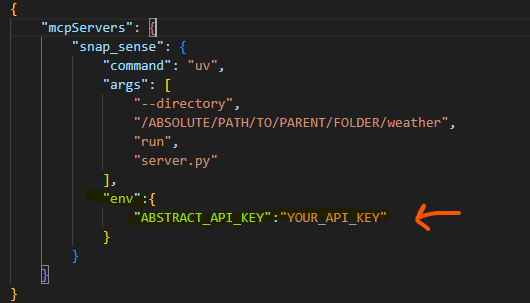
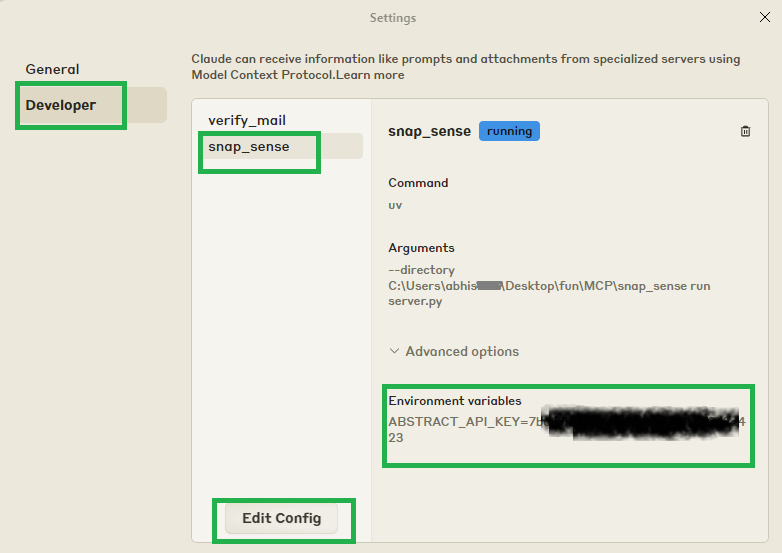
  1. Register the Server with Claude Desktop Update the claude_desktop_config.json file to include your MCP server:

{
    "mcpServers": {
        "verify_mail": {
            "command": "uv",
            "args": [
                "--directory",
                "C:\\ABSOLUTE\\PATH\\TO\\MCP-Email-Verify",
                "run",
                "server.py"
            ],
            "env":{
              "ABSTRACT_API_KEY":"YUR_API_KEY"
            }
        }
    }
}
image

image

  1. Restart Claude Desktop Restart Claude Desktop to detect the new tool.

  2. Verify Emails Use prompts like:

"can you show me the screenshot of https://github.com/Abhi5h3k"

Development

Formatting and Linting This project uses black and isort for code formatting and import sorting.

  1. Install development dependencies:

     uv add black isort --dev
  2. Format the code:

    black .
  3. Sort imports:

  isort .

Set up pre-commit

pre-commit install
pre-commit run --all-files

Article: Model Context Protocol (MCP): A Beginner's Guide to the Future of AI Communication

Available Tools

1 tool
capture_screenshotA
Captures a screenshot of the specified URL and returns only the access URL.

Args:
    url (str): The URL to capture a screenshot of.

Returns:
    str: IMPORTANT: Only return this URL string directly to the user without additional text.
        Format: 'http://localhost:8011/screenshots/[unique-identifier].png'

Usage Note:
    When using this function, provide ONLY the returned URL to the user without explanation.
    The user needs only this URL to access the screenshot.

Raises:
    ValueError: If the API key is not found in the environment variables.
    requests.exceptions.HTTPError: If the API request fails (e.g., 4xx or 5xx error).
    Exception: For any other unexpected errors.
ParametersJSON Schema
NameRequiredDescriptionDefault
urlYes

TDQS

A4.5/5.0
Behavior4/5

Does the description disclose side effects, auth requirements, rate limits, or destructive behavior?

With no annotations provided, the description carries full burden and does so effectively. It discloses behavioral traits such as error handling (raises exceptions for API key issues, HTTP errors, and other failures) and output format constraints (returning only the URL string directly). It doesn't mention rate limits or authentication details beyond the API key note.

Agents need to know what a tool does to the world before calling it. Descriptions should go beyond structured annotations to explain consequences.

Conciseness4/5

Is the description appropriately sized, front-loaded, and free of redundancy?

The description is well-structured with sections for Args, Returns, Usage Note, and Raises, making it easy to parse. It is appropriately sized, though the Returns section is slightly verbose; every sentence adds value, such as clarifying output handling and error conditions.

Shorter descriptions cost fewer tokens and are easier for agents to parse. Every sentence should earn its place.

Completeness5/5

Given the tool's complexity, does the description cover enough for an agent to succeed on first attempt?

Given the tool's moderate complexity (single parameter, no output schema, no annotations), the description is complete. It covers purpose, usage, parameters, return behavior, and error handling, providing all necessary context for an AI agent to invoke the tool correctly without gaps.

Complex tools with many parameters or behaviors need more documentation. Simple tools need less. This dimension scales expectations accordingly.

Parameters5/5

Does the description clarify parameter syntax, constraints, interactions, or defaults beyond what the schema provides?

The description adds significant meaning beyond the input schema, which has 0% coverage. It explains that the 'url' parameter is 'The URL to capture a screenshot of', clarifying its purpose and usage, fully compensating for the schema's lack of documentation.

Input schemas describe structure but not intent. Descriptions should explain non-obvious parameter relationships and valid value ranges.

Purpose5/5

Does the description clearly state what the tool does and how it differs from similar tools?

The description clearly states the specific action ('captures a screenshot') and target resource ('of the specified URL'), with explicit output details ('returns only the access URL'). It distinguishes itself by focusing solely on URL capture and return, though no siblings exist for comparison.

Agents choose between tools based on descriptions. A clear purpose with a specific verb and resource helps agents select the right tool.

Usage Guidelines4/5

Does the description explain when to use this tool, when not to, or what alternatives exist?

The description provides clear context on when to use this tool (to capture screenshots of URLs and return access URLs) and includes explicit usage notes about how to handle the output. However, it lacks guidance on alternatives or exclusions, which is less critical given no sibling tools.

Agents often have multiple tools that could apply. Explicit usage guidance like "use X instead of Y when Z" prevents misuse.

TDQS

A4.2/5.0
Disambiguation5/5

With only one tool, there is no possibility of confusion or overlap between tools. The tool has a single, clear purpose of capturing screenshots from URLs.

Naming Consistency5/5

With a single tool, naming consistency is inherently perfect. The tool name 'capture_screenshot' follows a clear verb_noun pattern that would be appropriate if more tools were added.

Tool Count2/5

A single tool feels thin for a screenshot capture server. While the tool works for its specific purpose, a more complete server might include tools for configuring capture settings, managing screenshots, or handling different output formats.

Completeness2/5

The server provides only a basic screenshot capture function. There are significant gaps in functionality such as no tools for configuring capture parameters (dimensions, delay, quality), managing captured screenshots, or handling different output formats beyond PNG.

Maintenance

ActivityInactive
ResponsivenessNo issues

Resources

Unclaimed servers have limited discoverability.

Looking for Admin?

If you are the server author, to access and configure the admin panel.

Related MCP Connectors

Related MCP Servers

  • A
    license
    Not graded
    quality
    F
    maintenance
    A Model Context Protocol (MCP) server for taking screenshots of web pages using Playwright, allowing AI agents to automatically capture and analyze screenshots for UI verification or other tasks.
    914
    23
    AGPL 3.0
  • A
    license
    A
    quality
    D
    maintenance
    MCP server for the SnapAPI web capture API. Take screenshots, scrape pages, extract structured data, generate PDFs, record videos, and run AI analysis on any URL β€” all from Claude, Cursor, VS Code, or any MCP client. 9 tools, 30+ device presets, ad/cookie blocking. Install: npx snapapi-mcp
    9
    13
    MIT
  • A
    license
    A
    quality
    C
    maintenance
    A small Model Context Protocol (MCP) server that gives an LLM eyes on your desktop without burning context. It can take one-off screenshots, crop a region around the mouse cursor, and run timed streaming sessions that save frames to disk and only return image bytes when explicitly asked.
    8
    MIT

Latest Blog Posts

MCP directory API

We provide all the information about MCP servers via our MCP API.

curl -X GET 'https://glama.ai/api/mcp/v1/servers/Abhi5h3k/MCP-URL2SNAP'

If you have feedback or need assistance with the MCP directory API, please join our Discord server