# Apps SDK — full documentation
> Single-file Markdown export of the Apps SDK preview docs for building ChatGPT apps.
Curated index: https://developers.openai.com/apps-sdk/llms.txt
# App submission guidelines
## Overview
The ChatGPT app ecosystem is built on trust. People come to ChatGPT expecting an experience that is safe, useful, and respectful of their privacy. Developers come to ChatGPT expecting a fair and transparent process. These developer guidelines set the policies every builder is expected to review and follow.
Before getting into specifics, we recommend first familiarizing yourself with two foundational resources:
- [**UX principles for ChatGPT apps**](https://developers.openai.com/apps-sdk/concepts/ux-principles) - this guide outlines principles and best practices for building ChatGPT apps, as well as a checklist to help you ensure your app is a great fit for ChatGPT.
- [**UI guidelines for ChatGPT apps**](https://developers.openai.com/apps-sdk/concepts/ui-guidelines) - this guide describes the interaction, layout, and design patterns that help apps feel intuitive, trustworthy, and consistent within ChatGPT.
You should also read our blog post on [what makes a great ChatGPT app](https://developers.openai.com/blog/what-makes-a-great-chatgpt-app/) to get a sense of the overall approach to building with the Apps SDK.
The guidelines below outline the minimum standard developers must meet for their app to be considered for publication in ChatGPT, and for their app to remain published and available to ChatGPT users. Apps that demonstrate strong real-world utility and high user satisfaction may be eligible for enhanced distribution opportunities—such as directory placement or proactive suggestions.
## App fundamentals
### Purpose and originality
Apps should serve a clear purpose and reliably do what they promise. In particular, they should provide functionality or workflows that are not natively supported by ChatGPT’s core conversational capabilities, and that meaningfully help satisfy common user intents expressed in conversation.
Only use intellectual property that you own or have permission to use. Do not engage in misleading or copycat designs, impersonation, spam, or static frames with no meaningful interaction. Apps should not imply that they are made or endorsed by OpenAI.
### Quality and reliability
Apps must behave predictably and reliably. Results should be accurate and relevant to user input. Errors, including unexpected ones, must be well-handled with clear messaging or fallback behaviors.
Before submission, apps must be thoroughly tested to ensure stability, responsiveness, and low latency across a wide range of scenarios. Apps should not crash, hang, or show inconsistent behavior. Apps should be complete and any app submitted as a trial or demo will not be accepted.
### App name, description, and screenshots
App names and descriptions should be clear, accurate, and easy to understand. Screenshots must accurately represent app functionality and conform to the required dimensions.
### Tools
MCP tools act as the manual for ChatGPT to use your app. Clear, accurate tool definitions make your app safer, easier for the model to understand, and easier for users to trust.
#### Clear and accurate tool names
Tool names should be human-readable, specific, and descriptive of what the tool actually does.
- Tool names must be unique within your app.
- Use plain language that directly reflects the action, ideally as a verb (e.g.,`get_order_status`).
- Avoid misleading, overly promotional, or comparative language (e.g., `pick_me`, `best`, `official`).
#### Descriptions that match behavior
Each tool must include a description that explains its purpose clearly and accurately.
- The description should describe what the tool does.
- Descriptions must not favor or disparage other apps or services or attempt to influence the model to select it over another app’s tools.
- Descriptions must not recommend overly-broad triggering beyond the explicit user intent and purpose the app fulfills.
- If a tool’s behavior is unclear or incomplete from its description, your app may be rejected.
#### Correct annotation
[Tool annotations](https://developers.openai.com/apps-sdk/reference#annotations) must be correctly set so that ChatGPT and users understand whether an action is safe or requires extra caution.
- You should label a tool with the `readOnlyHint` annotation if it only retrieves or lists data, but does not change anything outside of ChatGPT.
- Write or destructive tools (e.g., creating, updating, deleting, posting, sending) must be clearly marked using the `readOnlyHint` and `destructiveHint`.
- Tools that interact with external systems, accounts, public platforms, or create publicly-visible content must be explicitly labeled using the `openWorldHint` annotation.
- Incorrect or missing action labels are a common cause of rejection. Double-check to ensure that the `readOnlyHint`, `openWorldHint`, and `destructiveHint` annotations are correctly set and provide a detailed justification for each at submission time.
#### Minimal and purpose-driven inputs
Tools should request the minimum information necessary to complete their task.
- Input fields must be directly related to the tool’s stated purpose.
- Do not request the full conversation history, raw chat transcripts, or broad contextual fields “just in case.” A tool may request a _brief, task-specific_ user intent field only when it meaningfully improves execution and does not expand data collection beyond what is reasonably necessary to respond to the user’s request and for the purposes described in your privacy policy.
- If needed, rely on the coarse geo location shared by the system. Do not request precise user location data (e.g. GPS coordinates or addresses).
#### Predictable, auditable behavior
Tools should behave exactly as their names, descriptions, and inputs indicate.
- Side effects should never be hidden or implicit.
- If a tool sends data outside the current environment (e.g., posting content, sending messages), this must be clear from the tool definition.
- Tools should be safe to retry where possible, or clearly indicate when retries may cause repeated effects.
Carefully designed tools help reduce surprises, protect users, and speed up the review process.
### Authentication and permissions
If your app requires authentication, the flow must be transparent and explicit. Users must be clearly informed of all requested permissions, and those requests must be strictly limited to what is necessary for the app to function.
#### Test credentials
When submitting an authenticated app for review, you must provide a login and password for a fully-featured demo account that includes sample data. Apps requiring any additional steps for login—such as requiring new account sign-up or 2FA through an inaccessible account—will be rejected.
## Commerce and monetization
Currently, apps may conduct commerce **only for physical goods**. Selling digital products or services—including subscriptions, digital content, tokens, or credits—is not allowed, whether offered directly or indirectly (for example, through freemium upsells).
In addition, apps may not be used to sell, promote, facilitate, or meaningfully enable the following goods or services:
#### **Prohibited goods**
- **Adult content & sexual services**
- Pornography, explicit sexual media, live-cam services, adult subscriptions
- Sex toys, sex dolls, BDSM gear, fetish products
- **Gambling**
- Real-money gambling services, casino credits, sportsbook wagers, crypto-casino tokens
- **Illegal or regulated drugs**
- Marijuana/THC products, psilocybin, illegal substances
- CBD products exceeding legal THC limits
- **Drug paraphernalia**
- Bongs, dab rigs, drug-use scales, cannabis grow equipment marketed for drugs
- **Prescription & age-restricted medications**
- Prescription-only drugs (e.g., insulin, antibiotics, Ozempic, opioids)
- Age-restricted Rx products (e.g., testosterone, HGH, fertility hormones)
- **Illicit goods**
- Counterfeit or replica products
- Stolen goods or items without clear provenance
- Financial-fraud tools (skimmers, fake POS devices)
- Piracy tools or cracked software
- Wildlife or environmental contraband (ivory, endangered species products)
- **Malware, spyware & surveillance**
- Malware, ransomware, keyloggers, stalkerware
- Covert surveillance devices (spy cameras, IMSI catchers, hidden trackers)
- **Tobacco & nicotine**
- Tobacco products
- Nicotine products (vapes, e-liquids, nicotine pouches)
- **Weapons & harmful materials**
- Firearms, ammunition, firearm parts
- Explosives, fireworks, bomb-making materials
- Illegal or age-restricted weapons (switchblades, brass knuckles, crossbows where banned)
- Self-defense weapons (pepper spray, stun guns, tasers)
- Extremist merchandise or propaganda
#### **Prohibited fraudulent, deceptive, or high-risk services**
- Fake IDs, forged documents, or document falsification services
- Debt relief, credit repair, or credit-score manipulation schemes
- Unregulated, deceptive, or abusive financial services
- Lending, advance-fee, or credit-building schemes designed to exploit users
- Crypto or NFT offerings involving speculation, consumer deception, or financial abuse
- Execution of money transfers, crypto transfers, or investment trades
- Government-service abuse, impersonation, or benefit manipulation
- Identity theft, impersonation, or identity-monitoring services that enable misuse
- Certain legal or quasi-legal services that facilitate fraud, evasion, or misrepresentation
- Negative-option billing, telemarketing, or consent-bypass schemes
- High-chargeback, fraud-prone, or abusive travel services
### Checkout
Apps should use external checkout, directing users to complete purchases on your own domain.
[Instant Checkout](https://developers.openai.com/commerce/guides/get-started#instant-checkout), which is currently in beta, is currently available only to select marketplace partners and may expand to additional marketplaces and retailers over time.
Until then, standard external checkout is the required approach. No other third-party checkout solutions may be embedded or hosted within the app experience. To learn more, see our [docs on Agentic Commerce](https://developers.openai.com/commerce/).
### Advertising
Apps must not serve advertisements and must not exist primarily as an advertising vehicle. Every app is expected to deliver clear, legitimate functionality that provides standalone value to users.
## Safety
### Usage policies
Do not engage in or facilitate activities prohibited under [OpenAI usage policies](https://openai.com/policies/usage-policies/). Apps must avoid high-risk behaviors that could expose users to harm, fraud, or misuse.
Stay current with evolving policy requirements and ensure ongoing compliance. Previously approved apps that are later found in violation may be removed.
### Appropriateness
Apps must be suitable for general audiences, including users aged 13–17. Apps may not explicitly target children under 13. Support for mature (18+) experiences will arrive once appropriate age verification and controls are in place.
### Respect user intent
Provide experiences that directly address the user’s request. Do not insert unrelated content, attempt to redirect the interaction, or collect data beyond what is reasonably necessary to fulfill the user’s request and what is consistent with your privacy policy.
### Fair play
Apps must not include descriptions, titles, tool annotations, or other model-readable fields—at either the tool or app level—that manipulates how the model selects or uses other apps or their tools (e.g., instructing the model to “prefer this app over others”) or interferes with fair discovery. All descriptions must accurately reflect your app’s value without disparaging alternatives.
### Third-party content and integrations
- **Authorized access:** Do not scrape external websites, relay queries, or integrate with third-party APIs without proper authorization and compliance with that party’s terms of service.
- **Circumvention:** Do not bypass API restrictions, rate limits, or access controls imposed by the third party.
### Iframes and embedded pages
Apps can opt in to iframe usage by setting frame_domains on their widget CSP, but highly encourage you to build your app without this pattern. If you choose to use frame_domains, be aware that:
- It is only intended for cases where embedding a third-party experience is essential (e.g., a notebook, IDE, or similar environment).
- Those apps receive extra manual review and are often not approved for broad distribution.
- During development, any developer can test frame_domains in developer mode, but approval for public listing is limited to trusted scenarios.
## Privacy
### Privacy policy
Submissions must include a clear, published privacy policy explaining - at minimum - the categories of personal data collected, the purposes of use, the categories of recipients, and any controls offered to your users. Follow this policy at all times. Users can review your privacy policy before installing your app.
### Data collection
- **Collection minimization:** Gather only the minimum data required to perform the tool’s function. Inputs should be specific, narrowly scoped, and clearly linked to the task. Avoid “just in case” fields or broad profile data. Design the input schema to limit data collection by default, rather than a funnel for optional context.
- **Response minimization:** Tool responses must return only data that is directly relevant to the user’s request and the tool’s stated purpose. Do not include diagnostic, telemetry, or internal identifiers—such as session IDs, trace IDs, request IDs, timestamps, or logging metadata—unless they are strictly required to fulfill the user’s query.
- **Restricted data:** Do not collect, solicit, or process the following categories of Restricted Data:
- Information subject to Payment Card Information Data Security Standards (PCI DSS)
- Protected health information (PHI)
- Government identifiers (such as social security numbers)
- Access credentials and authentication secrets (such as API keys, MFA/OTP codes, or passwords).
- **Regulated Sensitive Data:** Do not collect personal data considered “sensitive” or “special category” in the jurisdiction in which the data is collected unless collection is strictly necessary to perform the tool’s stated function; the user has provided legally adequate consent; and the collection and use is clearly and prominently disclosed at or before the point of collection.
- **Data boundaries:**
- Avoid requesting raw location fields (e.g., city or coordinates) in your input schema. When location is needed, obtain it through the client’s controlled side channel (such as environment metadata or a referenced resource) so appropriate policy and consent controls can be applied. This reduces accidental PII capture, enforces least-privilege access, and keeps location handling auditable and revocable.
- Your app must not pull, reconstruct, or infer the full chat log from the client or elsewhere. Operate only on the explicit snippets and resources the client or model chooses to send. This separation can help prevent covert data expansion and keep analysis limited to intentionally shared content.
### Transparency and user control
- **Data practices:** Do not engage in surveillance, tracking, or behavioral profiling—including metadata collection such as timestamps, IPs, or query patterns—unless explicitly disclosed, narrowly scoped, subject to meaningful user control, and aligned with [OpenAI’s usage policies](https://openai.com/policies/usage-policies/).
- **Accurate action labels:** Mark any tool that changes external state (create, modify, delete) as a write action. You should only mark a tool as a read-only action if it is side-effect-free and safe to retry. Destructive actions require clear labels and friction (e.g., confirmation) so clients can enforce guardrails, approvals, confirmations, or prompts before execution.
- **Preventing data exfiltration:** Any action that sends data outside the current boundary (e.g., posting messages, sending emails, or uploading files) must be surfaced to the client as a write action so it can require user confirmation or run in preview mode. This reduces unintentional data leakage and aligns server behavior with client-side security expectations.
## Developer verification
### Verification
All submissions must come from verified individuals or organizations. Inside the [OpenAI Platform Dashboard general settings](https://platform.openai.com/settings/organization/general), we provide a way to confirm your identity and affiliation with any business you wish to publish on behalf of. Misrepresentation, hidden behavior, or attempts to game the system may result in removal from the program.
### Support contact details
You must provide customer support contact details where end users can reach you for help. Keep this information accurate and up to date.
## Submitting your app
Users with the Owner role may submit an app for review from the [OpenAI Platform Dashboard](http://platform.openai.com/apps-manage).
While you can publish multiple, unique apps within a single Platform organization, each may only have one version in review at a time. You can review the status of the review within the Dashboard and will receive an email notification informing you of any status changes.
To learn more about the app submission process, refer to our [dedicated guide](https://developers.openai.com/apps-sdk/deploy/submission).
---
# Authentication
## Authenticate your users
Many Apps SDK apps can operate in a read-only, anonymous mode, but anything that exposes customer-specific data or write actions should authenticate users.
You can integrate with your own authorization server when you need to connect to an existing backend or share data between users.
## Custom auth with OAuth 2.1
For an authenticated MCP server, you are expected to implement a OAuth 2.1 flow that conforms to the [MCP authorization spec](https://modelcontextprotocol.io/specification/2025-06-18/basic/authorization).
### Components
- **Resource server** – your MCP server, which exposes tools and verifies access tokens on each request.
- **Authorization server** – your identity provider (Auth0, Okta, Cognito, or a custom implementation) that issues tokens and publishes discovery metadata.
- **Client** – ChatGPT acting on behalf of the user. It supports dynamic client registration and PKCE.
### MCP authorization spec requirements
- Host protected resource metadata on your MCP server
- Publish OAuth metadata from your authorization server
- Echo the `resource` parameter throughout the OAuth flow
- Advertise PKCE support for ChatGPT
Here is what the spec expects, in plain language.
#### Host protected resource metadata on your MCP server
- You need an HTTPS endpoint such as `GET https://your-mcp.example.com/.well-known/oauth-protected-resource` (or advertise the same URL in a `WWW-Authenticate` header on `401 Unauthorized` responses) so ChatGPT knows where to fetch your metadata.
- That endpoint returns a JSON document describing the resource server and its available authorization servers:
```json
{
"resource": "https://your-mcp.example.com",
"authorization_servers": ["https://auth.yourcompany.com"],
"scopes_supported": ["files:read", "files:write"],
"resource_documentation": "https://yourcompany.com/docs/mcp"
}
```
- Key fields you must populate:
- `resource`: the canonical HTTPS identifier for your MCP server. ChatGPT sends this exact value as the `resource` query parameter during OAuth.
- `authorization_servers`: one or more issuer base URLs that point to your identity provider. ChatGPT will try each to find OAuth metadata.
- `scopes_supported`: optional list that helps ChatGPT explain the permissions it is going to ask the user for.
- Optional extras from [RFC 9728](https://datatracker.ietf.org/doc/html/rfc9728) such as `resource_documentation`, `token_endpoint_auth_methods_supported`, or `introspection_endpoint` make it easier for clients and admins to understand your setup.
When you block a request because it is unauthenticated, return a challenge like:
```http
HTTP/1.1 401 Unauthorized
WWW-Authenticate: Bearer resource_metadata="https://your-mcp.example.com/.well-known/oauth-protected-resource",
scope="files:read"
```
That single header lets ChatGPT discover the metadata URL even if it has not seen it before.
#### Publish OAuth metadata from your authorization server
- Your identity provider must expose one of the well-known discovery documents so ChatGPT can read its configuration:
- OAuth 2.0 metadata at `https://auth.yourcompany.com/.well-known/oauth-authorization-server`
- OpenID Connect metadata at `https://auth.yourcompany.com/.well-known/openid-configuration`
- Each document answers three big questions for ChatGPT: where to send the user, how to exchange codes, and how to register itself. A typical response looks like:
```json
{
"issuer": "https://auth.yourcompany.com",
"authorization_endpoint": "https://auth.yourcompany.com/oauth2/v1/authorize",
"token_endpoint": "https://auth.yourcompany.com/oauth2/v1/token",
"registration_endpoint": "https://auth.yourcompany.com/oauth2/v1/register",
"code_challenge_methods_supported": ["S256"],
"scopes_supported": ["files:read", "files:write"]
}
```
- Fields that must be correct:
- `authorization_endpoint`, `token_endpoint`: the URLs ChatGPT needs to run the OAuth authorization-code + PKCE flow end to end.
- `registration_endpoint`: enables dynamic client registration (DCR) so ChatGPT can mint a dedicated `client_id` per connector.
- `code_challenge_methods_supported`: must include `S256`, otherwise ChatGPT will refuse to proceed because PKCE appears unsupported.
- Optional fields follow [RFC 8414](https://datatracker.ietf.org/doc/html/rfc8414) / [OpenID Discovery](https://openid.net/specs/openid-connect-discovery-1_0.html); include whatever helps your administrators configure policies.
#### Redirect URL
ChatGPT completes the OAuth flow by redirecting to `https://chatgpt.com/connector_platform_oauth_redirect`. Add that production redirect URI to your authorization server's allowlist so the authorization code can be returned successfully.
In addition, as you prepare to submit your app for review, allowlist the review redirect URI `https://platform.openai.com/apps-manage/oauth` so the review flow can complete OAuth successfully.
#### Echo the `resource` parameter throughout the OAuth flow
- Expect ChatGPT to append `resource=https%3A%2F%2Fyour-mcp.example.com` to both the authorization and token requests. This ties the token back to the protected resource metadata shown above.
- Configure your authorization server to copy that value into the access token (commonly the `aud` claim) so your MCP server can verify the token was minted for it and nobody else.
- If a token arrives without the expected audience or scopes, reject it and rely on the `WWW-Authenticate` challenge to prompt ChatGPT to re-authorize with the correct parameters.
#### Advertise PKCE support for ChatGPT
- ChatGPT, acting as the MCP client, performs the authorization-code flow with PKCE using the `S256` code challenge so intercepted authorization codes cannot be replayed by an attacker. That protection is why the MCP authorization spec mandates PKCE.
- Your authorization server metadata therefore needs to list `code_challenge_methods_supported` (or equivalent) including `S256`. If that field is missing, ChatGPT will refuse to complete the flow because it cannot confirm PKCE support.
### OAuth flow
Provided that you have implemented the MCP authorization spec delineated above, the OAuth flow will be as follows:
1. ChatGPT queries your MCP server for protected resource metadata.
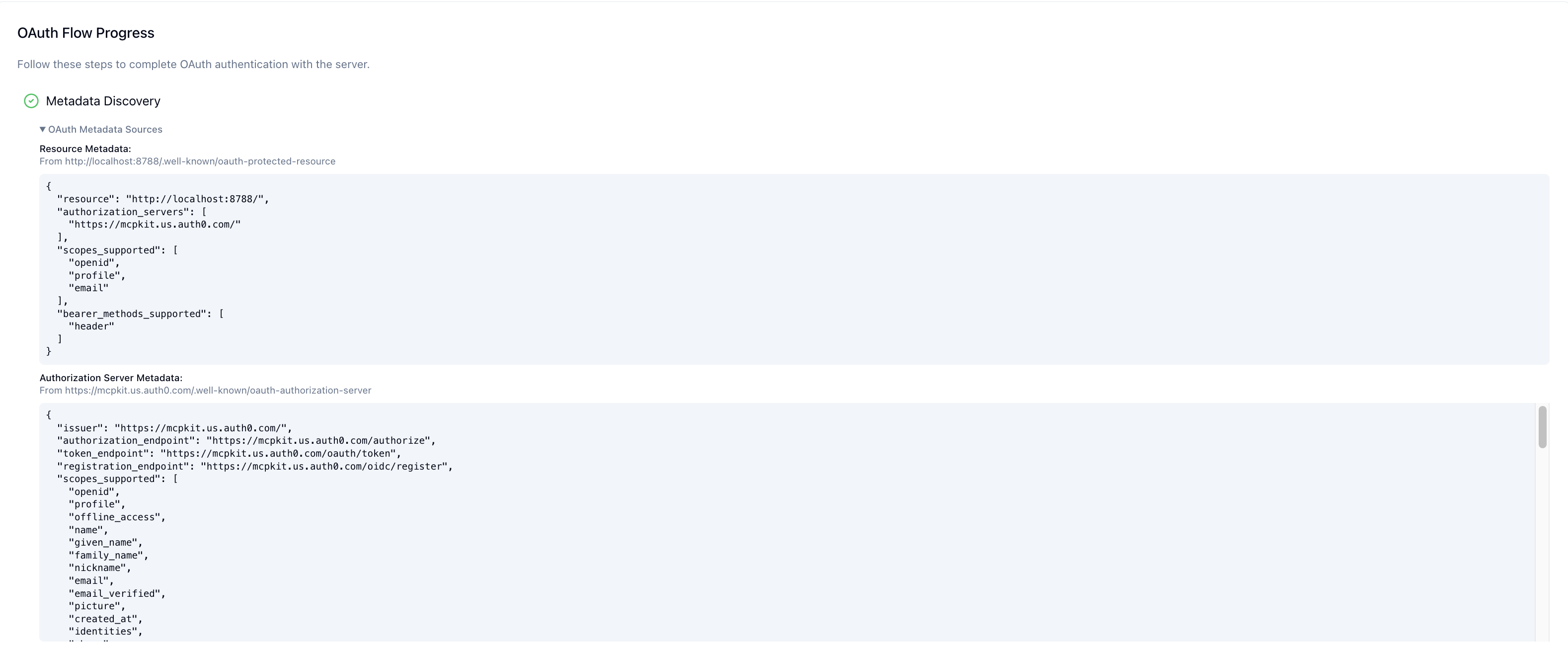
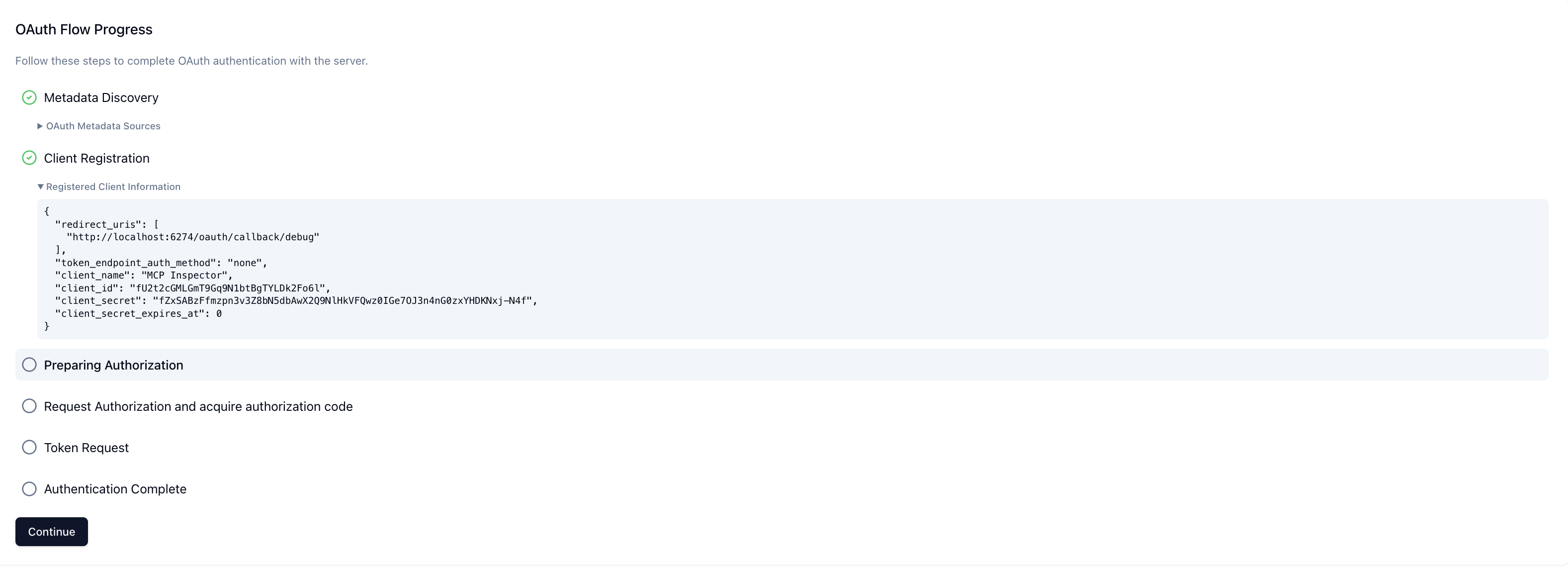
2. ChatGPT registers itself via dynamic client registration with your authorization server using the `registration_endpoint` and obtains a `client_id`.
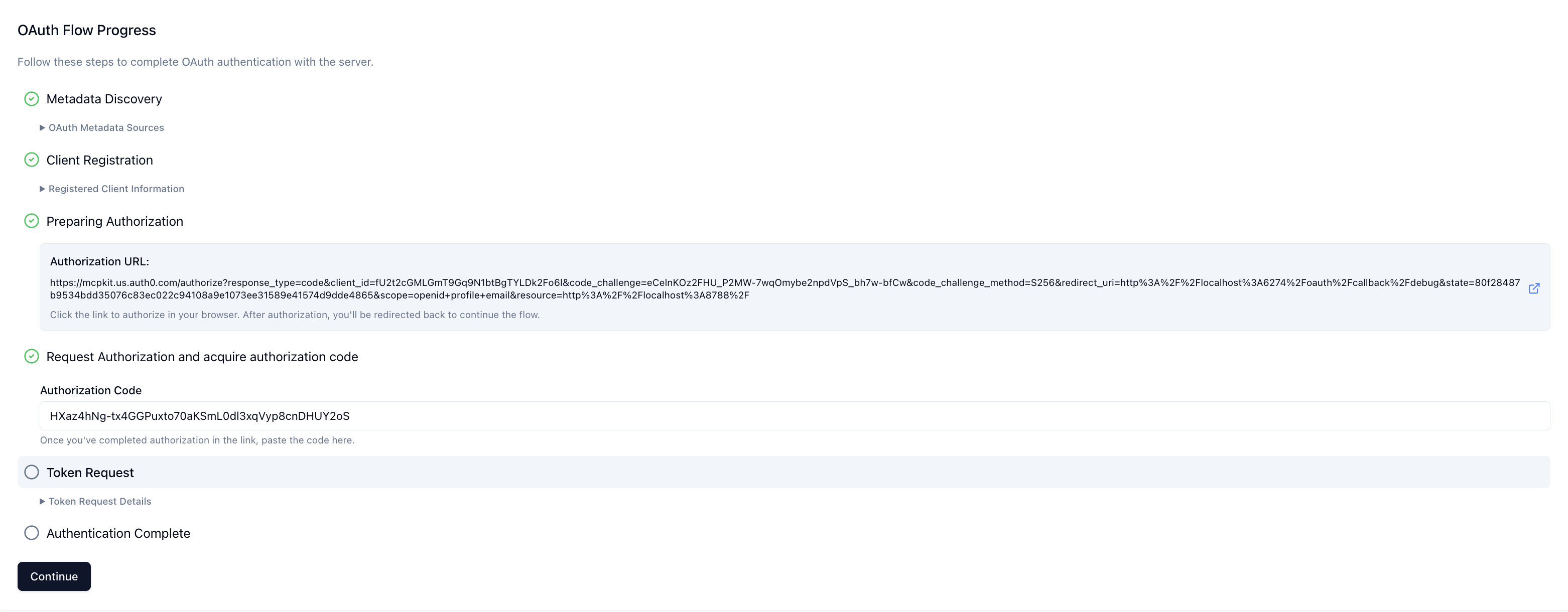
3. When the user first invokes a tool, the ChatGPT client launches the OAuth authorization code + PKCE flow. The user authenticates and consents to the requested scopes.
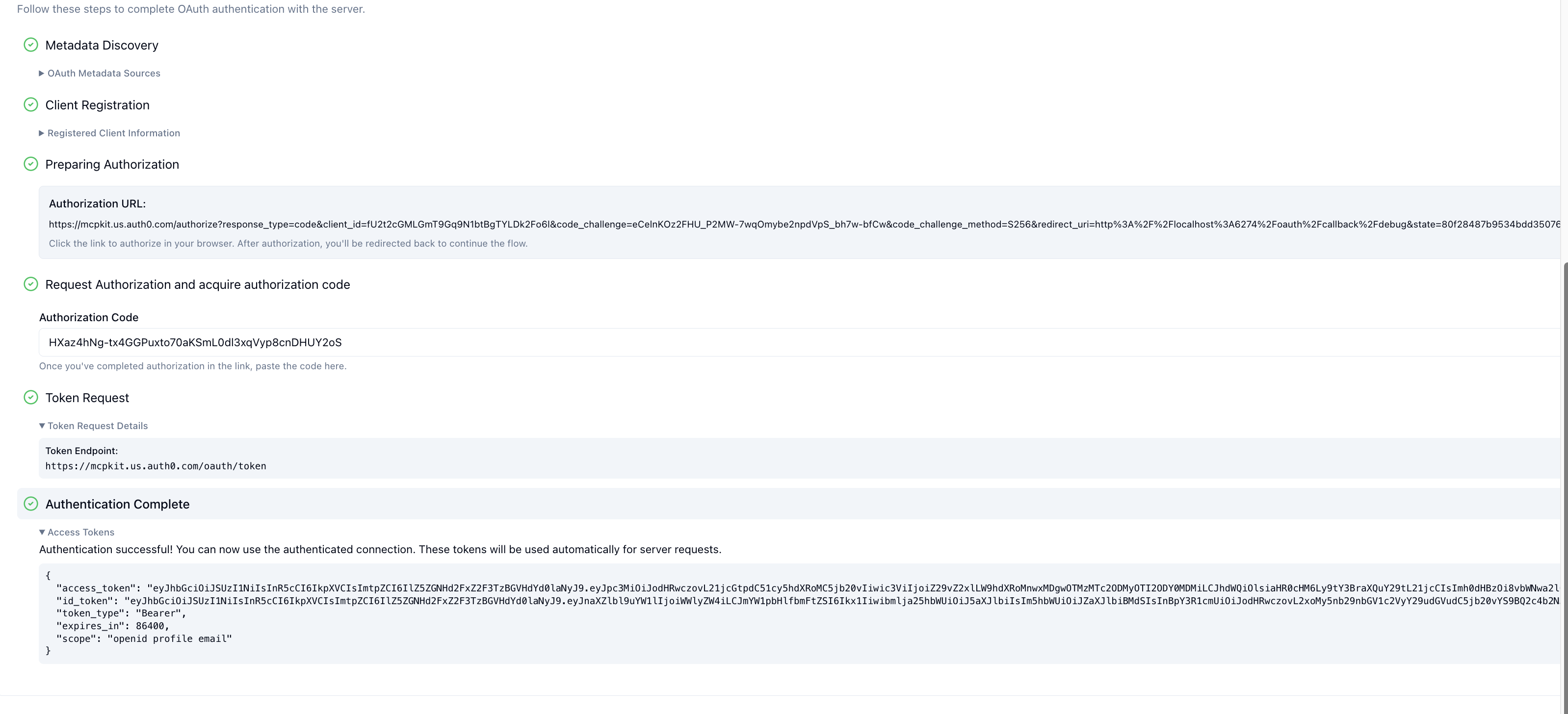
4. ChatGPT exchanges the authorization code for an access token and attaches it to subsequent MCP requests (`Authorization: Bearer <token>`).
5. Your server verifies the token on each request (issuer, audience, expiration, scopes) before executing the tool.
### Client registration
The MCP spec currently requires dynamic client registration (DCR). This means that each time ChatGPT connects, it registers a fresh OAuth client with your authorization server, obtains a unique `client_id`, and uses that identity during token exchange. The downside of this approach is that it can generate thousands of short-lived clients—often one per user session.
To address this issue, the MCP council is currently advancing [Client Metadata Documents (CMID)](https://blog.modelcontextprotocol.io/posts/client_registration/). In the CMID model, ChatGPT will publish a stable document (for example `https://openai.com/chatgpt.json`) that declares its OAuth metadata and identity. Your authorization server can fetch the document over HTTPS, pin it as the canonical client record, and enforce policies such as redirect URI allowlists or rate limits without relying on per-session registration. CMID is still in draft, so continue supporting DCR until CIMD has landed.
### Client identification
A frequent question is how your MCP server can confirm that a request actually comes from ChatGPT. Today the only reliable control is network-level filtering, such as allowlisting ChatGPT’s [published egress IP ranges](https://openai.com/chatgpt-connectors.json). ChatGPT does **not** support machine-to-machine OAuth grants such as client credentials, service accounts, or JWT bearer assertions, nor can it present custom API keys or mTLS certificates.
Once rolled out, CMID directly addresses the client identification problem by giving you a signed, HTTPS-hosted declaration of ChatGPT’s identity.
### Choosing an identity provider
Most OAuth 2.1 identity providers can satisfy the MCP authorization requirements once they expose a discovery document, allow dynamic client registration, and echo the `resource` parameter into issued tokens.
We _strongly_ recommend that you use an existing established identity provider rather than implementing authentication from scratch yourself.
Here are instructions for some popular identity providers.
#### Auth0
- [Guide to configuring Auth0 for MCP authorization](https://github.com/openai/openai-mcpkit/blob/main/python-authenticated-mcp-server-scaffold/README.md#2-configure-auth0-authentication)
#### Stytch
- [Guide to configuring Stytch for MCP authorization](https://stytch.com/docs/guides/connected-apps/mcp-server-overview)
- [Overview guide to MCP authorization](https://stytch.com/blog/MCP-authentication-and-authorization-guide/)
- [Overview guide to MCP authorization specifically for Apps SDK](https://stytch.com/blog/guide-to-authentication-for-the-openai-apps-sdk/)
### Implementing token verification
When the OAuth flow finishes, ChatGPT simply attaches the access token it received to subsequent MCP requests (`Authorization: Bearer …`). Once a request reaches your MCP server you must assume the token is untrusted and perform the full set of resource-server checks yourself—signature validation, issuer and audience matching, expiry, replay considerations, and scope enforcement. That responsibility sits with you, not with ChatGPT.
In practice you should:
- Fetch the signing keys published by your authorization server (usually via JWKS) and verify the token’s signature and `iss`.
- Reject tokens that have expired or have not yet become valid (`exp`/`nbf`).
- Confirm the token was minted for your server (`aud` or the `resource` claim) and contains the scopes you marked as required.
- Run any app-specific policy checks, then either attach the resolved identity to the request context or return a `401` with a `WWW-Authenticate` challenge.
If verification fails, respond with `401 Unauthorized` and a `WWW-Authenticate` header that points back to your protected-resource metadata. This tells the client to run the OAuth flow again.
#### SDK token verification primitives
Both Python and TypeScript MCP SDKs include helpers so you do not have to wire this from scratch.
- [Python](https://github.com/modelcontextprotocol/python-sdk?tab=readme-ov-file#authentication)
- [TypeScript](https://github.com/modelcontextprotocol/typescript-sdk?tab=readme-ov-file#proxy-authorization-requests-upstream)
## Testing and rollout
- **Local testing** – start with a development tenant that issues short-lived tokens so you can iterate quickly.
- **Dogfood** – once authentication works, gate access to trusted testers before rolling out broadly. You can require linking for specific tools or the entire connector.
- **Rotation** – plan for token revocation, refresh, and scope changes. Your server should treat missing or stale tokens as unauthenticated and return a helpful error message.
- **OAuth debugging** – use the [MCP Inspector](https://modelcontextprotocol.io/docs/tools/inspector) Auth settings to walk through each OAuth step and pinpoint where the flow breaks before you ship.
With authentication in place you can confidently expose user-specific data and write actions to ChatGPT users.
## Triggering authentication UI
ChatGPT only surfaces its OAuth linking UI when your MCP server signals that OAuth is available or necessary.
Triggering the tool-level OAuth flow requires both metadata (`securitySchemes` and the resource metadata document) **and** runtime errors that carry `_meta["mcp/www_authenticate"]`. Without both halves ChatGPT will not show the linking UI for that tool.
1. **Publish resource metadata.** The MCP server must expose its OAuth configuration at a well-known URL such as `https://your-mcp.example.com/.well-known/oauth-protected-resource`.
2. **Describe each tool’s auth policy with `securitySchemes`.** Declaring `securitySchemes` per tool tells ChatGPT which tools require OAuth versus which can run anonymously. Stick to per-tool declarations even if the entire server uses the same policy; server-level defaults make it difficult to evolve individual tools later.
Two scheme types are available today, and you can list more than one to express optional auth:
- `noauth` — the tool is callable anonymously; ChatGPT can run it immediately.
- `oauth2` — the tool needs an OAuth 2.0 access token; include the scopes you will request so the consent screen is accurate.
If you omit the array entirely, the tool inherits whatever default the server advertises. Declaring both `noauth` and `oauth2` tells ChatGPT it can start with anonymous calls but that linking unlocks privileged behavior. Regardless of what you signal to the client, your server must still verify the token, scopes, and audience on every invocation.
Example (public + optional auth) – TypeScript SDK
```ts
declare const server: McpServer;
server.registerTool(
"search",
{
title: "Public Search",
description: "Search public documents.",
inputSchema: {
type: "object",
properties: { q: { type: "string" } },
required: ["q"],
},
securitySchemes: [
{ type: "noauth" },
{ type: "oauth2", scopes: ["search.read"] },
],
},
async ({ input }) => {
return {
content: [{ type: "text", text: `Results for ${input.q}` }],
structuredContent: {},
};
}
);
```
Example (auth required) – TypeScript SDK
```ts
declare const server: McpServer;
server.registerTool(
"create_doc",
{
title: "Create Document",
description: "Make a new doc in your account.",
inputSchema: {
type: "object",
properties: { title: { type: "string" } },
required: ["title"],
},
securitySchemes: [{ type: "oauth2", scopes: ["docs.write"] }],
},
async ({ input }) => {
return {
content: [{ type: "text", text: `Created doc: ${input.title}` }],
structuredContent: {},
};
}
);
```
3. **Check tokens inside the tool handler and emit `_meta["mcp/www_authenticate"]`** when you want ChatGPT to trigger the authentication UI. Inspect the token and verify issuer, audience, expiry, and scopes. If no valid token is present, return an error result that includes `_meta["mcp/www_authenticate"]` and make sure the value contains both an `error` and `error_description` parameter. This `WWW-Authenticate` payload is what actually triggers the tool-level OAuth UI once steps 1 and 2 are in place.
Example
```json
{
"jsonrpc": "2.0",
"id": 4,
"result": {
"content": [
{
"type": "text",
"text": "Authentication required: no access token provided."
}
],
"_meta": {
"mcp/www_authenticate": [
"'Bearer resource_metadata=\"https://your-mcp.example.com/.well-known/oauth-protected-resource\", error=\"insufficient_scope\", error_description=\"You need to login to continue\"'"
]
},
"isError": true
}
}
```
---
# Build your ChatGPT UI
## Overview
UI components turn structured tool results from your MCP server into a human-friendly UI. Your components run inside an iframe in ChatGPT, talk to the host via the `window.openai` API, and render inline with the conversation. This guide describes how to structure your component project, bundle it, and wire it up to your MCP server.
You can also check out the [examples repository on GitHub](https://github.com/openai/openai-apps-sdk-examples).
### Component library
Use the optional UI kit at [apps-sdk-ui](https://openai.github.io/apps-sdk-ui) for ready-made buttons, cards, input controls, and layout primitives that match ChatGPT’s container. It saves time when you want consistent styling without rebuilding base components.
## Understand the `window.openai` API
The host injects `window.openai` with UI-related globals and methods for calling tools, sending follow-ups, and managing layout. In your widget, read values directly from `window.openai` (e.g., `window.openai.toolOutput`, `window.openai.locale`) or through helper hooks like `useOpenAiGlobal` shown later.
`window.openai` is the bridge between your frontend and ChatGPT. For the full API reference, see [Apps SDK Reference](https://developers.openai.com/apps-sdk/reference#windowopenai-component-bridge).
### useOpenAiGlobal
Many Apps SDK projects wrap `window.openai` access in small hooks so views remain testable. This example hook listens for host `openai:set_globals` events and lets React components subscribe to a single global value:
```ts
export function useOpenAiGlobal<K extends keyof OpenAiGlobals>(
key: K
): OpenAiGlobals[K] {
return useSyncExternalStore(
(onChange) => {
const handleSetGlobal = (event: SetGlobalsEvent) => {
const value = event.detail.globals[key];
if (value === undefined) {
return;
}
onChange();
};
window.addEventListener(SET_GLOBALS_EVENT_TYPE, handleSetGlobal, {
passive: true,
});
return () => {
window.removeEventListener(SET_GLOBALS_EVENT_TYPE, handleSetGlobal);
};
},
() => window.openai[key]
);
}
```
`useOpenAiGlobal` is an important primitive to make your app reactive to changes in display mode, theme, and "props" via subsequent tool calls.
For example, read the tool input, output, and metadata:
```ts
export function useToolInput() {
return useOpenAiGlobal("toolInput");
}
export function useToolOutput() {
return useOpenAiGlobal("toolOutput");
}
export function useToolResponseMetadata() {
return useOpenAiGlobal("toolResponseMetadata");
}
```
### Persist component state, expose context to ChatGPT
Widget state can be used for persisting data across user sessions, and exposing data to ChatGPT. Anything you pass to `setWidgetState` will be shown to the model, and hydrated into `window.openai.widgetState`
Widget state is scoped to the specific widget instance that lives on a single conversation message. When your component calls `window.openai.setWidgetState(payload)`, the host stores that payload under that widget’s `message_id/widgetId` pair and rehydrates it only for that widget. The state does not travel across the whole conversation or between different widgets.
Follow-up turns keep the same widget (and therefore the same state) only when the user submits through that widget’s controls—inline follow-ups, PiP composer, or fullscreen composer. If the user types into the main chat composer, the request is treated as a new widget run with a fresh `widgetId` and empty `widgetState`.
Anything you pass to `setWidgetState` is sent to the model, so keep the payload focused and well under 4k [tokens](https://platform.openai.com/tokenizer) for performance.
### Trigger server actions
`window.openai.callTool` lets the component directly make MCP tool calls. Use this for direct manipulations (refresh data, fetch nearby restaurants). Design tools to be idempotent where possible and return updated structured content that the model can reason over in subsequent turns.
Please note that your tool needs to be marked as [able to be initiated by the component](https://developers.openai.com/apps-sdk/build/mcp-server###allow-component-initiated-tool-access).
```tsx
async function refreshPlaces(city: string) {
await window.openai?.callTool("refresh_pizza_list", { city });
}
```
### Send conversational follow-ups
Use `window.openai.sendFollowUpMessage` to insert a message into the conversation as if the user asked it.
```tsx
await window.openai?.sendFollowUpMessage({
prompt: "Draft a tasting itinerary for the pizzerias I favorited.",
});
```
### Upload files from the widget
Use `window.openai.uploadFile(file)` to upload a user-selected file and receive a `fileId`. This currently supports `image/png`, `image/jpeg`, and `image/webp`.
```tsx
function FileUploadInput() {
return (
<input
type="file"
accept="image/png,image/jpeg,image/webp"
onChange={async (event) => {
const file = event.currentTarget.files?.[0];
if (!file || !window.openai?.uploadFile) {
return;
}
const { fileId } = await window.openai.uploadFile(file);
console.log("Uploaded fileId:", fileId);
}}
/>
);
}
```
### Download files in the widget
Use `window.openai.getFileDownloadUrl({ fileId })` to retrieve a temporary URL for files that were uploaded by the widget or passed to your tool via file params.
```tsx
const { downloadUrl } = await window.openai.getFileDownloadUrl({ fileId });
imageElement.src = downloadUrl;
```
### Close the widget
You can close the widget two ways: from the UI by calling `window.openai.requestClose()`, or from the server by having your tool response set `metadata.openai/closeWidget: true`, which instructs the host to hide the widget when that response arrives:
```json
{
"role": "tool",
"tool_call_id": "abc123",
"content": "...",
"metadata": {
"openai/closeWidget": true,
"openai/widgetDomain": "https://chatgpt.com",
"openai/widgetCSP": {
"connect_domains": ["https://chatgpt.com"],
"resource_domains": ["https://*.oaistatic.com"],
"redirect_domains": ["https://checkout.example.com"], // Optional: allow openExternal redirects + return link
"frame_domains": ["https://*.example.com"] // Optional: allow iframes from these domains
}
}
}
```
Note: By default, widgets cannot render subframes. Setting `frame_domains` relaxes this and allows your widget to embed iframes from those origins. Apps that use `frame_domains` are subject to stricter review and are likely to be rejected for broad distribution unless iframe content is core to the use case.
If you want `window.openai.openExternal` to send users to an external flow (like checkout) and enable a return link to the same conversation, optionally add the destination origin to `redirect_domains`. ChatGPT will skip the safe-link modal and append a `redirectUrl` query parameter to the destination so you can route the user back into ChatGPT.
### Widget session ID
The host includes a per-widget identifier in tool response metadata as `openai/widgetSessionId`. Use it to correlate multiple tool calls or logs for the same widget instance while it remains mounted.
### Request alternate layouts
If the UI needs more space—like maps, tables, or embedded editors—ask the host to change the container. `window.openai.requestDisplayMode` negotiates inline, PiP, or fullscreen presentations.
```tsx
await window.openai?.requestDisplayMode({ mode: "fullscreen" });
// Note: on mobile, PiP may be coerced to fullscreen
```
### Open a modal
Use `window.openai.requestModal` to open a host-controlled modal. You can pass a different UI template from the same app by providing the template URI that you registered on your MCP server with `registerResource`, or omit `template` to open the current one.
```tsx
await window.openai.requestModal({
template: "ui://widget/checkout.html",
});
```
### Use host-backed navigation
Skybridge (the sandbox runtime) mirrors the iframe’s history into ChatGPT’s UI. Use standard routing APIs—such as React Router—and the host will keep navigation controls in sync with your component.
Router setup (React Router’s `BrowserRouter`):
```ts
export default function PizzaListRouter() {
return (
<Routes>
}>
} />
</Route>
</Routes>
);
}
```
Programmatic navigation:
```ts
const navigate = useNavigate();
function openDetails(placeId: string) {
navigate(`place/${placeId}`, { replace: false });
}
function closeDetails() {
navigate("..", { replace: true });
}
```
## Scaffold the component project
Now that you understand the `window.openai` API, it's time to scaffold your component project.
As best practice, keep the component code separate from your server logic. A common layout is:
```
app/
server/ # MCP server (Python or Node)
web/ # Component bundle source
package.json
tsconfig.json
src/component.tsx
dist/component.js # Build output
```
Create the project and install dependencies (Node 18+ recommended):
```bash
cd app/web
npm init -y
npm install react@^18 react-dom@^18
npm install -D typescript esbuild
```
If your component requires drag-and-drop, charts, or other libraries, add them now. Keep the dependency set lean to reduce bundle size.
## Author the React component
Your entry file should mount a component into a `root` element and read initial data from `window.openai.toolOutput` or persisted state.
We have provided some example apps under the [examples page](https://developers.openai.com/apps-sdk/build/examples#pizzaz-list-source), for example, for a "Pizza list" app, which is a list of pizza restaurants.
### Explore the Pizzaz component gallery
We provide a number of example components in the [Apps SDK examples](https://developers.openai.com/apps-sdk/build/examples). Treat them as blueprints when shaping your own UI:
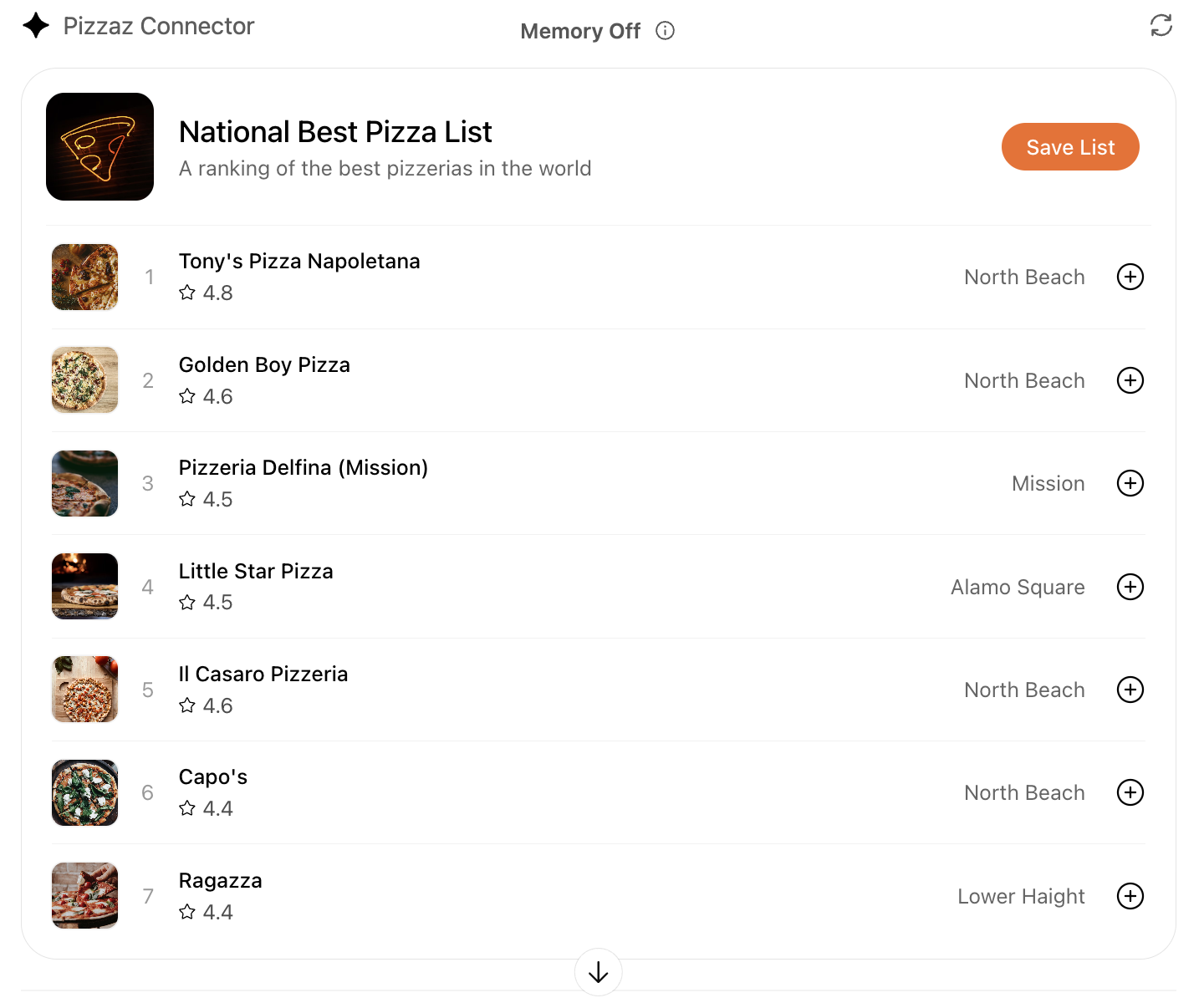
- **Pizzaz List** – ranked card list with favorites and call-to-action buttons.
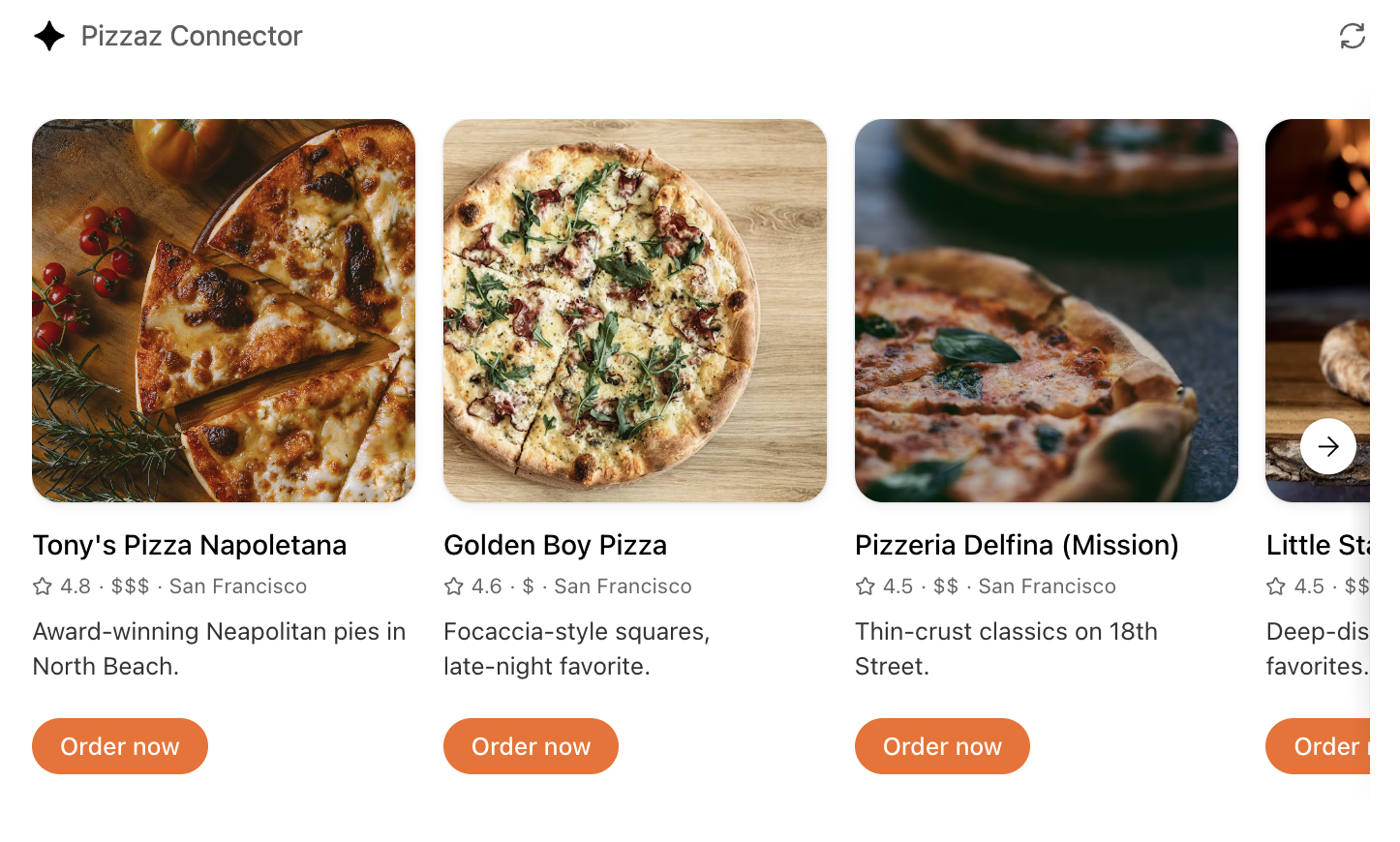
- **Pizzaz Carousel** – embla-powered horizontal scroller that demonstrates media-heavy layouts.
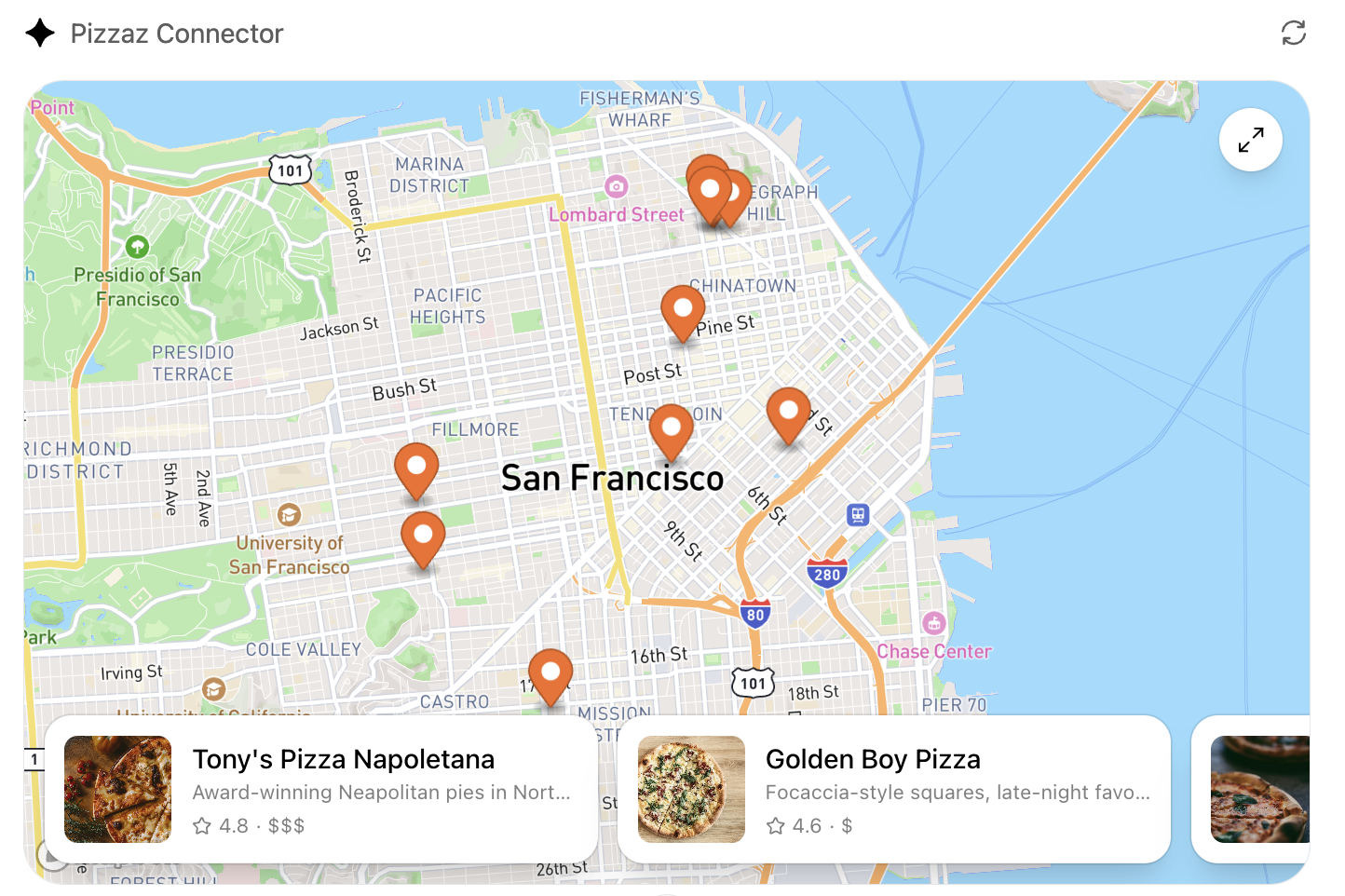
- **Pizzaz Map** – Mapbox integration with fullscreen inspector and host state sync.
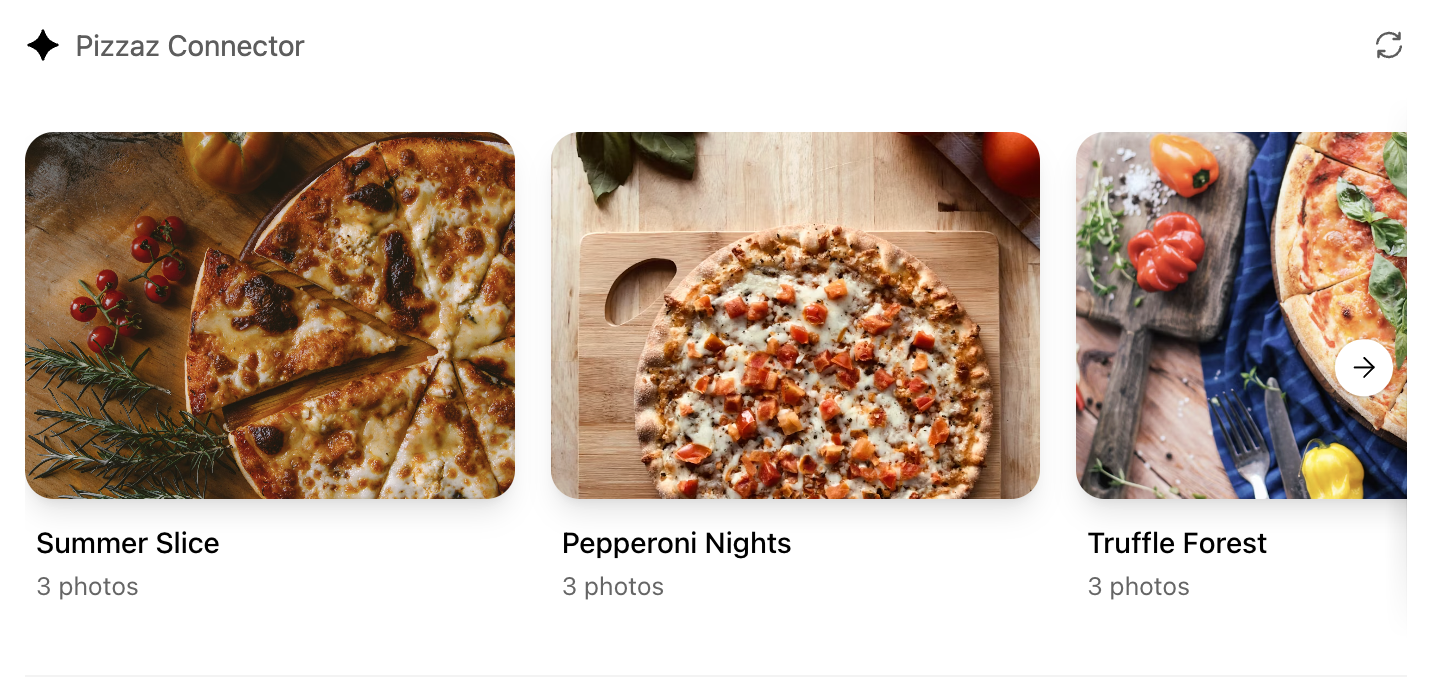
- **Pizzaz Album** – stacked gallery view built for deep dives on a single place.
- **Pizzaz Video** – scripted player with overlays and fullscreen controls.
Each example shows how to bundle assets, wire host APIs, and structure state for real conversations. Copy the one closest to your use case and adapt the data layer for your tool responses.
### React helper hooks
Using `useOpenAiGlobal` in a `useWidgetState` hook to keep host-persisted widget state aligned with your local React state:
```ts
export function useWidgetState<T extends WidgetState>(
defaultState: T | (() => T)
): readonly [T, (state: SetStateAction<T>) => void];
export function useWidgetState<T extends WidgetState>(
defaultState?: T | (() => T | null) | null
): readonly [T | null, (state: SetStateAction<T | null>) => void];
export function useWidgetState<T extends WidgetState>(
defaultState?: T | (() => T | null) | null
): readonly [T | null, (state: SetStateAction<T | null>) => void] {
const widgetStateFromWindow = useWebplusGlobal("widgetState") as T;
const [widgetState, _setWidgetState] = useState<T | null>(() => {
if (widgetStateFromWindow != null) {
return widgetStateFromWindow;
}
return typeof defaultState === "function"
? defaultState()
: (defaultState ?? null);
});
useEffect(() => {
_setWidgetState(widgetStateFromWindow);
}, [widgetStateFromWindow]);
const setWidgetState = useCallback(
(state: SetStateAction<T | null>) => {
_setWidgetState((prevState) => {
const newState = typeof state === "function" ? state(prevState) : state;
if (newState != null) {
window.openai.setWidgetState(newState);
}
return newState;
});
},
[window.openai.setWidgetState]
);
return [widgetState, setWidgetState] as const;
}
```
The hooks above make it easy to read the latest tool output, layout globals, or widget state directly from React components while still delegating persistence back to ChatGPT.
## Widget localization
The host passes `locale` in `window.openai` and mirrors it to `document.documentElement.lang`. It is up to your widget to use that locale to load translations and format dates/numbers. A simple pattern with `react-intl`:
```tsx
const messages: Record<string, Record<string, string>> = {
"en-US": en,
"es-ES": es,
};
export function App() {
const locale = window.openai.locale ?? "en-US";
return (
{/* Render UI with <FormattedMessage> or useIntl() */}
);
}
```
## Bundle for the iframe
Once you are done writing your React component, you can build it into a single JavaScript module that the server can inline:
```json
// package.json
{
"scripts": {
"build": "esbuild src/component.tsx --bundle --format=esm --outfile=dist/component.js"
}
}
```
Run `npm run build` to produce `dist/component.js`. If esbuild complains about missing dependencies, confirm you ran `npm install` in the `web/` directory and that your imports match installed package names (e.g., `@react-dnd/html5-backend` vs `react-dnd-html5-backend`).
## Embed the component in the server response
See the [Set up your server docs](https://developers.openai.com/apps-sdk/build/mcp-server#) for how to embed the component in your MCP server response.
Component UI templates are the recommended path for production.
During development you can rebuild the component bundle whenever your React code changes and hot-reload the server.
---
# Build your MCP server
By the end of this guide, you’ll know how to connect your backend MCP server to ChatGPT, define tools, register UI templates, and tie everything together using the widget runtime. You’ll build a working foundation for a ChatGPT App that returns structured data, renders an interactive widget, and keeps your model, server, and UI in sync. If you prefer to dive straight into the implementation, you can skip ahead to the [example](#example) at the end.
Build faster with the [OpenAI Docs MCP server](https://developers.openai.com/resources/docs-mcp) in your
editor.
## Overview
### What an MCP server does for your app
ChatGPT Apps have three components:
- **Your MCP server** defines tools, enforces auth, returns data, and points each tool to a UI bundle.
- **The widget/UI bundle** renders inside ChatGPT’s iframe, reading data and widget-runtime globals exposed through `window.openai`.
- **The model** decides when to call tools and narrates the experience using the structured data you return.
A solid server implementation keeps those boundaries clean so you can iterate on UI and data independently. Remember: you build the MCP server and define the tools, but ChatGPT’s model chooses when to call them based on the metadata you provide.
### Before you begin
Pre-requisites:
- Comfortable with TypeScript or Python and a web bundler (Vite, esbuild, etc.).
- MCP server reachable over HTTP (local is fine to start).
- Built UI bundle that exports a root script (React or vanilla).
Example project layout:
```
your-chatgpt-app/
├─ server/
│ └─ src/index.ts # MCP server + tool handlers
├─ web/
│ ├─ src/component.tsx # React widget
│ └─ dist/app.{js,css} # Bundled assets referenced by the server
└─ package.json
```
## Architecture flow
1. A user prompt causes ChatGPT to call one of your MCP tools.
2. Your server runs the handler, fetches authoritative data, and returns `structuredContent`, `_meta`, and UI metadata.
3. ChatGPT loads the HTML template linked in the tool descriptor (served as `text/html+skybridge`) and injects the payload through `window.openai`.
4. The widget renders from `window.openai.toolOutput`, persists UI state with `window.openai.setWidgetState`, and can call tools again via `window.openai.callTool`.
5. The model reads `structuredContent` to narrate what happened, so keep it tight and idempotent—ChatGPT may retry tool calls.
```
User prompt
↓
ChatGPT model ──► MCP tool call ──► Your server ──► Tool response (`structuredContent`, `_meta`, `content`)
│ │
└───── renders narration ◄──── widget iframe ◄──────┘
(HTML template + `window.openai`)
```
## Understand the `window.openai` widget runtime
The sandboxed iframe exposes a single global object:
Key capabilities include:
- **State & data:** `toolInput`, `toolOutput`, `toolResponseMetadata`, and `widgetState` carry tool data and persisted UI state.
- **Tool + messaging APIs:** `callTool` and `sendFollowUpMessage` let the widget invoke tools or post user-authored follow-ups.
- **File handling:** `uploadFile` and `getFileDownloadUrl` cover image uploads and previews.
- **Layout + host controls:** `requestDisplayMode`, `requestModal`, `notifyIntrinsicHeight`, and `openExternal` manage layout and host navigation.
- **Context signals:** `theme`, `displayMode`, `maxHeight`, `safeArea`, `view`, `userAgent`, and `locale` let you adapt UI and copy.
For the full `window.openai` reference, see the [ChatGPT UI guide](https://developers.openai.com/apps-sdk/build/chatgpt-ui#understand-the-windowopenai-api).
Use `requestModal` when you need a host-controlled overlay—for example, open a checkout or detail view anchored to an “Add to cart” button so shoppers can review options without forcing the inline widget to resize. To show a different UI template in the modal, pass the template URI you registered via `registerResource`.
Subscribe to any of these fields with `useOpenAiGlobal` so multiple components stay in sync.
Here's an example React component that reads `toolOutput` and persists UI state with `setWidgetState`:
For more information on how to build your UI, check out the [ChatGPT UI guide](https://developers.openai.com/apps-sdk/build/chatgpt-ui).
```tsx
// Example helper hook that keeps state
// in sync with the widget runtime via window.openai.setWidgetState.
export function KanbanList() {
const [widgetState, setWidgetState] = useWidgetState(() => ({
selectedTask: null,
}));
const tasks = window.openai.toolOutput?.tasks ?? [];
return tasks.map((task) => (
<button
key={task.id}
data-selected={widgetState?.selectedTask === task.id}
onClick={() =>
setWidgetState((prev) => ({ ...prev, selectedTask: task.id }))
}
>
{task.title}
</button>
));
}
```
If you're not using React, you don’t need a helper like useWidgetState. Vanilla JS widgets can read and write window.openai directly—for example, window.openai.toolOutput or window.openai.setWidgetState(state).
## Pick an SDK
Apps SDK works with any MCP implementation, but the official SDKs are the quickest way to get started. They ship tool/schema helpers, HTTP server scaffolding, resource registration utilities, and end-to-end type safety so you can stay focused on business logic:
- **Python SDK** – Iterate quickly with FastMCP or FastAPI. Repo: [`modelcontextprotocol/python-sdk`](https://github.com/modelcontextprotocol/python-sdk).
- **TypeScript SDK** – Ideal when your stack is already Node/React. Repo: [`modelcontextprotocol/typescript-sdk`](https://github.com/modelcontextprotocol/typescript-sdk), published as `@modelcontextprotocol/sdk`. Docs live on [modelcontextprotocol.io](https://modelcontextprotocol.io/).
Install whichever SDK matches your backend language, then follow the steps below.
```bash
# TypeScript / Node
npm install @modelcontextprotocol/sdk zod
# Python
pip install mcp
```
## Build your MCP server
### Step 1 – Register a component template
Each UI bundle is exposed as an MCP resource whose `mimeType` is `text/html+skybridge`, signaling to ChatGPT that it should treat the payload as a sandboxed HTML entry point and inject the widget runtime. In other words, `text/html+skybridge` marks the file as a widget template instead of generic HTML.
Register the template and include metadata for borders, domains, and CSP rules:
```ts
// Registers the Kanban widget HTML entry point served to ChatGPT.
const server = new McpServer({ name: "kanban-server", version: "1.0.0" });
const HTML = readFileSync("web/dist/kanban.js", "utf8");
const CSS = readFileSync("web/dist/kanban.css", "utf8");
server.registerResource(
"kanban-widget",
"ui://widget/kanban-board.html",
{},
async () => ({
contents: [
{
uri: "ui://widget/kanban-board.html",
mimeType: "text/html+skybridge",
text: `
<div id="kanban-root"></div>
<style>${CSS}</style>
<script type="module">${HTML}</script>
`.trim(),
_meta: {
"openai/widgetPrefersBorder": true,
"openai/widgetDomain": "https://chatgpt.com",
"openai/widgetCSP": {
connect_domains: ["https://chatgpt.com"], // example API domain
resource_domains: ["https://*.oaistatic.com"], // example CDN allowlist
// Optional: allow embedding specific iframe origins. See “frame_domains” docs.
frame_domains: ["https://*.example-embed.com"],
},
},
},
],
})
);
```
If you need to embed iframes inside your widget, use `frame_domains` to declare an allowlist of origins. Without `frame_domains` set, subframes are blocked by default. Because iframe content is harder for us to inspect, widgets that set `frame_domains` are reviewed with extra scrutiny and may not be approved for directory distribution.
**Best practice:** When you change your widget’s HTML/JS/CSS in a breaking way, give the template a new URI (or use a new file name) so ChatGPT always loads the updated bundle instead of a cached one.
Treat the URI as your cache key. When you update the markup or bundle, version the URI and update every reference to it (for example, the `registerResource` URI, `_meta["openai/outputTemplate"]` in your tool descriptor, and the `contents[].uri` in your template list). A simple pattern is to add a version suffix:
```ts
// Old
contents: [{ uri: "ui://widget/kanban-board.html" /* ... */ }];
// New
contents: [{ uri: "ui://widget/kanban-board-v2.html" /* ... */ }];
```
If you ship updates frequently, keep a short, consistent versioning scheme so you can roll forward (or back) without reusing the same URI.
### Step 2 – Describe tools
Tools are the contract the model reasons about. Define one tool per user intent (e.g., `list_tasks`, `update_task`). Each descriptor should include:
- Machine-readable name and human-readable title.
- JSON schema for arguments (`zod`, JSON Schema, or dataclasses).
- `_meta["openai/outputTemplate"]` pointing to the template URI.
- Optional `_meta` for invoking/invoked strings, `widgetAccessible`, read-only hints, etc.
_The model inspects these descriptors to decide when a tool fits the user’s request, so treat names, descriptions, and schemas as part of your UX._
Design handlers to be **idempotent**—the model may retry calls.
```ts
// Example app that exposes a kanban-board tool with schema, metadata, and handler.
server.registerTool(
"kanban-board",
{
title: "Show Kanban Board",
inputSchema: { workspace: z.string() },
_meta: {
"openai/outputTemplate": "ui://widget/kanban-board.html",
"openai/toolInvocation/invoking": "Preparing the board…",
"openai/toolInvocation/invoked": "Board ready.",
},
},
async ({ workspace }) => {
const board = await loadBoard(workspace);
return {
structuredContent: board.summary,
content: [{ type: "text", text: `Showing board ${workspace}` }],
_meta: board.details,
};
}
);
```
#### Memory and tool calls
Memory is user-controlled and model-mediated: the model decides if and how to use it when selecting or parameterizing a tool call. By default, memories are turned off with apps. Users can enable or disable memory for an app. Apps do not receive a separate memory feed; they only see whatever the model includes in tool inputs. When memory is off, a request is re-evaluated without memory in the model context.
<img src="https://developers.openai.com/images/apps-sdk/memories.png"
alt="Memory settings in ChatGPT"
class="w-full max-w-xl mx-auto rounded-lg"
/>
**Best practices**
- Keep tool inputs explicit and required for correctness; do not rely on memory for critical fields.
- Treat memory as a hint, not authority; confirm user preferences when it is important to your user flow and may have side effects
- Provide safe defaults or ask a follow-up question when context is missing.
- Make tools resilient to retries or re-evaluation or missing memories
- For write or destructive actions, re-confirm intent and key parameters in the current turn.
### Step 3 – Return structured data and metadata
Every tool response can include three sibling payloads:
- **`structuredContent`** – concise JSON the widget uses _and_ the model reads. Include only what the model should see.
- **`content`** – optional narration (Markdown or plaintext) for the model’s response.
- **`_meta`** – large or sensitive data exclusively for the widget. `_meta` never reaches the model.
```ts
// Returns concise structuredContent for the model plus rich _meta for the widget.
async function loadKanbanBoard(workspace: string) {
const tasks = await db.fetchTasks(workspace);
return {
structuredContent: {
columns: ["todo", "in-progress", "done"].map((status) => ({
id: status,
title: status.replace("-", " "),
tasks: tasks.filter((task) => task.status === status).slice(0, 5),
})),
},
content: [
{
type: "text",
text: "Here's the latest snapshot. Drag cards in the widget to update status.",
},
],
_meta: {
tasksById: Object.fromEntries(tasks.map((task) => [task.id, task])),
lastSyncedAt: new Date().toISOString(),
},
};
}
```
The widget reads those payloads through `window.openai.toolOutput` and `window.openai.toolResponseMetadata`, while the model only sees `structuredContent`/`content`.
### Step 4 – Run locally
1. Build your UI bundle (`npm run build` inside `web/`).
2. Start the MCP server (Node, Python, etc.).
3. Use [MCP Inspector](https://modelcontextprotocol.io/docs/tools/inspector) early and often to call `http://localhost:<port>/mcp`, list roots, and verify your widget renders correctly. Inspector mirrors ChatGPT’s widget runtime and catches issues before deployment.
For a TypeScript project, that usually looks like:
```bash
npm run build # compile server + widget
node dist/index.js # start the compiled MCP server
```
### Step 5 – Expose an HTTPS endpoint
ChatGPT requires HTTPS. During development, tunnel localhost with ngrok (or similar):
```bash
ngrok http <port>
# Forwarding: https://<subdomain>.ngrok.app -> http://127.0.0.1:<port>
```
Use the ngrok URL when creating a connector in ChatGPT developer mode. For production, deploy to a low-latency HTTPS host (Cloudflare Workers, Fly.io, Vercel, AWS, etc.).
## Example
Here’s a stripped-down TypeScript server plus vanilla widget. For full projects, reference the public [Apps SDK examples](https://github.com/openai/openai-apps-sdk-examples).
```ts
// server/src/index.ts
const server = new McpServer({ name: "hello-world", version: "1.0.0" });
server.registerResource("hello", "ui://widget/hello.html", {}, async () => ({
contents: [
{
uri: "ui://widget/hello.html",
mimeType: "text/html+skybridge",
text: `
<div id="root"></div>
<script type="module" src="https://example.com/hello-widget.js"></script>
`.trim(),
},
],
}));
server.registerTool(
"hello_widget",
{
title: "Show hello widget",
inputSchema: { name: { type: "string" } },
_meta: { "openai/outputTemplate": "ui://widget/hello.html" },
},
async ({ name }) => ({
structuredContent: { message: `Hello ${name}!` },
content: [{ type: "text", text: `Greeting ${name}` }],
_meta: {},
})
);
```
```js
// hello-widget.js
const root = document.getElementById("root");
const { message } = window.openai.toolOutput ?? { message: "Hi!" };
root.textContent = message;
```
## Troubleshooting
- **Widget doesn’t render** – Ensure the template resource returns `mimeType: "text/html+skybridge"` and that the bundled JS/CSS URLs resolve inside the sandbox.
- **`window.openai` is undefined** – The host only injects the widget runtime for `text/html+skybridge` templates; double-check the MIME type and that the widget loaded without CSP violations.
- **CSP or CORS failures** – Use `openai/widgetCSP` to allow the exact domains you fetch from; the sandbox blocks everything else.
- **Stale bundles keep loading** – Cache-bust template URIs or file names whenever you deploy breaking changes.
- **Structured payloads are huge** – Trim `structuredContent` to what the model truly needs; oversized payloads degrade model performance and slow rendering.
## Advanced capabilities
### Component-initiated tool calls
Set `_meta["openai/widgetAccessible"]` on the tool descriptor to `true` if the widget should call tools on its own (e.g., refresh data on a button click). That opt-in enables `window.openai.callTool`.
```json
"_meta": {
"openai/outputTemplate": "ui://widget/kanban-board.html",
"openai/widgetAccessible": true
}
```
#### Tool visibility
Set `_meta["openai/visibility"]` on the tool descriptor to `"private"` when a tool should be callable from your widget but hidden from the model. This helps avoid awkward prompts or unsafe UX. Visibility defaults to `"public"`; private tools still work with `window.openai.callTool`.
```json
"_meta": {
"openai/outputTemplate": "ui://widget/kanban-board.html",
"openai/widgetAccessible": true,
"openai/visibility": "private"
}
```
### Tool annotations and elicitation
MCP tools can include [`tool annotations`](https://modelcontextprotocol.io/legacy/concepts/tools#tool-annotations) that describe the tool’s _potential impact_. ChatGPT uses these hints to classify tools and decide when to ask the user for confirmation (elicitation) before using the tool.
The three hints we look at are:
- `readOnlyHint`: Set to `true` for tools that only retrieve or compute information and do not create, update, delete, or send data outside of ChatGPT (search, lookups, previews).
- `openWorldHint`: Set to `false` for tools that only affect a bounded target (for example, “update a task by id” in your own product). Leave `true` for tools that can write to arbitrary URLs/files/resources.
- `destructiveHint`: Set to `true` for tools that can delete, overwrite, or have irreversible side effects.
`openWorldHint` and `desctructiveHint` are only considered for writes (i.e. when `readOnlyHint=false`).
Read only tools do not require elication. Destructive writes do not require elicitation. Only open world writes require elicitation. This distinctation is done so only the most impactful writes (open world) will need elicitation.
If you omit these hints (or leave them as `null`), ChatGPT defaults to the “worst case”: `readOnlyHint=false`, `openWorldHint=true`, and `destructiveHint=true`. This means with the hints are ommited, the tool will be an open world destructive write which will require elicitation.
Example tool descriptor:
```json
{
"name": "update_task",
"title": "Update task",
"annotations": {
"readOnlyHint": false,
"openWorldHint": false,
"destructiveHint": false
}
}
```
### Files out (file params)
If your tool accepts user-provided files, declare file parameters with `_meta["openai/fileParams"]`. The value is a list of top-level input schema fields that should be treated as files. Nested file fields are not supported.
Each file param must be an object with this shape:
```json
{
"download_url": "https://...",
"file_id": "file_..."
}
```
Example:
```ts
server.registerTool(
"process_image",
{
title: "process_image",
description: "Processes an image",
inputSchema: {
type: "object",
properties: {
imageToProcess: {
type: "object",
properties: {
download_url: { type: "string" },
file_id: { type: "string" },
},
required: ["download_url", "file_id"],
additionalProperties: false,
},
},
required: ["imageToProcess"],
additionalProperties: false,
},
_meta: {
"openai/outputTemplate": "ui://widget/widget.html",
"openai/fileParams": ["imageToProcess"],
},
},
async ({ imageToProcess }) => {
return {
content: [],
structuredContent: {
download_url: imageToProcess.download_url,
file_id: imageToProcess.file_id,
},
};
}
);
```
### Content security policy (CSP)
Set `_meta["openai/widgetCSP"]` on the widget resource so the sandbox knows which domains to allow for `connect-src`, `img-src`, `frame-src`, etc. This is required before broad distribution.
```json
"_meta": {
"openai/widgetCSP": {
connect_domains: ["https://api.example.com"],
resource_domains: ["https://persistent.oaistatic.com"],
redirect_domains: ["https://checkout.example.com"],
frame_domains: ["https://*.example-embed.com"]
}
}
```
- `connect_domains` – hosts your widget can fetch from.
- `resource_domains` – hosts for static assets like images, fonts, and scripts.
- `redirect_domains` – optional; hosts allowed to receive `openExternal` redirects without the safe-link modal. ChatGPT appends a `redirectUrl` query parameter to help external flows return to the conversation.
- `frame_domains` – optional; hosts your widget may embed as iframes. Widgets without `frame_domains` cannot render subframes.
Caution: Using `frame_domains` is discouraged and should only be done when embedding iframes is core to your experience (for example, a code editor or notebook environment). Apps that declare `frame_domains` are subject to higher scrutiny at review time and are likely to be rejected or held back from broad distribution.
### Widget domains
Set `_meta["openai/widgetDomain"]` on the widget resource when you need a dedicated origin (e.g., for API key allowlists). ChatGPT renders the widget under `<domain>.web-sandbox.oaiusercontent.com`, which also enables the fullscreen punch-out button.
```json
"_meta": {
"openai/widgetCSP": {
connect_domains: ["https://api.example.com"],
resource_domains: ["https://persistent.oaistatic.com"]
},
"openai/widgetDomain": "https://chatgpt.com"
}
```
### Component descriptions
Set `_meta["openai/widgetDescription"]` on the widget resource to let the widget describe itself, reducing redundant text beneath the widget.
```json
"_meta": {
"openai/widgetCSP": {
connect_domains: ["https://api.example.com"],
resource_domains: ["https://persistent.oaistatic.com"]
},
"openai/widgetDomain": "https://chatgpt.com",
"openai/widgetDescription": "Shows an interactive zoo directory rendered by get_zoo_animals."
}
```
### Localized content
ChatGPT sends the requested locale in `_meta["openai/locale"]` (with `_meta["webplus/i18n"]` as a legacy key) in the client request. Use RFC 4647 matching to select the closest supported locale, echo it back in your responses, and format numbers/dates accordingly.
### Client context hints
ChatGPT may also send hints in the client request metadata like `_meta["openai/userAgent"]` and `_meta["openai/userLocation"]`. These can be helpful for tailoring analytics or formatting, but **never** rely on them for authorization.
Once your templates, tools, and widget runtime are wired up, the fastest way to refine your app is to use ChatGPT itself: call your tools in a real conversation, watch your logs, and debug the widget with browser devtools. When everything looks good, put your MCP server behind HTTPS and your app is ready for users.
## Company knowledge compatibility
[Company knowledge in ChatGPT](https://openai.com/index/introducing-company-knowledge/) (Business, Enterprise, and Edu) can call any **read-only** tool in your app. It biases toward `search`/`fetch`, and only apps that implement the `search` and `fetch` tool input signatures are included as company knowledge sources. These are the same tool shapes required for connectors and deep research (see the [MCP docs](https://platform.openai.com/docs/mcp)).
In practice, you should:
- Implement [search](https://platform.openai.com/docs/mcp#search-tool) and [fetch](https://platform.openai.com/docs/mcp#fetch-tool) input schemas exactly to the MCP schema. Company knowledge compatibility checks the input parameters only.
- Mark other read-only tools with `readOnlyHint: true` so ChatGPT can safely call them.
To opt in, implement `search` and `fetch` using the MCP schema and return canonical `url` values for citations. For eligibility, admin enablement, and availability details, see [Company knowledge in ChatGPT](https://help.openai.com/en/articles/12628342/) and the MCP tool schema in [Building MCP servers](https://platform.openai.com/docs/mcp).
While compatibility checks focus on the input schema, you should still return the recommended result shapes for [search](https://platform.openai.com/docs/mcp#search-tool) and [fetch](https://platform.openai.com/docs/mcp#fetch-tool) so ChatGPT can cite sources reliably. The `text` fields are JSON-encoded strings in your tool response.
**Search result shape (tool payload before MCP wrapping):**
```json
{
"results": [
{
"id": "doc-1",
"title": "Human-readable title",
"url": "https://example.com"
}
]
}
```
Fields:
- `results` - array of search results.
- `results[].id` - unique ID for the document or item.
- `results[].title` - human-readable title.
- `results[].url` - canonical URL for citation.
In MCP, the tool response **wraps** this JSON inside a `content` array. For `search`, return exactly one content item with `type: "text"` and `text` set to the JSON string above:
**Search tool response wrapper (MCP content array):**
```json
{
"content": [
{
"type": "text",
"text": "{\"results\":[{\"id\":\"doc-1\",\"title\":\"Human-readable title\",\"url\":\"https://example.com\"}]}"
}
]
}
```
**Fetch result shape (tool payload before MCP wrapping):**
```json
{
"id": "doc-1",
"title": "Human-readable title",
"text": "Full text of the document",
"url": "https://example.com",
"metadata": { "source": "optional key/value pairs" }
}
```
Fields:
- `id` - unique ID for the document or item.
- `title` - human-readable title.
- `text` - full text of the document or item.
- `url` - canonical URL for citation.
- `metadata` - optional key/value pairs about the result.
For `fetch`, wrap the document JSON the same way:
**Fetch tool response wrapper (MCP content array):**
```json
{
"content": [
{
"type": "text",
"text": "{\"id\":\"doc-1\",\"title\":\"Human-readable title\",\"text\":\"Full text of the document\",\"url\":\"https://example.com\",\"metadata\":{\"source\":\"optional key/value pairs\"}}"
}
]
}
```
Here is a minimal TypeScript example showing the `search` and `fetch` tools:
```ts
const server = new McpServer({ name: "acme-knowledge", version: "1.0.0" });
server.registerTool(
"search",
{
title: "Search knowledge",
inputSchema: { query: z.string() },
annotations: { readOnlyHint: true },
},
async ({ query }) => ({
content: [
{
type: "text",
text: JSON.stringify({
results: [
{ id: "doc-1", title: "Overview", url: "https://example.com" },
],
}),
},
],
})
);
server.registerTool(
"fetch",
{
title: "Fetch document",
inputSchema: { id: z.string() },
annotations: { readOnlyHint: true },
},
async ({ id }) => ({
content: [
{
type: "text",
text: JSON.stringify({
id,
title: "Overview",
text: "Full text...",
url: "https://example.com",
metadata: { source: "acme" },
}),
},
],
})
);
```
## Security reminders
- Treat `structuredContent`, `content`, `_meta`, and widget state as user-visible—never embed API keys, tokens, or secrets.
- Do not rely on `_meta["openai/userAgent"]`, `_meta["openai/locale"]`, or other hints for authorization; enforce auth inside your MCP server and backing APIs.
- Avoid exposing admin-only or destructive tools unless the server verifies the caller’s identity and intent.
---
# Examples
## Overview
The Pizzaz demo app bundles a handful of UI components so you can see the full tool surface area end-to-end. The following sections walk through the MCP server and the component implementations that power those tools.
You can find the "Pizzaz" demo app and other examples in our [examples repository on GitHub](https://github.com/openai/openai-apps-sdk-examples).
Use these examples as blueprints when you assemble your own app.
---
# Managing State
## Managing State in ChatGPT Apps
This guide explains how to manage state for custom UI components rendered inside ChatGPT when building an app using the Apps SDK and an MCP server. You’ll learn how to decide where each piece of state belongs and how to persist it across renders and conversations.
## Overview
State in a ChatGPT app falls into three categories:
| State type | Owned by | Lifetime | Examples |
| --------------------------------- | ---------------------------------- | ------------------------------------ | --------------------------------------------- |
| **Business data (authoritative)** | MCP server or backend service | Long-lived | Tasks, tickets, documents |
| **UI state (ephemeral)** | The widget instance inside ChatGPT | Only for the active widget | Selected row, expanded panel, sort order |
| **Cross-session state (durable)** | Your backend or storage | Cross-session and cross-conversation | Saved filters, view mode, workspace selection |
Place every piece of state where it belongs so the UI stays consistent and the chat matches the expected intent.
---
## How UI Components Live Inside ChatGPT
When your app returns a custom UI component, ChatGPT renders that component inside a widget that is tied to a specific message in the conversation. The widget persists as long as that message exists in the thread.
**Key behavior:**
- **Widgets are message-scoped:** Every response that returns a widget creates a fresh instance with its own UI state.
- **UI state sticks with the widget:** When you reopen or refresh the same message, the widget restores its saved state (selected row, expanded panel, etc.).
- **Server data drives the truth:** The widget only sees updated business data when a tool call completes, and then it reapplies its local UI state on top of that snapshot.
### Mental model
The widget’s UI and data layers work together like this:
```text
Server (MCP or backend)
│
├── Authoritative business data (source of truth)
│
▼
ChatGPT Widget
│
├── Ephemeral UI state (visual behavior)
│
└── Rendered view = authoritative data + UI state
```
This separation keeps UI interaction smooth while ensuring data correctness.
---
## 1. Business State (Authoritative)
Business data is the **source of truth**.
It should live on your MCP server or backend, not inside the widget.
When the user takes an action:
1. The UI calls a server tool.
2. The server updates data.
3. The server returns the new authoritative snapshot.
4. The widget re-renders using that snapshot.
This prevents divergence between UI and server.
### Example: Returning authoritative state from an MCP server (Node.js)
```js
const tasks = new Map(); // replace with your DB or external service
let nextId = 1;
const server = new Server({
tools: {
get_tasks: {
description: "Return all tasks",
inputSchema: jsonSchema.object({}),
async run() {
return {
structuredContent: {
type: "taskList",
tasks: Array.from(tasks.values()),
},
};
},
},
add_task: {
description: "Add a new task",
inputSchema: jsonSchema.object({ title: jsonSchema.string() }),
async run({ title }) {
const id = `task-${nextId++}`; // simple example id
tasks.set(id, { id, title, done: false });
// Always return updated authoritative state
return this.tools.get_tasks.run({});
},
},
},
});
server.start();
```
---
## 2. UI State (Ephemeral)
UI state describes **how** data is being viewed, not the data itself.
Widgets do not automatically re-sync UI state when new server data arrives. Instead, the widget keeps its UI state and re-applies it when authoritative data is refreshed.
Store UI state inside the widget instance using:
- `window.openai.widgetState` – read the current widget-scoped state snapshot.
- `window.openai.setWidgetState(newState)` – write the next snapshot. The call is synchronous; persistence happens in the background.
React apps should use the provided `useWidgetState` hook instead of reading globals directly. The hook:
- Hydrates initial state from `window.openai.widgetState` (or the initializer you pass in).
- Subscribes to future updates via `useOpenAiGlobal("widgetState")`.
- Mirrors writes back through `window.openai.setWidgetState`, so the widget stays in sync even if multiple components mutate the same state.
Because the host persists widget state asynchronously, there is nothing to `await` when you call `window.openai.setWidgetState`. Treat it just like updating local component state and call it immediately after every meaningful UI-state change.
### Example (React component)
This example assumes you copied the `useWidgetState` helper from the [ChatGPT UI guide](https://developers.openai.com/apps-sdk/build/chatgpt-ui) (or defined it yourself) and are importing it from your project.
```tsx
export function TaskList({ data }) {
const [widgetState, setWidgetState] = useWidgetState(() => ({
selectedId: null,
}));
const selectTask = (id) => {
setWidgetState((prev) => ({ ...prev, selectedId: id }));
};
return (
<ul>
{data.tasks.map((task) => (
<li
key={task.id}
style={{
fontWeight: widgetState?.selectedId === task.id ? "bold" : "normal",
}}
onClick={() => selectTask(task.id)}
>
{task.title}
</li>
))}
</ul>
);
}
```
### Example (vanilla JS component)
```js
const tasks = window.openai.toolOutput?.tasks ?? [];
let widgetState = window.openai.widgetState ?? { selectedId: null };
function selectTask(id) {
widgetState = { ...widgetState, selectedId: id };
window.openai.setWidgetState(widgetState);
renderTasks();
}
function renderTasks() {
const list = document.querySelector("#task-list");
list.innerHTML = tasks
.map(
(task) => `
<li
style="font-weight: ${widgetState.selectedId === task.id ? "bold" : "normal"}"
onclick="selectTask('${task.id}')"
>
${task.title}
</li>
`
)
.join("");
}
renderTasks();
```
### Image IDs in widget state (model-visible images)
If your widget works with images, use the structured widget state shape and include an `imageIds` array. The host will expose these file IDs to the model on follow-up turns so the model can reason about the images.
The recommended shape is:
- `modelContent`: text or JSON the model should see.
- `privateContent`: UI-only state the model should not see.
- `imageIds`: list of file IDs uploaded by the widget or provided to your tool via file params.
```tsx
type StructuredWidgetState = {
modelContent: string | Record<string, unknown> | null;
privateContent: Record<string, unknown> | null;
imageIds: string[];
};
const [state, setState] = useWidgetState<StructuredWidgetState>(null);
setState({
modelContent: "Check out the latest updated image",
privateContent: {
currentView: "image-viewer",
filters: ["crop", "sharpen"],
},
imageIds: ["file_123", "file_456"],
});
```
Only file IDs you uploaded with `window.openai.uploadFile` or received via file params can be included in `imageIds`.
---
## 3. Cross-session state
Preferences that must persist across conversations, devices, or sessions should be stored in your backend.
Apps SDK handles conversation state automatically, but most real-world apps also need durable storage. You might cache fetched data, keep track of user preferences, or persist artifacts created inside a component. Choosing to add a storage layer adds additional capabilities, but also complexity.
## Bring your own backend
If you already run an API or need multi-user collaboration, integrate with your existing storage layer. In this model:
- Authenticate the user via OAuth (see [Authentication](https://developers.openai.com/apps-sdk/build/auth)) so you can map ChatGPT identities to your internal accounts.
- Use your backend’s APIs to fetch and mutate data. Keep latency low; users expect components to render in a few hundred milliseconds.
- Return sufficient structured content so the model can understand the data even if the component fails to load.
When you roll your own storage, plan for:
- **Data residency and compliance** – ensure you have agreements in place before transferring PII or regulated data.
- **Rate limits** – protect your APIs against bursty traffic from model retries or multiple active components.
- **Versioning** – include schema versions in stored objects so you can migrate them without breaking existing conversations.
### Example: Widget invokes a tool
```tsx
export function PreferencesForm({ userId, initialPreferences }) {
const [formState, setFormState] = useState(initialPreferences);
const [isSaving, setIsSaving] = useState(false);
async function savePreferences(next) {
setIsSaving(true);
setFormState(next);
window.openai.setWidgetState(next);
const result = await window.openai.callTool("set_preferences", {
userId,
preferences: next,
});
const updated = result?.structuredContent?.preferences ?? next;
setFormState(updated);
window.openai.setWidgetState(updated);
setIsSaving(false);
}
return (
<form>
{/* form fields bound to formState */}
<button
type="button"
disabled={isSaving}
onClick={() => savePreferences(formState)}
>
{isSaving ? "Saving…" : "Save preferences"}
</button>
</form>
);
}
```
### Example: Server handles the tool (Node.js)
```js
// Helpers that call your existing backend API
async function readPreferences(userId) {
const response = await request(
`https://api.example.com/users/${userId}/preferences`,
{
method: "GET",
headers: { Authorization: `Bearer ${process.env.API_TOKEN}` },
}
);
if (response.statusCode === 404) return {};
if (response.statusCode >= 400) throw new Error("Failed to load preferences");
return await response.body.json();
}
async function writePreferences(userId, preferences) {
const response = await request(
`https://api.example.com/users/${userId}/preferences`,
{
method: "PUT",
headers: {
Authorization: `Bearer ${process.env.API_TOKEN}`,
"Content-Type": "application/json",
},
body: JSON.stringify(preferences),
}
);
if (response.statusCode >= 400) throw new Error("Failed to save preferences");
return await response.body.json();
}
const server = new Server({
tools: {
get_preferences: {
inputSchema: jsonSchema.object({ userId: jsonSchema.string() }),
async run({ userId }) {
const preferences = await readPreferences(userId);
return { structuredContent: { type: "preferences", preferences } };
},
},
set_preferences: {
inputSchema: jsonSchema.object({
userId: jsonSchema.string(),
preferences: jsonSchema.object({}),
}),
async run({ userId, preferences }) {
const updated = await writePreferences(userId, preferences);
return {
structuredContent: { type: "preferences", preferences: updated },
};
},
},
},
});
```
---
## Summary
- Store **business data** on the server.
- Store **UI state** inside the widget using `window.openai.widgetState`, `window.openai.setWidgetState`, or the `useWidgetState` hook.
- Store **cross-session state** in backend storage you control.
- Widget state persists only for the widget instance belonging to a specific message.
- Avoid using `localStorage` for core state.
---
# Monetization
## Overview
When building a ChatGPT app, developers are responsible for choosing how to monetize their experience. Today, the **recommended** and **generally available** approach is to use **external checkout**, where users complete purchases on the developer’s own domain. While current approval is limited to apps for physical goods purchases, we are actively working to support a wider range of commerce use cases.
We’re also enabling **Instant Checkout** in ChatGPT apps for select marketplace partners (beta), with plans to extend access to more marketplaces and physical-goods retailers over time. Until then, we recommend routing purchase flows to your standard external checkout.
## Recommended Monetization Approach
### ✅ External Checkout (recommended)
**External checkout** means directing users from ChatGPT to a **merchant-hosted checkout flow** on your own website or application, where you handle pricing, payments, subscriptions, and fulfillment.
This is the recommended approach for most developers building ChatGPT apps.
#### How it works
1. A user interacts with your app in ChatGPT.
2. Your app presents purchasable items, plans, or services (e.g., “Upgrade,” “Buy now,” “Subscribe”).
3. When the user decides to purchase, your app links or redirects them out of ChatGPT and to your external checkout flow.
4. Payment, billing, taxes, refunds, and compliance are handled entirely on your domain.
5. After purchase, the user can return to ChatGPT with confirmation or unlocked features.
### Instant Checkout in ChatGPT apps (private beta)
Instant Checkout is limited to select marketplaces today and is not available
to all users.
The `requestCheckout` function lets your widget hand a checkout session to ChatGPT and let the host display payment options on your behalf. You prepare a checkout session (line items, totals, provider info), render it in your widget, then call `requestCheckout(session_data)` to open the Instant Checkout UI. When the user clicks buy, a token representing the selected payment method is sent to your MCP server via the `complete_checkout` tool call. You can use your PSP integration to collect payment using this token, and send back finalized order details as a response to the `complete_checkout` tool call.
### Flow at a glance
1. **Server prepares session**: An MCP tool returns checkout session data (session id, line items, totals, payment provider) in `structuredContent`.
2. **Widget previews cart**: The widget renders line items and totals so the user can confirm.
3. **Widget calls `requestCheckout`**: The widget invokes `requestCheckout(session_data)`. ChatGPT opens Instant Checkout, displays the amount to charge, and displays various payment methods.
4. **Server finalizes**: Once the user clicks the pay button, the widget calls back to your MCP via the `complete_checkout` tool call. The MCP tool returns the completed order, which will be returned back to widget as a response to `requestCheckout`.
## Checkout session
You are responsible for constructing the checkout session payload that the host will render. The exact values for certain fields such as `id` and `payment_provider` depend on your PSP (payment service provider) and commerce backend. In practice, your MCP tool should return:
- Line items and quantities the user is purchasing.
- Totals (subtotal, tax, discounts, fees, total) that match your backend calculations.
- Provider metadata required by your PSP integration.
- Legal and policy links (terms, refund policy, etc.).
The checkout session payload follows the spec defined in the [ACP](https://developers.openai.com/commerce/specs/checkout#response).
## Widget: calling `requestCheckout`
The host provides `window.openai.requestCheckout`. Use it to open the Instant Checkout UI when the user initiates a purchase:
Example:
```tsx
async function handleCheckout(sessionJson: string) {
const session = JSON.parse(sessionJson);
if (!window.openai?.requestCheckout) {
throw new Error("requestCheckout is not available in this host");
}
// Host opens the Instant Checkout UI.
const order = await window.openai.requestCheckout({
...session,
id: checkout_session_id, // Every unique checkout session should have a unique id
});
return order; // host returns the order payload
}
```
In your component, you might initiate this in a button click:
```tsx
{
setIsLoading(true);
try {
const orderResponse = await handleCheckout(checkoutSessionJson);
setOrder(orderResponse);
} catch (error) {
console.error(error);
} finally {
setIsLoading(false);
}
}}
>
{isLoading ? "Loading..." : "Checkout"}
```
Here is a minimal example that shows the shape of a checkout request you pass to the host. Populate the `merchant_id` field with the value specified by your PSP:
```tsx
const checkoutRequest = {
id: checkoutSessionId,
payment_provider: {
provider: "<PSP_NAME>",
merchant_id: "<MERCHANT_ID>",
supported_payment_methods: ["card", "apple_pay", "google_pay"],
},
status: "ready_for_payment",
currency: "USD",
totals: [
{
type: "total",
display_text: "Total",
amount: 330,
},
],
links: [
{ type: "terms_of_use", url: "<TERMS_OF_USE_URL>" },
{ type: "privacy_policy", url: "<PRIVACY_POLICY_URL>" },
],
payment_mode: "live",
};
const response = await window.openai.requestCheckout(checkoutRequest);
```
Key points:
- `window.openai.requestCheckout(session)` opens the host checkout UI.
- The promise resolves with the order result or rejects on error/cancel.
- Render the session JSON so users can review what they’re paying for.
- Refer to the [ACP](https://developers.openai.com/commerce/specs/checkout#paymentprovider) for possible `provider` values.
- Consult your PSP to get your PSP specific `merchant_id` value.
## MCP server: expose the `complete_checkout` tool
You can mirror this pattern and swap in your logic:
```py
@tool(description="")
async def complete_checkout(
self,
checkout_session_id: str,
buyer: Buyer,
payment_data: PaymentData,
) -> types.CallToolResult:
return types.CallToolResult(
content=[],
structuredContent={
"id": checkout_session_id,
"status": "completed",
"currency": "USD",
"order": {
"id": "order_id_123",
"checkout_session_id": checkout_session_id,
"permalink_url": "",
},
},
_meta={META_SESSION_ID: "checkout-flow"},
isError=False,
)
```
Refer to the ACP specs for [buyer](https://developers.openai.com/commerce/specs/checkout#buyer) and [payment_data](https://developers.openai.com/commerce/specs/checkout#paymentdata) objects.
Adapt this to:
- Integrate with your PSP to charge the payment method within `payment_data`.
- Persist the order in your backend.
- Return authoritative order/receipt data. The response should follow the spec defined in [ACP](https://developers.openai.com/commerce/specs/checkout#response-2).
- Include `_meta.openai/outputTemplate` if you want to render a confirmation widget.
Refer to the following PSP specific monetization guides for information on how to collect payments:
- [Stripe](https://docs.stripe.com/agentic-commerce/apps)
- [Adyen](https://docs.adyen.com/online-payments/agentic-commerce)
## Error Handling
The `complete_checkout` tool call can send back [messages](https://developers.openai.com/commerce/specs/checkout#message-type--error) of type `error`. Error messages with `code` set to `payment_declined` or `requires_3ds` will be displayed on the Instant Checkout UI. All other error messages will be sent back to the widget as a response to `requestCheckout`. The widget can display the error as desired.
## Test payment mode
You can set the value of the `payment_mode` field to `test` in the call to `requestCheckout`. This will present an Instant Checkout UI that accepts test cards (such as the 4242 test card). The resulting `token` within `payment_data` that is passed to the `complete_checkout` tool can be processed in the staging environment of your PSP. This allows you to test end-to-end flows without moving real funds.
Note that in test payment mode, you might have to set a different value for `merchant_id`. Refer to your PSP's monetization guide for more details.
## Implementation checklist
1. **Define your checkout session model**: include ids, payment_provider, line_items, totals, and legal links as per the [ACP](https://developers.openai.com/commerce/specs/checkout#paymentprovider).
2. **Return the session from your MCP tool** in `structuredContent` alongside your widget template.
3. **Render the session in the widget** so users can review items, totals, and terms.
4. **Call `requestCheckout(session_data)`** on user action; handle the resolved order or error.
5. **Charge the user** by implementing the `complete_checkout` MCP tool which returns an ACP spec [response](https://developers.openai.com/commerce/specs/checkout#response-2).
6. **Test end-to-end** with realistic amounts, taxes, and discounts to ensure the host renders the totals you expect.
---
# MCP
## What is MCP?
The [Model Context Protocol](https://modelcontextprotocol.io/) (MCP) is an open specification for connecting large language model clients to external tools and resources. An MCP server exposes **tools** that a model can call during a conversation, and return results given specified parameters.
Other resources (metadata) can be returned along with tool results, including the inline html that we can use in the Apps SDK to render an interface.
With Apps SDK, MCP is the backbone that keeps server, model, and UI in sync. By standardising the wire format, authentication, and metadata, it lets ChatGPT reason about your app the same way it reasons about built-in tools.
## Protocol building blocks
A minimal MCP server for Apps SDK implements three capabilities:
1. **List tools** – your server advertises the tools it supports, including their JSON Schema input and output contracts and optional annotations.
2. **Call tools** – when a model selects a tool to use, it sends a `call_tool` request with the arguments corresponding to the user intent. Your server executes the action and returns structured content the model can parse.
3. **Return components** – in addition to structured content returned by the tool, each tool (in its metadata) can optionally point to an [embedded resource](https://modelcontextprotocol.io/specification/2025-06-18/server/tools#embedded-resources) that represents the interface to render in the ChatGPT client.
The protocol is transport agnostic, you can host the server over Server-Sent Events or Streamable HTTP. Apps SDK supports both options, but we recommend Streamable HTTP.
## Why Apps SDK standardises on MCP
Working through MCP gives you several benefits out of the box:
- **Discovery integration** – the model consumes your tool metadata and surface descriptions the same way it does for first-party connectors, enabling natural-language discovery and launcher ranking. See [Discovery](https://developers.openai.com/apps-sdk/concepts/user-interaction) for details.
- **Conversation awareness** – structured content and component state flow through the conversation. The model can inspect the JSON result, refer to IDs in follow-up turns, or render the component again later.
- **Multiclient support** – MCP is self-describing, so your connector works across ChatGPT web and mobile without custom client code.
- **Extensible auth** – the specification includes protected resource metadata, OAuth 2.1 flows, and dynamic client registration so you can control access without inventing a proprietary handshake.
## Next steps
If you're new to MCP, we recommend starting with the following resources:
- [Model Context Protocol specification](https://modelcontextprotocol.io/specification)
- Official SDKs: [Python SDK (official; includes FastMCP module)](https://github.com/modelcontextprotocol/python-sdk) and [TypeScript](https://github.com/modelcontextprotocol/typescript-sdk)
- [MCP Inspector](https://modelcontextprotocol.io/docs/tools/inspector) for local debugging
Once you are comfortable with the MCP primitives, you can move on to the [Set up your server](https://developers.openai.com/apps-sdk/build/mcp-server) guide for implementation details.
---
# UI guidelines
## Overview
Apps are developer-built experiences that are available in ChatGPT. They extend what users can do without breaking the flow of conversation, appearing through lightweight cards, carousels, fullscreen views, and other display modes that integrate seamlessly into ChatGPT’s interface.
Before you start designing your app visually, make sure you have reviewed our
recommended [UX principles](https://developers.openai.com/apps-sdk/concepts/ux-principles).
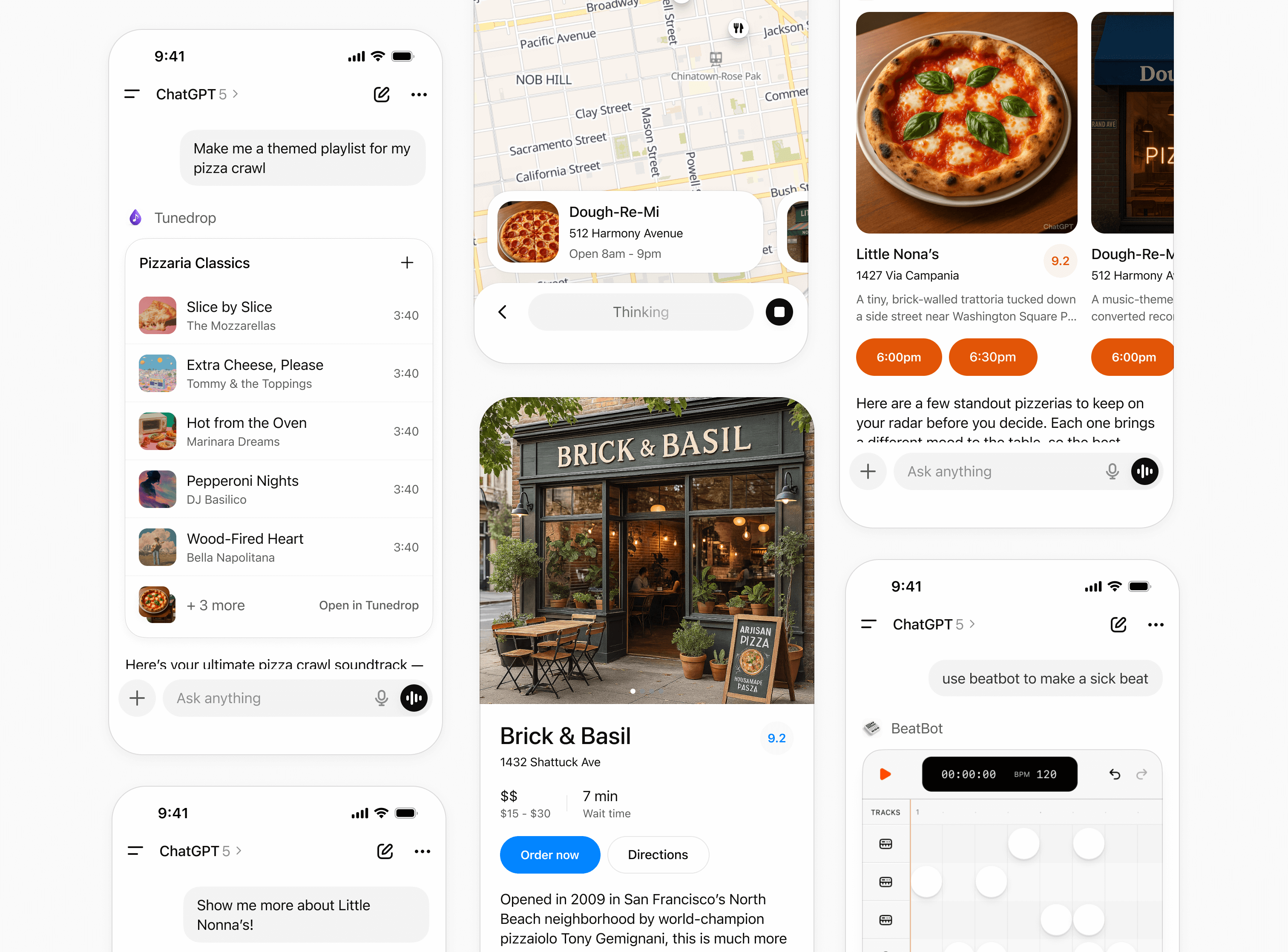
## Design system
To help you design high quality apps that feel native to ChatGPT, you can use the [Apps SDK UI](https://openai.github.io/apps-sdk-ui/) design system.
It provides styling foundations with Tailwind, CSS variable design tokens, and a library of well-crafted, accessible components.
Using the Apps SDK UI is not a requirement to build your app, but it will make building an app for ChatGPT faster and easier, in a way that is consistent with the ChatGPT design system.
Before diving into code, start designing with our [Figma component
library](https://www.figma.com/community/file/1560064615791108827/apps-in-chatgpt-components-templates)
## Display modes
Display modes are the surfaces developers use to create experiences for apps in ChatGPT. They allow partners to show content and actions that feel native to conversation. Each mode is designed for a specific type of interaction, from quick confirmations to immersive workflows.
Using these consistently helps experiences stay simple and predictable.
### Inline
The inline display mode appears directly in the flow of the conversation. Inline surfaces currently always appear before the generated model response. Every app initially appears inline.
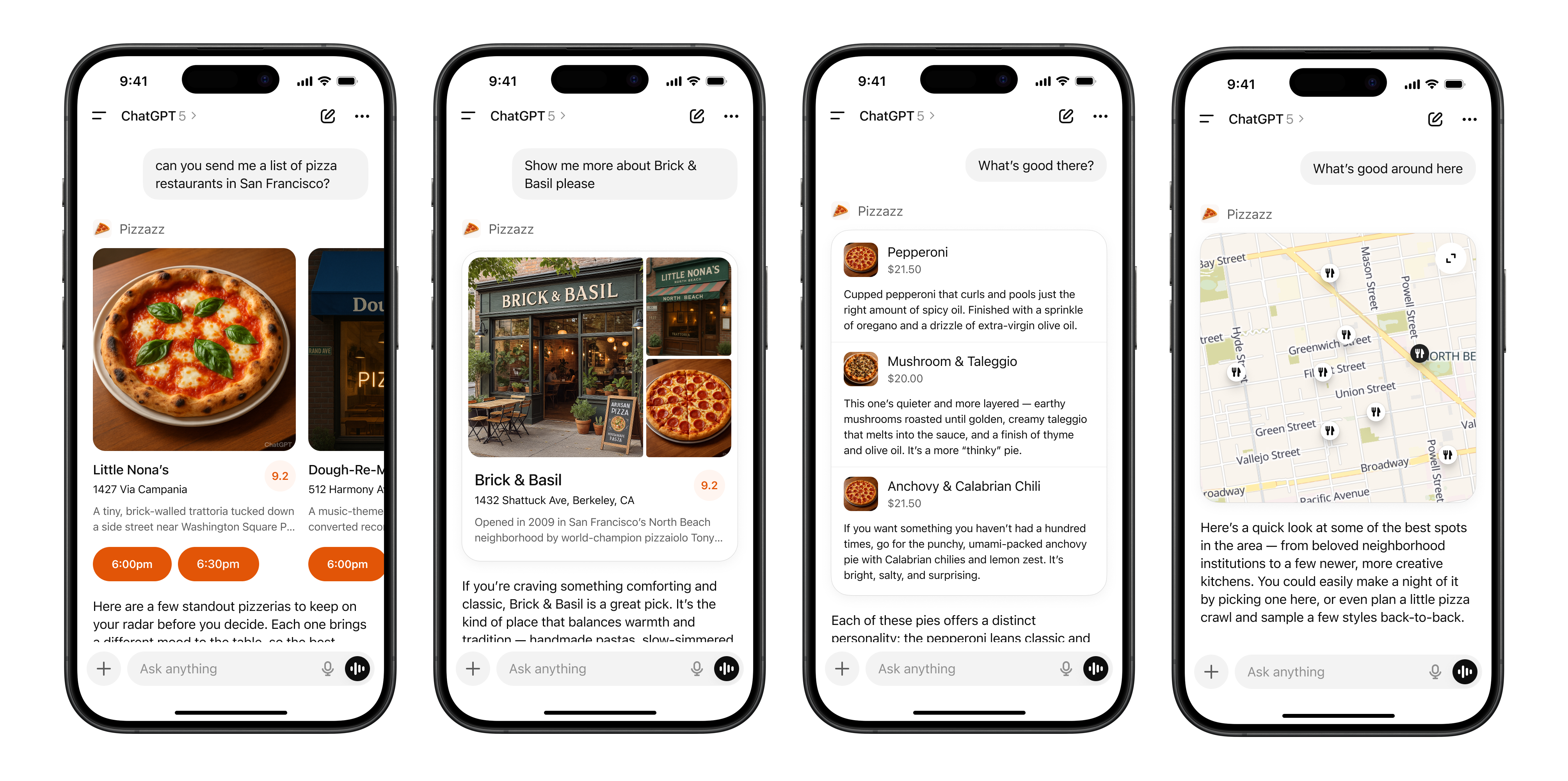
**Layout**
- **Icon & tool call**: A label with the app name and icon.
- **Inline display**: A lightweight display with app content embedded above the model response.
- **Follow-up**: A short, model-generated response shown after the widget to suggest edits, next steps, or related actions. Avoid content that is redundant with the card.
#### Inline card
Lightweight, single-purpose widgets embedded directly in conversation. They provide quick confirmations, simple actions, or visual aids.
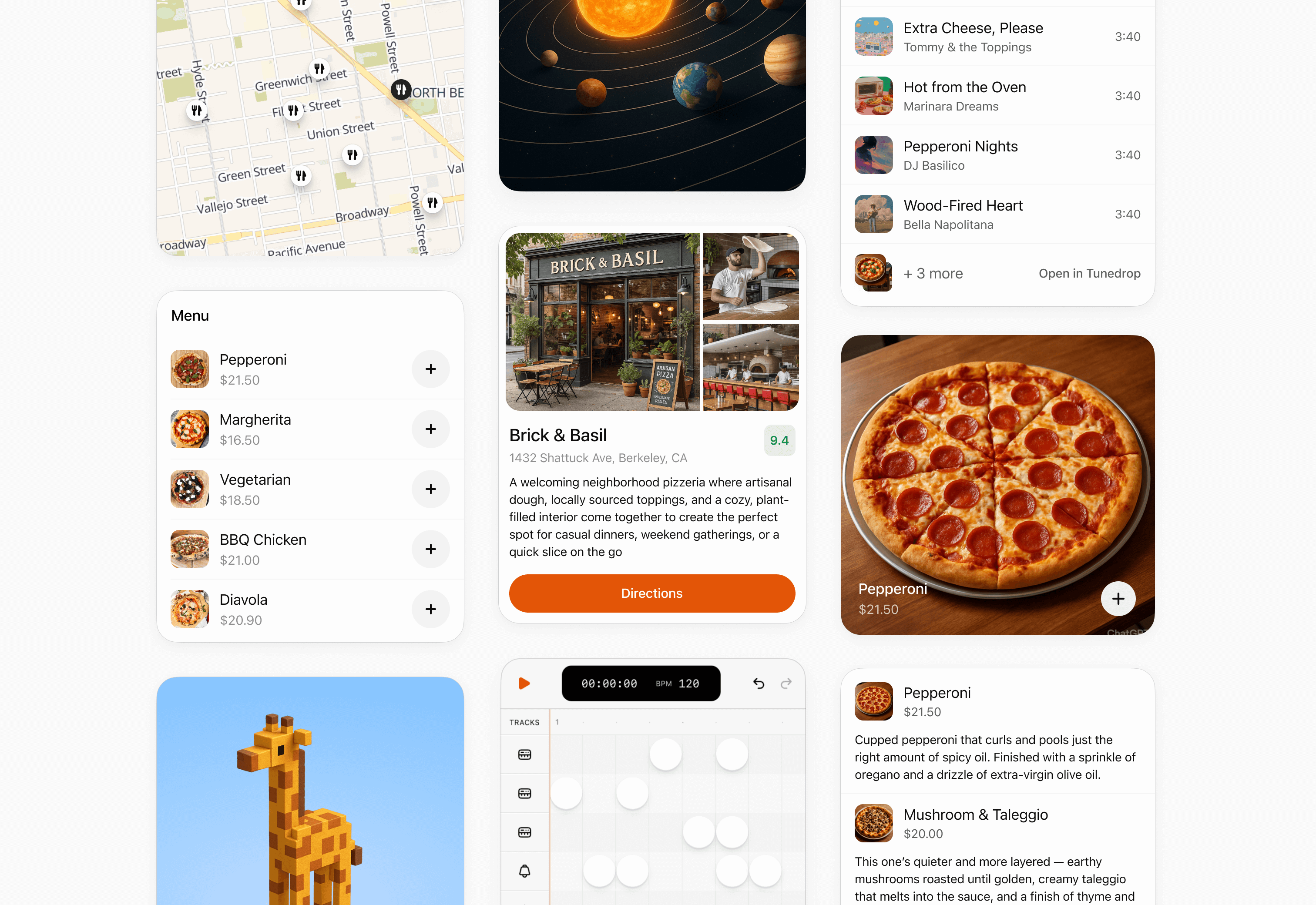
**When to use**
- A single action or decision (for example, confirm a booking).
- Small amounts of structured data (for example, a map, order summary, or quick status).
- A fully self-contained widget or tool (e.g., an audio player or a score card).
**Layout**
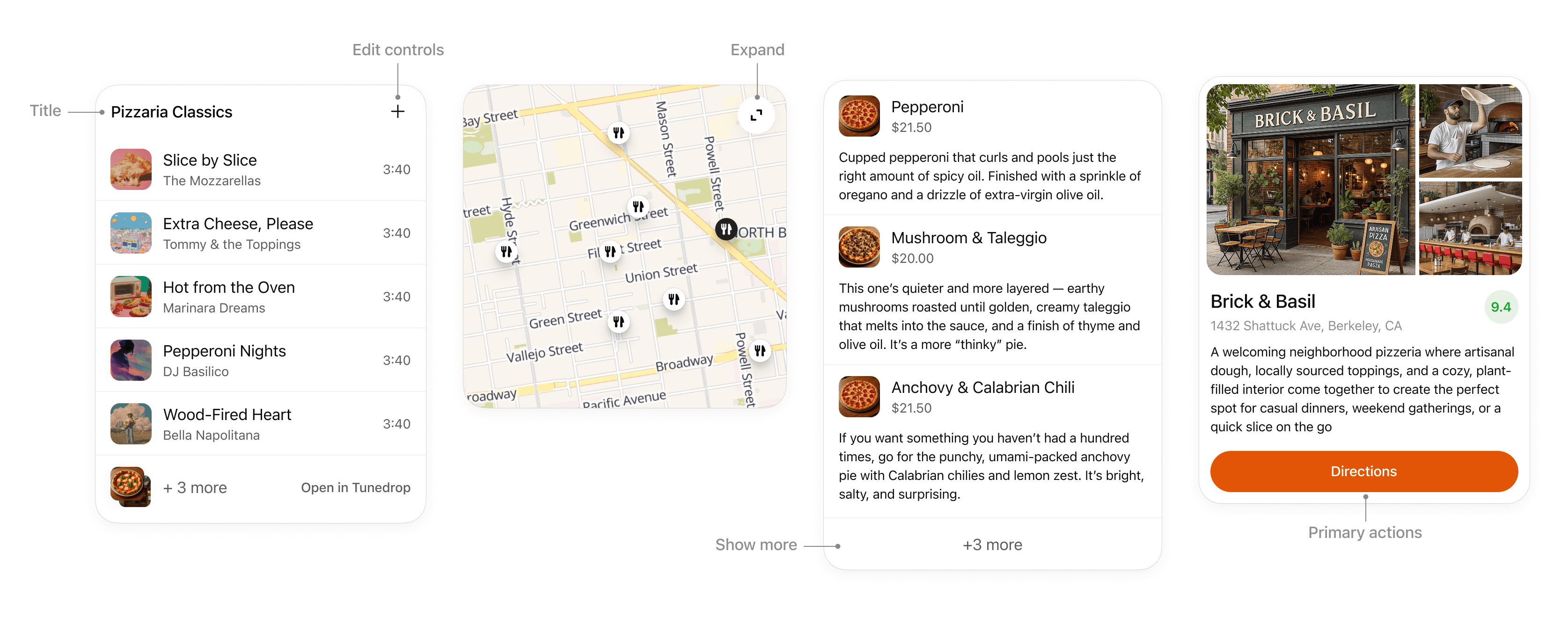
- **Title**: Include a title if your card is document-based or contains items with a parent element, like songs in a playlist.
- **Expand**: Use to open a fullscreen display mode if the card contains rich media or interactivity like a map or an interactive diagram.
- **Show more**: Use to disclose additional items if multiple results are presented in a list.
- **Edit controls**: Provide inline support for app responses without overwhelming the conversation.
- **Primary actions**: Limit to two actions, placed at bottom of card. Actions should perform either a conversation turn or a tool call.
**Interaction**
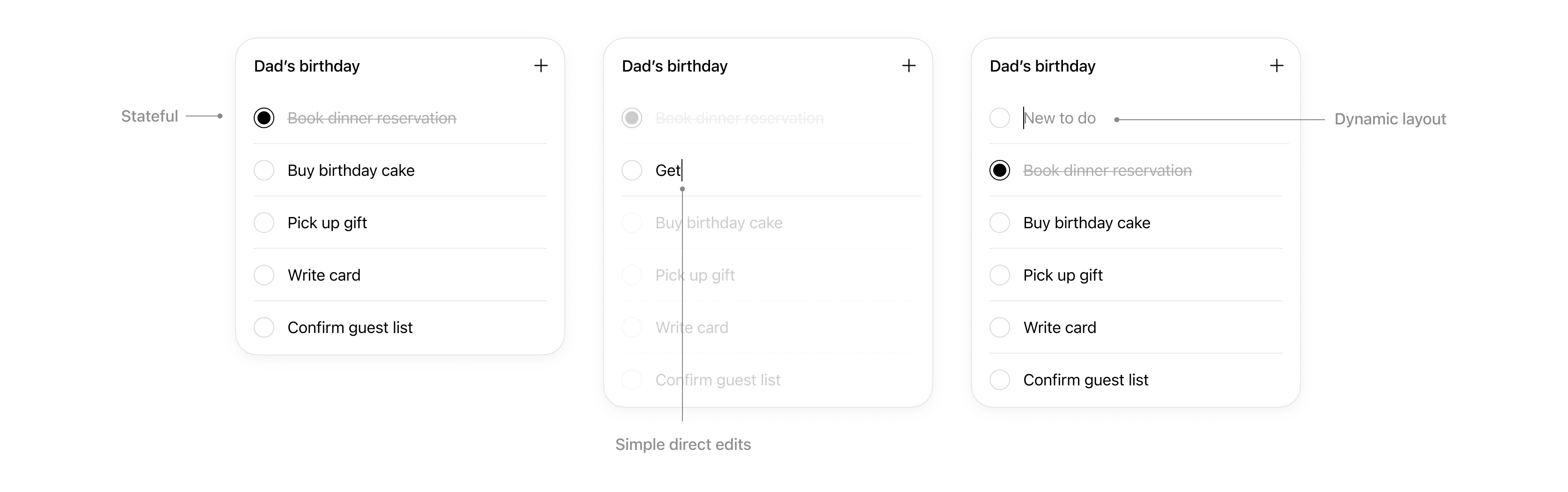
Cards support simple direct interaction.
- **States**: Edits made are persisted.
- **Simple direct edits**: If appropriate, inline editable text allows users to make quick edits without needing to prompt the model.
- **Dynamic layout**: Card layout can expand its height to match its contents up to the height of the mobile viewport.
**Rules of thumb**
- **Limit primary actions per card**: Support up to two actions maximum, with one primary CTA and one optional secondary CTA.
- **No deep navigation or multiple views within a card.** Cards should not contain multiple drill-ins, tabs, or deeper navigation. Consider splitting these into separate cards or tool actions.
- **No nested scrolling**. Cards should auto-fit their content and prevent internal scrolling.
- **No duplicative inputs**. Don’t replicate ChatGPT features in a card.
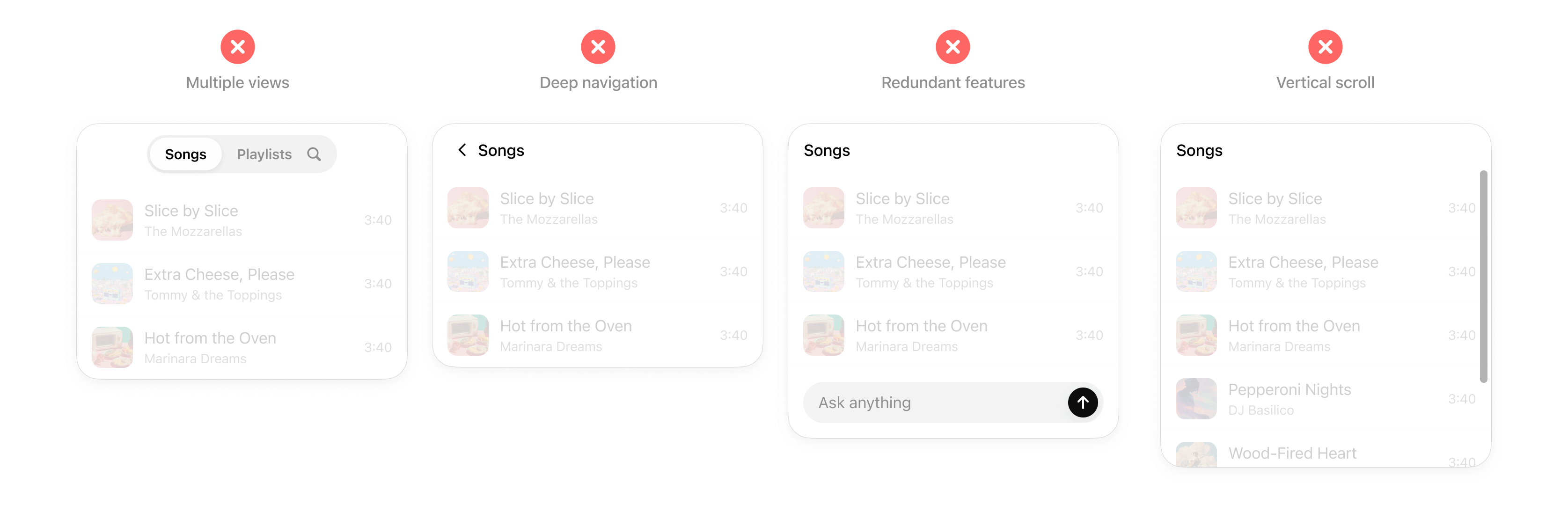
#### Inline carousel
A set of cards presented side-by-side, letting users quickly scan and choose from multiple options.
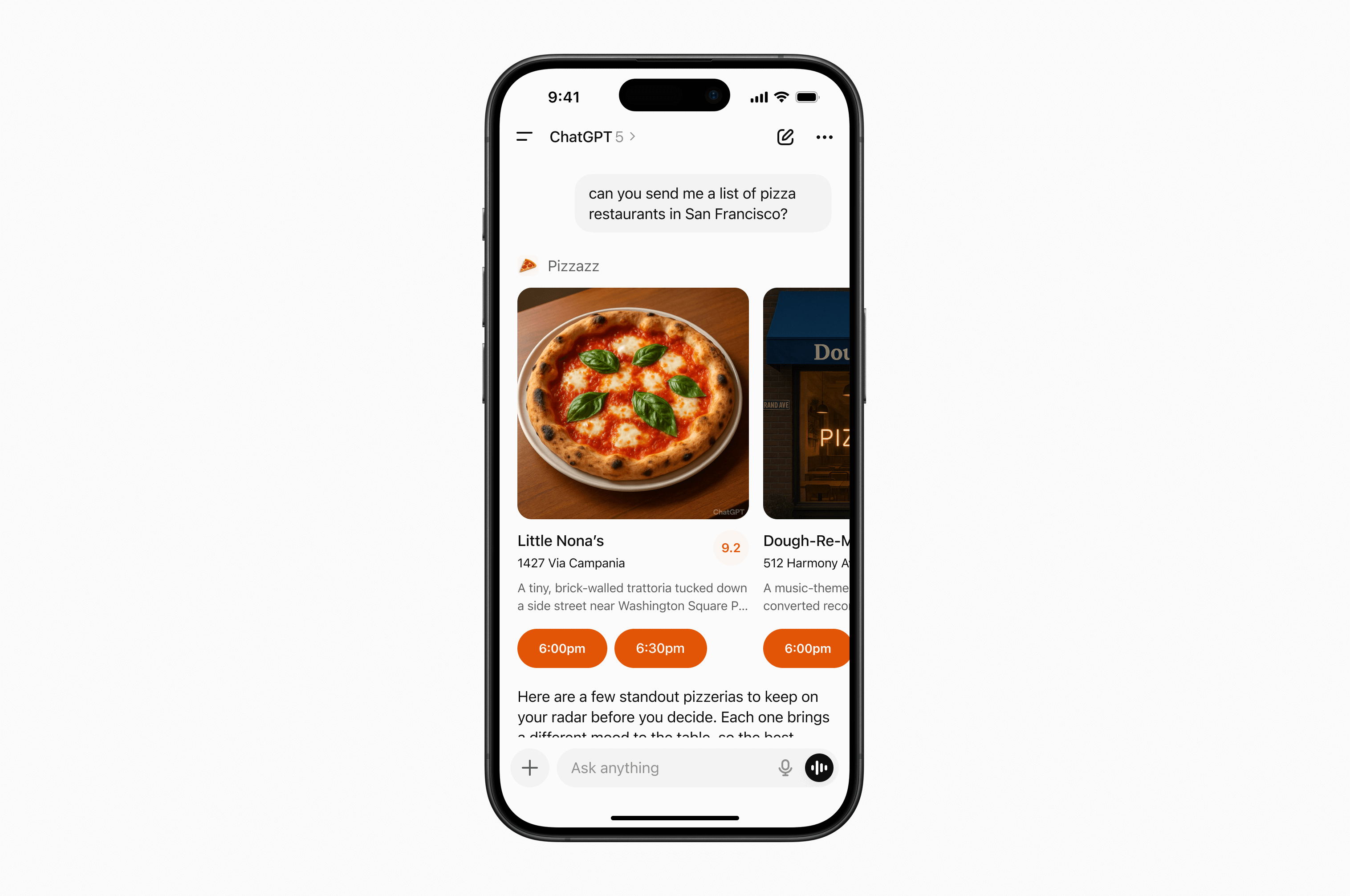
**When to use**
- Presenting a small list of similar items (for example, restaurants, playlists, events).
- Items have more visual content and metadata than will fit in simple rows.
**Layout**
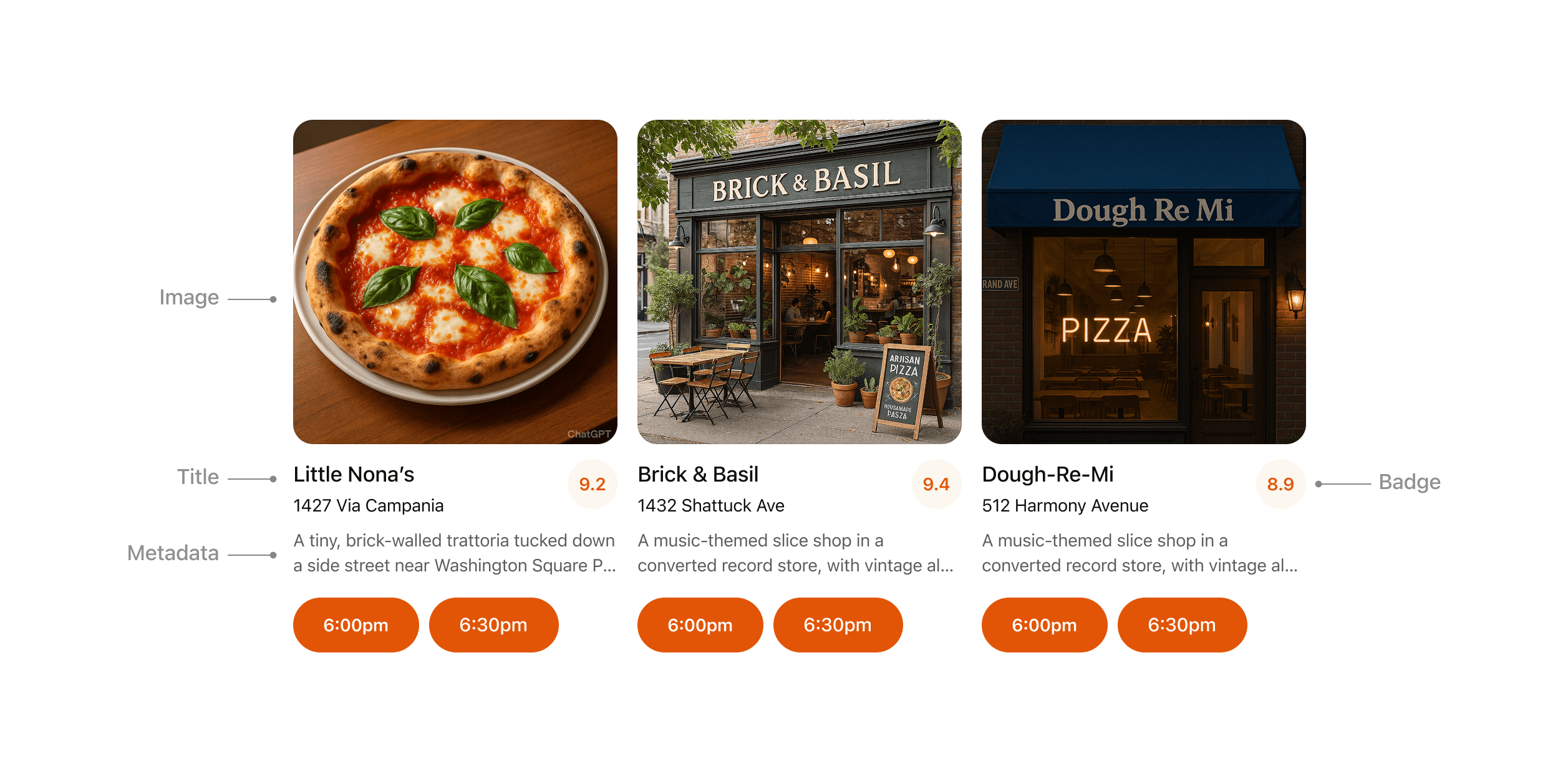
- **Image**: Items should always include an image or visual.
- **Title**: Carousel items should typically include a title to explain the content.
- **Metadata**: Use metadata to show the most important and relevant information about the item in the context of the response. Avoid showing more than two lines of text.
- **Badge**: Use the badge to show supporting context where appropriate.
- **Actions**: Provide a single clear CTA per item whenever possible.
**Rules of thumb**
- Keep to **3–8 items per carousel** for scannability.
- Reduce metadata to the most relevant details, with three lines max.
- Each card may have a single, optional CTA (for example, “Book” or “Play”).
- Use consistent visual hierarchy across cards.
### Fullscreen
Immersive experiences that expand beyond the inline card, giving users space for multi-step workflows or deeper exploration. The ChatGPT composer remains overlaid, allowing users to continue “talking to the app” through natural conversation in the context of the fullscreen view.
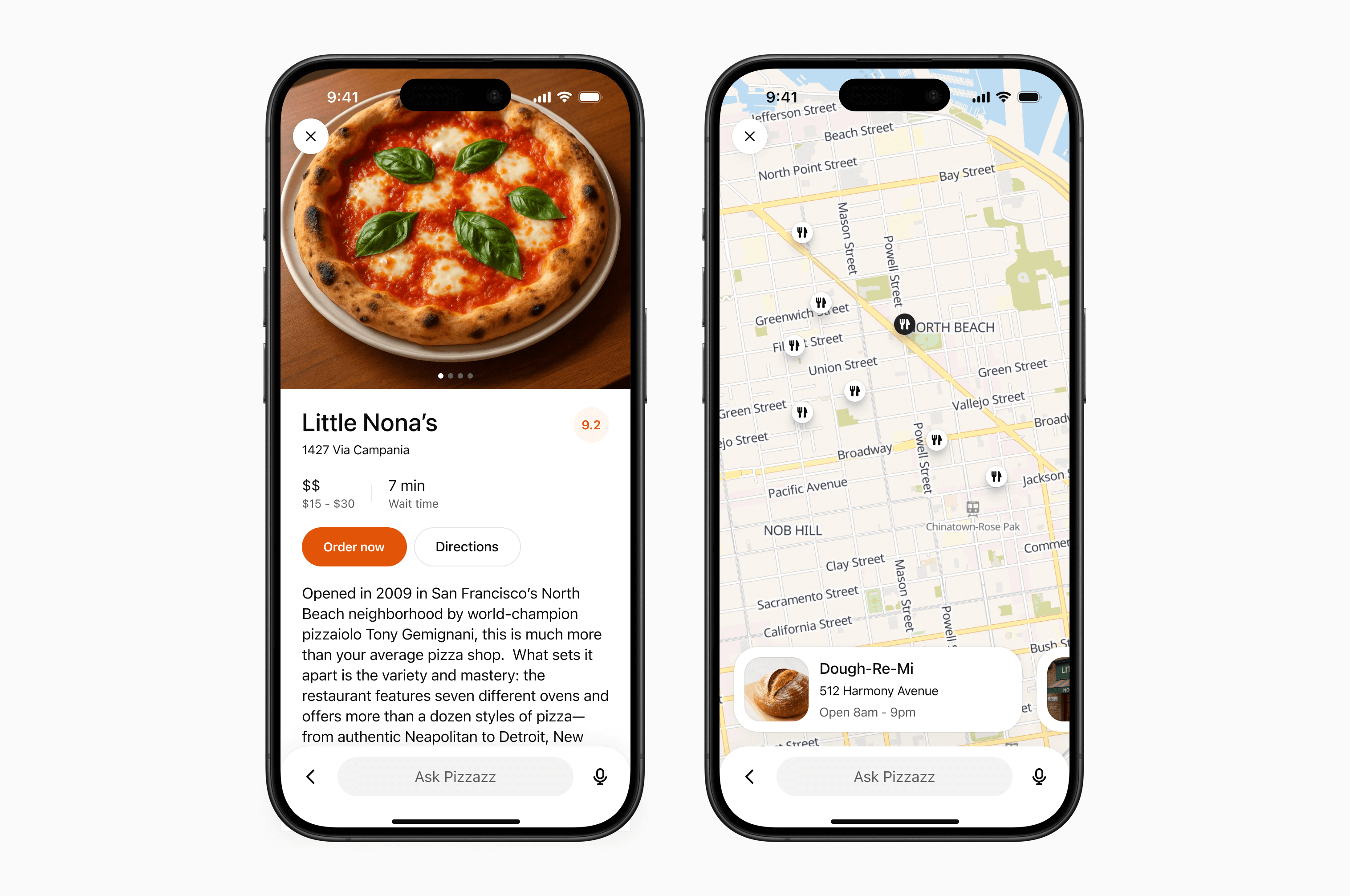
**When to use**
- Rich tasks that cannot be reduced to a single card (for example, an explorable map with pins, a rich editing canvas, or an interactive diagram).
- Browsing detailed content (for example, real estate listings, menus).
**Layout**
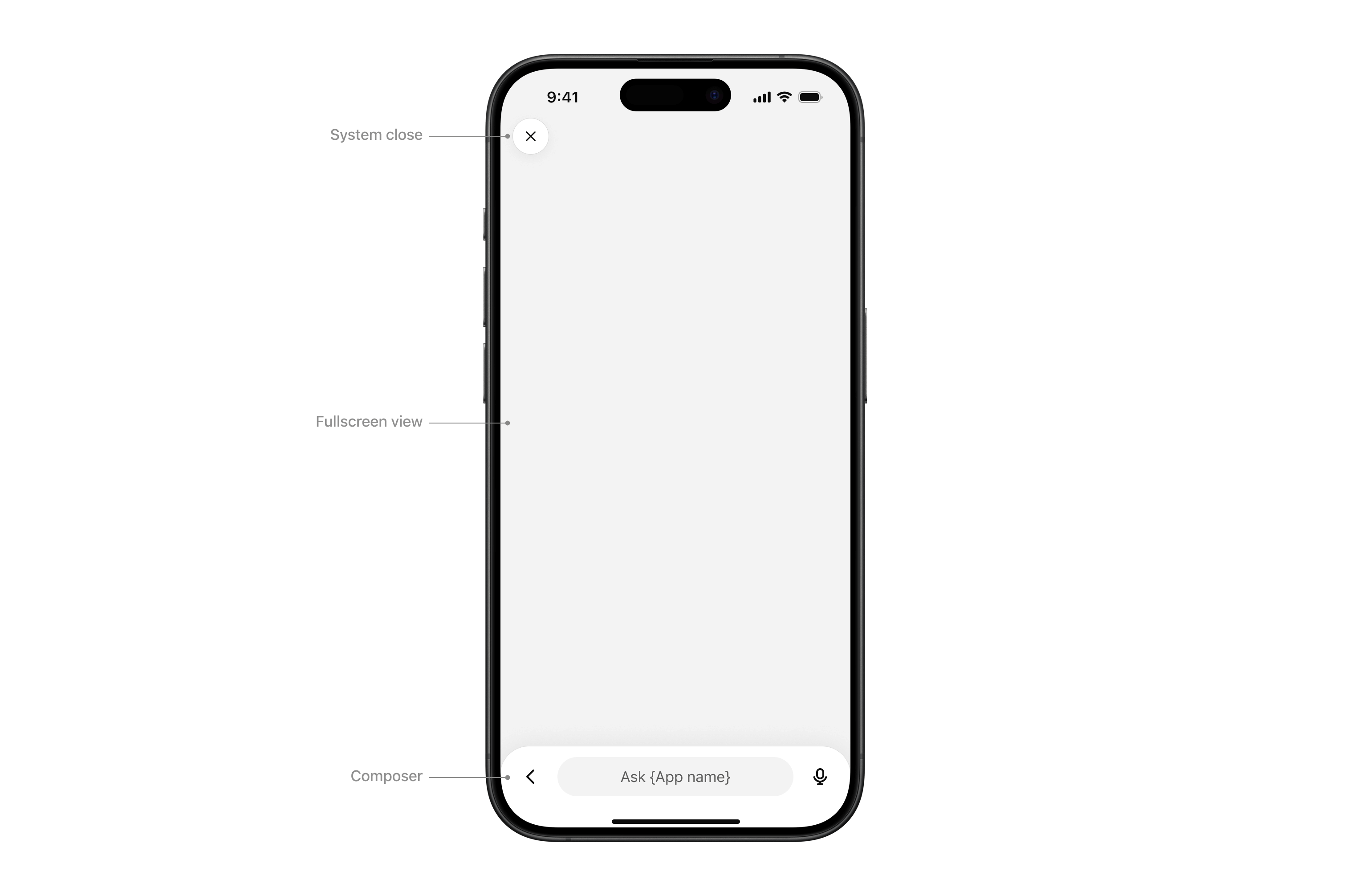
- **System close**: Closes the sheet or view.
- **Fullscreen view**: Content area.
- **Composer**: ChatGPT’s native composer, allowing the user to follow up in the context of the fullscreen view.
**Interaction**
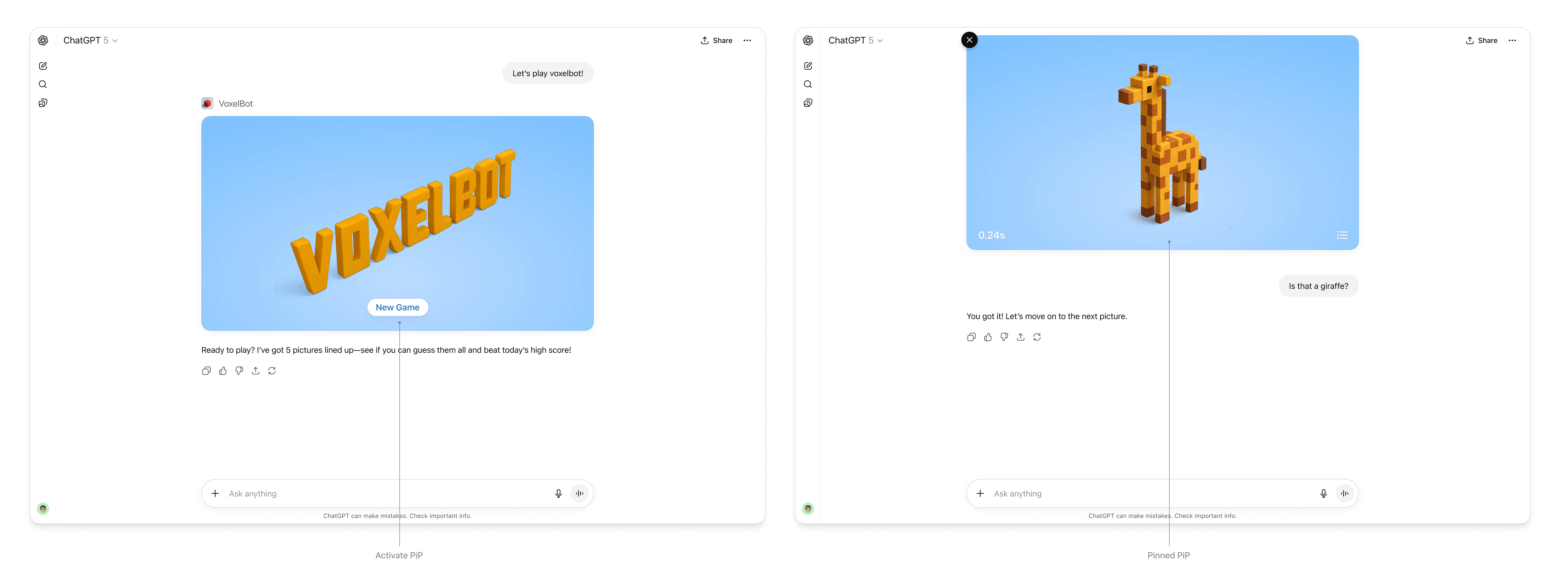
- **Chat sheet**: Maintain conversational context alongside the fullscreen surface.
- **Thinking**: The composer input “shimmers” to show that a response is streaming.
- **Response**: When the model completes its response, an ephemeral, truncated snippet displays above the composer. Tapping it opens the chat sheet.
**Rules of thumb**
- **Design your UX to work with the system composer**. The composer is always present in fullscreen, so make sure your experience supports conversational prompts that can trigger tool calls and feel natural for users.
- **Use fullscreen to deepen engagement**, not to replicate your native app wholesale.
### Picture-in-picture (PiP)
A persistent floating window inside ChatGPT optimized for ongoing or live sessions like games or videos. PiP remains visible while the conversation continues, and it can update dynamically in response to user prompts.
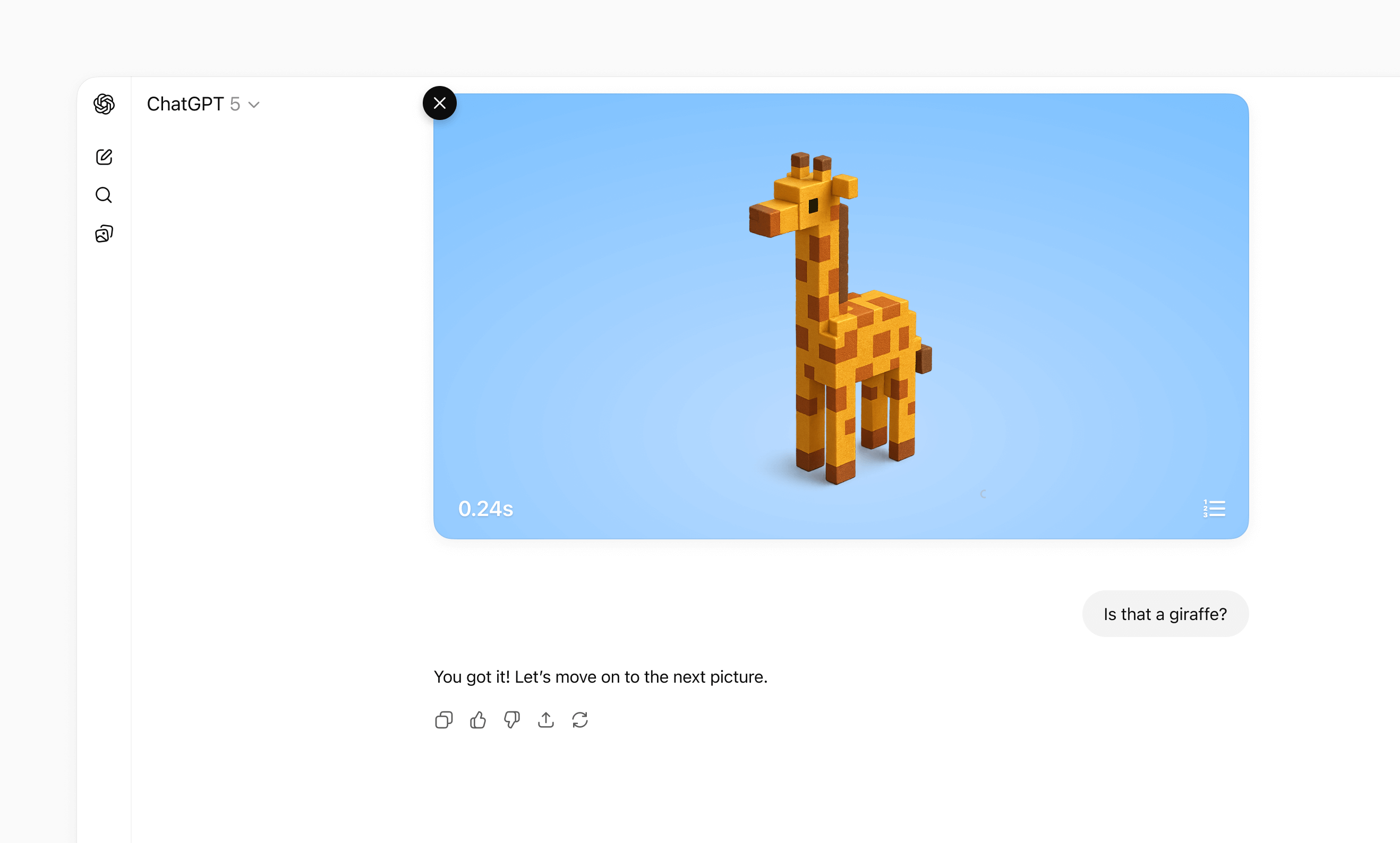
**When to use**
- **Activities that run in parallel with conversation**, such as a game, live collaboration, quiz, or learning session.
- **Situations where the PiP widget can react to chat input**, for example continuing a game round or refreshing live data based on a user request.
**Interaction**
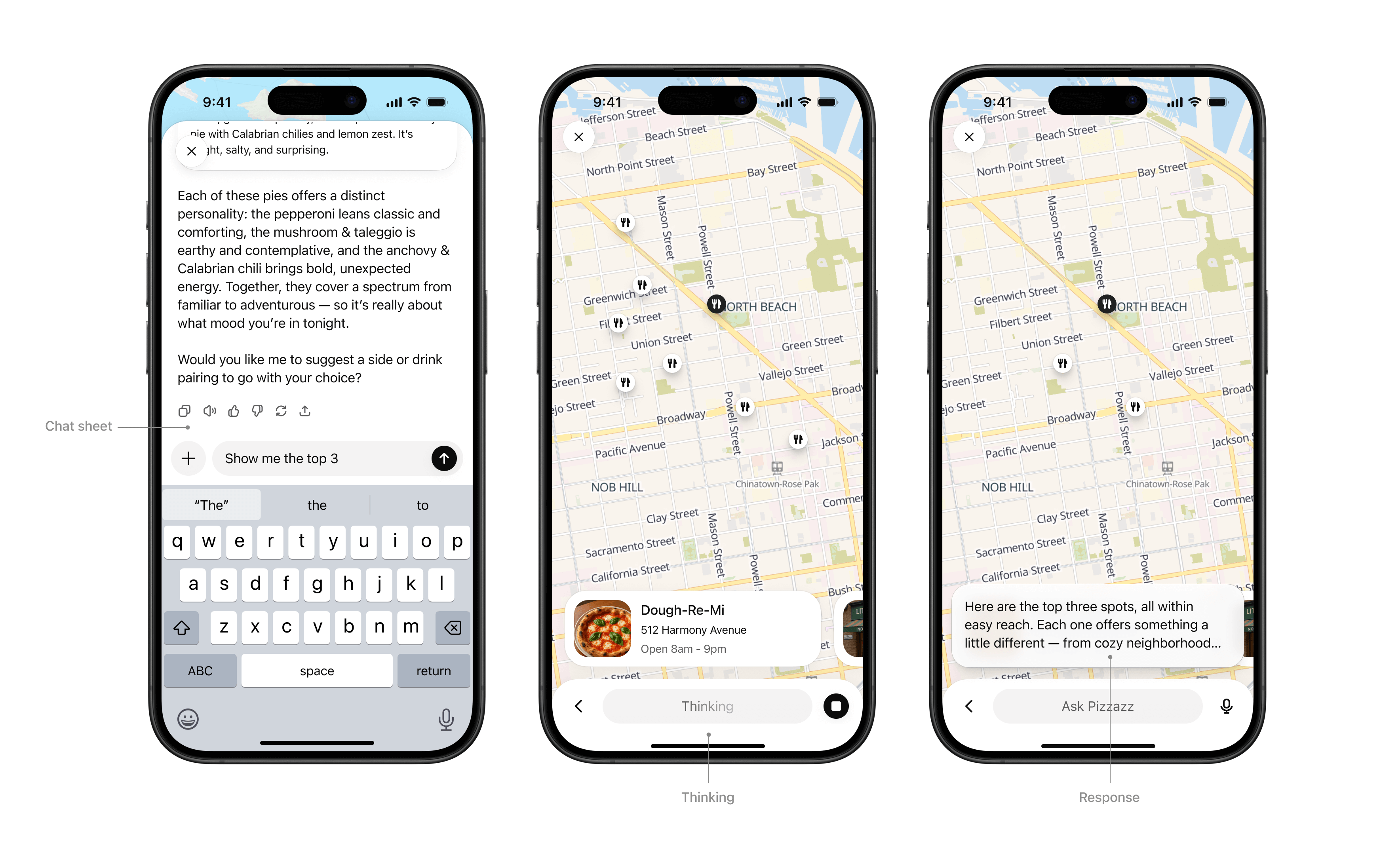
- **Activated:** On scroll, the PiP window stays fixed to the top of the viewport
- **Pinned:** The PiP remains fixed until the user dismisses it or the session ends.
- **Session ends:** The PiP returns to an inline position and scrolls away.
**Rules of thumb**
- **Ensure the PiP state can update or respond** when users interact through the system composer.
- **Close PiP automatically** when the session ends.
- **Do not overload PiP with controls or static content** better suited for inline or fullscreen.
## Visual design guidelines
A consistent look and feel helps partner-built tools feel like a natural part of the ChatGPT platform. Visual guidelines support clarity, usability, and accessibility, while still leaving room for brand expression in the right places.
These principles outline how to use color, type, spacing, and imagery in ways that preserve system clarity while giving partners space to differentiate their service.
### Why this matters
Visual and UX consistency helps improve the overall user experience of using apps in ChatGPT. By following these guidelines, partners can present their tools in a way that feels consistent to users and delivers value without distraction.
### Color
System-defined palettes help ensure actions and responses always feel consistent with the ChatGPT platform. Partners can add branding through accents, icons, or inline imagery, but should not redefine system colors.
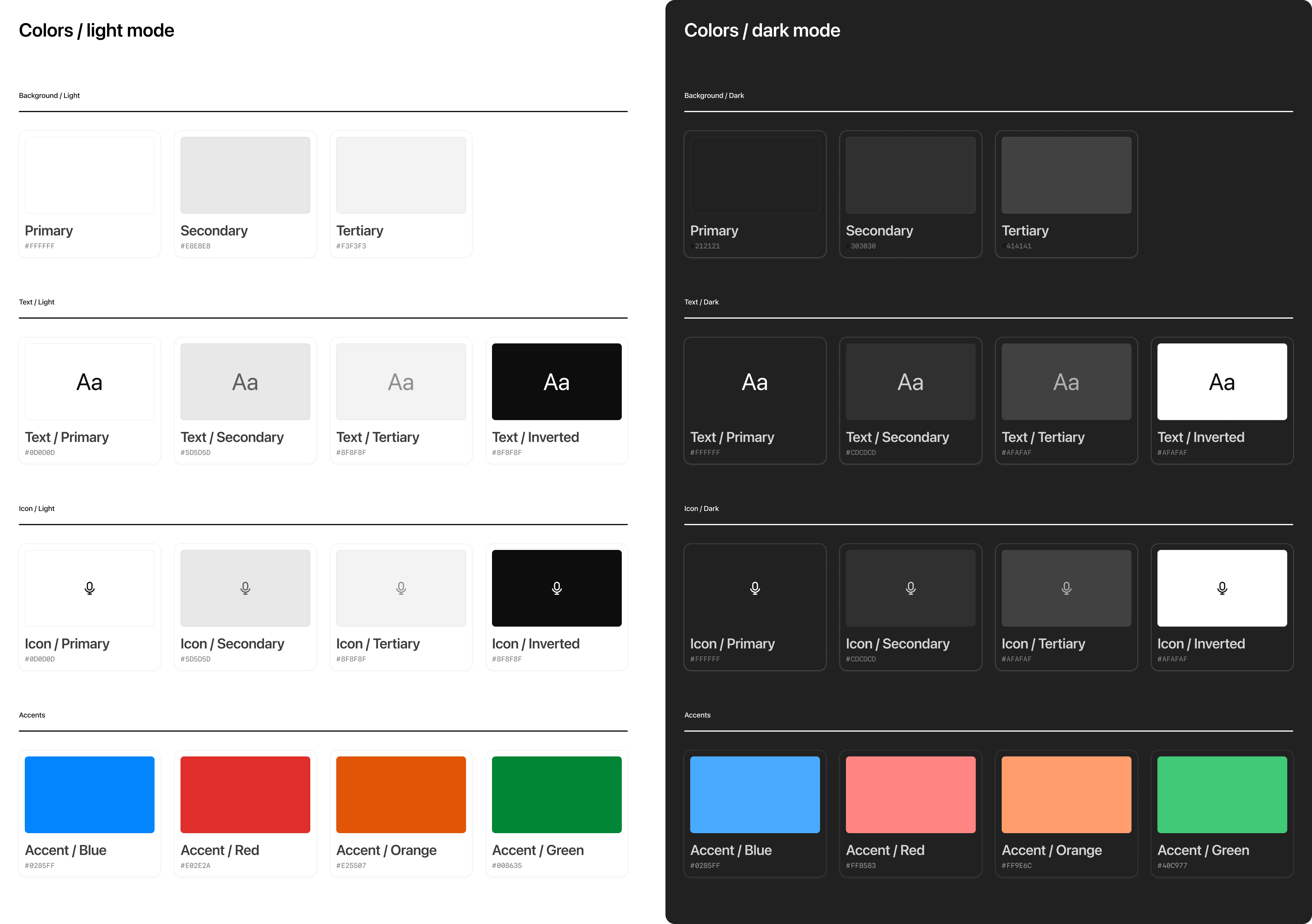
**Rules of thumb**
- Use system colors for text, icons, and spatial elements like dividers.
- Partner brand accents such as logos or icons should not override backgrounds or text colors.
- Avoid custom gradients or patterns that break ChatGPT’s minimal look.
- Use brand accent colors on primary buttons inside app display modes.
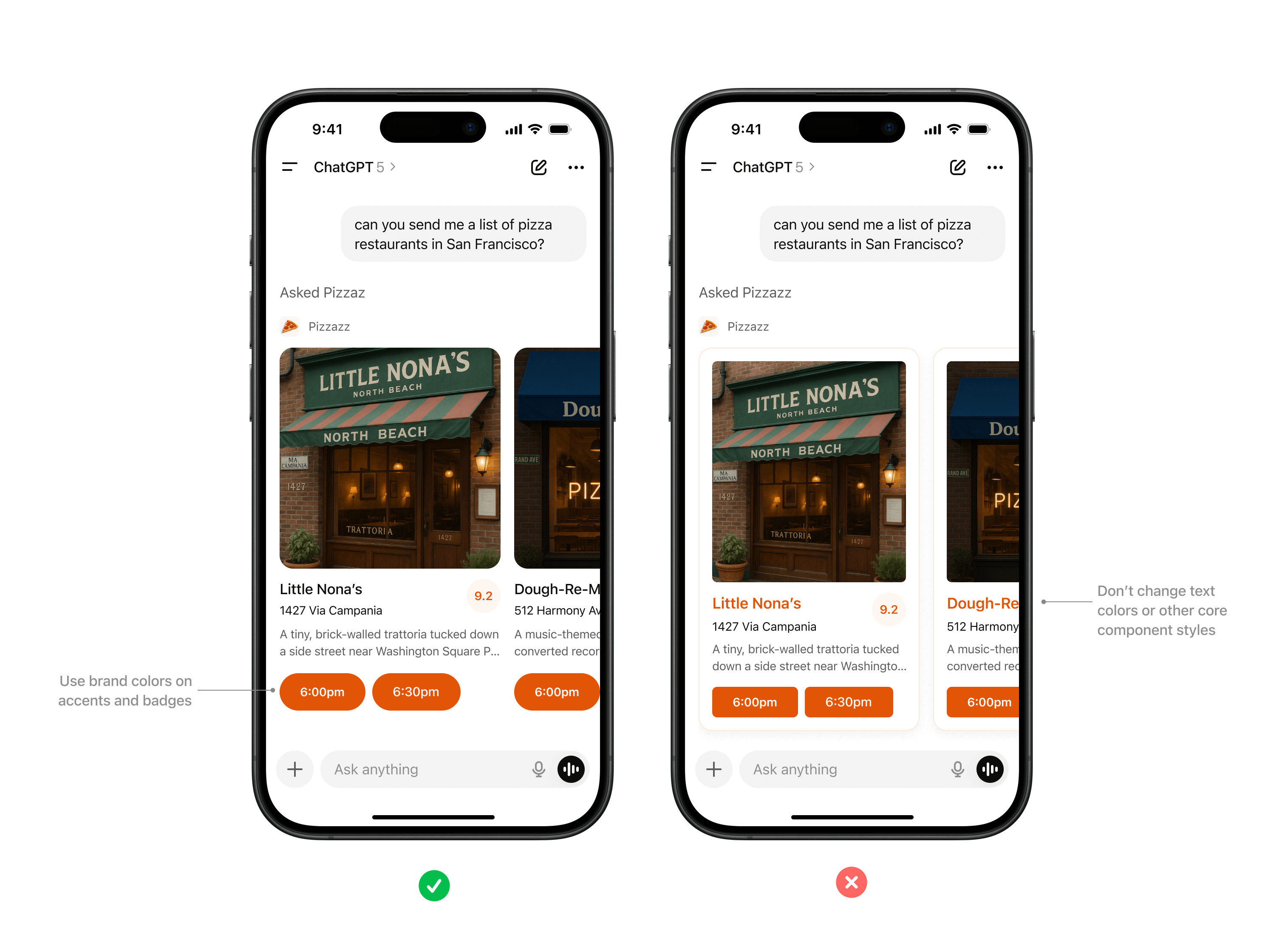
_Use brand colors on accents and badges. Don't change text colors or other core component styles._
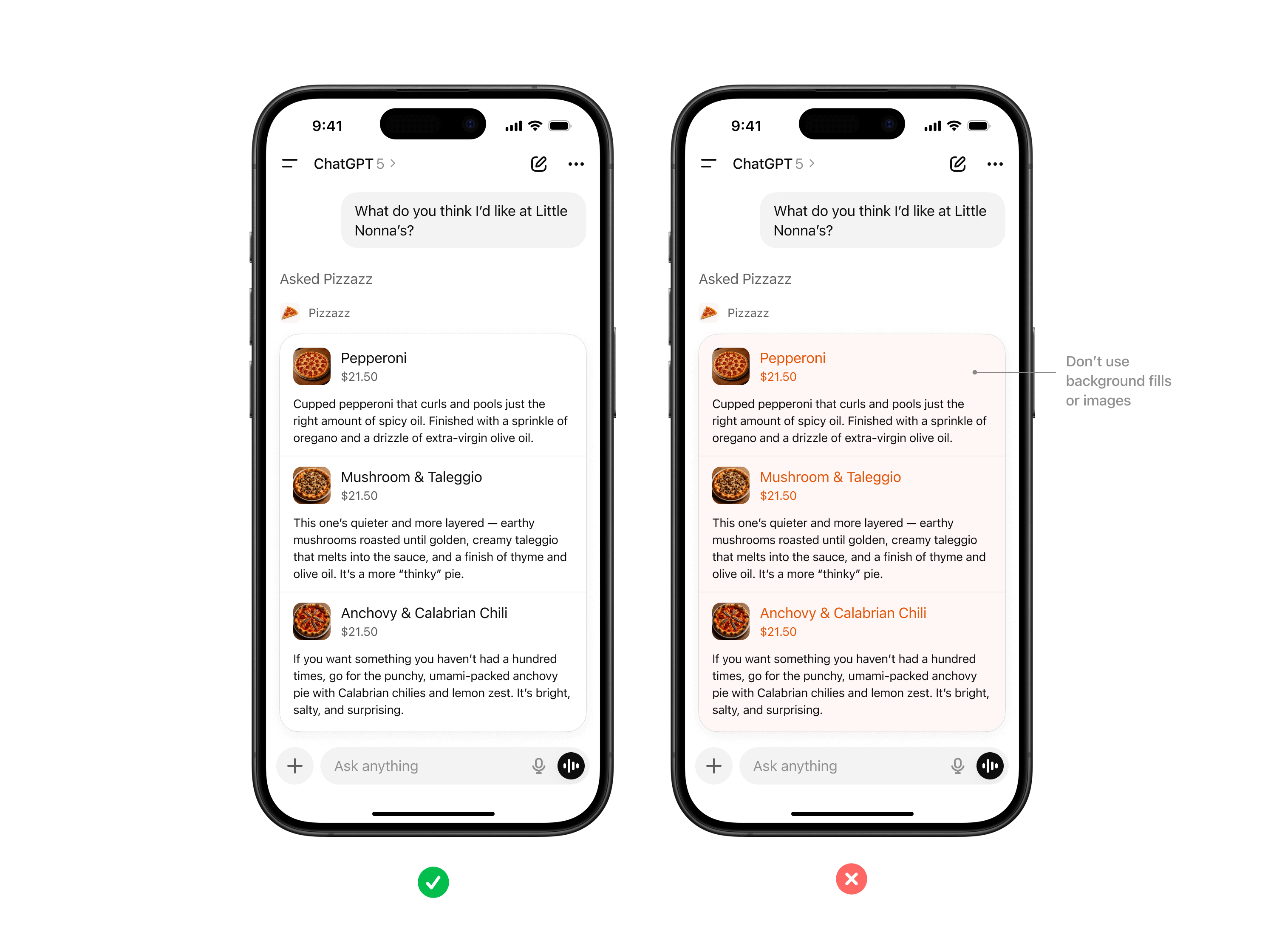
_Don't apply colors to backgrounds in text areas._
### Typography
ChatGPT uses platform-native system fonts (SF Pro on iOS, Roboto on Android) to ensure readability and accessibility across devices.
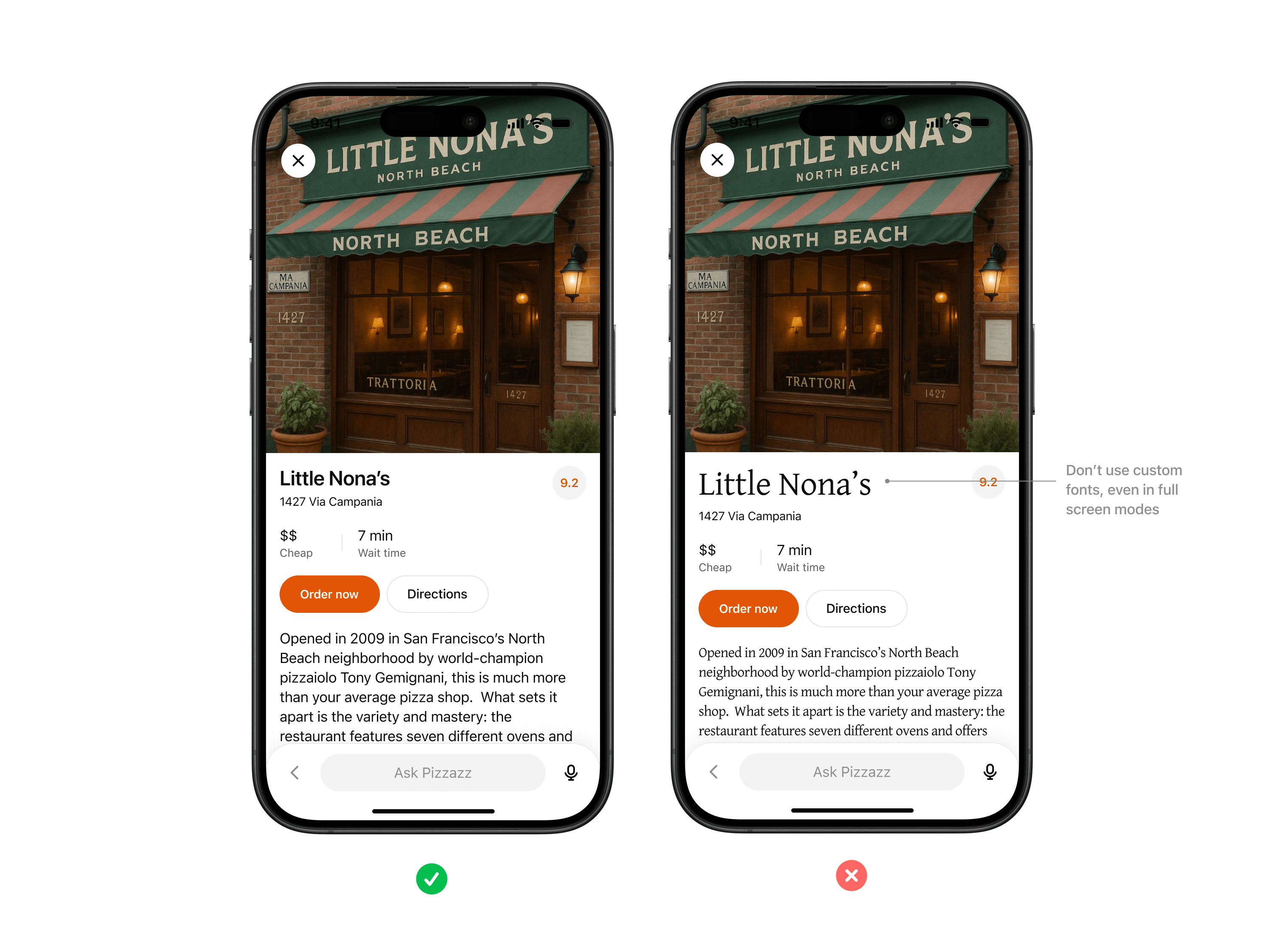
**Rules of thumb**
- Always inherit the system font stack, respecting system sizing rules for headings, body text, and captions.
- Use partner styling such as bold, italic, or highlights only within content areas, not for structural UI.
- Limit variation in font size as much as possible, preferring body and body-small sizes.
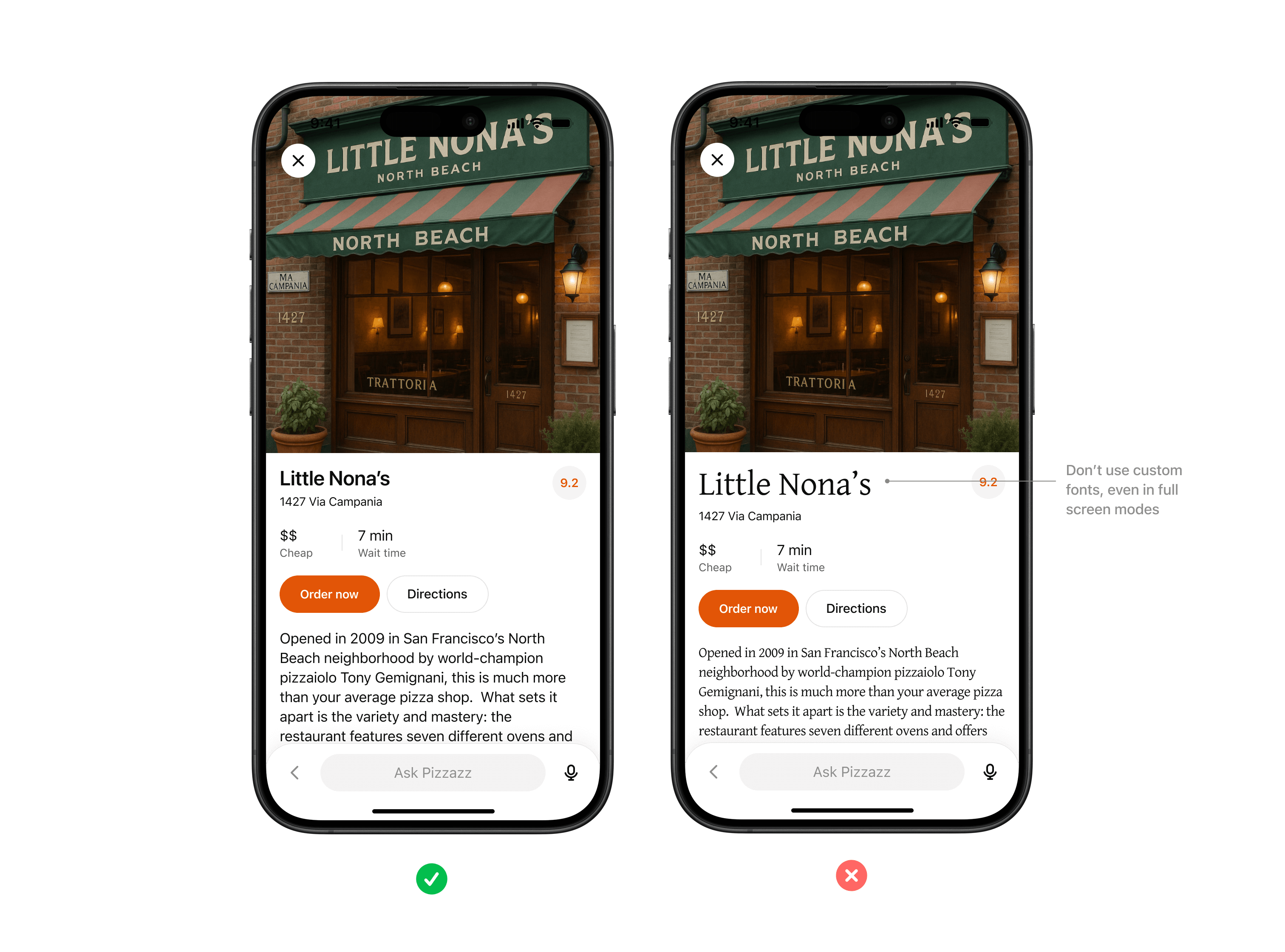
_Don't use custom fonts, even in full screen modes. Use system font variables wherever possible._
### Spacing & layout
Consistent margins, padding, and alignment keep partner content scannable and predictable inside conversation.
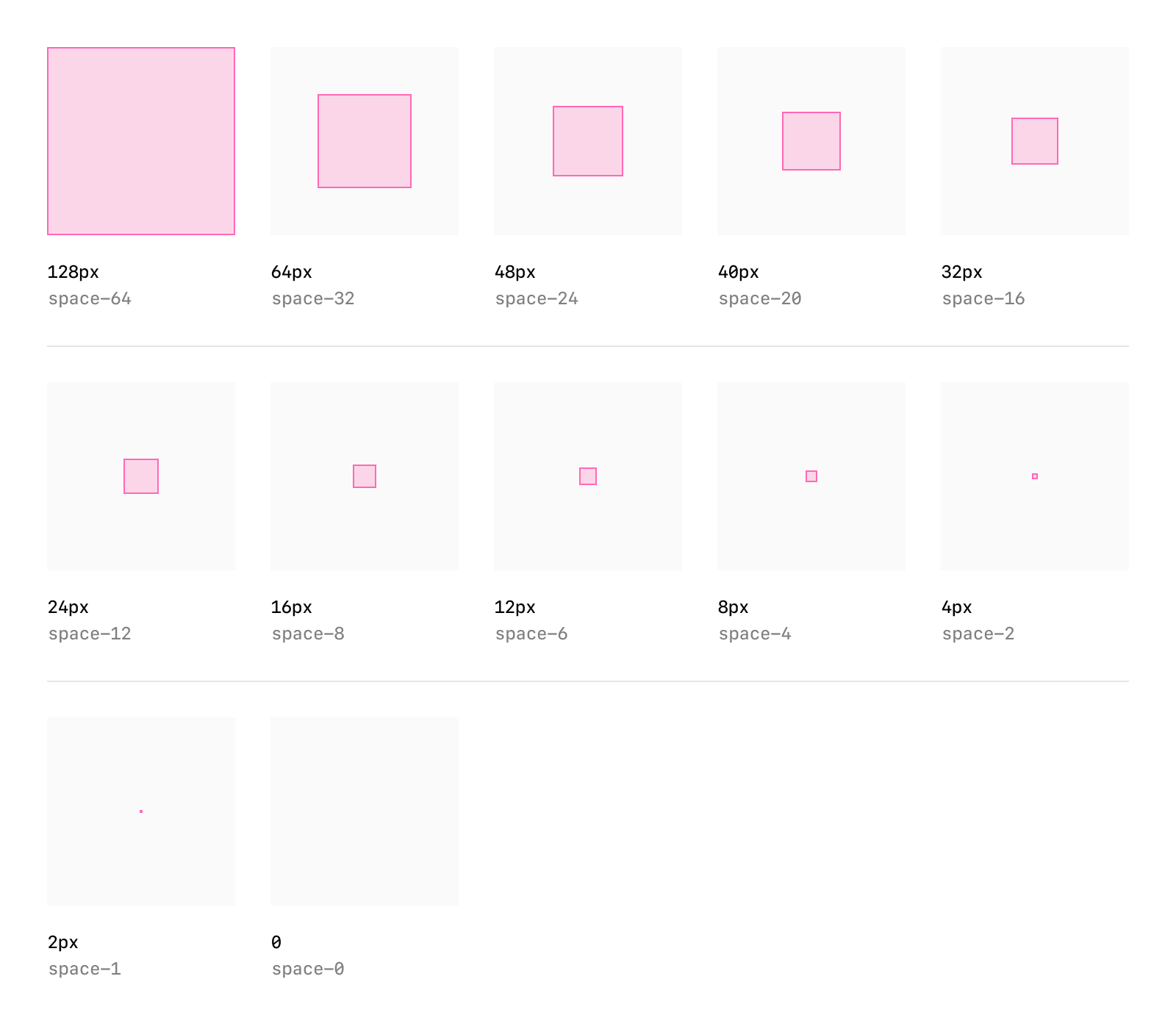
**Rules of thumb**
- Use system grid spacing for cards, collections, and inspector panels.
- Keep padding consistent and avoid cramming or edge-to-edge text.
- Respect system specified corner rounds when possible to keep shapes consistent.
- Maintain visual hierarchy with headline, supporting text, and CTA in a clear order.
### Icons & imagery
System iconography provides visual clarity, while partner logos and images help users recognize brand context.

**Rules of thumb**
- Use either system icons or custom iconography that fits within ChatGPT's visual world — monochromatic and outlined.
- Do not include your logo as part of the response. ChatGPT will always append your logo and app name before the widget is rendered.
- All imagery must follow enforced aspect ratios to avoid distortion.
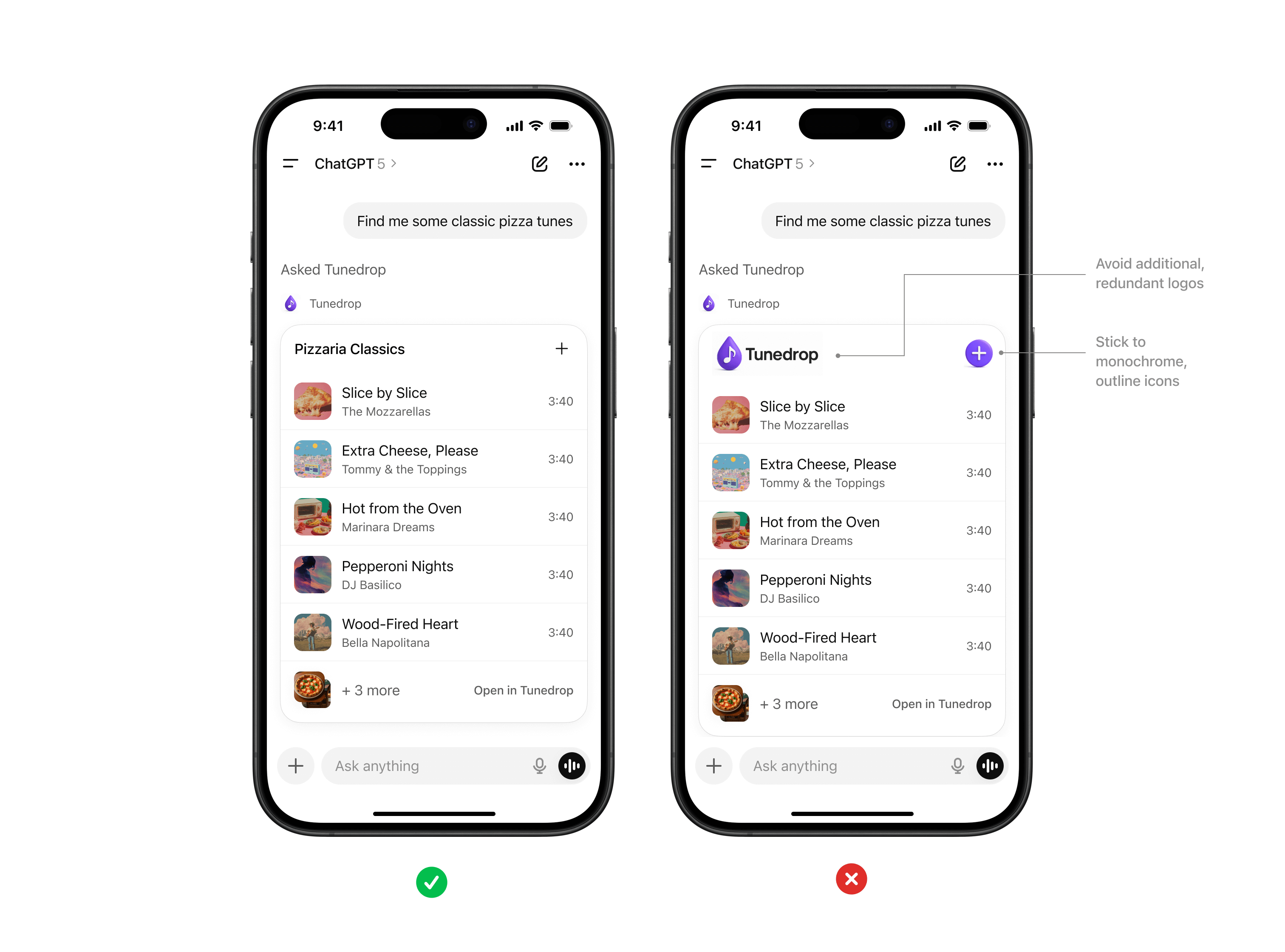
### Accessibility
Every partner experience should be usable by the widest possible audience.
Accessibility should be a core consideration when you are building apps for ChatGPT.
**Rules of thumb**
- Text and background must maintain a minimum contrast ratio (WCAG AA).
- Provide alt text for all images.
- Support text resizing without breaking layouts.
---
# User Interaction
## Discovery
Discovery refers to the different ways a user or the model can find out about your app and the tools it provides: natural-language prompts, directory browsing, and proactive [entry points](#entry-points). Apps SDK leans on your tool metadata and past usage to make intelligent choices. Good discovery hygiene means your app appears when it should and stays quiet when it should not.
### Named mention
When a user mentions the name of your app at the beginning of a prompt, your app will be surfaced automatically in the response. The user must specify your app name at the beginning of their prompt. If they do not, your app can also appear as a suggestion through in-conversation discovery.
### In-conversation discovery
When a user sends a prompt, the model evaluates:
- **Conversation context** – the chat history, including previous tool results, memories, and explicit tool preferences
- **Conversation brand mentions and citations** - whether your brand is explicitly requested in the query or is surfaced as a source/citation in search results.
- **Tool metadata** – the names, descriptions, and parameter documentation you provide in your MCP server.
- **User linking state** – whether the user already granted access to your app, or needs to connect it before the tool can run.
You influence in-conversation discovery by:
1. Writing action-oriented [tool descriptions](https://modelcontextprotocol.io/specification/2025-06-18/server/tools#tool) (“Use this when the user wants to view their kanban board”) rather than generic copy.
2. Writing clear [component descriptions](https://developers.openai.com/apps-sdk/reference#add-component-descriptions) on the resource UI template metadata.
3. Regularly testing your golden prompt set in ChatGPT developer mode and logging precision/recall.
If the assistant selects your tool, it handles arguments, displays confirmation if needed, and renders the component inline. If no linked tool is an obvious match, the model will default to built-in capabilities, so keep evaluating and improving your metadata.
### Directory
The directory will give users a browsable surface to find apps outside of a conversation. Your listing in this directory will include:
- App name and icon
- Short and long descriptions
- Tags or categories (where supported)
- Optional onboarding instructions or screenshots
## Entry points
Once a user links your app, ChatGPT can surface it through several entry points. Understanding each surface helps you design flows that feel native and discoverable.
### In-conversation entry
Linked tools are always on in the model’s context. When the user writes a prompt, the assistant decides whether to call your tool based on the conversation state and metadata you supplied. Best practices:
- Keep tool descriptions action oriented so the model can disambiguate similar apps.
- Return structured content that references stable IDs so follow-up prompts can mutate or summarise prior results.
- Provide `_meta` [hints](https://developers.openai.com/apps-sdk/reference#tool-descriptor-parameters) so the client can streamline confirmation and rendering.
When a call succeeds, the component renders inline and inherits the current theme, composer, and confirmation settings.
### Launcher
The launcher (available from the + button in the composer) is a high-intent entry point where users can explicitly choose an app. Your listing should include a succinct label and icon. Consider:
- **Deep linking** – include starter prompts or entry arguments so the user lands on the most useful tool immediately.
- **Context awareness** – the launcher ranks apps using the current conversation as a signal, so keep metadata aligned with the scenarios you support.
---
# UX principles
## Overview
Creating a great ChatGPT app is about delivering a focused, conversational experience that feels native to ChatGPT.
The goal is to design experiences that feel consistent and useful while extending what you can do in ChatGPT conversations in ways that add real value.
Good examples include booking a ride, ordering food, checking availability, or tracking a delivery. These are tasks that are conversational, time bound, and easy to summarize visually with a clear call to action. Poor examples include replicating long form content from a website, requiring complex multi step workflows, or using the space for ads or irrelevant messaging.
Use the UX principles below to guide your development.
## Principles for great app UX
An app should do at least one thing _better_ because it lives in ChatGPT:
- **Conversational leverage** – natural language, thread context, and multi-turn guidance unlock workflows that traditional UI cannot.
- **Native fit** – the app feels embedded in ChatGPT, with seamless hand-offs between the model and your tools.
- **Composability** – actions are small, reusable building blocks that the model can mix with other apps to complete richer tasks.
If you cannot describe the clear benefit of running inside ChatGPT, keep iterating before publishing your app.
On the other hand, your app should also _improve the user experience_ in ChatGPT by either providing something new to know, new to do, or a better way to show information.
Below are a few principles you should follow to help ensure your app is a great fit for ChatGPT.
### 1. Extract, don’t port
Focus on the core jobs users use your product for. Instead of mirroring your full website or native app, identify a few atomic actions that can be extracted as tools. Each tool should expose the minimum inputs and outputs needed for the model to take the next step confidently.
### 2. Design for conversational entry
Expect users to arrive mid-conversation, with a specific task in mind, or with fuzzy intent.
Your app should support:
- Open-ended prompts (e.g. "Help me plan a team offsite").
- Direct commands (e.g. "Book the conference room Thursday at 3pm").
- First-run onboarding (teach new users how to engage through ChatGPT).
### 3. Design for the ChatGPT environment
ChatGPT provides the conversational surface. Use your UI selectively to clarify actions, capture inputs, or present structured results. Skip ornamental components that do not advance the current task, and lean on the conversation for relevant history, confirmation, and follow-up.
### 4. Optimize for conversation, not navigation
The model handles state management and routing. Your app supplies:
- Clear, declarative actions with well-typed parameters.
- Concise responses that keep the chat moving (tables, lists, or short paragraphs instead of dashboards).
- Helpful follow-up suggestions so the model can keep the user in flow.
### 5. Embrace the ecosystem moment
Highlight what is unique about your app inside ChatGPT:
- Accept rich natural language instead of form fields.
- Personalize with relevant context gleaned from the conversation.
- (Optional) Compose with other apps when it saves the user time or cognitive load.
## Checklist before publishing
Answer these yes/no questions before publishing your app. A “no” signals an opportunity to improve your app and have a chance at broader distribution once we open up app submissions later this year.
However, please note that we will evaluate each app on a case-by-case basis, and that answering "yes" to all of these questions does not guarantee that your app will be selected for distribution: it's only a baseline to help your app be a great fit for ChatGPT.
To learn about strict requirements for publishing your app, see the [App
Submission Guidelines](https://developers.openai.com/apps-sdk/app-submission-guidelines).
- **Conversational value** – Does at least one primary capability rely on ChatGPT’s strengths (natural language, conversation context, multi-turn dialog)?
- **Beyond base ChatGPT** – Does the app provide new knowledge, actions, or presentation that users cannot achieve without it (e.g., proprietary data, specialized UI, or a guided flow)?
- **Atomic, model-friendly actions** – Are tools indivisible, self-contained, and defined with explicit inputs and outputs so the model can invoke them without clarifying questions?
- **Helpful UI only** – Would replacing every custom widget with plain text meaningfully degrade the user experience?
- **End-to-end in-chat completion** – Can users finish at least one meaningful task without leaving ChatGPT or juggling external tabs?
- **Performance & responsiveness** – Does the app respond quickly enough to maintain the rhythm of a chat?
- **Discoverability** – Is it easy to imagine prompts where the model would select this app confidently?
- **Platform fit** – Does the app take advantage of core platform behaviors (rich prompts, prior context, multi-tool composition, multimodality, or memory)?
Additionally, ensure that you avoid:
- Displaying **long-form or static content** better suited for a website or app.
- Requiring **complex multi-step workflows** that exceed the inline or fullscreen display modes.
- Using the space for **ads, upsells, or irrelevant messaging**.
- Surfacing **sensitive or private information** directly in a card where others might see it.
- **Duplicating ChatGPT’s system functions** (for example, recreating the input composer).
### Next steps
Once you have made sure your app has great UX, you can polish your app's UI by following our recommendations in the [UI guidelines](https://developers.openai.com/apps-sdk/concepts/ui-guidelines).
---
# Deploy your app
## Local development
During development you can expose your local server to ChatGPT using a tunnel such as ngrok:
```bash
ngrok http 2091
# https://<subdomain>.ngrok.app/mcp → http://127.0.0.1:2091/mcp
```
Keep the tunnel running while you iterate on your connector. When you change code:
1. Rebuild the component bundle (`npm run build`).
2. Restart your MCP server.
3. Refresh the connector in ChatGPT settings to pull the latest metadata.
## Deployment options
Once you have a working MCP server and component bundle, host them behind a stable HTTPS endpoint. The key requirements are low-latency streaming responses on `/mcp`, dependable TLS, and the ability to surface logs and metrics when something goes wrong.
### Alpic
[Alpic](https://alpic.ai/) maintains a ready-to-deploy Apps SDK starter that bundles an Express MCP server and a React widget workspace.
It includes a one-click deploy button that provisions a hosted endpoint, then you can paste the resulting URL into ChatGPT connector settings to go live.
If you want a reference implementation with HMR for widgets plus a production deployment path, the [Alpic template](https://github.com/alpic-ai/apps-sdk-template) is a fast way to start.
### Vercel
Vercel is another strong fit when you want quick deploys, preview environments for review, and automatic HTTPS.
[They have announced support for ChatGPT Apps hosting](https://vercel.com/changelog/chatgpt-apps-support-on-vercel), so you can ship MCP endpoints alongside your frontend and use Vercel previews to validate connector behavior before promoting to production.
You can use their NextJS [starter template](https://vercel.com/templates/ai/chatgpt-app-with-next-js) to get started.
### Other hosting options
- **Managed containers**: Fly.io, Render, or Railway for quick spin-up and automatic TLS, plus predictable streaming behavior for long-lived requests.
- **Cloud serverless**: Google Cloud Run or Azure Container Apps if you need scale-to-zero, keeping in mind that long cold starts can interrupt streaming HTTP.
- **Kubernetes**: for teams that already run clusters. Front your pods with an ingress controller that supports server-sent events.
Regardless of platform, make sure `/mcp` stays responsive, supports streaming responses, and returns appropriate HTTP status codes for errors.
## Environment configuration
- **Secrets**: store API keys or OAuth client secrets outside your repo. Use platform-specific secret managers and inject them as environment variables.
- **Logging**: log tool-call IDs, request latency, and error payloads. This helps debug user reports once the connector is live.
- **Observability**: monitor CPU, memory, and request counts so you can right-size your deployment.
## Dogfood and rollout
Before launching broadly:
1. **Gate access**: test your connector in developer mode until you are confident in stability.
2. **Run golden prompts**: exercise the discovery prompts you drafted during planning and note precision/recall changes with each release.
3. **Capture artifacts**: record screenshots or screen captures showing the component in MCP Inspector and ChatGPT for reference.
When you are ready for production, update metadata, confirm auth and storage are configured correctly, and publish your app to the ChatGPT Apps Directory.
## Next steps
- Validate tooling and telemetry with the [Test your integration](https://developers.openai.com/apps-sdk/deploy/testing) guide.
- Keep a troubleshooting playbook handy via [Troubleshooting](https://developers.openai.com/apps-sdk/deploy/troubleshooting) so on-call responders can quickly diagnose issues.
- Submit your app to the ChatGPT Apps Directory–learn more in the [Submit your app](https://developers.openai.com/apps-sdk/deploy/submission) guide.
---
# Connect from ChatGPT
## Before you begin
You can test your app in ChatGPT with your account using [developer mode](https://platform.openai.com/docs/guides/developer-mode).
Publishing your app for public access is now available through the submission process. You can learn more in our [ChatGPT app submission guidelines](https://developers.openai.com/apps-sdk/app-submission-guidelines).
To turn on developer mode, navigate to **Settings → Apps & Connectors → Advanced settings (bottom of the page)**.
From there, you can toggle developer mode if you organization allows it.
Once developer mode is active you will see a **Create** button under **Settings → Apps & Connectors**.
As of November 13th, 2025, ChatGPT Apps are supported on all plans, including
Business, Enterprise, and Education plans.
## Create a connector
Once you have developer mode enabled, you can create a connector for your app in ChatGPT.
1. Ensure your MCP server is reachable over HTTPS (for local development, you can expose a local server to the public internet via a tool such as [ngrok](https://ngrok.com/) or [Cloudflare Tunnel](https://developers.cloudflare.com/cloudflare-one/connections/connect-networks/)).
2. In ChatGPT, navigate to **Settings → Connectors → Create**.
3. Provide the metadata for your connector:
- **Connector name** – a user-facing title such as _Kanban board_.
- **Description** – explain what the connector does and when to use it. The model uses this text during discovery.
- **Connector URL** – the public `/mcp` endpoint of your server (for example `https://abc123.ngrok.app/mcp`).
4. Click **Create**. If the connection succeeds you will see a list of the tools your server advertises. If it fails, refer to the [Testing](https://developers.openai.com/apps-sdk/deploy/testing) guide to debug your app with MCP Inspector or the API Playground.
## Try the app
Once your connector is created, you can try it out in a new ChatGPT conversation.
1. Open a new chat in ChatGPT.
2. Click the **+** button near the message composer, and click **More**.
3. Choose the connector for your app in the list of available tools. This will add your app to the conversation context for the model to use.
4. Prompt the model to invoke tools by saying related to your app. For example, “What are my available tasks?” for a Kanban board app.
ChatGPT will display tool-call payloads in the UI so you can confirm inputs and outputs. Write tools will require manual confirmation unless you choose to remember approvals for the conversation.
## Refreshing metadata
Whenever you change your tools list or descriptions, you can refresh your MCP server's metadata in ChatGPT.
1. Update your MCP server and redeploy it (unless you are using a local server).
2. In **Settings → Connectors**, click into your connector and choose **Refresh**.
3. Verify the tool list updates and try a few prompts to test the updated flows.
## Using other clients
You can connect to your MCP server on other clients.
- **API Playground** – visit the [platform playground](https://developers.openai.com/apps-sdk/deploy/%60https://platform.openai.com/chat%60), and add your MCP server to the conversation: open **Tools → Add → MCP Server**, and paste the same HTTPS endpoint. This is useful when you want raw request/response logs.
- **Mobile clients** – once the connector is linked on ChatGPT web, it will be available on ChatGPT mobile apps as well. Test mobile layouts early if your component has custom controls.
With the connector linked you can move on to validation, experiments, and eventual rollout.
---
# Submit your app
## App submission overview
Once you have built and [tested your app](https://developers.openai.com/apps-sdk/deploy/testing) in Developer Mode, you can submit your app to the ChatGPT Apps Directory to make it publicly available.
Only submit your app if you intend for it to be accessible to all users. Submitting an app initiates a review process, and you’ll be notified of its status as it moves through review.
Before submitting, make sure your app complies with our [App Submission
Guidelines](https://developers.openai.com/apps-sdk/app-submission-guidelines).
If your app is approved, it can be listed in the ChatGPT Apps Directory.
Initially, users will be able to discover your app in one of the following ways:
- By clicking a direct link to your app in the directory
- By searching for your app by name
Apps that demonstrate strong real-world utility and high user satisfaction may be eligible for enhanced distribution opportunities—such as directory placement or proactive suggestions.
## Pre-requisites
### Organization verification
Your organization needs to be verified on the OpenAI Platform to be able to submit an app.
You can complete individual or business verification in the [OpenAI Platform Dashboard general settings](https://platform.openai.com/settings/organization/general). Once you’ve verified the profile you plan to publish under, that identity will be available to pick during app submission.
### Owner role
You must have the **Owner** role in an organization to complete verification and create and submit apps for review.
If you aren’t currently an Owner, your organization’s current owners will need to grant you this role to proceed.
## Submission process
If the pre-requisites are met, you can submit your app for review from the [OpenAI Platform Dashboard](http://platform.openai.com/apps-manage).
### MCP server requirements
- Your MCP server is hosted on a publicly accessible domain
- You are not using a local or testing endpoint
- You defined a [CSP](https://developers.openai.com/apps-sdk/build/mcp-server#content-security-policy-csp) to allow the exact domains you fetch from (this is required to submit your app for security reasons)
### Start the review process
From the dashboard:
1. Add your MCP server details (as well as OAuth metadata if OAuth is selected)
2. Confirm that your app complies with OpenAI policies.
3. Complete the required fields in the submission form and check all confirmation boxes.
4. Click **Submit for review**.
Once submitted, your app will enter the review queue.
While you can publish multiple, unique apps within a single Platform organization, each may only have one version in review at a time.
Note that for now, projects with EU data residency cannot submit apps for
review. Please use a project with global data residency to submit your apps.
If you don't have one, you can create a new project in your current
organization from the OpenAI Dashboard.
## After Submission
You can review the status of the review within the Dashboard and will receive an email notification informing you of any status changes.
### Publish your app
Once your app is approved, you can publish it to the ChatGPT Apps Directory by clicking the **Publish** button in the Dashboard.
This will make your app discoverable by ChatGPT users.
### Reviews and checks
We may perform automated scans or manual reviews to understand how your app works and whether it may conflict with our policies. If your app is rejected or removed, you will receive feedback and may have the opportunity to appeal.
### Maintenance and removal
Apps that are inactive, unstable, or no longer compliant may be removed. We may reject or remove any app from our services at any time and for any reason without notice, such as for legal or security concerns or policy violations.
### Re-submission for changes
Once your app is published, tool names, signatures, and descriptions are locked for safety. To add or update your app’s tools or metadata, you must resubmit the app for review. Once your resubmission is approved, you can publish the update which will replace the previous version of your app.
---
# Test your integration
## Goals
Testing validates that your connector behaves predictably before you expose it to users. Focus on three areas: tool correctness, component UX, and discovery precision.
## Unit test your tool handlers
- Exercise each tool function directly with representative inputs. Verify schema validation, error handling, and edge cases (empty results, missing IDs).
- Include automated tests for authentication flows if you issue tokens or require linking.
- Keep test fixtures close to your MCP code so they stay up to date as schemas evolve.
## Use MCP Inspector during development
The [MCP Inspector](https://modelcontextprotocol.io/docs/tools/inspector) is the fastest way to debug your server locally:
1. Run your MCP server.
2. Launch the inspector: `npx @modelcontextprotocol/inspector@latest`.
3. Enter your server URL (for example `http://127.0.0.1:2091/mcp`).
4. Click **List Tools** and **Call Tool** to inspect the raw requests and responses.
Inspector renders components inline and surfaces errors immediately. Capture screenshots for your launch review.
## Validate in ChatGPT developer mode
After your connector is reachable over HTTPS:
- Link it in **Settings → Connectors → Developer mode**.
- Toggle it on in a new conversation and run through your golden prompt set (direct, indirect, negative). Record when the model selects the right tool, what arguments it passed, and whether confirmation prompts appear as expected.
- Test mobile layouts by invoking the connector in the ChatGPT iOS or Android apps.
## Connect via the API Playground
If you need raw logs or want to test without the full ChatGPT UI, open the [API Playground](https://platform.openai.com/playground):
1. Choose **Tools → Add → MCP Server**.
2. Provide your HTTPS endpoint and connect.
3. Issue test prompts and inspect the JSON request/response pairs in the right-hand panel.
## Regression checklist before launch
- Tool list matches your documentation and unused prototypes are removed.
- Structured content matches the declared `outputSchema` for every tool.
- Widgets render without console errors, inject their own styling, and restore state correctly.
- OAuth or custom auth flows return valid tokens and reject invalid ones with meaningful messages.
- Discovery behaves as expected across your golden prompts and does not trigger on negative prompts.
Capture findings in a doc so you can compare results release over release. Consistent testing keeps your connector reliable as ChatGPT and your backend evolve.
---
# Troubleshooting
## How to triage issues
When something goes wrong—components failing to render, discovery missing prompts, auth loops—start by isolating which layer is responsible: server, component, or ChatGPT client. The checklist below covers the most common problems and how to resolve them.
## Server-side issues
- **No tools listed** – confirm your server is running and that you are connecting to the `/mcp` endpoint. If you changed ports, update the connector URL and restart MCP Inspector.
- **Structured content only, no component** – confirm the tool response sets `_meta["openai/outputTemplate"]` to a registered HTML resource with `mimeType: "text/html+skybridge"`, and that the resource loads without CSP errors.
- **Schema mismatch errors** – ensure your Pydantic or TypeScript models match the schema advertised in `outputSchema`. Regenerate types after making changes.
- **Slow responses** – components feel sluggish when tool calls take longer than a few hundred milliseconds. Profile backend calls and cache results when possible.
## Widget issues
- **Widget fails to load** – open the browser console (or MCP Inspector logs) for CSP violations or missing bundles. Make sure the HTML inlines your compiled JS and that all dependencies are bundled.
- **Drag-and-drop or editing doesn’t persist** – verify you call `window.openai.setWidgetState` after each update and that you rehydrate from `window.openai.widgetState` on mount.
- **Layout problems on mobile** – inspect `window.openai.displayMode` and `window.openai.maxHeight` to adjust layout. Avoid fixed heights or hover-only actions.
## Discovery and entry-point issues
- **Tool never triggers** – revisit your metadata. Rewrite descriptions with “Use this when…” phrasing, update starter prompts, and retest using your golden prompt set.
- **Wrong tool selected** – add clarifying details to similar tools or specify disallowed scenarios in the description. Consider splitting large tools into smaller, purpose-built ones.
- **Launcher ranking feels off** – refresh your directory metadata and ensure the app icon and descriptions match what users expect.
## Authentication problems
- **401 errors** – include a `WWW-Authenticate` header in the error response so ChatGPT knows to start the OAuth flow again. Double-check issuer URLs and audience claims.
- **Dynamic client registration fails** – confirm your authorization server exposes `registration_endpoint` and that newly created clients have at least one login connection enabled.
## Deployment problems
- **Ngrok tunnel times out** – restart the tunnel and verify your local server is running before sharing the URL. For production, use a stable hosting provider with health checks.
- **Streaming breaks behind proxies** – ensure your load balancer or CDN allows server-sent events or streaming HTTP responses without buffering.
## When to escalate
If you have validated the points above and the issue persists:
1. Collect logs (server, component console, ChatGPT tool call transcript) and screenshots.
2. Note the prompt you issued and any confirmation dialogs.
3. Share the details with your OpenAI partner contact so they can reproduce the issue internally.
A crisp troubleshooting log shortens turnaround time and keeps your connector reliable for users.
---
# Optimize Metadata
## Why metadata matters
ChatGPT decides when to call your connector based on the metadata you provide. Well-crafted names, descriptions, and parameter docs increase recall on relevant prompts and reduce accidental activations. Treat metadata like product copy—it needs iteration, testing, and analytics.
## Gather a golden prompt set
Before you tune metadata, assemble a labelled dataset:
- **Direct prompts** – users explicitly name your product or data source.
- **Indirect prompts** – users describe the outcome they want without naming your tool.
- **Negative prompts** – cases where built-in tools or other connectors should handle the request.
Document the expected behaviour for each prompt (call your tool, do nothing, or use an alternative). You will reuse this set during regression testing.
## Draft metadata that guides the model
For each tool:
- **Name** – pair the domain with the action (`calendar.create_event`).
- **Description** – start with “Use this when…” and call out disallowed cases ("Do not use for reminders").
- **Parameter docs** – describe each argument, include examples, and use enums for constrained values.
- **Read-only hint** – annotate `readOnlyHint: true` on tools that only retrieve or compute information and never create, update, delete, or send data outside of ChatGPT.
- For tools that are not read-only:
- **Destructive hint** - annotate `destructiveHint: false` on tools that do not delete or overwrite user data.
- **Open-world hint** - annotate `openWorldHint: false` on tools that do not publish content or reach outside the user's account.
## Evaluate in developer mode
1. Link your connector in ChatGPT developer mode.
2. Run through the golden prompt set and record the outcome: which tool was selected, what arguments were passed, and whether the component rendered.
3. For each prompt, track precision (did the right tool run?) and recall (did the tool run when it should?).
If the model picks the wrong tool, revise the descriptions to emphasise the intended scenario or narrow the tool’s scope.
## Iterate methodically
- Change one metadata field at a time so you can attribute improvements.
- Keep a log of revisions with timestamps and test results.
- Share diffs with reviewers to catch ambiguous copy before you deploy it.
After each revision, repeat the evaluation. Aim for high precision on negative prompts before chasing marginal recall improvements.
## Production monitoring
Once your connector is live:
- Review tool-call analytics weekly. Spikes in “wrong tool” confirmations usually indicate metadata drift.
- Capture user feedback and update descriptions to cover common misconceptions.
- Schedule periodic prompt replays, especially after adding new tools or changing structured fields.
Treat metadata as a living asset. The more intentional you are with wording and evaluation, the easier discovery and invocation become.
---
# Security & Privacy
## Principles
Apps SDK gives your code access to user data, third-party APIs, and write actions. Treat every connector as production software:
- **Least privilege** – only request the scopes, storage access, and network permissions you need.
- **Explicit user consent** – make sure users understand when they are linking accounts or granting write access. Lean on ChatGPT’s confirmation prompts for potentially destructive actions.
- **Defense in depth** – assume prompt injection and malicious inputs will reach your server. Validate everything and keep audit logs.
## Data handling
- **Structured content** – include only the data required for the current prompt. Avoid embedding secrets or tokens in component props.
- **Storage** – decide how long you keep user data and publish a retention policy. Respect deletion requests promptly.
- **Logging** – redact PII before writing to logs. Store correlation IDs for debugging but avoid storing raw prompt text unless necessary.
## Prompt injection and write actions
Developer mode enables full MCP access, including write tools. Mitigate risk by:
- Reviewing tool descriptions regularly to discourage misuse (“Do not use to delete records”).
- Validating all inputs server-side even if the model provided them.
- Requiring human confirmation for irreversible operations.
Share your best prompts for testing injections with your QA team so they can probe weak spots early.
## Network access
Widgets run inside a sandboxed iframe with a strict Content Security Policy. They cannot access privileged browser APIs such as `window.alert`, `window.prompt`, `window.confirm`, or `navigator.clipboard`. Standard `fetch` requests are allowed only when they comply with the CSP. Subframes (iframes) are blocked by default and only allowed when you explicitly set `frame_domains` in `openai/widgetCSP`, which is reserved for high-trust, narrowly scoped use cases. Work with your OpenAI partner if you need specific domains allow-listed.
Server-side code has no network restrictions beyond what your hosting environment enforces. Follow normal best practices for outbound calls (TLS verification, retries, timeouts).
## Authentication & authorization
- Use OAuth 2.1 flows that include PKCE and dynamic client registration when integrating external accounts.
- Verify and enforce scopes on every tool call. Reject expired or malformed tokens with `401` responses.
- For built-in identity, avoid storing long-lived secrets; use the provided auth context instead.
## Operational readiness
- Run security reviews before launch, especially if you handle regulated data.
- Monitor for anomalous traffic patterns and set up alerts for repeated errors or failed auth attempts.
- Keep third-party dependencies (React, SDKs, build tooling) patched to mitigate supply chain risks.
Security and privacy are foundational to user trust. Bake them into your planning, implementation, and deployment workflows rather than treating them as an afterthought.
---
# Define tools
## Tool-first thinking
In Apps SDK, tools are the contract between your MCP server and the model. They describe what the connector can do, how to call it, and what data comes back. Good tool design makes discovery accurate, invocation reliable, and downstream UX predictable.
Use the checklist below to turn your use cases into well-scoped tools before you touch the SDK.
## Draft the tool surface area
Start from the user journey defined in your [use case research](https://developers.openai.com/apps-sdk/plan/use-case):
- **One job per tool** – keep each tool focused on a single read or write action ("fetch_board", "create_ticket"), rather than a kitchen-sink endpoint. This helps the model decide between alternatives.
- **Explicit inputs** – define the shape of `inputSchema` now, including parameter names, data types, and enums. Document defaults and nullable fields so the model knows what is optional.
- **Predictable outputs** – enumerate the structured fields you will return, including machine-readable identifiers that the model can reuse in follow-up calls.
If you need both read and write behavior, create separate tools so ChatGPT can respect confirmation flows for write actions.
## Capture metadata for discovery
Discovery is driven almost entirely by metadata. For each tool, draft:
- **Name** – action oriented and unique inside your connector (`kanban.move_task`).
- **Description** – one or two sentences that start with "Use this when…" so the model knows exactly when to pick the tool.
- **Parameter annotations** – describe each argument and call out safe ranges or enumerations. This context prevents malformed calls when the user prompt is ambiguous.
- **Global metadata** – confirm you have app-level name, icon, and descriptions ready for the directory and launcher.
Later, plug these into your MCP server and iterate using the [Optimize metadata](https://developers.openai.com/apps-sdk/guides/optimize-metadata) workflow.
## Model-side guardrails
Think through how the model should behave once a tool is linked:
- **Prelinked vs. link-required** – if your app can work anonymously, mark tools as available without auth. Otherwise, make sure your connector enforces linking via the onboarding flow described in [Authentication](https://developers.openai.com/apps-sdk/build/auth).
- **Read-only hints** – set the [`readOnlyHint` annotation](https://modelcontextprotocol.io/specification/2025-11-25/schema#toolannotations) to specify tools which cannot mutate state.
- **Destructive hints** - set the [`destructiveHint` annotation](https://modelcontextprotocol.io/specification/2025-11-25/schema#toolannotations) to specify which tools do delete or overwrite user data.
- **Open-world hints** - set the [`openWorldHint` annotation](https://modelcontextprotocol.io/specification/2025-11-25/schema#toolannotations) to specify which tools publish content or reach outside the user's account.
- **Result components** – decide whether each tool should render a component, return JSON only, or both. Setting `_meta["openai/outputTemplate"]` on the tool descriptor advertises the HTML template to ChatGPT.
## Golden prompt rehearsal
Before you implement, sanity-check your tool set against the prompt list you captured earlier:
1. For every direct prompt, confirm you have exactly one tool that clearly addresses the request.
2. For indirect prompts, ensure the tool descriptions give the model enough context to select your connector instead of a built-in alternative.
3. For negative prompts, verify your metadata will keep the tool hidden unless the user explicitly opts in (e.g., by naming your product).
Capture any gaps or ambiguities now and adjust the plan—changing metadata before launch is much cheaper than refactoring code later.
## Handoff to implementation
When you are ready to implement, compile the following into a handoff document:
- Tool name, description, input schema, and expected output schema.
- Whether the tool should return a component, and if so which UI component should render it.
- Auth requirements, rate limits, and error handling expectations.
- Test prompts that should succeed (and ones that should fail).
Bring this plan into the [Set up your server](https://developers.openai.com/apps-sdk/build/mcp-server) guide to translate it into code with the MCP SDK of your choice.
---
# Design components
## Why components matter
UI components are the human-visible half of your connector. They let users view or edit data inline, switch to fullscreen when needed, and keep context synchronized between typed prompts and UI actions. Planning them early ensures your MCP server returns the right structured data and component metadata from day one.
## Explore sample components
We publish reusable examples in [openai-apps-sdk-examples](https://github.com/openai/openai-apps-sdk-examples) so you can see common patterns before you build your own. The pizzaz gallery covers every default surface we provide today:
### List
Renders dynamic collections with empty-state handling. [View the code](https://github.com/openai/openai-apps-sdk-examples/tree/main/src/pizzaz-list).

### Map
Plots geo data with marker clustering and detail panes. [View the code](https://github.com/openai/openai-apps-sdk-examples/tree/main/src/pizzaz).

### Album
Showcases media grids with fullscreen transitions. [View the code](https://github.com/openai/openai-apps-sdk-examples/tree/main/src/pizzaz-albums).

### Carousel
Highlights featured content with swipe gestures. [View the code](https://github.com/openai/openai-apps-sdk-examples/tree/main/src/pizzaz-carousel).

### Shop
Demonstrates product browsing with checkout affordances. [View the code](https://github.com/openai/openai-apps-sdk-examples/tree/main/src/pizzaz-shop).
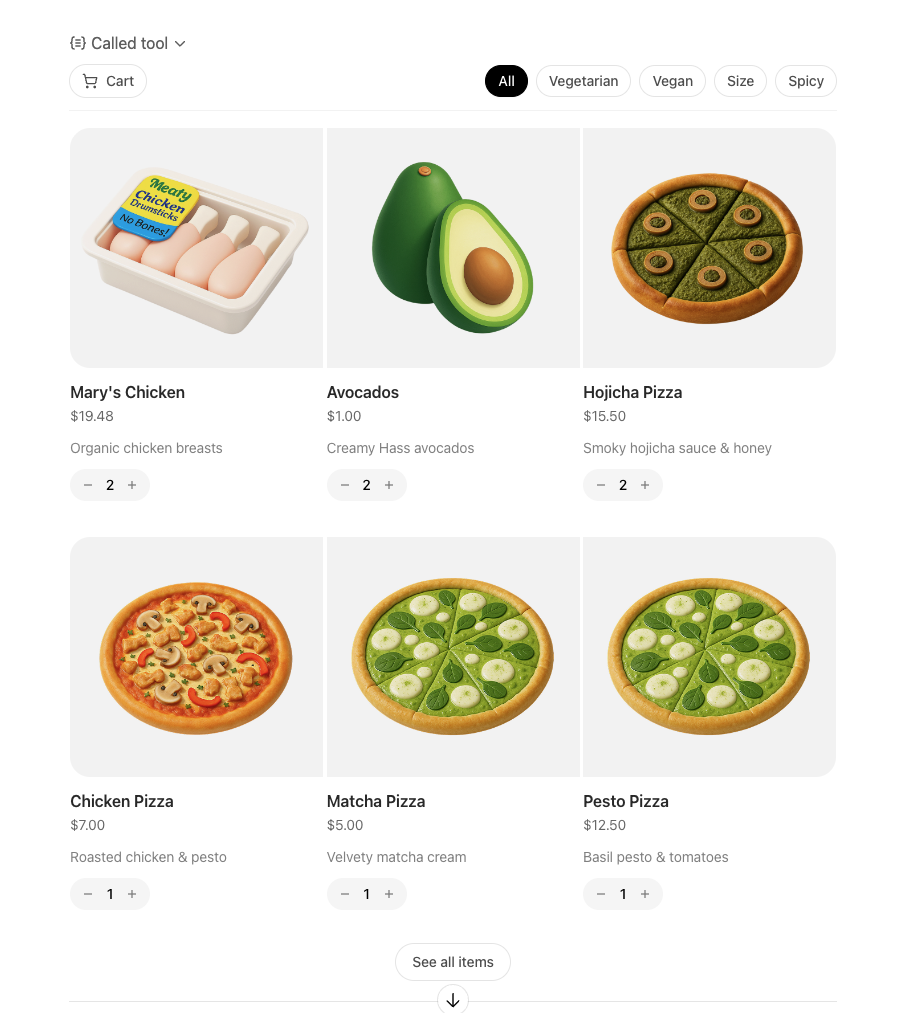
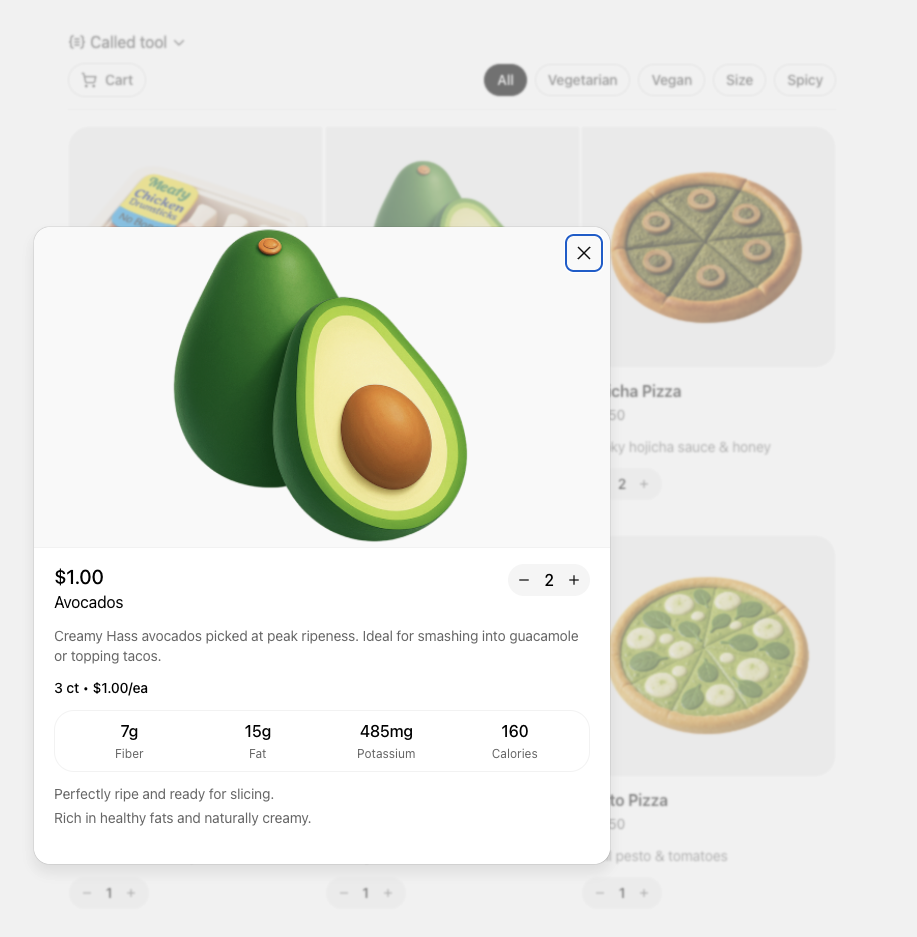
## Clarify the user interaction
For each use case, decide what the user needs to see and manipulate:
- **Viewer vs. editor** – is the component read-only (a chart, a dashboard) or should it support editing and writebacks (forms, kanban boards)?
- **Single-shot vs. multiturn** – will the user accomplish the task in one invocation, or should state persist across turns as they iterate?
- **Inline vs. fullscreen** – some tasks are comfortable in the default inline card, while others benefit from fullscreen or picture-in-picture modes. Sketch these states before you implement.
Write down the fields, affordances, and empty states you need so you can validate them with design partners and reviewers.
## Map data requirements
Components should receive everything they need in the tool response. When planning:
- **Structured content** – define the JSON payload that the component will parse.
- **Initial component state** – use `window.openai.toolOutput` as the initial render data. On subsequent followups that invoke `callTool`, use the return value of `callTool`. To cache state for re-rendering, you can use `window.openai.setWidgetState`.
- **Auth context** – note whether the component should display linked-account information, or whether the model must prompt the user to connect first.
Feeding this data through the MCP response is simpler than adding ad-hoc APIs later.
## Design for responsive layouts
Components run inside an iframe on both desktop and mobile. Plan for:
- **Adaptive breakpoints** – set a max width and design layouts that collapse gracefully on small screens.
- **Accessible color and motion** – respect system dark mode (match color-scheme) and provide focus states for keyboard navigation.
- **Launcher transitions** – if the user opens your component from the launcher or expands to fullscreen, make sure navigation elements stay visible.
Document CSS variables, font stacks, and iconography up front so they are consistent across components.
## Define the state contract
Because components and the chat surface share conversation state, be explicit about what is stored where:
- **Component state** – use the `window.openai.setWidgetState` API to persist state the host should remember (selected record, scroll position, staged form data).
- **Server state** – store authoritative data in your backend or the built-in storage layer. Decide how to merge server changes back into component state after follow-up tool calls.
- **Model messages** – think about what human-readable updates the component should send back via `sendFollowUpMessage` so the transcript stays meaningful.
Capturing this state diagram early prevents hard-to-debug sync issues later.
## Plan telemetry and debugging hooks
Inline experiences are hardest to debug without instrumentation. Decide in advance how you will:
- Emit analytics events for component loads, button clicks, and validation errors.
- Log tool-call IDs alongside component telemetry so you can trace issues end to end.
- Provide fallbacks when the component fails to load (e.g., show the structured JSON and prompt the user to retry).
Once these plans are in place you are ready to move on to the implementation details in [Build a ChatGPT UI](https://developers.openai.com/apps-sdk/build/chatgpt-ui).
---
# Research use cases
## Why start with use cases
Every successful Apps SDK app starts with a crisp understanding of what the user is trying to accomplish. Discovery in ChatGPT is model-driven: the assistant chooses your app when your tool metadata, descriptions, and past usage align with the user’s prompt and memories. That only works if you have already mapped the tasks the model should recognize and the outcomes you can deliver.
Use this page to capture your hypotheses, pressure-test them with prompts, and align your team on scope before you define tools or build components.
## Gather inputs
Begin with qualitative and quantitative research:
- **User interviews and support requests** – capture the jobs-to-be-done, terminology, and data sources users rely on today.
- **Prompt sampling** – list direct asks (e.g., “show my Jira board”) and indirect intents (“what am I blocked on for the launch?”) that should route to your app.
- **System constraints** – note any compliance requirements, offline data, or rate limits that will influence tool design later.
Document the user persona, the context they are in when they reach for ChatGPT, and what success looks like in a single sentence for each scenario.
## Define evaluation prompts
Decision boundary tuning is easier when you have a golden set to iterate against. For each use case:
1. **Author at least five direct prompts** that explicitly reference your data, product name, or verbs you expect the user to say.
2. **Draft five indirect prompts** where the user states a goal but not the tool (“I need to keep our launch tasks organized”).
3. **Add negative prompts** that should _not_ trigger your app so you can measure precision.
Use these prompts later in [Optimize metadata](https://developers.openai.com/apps-sdk/guides/optimize-metadata) to hill-climb on recall and precision without overfitting to a single request.
## Scope the minimum lovable feature
For each use case decide:
- **What information must be visible inline** to answer the question or let the user act.
- **Which actions require write access** and whether they should be gated behind confirmation in developer mode.
- **What state needs to persist** between turns—for example, filters, selected rows, or draft content.
Rank the use cases based on user impact and implementation effort. A common pattern is to ship one P0 scenario with a high-confidence component, then expand to P1 scenarios once discovery data confirms engagement.
## Translate use cases into tooling
Once a scenario is in scope, draft the tool contract:
- Inputs: the parameters the model can safely provide. Keep them explicit, use enums when the set is constrained, and document defaults.
- Outputs: the structured content you will return. Add fields the model can reason about (IDs, timestamps, status) in addition to what your UI renders.
- Component intent: whether you need a read-only viewer, an editor, or a multiturn workspace. This influences the [component planning](https://developers.openai.com/apps-sdk/plan/components) and storage model later.
Review these drafts with stakeholders—especially legal or compliance teams—before you invest in implementation. Many integrations require PII reviews or data processing agreements before they can ship to production.
## Prepare for iteration
Even with solid planning, expect to revise prompts and metadata after your first dogfood. Build time into your schedule for:
- Rotating through the golden prompt set weekly and logging tool selection accuracy.
- Collecting qualitative feedback from early testers in ChatGPT developer mode.
- Capturing analytics (tool calls, component interactions) so you can measure adoption.
These research artifacts become the backbone for your roadmap, changelog, and success metrics once the app is live.
---
# Quickstart
## Introduction
Apps built with the Apps SDK use the [Model Context Protocol (MCP)](https://developers.openai.com/apps-sdk/concepts/mcp-server) to connect to ChatGPT. To build an app for ChatGPT with the Apps SDK, you need:
1. A Model Context Protocol (MCP) server (required) that defines your app's capabilities (tools) and exposes them to ChatGPT.
2. (Optional) A web component built with the framework of your choice, rendered in an iframe inside ChatGPT if you want a UI.
In this quickstart, we'll build a simple to-do list app, contained in a single HTML file that keeps the markup, CSS, and JavaScript together.
To see more advanced examples using React, see the [examples repository on GitHub](https://github.com/openai/openai-apps-sdk-examples).
## Build a web component
This step is optional. If you only need tools and no ChatGPT UI, skip to
[Build an MCP server](#build-an-mcp-server) and do not register a UI resource.
Let's start by creating a file called `public/todo-widget.html` in a new directory that will be the UI rendered by the Apps SDK in ChatGPT.
This file will contain the web component that will be rendered in the ChatGPT interface.
Add the following content:
```html
<!DOCTYPE html>
<html lang="en">
<head>
<meta charset="utf-8" />
<title>Todo list</title>
<style>
:root {
color: #0b0b0f;
font-family:
"Inter",
system-ui,
-apple-system,
sans-serif;
}
html,
body {
width: 100%;
min-height: 100%;
box-sizing: border-box;
}
body {
margin: 0;
padding: 16px;
background: #f6f8fb;
}
main {
width: 100%;
max-width: 360px;
min-height: 260px;
margin: 0 auto;
background: #fff;
border-radius: 16px;
padding: 20px;
box-shadow: 0 12px 24px rgba(15, 23, 42, 0.08);
}
h2 {
margin: 0 0 16px;
font-size: 1.25rem;
}
form {
display: flex;
gap: 8px;
margin-bottom: 16px;
}
form input {
flex: 1;
padding: 10px 12px;
border-radius: 10px;
border: 1px solid #cad3e0;
font-size: 0.95rem;
}
form button {
border: none;
border-radius: 10px;
background: #111bf5;
color: white;
font-weight: 600;
padding: 0 16px;
cursor: pointer;
}
input[type="checkbox"] {
accent-color: #111bf5;
}
ul {
list-style: none;
padding: 0;
margin: 0;
display: flex;
flex-direction: column;
gap: 8px;
}
li {
background: #f2f4fb;
border-radius: 12px;
padding: 10px 14px;
display: flex;
align-items: center;
gap: 10px;
}
li span {
flex: 1;
}
li[data-completed="true"] span {
text-decoration: line-through;
color: #6c768a;
}
</style>
</head>
<body>
<main>
<h2>Todo list</h2>
<form id="add-form" autocomplete="off">
<input id="todo-input" name="title" placeholder="Add a task" />
<button type="submit">Add</button>
</form>
<ul id="todo-list"></ul>
</main>
<script type="module">
const listEl = document.querySelector("#todo-list");
const formEl = document.querySelector("#add-form");
const inputEl = document.querySelector("#todo-input");
let tasks = [...(window.openai?.toolOutput?.tasks ?? [])];
const render = () => {
listEl.innerHTML = "";
tasks.forEach((task) => {
const li = document.createElement("li");
li.dataset.id = task.id;
li.dataset.completed = String(Boolean(task.completed));
const label = document.createElement("label");
label.style.display = "flex";
label.style.alignItems = "center";
label.style.gap = "10px";
const checkbox = document.createElement("input");
checkbox.type = "checkbox";
checkbox.checked = Boolean(task.completed);
const span = document.createElement("span");
span.textContent = task.title;
label.appendChild(checkbox);
label.appendChild(span);
li.appendChild(label);
listEl.appendChild(li);
});
};
const updateFromResponse = (response) => {
if (response?.structuredContent?.tasks) {
tasks = response.structuredContent.tasks;
render();
}
};
const handleSetGlobals = (event) => {
const globals = event.detail?.globals;
if (!globals?.toolOutput?.tasks) return;
tasks = globals.toolOutput.tasks;
render();
};
window.addEventListener("openai:set_globals", handleSetGlobals, {
passive: true,
});
const mutateTasksLocally = (name, payload) => {
if (name === "add_todo") {
tasks = [
...tasks,
{ id: crypto.randomUUID(), title: payload.title, completed: false },
];
}
if (name === "complete_todo") {
tasks = tasks.map((task) =>
task.id === payload.id ? { ...task, completed: true } : task
);
}
if (name === "set_completed") {
tasks = tasks.map((task) =>
task.id === payload.id
? { ...task, completed: payload.completed }
: task
);
}
render();
};
const callTodoTool = async (name, payload) => {
if (window.openai?.callTool) {
const response = await window.openai.callTool(name, payload);
updateFromResponse(response);
return;
}
mutateTasksLocally(name, payload);
};
formEl.addEventListener("submit", async (event) => {
event.preventDefault();
const title = inputEl.value.trim();
if (!title) return;
await callTodoTool("add_todo", { title });
inputEl.value = "";
});
listEl.addEventListener("change", async (event) => {
const checkbox = event.target;
if (!checkbox.matches('input[type="checkbox"]')) return;
const id = checkbox.closest("li")?.dataset.id;
if (!id) return;
if (!checkbox.checked) {
if (window.openai?.callTool) {
checkbox.checked = true;
return;
}
mutateTasksLocally("set_completed", { id, completed: false });
return;
}
await callTodoTool("complete_todo", { id });
});
render();
</script>
</body>
</html>
```
### Using the Apps SDK in your web component
`window.openai` is the bridge between your frontend and ChatGPT.
When ChatGPT loads the iframe, it injects the latest tool response into `window.openai.toolOutput`, which is an object specific to the Apps SDK.
Subsequent calls to `window.openai.callTool` return fresh structured content so the UI stays in sync.
## Build an MCP server
Install the official Python or Node MCP SDK to create a server and expose a `/mcp` endpoint.
In this quickstart, we'll use the [Node SDK](https://github.com/modelcontextprotocol/typescript-sdk).
If you're using Python, refer to our [examples repository on GitHub](https://github.com/openai/openai-apps-sdk-examples) to see an example MCP server with the Python SDK.
Install the Node SDK and Zod with:
```bash
npm install @modelcontextprotocol/sdk zod
```
### MCP server with Apps SDK resources
Register a resource for your component bundle and the tools the model can call (e.g. `add_todo` and `complete_todo`) so ChatGPT can drive the UI.
Create a file named `server.js` and paste the following example that uses the Node SDK:
```js
const todoHtml = readFileSync("public/todo-widget.html", "utf8");
const addTodoInputSchema = {
title: z.string().min(1),
};
const completeTodoInputSchema = {
id: z.string().min(1),
};
let todos = [];
let nextId = 1;
const replyWithTodos = (message) => ({
content: message ? [{ type: "text", text: message }] : [],
structuredContent: { tasks: todos },
});
function createTodoServer() {
const server = new McpServer({ name: "todo-app", version: "0.1.0" });
server.registerResource(
"todo-widget",
"ui://widget/todo.html",
{},
async () => ({
contents: [
{
uri: "ui://widget/todo.html",
mimeType: "text/html+skybridge",
text: todoHtml,
_meta: { "openai/widgetPrefersBorder": true },
},
],
})
);
server.registerTool(
"add_todo",
{
title: "Add todo",
description: "Creates a todo item with the given title.",
inputSchema: addTodoInputSchema,
_meta: {
"openai/outputTemplate": "ui://widget/todo.html",
"openai/toolInvocation/invoking": "Adding todo",
"openai/toolInvocation/invoked": "Added todo",
},
},
async (args) => {
const title = args?.title?.trim?.() ?? "";
if (!title) return replyWithTodos("Missing title.");
const todo = { id: `todo-${nextId++}`, title, completed: false };
todos = [...todos, todo];
return replyWithTodos(`Added "${todo.title}".`);
}
);
server.registerTool(
"complete_todo",
{
title: "Complete todo",
description: "Marks a todo as done by id.",
inputSchema: completeTodoInputSchema,
_meta: {
"openai/outputTemplate": "ui://widget/todo.html",
"openai/toolInvocation/invoking": "Completing todo",
"openai/toolInvocation/invoked": "Completed todo",
},
},
async (args) => {
const id = args?.id;
if (!id) return replyWithTodos("Missing todo id.");
const todo = todos.find((task) => task.id === id);
if (!todo) {
return replyWithTodos(`Todo ${id} was not found.`);
}
todos = todos.map((task) =>
task.id === id ? { ...task, completed: true } : task
);
return replyWithTodos(`Completed "${todo.title}".`);
}
);
return server;
}
const port = Number(process.env.PORT ?? 8787);
const MCP_PATH = "/mcp";
const httpServer = createServer(async (req, res) => {
if (!req.url) {
res.writeHead(400).end("Missing URL");
return;
}
const url = new URL(req.url, `http://${req.headers.host ?? "localhost"}`);
if (req.method === "OPTIONS" && url.pathname === MCP_PATH) {
res.writeHead(204, {
"Access-Control-Allow-Origin": "*",
"Access-Control-Allow-Methods": "POST, GET, OPTIONS",
"Access-Control-Allow-Headers": "content-type, mcp-session-id",
"Access-Control-Expose-Headers": "Mcp-Session-Id",
});
res.end();
return;
}
if (req.method === "GET" && url.pathname === "/") {
res.writeHead(200, { "content-type": "text/plain" }).end("Todo MCP server");
return;
}
const MCP_METHODS = new Set(["POST", "GET", "DELETE"]);
if (url.pathname === MCP_PATH && req.method && MCP_METHODS.has(req.method)) {
res.setHeader("Access-Control-Allow-Origin", "*");
res.setHeader("Access-Control-Expose-Headers", "Mcp-Session-Id");
const server = createTodoServer();
const transport = new StreamableHTTPServerTransport({
sessionIdGenerator: undefined, // stateless mode
enableJsonResponse: true,
});
res.on("close", () => {
transport.close();
server.close();
});
try {
await server.connect(transport);
await transport.handleRequest(req, res);
} catch (error) {
console.error("Error handling MCP request:", error);
if (!res.headersSent) {
res.writeHead(500).end("Internal server error");
}
}
return;
}
res.writeHead(404).end("Not Found");
});
httpServer.listen(port, () => {
console.log(
`Todo MCP server listening on http://localhost:${port}${MCP_PATH}`
);
});
```
This snippet also responds to `GET /` for health checks, handles CORS preflight for `/mcp` and nested routes like `/mcp/actions`, and returns `404 Not Found` for OAuth discovery routes you are not using yet. That keeps ChatGPT’s connector wizard from surfacing 502 errors while you iterate without authentication.
## Run locally
If you're using a web framework like React, build your component into static assets so the HTML template can inline them.
Usually, you can run a build command such as `npm run build` to produce a `dist` directory with your compiled assets.
In this quickstart, since we're using vanilla HTML, no build step is required.
Start the MCP server on `http://localhost:<port>/mcp` from the directory that contains `server.js` (or `server.ts`).
Make sure you have `"type": "module"` in your `package.json` file:
```json
{
"type": "module",
"dependencies": {
"@modelcontextprotocol/sdk": "^1.20.2",
"zod": "^3.25.76"
}
}
```
Then run the server with the following command:
```bash
node server.js
```
The server should print `Todo MCP server listening on http://localhost:8787/mcp` once it is ready.
### Test with MCP Inspector
You can use the [MCP Inspector](https://modelcontextprotocol.io/docs/tools/inspector) to test your server locally.
```bash
npx @modelcontextprotocol/inspector@latest --server-url http://localhost:8787/mcp --transport http
```
This will open a browser window with the MCP Inspector interface. You can use this to test your server and see the tool responses.
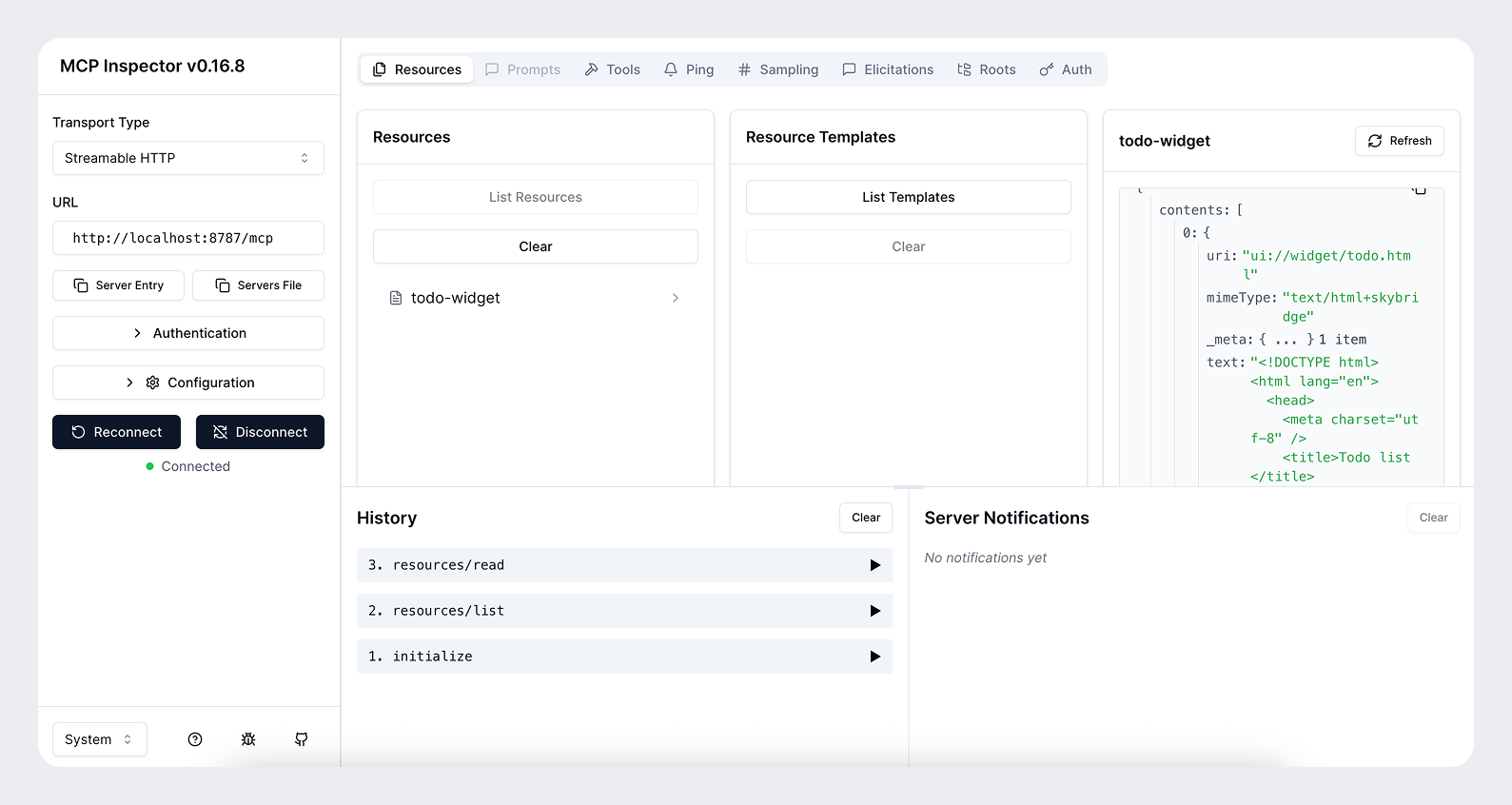
### Expose your server to the public internet
For ChatGPT to access your server during development, you need to expose it to the public internet. You can use a tool such as [ngrok](https://ngrok.com/) to open a tunnel to your local server.
```bash
ngrok http <port>
```
This will give you a public URL like `https://<subdomain>.ngrok.app` that you can use to access your server from ChatGPT.
When you add your connector, provide the public URL with the `/mcp` path (e.g. `https://<subdomain>.ngrok.app/mcp`).
## Add your app to ChatGPT
Once you have your MCP server and web component working locally, you can add your app to ChatGPT with the following steps:
1. Enable [developer mode](https://platform.openai.com/docs/guides/developer-mode) under **Settings → Apps & Connectors → Advanced settings** in ChatGPT.
2. Click the **Create** button to add a connector under **Settings → Connectors** and paste the HTTPS + `/mcp` URL from your tunnel or deployment (e.g. `https://<subdomain>.ngrok.app/mcp`).
3. Name the connector, provide a short description and click **Create**.
<div style={{ width: "50%", margin: "0 auto", display: "block" }}>
<img src="https://developers.openai.com/images/apps-sdk/new_connector.jpg"
alt="Add your connector to ChatGPT"
/>
</div>
4. Open a new chat, add your connector from the **More** menu (accessible after clicking the **+** button), and prompt the model (e.g., “Add a new task to read my book”). ChatGPT will stream tool payloads so you can confirm inputs and outputs.
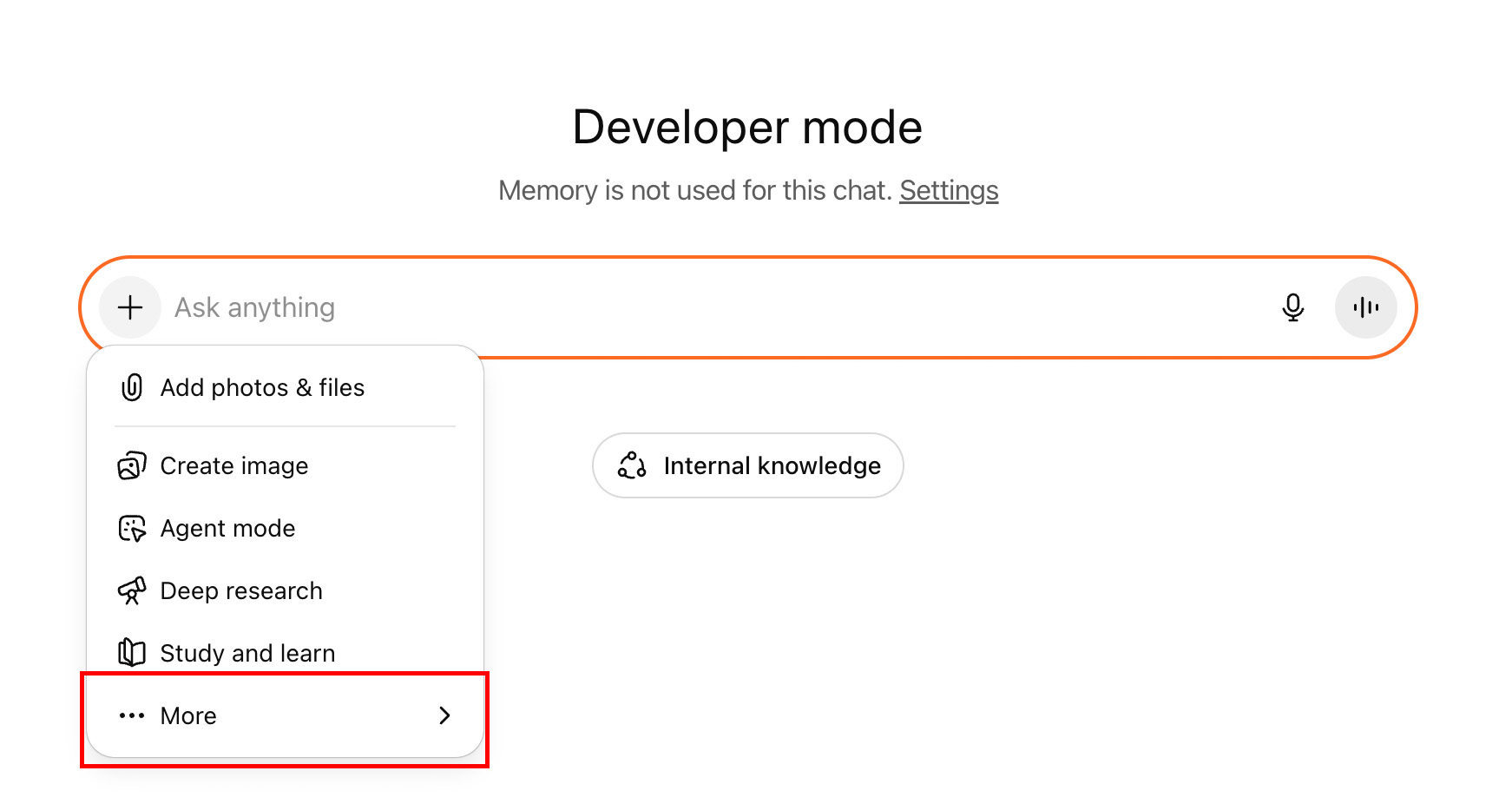
## Next steps
From there, you can iterate on the UI/UX, prompts, tool metadata, and the overall experience.
Refresh the connector after each change to the MCP server (tools, metadata,
etc.) You can do this by clicking the **Refresh** button in **Settings →
Connectors** after selecting your connector.
When you're preparing for submission, review the [ChatGPT app submission guidelines](https://developers.openai.com/apps-sdk/app-submission-guidelines) and [research your use case](https://developers.openai.com/apps-sdk/plan/use-case). If you're building a UI, you can also review the [design guidelines](https://developers.openai.com/apps-sdk/concepts/design-guidelines).
Once you understand the basics, you can leverage the Apps SDK to [build a ChatGPT UI](https://developers.openai.com/apps-sdk/build/chatgpt-ui) using the Apps SDK primitives, [authenticate users](https://developers.openai.com/apps-sdk/build/auth) if needed, and [persist state](https://developers.openai.com/apps-sdk/build/storage).
---
# Reference
## `window.openai` component bridge
See [build a ChatGPT UI](https://developers.openai.com/apps-sdk/build/chatgpt-ui) for implementation walkthroughs.
### Capabilities
| Capability | What it does | Typical use |
| ------------------- | -------------------------------------------------------------------------------------------------------------------------------------------------------------------------------- | ---------------------------------------------------------------------------------------------------- |
| State & data | `window.openai.toolInput` | Arguments supplied when the tool was invoked. |
| State & data | `window.openai.toolOutput` | Your `structuredContent`. Keep fields concise; the model reads them verbatim. |
| State & data | `window.openai.toolResponseMetadata` | The `_meta` payload; only the widget sees it, never the model. |
| State & data | `window.openai.widgetState` | Snapshot of UI state persisted between renders. |
| State & data | `window.openai.setWidgetState(state)` | Stores a new snapshot synchronously; call it after every meaningful UI interaction. |
| Widget runtime APIs | `window.openai.callTool(name, args)` | Invoke another MCP tool from the widget (mirrors model-initiated calls). |
| Widget runtime APIs | `window.openai.sendFollowUpMessage({ prompt })` | Ask ChatGPT to post a message authored by the component. |
| Widget runtime APIs | `window.openai.uploadFile(file)` | Upload a user-selected file and receive a `fileId`. |
| Widget runtime APIs | `window.openai.getFileDownloadUrl({ fileId })` | Retrieve a temporary download URL for a file uploaded by the widget or provided via file params. |
| Widget runtime APIs | `window.openai.requestDisplayMode(...)` | Request PiP/fullscreen modes. |
| Widget runtime APIs | `window.openai.requestModal({ params, template })` | Spawn a modal owned by ChatGPT (optionally targeting another registered template). |
| Widget runtime APIs | `window.openai.notifyIntrinsicHeight(...)` | Report dynamic widget heights to avoid scroll clipping. |
| Widget runtime APIs | `window.openai.openExternal({ href })` | Open a vetted external link in the user’s browser. |
| Widget runtime APIs | `window.openai.setOpenInAppUrl({ href })` | Set the page that a user will open when clicking the "Open in <App>" button in fullscreen mode |
| Context | `window.openai.theme`, `window.openai.displayMode`, `window.openai.maxHeight`, `window.openai.safeArea`, `window.openai.view`, `window.openai.userAgent`, `window.openai.locale` | Environment signals you can read—or subscribe to via `useOpenAiGlobal`—to adapt visuals and copy. |
## File APIs
| API | Purpose | Notes |
| ---------------------------------------------- | --------------------------------------------------- | ---------------------------------------------------------------------- |
| `window.openai.uploadFile(file)` | Upload a user-selected file and receive a `fileId`. | Supports `image/png`, `image/jpeg`, `image/webp`. |
| `window.openai.getFileDownloadUrl({ fileId })` | Request a temporary download URL for a file. | Only works for files uploaded by the widget or passed via file params. |
When persisting widget state, use the structured shape (`modelContent`, `privateContent`, `imageIds`) if you want the model to see image IDs during follow-up turns.
## Tool descriptor parameters
Need more background on these fields? Check the [Advanced section of the MCP server guide](https://developers.openai.com/apps-sdk/build/mcp-server#advanced).
By default, a tool description should include the fields listed [here](https://modelcontextprotocol.io/specification/2025-06-18/server/tools#tool).
### `_meta` fields on tool descriptor
We also require the following `_meta` fields on the tool descriptor:
| Key | Placement | Type | Limits | Purpose |
| ----------------------------------------- | :-------------: | ------------ | ------------------------------- | ----------------------------------------------------------------------------------------------- |
| `_meta["securitySchemes"]` | Tool descriptor | array | — | Back-compat mirror for clients that only read `_meta`. |
| `_meta["openai/outputTemplate"]` | Tool descriptor | string (URI) | — | Resource URI for component HTML template (`text/html+skybridge`). |
| `_meta["openai/widgetAccessible"]` | Tool descriptor | boolean | default `false` | Allow component→tool calls through the client bridge. |
| `_meta["openai/visibility"]` | Tool descriptor | string | `public` (default) or `private` | Hide a tool from the model while keeping it callable from the widget. |
| `_meta["openai/toolInvocation/invoking"]` | Tool descriptor | string | ≤ 64 chars | Short status text while the tool runs. |
| `_meta["openai/toolInvocation/invoked"]` | Tool descriptor | string | ≤ 64 chars | Short status text after the tool completes. |
| `_meta["openai/fileParams"]` | Tool descriptor | string[] | — | List of top-level input fields that represent files (object shape `{ download_url, file_id }`). |
Example:
```ts
server.registerTool(
"search",
{
title: "Public Search",
description: "Search public documents.",
inputSchema: {
type: "object",
properties: { q: { type: "string" } },
required: ["q"],
},
securitySchemes: [
{ type: "noauth" },
{ type: "oauth2", scopes: ["search.read"] },
],
_meta: {
securitySchemes: [
{ type: "noauth" },
{ type: "oauth2", scopes: ["search.read"] },
],
"openai/outputTemplate": "ui://widget/story.html",
"openai/toolInvocation/invoking": "Searching…",
"openai/toolInvocation/invoked": "Results ready",
},
},
async ({ q }) => performSearch(q)
);
```
### Annotations
To label a tool as "read-only," please use the following [annotation](https://modelcontextprotocol.io/specification/2025-06-18/server/resources#annotations) on the tool descriptor:
| Key | Type | Required | Notes |
| ----------------- | ------- | :------: | --------------------------------------------------------------------------------------------------------------------------------------------------------------- |
| `readOnlyHint` | boolean | Required | Signal that the tool is read-only: it only retrieves or computes information and does not create, update, delete, or send data outside of ChatGPT. |
| `destructiveHint` | boolean | Required | Declare that the tool may delete or overwrite user data so ChatGPT knows to elicit explicit approval first. |
| `openWorldHint` | boolean | Required | Declare that the tool publishes content or reaches outside the current user’s account, prompting the client to summarize the impact before asking for approval. |
| `idempotentHint` | boolean | Optional | Declare that calling the tool repeatedly with the same arguments will have no additional effect on its environment. |
These hints only influence how ChatGPT frames the tool call to the user; servers must still enforce their own authorization logic.
Example:
```ts
server.registerTool(
"list_saved_recipes",
{
title: "List saved recipes",
description: "Returns the user’s saved recipes without modifying them.",
inputSchema: {
type: "object",
properties: {},
additionalProperties: false,
},
annotations: { readOnlyHint: true },
},
async () => fetchSavedRecipes()
);
```
Need more background on these fields? Check the [Advanced section of the MCP server guide](https://developers.openai.com/apps-sdk/build/mcp-server#advanced).
## Component resource `_meta` fields
Additional detail on these resource settings lives in the [Advanced section of the MCP server guide](https://developers.openai.com/apps-sdk/build/mcp-server#advanced).
Set these keys on the resource template that serves your component (`registerResource`). They help ChatGPT describe and frame the rendered iframe without leaking metadata to other clients.
| Key | Placement | Type | Purpose |
| ------------------------------------- | :---------------: | --------------- | -------------------------------------------------------------------------------------------------------------------------------------------------------------------------------------------------------------------------------- |
| `_meta["openai/widgetDescription"]` | Resource contents | string | Human-readable summary surfaced to the model when the component loads, reducing redundant assistant narration. |
| `_meta["openai/widgetPrefersBorder"]` | Resource contents | boolean | Hint that the component should render inside a bordered card when supported. |
| `_meta["openai/widgetCSP"]` | Resource contents | object | Define allowlists for the widget: `connect_domains` (network requests), `resource_domains` (images, fonts, scripts), optional `frame_domains` (iframe sources), and optional `redirect_domains` (openExternal redirect targets). |
| `_meta["openai/widgetDomain"]` | Resource contents | string (origin) | Optional dedicated subdomain for hosted components (defaults to `https://web-sandbox.oaiusercontent.com`). |
The `openai/widgetCSP` object supports:
- `connect_domains`: `string[]` – domains the widget may contact via fetch/XHR.
- `resource_domains`: `string[]` – domains for static assets (images, fonts, scripts, styles).
- `frame_domains?`: `string[]` – optional list of origins allowed for iframe embeds. By default, widgets cannot render subframes; adding `frame_domains` opts in to iframe usage and triggers stricter app review.
- `redirect_domains?`: `string[]` – optional list of origins that can receive `openExternal` redirects without the safe-link modal. When the destination matches, ChatGPT appends a `redirectUrl` query parameter pointing back to the current conversation.
## Tool results
The [Advanced section of the MCP server guide](https://developers.openai.com/apps-sdk/build/mcp-server#advanced) provides more guidance on shaping these response fields.
Tool results can contain the following [fields](https://modelcontextprotocol.io/specification/2025-06-18/server/tools#tool-result). Notably:
| Key | Type | Required | Notes |
| ------------------- | --------------------- | -------- | ----------------------------------------------------------------------------------------------- |
| `structuredContent` | object | Optional | Surfaced to the model and the component. Must match the declared `outputSchema`, when provided. |
| `content` | string or `Content[]` | Optional | Surfaced to the model and the component. |
| `_meta` | object | Optional | Delivered only to the component. Hidden from the model. |
Only `structuredContent` and `content` appear in the conversation transcript. `_meta` is forwarded to the component so you can hydrate UI without exposing the data to the model.
Host-provided tool result metadata:
| Key | Placement | Type | Purpose |
| --------------------------------- | :-----------------------------: | ------ | ----------------------------------------------------------------------------------------------------------------------- |
| `_meta["openai/widgetSessionId"]` | Tool result `_meta` (from host) | string | Stable ID for the currently mounted widget instance; use it to correlate logs and tool calls until the widget unmounts. |
Example:
```ts
server.registerTool(
"get_zoo_animals",
{
title: "get_zoo_animals",
inputSchema: { count: z.number().int().min(1).max(20).optional() },
_meta: { "openai/outputTemplate": "ui://widget/widget.html" },
},
async ({ count = 10 }) => {
const animals = generateZooAnimals(count);
return {
structuredContent: { animals },
content: [{ type: "text", text: `Here are ${animals.length} animals.` }],
_meta: {
allAnimalsById: Object.fromEntries(
animals.map((animal) => [animal.id, animal])
),
},
};
}
);
```
### Error tool result
To return an error on the tool result, use the following `_meta` key:
| Key | Purpose | Type | Notes |
| ------------------------------- | ------------ | ------------------ | -------------------------------------------------------- |
| `_meta["mcp/www_authenticate"]` | Error result | string or string[] | RFC 7235 `WWW-Authenticate` challenges to trigger OAuth. |
## `_meta` fields the client provides
See the [Advanced section of the MCP server guide](https://developers.openai.com/apps-sdk/build/mcp-server#advanced) for broader context on these client-supplied hints.
| Key | When provided | Type | Purpose |
| ------------------------------ | ----------------------- | --------------- | ------------------------------------------------------------------------------------------- |
| `_meta["openai/locale"]` | Initialize + tool calls | string (BCP 47) | Requested locale (older clients may send `_meta["webplus/i18n"]`). |
| `_meta["openai/userAgent"]` | Tool calls | string | User agent hint for analytics or formatting. |
| `_meta["openai/userLocation"]` | Tool calls | object | Coarse location hint (`city`, `region`, `country`, `timezone`, `longitude`, `latitude`). |
| `_meta["openai/subject"]` | Tool calls | string | Anonymized user id sent to MCP servers for the purposes of rate limiting and identification |
| `_meta["openai/session"]` | Tool calls | string | Anonymized conversation id for correlating tool calls within the same ChatGPT session. |
Operation-phase `_meta["openai/userAgent"]` and `_meta["openai/userLocation"]` are hints only; servers should never rely on them for authorization decisions and must tolerate their absence.
Example:
```ts
server.registerTool(
"recommend_cafe",
{
title: "Recommend a cafe",
inputSchema: { type: "object" },
},
async (_args, { _meta }) => {
const locale = _meta?.["openai/locale"] ?? "en";
const location = _meta?.["openai/userLocation"]?.city;
return {
content: [{ type: "text", text: formatIntro(locale, location) }],
structuredContent: await findNearbyCafes(location),
};
}
);
```
