
Click on "Install Server".
Wait a few minutes for the server to deploy. Once ready, it will show a "Started" state.
In the chat, type
@followed by the MCP server name and your instructions, e.g., "@Maid-MCPsay good morning with a happy emotion"
That's it! The server will respond to your query, and you can continue using it as needed.
Here is a step-by-step guide with screenshots.
Maid-MCP 🎀
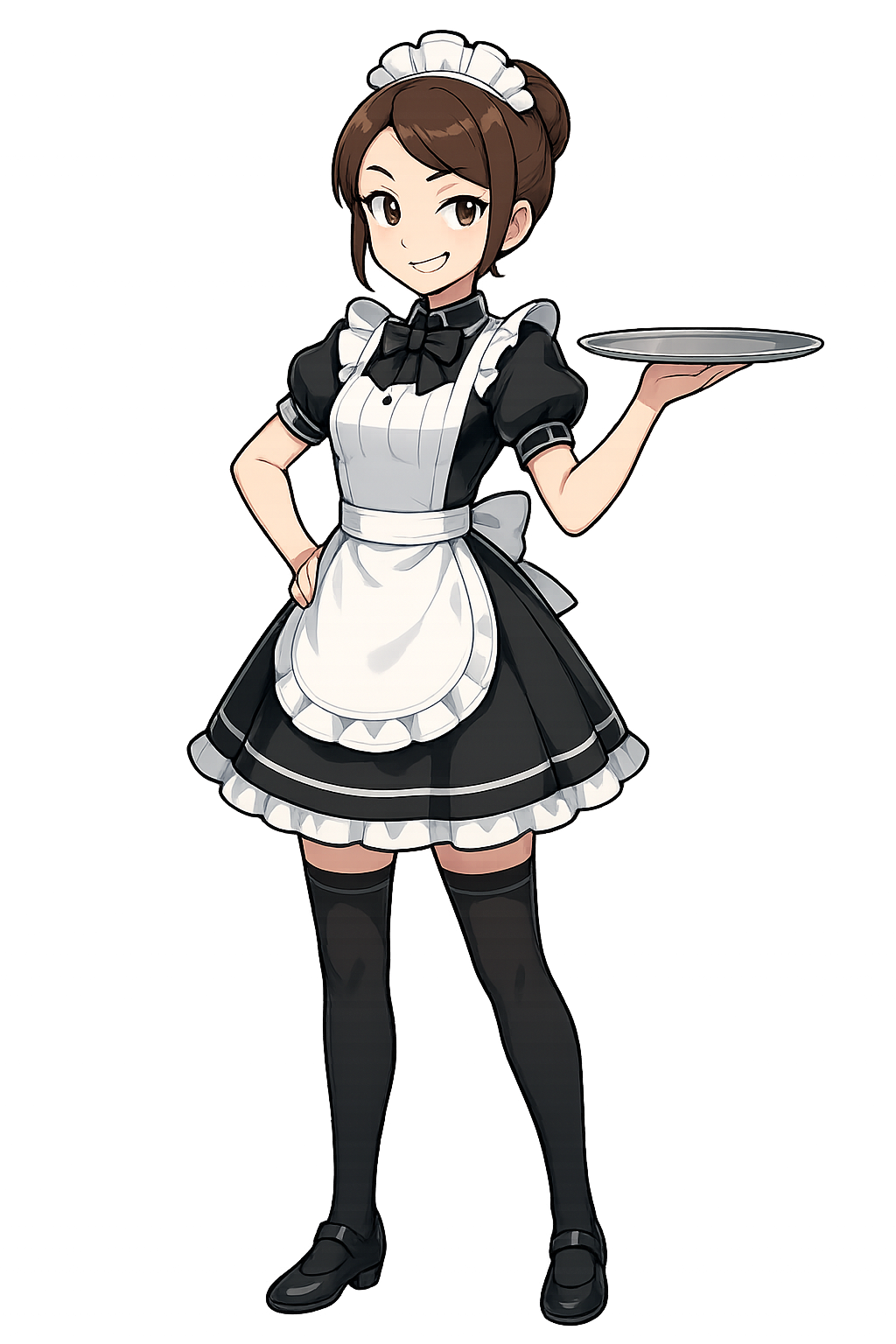
A full-featured MCP (Model Context Protocol) server that gives Claude Desktop a maid personality codenamed Mimi with Japanese-accented voice, visual avatar presence, and speech recognition capabilities. Best used with a Claude Max plan, Opus 4 is very good about managing all the maid tools while coding things for you. This project is specifically meant to be for fun, not for productivity. There are already a million productivity mcp servers.
Features
🎵 Japanese-accented voice - Character voice using ja-JP neural voices, its part of her charm the voice is hard to understand. You can also have her change her voice at any time.
🎭 Visual avatar system - Interactive Mimi sprite with 16+ poses and animations
🎤 Speech recognition - Talk to Mimi naturally with voice input
👻 Hidden audio playback - Voice plays without any windows appearing
🎯 Audio queue system - Allows Mimi to speak multiple times rapidly without conflicts
🎮 Interactive controls - Drag, hide, show, and animate the avatar
🔧 Full MCP integration - Voice and avatar tools work seamlessly with Claude Desktop
Quick Start
1. Install Dependencies
# Install Node.js dependencies (if not already done)
npm install

# Install Python dependencies for voice input
cd voice
install_voice_deps.bat
cd ..

# Install Python dependencies for avatar (if needed)
cd avatar
install_avatar_deps.bat
cd ..
2. Configure Claude Desktop
Add to your %APPDATA%\Claude\claude_desktop_config.json:
{
  "mcpServers": {
    "maid": {
      "command": "node",
      "args": ["path/to/maid-mcp/maid-server.js"]
    }
  }
}
Replace path/to/maid-mcp with the actual path where you cloned this repository.
3. Launch Everything
# Recommended: Use Python launcher for best process management
start_all_python.bat

# Alternative: Use enhanced batch launcher
start_all.bat
This automatically:
✨ Cleans up any existing processes
👤 Launches avatar display window
🖥️ Starts avatar state server (port 3338)
🎤 Opens voice input listener
4. Stop Everything
stop_all.batVoice Loop 🎤→💬→🎀→🔊
You speak → Microphone picks up voice
Speech recognition → Converts to text
Ultra fast sender → Sends to Claude Desktop
Claude (Mimi) processes → Understands and responds
Voice synthesis → Mimi speaks with Japanese accent
Avatar reacts → Visual feedback with animations
Available MCP Tools
Voice Tools 🔊
Tool | Description | Parameters |
| Convert text to speech |
|
| Get available voices | None |
| Change current voice |
|
Emotions: neutral, happy, sad, excited, angry, shy
Avatar Tools 🎭
Tool | Description | Parameters |
| Display avatar on screen |
|
| Hide avatar (keeps running) | None |
| Play animation or pose |
|
| Stop current animation | None |
| Reposition avatar |
|
| Create custom sequence |
|
| List all animations | None |
| List available sprites | None |
Avatar Interaction
Action | Result |
Right-click | Hide avatar (stays running) |
Double-click | Close avatar permanently |
Left-click | Cancel animation |
Drag | Move avatar (shows pick_up pose) |
ESC key | Close avatar permanently |
Project Structure
maid-mcp/
├── maid-server.js          # Main MCP server
├── package.json            # Node.js dependencies
├── start_all_python.bat    # Recommended launcher
├── start_all.bat           # Alternative launcher
├── stop_all.bat            # Stop all systems
│
├── voice/                  # Voice system module
│   ├── outgoing/          # Text-to-speech engine
│   ├── incoming/          # Speech recognition
│   ├── README.md          # Voice documentation
│   └── [utility scripts]  # Calibration & setup tools
│
├── avatar/                 # Visual avatar system
│   ├── avatar_display.py  # PyQt5 window
│   ├── avatar_state_server.py  # Coordination server
│   ├── library/           # Sprite assets
│   │   ├── *.png         # Sprite images
│   │   └── animations/   # Animation definitions
│   └── README.md         # Avatar documentation
│
├── auto_claude/           # Claude Desktop automation
│   └── ultra_fast_sender.py  # Message sending
│
├── temp_voice/           # Temporary audio files
├── junk/                 # Archive of old implementations
└── needed_poses.md       # Wishlist for new sprites
Voice Configuration
Adjust Microphone Sensitivity
cd voice
adjust_sensitivity.bat
Recommended sensitivity values:
Very Quiet Room: 1000-2000
Normal Room: 2000-4000
Office: 4000-6000
Noisy: 6000-10000
Calibrate Microphone
cd voice
calibrate_voice.bat
Voice Settings
Edit voice/incoming/voice_config.ini:
[recognition]
energy_threshold = 4000  # Microphone sensitivity
message_cooldown = 3.0   # Seconds between messages
Troubleshooting
Voice Input Not Working
Check microphone permissions in Windows
Run calibration to verify microphone levels
Adjust energy_threshold if needed
Ensure Python dependencies are installed
Multiple Avatar Windows
Use
start_all_python.batfor better process managementRun
stop_all.batbefore starting againCheck Task Manager for lingering Python processes
Audio Playback Issues
Check
temp_voice/folder for audio filesVerify Windows Media Player is installed
Restart Claude Desktop if audio queue stuck
Avatar Not Appearing
Verify port 3338 is free
Check if sprites exist in
avatar/library/Look for avatar window behind other windows
Development Notes
Adding New Voices
Edit voice/outgoing/voiceConfig.js to add more Edge TTS voices
Creating New Poses
Add PNG file to
avatar/library/Use filename (without .png) as animation ID
Custom Animations
// Example: Create a greeting sequence
create_animation({
  id: "greeting",
  name: "Greeting Sequence",
  frames: "idle,happy,love,idle",
  fps: 2,
  loop: false
})
Recent Updates
v1.0.0 - Released to the world oh god what I have done. I am so sorry Claude.
Credits
Avatar sprites from chatgpt 4o
Voice synthesis using Microsoft Edge TTS
Speech recognition via Google Speech API
License
MIT