[English](README.md) | [简体中文](README_CN.md) | [繁體中文](README_TW.md) | [日本語](README_JP.md)
# notebookLM2PPT
[](https://badge.fury.io/py/notebooklm2ppt)
[](https://pypi.org/project/notebooklm2ppt/)
[](https://opensource.org/licenses/MIT)
[](https://github.com/neosun100/notebookLM2PPT/stargazers)
Convert PDF Slides to PowerPoint Presentations with **Vector Graphics** (highest resolution).

## ✨ Features
- 🎯 **Vector Graphics** - Maintains highest resolution in generated PPT
- 📝 **Metadata Conversion** - Preserves title, author and other metadata
- 📐 **Auto Detection** - Automatically detects slide size and aspect ratio
- 🚀 **Easy to Use** - Simple command line interface with beautiful output
- 📄 **Page Selection** - Convert specific pages with `--pages` option
- ⚡ **Parallel Processing** - Speed up conversion with `--parallel` option
- 🔍 **Dependency Check** - Automatically checks for required tools
- 🎨 **Web UI** - Modern web interface with drag-and-drop support
- 📡 **REST API** - FastAPI server with async processing
- 🔧 **MCP Support** - Model Context Protocol for AI integration
- 🐳 **Docker Ready** - All-in-one Docker image available
- 💎 **Glassmorphism Design** - Ultra modern frosted glass UI with neon effects
- 🌍 **18 Languages** - Full internationalization support
### 🌍 Supported Languages
| Language | Code | Language | Code |
|----------|------|----------|------|
| English | en | Italiano | it |
| 简体中文 | zh-CN | Русский | ru |
| 繁體中文 | zh-TW | العربية | ar |
| 日本語 | ja | हिन्दी | hi |
| 한국어 | ko | ไทย | th |
| Français | fr | Tiếng Việt | vi |
| Deutsch | de | Nederlands | nl |
| Español | es | Polski | pl |
| Português | pt | Türkçe | tr |
## 🎯 Motivation
- **LaTeX** users can easily convert [`beamer`](https://ctan.org/pkg/beamer) slides from PDF to PPT
- **Typst** users can easily convert [`touying`](https://typst.app/universe/package/touying/) slides from PDF to PPT
## 🚀 Quick Start
### Option 1: Command Line (pipx)
```bash
# Install via pipx (recommended)
pipx install notebooklm2ppt
# Convert PDF to PPT
pdf2ppt input.pdf output.pptx
```
### Option 2: Web UI (Docker)
**For x86_64 / AMD64 (Linux servers, Intel Macs):**
```bash
docker run -d -p 8100:8100 neosun/notebooklm2ppt:1.2.0-amd64
```
**For ARM64 (Apple Silicon Macs, ARM servers):**
```bash
docker run -d -p 8100:8100 neosun/notebooklm2ppt:1.2.0-arm64
```
**Auto-detect architecture:**
```bash
docker run -d -p 8100:8100 neosun/notebooklm2ppt:latest
```
**Access at:** http://localhost:8100
### Option 3: API Server
```bash
# Install with server dependencies
pip install "notebooklm2ppt[server]"
# Start server
python -m uvicorn web.app:app --host 0.0.0.0 --port 8100
```
**API Documentation:** http://localhost:8100/docs
## 📦 Installation
### Prerequisites
- **Python >= 3.9**
- [**pdf2svg**](https://github.com/dawbarton/pdf2svg) - for PDF to SVG conversion
- [**Inkscape**](https://inkscape.org/) - for SVG to EMF conversion
### Install Dependencies
**macOS:**
```bash
brew install pdf2svg inkscape
```
**Ubuntu/Debian:**
```bash
sudo apt-get install pdf2svg inkscape
```
**Windows:**
- Download and install [pdf2svg](https://github.com/dawbarton/pdf2svg) and [Inkscape](https://inkscape.org/)
- Add them to your PATH
### Install notebookLM2PPT
```bash
# Recommended: Install with pipx (isolated environment)
pipx install notebooklm2ppt
# Or install with pip
pip install notebooklm2ppt
```
## 📖 Usage
### Basic Usage
```bash
# Specify output file
pdf2ppt input.pdf output.pptx
# Auto-generate output filename (input.pptx)
pdf2ppt input.pdf
# Verbose mode
pdf2ppt input.pdf --verbose
```
### Advanced Usage
```bash
# Convert specific pages
pdf2ppt input.pdf -p 1-5,7,9-11
# Parallel processing (4 workers)
pdf2ppt input.pdf -j 4
# Force overwrite existing file
pdf2ppt input.pdf output.pptx --force
# Keep temporary files for debugging
pdf2ppt input.pdf --no-clean
```
### Command Line Options
```
usage: pdf2ppt [-h] [-v] [--verbose] [--no-clean] [--no-check] [--force]
[--pages PAGES] [--parallel PARALLEL]
[--pdf2svg-path PATH] [--inkscape-path PATH]
input [output]
positional arguments:
input Input PDF file
output Output PPTX file (default: input.pptx)
options:
-h, --help show this help message and exit
-v, --version show program's version number and exit
--verbose Verbose output
--no-clean Keep temporary files
--no-check Skip SVG filter check
--force, -f Overwrite output file if exists
--pages, -p PAGES Page range (e.g., "1-5,7,9-11")
--parallel, -j N Parallel workers (default: 1)
--pdf2svg-path PATH Path to pdf2svg executable
--inkscape-path PATH Path to inkscape executable
```
## 🔧 Technical Implementation
1. Convert PDF to SVG using `pdf2svg`
2. Convert SVG to EMF using `inkscape` (due to python-pptx limitations)
3. Insert EMF into PPT using `python-pptx`
## 🛠️ Tech Stack
| Component | Technology |
|-----------|------------|
| Language | Python 3.9+ |
| PDF Processing | pypdf |
| PPT Generation | python-pptx |
| PDF to SVG | pdf2svg |
| SVG to EMF | Inkscape |
| CLI Output | rich |
## ⚠️ Known Issues
### Transparent Background
Elements with transparency are not fully supported due to dependency limitations. You will receive a warning when such issues are detected. You can manually copy the generated SVG to fix the problem.
See [#1](https://github.com/neosun100/notebookLM2PPT/issues/1) for more details.
## 🤝 Contributing
Contributions are welcome! Please feel free to submit a Pull Request.
1. Fork the repository
2. Create your feature branch (`git checkout -b feature/AmazingFeature`)
3. Commit your changes (`git commit -m 'Add some AmazingFeature'`)
4. Push to the branch (`git push origin feature/AmazingFeature`)
5. Open a Pull Request
## 📄 License
This project is licensed under the MIT License - see the [LICENSE](LICENSE) file for details.
Copyright © 2023-2024 Teddy van Jerry ([Wuqiong Zhao](https://wqzhao.org))
## ⭐ Star History
[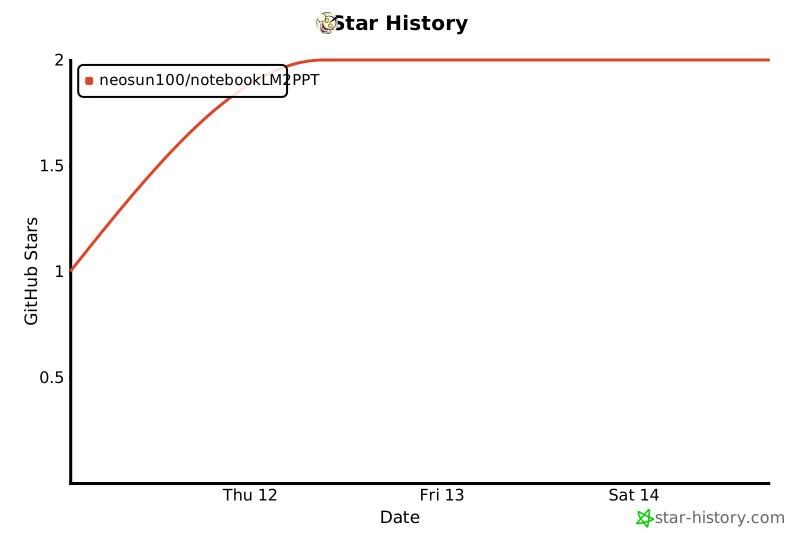](https://star-history.com/#neosun100/notebookLM2PPT)
## 📱 Follow Us