
Allows agents to execute SQL queries and discover database schemas, facilitating complex data operations and relational data management within a PostgreSQL-powered CRM.
Provides secure access to Atomic CRM instances hosted on Supabase, using OAuth 2.1 for authentication and ensuring data security through Row Level Security (RLS) for SQL queries.
Click on "Install Server".
Wait a few minutes for the server to deploy. Once ready, it will show a "Started" state.
In the chat, type
@followed by the MCP server name and your instructions, e.g., "@Atomic CRM MCP ServerFind the contact details and recent deal history for Sarah Miller at Acme Corp"
That's it! The server will respond to your query, and you can continue using it as needed.
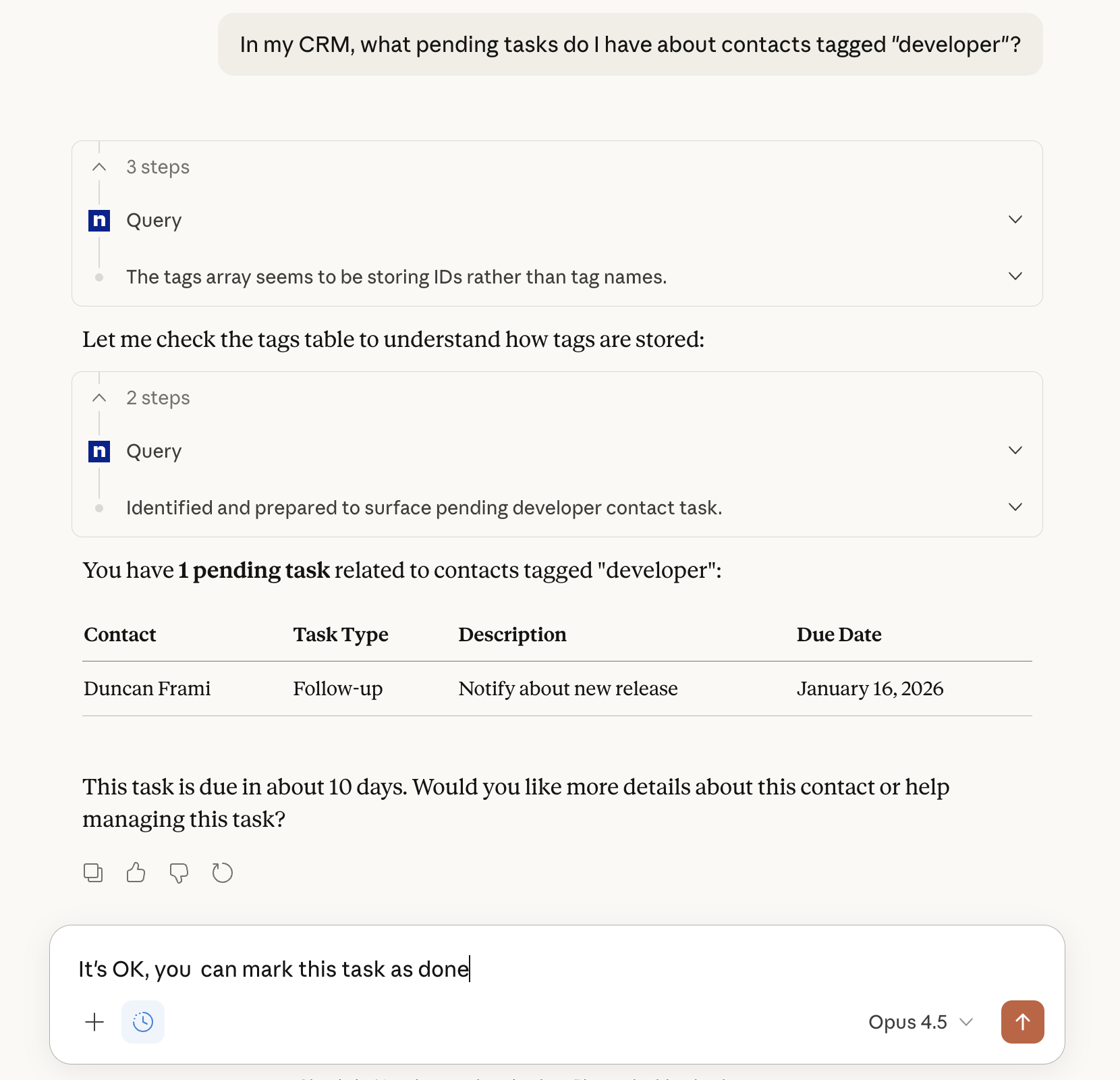
Here is a step-by-step guide with screenshots.
Atomic CRM MCP Server
An MCP (Model Context Protocol) server for Atomic CRM. It enables an agent (e.g. ChatGPT, Claude, etc.) to read and write data to your Atomic CRM instance securely.
OAuth 2.1 authentication with Supabase
Adds a
querytool for executing SQL against CRM databaseRow Level Security (RLS) automatically enforced
Supported MCP Clients
Cursor
Goose
Codex CLI
Gemini CLI
Gemini MobileChatGPT DesktopChatGPT Mobile
Installation
MCP Server Setup
Clone the repository:
git clone https://github.com/marmelab/atomic-crm-mcp cd your-repoInstall dependencies:
npm installAdd a config file
cp .env.example .env
Supabase Setup
Open the Supabase Dashboard
Go to https://supabase.com/dashboard and select your project (or create a new one)
Enable OAuth 2.1 Server
Go to Authentication → OAuth Server
Click on Enable the Supabase OAuth Server
Set the Authorization Path to
/#/oauth/consentEnable the Allow Dynamic OAuth Apps option
and save changes
Configure asymmetric JWT signing
Go to Project Settings → JWT Keys
On the JWT Signing Keys tab, if you see an invite to Start using JWT signing keys, this means you're currently using Legacy JWT secret, so click on the Migrate JWT secret button
If the current key is of type "Legacy HS256 (Shared Secret)", click on the Rotate keys to use the new key of type "ECC (P256)" or similar
Get your Supabase URL
Go to Project Settings → Data API
Find your Project URL (e.g.,
https://mrubnlemopavyqvjjwmw.supabase.co)Add it to your
.envfile asSUPABASE_URL
Get your database connection string
Go to Project Settings → Database
On the top app bar, click on the Connect button
Copy the Direct Connection string (it will have
[YOUR-PASSWORD]placeholder)Add it to your
.envfile asDATABASE_URLReplace
[YOUR-PASSWORD]with your database password. If you don't know it, go to Database → Settings and reset the password.
Local MCP Server
You can run the MCP server locally if you use a service like ngrok. You will need to choose a publicly accessible HTTPS URL for the MCP server, e.g., https://atomiccrmmcp.ngrok.dev. We'll name this URL MCP_URL in the instructions below.
Run the server with the custom URL:
Then, start ngrok in a separate terminal with the same URL:
Now the MCP server is accessible at the ngrok URL.
Hosted MCP Server
Deploy the MCP server to a hosting provider of your choice. Make sure to set the environment variables from your .env file in the hosting provider's settings.
Note that the host must support IPV6, as Supabase Direct Database connection doesn't support IPV4. This expludes IPV4-only providers like Vercel or GitHub actions.
Adding the MCP server to Chat GPT
Note: Atomic CRM MCP works both on the web and mobile versions of ChatGPT. You need a paid Chat GPT account to use custom connectors.
Enable the Developer Mode in Settings → Apps → Advanced settings
Then, under Settings → Apps, click on the Create button
Fill in the fields as follows:
Name: Atomic CRM
MCP Server URL: (your MCP Server URL, e.g.,
MCP_URL/mcp)Authentication: OAuth
Check the "I understand and want to continue" checkbox
Click "Create"
A browser window opens for you to authenticate to Atomic CRM and allow access to Claude Code.
Once authenticated, you can start using the Atomic CRM extension in Chat GPT
If you're on a workspace or organization account, you need to ask your admin to add and approve the custom connector before you can use it.
Adding the MCP server to Claude.ai
Note: Atomic CRM MCP works both on the web and mobile versions of Claude.You need a paid Claude.ai account to use custom connectors.
Open Claude.ai and open the Settings → Connectors page
Then click on "Add custom connector"
Fill in the fields as follows:
Name: Atomic CRM
MCP Server URL: (your MCP Server URL, e.g.,
MCP_URL/mcp)
Click "Add"
A browser window opens for you to authenticate to Atomic CRM and allow access to Claude Code.
Once authenticated, you can start using the Atomic CRM extension in Chat GPT
Adding the MCP server to Visual Studio Code
Open the command palette (Ctrl+Shift+P or Cmd+Shift+P) and run the "MCP: Add Server..." command.
In the dropdown listing MCP types, choose "HTTP"
Enter the MCP server URL (e.g.,
MCP_URL/mcp) when prompted.Name this server
atomic-crmwhen prompted.Choose "Global" or "Local" scope as desired.
A Dialog opens for you to authenticate to Atomic CRM and allow access. Click "Allow".
A browser window opens for you to authenticate to Atomic CRM and allow access to Claude Code.
Once authenticated, you can start using the Atomic CRM extension in Visual Studio Code
Adding The MCP Server To Claude Desktop
Navigate to Settings > Extensions on Claude Desktop.
Click on "Add a custom Extension".
Fill in the fields as follows:
Name: Atomic CRM
URL: (your MCP Server URL, e.g.,
MCP_URL/mcp)
Click "Add".
The new extension should now appear in your list of extensions. Click on "Connect" to start using it.
A browser window opens for you to authenticate to Atomic CRM and allow access to Claude.
Once authenticated, you can start using the Atomic CRM extension in Claude.
Adding the MCP server to Claude Code
Add the Atomic CRM MCP server to Claude Code by running the following command in your terminal:
claude mcp add atomic-crm --transport http MCP_URL/mcpOpen Claude Code
claudeList the available MCP servers
/mcpThe
atomic-crmserver should appear as "needs authentication". Press Enter to authenticate.A browser window opens for you to authenticate to Atomic CRM and allow access to Claude Code.
Once authenticated, you can start using the Atomic CRM extension in Claude Code.
Architecture
MCP Tools
get_schema: Retrieves the database schema to help construct accurate SQL queries, including foreign key relationships for JOINs.query: Executes SQL queries against the CRM database with RLS enforcement. Supports complex queries including JOINs.
Security
JWT Validation: All tokens validated against Supabase JWKS
RLS Enforcement: Queries run with user's JWT,
auth.uid()available in SQLSession Management: Cryptographically secure session IDs
HTTPS Required: Must use HTTPS in production
Token Storage: Tokens only kept in memory, never logged
OAuth Flow
MCP client connects without auth → Server returns 401 with Protected Resource Metadata URL
Client discovers OAuth endpoints from Protected Resource Metadata
Client fetches Supabase's OpenID Connect configuration
User authenticates via Supabase (your Atomic CRM auth UI)
Client receives JWT access token
Client makes authenticated MCP requests with Bearer token
Server validates JWT against Supabase JWKS
Server executes queries using user's JWT for RLS enforcement
Troubleshooting
Connection to the MCP Server Fails
Ensure Supabase uses JWT Signing Keys (RS256) instead of JWT Signing Keys (HS256) (go to Supabase dashboard > Settings > JWT Keys) The current key should NOT use the "Legagy HS256 (Shared Secret)" type, but something like "ECC (P256)".
JWT Validation Fails
Verify Supabase is configured for asymmetric JWT signing (RS256)
Check that
SUPABASE_URLmatches the token'sissclaimEnsure OAuth 2.1 is enabled in Supabase dashboard
Database Connection Failed
"Tenant or user not found": Your connection string format is incorrect. For direct connection, use:
postgresql://postgres:PASSWORD@db.PROJECT-REF.supabase.co:5432/postgresNOT the pooler format with
postgres.PROJECT-REFor port 6543
Verify
DATABASE_URLis correct and accessibleEnsure you've replaced
[YOUR-PASSWORD]with your actual database passwordCheck firewall rules allow connections from your server
RLS Blocking Queries
Check RLS policies allow access for the authenticated user
Verify
auth.uid()matches expected user IDTest with service role key to bypass RLS (dev only)
Contributing
References
License
ISC