[Skip to main content](https://docs.unraid.net/unraid-connect/overview-and-setup#__docusaurus_skipToContent_fallback)
On this page
**Unraid Connect** is a cloud-enabled companion designed to enhance your Unraid OS server experience. It makes server management, monitoring, and maintenance easier than ever, bringing cloud convenience directly to your homelab or business setup.
Unraid Connect works seamlessly with Unraid OS, boosting your server experience without altering its core functions. You can think of Unraid Connect as your remote command center. It expands the capabilities of your Unraid server by providing secure, web-based access and advanced features, no matter where you are.
With Unraid Connect, you can:
* Remotely access and manage your Unraid server from any device, anywhere in the world.
* Monitor real-time server health and resource usage, including storage, network, and Docker container status.
* Perform and schedule secure online flash backups to protect your configuration and licensing information.
* Receive notifications about server health, storage status, and critical events.
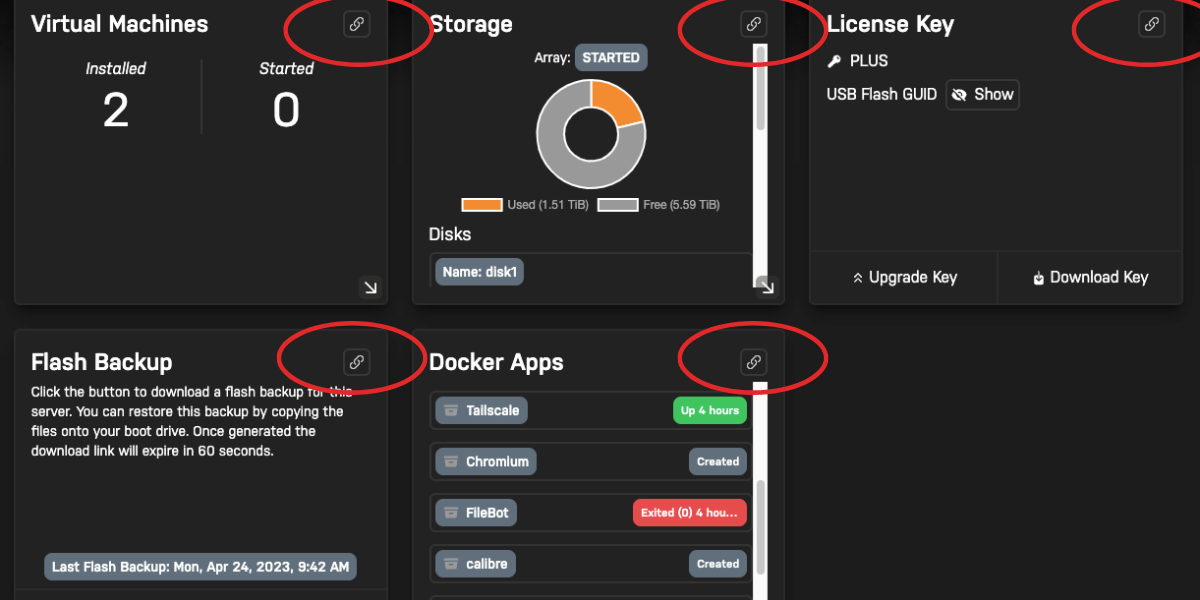
* Use dynamic remote access and server deep linking to navigate to specific management pages or troubleshoot issues quickly.
* Manage multiple servers from a single dashboard, making it perfect for users with more than one Unraid system.
Unraid Connect is more than just an add-on; it's an essential extension of the Unraid platform, designed to maximize the value, security, and convenience of your Unraid OS investment.
[**Click here to dive in to Unraid Connect!**](https://connect.myunraid.net/)
Data collection and privacy[](https://docs.unraid.net/unraid-connect/overview-and-setup#data-collection-and-privacy "Direct link to Data collection and privacy")
-------------------------------------------------------------------------------------------------------------------------------------------------------------------
**Click to see what data is collected and how we handle it**
Unraid Connect prioritizes your privacy and transparency. Here’s what you need to know about how we handle your data:
### What data is collected and why
When your server connects to Unraid.net, it establishes a secure connection to our infrastructure and transmits only the necessary data required for a seamless experience in the Unraid Connect Dashboard. This includes:
* Server hostname, description, and icon
* Keyfile details and flash GUID
* Local access URL and LAN IP (only if a certificate is installed)
* Remote access URL and WAN IP (if remote access is turned on)
* Installed Unraid version and uptime
* Unraid Connect plugin version and unraid-api version/uptime
* Array size and usage (only numbers, no file specifics)
* Number of Docker containers and VMs installed and running
We use this data solely to enable Unraid Connect features, such as remote monitoring, management, and notifications. It is not used for advertising or profiling.
### Data retention policy
* We only keep the most recent update from your server; no past data is stored.
* Data is retained as long as your server is registered and using Unraid Connect.
* To delete your data, simply uninstall the plugin and remove any SSL certificates issued through Let's Encrypt.
### Data sharing
* Your data is **not shared with third parties** unless it is necessary for Unraid Connect services, such as certificate provisioning through Let's Encrypt.
* We do not collect or share any user content, file details, or personal information beyond what is specified above.
For more details, check out our [Policies](https://unraid.net/policies)
page.
Installation[](https://docs.unraid.net/unraid-connect/overview-and-setup#installation "Direct link to Installation")
----------------------------------------------------------------------------------------------------------------------
Unraid Connect is available as a plugin that requires Unraid OS 6.10 or later. Before you start, make sure your server is connected to the internet and you have the [Community Applications](https://docs.unraid.net/unraid-os/using-unraid-to/run-docker-containers/community-applications/)
plugin installed.
To install Unraid Connect:
1. Navigate to the **Apps** tab in the Unraid WebGUI.
2. Search for **Unraid Connect** and proceed to install the plugin. Wait for the installation to fully complete before closing the dialog.
3. In the top right corner of your Unraid WebGUI, click on the Unraid logo and select **Sign In**.

4. Sign in with your Unraid.net credentials or create a new account if necessary.
5. Follow the on-screen instructions to register your server with Unraid Connect.
6. After registration, you can access the [Unraid Connect Dashboard](https://connect.myunraid.net/)
for centralized management.
note
Unraid Connect requires a myunraid.net certificate for secure remote management and access. To provision a certificate, go to _**Settings → Management Access**_ in the WebGUI and click **Provision** under the Certificate section.
Dashboard[](https://docs.unraid.net/unraid-connect/overview-and-setup#dashboard "Direct link to Dashboard")
-------------------------------------------------------------------------------------------------------------
The **Unraid Connect Dashboard** offers a centralized, cloud-based view of all your registered Unraid servers, with features like:
* **My Servers:** All linked servers appear in a sidebar and as interactive tiles for easy selection.
* **Status (at a glance):** Quickly see which servers are online or offline, along with their Unraid OS version, license type, and recent activity.
* **Health and alerts:** Visual indicators show server health, notifications, and update status.
When you click **Details** on a server, you will see:
* **Online/Offline:** Real-time connectivity status.
* **License type:** Starter, Unleashed, or Lifetime.
* **Uptime:** Duration the server has been running.
* **Unraid OS version:** Current version and update availability.
* **Storage:** Total and free space on all arrays and pools.
* **Health metrics:** CPU usage, memory usage, and temperature (if supported).
* **Notifications:** Hardware/software alerts, warnings, and errors.
* **Flash backup:** Status and date of the last successful backup.
* * *
Managing your server remotely[](https://docs.unraid.net/unraid-connect/overview-and-setup#managing-your-server-remotely "Direct link to Managing your server remotely")
-------------------------------------------------------------------------------------------------------------------------------------------------------------------------
tip
To use all management features, provision a myunraid.net certificate under _**Settings → Management Access**_ on your server.
With a valid **myunraid.net** certificate, Unraid Connect enables secure, remote server management directly from the Connect web interface.
Remote management features include:
* **Remote WebGUI access:** Access the WebGUI from anywhere.
* **Array controls:** Start or stop arrays and manage storage pools.
* **Docker and VM management:** View, start, stop, and monitor containers and VMs.
* **Parity & Scrub:** Launch parity check or ZFS/BTRFS scrub jobs
* **Flash backup:** Trigger and monitor flash device backups to the cloud.
* **Diagnostics:** Download a diagnostics zip for support
* **Notifications:** Review and acknowledge system alerts.
* **Server controls:** Reboot or shut down your server remotely.
* **User management:** Manage Unraid.net account access and registration.
You can manage multiple servers from any device - phone, tablet, or computer - with a single browser window.
* * *
Deep linking[](https://docs.unraid.net/unraid-connect/overview-and-setup#deep-linking "Direct link to Deep linking")
----------------------------------------------------------------------------------------------------------------------
Deep linking in Unraid Connect lets you jump directly to specific sections of your Unraid WebGUI with a single click. Simply click any of the circled link buttons (below) in the Connect interface to go straight to the relevant management page for your server.
* * *
Customization[](https://docs.unraid.net/unraid-connect/overview-and-setup#customization "Direct link to Customization")
-------------------------------------------------------------------------------------------------------------------------
Unraid Connect provides a flexible dashboard experience, allowing you to personalize your server view and appearance. The customization options are organized below for easy reference.
* Change banner image
* Rearrange dashboard tiles
* Switch themes
To display your server’s banner image on the Connect dashboard, upload or select a banner image from your WebGUI under _**Settings → Display Settings → Banner**_. This banner will automatically appear in your Connect dashboard for that server.
You can customize your dashboard layout by dragging and dropping server tiles. In the Connect dashboard, click the hamburger (≡) button on any tile to rearrange its position. This allows you to prioritize the information and the services most important to you.
Toggle between dark and light mode by clicking the Sun or Moon icon on the far right of the Connect UI. Your theme preference will be instantly applied across the Connect dashboard for a consistent experience.
* * *
License management[](https://docs.unraid.net/unraid-connect/overview-and-setup#license-management "Direct link to License management")
----------------------------------------------------------------------------------------------------------------------------------------
Managing your licenses in Unraid Connect is easy. Under the **My Keys** section, you can:
* View or reissue a key to a new USB.
* Upgrade your license tier directly from the Connect UI.
* Download registration key files for backup or transfer.
* Review license status and expiration (if applicable).

You don’t need to leave the Connect interface to manage or upgrade your licenses.
* * *
Language localization[](https://docs.unraid.net/unraid-connect/overview-and-setup#language-localization "Direct link to Language localization")
-------------------------------------------------------------------------------------------------------------------------------------------------
Unraid Connect supports multiple languages to cater to a global user base. You can change your language preference through the language selector in the Connect interface.
To change your language preference:
1. Open the Connect UI.
2. Go to the language selector.

3. Select your preferred language from the list.
The interface will update automatically to reflect your selection.
* * *
Signing out[](https://docs.unraid.net/unraid-connect/overview-and-setup#signing-out "Direct link to Signing out")
-------------------------------------------------------------------------------------------------------------------
You can sign out of Unraid Connect anytime from _**Settings → Management Access → Unraid Connect → Account Status**_ by clicking the **Sign Out** button.
When you sign out:
* Your server remains listed on the Connect dashboard, but you lose access to remote management features.
* Remote access, cloud-based flash backups, and other Unraid Connect features will be disabled for that server.
* You can still download your registration keys, but you cannot manage or monitor the server remotely until you sign in again.
* Signing out does **not** disconnect your server from the local network or affect local access.
* * *
Uninstalling the plugin[](https://docs.unraid.net/unraid-connect/overview-and-setup#uninstalling-the-plugin "Direct link to Uninstalling the plugin")
-------------------------------------------------------------------------------------------------------------------------------------------------------
When you uninstall the Unraid Connect plugin:
* All flash backup files will be deactivated and deleted from your local flash drive.
* Cloud backups are marked for removal from Unraid servers; they will be retained for 30 days, after which they are permanently purged. For immediate deletion, [disable Flash Backup](https://docs.unraid.net/unraid-connect/automated-flash-backup/)
before uninstalling.
* Remote access will be disabled. Ensure that you remove any related port forwarding rules from your router.
* Your server will be signed out of Unraid.net.
note
Uninstalling the plugin does **not** revert your server's URL from `https://yourpersonalhash.unraid.net` to `http://computername`. If you wish to change your access URL, refer to [Disabling SSL for local access](https://docs.unraid.net/unraid-os/system-administration/secure-your-server/securing-your-connection/#disabling-ssl-for-local-access)
.
* * *
Connection errors[](https://docs.unraid.net/unraid-connect/overview-and-setup#connection-errors "Direct link to Connection errors")
-------------------------------------------------------------------------------------------------------------------------------------
If you encounter connection errors in Unraid Connect, [open a terminal](https://docs.unraid.net/unraid-os/system-administration/advanced-tools/command-line-interface/)
from the WebGUI and run:
unraid-api restart
* [Data collection and privacy](https://docs.unraid.net/unraid-connect/overview-and-setup#data-collection-and-privacy)
* [Installation](https://docs.unraid.net/unraid-connect/overview-and-setup#installation)
* [Dashboard](https://docs.unraid.net/unraid-connect/overview-and-setup#dashboard)
* [Managing your server remotely](https://docs.unraid.net/unraid-connect/overview-and-setup#managing-your-server-remotely)
* [Deep linking](https://docs.unraid.net/unraid-connect/overview-and-setup#deep-linking)
* [Customization](https://docs.unraid.net/unraid-connect/overview-and-setup#customization)
* [License management](https://docs.unraid.net/unraid-connect/overview-and-setup#license-management)
* [Language localization](https://docs.unraid.net/unraid-connect/overview-and-setup#language-localization)
* [Signing out](https://docs.unraid.net/unraid-connect/overview-and-setup#signing-out)
* [Uninstalling the plugin](https://docs.unraid.net/unraid-connect/overview-and-setup#uninstalling-the-plugin)
* [Connection errors](https://docs.unraid.net/unraid-connect/overview-and-setup#connection-errors)
