
Allows processing and analysis of datasets from Hugging Face, specifically the dair-ai/emotion dataset, with tools for sampling records, counting entries by emotion, searching text, and analyzing emotion distributions.
Click on "Install Server".
Wait a few minutes for the server to deploy. Once ready, it will show a "Started" state.
In the chat, type
@followed by the MCP server name and your instructions, e.g., "@Emotion Dataset Analysis MCP Servershow the distribution of emotions in the dataset"
That's it! The server will respond to your query, and you can continue using it as needed.
Here is a step-by-step guide with screenshots.
Assignment 1.5: MCP on HiPerGator
CIS 6930 Data Engineering - Spring 2026
Overview
This repository contains starter code for the in-class MCP activity on HiPerGator.
You will build an MCP server that processes the dair-ai/emotion dataset from Hugging Face.
Setup on HiPerGator
1. Clone this repository
2. Create environment file
3. Install dependencies
Running the MCP Inspector
Option 1: HiPerGator Desktop (Recommended)
Using HiPerGator Desktop is much easier and avoids SSH tunneling complexity.
Navigate to Interactive Apps > HiPerGator Desktop
Request a session (1 hour, 4 GB memory, 2 CPUs)
Once the desktop launches, open a terminal
Run:
cd /blue/cis6930/YOUR_GATORLINK/cis6930sp26-assignment1.5 module load mamba source .venv/bin/activate mcp dev server.pyOpen Firefox in the virtual desktop and go to
http://localhost:6274
Option 2: SSH Tunneling from Your Laptop
If you prefer to use your local browser, you'll need to set up SSH tunneling.
Step 1: Start the MCP Inspector on a Compute Node
Run this command to start an interactive job with the MCP inspector:
Step 2: Find Your Compute Node Name
In another terminal, find which compute node your job is running on:
Look for the node name in the NODELIST column (e.g., c0702a-s2).
Step 3: Set Up the SSH Tunnel
The MCP Inspector runs on two ports:
6274 - Web interface
6277 - Proxy server
Open a new terminal on your laptop and run:
Example:
The -J flag (ProxyJump) connects through the login node directly to the compute node.
Step 4: Open the Inspector
Open your browser and go to: http://localhost:6274
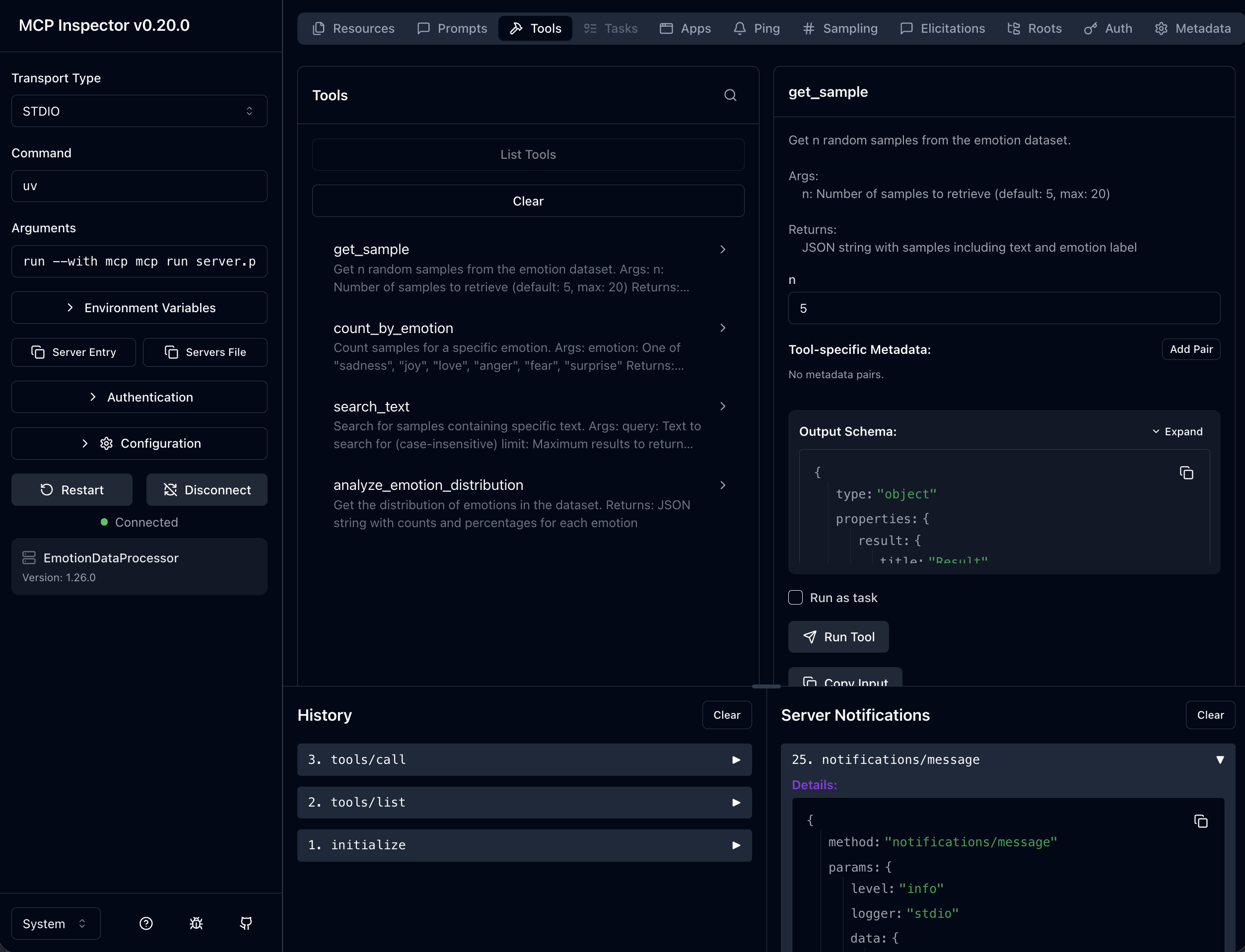
You should see the MCP Inspector interface:
Passwordless SSH Login
To avoid entering your password multiple times, set up SSH keys for HiPerGator: https://docs.rc.ufl.edu/access/ssh_keys/
Troubleshooting
Problem | Solution | |
"Connection refused" | Ensure you're using | |
"Address already in use" | Kill processes: `lsof -ti:6274 | xargs kill -9` |
Host key verification failed | Add | |
Page won't load | Verify |
Using the MCP Inspector
Click the Tools tab in the left sidebar
Select a tool from the list (e.g.,
get_sample)Fill in the parameter values
Click Run Tool
View the JSON response in the output panel
Tools to Test
Tool | Parameters |
|
|
|
|
|
|
| (no parameters) |
Dataset
The dair-ai/emotion dataset contains English Twitter messages labeled with six emotions:
Label | Emotion |
0 | sadness |
1 | joy |
2 | love |
3 | anger |
4 | fear |
5 | surprise |
Submission
After completing the activity, submit to Canvas:
Your
outputs.txtfile with tool outputsA brief reflection (2-3 sentences)