
Click on "Install Server".
Wait a few minutes for the server to deploy. Once ready, it will show a "Started" state.
In the chat, type
@followed by the MCP server name and your instructions, e.g., "@Windows MCP Servershow me the top 5 processes using the most CPU"
That's it! The server will respond to your query, and you can continue using it as needed.
Here is a step-by-step guide with screenshots.
Windows MCP Server
This project provides a Windows MCP (Model Context Protocol) server exposing useful system information and control tools for Windows environments on your AI applications.
What’s new
More robust drive and uptime implementations (no brittle PowerShell parsing).
Structured results for top processes (list of objects with pid, name, cpu_percent, memoryMB).
Structured results for memory and network information.
Safer PowerShell usage with JSON parsing for GPU info.
Features
System info (OS, release, version, architecture, hostname)
Uptime and last boot time
Drives listing and per-drive space usage
Memory, CPU, GPU, and Network information
Top processes by memory and CPU (accurate sampling)
Available Tools
Tool Name | Description | Parameters | Returns |
Windows-system-info | Get OS, release, version, architecture, and hostname | None | object: name, system, release, version, architecture, hostname |
Windows-last-boot-time | Get the last boot time of the system | None | string (timestamp) |
Windows-uptime | Get system uptime since last boot | None | string: "Uptime: seconds" |
Windows-drives | Get list of all available drives | None | string[] (e.g., ["C", "D"]) |
Windows-drive-status | Get used and free space for a specific drive | drive: string | DriveInfo { name, used_spaceGB: number, free_spaceGB: number } |
Windows-drives-status-simple | Get status using comma-separated drive letters | drives_string: string | DriveInfo[] |
Windows-memory-info | Get RAM usage information | None | object: total_memory, available_memory, used_memory (strings with GB) |
Windows-network-info | Get network IPv4 addresses per interface | None | object: interface -> IPv4 (or { error }) |
Windows-cpu-info | Get CPU model, logical count and frequency | None | string |
Windows-gpu-info | Get GPU name(s) and driver versions | None | string (one line per GPU) |
Windows-top-processes-by-memory | Get the top X processes by memory usage | amount: int = 5 | ProcessInfo[] { pid, name, memoryMB, cpu_percent? } |
Windows-top-processes-by-cpu | Get the top X processes by CPU usage (sampled for accuracy) | amount: int = 5 | ProcessInfo[] { pid, name, cpu_percent, memoryMB } |
Note: Previously documented tools Windows-name-version, Windows-drives-status, and Windows-all-drives-status are not currently implemented to avoid duplication. If needed, they can be added easily.
Requirements
Python 3.13+
uv (for fast startup and dependency management)
Installation
Clone this repository:
Running the development Server
uv handles the installation of dependencies and runs the server with the MCP protocol enabled.
Then in the MCP Inspector browser window:
Click "Connect" to connect the MCP client.
Go to the "Tools" tab to see available tools.
Click "List Tools" to see the available tools.
Select a tool and click "Run tool" to execute it.
Examples
Windows-system-info
Windows-drive-status (input: "C")
Windows-memory-info
Windows-network-info
Windows-top-processes-by-cpu (amount: 3)
MCP Client Configuration Example
LM Studio using Llama 3.2 3B getting system information using the MCP server:
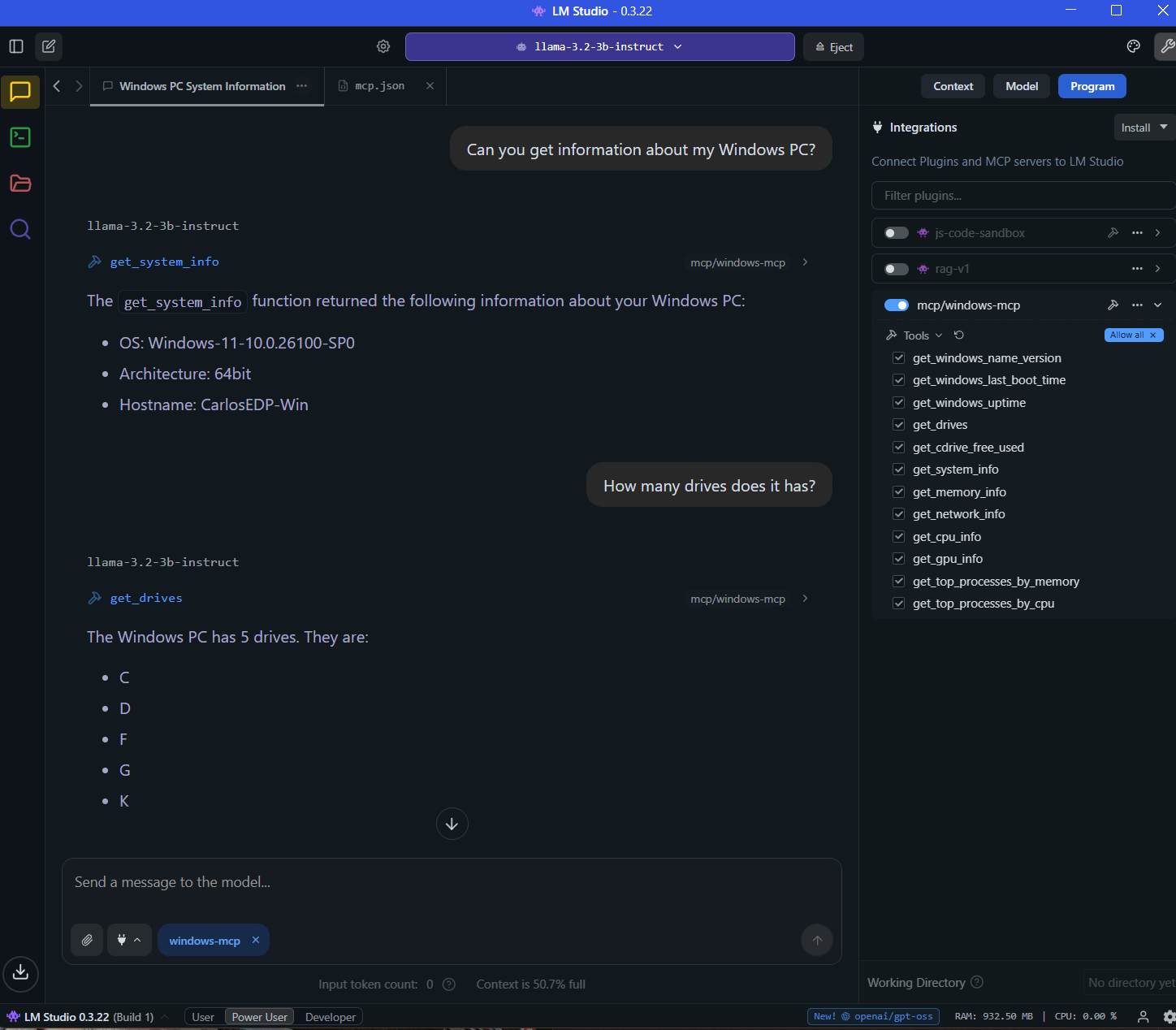
Some more examples of tools you can run:
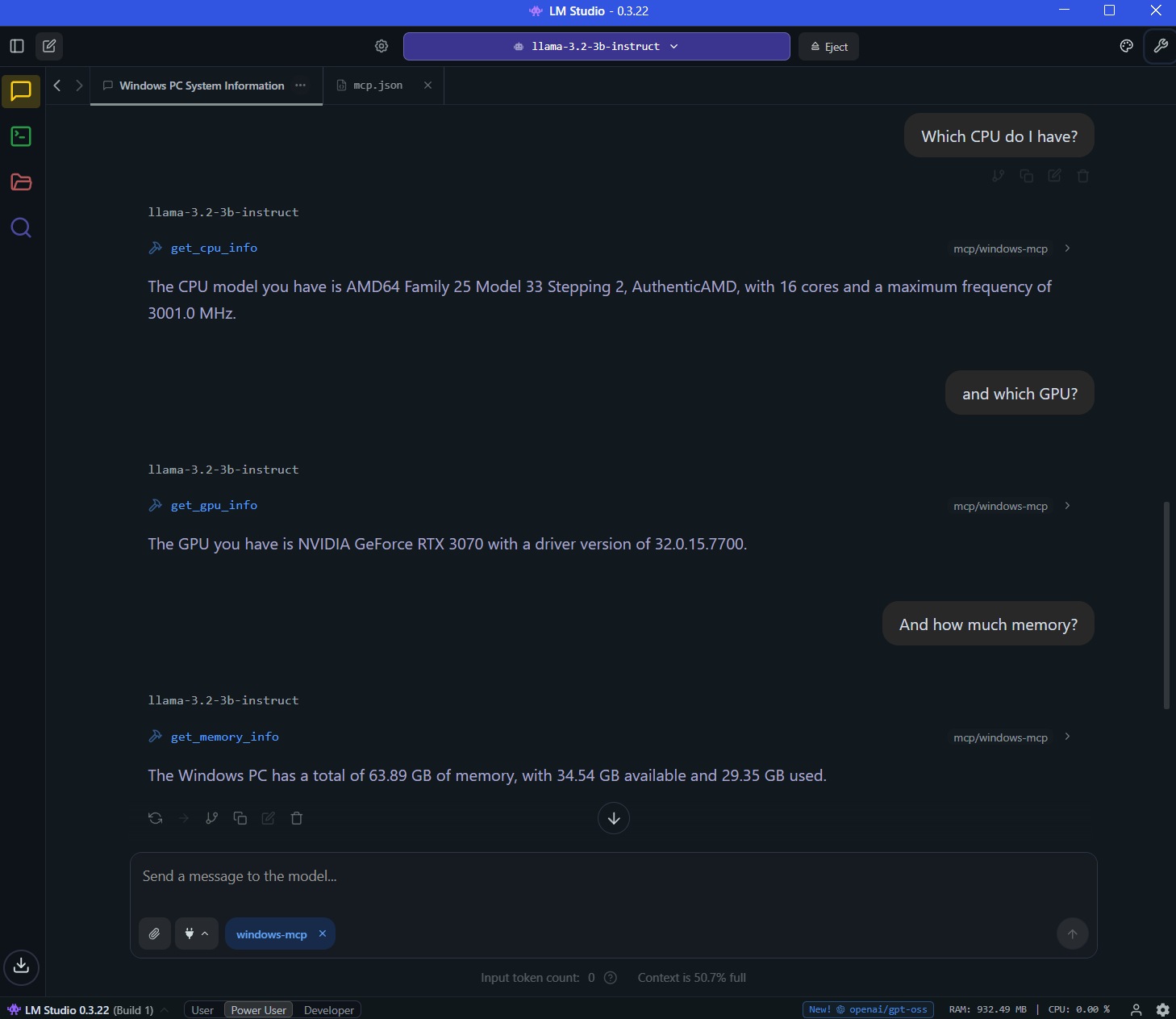
To connect your MCP client to this server (like Claude Desktop, VSCode, LM Studio, etc), add the following to your client configuration:
Adjust the paths above to where the project file is located.
Packaging and Distribution
To publish as a Python package:
Edit
pyproject.tomlwith your metadata.Build and upload to PyPI:
License
MIT