---
title: "Installation"
---
## npm
<Tabs>
<Tab title="npx">
```bash
# PostgreSQL example
npx @bytebase/dbhub@latest \
--transport http \
--port 8080 \
--dsn "postgres://user:password@localhost:5432/dbname?sslmode=disable"
# Or use demo mode for testing
npx @bytebase/dbhub@latest --transport http --port 8080 --demo
```
</Tab>
<Tab title="Global Installation">
```bash
# Install globally
npm install -g @bytebase/dbhub@latest
# Run the server
dbhub --transport http --port 8080 --dsn "postgres://..."
# Or use demo mode for testing
dbhub --transport http --port 8080 --demo
```
</Tab>
</Tabs>
## Docker
<Tabs>
<Tab title="Docker Run">
```bash
docker run --rm --init \
--name dbhub \
--publish 8080:8080 \
bytebase/dbhub \
--transport http \
--port 8080 \
--dsn "postgres://user:password@localhost:5432/dbname?sslmode=disable"
# Or use demo mode for testing
docker run --rm --init \
--name dbhub \
--publish 8080:8080 \
bytebase/dbhub \
--transport http \
--port 8080 \
--demo
```
<Warning>
When connecting to databases on your host machine from Docker, use `host.docker.internal` instead of `localhost`:
```bash
--dsn "postgres://user:password@host.docker.internal:5432/dbname"
```
</Warning>
</Tab>
<Tab title="Docker Compose">
For development environments using Docker Compose, add DBHub to your `docker-compose.yml`:
```yaml docker-compose.yml
services:
dbhub:
image: bytebase/dbhub:latest
container_name: dbhub
ports:
- "8080:8080"
environment:
- DBHUB_LOG_LEVEL=info
command:
- --transport
- http
- --port
- "8080"
- --dsn
- "postgres://user:password@database:5432/dbname"
depends_on:
- database
database:
image: postgres:15-alpine
environment:
POSTGRES_PASSWORD: password
POSTGRES_DB: dbname
```
</Tab>
</Tabs>
## Client Integration
Once DBHub is installed and running, configure your MCP client to connect to it.
### Claude Code
<Tabs>
<Tab title="CLI">
<Tabs>
<Tab title="Stdio">
For local database connections, use stdio transport:
```bash
claude mcp add --transport stdio dbhub -- npx @bytebase/dbhub@latest --transport stdio --dsn "postgres://user:password@localhost:5432/dbname"
```
<Note>
The `--` separates Claude's flags from DBHub's arguments. Everything after `--` is the DBHub command.
</Note>
</Tab>
<Tab title="HTTP">
For remote or shared database servers, use HTTP transport:
```bash
claude mcp add --transport http dbhub http://localhost:8080/mcp
```
This connects to a DBHub server running with HTTP transport:
```bash
npx @bytebase/dbhub@latest --transport http --port 8080 --dsn "postgres://user:password@localhost:5432/dbname"
```
</Tab>
</Tabs>
</Tab>
<Tab title="Project Configuration">
For project-specific database connections shared with your team, create `.mcp.json` in your project root.
<Tabs>
<Tab title="Stdio">
```json .mcp.json
{
"mcpServers": {
"dbhub": {
"type": "stdio",
"command": "npx",
"args": [
"@bytebase/dbhub@latest",
"--transport",
"stdio",
"--dsn",
"postgres://user:password@localhost:5432/dbname"
]
}
}
}
```
<Tip>
Use environment variable expansion for sensitive values:
```json .mcp.json
{
"mcpServers": {
"dbhub": {
"type": "stdio",
"command": "npx",
"args": [
"@bytebase/dbhub@latest",
"--transport",
"stdio",
"--dsn",
"${DATABASE_URL}"
]
}
}
}
```
</Tip>
</Tab>
<Tab title="HTTP">
```json .mcp.json
{
"mcpServers": {
"dbhub": {
"type": "http",
"url": "http://localhost:8080/mcp"
}
}
}
```
</Tab>
</Tabs>
</Tab>
<Tab title="User Configuration">
For personal configuration across all projects:
```bash
claude mcp add --scope user dbhub -- npx @bytebase/dbhub@latest --transport stdio --dsn "postgres://user:password@localhost:5432/dbname"
```
Or manually edit the user configuration file:
<Tabs>
<Tab title="MacOS/Linux">
Edit `~/.claude/settings.json` and add to the `mcpServers` section.
</Tab>
<Tab title="Windows">
Edit `%USERPROFILE%\.claude\settings.json` and add to the `mcpServers` section.
</Tab>
</Tabs>
</Tab>
</Tabs>
**Using DBHub:**
Start Claude Code in your project directory:
```bash
claude
```
Verify DBHub is loaded:
```bash
/mcp
```
**References:**
- [Claude Code MCP Documentation](https://code.claude.com/docs/en/mcp)
### Claude Desktop
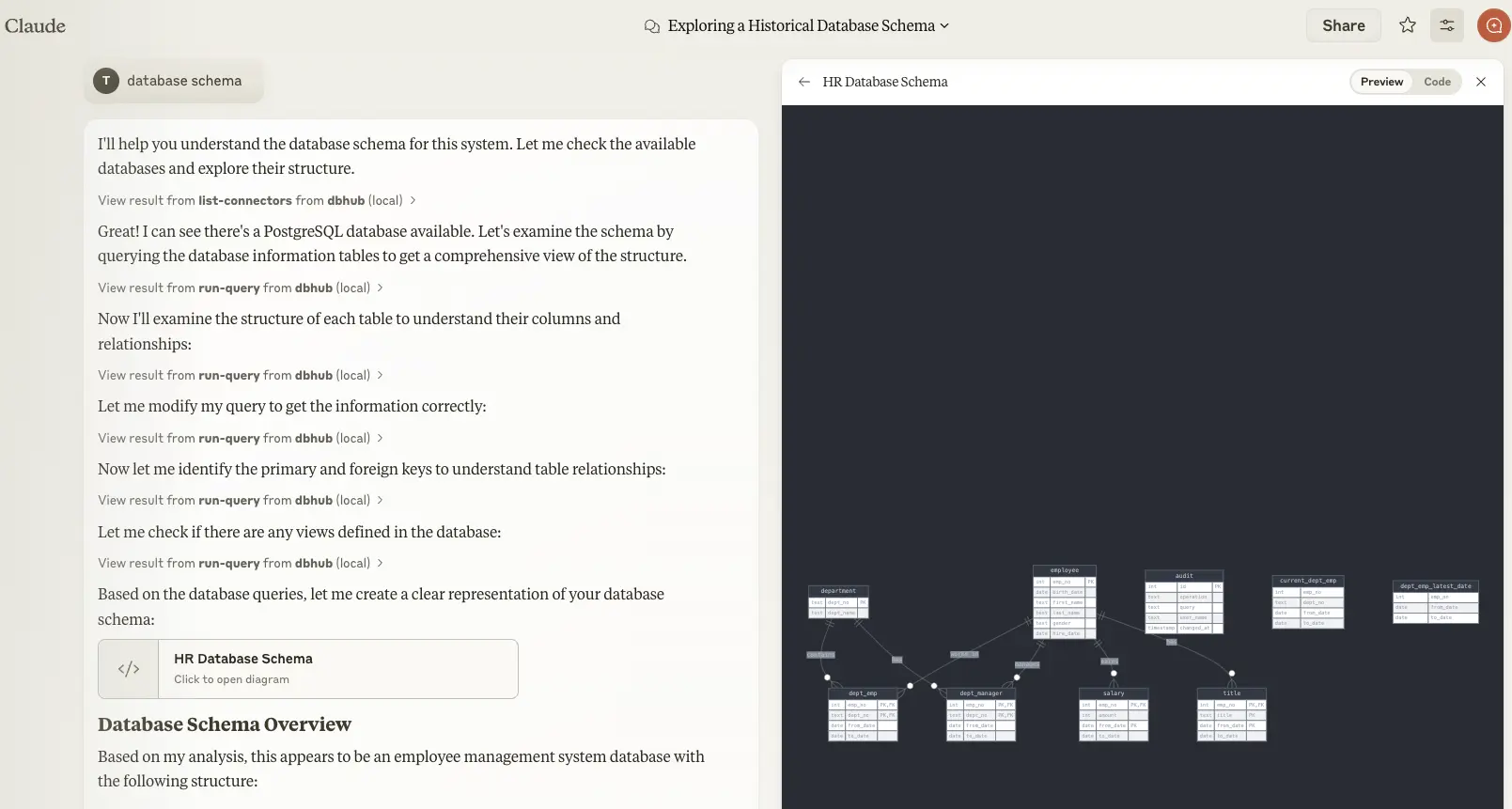
<Tabs>
<Tab title="MacOS/Linux">
Edit `~/Library/Application Support/Claude/claude_desktop_config.json`:
```json ~/Library/Application Support/Claude/claude_desktop_config.json
{
"mcpServers": {
"dbhub": {
"command": "npx",
"args": [
"@bytebase/dbhub@latest",
"--transport",
"stdio",
"--dsn",
"postgres://user:password@localhost:5432/dbname"
]
}
}
}
```
</Tab>
<Tab title="Windows">
Edit `%APPDATA%\Claude\claude_desktop_config.json`:
```json
{
"mcpServers": {
"dbhub": {
"command": "npx",
"args": [
"@bytebase/dbhub@latest",
"--transport",
"stdio",
"--dsn",
"postgres://user:password@localhost:5432/dbname"
]
}
}
}
```
</Tab>
<Tab title="Demo Mode">
For testing, you can use the built-in demo database:
```json ~/Library/Application Support/Claude/claude_desktop_config.json
{
"mcpServers": {
"dbhub": {
"command": "npx",
"args": [
"@bytebase/dbhub@latest",
"--transport",
"stdio",
"--demo"
]
}
}
}
```
</Tab>
</Tabs>
**Troubleshooting:**
- Verify your DSN connection string is correct
- Check that the database is accessible from your machine
- Review Claude Desktop logs: `~/Library/Logs/Claude/mcp*.log` (MacOS)
**References:**
- [Claude Desktop MCP Documentation](https://support.claude.com/en/articles/10949351-getting-started-with-local-mcp-servers-on-claude-desktop)
### Cursor
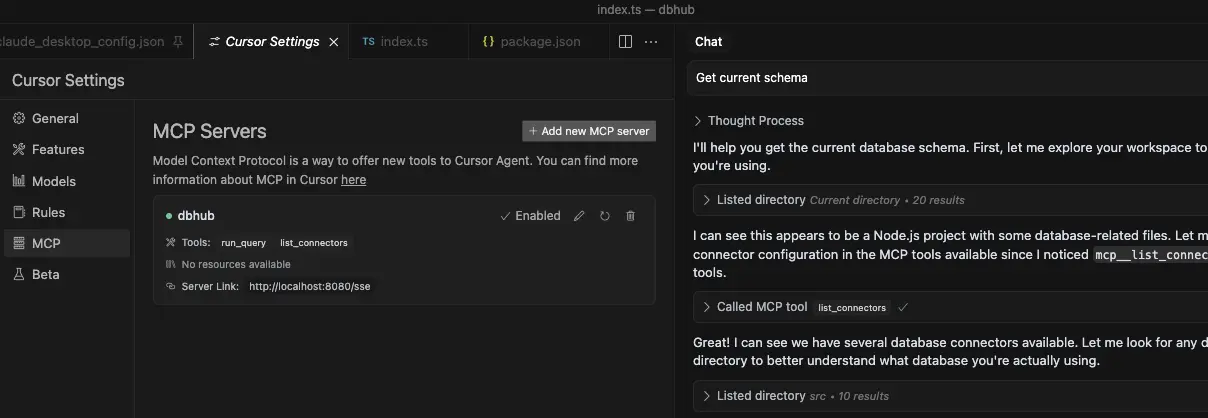
<Tabs>
<Tab title="One-Click Install">
Click the link below to install DBHub in Cursor:
<a href="cursor://anysphere.cursor-deeplink/mcp/install?name=dbhub&config=eyJjb21tYW5kIjoibnB4IiwiYXJncyI6WyJAYnl0ZWJhc2UvZGJodWIiLCItLXRyYW5zcG9ydCIsInN0ZGlvIiwiLS1kc24iLCJwb3N0Z3JlczovL3VzZXI6cGFzc3dvcmRAbG9jYWxob3N0OjU0MzIvZGJuYW1lIl19">
<img src="https://cursor.com/deeplink/mcp-install-dark.svg" alt="Install DBHub MCP server in Cursor" height="32" />
</a>
After installing, edit the DSN in your Cursor MCP settings to point to your database.
</Tab>
<Tab title="Stdio (Local)">
For local database connections, use stdio transport:
**MacOS/Linux** - Edit `~/.cursor/mcp.json`:
```json ~/.cursor/mcp.json
{
"mcpServers": {
"dbhub": {
"command": "npx",
"args": [
"@bytebase/dbhub@latest",
"--transport",
"stdio",
"--dsn",
"postgres://user:password@localhost:5432/dbname"
]
}
}
}
```
**Windows** - Edit `%USERPROFILE%\.cursor\mcp.json`:
```json %USERPROFILE%\.cursor\mcp.json
{
"mcpServers": {
"dbhub": {
"command": "npx",
"args": [
"@bytebase/dbhub@latest",
"--transport",
"stdio",
"--dsn",
"postgres://user:password@localhost:5432/dbname"
]
}
}
}
```
</Tab>
<Tab title="HTTP (Remote)">
For remote or shared database servers, use HTTP transport:
**MacOS/Linux** - Edit `~/.cursor/mcp.json`:
```json ~/.cursor/mcp.json
{
"mcpServers": {
"dbhub": {
"url": "http://localhost:8080/mcp"
}
}
}
```
**Windows** - Edit `%USERPROFILE%\.cursor\mcp.json`:
```json %USERPROFILE%\.cursor\mcp.json
{
"mcpServers": {
"dbhub": {
"url": "http://localhost:8080/mcp"
}
}
}
```
This connects to a DBHub server running with HTTP transport:
```bash
npx @bytebase/dbhub@latest --transport http --port 8080 --dsn "postgres://user:password@localhost:5432/dbname"
```
</Tab>
<Tab title="Project-Specific">
For project-specific database connections, create `.cursor/mcp.json` in your project root:
```json .cursor/mcp.json
{
"mcpServers": {
"project-db": {
"command": "npx",
"args": [
"@bytebase/dbhub@latest",
"--transport",
"stdio",
"--config",
"${workspaceFolder}/dbhub.toml"
]
}
}
}
```
</Tab>
</Tabs>
**References:**
- [Cursor MCP Documentation](https://cursor.com/docs/context/mcp)
### VS Code
VS Code has native MCP support through GitHub Copilot. Create `.vscode/mcp.json` in your project root:
<Tabs>
<Tab title="Stdio (Local)">
For local database connections, use stdio transport:
```json .vscode/mcp.json
{
"servers": {
"dbhub": {
"type": "stdio",
"command": "npx",
"args": [
"@bytebase/dbhub@latest",
"--transport",
"stdio",
"--dsn",
"postgres://user:password@localhost:5432/dbname"
]
}
}
}
```
</Tab>
<Tab title="HTTP (Remote)">
For remote or shared database servers, use HTTP transport:
```json .vscode/mcp.json
{
"servers": {
"dbhub": {
"type": "http",
"url": "http://localhost:8080/mcp"
}
}
}
```
This connects to a DBHub server running with HTTP transport:
```bash
npx @bytebase/dbhub@latest --transport http --port 8080 --dsn "postgres://user:password@localhost:5432/dbname"
```
</Tab>
<Tab title="Input Variables">
For sensitive data like passwords, use input variables:
```json .vscode/mcp.json
{
"inputs": [
{
"type": "promptString",
"id": "db-dsn",
"description": "Database connection string",
"password": true
}
],
"servers": {
"dbhub": {
"type": "stdio",
"command": "npx",
"args": [
"@bytebase/dbhub@latest",
"--transport",
"stdio",
"--dsn",
"${input:db-dsn}"
]
}
}
}
```
</Tab>
<Tab title="Config File">
For multi-database setups, use a config file:
```json .vscode/mcp.json
{
"servers": {
"dbhub": {
"type": "stdio",
"command": "npx",
"args": [
"@bytebase/dbhub@latest",
"--transport",
"stdio",
"--config",
"${workspaceFolder}/dbhub.toml"
]
}
}
}
```
</Tab>
</Tabs>
**References:**
- [VS Code MCP Documentation](https://code.visualstudio.com/docs/copilot/customization/mcp-servers)
### Codex
<Tabs>
<Tab title="CLI">
```bash
# Connect to your database
codex mcp add dbhub -- npx @bytebase/dbhub@latest --transport stdio --dsn "postgres://user:password@localhost:5432/dbname"
# Or use demo mode for testing
codex mcp add dbhub -- npx @bytebase/dbhub@latest --transport stdio --demo
```
</Tab>
<Tab title="TOML">
```toml ~/.codex/config.toml
# Connect to your database
[mcp_servers.dbhub]
command = "npx"
args = ["@bytebase/dbhub@latest", "--transport", "stdio", "--dsn", "postgres://user:password@localhost:5432/dbname"]
# Or use demo mode for testing
[mcp_servers.dbhub]
command = "npx"
args = ["@bytebase/dbhub@latest", "--transport", "stdio", "--demo"]
```
</Tab>
<Tab title="Verification">
```bash
/mcp
🔌 MCP Tools
• dbhub
• Status: enabled
• Auth: Unsupported
• Command: npx -y @bytebase/dbhub@latest --demo
• Tools: execute_sql
• Resources: schemas (db://schemas)
• Resource templates: tables_in_schema (db://schemas/{schemaName}/tables), table_structure_in_schema (db://schemas/{schemaName}/
tables/{tableName}), indexes_in_table (db://schemas/{schemaName}/tables/{tableName}/indexes), procedures_in_schema (db://schemas/
{schemaName}/procedures), procedure_detail_in_schema (db://schemas/{schemaName}/procedures/{procedureName})
```
</Tab>
</Tabs>
**References:**
- [Codex MCP Documentation](https://developers.openai.com/codex/mcp/)
### Dify
DBHub must be running as an HTTP server for Dify to connect. Start DBHub with HTTP transport:
```bash
npx @bytebase/dbhub@latest --transport http --port 8080 --dsn "postgres://user:password@localhost:5432/dbname"
```
**Configuration:**
1. In Dify, navigate to **Tools → MCP**
2. Click **Add MCP Server (HTTP)**
3. Configure the server:
- **Server URL**: `http://localhost:8080/mcp` (or your DBHub host)
- **Name**: `DBHub`
- **Server Identifier**: `dbhub` (permanent, max 24 characters)
4. Click save. Dify will automatically discover DBHub's tools.
**Using DBHub Tools:**
Once connected, DBHub tools are available in:
- **Agents**: Tools appear alongside built-in tools, use "Add All" to enable all DBHub tools
- **Workflows**: Tools appear as available node types
**Multi-Database Setup:**
For multiple databases, use a config file:
```bash
npx @bytebase/dbhub@latest --transport http --port 8080 --config /path/to/dbhub.toml
```
**Demo Mode:**
For testing, use the built-in demo database:
```bash
npx @bytebase/dbhub@latest --transport http --port 8080 --demo
```
**Limitations:**
- Dify only supports HTTP transport (not stdio)
- DBHub must be network-accessible from Dify
**References:**
- [Dify MCP Documentation](https://docs.dify.ai/en/guides/tools/mcp)
### LibreChat
DBHub can be integrated with [LibreChat](https://www.librechat.ai/) using either **stdio** or **Streamable HTTP** transport.
<Tabs>
<Tab title="stdio">
```yaml librechat.yaml
mcpServers:
dbhub:
type: stdio
command: npx
args:
- -y
- "@bytebase/dbhub@latest"
- "--dsn"
- "postgres://user:password@localhost:5432/dbname"
timeout: 60000
```
For demo mode:
```yaml librechat.yaml
mcpServers:
dbhub:
type: stdio
command: npx
args:
- -y
- "@bytebase/dbhub@latest"
- "--demo"
timeout: 60000
```
</Tab>
<Tab title="Streamable HTTP">
```yaml librechat.yaml
mcpServers:
dbhub:
type: streamable-http
url: http://host.docker.internal:8080/mcp
timeout: 60000
```
<Note>
**Docker Networking:** When LibreChat runs in Docker (e.g., with docker-compose), use `host.docker.internal:8080` to connect to DBHub running on your host machine. This is Docker's special DNS name that resolves to the host's IP address.
For native installations, use `http://localhost:8080/mcp` instead.
</Note>
</Tab>
</Tabs>
**References:**
- [LibreChat MCP Documentation](https://www.librechat.ai/docs/configuration/librechat_yaml/object_structure/mcp_servers)

