# Nova - Resources/File-Fields
*Source: https://nova.laravel.com/docs/v5/resources/file-fields*
---
- [Community](https://discord.com/invite/laravel)
- [Blog](https://blog.laravel.com)
##### Get Started
- [Installation](/docs/v5/installation)
- [Release Notes](/docs/v5/releases)
- [Upgrade Guide](/docs/v5/upgrade)
##### Resources
- [The Basics](/docs/v5/resources/the-basics)
- [Fields](/docs/v5/resources/fields)
- [Dependent Fields](/docs/v5/resources/dependent-fields)
- [Date Fields](/docs/v5/resources/date-fields)
- [File Fields](/docs/v5/resources/file-fields)
- [Repeater Fields](/docs/v5/resources/repeater-fields)
- [Field Panels](/docs/v5/resources/panels)
- [Relationships](/docs/v5/resources/relationships)
- [Validation](/docs/v5/resources/validation)
- [Authorization](/docs/v5/resources/authorization)
##### Search
- [The Basics](/docs/v5/search/the-basics)
- [Global Search](/docs/v5/search/global-search)
- [Scout Integration](/docs/v5/search/scout-integration)
##### Filters
- [Defining Filters](/docs/v5/filters/defining-filters)
- [Registering Filters](/docs/v5/filters/registering-filters)
##### Lenses
- [Defining Lenses](/docs/v5/lenses/defining-lenses)
- [Registering Lenses](/docs/v5/lenses/registering-lenses)
##### Actions
- [Defining Actions](/docs/v5/actions/defining-actions)
- [Registering Actions](/docs/v5/actions/registering-actions)
##### Metrics
- [Defining Metrics](/docs/v5/metrics/defining-metrics)
- [Registering Metrics](/docs/v5/metrics/registering-metrics)
##### Digging Deeper
- [Dashboards](/docs/v5/customization/dashboards)
- [Menus](/docs/v5/customization/menus)
- [Notifications](/docs/v5/customization/notifications)
- [Authentication](/docs/v5/customization/authentication)
- [Impersonation](/docs/v5/customization/impersonation)
- [Tools](/docs/v5/customization/tools)
- [Resource Tools](/docs/v5/customization/resource-tools)
- [Cards](/docs/v5/customization/cards)
- [Fields](/docs/v5/customization/fields)
- [Filters](/docs/v5/customization/filters)
- [CSS / JavaScript](/docs/v5/customization/frontend)
- [Assets](/docs/v5/customization/assets)
- [Localization](/docs/v5/customization/localization)
- [Stubs](/docs/v5/customization/stubs)
On this page
- [Overview](#overview)
- [Defining the Field](#defining-the-field)
- [Disabling File Downloads](#disabling-file-downloads)
- [How Files Are Stored](#how-files-are-stored)
- [The Local Disk](#the-local-disk)
- [Images](#images)
- [Avatars](#avatars)
- [Storing Metadata](#storing-metadata)
- [Pruning & Deletion](#pruning-%26-deletion)
- [Customization](#customization)
- [Customizing File Storage](#customizing-file-storage)
- [Customizing the Name / Path](#customizing-the-name-%2F-path)
- [Customizing the Entire Storage Process](#customizing-the-entire-storage-process)
- [Invokables](#invokables)
- [Customizing File Deletion](#customizing-file-deletion)
- [Invokables](#invokables-2)
- [Customizing Previews](#customizing-previews)
- [Customizing Thumbnails](#customizing-thumbnails)
- [Customizing Downloads](#customizing-downloads)
- [Downloading Large Files With Temporary URLs](#downloading-large-files-with-temporary-urls)
- [Customizing Accepted File Types](#customizing-accepted-file-types)
Resources
# File Fields
Learn how to work with file fields in Nova.
Nova offers several types of file fields: `File`, `Image`, `Avatar`, `VaporFile`, and `VaporImage`. The `File` field is the most basic form of file upload field, and is the base class for both the `Image` and `Avatar` fields. In the following documentation, we will explore each of these fields and discuss their similarities and differences.
## [](#overview) Overview
To illustrate the behavior of Nova file upload fields, let’s assume our application’s users can upload “profile photos” to their account. So, our `users` database table will have a `profile_photo` column. This column will contain the path to the profile photo on disk, or, when using a cloud storage provider such as Amazon S3, the profile photo’s path within its “bucket”.
### [](#defining-the-field) Defining the Field
Next, let’s attach the file field to our `User` resource. In this example, we will create the field and instruct it to store the underlying file on the `public` disk. This disk name should correspond to a disk name in your application’s `filesystems` configuration file:
Copy
Ask AI
```
use Laravel\Nova\Fields\File;
// ...
File::make('Profile Photo')
->disk('public'),
```
### [](#disabling-file-downloads) Disabling File Downloads
By default, the `File` field allows the user to download the corresponding file. To disable this, you may call the `disableDownload` method on the field definition:
Copy
Ask AI
```
use Laravel\Nova\Fields\File;
// ...
File::make('Profile Photo')
->disableDownload(),
```
### [](#how-files-are-stored) How Files Are Stored
When a file is uploaded using this field, Nova will use Laravel’s [Flysystem integration](https://laravel.com/docs/filesystem) to store the file on the disk of your choosing and the file will be assigned a randomly generated filename. Once the file is stored, Nova will store the relative path to the file in the file field’s underlying database column.
To illustrate the default behavior of the `File` field, let’s take a look at an equivalent Laravel route that would store the file in the same way:
routes/web.php
Copy
Ask AI
```
use Illuminate\Http\Request;
// ...
Route::post('/photo', function (Request $request) {
$path = $request->profile_photo->store('/', 'public');
$request->user()->update([
'profile_photo' => $path,
]);
});
```
Of course, once the file has been stored, you may retrieve it within your application using the Laravel `Storage` facade:
Copy
Ask AI
```
use Illuminate\Support\Facades\Storage;
// ...
Storage::get($user->profile_photo);
Storage::url($user->profile_photo);
```
The documentation above only demonstrates the default behavior of the `File` field. To learn more about how to customize its behavior, check out the [customization documentation](#customization).
#### [](#the-local-disk) The Local Disk
If you are using the `public` disk in conjunction with the `local` driver, you should run the `php artisan storage:link` Artisan command to create a symbolic link from `public/storage` to `storage/app/public`. To learn more about file storage in Laravel, check out the [Laravel file storage documentation](https://laravel.com/docs/filesystem).
## [](#images) Images
The `Image` field behaves exactly like the `File` field; however, instead of only displaying the path to the file within the Nova dashboard, an `Image` field will show a thumbnail preview of the underlying file. All of the configuration and customization options of the `Image` field mirror that of the `File` field:
Copy
Ask AI
```
use Laravel\Nova\Fields\Image;
// ...
Image::make('Profile Photo')
->disk('public'),
```
To set the width of the `Image` field when being displayed, you can use the `maxWidth` method:
Copy
Ask AI
```
use Laravel\Nova\Fields\Image;
// ...
Image::make('Profile Photo')
->maxWidth(100),
```
Alternatively, you can set separate widths for the index and detail views using the `indexWidth` and `detailWidth` methods:
Copy
Ask AI
```
use Laravel\Nova\Fields\Image;
// ...
Image::make('Profile Photo')
->indexWidth(60)
->detailWidth(150),
```
You may also use the `maxWidth`, `indexWidth`, and `detailWidth` methods on the [Avatar](#avatars) and [Gravatar](./fields#gravatar-field) fields.
## [](#avatars) Avatars
The `Avatar` field behaves exactly like the `File` field; however, instead of only displaying the path to the file within the Nova dashboard, an `Avatar` field will show a thumbnail preview of the underlying file. All of the configuration and customization options of the `Avatar` field mirror that of the `File` field:
Copy
Ask AI
```
use Laravel\Nova\Fields\Avatar;
// ...
Avatar::make('Poster')
->disk('public'),
```
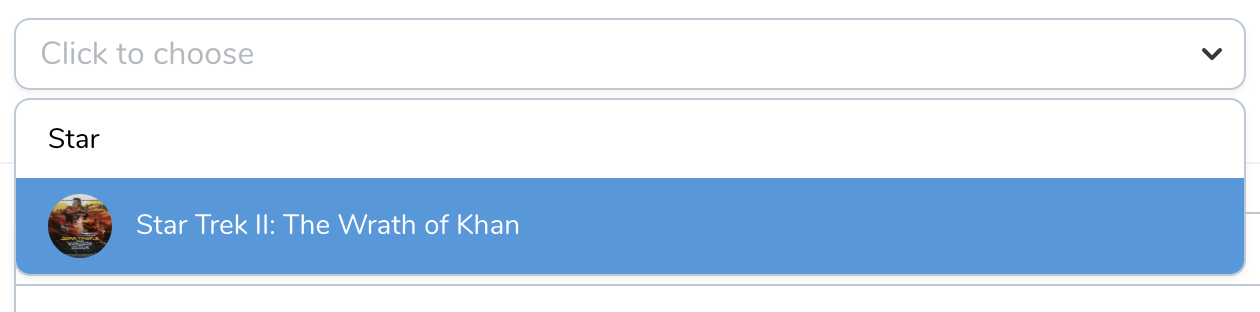
In addition to displaying a thumbnail preview of the underlying file, an `Avatar` field will also be automatically displayed in Nova search results. An `Avatar` field is not limited to “user” resources - you may attach `Avatar` fields to any resource within your Nova application:
## [](#storing-metadata) Storing Metadata
In addition to storing the path to the file within the storage system, you may also instruct Nova to store the original client filename and its size (in bytes). You may accomplish this using the `storeOriginalName` and `storeSize` methods. Each of these methods accept the name of the column you would like to store the file information:
Copy
Ask AI
```
use Illuminate\Http\Request;
use Laravel\Nova\Fields\File;
use Laravel\Nova\Fields\Text;
// ...
/**
* Get the fields displayed by the resource.
*
* @return array<int, \Laravel\Nova\Fields\Field>
*/
public function fields(NovaRequest $request): array
{
return [
// ...
File::make('Attachment')
->disk('s3')
->storeOriginalName('attachment_name')
->storeSize('attachment_size'),
Text::make('Attachment Name')->exceptOnForms(),
Text::make('Attachment Size')
->exceptOnForms()
->displayUsing(function ($value) {
return number_format($value / 1024, 2).'kb';
}),
];
}
```
One benefit of storing the original client filename is the ability to create file download responses using the original filename that was used to upload the file. For example, you may do something like the following in one of your application’s routes:
routes/web.php
Copy
Ask AI
```
use Illuminate\Http\Request;
use Illuminate\Support\Facades\Storage;
// ...
Route::get('/download', function (Request $request) {
$user = $request->user();
return Storage::downlo
*[Content truncated for length]*
