!!!tip "Native Pixi support on YouTrack"
There is a tracking issue for native Pixi support in PyCharm, [PY-79041](https://youtrack.jetbrains.com/issue/PY-79041).
Feel free to upvote it if it is relevant to you.
For CLion, you can track [CPP-42761](https://youtrack.jetbrains.com/issue/CPP-42761).
## Pycharm
<!-- Keep in sync with https://github.com/pavelzw/pixi-pycharm/blob/main/README.md -->
You can use PyCharm with Pixi environments by using the `conda` shim provided by the [pixi-pycharm](https://github.com/pavelzw/pixi-pycharm) package. *An [alternate approach](#alt-approach) that does not use the shim is also described below.*
To get started, add `pixi-pycharm` to your Pixi workspace.
```bash
pixi add pixi-pycharm
```
This will ensure that the conda shim is installed in your workspace's environment.
Having `pixi-pycharm` installed, you can now configure PyCharm to use your Pixi environments.
Go to the _Add Python Interpreter_ dialog (bottom right corner of the PyCharm window) and select _Conda Environment_.
Set _Conda Executable_ to the full path of the `conda` file (on Windows: `conda.bat`) which is located in `.pixi/envs/default/libexec`.
You can get the path using the following command:
=== "Linux & macOS"
```bash
pixi run 'echo $CONDA_PREFIX/libexec/conda'
```
=== "Windows"
```bash
pixi run 'echo $CONDA_PREFIX\\libexec\\conda.bat'
```
This is an executable that tricks PyCharm into thinking it's the proper `conda` executable.
Under the hood it redirects all calls to the corresponding `pixi` equivalent.
!!!warning "Use the conda shim from this Pixi workspace"
Please make sure that this is the `conda` shim from this Pixi workspace and not another one.
If you use multiple Pixi workspaces, you might have to adjust the path accordingly as PyCharm remembers the path to the conda executable.
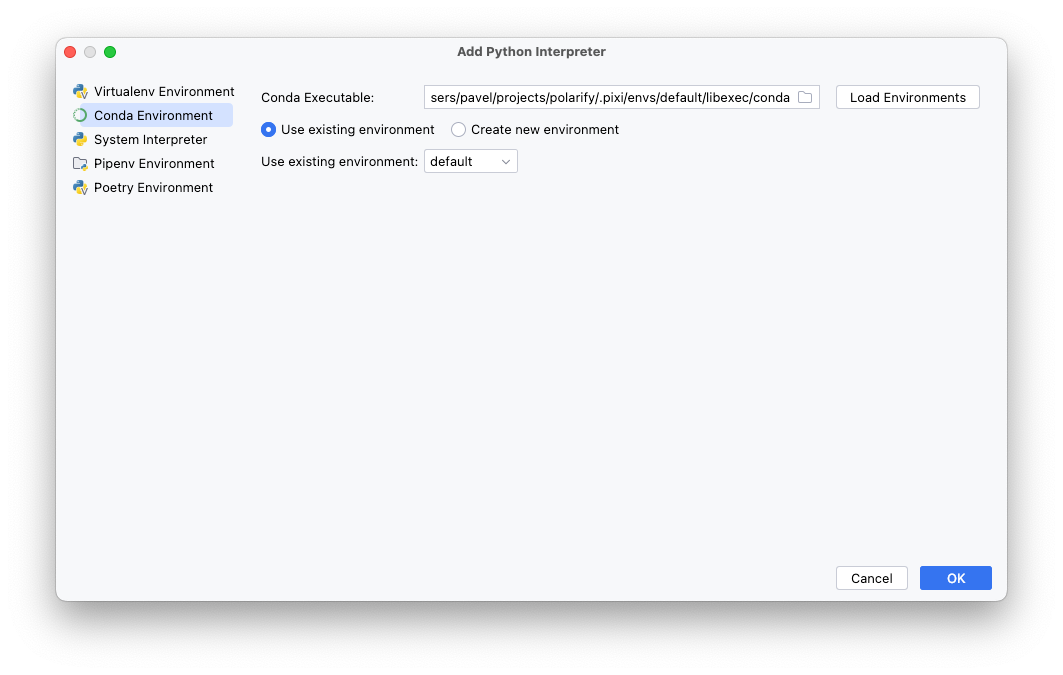
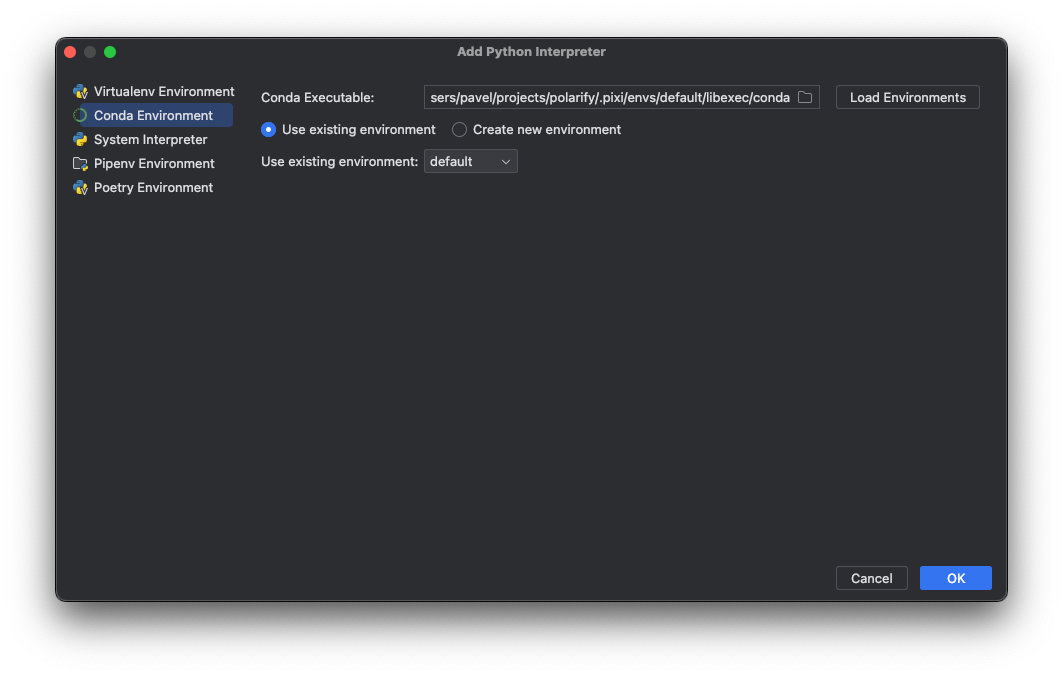
Having selected the environment, PyCharm will now use the Python interpreter from your Pixi environment.
PyCharm should now be able to show you the installed packages as well.
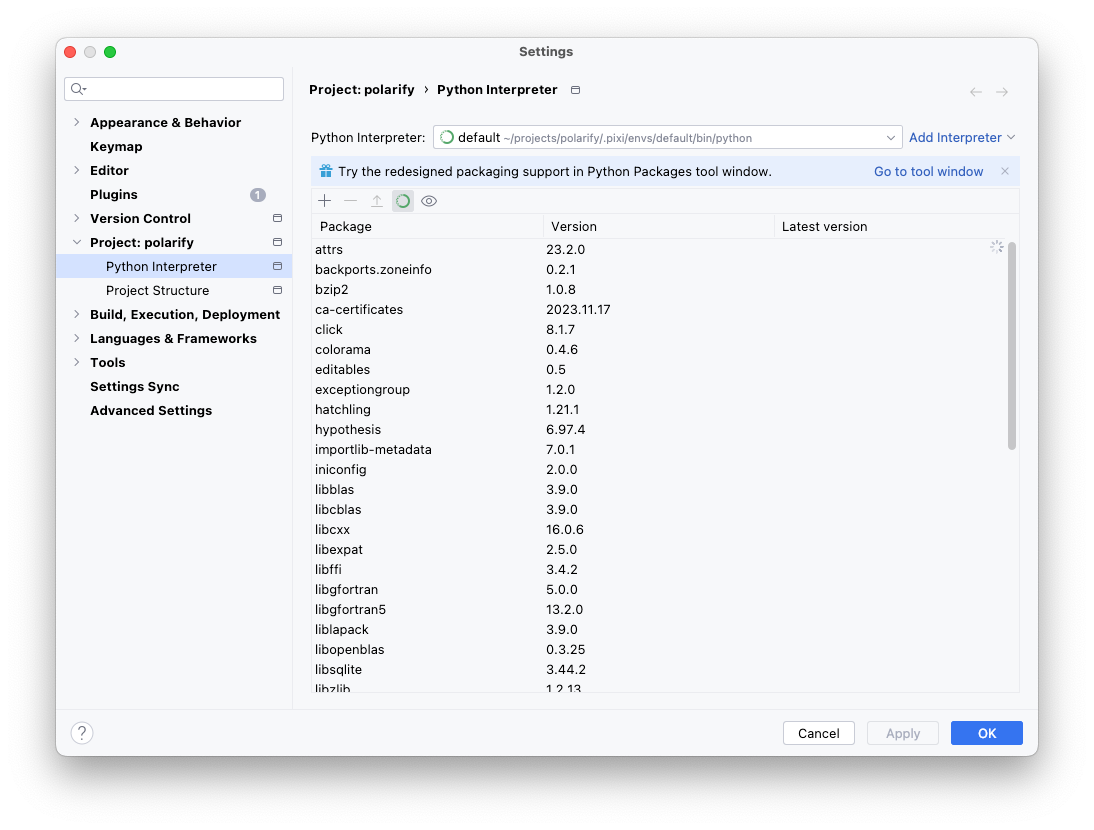
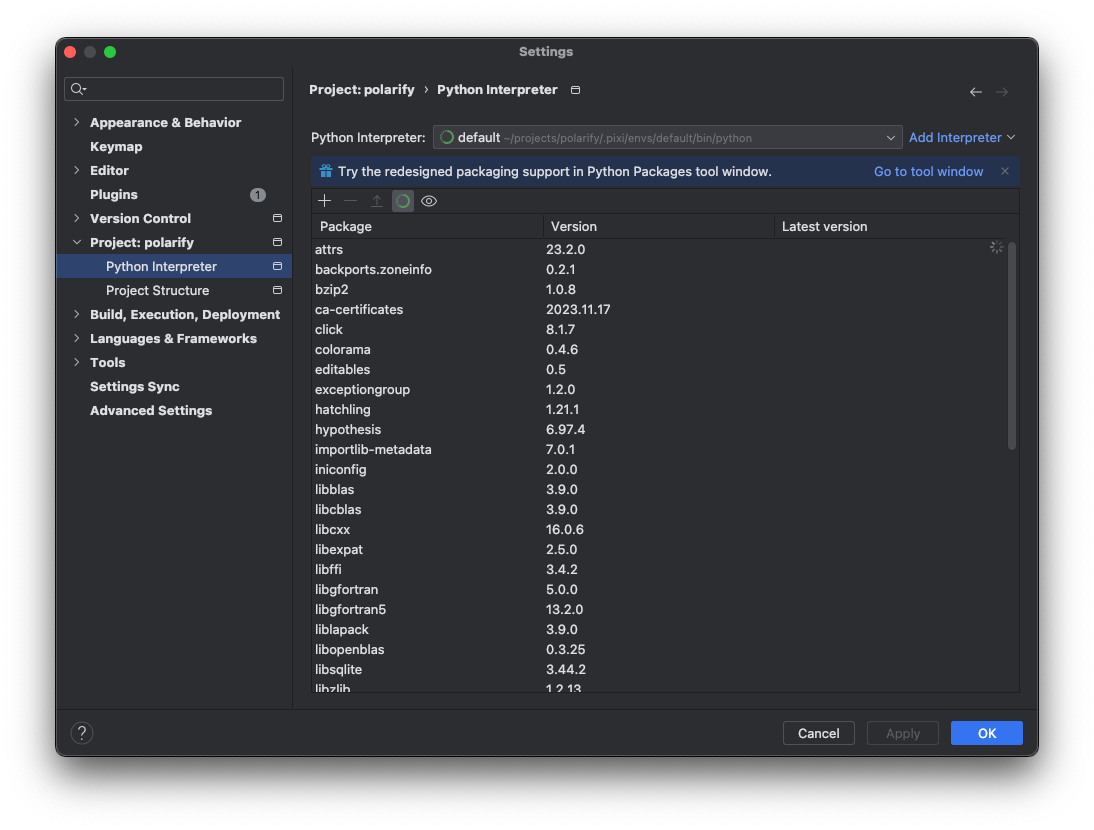
You can now run your programs and tests as usual.
<a id="exclude-.pixi"><a/>
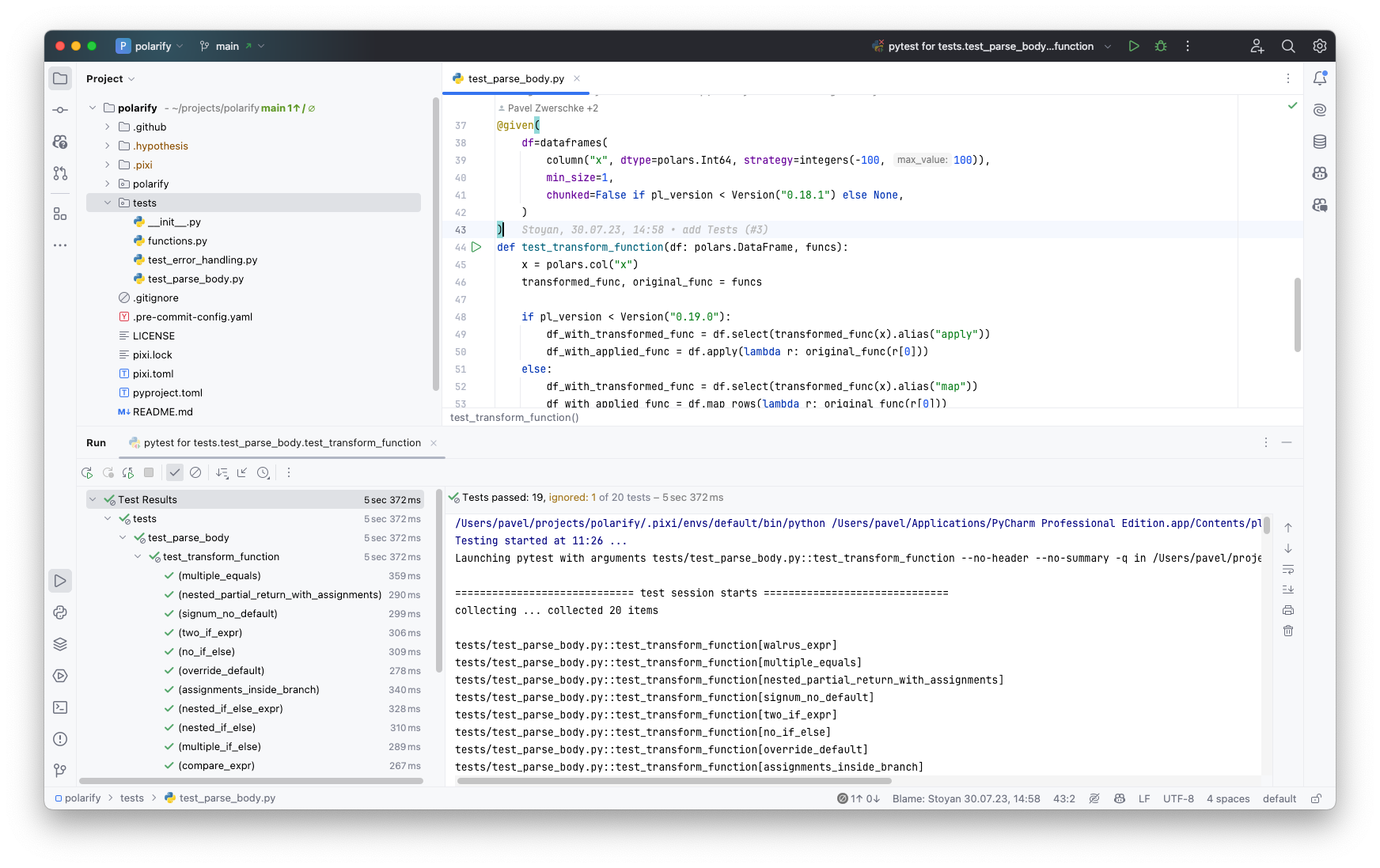
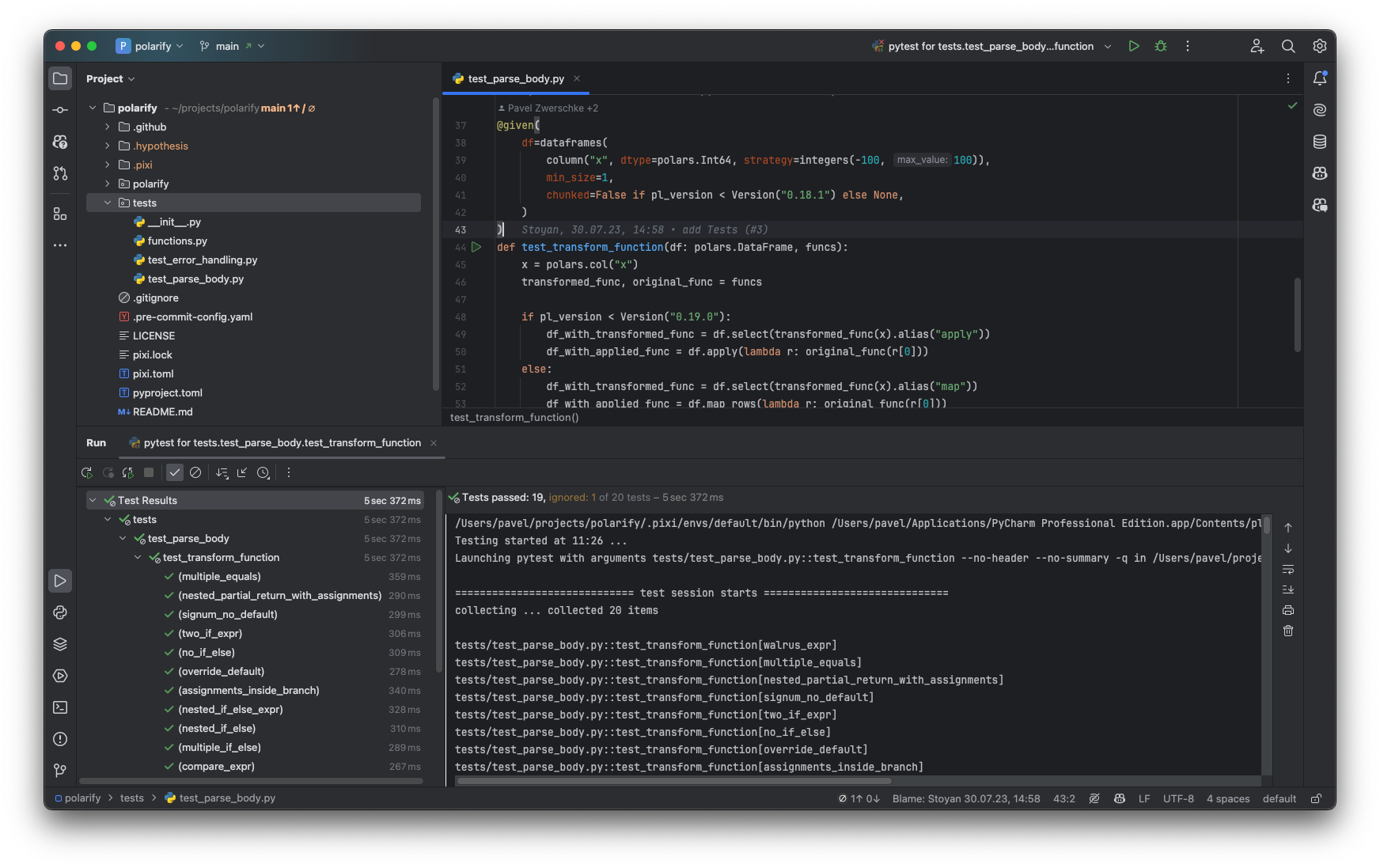
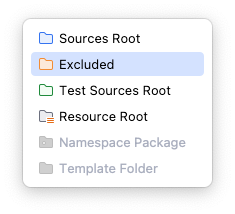
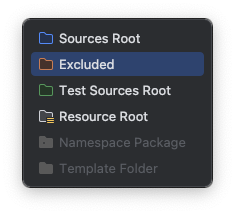
!!!tip "Mark `.pixi` as excluded"
In order for PyCharm to not get confused about the `.pixi` directory, please mark it as excluded.
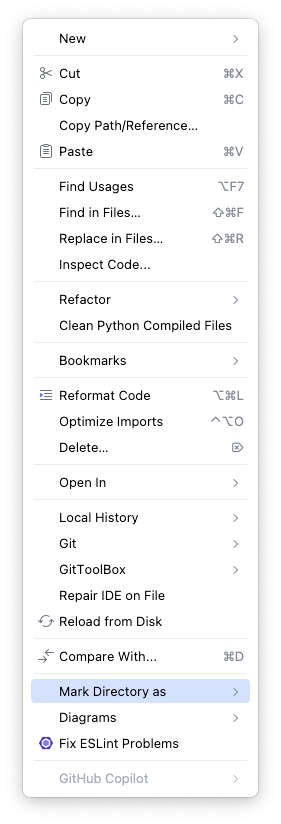
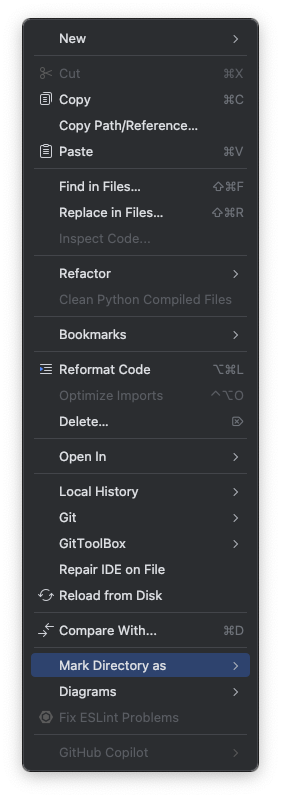
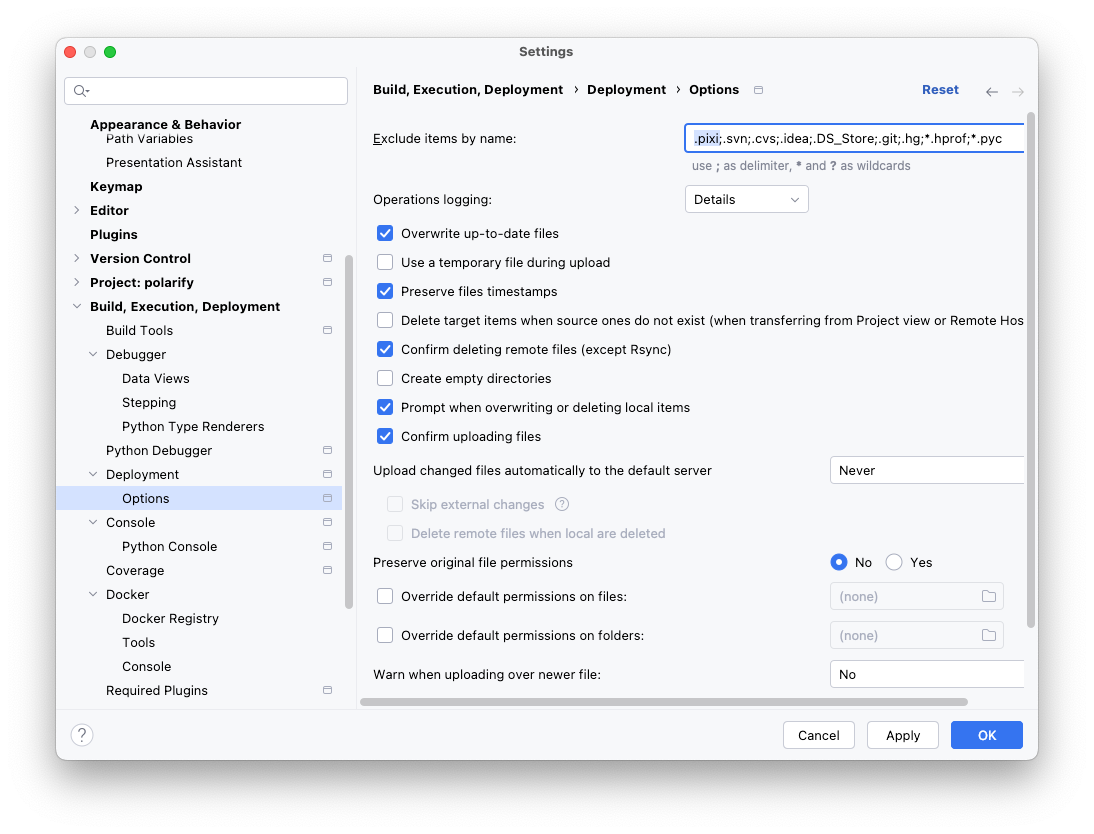
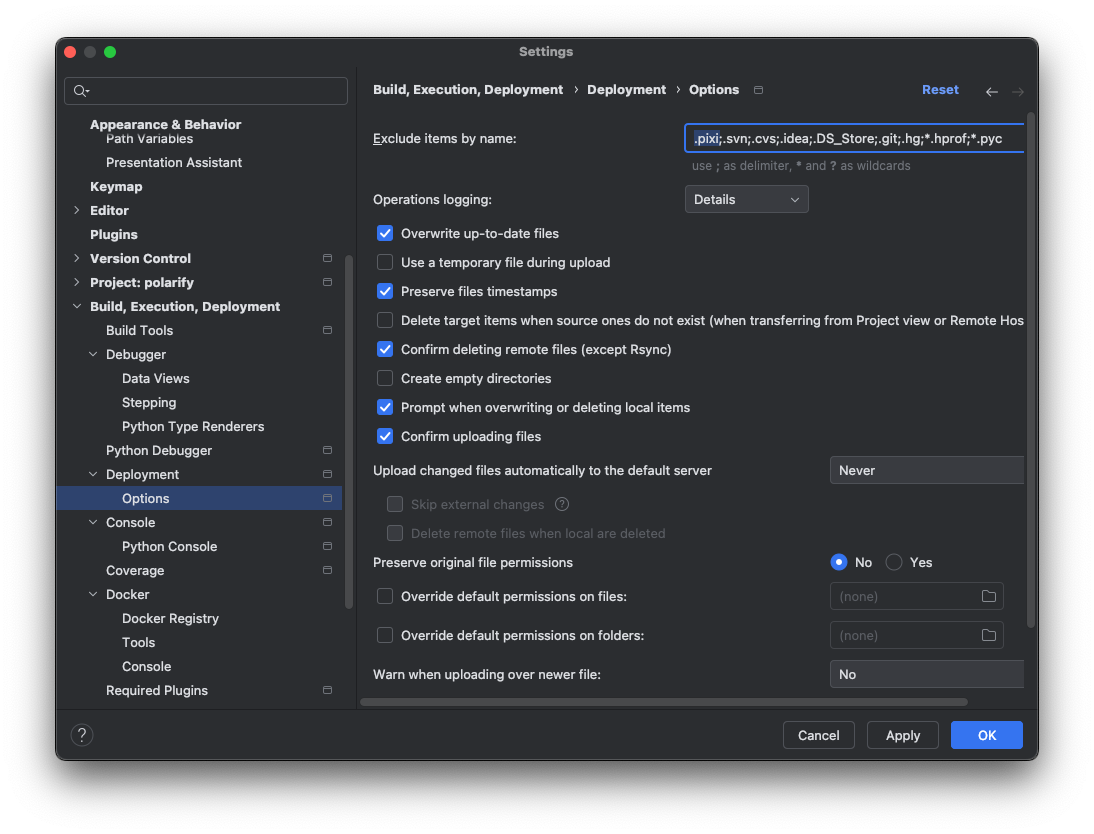
Also, when using a remote interpreter, you should exclude the `.pixi` directory on the remote machine.
Instead, you should run `pixi install` on the remote machine and select the conda shim from there.
### Multiple environments
If your workspace uses [multiple environments](../../workspace/multi_environment.md) to tests different Python versions or dependencies, you can add multiple environments to PyCharm
by specifying _Use existing environment_ in the _Add Python Interpreter_ dialog.
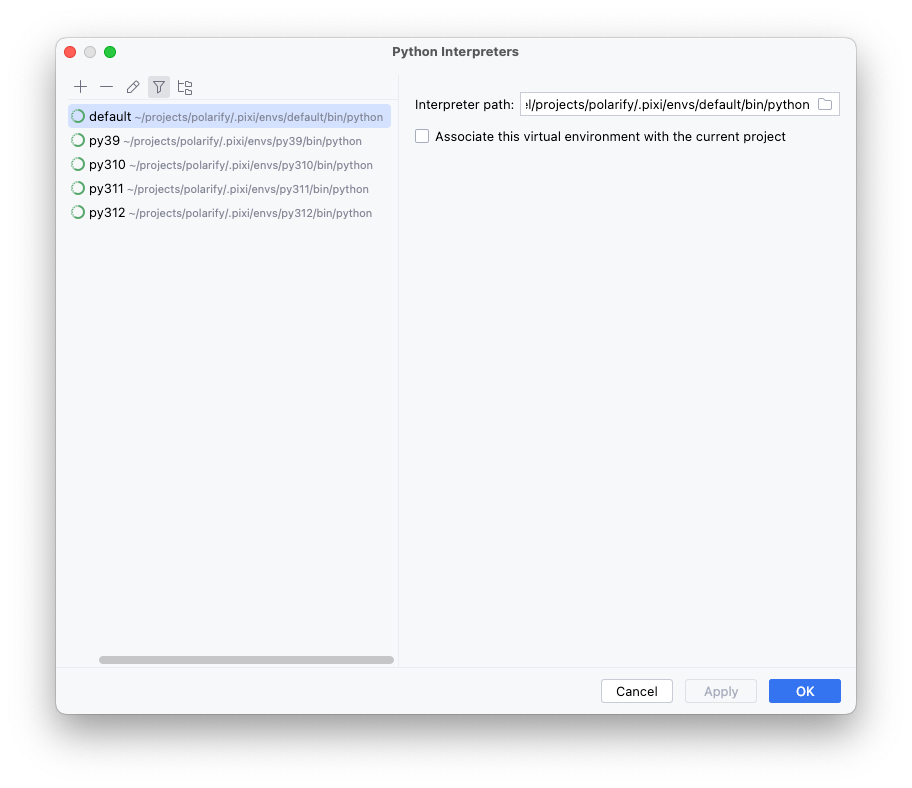
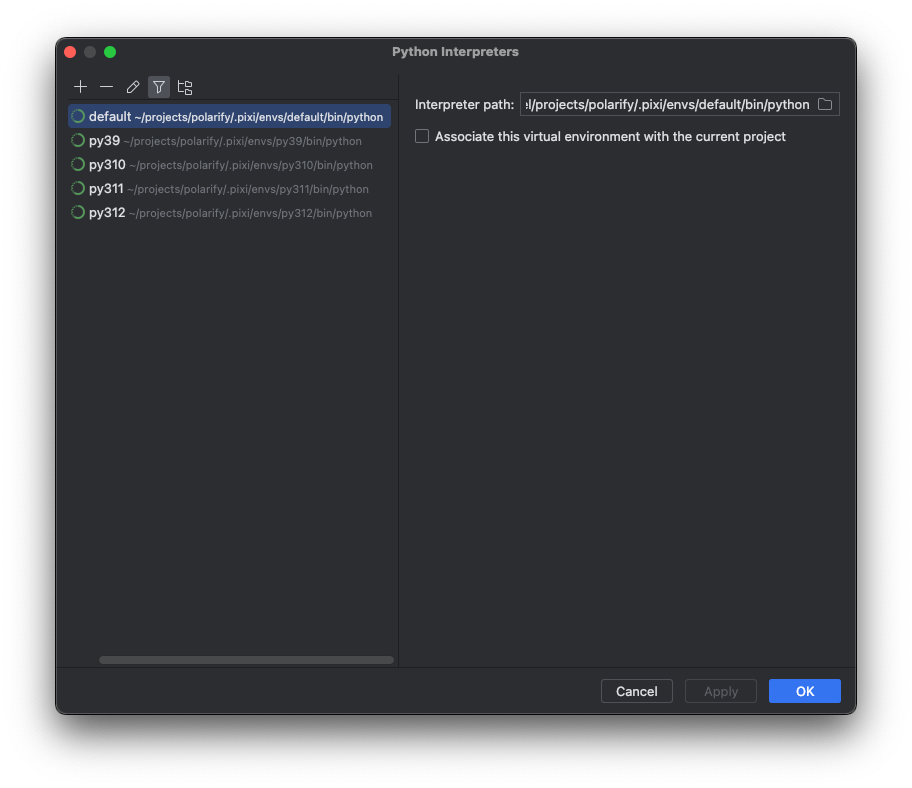
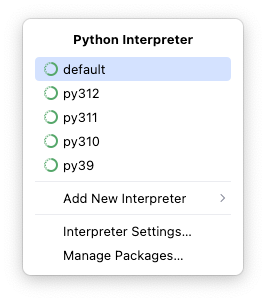
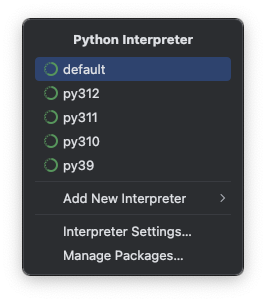
You can then specify the corresponding environment in the bottom right corner of the PyCharm window.
### Multiple Pixi workspaces
When using multiple Pixi workspaces, remember to select the correct _Conda Executable_ for each workspace as mentioned above.
It also might come up that you have multiple environments with the same name.
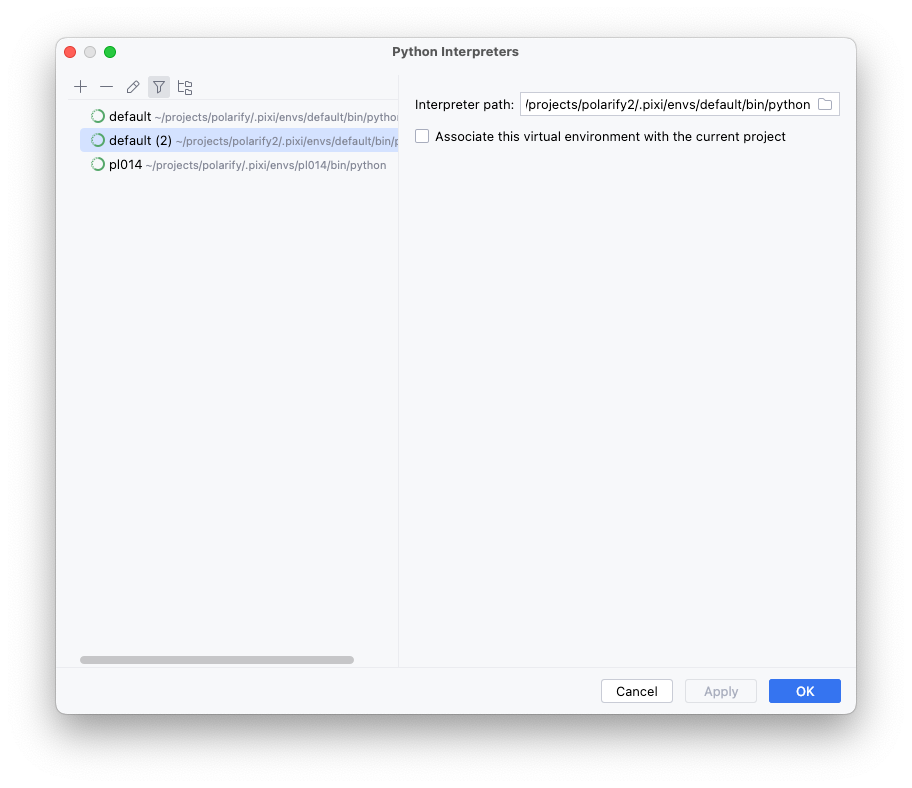
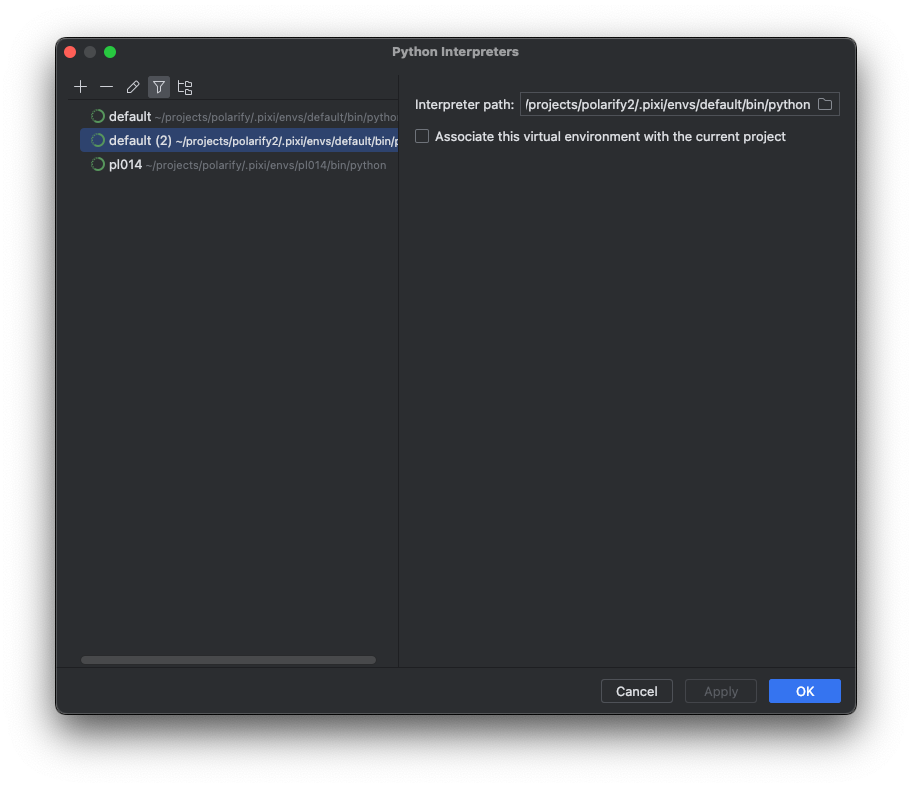
It is recommended to rename the environments to something unique.
### Debugging
Logs are written to `~/.cache/pixi-pycharm.log`.
You can use them to debug problems.
Please attach the logs when [filing a bug report](https://github.com/pavelzw/pixi-pycharm/issues/new?template=bug-report.md).
### Install as an optional dependency
In some cases, you might only want to install `pixi-pycharm` on your local dev-machines but not in production.
To achieve this, we can use [multiple environments](../../workspace/multi_environment.md).
```toml
[workspace]
name = "multi-env"
version = "0.1.0"
requires-python = ">=3.12"
dependencies = ["numpy"]
[tool.pixi.workspace]
channels = ["conda-forge"]
platforms = ["linux-64"]
[tool.pixi.feature.lint.dependencies]
ruff = "*"
[tool.pixi.feature.dev.dependencies]
pixi-pycharm = "*"
[tool.pixi.environments]
# The production environment is the default feature set.
# Adding a solve group to make sure the same versions are used in the `default` and `prod` environments.
prod = { solve-group = "main" }
# Setup the default environment to include the dev features.
# By using `default` instead of `dev` you'll not have to specify the `--environment` flag when running `pixi run`.
default = { features = ["dev"], solve-group = "main" }
# The lint environment doesn't need the default feature set but only the `lint` feature
# and thus can also be excluded from the solve group.
lint = { features = ["lint"], no-default-feature = true }
```
Now you as a user can run `pixi shell`, which will start the default environment.
In production, you then just run `pixi run -e prod COMMAND`, and the minimal prod environment is installed.
<a id="alt-approach"></a>
### Alternate approach using environments.txt
There is another approach for configuring PyCharm that avoids the need for the pixi-pycharm shim. It requires that you have conda installed locally (PyCharm will detect it automatically if installed in a standard location).
To configure an interpreter for a new workspace:
1. Edit conda's environment list located at `~/.conda/environments.txt`. Simply append the full file paths of any pixi
environments you wish to include, e.g.:
```
...
/Users/jdoe/my-workspace/.pixi/envs/default
/Users/jdoe/my-workspace/.pixi/envs/dev
```
2. In PyCharm, when adding the interpreter for your workspace, scroll down to the bottom of the Python Interpreter
dropdown menu and choose *Show All ...* to bring up the Python Interpreters dialog.
3. Select the `+` button to add a new local existing conda interpreter using the standard conda location and
choose the desired prefix from the list. (If you edited the environment file while PyCharm was running, you
may need to reload the environments.)
4. This will add the environment but will automatically give it a name matching the last component of the
directory path, which will often just be `default` for pixi environments. This is particularly problematic
if you work on many workspaces. You can change PyCharm's name for the environment by clicking on the pencil icon
or using the right-click dropdown menu.
5. Once you have added and renamed the environments, select the desired interpreter to use in PyCharm from the list.
If your workspace uses more than one environment, you can switch between them by selecting interpreter name in the
status bar at the bottom of the PyCharm window and selecting the interpreter for the desired interpreter from the list.
Note that this will trigger PyCharm reindexing and might not be very fast.
As with the pixi-pycharm shim, you should avoid using the PyCharm UI to attempt to add or remove packages from your environments and you should
make sure to [exclude the `.pixi` directory from PyCharm indexing](#exclude-.pixi).
## Direnv
In order to use Direnv with [Jetbrains](https://www.jetbrains.com/ides/) products you first have to install the [Direnv plugin](https://plugins.jetbrains.com/plugin/15285-direnv-integration).
Then follow the instructions in our [Direnv doc page](../third_party/direnv.md).
Now your Jetbrains IDE will be run within the selected Pixi environment.
