
Click on "Install Server".
Wait a few minutes for the server to deploy. Once ready, it will show a "Started" state.
In the chat, type
@followed by the MCP server name and your instructions, e.g., "@Robot MCP ServerPick up the red block and place it in the tray"
That's it! The server will respond to your query, and you can continue using it as needed.
Here is a step-by-step guide with screenshots.
SO-ARM100 Robot Control with MCP
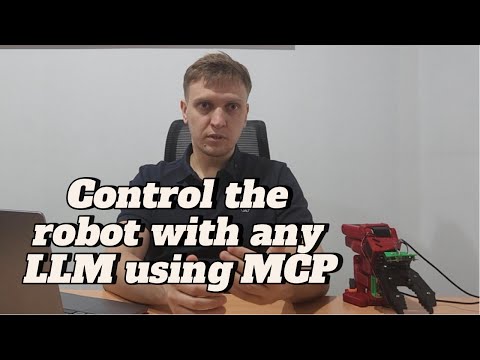
A companion repository to my video about MCP server for the robot:
MCP Server for LLM-based AI agents (Claude Desktop, Cursor, Windsurf, etc.) to control the robot
Direct keyboard control for manual operation
CLI AI Agent can use it directly to control the robot with Claude, Gemini or GPT model
If you want to know more about MCP refer to the official MCP documentation
This repository suppose to work with the SO-ARM100 / 101 robots. Refer to lerobot SO-101 setup guide for the detailed instructions on how to setup the robot.
Update! Now it partially supports LeKiwi (only arm, the mobile base control through MCP is TBD). I also added a simple agent that uses MCP server to control the robot. It supports Claude, Gemini and GPT models. In my experience Claude is the best and GPT is not so good, Gemini is in between.
After I released the video and this repository, LeRobot released a significant update of the library that breaks the compatibility with the original code.
If you want to use the original code and exactly follow the video, please use this release.
Quick Start
1. Install Dependencies
For simplicity I use simple pip instead of uv that is often recommended in MCP tutorials - it works just fine.
It may be required to install lerobot separately, just use the official instructions from the lerobot repository
2. Connect Your Robot
Connect SO-ARM100 via USB
Update
config.pywith your serial port for so-arm (e.g.,/dev/tty.usbmodem58FD0168731) or robot_ip for lekiwi (e.g.,192.168.1.1)Connect cameras and update
config.pywith the correct indices and names (forlekiwionly names are important)
3. Use the robot
🔍 Check Robot Status and Calibration:
This will show you the current robot state without actual control. Move your robot manually to make sure it is properly calibrated and configured.
After the latest update, lerobot is using the normalized joints states instead of degrees. You can update MOTOR_NORMALIZED_TO_DEGREE_MAPPING in config.py to match your robot calibration. You will need to update these values every time you recalibrate the robot.
🎮 Manual Keyboard Control:
Now you can try to control the robot manually using the keyboard. Test it before moving on to the MCP step, to make sure it works properly.
🛠️ MCP server in the dev mode
Final test step - to debug the MCP server, use the UI to connect to it and try to send some requests.
🤖 AI Agent Control (MCP Server):
WARNING: using MCP server itself is free, but it requires MCP client that will send requests to some LLM. Generally it is not free - and controlling the robot with MCP can become expensive, as it sends multiple agentic requests with images that use a lot of tokens. Make sure you understand and control your token usage and corresponding costs before doing it. The actual cost depends on the client and models you use, and it is your responsibility to monitor and control it.
Supports: stdio, sse, streamable-http
Now your server can be added to any MCP client.
Connecting MCP Clients
Different clients can support different transports, you can choose the one that works best for you. The functionality is the same.
STDIO transport
Add to your MCP configuration:
SEE transport
Run the server in terminal with the SSE transport:
Add to your MCP configuration:
Streamed-HTTP transport
It is suppose to be a replacement for SSE but currently not so many clients support it.
Run the server in terminal with the Streamed-HTTP transport:
Add to your MCP configuration:
Using the robot with MCP
Now you can go to you Client and it should be able to control the robot when you give it the natural language instructions.
Using the Agent
Start the MCP server with the SSE transport:
Now you can use the AI agent to control the robot with natural language instructions.
Configuration
Create a .env file in the project root with your API keys:
Basic Usage
Advanced Usage
Supported Models (examples)
Claude (Anthropic):
claude-3-7-sonnet-latest(default)All models support thinking, streaming, and multimodal tool results
Gemini (Google):
gemini-2.5-flashgemini-2.5-proUse 2.5+ models as they support thinking feature
GPT (OpenAI):
gpt-4oand variantsThe rest of the models mostly don't support thinking or tool calling.
Overall I didn't manage to get good results with GPT models.
Parameters
--model: LLM model to use (default: claude-3-7-sonnet-latest)--api-key: API key override (uses .env file by default)--show-images: Display robot camera images in a window--thinking-budget: Thinking tokens budget (default: 1024, 0 to disable)--thinking-every-n: Use thinking every N steps (default: 3)--mcp-server-ip: MCP server IP address (default: 127.0.0.1)--mcp-port: MCP server port (default: 3001)
Cost Considerations
Token Usage:
Claude counts MCP images in input tokens (more expensive for vision tasks)
Gemini doesn't count MCP images in tokens (token usage will be displayed only for text)
Thinking tokens add to the cost but improve reasoning quality