<img width="676" height="380" alt="MCP for Unity" src="../images/logo.png" />
| [English](../../README.md) | [简体中文](README-zh.md) |
|----------------------|---------------------------------|
#### 由 [Coplay](https://www.coplay.dev/?ref=unity-mcp) 荣誉赞助并维护 —— Unity 最好的 AI 助手。
[](https://discord.gg/y4p8KfzrN4)
[](https://www.coplay.dev/?ref=unity-mcp)
[](https://unity.com/releases/editor/archive)
[](https://assetstore.unity.com/packages/tools/generative-ai/mcp-for-unity-ai-driven-development-329908)
[](https://www.python.org)
[](https://modelcontextprotocol.io/introduction)
[](https://opensource.org/licenses/MIT)
**用大语言模型创建你的 Unity 应用!** MCP for Unity 通过 [Model Context Protocol](https://modelcontextprotocol.io/introduction) 将 AI 助手(Claude、Cursor、VS Code 等)与你的 Unity Editor 连接起来。为你的大语言模型提供管理资源、控制场景、编辑脚本和自动化任务的工具。
<img alt="MCP for Unity building a scene" src="../images/building_scene.gif">
---
## 快速开始
### 前置要求
* **Unity 2021.3 LTS+** — [下载 Unity](https://unity.com/download)
* **Python 3.10+** 和 **uv** — [安装 uv](https://docs.astral.sh/uv/getting-started/installation/)
* **一个 MCP 客户端** — [Claude Desktop](https://claude.ai/download) | [Cursor](https://www.cursor.com/en/downloads) | [VS Code Copilot](https://code.visualstudio.com/docs/copilot/overview) | [GitHub Copilot CLI](https://docs.github.com/en/copilot/concepts/agents/about-copilot-cli) | [Windsurf](https://windsurf.com)
### 1. 安装 Unity 包
在 Unity 中:`Window > Package Manager > + > Add package from git URL...`
> [!TIP]
> ```text
> https://github.com/CoplayDev/unity-mcp.git?path=/MCPForUnity
> ```
**想要最新的 beta 版本?** 使用 beta 分支:
```text
https://github.com/CoplayDev/unity-mcp.git?path=/MCPForUnity#beta
```
<details>
<summary>其他安装方式(Asset Store、OpenUPM)</summary>
**Unity Asset Store:**
1. 访问 [Asset Store 上的 MCP for Unity](https://assetstore.unity.com/packages/tools/generative-ai/mcp-for-unity-ai-driven-development-329908)
2. 点击 `Add to My Assets`,然后通过 `Window > Package Manager` 导入
**OpenUPM:**
```bash
openupm add com.coplaydev.unity-mcp
```
</details>
### 2. 启动服务器并连接
1. 在 Unity 中:`Window > MCP for Unity`
2. 点击 **Start Server**(会在 `localhost:8080` 启动 HTTP 服务器)
3. 从下拉菜单选择你的 MCP Client,然后点击 **Configure**
4. 查找 🟢 "Connected ✓"
5. **连接你的客户端:** 一些客户端(Cursor、Windsurf、Antigravity)需要在设置里启用 MCP 开关;另一些(Claude Desktop、Claude Code)在配置后会自动连接。
**就这些!** 试试这样的提示词:*"Create a red, blue and yellow cube"* 或 *"Build a simple player controller"*
---
<details>
<summary><strong>功能与工具</strong></summary>
### 关键功能
* **自然语言控制** — 指示你的大语言模型执行 Unity 任务
* **强大工具** — 管理资源、场景、材质、脚本和编辑器功能
* **自动化** — 自动化重复的 Unity 工作流程
* **可扩展** — 可与多种 MCP Client 配合使用
### 可用工具
`manage_asset` • `manage_editor` • `manage_gameobject` • `manage_components` • `manage_material` • `manage_prefabs` • `manage_scene` • `manage_script` • `manage_scriptable_object` • `manage_shader` • `manage_vfx` • `batch_execute` • `find_gameobjects` • `find_in_file` • `read_console` • `refresh_unity` • `run_tests` • `get_test_job` • `execute_menu_item` • `apply_text_edits` • `script_apply_edits` • `validate_script` • `create_script` • `delete_script` • `get_sha`
### 可用资源
`custom_tools` • `unity_instances` • `menu_items` • `get_tests` • `gameobject` • `gameobject_components` • `editor_state` • `editor_selection` • `editor_prefab_stage` • `project_info` • `project_tags` • `project_layers`
**性能提示:** 多个操作请使用 `batch_execute` — 比逐个调用快 10-100 倍!
</details>
<details>
<summary><strong>手动配置</strong></summary>
如果自动设置不生效,请把下面内容添加到你的 MCP Client 配置文件中:
**HTTP(默认 — 适用于 Claude Desktop、Cursor、Windsurf):**
```json
{
"mcpServers": {
"unityMCP": {
"url": "http://localhost:8080/mcp"
}
}
}
```
**VS Code:**
```json
{
"servers": {
"unityMCP": {
"type": "http",
"url": "http://localhost:8080/mcp"
}
}
}
```
<details>
<summary>Stdio 配置(uvx)</summary>
**macOS/Linux:**
```json
{
"mcpServers": {
"unityMCP": {
"command": "uvx",
"args": ["--from", "mcpforunityserver", "mcp-for-unity", "--transport", "stdio"]
}
}
}
```
**Windows:**
```json
{
"mcpServers": {
"unityMCP": {
"command": "C:/Users/YOUR_USERNAME/AppData/Local/Microsoft/WinGet/Links/uvx.exe",
"args": ["--from", "mcpforunityserver", "mcp-for-unity", "--transport", "stdio"]
}
}
}
```
</details>
</details>
<details>
<summary><strong>多个 Unity 实例</strong></summary>
MCP for Unity 支持多个 Unity Editor 实例。要将操作定向到某个特定实例:
1. 让你的大语言模型检查 `unity_instances` 资源
2. 使用 `set_active_instance` 并传入 `Name@hash`(例如 `MyProject@abc123`)
3. 后续所有工具都会路由到该实例
</details>
<details>
<summary><strong>Roslyn 脚本验证(高级)</strong></summary>
要使用能捕获未定义命名空间、类型和方法的 **Strict** 验证:
1. 安装 [NuGetForUnity](https://github.com/GlitchEnzo/NuGetForUnity)
2. `Window > NuGet Package Manager` → 安装 `Microsoft.CodeAnalysis` v5.0
3. 同时安装 `SQLitePCLRaw.core` 和 `SQLitePCLRaw.bundle_e_sqlite3` v3.0.2
4. 在 `Player Settings > Scripting Define Symbols` 中添加 `USE_ROSLYN`
5. 重启 Unity
<details>
<summary>手动 DLL 安装(如果 NuGetForUnity 不可用)</summary>
1. 从 [NuGet](https://www.nuget.org/packages/Microsoft.CodeAnalysis.CSharp/) 下载 `Microsoft.CodeAnalysis.CSharp.dll` 及其依赖项
2. 将 DLL 放到 `Assets/Plugins/` 目录
3. 确保 .NET 兼容性设置正确
4. 在 Scripting Define Symbols 中添加 `USE_ROSLYN`
5. 重启 Unity
</details>
</details>
<details>
<summary><strong>故障排除</strong></summary>
* **Unity Bridge 无法连接:** 检查 `Window > MCP for Unity` 状态,重启 Unity
* **Server 无法启动:** 确认 `uv --version` 可用,并检查终端错误
* **Client 无法连接:** 确认 HTTP server 正在运行,并且 URL 与你的配置一致
**详细的设置指南:**
* [Fix Unity MCP and Cursor, VSCode & Windsurf](https://github.com/CoplayDev/unity-mcp/wiki/1.-Fix-Unity-MCP-and-Cursor,-VSCode-&-Windsurf) — uv/Python 安装、PATH 问题
* [Fix Unity MCP and Claude Code](https://github.com/CoplayDev/unity-mcp/wiki/2.-Fix-Unity-MCP-and-Claude-Code) — Claude CLI 安装
* [Common Setup Problems](https://github.com/CoplayDev/unity-mcp/wiki/3.-Common-Setup-Problems) — macOS dyld 错误、FAQ
还是卡住?[开一个 Issue](https://github.com/CoplayDev/unity-mcp/issues) 或 [加入 Discord](https://discord.gg/y4p8KfzrN4)
</details>
<details>
<summary><strong>贡献</strong></summary>
开发环境设置见 [README-DEV.md](../development/README-DEV.md)。自定义工具见 [CUSTOM_TOOLS.md](../reference/CUSTOM_TOOLS.md)。
1. Fork → 创建 issue → 新建分支(`feature/your-idea`)→ 修改 → 提 PR
</details>
<details>
<summary><strong>遥测与隐私</strong></summary>
匿名、注重隐私的遥测(不包含代码、项目名或个人数据)。可通过 `DISABLE_TELEMETRY=true` 关闭。详见 [TELEMETRY.md](../reference/TELEMETRY.md)。
</details>
---
**许可证:** MIT — 查看 [LICENSE](../../LICENSE) | **需要帮助?** [Discord](https://discord.gg/y4p8KfzrN4) | [Issues](https://github.com/CoplayDev/unity-mcp/issues)
---
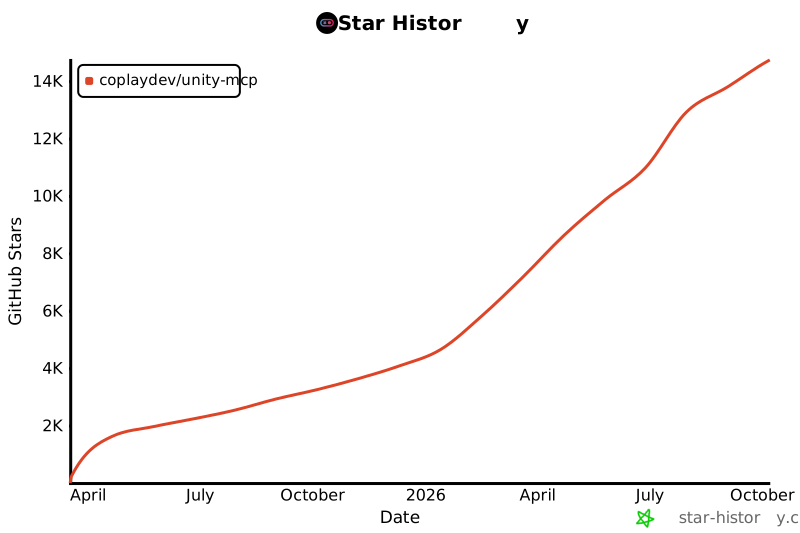
## Star 历史
[](https://www.star-history.com/#CoplayDev/unity-mcp&Date)
<details>
<summary><strong>研究引用</strong></summary>
如果你正在进行与 Unity-MCP 相关的研究,请引用我们!
```bibtex
@inproceedings{10.1145/3757376.3771417,
author = {Wu, Shutong and Barnett, Justin P.},
title = {MCP-Unity: Protocol-Driven Framework for Interactive 3D Authoring},
year = {2025},
isbn = {9798400721366},
publisher = {Association for Computing Machinery},
address = {New York, NY, USA},
url = {https://doi.org/10.1145/3757376.3771417},
doi = {10.1145/3757376.3771417},
series = {SA Technical Communications '25}
}
```
</details>
## Coplay 的 Unity AI 工具
Coplay 提供 3 个 Unity AI 工具:
- **MCP for Unity** 在 MIT 许可证下免费提供。
- **Coplay** 是一个运行在 Unity 内的高级 Unity AI 助手,功能超过 MCP for Unity。
- **Coplay MCP** 是 Coplay 工具的“目前免费”版 MCP。
(这些工具有不同的技术栈。参见这篇博客文章:[comparing Coplay to MCP for Unity](https://coplay.dev/blog/coplay-vs-coplay-mcp-vs-unity-mcp)。)
<img alt="Coplay" src="../images/coplay-logo.png" />
## 免责声明
本项目是一个免费开源的 Unity Editor 工具,与 Unity Technologies 无关。
