
The Excalidraw MCP Server provides a structured API for creating, modifying, and managing Excalidraw diagrams, enabling seamless integration with LLMs and other platforms.
Capabilities include:
Create/Update/Delete Elements: Generate or modify shapes like rectangles, ellipses, and text
Query Elements: Filter and retrieve elements based on criteria
Manage Resources: Access scene information, libraries, and themes
Organize Elements: Group, ungroup, align, distribute, lock, and unlock elements
Flexible Integration: Works with Claude Desktop, Cursor, and Docker for deployment
Supports containerized deployment of the MCP server for simplified integration and consistent environment.
Enables creation, modification, and manipulation of Excalidraw diagrams, including element control, grouping, alignment, and resource management.
Provides installation and dependency management through npm, allowing users to easily set up and run the MCP server.
Click on "Install Server".
Wait a few minutes for the server to deploy. Once ready, it will show a "Started" state.
In the chat, type
@followed by the MCP server name and your instructions, e.g., "@Excalidraw MCP Servercreate a flowchart showing user login process"
That's it! The server will respond to your query, and you can continue using it as needed.
Here is a step-by-step guide with screenshots.
Excalidraw MCP Server & Agent Skill



Run a live Excalidraw canvas and control it from AI agents. This repo provides:
MCP Server: Connect via Model Context Protocol (Claude Desktop, Cursor, Codex CLI, etc.)
Agent Skill: Portable skill for Claude Code, Codex CLI, and other skill-enabled agents
Keywords: Excalidraw agent skill, Excalidraw MCP server, AI diagramming, Claude Code skill, Codex CLI skill, Claude Desktop MCP, Cursor MCP, Mermaid to Excalidraw.
Demo
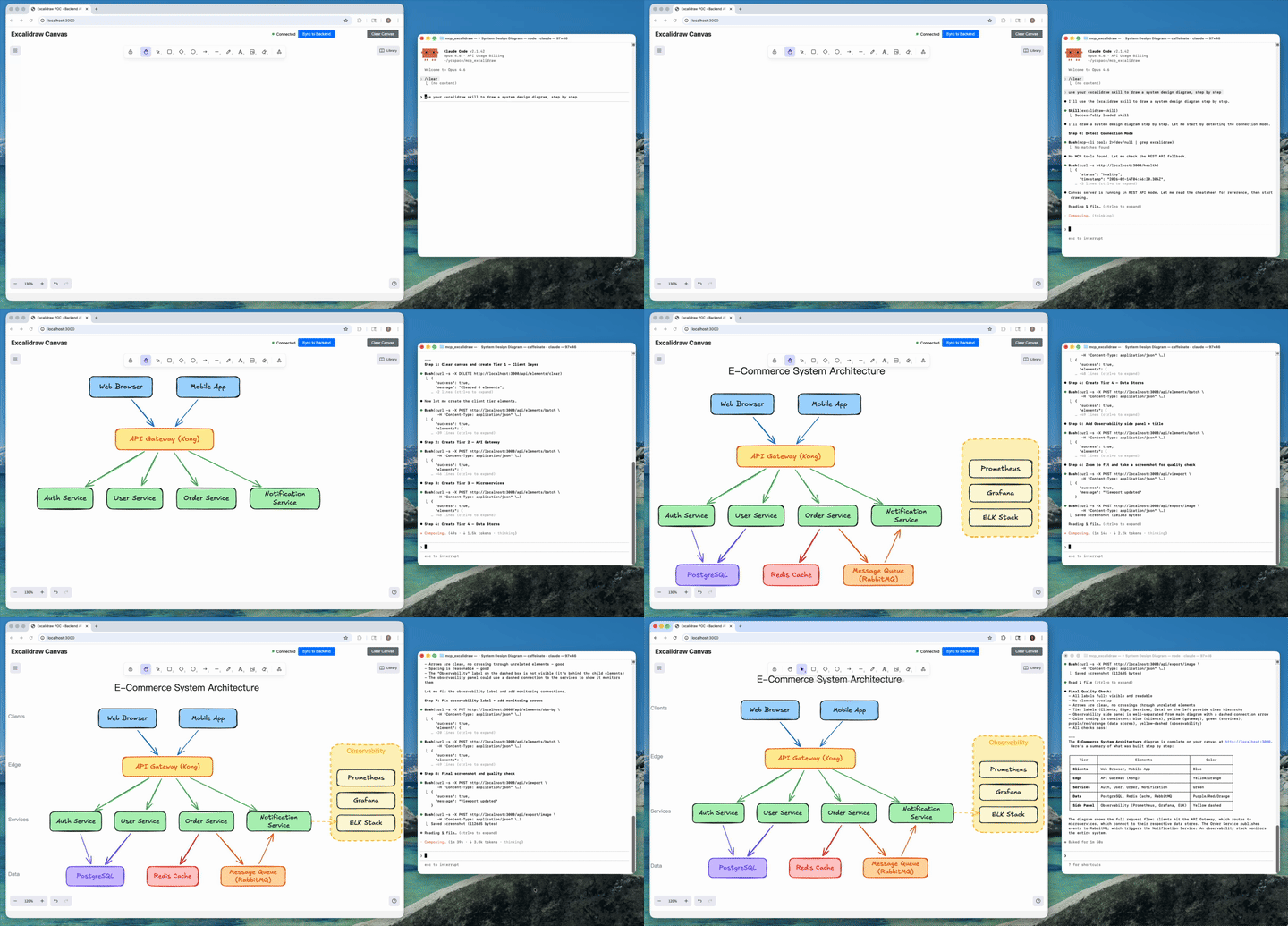
AI agent creates a complete architecture diagram from a single prompt (4x speed).
Related MCP server: Excalidraw MCP Server
Table of Contents
What It Is
This repo contains two separate processes:
Canvas server: web UI + REST API + WebSocket updates (default
http://localhost:3000)MCP server: exposes MCP tools over stdio; syncs to the canvas via
EXPRESS_SERVER_URL
How We Differ from the Official Excalidraw MCP
Excalidraw now has an official MCP — it's great for quick, prompt-to-diagram generation rendered inline in chat. We solve a different problem.
Official Excalidraw MCP | This Project | |
Approach | Prompt in, diagram out (one-shot) | Programmatic element-level control (26 tools) |
State | Stateless — each call is independent | Persistent live canvas with real-time sync |
Element CRUD | No | Full create / read / update / delete per element |
AI sees the canvas | No |
|
Iterative refinement | No — regenerate the whole diagram | Draw → look → adjust → look again, element by element |
Layout tools | No |
|
File I/O | No |
|
Snapshot & rollback | No |
|
Mermaid conversion | No |
|
Shareable URLs | Yes | Yes — |
Design guide |
|
|
Viewport control | Camera animations |
|
Live canvas UI | Rendered inline in chat | Standalone Excalidraw app synced via WebSocket |
Multi-agent | Single user | Multiple agents can draw on the same canvas concurrently |
Works without MCP | No | Yes — REST API fallback via agent skill |
TL;DR — The official MCP generates diagrams. We give AI agents a full canvas toolkit to build, inspect, and iteratively refine diagrams — including the ability to see what they drew.
What's New
v2.0 — Canvas Toolkit
13 new MCP tools (26 total):
get_element,clear_canvas,export_scene,import_scene,export_to_image,duplicate_elements,snapshot_scene,restore_snapshot,describe_scene,get_canvas_screenshot,read_diagram_guide,export_to_excalidraw_url,set_viewportClosed feedback loop: AI can now inspect the canvas (
describe_scene) and see it (get_canvas_screenshotreturns an image) — enabling iterative refinementDesign guide:
read_diagram_guidereturns best-practice color palettes, sizing rules, layout patterns, and anti-patterns — dramatically improves AI-generated diagram qualityShareable URLs:
export_to_excalidraw_urlencrypts and uploads the scene to excalidraw.com, returns a shareable link anyone can openViewport control:
set_viewportwithscrollToContent,scrollToElementId, or manual zoom/offset — agents can auto-fit diagrams after creationFile I/O: export/import full
.excalidrawJSON filesSnapshots: save and restore named canvas states
Skill fallback: Agent skill auto-detects MCP vs REST API mode, gracefully falls back to HTTP endpoints when MCP server isn't configured
Fixed all previously known issues:
align_elements/distribute_elementsfully implemented, points type normalization, removed invalidlabeltype, removed HTTP transport dead code,ungroup_elementsnow errors on failure
v1.x
Agent skill:
skills/excalidraw-skill/(portable instructions + helper scripts for export/import and repeatable CRUD)Better testing loop: MCP Inspector CLI examples + browser screenshot checks (
agent-browser)Bugfixes: batch create now preserves element ids (fixes update/delete after batch); frontend entrypoint fixed (
main.tsx)
Quick Start (Local)
Prereqs: Node >= 18, npm
npm ci
npm run build
Terminal 1: start the canvas
PORT=3000 npm run canvasSecurity note: The server defaults to binding on
localhostonly. If you need to expose it on a network interface (e.g. Docker, remote access), setHOST=0.0.0.0— but ensure you have network-level access controls in place, as the API has no built-in authentication.
Open http://localhost:3000.
Terminal 2: run the MCP server (stdio)
EXPRESS_SERVER_URL=http://localhost:3000 node dist/index.jsQuick Start (Docker)
Canvas server:
docker run -d -p 3000:3000 --name mcp-excalidraw-canvas ghcr.io/yctimlin/mcp_excalidraw-canvas:latestMCP server (stdio) is typically launched by your MCP client (Claude Desktop/Cursor/etc.). If you want a local container for it, use the image ghcr.io/yctimlin/mcp_excalidraw:latest and set EXPRESS_SERVER_URL to point at the canvas.
Configure MCP Clients
The MCP server runs over stdio and can be configured with any MCP-compatible client. Below are configurations for both local (requires cloning and building) and Docker (pull-and-run) setups.
Environment Variables
Variable | Description | Default |
| URL of the canvas server |
|
| Enable real-time canvas sync |
|
Claude Desktop
Config location:
macOS:
~/Library/Application Support/Claude/claude_desktop_config.jsonWindows:
%APPDATA%\Claude\claude_desktop_config.jsonLinux:
~/.config/Claude/claude_desktop_config.json
Local (node)
{
  "mcpServers": {
    "excalidraw": {
      "command": "node",
      "args": ["/absolute/path/to/mcp_excalidraw/dist/index.js"],
      "env": {
        "EXPRESS_SERVER_URL": "http://localhost:3000",
        "ENABLE_CANVAS_SYNC": "true"
      }
    }
  }
}
Docker
{
  "mcpServers": {
    "excalidraw": {
      "command": "docker",
      "args": [
        "run", "-i", "--rm",
        "-e", "EXPRESS_SERVER_URL=http://host.docker.internal:3000",
        "-e", "ENABLE_CANVAS_SYNC=true",
        "ghcr.io/yctimlin/mcp_excalidraw:latest"
      ]
    }
  }
}
Claude Code
Use the claude mcp add command to register the MCP server.
Local (node) - User-level (available across all projects):
claude mcp add excalidraw --scope user \
  -e EXPRESS_SERVER_URL=http://localhost:3000 \
  -e ENABLE_CANVAS_SYNC=true \
  -- node /absolute/path/to/mcp_excalidraw/dist/index.js
Local (node) - Project-level (shared via .mcp.json):
claude mcp add excalidraw --scope project \
  -e EXPRESS_SERVER_URL=http://localhost:3000 \
  -e ENABLE_CANVAS_SYNC=true \
  -- node /absolute/path/to/mcp_excalidraw/dist/index.js
Docker
claude mcp add excalidraw --scope user \
  -- docker run -i --rm \
  -e EXPRESS_SERVER_URL=http://host.docker.internal:3000 \
  -e ENABLE_CANVAS_SYNC=true \
  ghcr.io/yctimlin/mcp_excalidraw:latest
Manage servers:
claude mcp list              # List configured servers
claude mcp remove excalidraw # Remove a server
Cursor
Config location: .cursor/mcp.json in your project root (or ~/.cursor/mcp.json for global config)
Local (node)
{
  "mcpServers": {
    "excalidraw": {
      "command": "node",
      "args": ["/absolute/path/to/mcp_excalidraw/dist/index.js"],
      "env": {
        "EXPRESS_SERVER_URL": "http://localhost:3000",
        "ENABLE_CANVAS_SYNC": "true"
      }
    }
  }
}
Docker
{
  "mcpServers": {
    "excalidraw": {
      "command": "docker",
      "args": [
        "run", "-i", "--rm",
        "-e", "EXPRESS_SERVER_URL=http://host.docker.internal:3000",
        "-e", "ENABLE_CANVAS_SYNC=true",
        "ghcr.io/yctimlin/mcp_excalidraw:latest"
      ]
    }
  }
}
Codex CLI
Use the codex mcp add command to register the MCP server.
Local (node)
codex mcp add excalidraw \
  --env EXPRESS_SERVER_URL=http://localhost:3000 \
  --env ENABLE_CANVAS_SYNC=true \
  -- node /absolute/path/to/mcp_excalidraw/dist/index.js
Docker
codex mcp add excalidraw \
  -- docker run -i --rm \
  -e EXPRESS_SERVER_URL=http://host.docker.internal:3000 \
  -e ENABLE_CANVAS_SYNC=true \
  ghcr.io/yctimlin/mcp_excalidraw:latest
Manage servers:
codex mcp list              # List configured servers
codex mcp remove excalidraw # Remove a server
OpenCode
Config location: ~/.config/opencode/opencode.json or project-level opencode.json
Local (node)
{
  "$schema": "https://opencode.ai/config.json",
  "mcp": {
    "excalidraw": {
      "type": "local",
      "command": ["node", "/absolute/path/to/mcp_excalidraw/dist/index.js"],
      "enabled": true,
      "environment": {
        "EXPRESS_SERVER_URL": "http://localhost:3000",
        "ENABLE_CANVAS_SYNC": "true"
      }
    }
  }
}
Docker
{
  "$schema": "https://opencode.ai/config.json",
  "mcp": {
    "excalidraw": {
      "type": "local",
      "command": ["docker", "run", "-i", "--rm", "-e", "EXPRESS_SERVER_URL=http://host.docker.internal:3000", "-e", "ENABLE_CANVAS_SYNC=true", "ghcr.io/yctimlin/mcp_excalidraw:latest"],
      "enabled": true
    }
  }
}
Antigravity (Google)
Config location: ~/.gemini/antigravity/mcp_config.json
Local (node)
{
  "mcpServers": {
    "excalidraw": {
      "command": "node",
      "args": ["/absolute/path/to/mcp_excalidraw/dist/index.js"],
      "env": {
        "EXPRESS_SERVER_URL": "http://localhost:3000",
        "ENABLE_CANVAS_SYNC": "true"
      }
    }
  }
}
Docker
{
  "mcpServers": {
    "excalidraw": {
      "command": "docker",
      "args": [
        "run", "-i", "--rm",
        "-e", "EXPRESS_SERVER_URL=http://host.docker.internal:3000",
        "-e", "ENABLE_CANVAS_SYNC=true",
        "ghcr.io/yctimlin/mcp_excalidraw:latest"
      ]
    }
  }
}
Notes
Docker networking: Use
host.docker.internalto reach the canvas server running on your host machine. On Linux, you may need--add-host=host.docker.internal:host-gatewayor use172.17.0.1.Canvas server: Must be running before the MCP server connects. Start it with
npm run canvas(local) ordocker run -d -p 3000:3000 ghcr.io/yctimlin/mcp_excalidraw-canvas:latest(Docker).Absolute paths: When using local node setup, replace
/absolute/path/to/mcp_excalidrawwith the actual path where you cloned and built the repo.In-memory storage: The canvas server stores elements in memory. Restarting the server will clear all elements. Use the export/import scripts if you need persistence.
Agent Skill (Optional)
This repo includes a skill at skills/excalidraw-skill/ that provides:
Workflow playbook (
SKILL.md): step-by-step guidance for drawing, refining, and exporting diagramsCheatsheet (
references/cheatsheet.md): MCP tool and REST API referenceHelper scripts (
scripts/*.cjs): export, import, clear, healthcheck, CRUD operations
The skill complements the MCP server by giving your AI agent structured workflows to follow.
Install The Skill (Codex CLI example)
mkdir -p ~/.codex/skills
cp -R skills/excalidraw-skill ~/.codex/skills/excalidraw-skill
To update an existing installation, remove the old folder first (rm -rf ~/.codex/skills/excalidraw-skill) then re-copy.
Install The Skill (Claude Code)
User-level (available across all your projects):
mkdir -p ~/.claude/skills
cp -R skills/excalidraw-skill ~/.claude/skills/excalidraw-skill
Project-level (scoped to a specific project, can be committed to the repo):
mkdir -p /path/to/your/project/.claude/skills
cp -R skills/excalidraw-skill /path/to/your/project/.claude/skills/excalidraw-skill
Then invoke the skill in Claude Code with /excalidraw-skill.
To update an existing installation, remove the old folder first then re-copy.
Use The Skill Scripts
All scripts respect EXPRESS_SERVER_URL (default http://localhost:3000) or accept --url.
EXPRESS_SERVER_URL=http://127.0.0.1:3000 node skills/excalidraw-skill/scripts/healthcheck.cjs
EXPRESS_SERVER_URL=http://127.0.0.1:3000 node skills/excalidraw-skill/scripts/export-elements.cjs --out diagram.elements.json
EXPRESS_SERVER_URL=http://127.0.0.1:3000 node skills/excalidraw-skill/scripts/import-elements.cjs --in diagram.elements.json --mode batch
When The Skill Is Useful
Repository workflow: export elements as JSON, commit it, and re-import later.
Reliable refactors: clear + re-import in
syncmode to make canvas match a file.Automated smoke tests: create/update/delete a known element to validate a deployment.
Repeatable diagrams: keep a library of element JSON snippets and import them.
See skills/excalidraw-skill/SKILL.md and skills/excalidraw-skill/references/cheatsheet.md.
MCP Tools (26 Total)
Category | Tools |
Element CRUD |
|
Layout |
|
Scene Awareness |
|
File I/O |
|
State Management |
|
Viewport |
|
Design Guide |
|
Resources |
|
Full schemas are discoverable via tools/list or in skills/excalidraw-skill/references/cheatsheet.md.
Testing
Canvas Smoke Test (HTTP)
curl http://localhost:3000/healthMCP Smoke Test (MCP Inspector)
List tools:
npx @modelcontextprotocol/inspector --cli \
  -e EXPRESS_SERVER_URL=http://localhost:3000 \
  -e ENABLE_CANVAS_SYNC=true -- \
  node dist/index.js --method tools/list
Create a rectangle:
npx @modelcontextprotocol/inspector --cli \
  -e EXPRESS_SERVER_URL=http://localhost:3000 \
  -e ENABLE_CANVAS_SYNC=true -- \
  node dist/index.js --method tools/call --tool-name create_element \
  --tool-arg type=rectangle --tool-arg x=100 --tool-arg y=100 \
  --tool-arg width=300 --tool-arg height=200
Frontend Screenshots (agent-browser)
If you use agent-browser for UI checks:
agent-browser install
agent-browser open http://127.0.0.1:3000
agent-browser wait --load networkidle
agent-browser screenshot /tmp/canvas.png
Troubleshooting
Canvas not updating: confirm
EXPRESS_SERVER_URLpoints at the running canvas server.Updates/deletes fail after batch creation: ensure you are on a build that includes the batch id preservation fix (merged via PR #34).
Known Issues / TODO
All previously listed bugs have been fixed in v2.0. Remaining items:
Persistent storage: Elements are stored in-memory — restarting the server clears everything. Use
export_scene/ snapshots as a workaround.Image export requires a browser:
export_to_imageandget_canvas_screenshotrely on the frontend doing the actual rendering. The canvas UI must be open in a browser.
Contributions welcome!
Development
npm run type-check
npm run build
Resources
Looking for Admin?
Admins can modify the Dockerfile, update the server description, and track usage metrics. If you are the server author, to access the admin panel.