
Screenshot MCP
# Screenshot MCP
A Model Context Protocol MCP server for capturing website screenshots with full page, element, and device size features.
## Features
- **Full-page screenshot capture** with automatic scrolling
- **Element-specific screenshots** using CSS selectors
- **Multiple device presets** (mobile, tablet, desktop)
- **Custom viewport configurations**
- **Advanced wait conditions** (CSS selectors, network idle, custom delays)
- **Error handling and validation** for secure operation
- **Rate limiting** to prevent resource exhaustion
## Installation
1. Clone or download this project
2. Move to the directory: `cd /path/to/ScreenshotMCP`
3. rename `.env.example` to `.env`
2. Install dependencies: `npm install`
4. Start Server: `npm start`
## Using with Claude Code
You can use Screenshot MCP directly within the Claude Code CLI or Claude Desktop to capture screenshots as part of your development workflow.
**For Claude Code CLI:**
Add to your `~/.config/claude/mcp_servers.json`:
```json
{
"screenshot-full-page-mcp": {
"command": "node",
"args": ["/path/to/screenshot-full-page-mcp/index.js"]
}
}
```
or
`claude mcp add screenshot-full-page-mcp node ./index.js`
**For Claude Desktop:**
Add to your `claude_desktop_config.json`:
```json
{
"mcpServers": {
"screenshot-full-page-mcp": {
"command": "node",
"args": ["/path/to/screenshot-full-page-mcp/index.js"]
}
}
}
```
## Using with Cursor
You can use Screenshot MCP directly within the Cursor IDE to capture screenshots as part of your development workflow.
1. Open Cursor.
2. Go to **Settings** > **MCP Servers**.
3. Add a new MCP server entry for Screenshot MCP:
```json
{
"mcpServers": {
"screenshot-full-page-mcp": {
"command": "node",
"args": ["/path/to/screenshot-full-page-mcp/index.js"]
}
}
}
```
4. Save your settings.
## Usage
Once configured, you can use natural language commands with Claude Code:
### Basic Screenshot
```
"Take a screenshot of https://example.com"
```
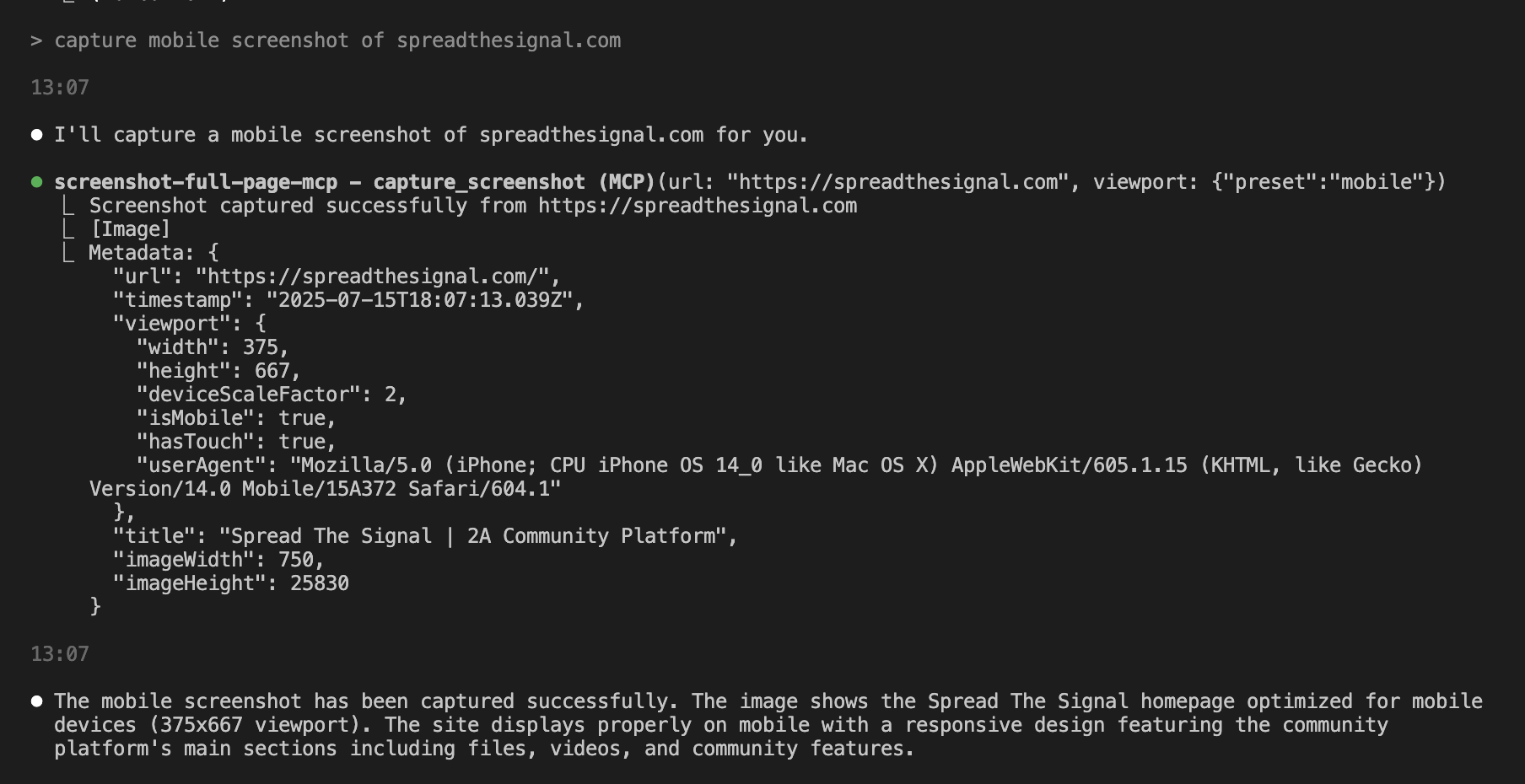
### Mobile Screenshot
```
"Capture a mobile screenshot of https://myapp.com"
```
### Custom Viewport
```
"Screenshot https://myapp.com at 1024x768 resolution"
```
### Wait for Element
```
"Take a screenshot of https://example.com after the loading spinner disappears"
```
### Element Screenshot
```
"Capture just the navigation bar from https://example.com"
```
## Available Tools
### `capture_screenshot`
Captures a full-page screenshot with advanced configuration options.
**Parameters:**
- `url` (required): The webpage URL to screenshot
- `viewport`: Viewport configuration
- `preset`: Device preset (`mobile`, `tablet`, `desktop`)
- `width`: Custom width in pixels (100-5000)
- `height`: Custom height in pixels (100-5000)
- `deviceScaleFactor`: Scale factor (0.1-3)
- `isMobile`: Mobile device emulation
- `hasTouch`: Touch support emulation
- `waitFor`: Wait conditions
- `type`: `selector`, `function`, `timeout`, or `networkidle`
- `value`: CSS selector, function, or timeout value
- `timeout`: Wait timeout in milliseconds
- `delay`: Additional delay before screenshot
- `waitUntil`: Navigation completion condition
### `capture_element`
Captures a screenshot of a specific page element.
**Parameters:**
- `url` (required): The webpage URL
- `selector` (required): CSS selector for the target element
- `viewport`: Viewport configuration (same as above)
### `list_device_presets`
Lists all available device presets with their configurations.
## Device Presets
| Preset | Width | Height | Scale | Mobile | Touch |
|--------|-------|--------|-------|---------|-------|
| mobile | 375px | 667px | 2x | Yes | Yes |
| tablet | 768px | 1024px | 2x | Yes | Yes |
| desktop | 1920px | 1080px | 1x | No | No |
## Configuration
Environment variables can be set in the `.env` file:
```env
# Browser Configuration
BROWSER_HEADLESS=true
BROWSER_TIMEOUT=30000
MAX_CONCURRENT_SCREENSHOTS=5
# Screenshot Defaults
DEFAULT_VIEWPORT_WIDTH=1920
DEFAULT_VIEWPORT_HEIGHT=1080
DEFAULT_WAIT_TIMEOUT=10000
# Security
RATE_LIMIT_REQUESTS=100
RATE_LIMIT_WINDOW=60000
# Debug
DEBUG=false
LOG_LEVEL=info
```
## Security Features
- URL validation (HTTP/HTTPS only)
- CSS selector sanitization
- Rate limiting for concurrent requests
- Sandboxed browser execution
- Input validation and error handling
## System Requirements
- Node.js 18+
- Chrome/Chromium browser (installed automatically with Puppeteer)
- Minimum 2GB RAM
- 500MB disk space
## Troubleshooting
### Common Issues
1. **Browser launch fails:**
- Ensure sufficient system resources
- Check if Chrome/Chromium is properly installed
- Try setting `BROWSER_HEADLESS=false` for debugging
2. **Screenshot timeout:**
- Increase `BROWSER_TIMEOUT` in `.env`
- Check if the target website loads properly
- Use appropriate `waitUntil` conditions
3. **Memory issues:**
- Reduce `MAX_CONCURRENT_SCREENSHOTS`
- Restart the MCP server periodically
- Monitor system memory usage
### Debug Mode
Enable debug mode by setting `DEBUG=true` in `.env` file for detailed logging.
## Contributing
1. Fork the repository
2. Create a feature branch
3. Make your changes
4. Add tests if applicable
5. Submit a pull request
## License
MIT License - see LICENSE file for details.
## Support
For issues and questions:
- Open an issue on GitHub
- Check the troubleshooting section
- Review the MCP documentation
TDQS
Scored across 3 tools
Each tool has a clearly distinct purpose: capture_element targets specific webpage elements, capture_screenshot handles full-page captures with advanced options, and list_device_presets deals with device configurations. There is no overlap or ambiguity between these functions.
The naming follows a consistent verb_noun pattern (capture_element, capture_screenshot, list_device_presets), with all tools using snake_case. The minor deviation is that list_device_presets uses 'list' instead of 'capture', but this is appropriate for its distinct function.
With only 3 tools, the count feels thin for a screenshot domain that might benefit from additional operations like managing screenshots or adjusting capture settings. However, it covers core capture functions adequately.
The toolset covers basic screenshot capture (element and full-page) and device preset listing, but lacks operations for managing captured screenshots (e.g., save, delete, annotate) or advanced configuration beyond presets. This creates minor gaps in the workflow.