
canvas-control
# canvas-control
`canvas-control` turns Canvas LMS into a fast, scriptable download pipeline and exposes it to AI assistants via MCP.
- **Download** files from multiple Canvas content sources in one command
- **Sync** course files like `git pull` — skip unchanged, re-download on demand
- **Check grades** across all courses from the terminal or export to CSV/JSON
- **Submit assignments** from the terminal (file upload, text entry, URL)
- **Talk to Canvas** through AI assistants (Claude Desktop, Cursor, Claude Code) — search files, download by name or type, sync courses, and set paths in natural language
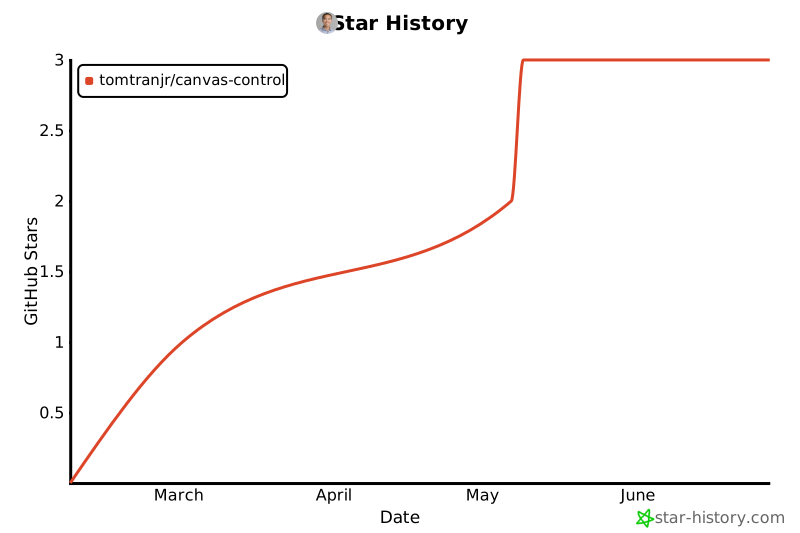
## Star History
[](https://www.star-history.com/#tomtranjr/canvas-control&type=date&legend=top-left)
## Table of contents
- [Why canvas-control](#why-canvas-control)
- [Quick start](#quick-start)
- [MCP server (AI assistants)](#mcp-server-ai-assistants)
- [CLI highlights](#cli-highlights)
- [Documentation](#documentation)
- [Dev Testing](#dev-testing)
- [Contributing](#contributing)
## Why canvas-control
- One command downloads from `files`, `assignments`, `discussions`, `pages`, and `modules`.
- Built for repeatable workflows: predictable output paths, machine-readable manifests, idempotent re-runs.
- Guided mode (`download interactive`) for beginners, fully scripted mode (`download run`) for power users.
- Grades accessible from the terminal: summaries, per-assignment breakdowns, CSV/JSON export.
- MCP server lets AI assistants query courses, grades, assignments, and sync files with natural language.
## Quick start
`canvas-control` uses [uv](https://docs.astral.sh/uv/) for environment and dependency management.
1. Create and activate a virtual environment (Python 3.12+):
```bash
uv venv --python 3.12
source .venv/bin/activate
```
2. Install the project and dev dependencies:
```bash
uv pip install -e '.[dev]'
```
3. Set your Canvas base URL once:
```bash
cvsctl config set-base-url https://your-school.instructure.com
```
4. Set `CANVAS_TOKEN` (see [configuration docs](docs/configuration.md#set-canvas_token)) or let `cvsctl` prompt for it.
5. Run the onboarding wizard to configure everything interactively, or jump straight to your first command:
```bash
# Guided setup (recommended for first-time users)
cvsctl onboard
# Or go straight to listing your courses
cvsctl courses list
```
## MCP server (AI assistants)
`canvas-control` includes an MCP (Model Context Protocol) server so you can interact with Canvas through AI assistants using natural language.
### Available tools
| Tool | Description |
| -------------------------- | ------------------------------------------------------------------ |
| `list_courses` | List enrolled courses (active or all) |
| `get_upcoming_assignments` | Assignments due within a time window |
| `get_announcements` | Recent course announcements |
| `get_calendar_events` | Calendar events within a time window |
| `get_syllabus` | Course syllabus content |
| `get_grades_summary` | Grade overview across courses |
| `get_grades_detailed` | Per-assignment grade breakdown |
| `list_course_files` | List all files in a course (raw) |
| `search_course_files` | Search files by name, type, or folder — preview before downloading |
| `download_file` | Download a single file by ID |
| `download_selected_files` | Download a batch of specific files to a local directory |
| `set_download_path` | Save a download path to config (global or per-course) |
| `complete_assignment` | Mark assignment complete (submission or module completion flow) |
| `sync_course_files` | Sync all course files to local disk; supports custom `destination` |
### Natural language file downloads
Three new tools enable a conversational download workflow directly from Claude Desktop or Cursor:
`**search_course_files**` — search before you download. Filter by name substring, file extension, or folder path. The assistant shows you a preview of matching files so you can confirm before anything hits disk.
`**download_selected_files**` — download a batch of specific files (by Canvas file ID) to any local directory. Skips files that already exist, so it's safe to re-run. Returns a per-file status: `downloaded`, `skipped`, or `failed`.
`**set_download_path**` — persist a directory path to config so you don't have to specify it every time. Set a global default or a per-course path.
`**sync_course_files**` — now accepts an optional `destination` parameter, so you can tell the assistant exactly where to put everything without touching config first.
Example conversation:
```
You: Search for PDF files in my Biology course
Claude: Found 8 PDFs — Lecture 1.pdf, Lecture 2.pdf, Syllabus.pdf …
You: Download those to ~/Documents/Bio
Claude: Downloaded 7, skipped 1 (already exists). Saved to ~/Documents/Bio.
You: Save that as my default path for Biology
Claude: Saved ~/Documents/Bio as the download path for Biology (course 12345).
```
### Claude Desktop
Add to `~/Library/Application Support/Claude/claude_desktop_config.json`:
```json
{
"mcpServers": {
"canvas": {
"command": "uv",
"args": ["--directory", "/path/to/canvas-control", "run", "cvsctl", "mcp", "serve"],
"env": {
"CANVAS_TOKEN": "your-token",
"CANVAS_BASE_URL": "https://your-school.instructure.com",
"CANVAS_TIMEZONE": "America/Los_Angeles"
}
}
}
}
```
### Cursor
Add to `.cursor/mcp.json` in your project or `~/.cursor/mcp.json` globally:
```json
{
"mcpServers": {
"canvas": {
"command": "uv",
"args": ["--directory", "/path/to/canvas-control", "run", "cvsctl", "mcp", "serve"],
"env": {
"CANVAS_TOKEN": "your-token",
"CANVAS_BASE_URL": "https://your-school.instructure.com",
"CANVAS_TIMEZONE": "America/Los_Angeles"
}
}
}
}
```
### Claude Code
```bash
claude mcp add canvas -- uv --directory /path/to/canvas-control run cvsctl mcp serve
```
Set `CANVAS_TOKEN`, `CANVAS_BASE_URL`, and optionally `CANVAS_TIMEZONE` in your shell profile or `.envrc`.
### Example prompts
Courses, grades, and assignments:
- "What classes am I taking?"
- "What assignments are due this week?"
- "Show my grades for Biology"
- "Are there any new announcements?"
- "Mark Homework 2 complete"
Downloading files:
- "Search for slides in my CS101 course"
- "Download the lecture PDFs from my Biology course to ~/Documents/Bio"
- "Save ~/Documents/Bio as my default download path for Biology"
- "Sync all files from my Time Series course to ~/Documents/School"
- "Re-download all files for Biology, overwriting existing ones"
## CLI highlights
Download all files for a course:
```bash
cvsctl download run --course 12345
```
View grades at a glance:
```bash
cvsctl grades summary
```
Export grades to CSV:
```bash
cvsctl grades export --detailed
```
Guided interactive download:
```bash
cvsctl download interactive
```
Submit an assignment:
```bash
cvsctl assignments submit --course 12345 --assignment "Homework 1" --file ./solution.py
```
See [CLI Reference](docs/cli-reference.md) for the full command tree and all options.
## Documentation
- [Configuration](docs/configuration.md) — token setup, download paths, per-course paths
- [CLI Reference](docs/cli-reference.md) — full command tree and behavior notes
- [Guides](docs/guides.md) — workflows, grades, interactive mode, troubleshooting
## Dev Testing
When changes are merged into the main branch, update your local clone and reinstall so the MCP server picks up the latest code.
1. Pull the latest changes:
```bash
git pull origin main
```
2. Reinstall the package (picks up new dependencies or entry-point changes):
```bash
uv pip install -e '.[dev]'
```
3. Run the test suite to verify nothing is broken:
```bash
uv run pytest
```
4. Restart the MCP server in your AI client so it spawns a fresh process:
- **Claude Desktop**: quit and relaunch the app
- **Cursor**: open Settings → MCP and click the refresh/reconnect button
- **Claude Code**: the server is spawned per-session; start a new session
## Contributing
1. Create a branch for your change.
2. Implement focused changes and tests.
3. Run tests:
```bash
uv run pytest
```
4. Optional live smoke test (requires real Canvas credentials):
```bash
export CANVAS_BASE_URL="https://your-school.instructure.com"
export CANVAS_TOKEN="your-token"
export CANVAS_TEST_COURSE_ID="12345"
uv run pytest -m live
```
5. Open a PR with what changed, why, and test coverage.
TDQS
Scored across 14 tools
Tools are mostly distinct, but download_file and download_selected_files overlap in purpose; descriptions help clarify. Similarly, sync_course_files could be confused with bulk download. Overall, most tools have clear boundaries.
All tools follow verb_noun snake_case pattern consistently. Verbs are descriptive (get, list, download, complete, set, sync). No mixing of conventions.
14 tools is appropriate for a Canvas LMS integration. Each tool covers a key feature area without unnecessary duplication.
Covers core Canvas features: courses, files, assignments, grades, announcements, calendar, syllabus. Missing individual assignment details and submission file upload, but complete_assignment handles submission with guidance. Minor gaps exist but a typical workflow can be completed.