

A
licenseNot graded
qualityD
maintenanceAn MCP server that converts text inputs into visualized flowcharts, enabling AI clients to generate high-quality Mermaid diagrams directly from natural language descriptions or structured text.
12
MIT

Enables the generation of Markdown-formatted summaries and structural descriptions of charts for inclusion in technical documentation.
Allows for the programmatic export of flowcharts, entity-relationship diagrams, and swimlane diagrams into Mermaid syntax for use in external diagramming and documentation tools.
Click on "Deploy Server".
Wait a few minutes for the server to deploy. Once ready, it will show a "Started" state.
In the chat, type @ followed by the MCP server name and your instructions, e.g., "@AI Charts create a flowchart for a user login process with error handling"
That's it! The server will respond to your query, and you can continue using it as needed.
Here is a step-by-step guide with screenshots.
AI-powered flowchart, ERD, and swimlane diagram builder.
AI Charts combines a built-in AI assistant for quick chart creation with an MCP server that lets external AI tools like Claude Desktop and Cursor create and manage charts programmatically. It works with any OpenAI-compatible LLM provider — Ollama, OpenAI, or your own endpoint. No vendor lock-in.
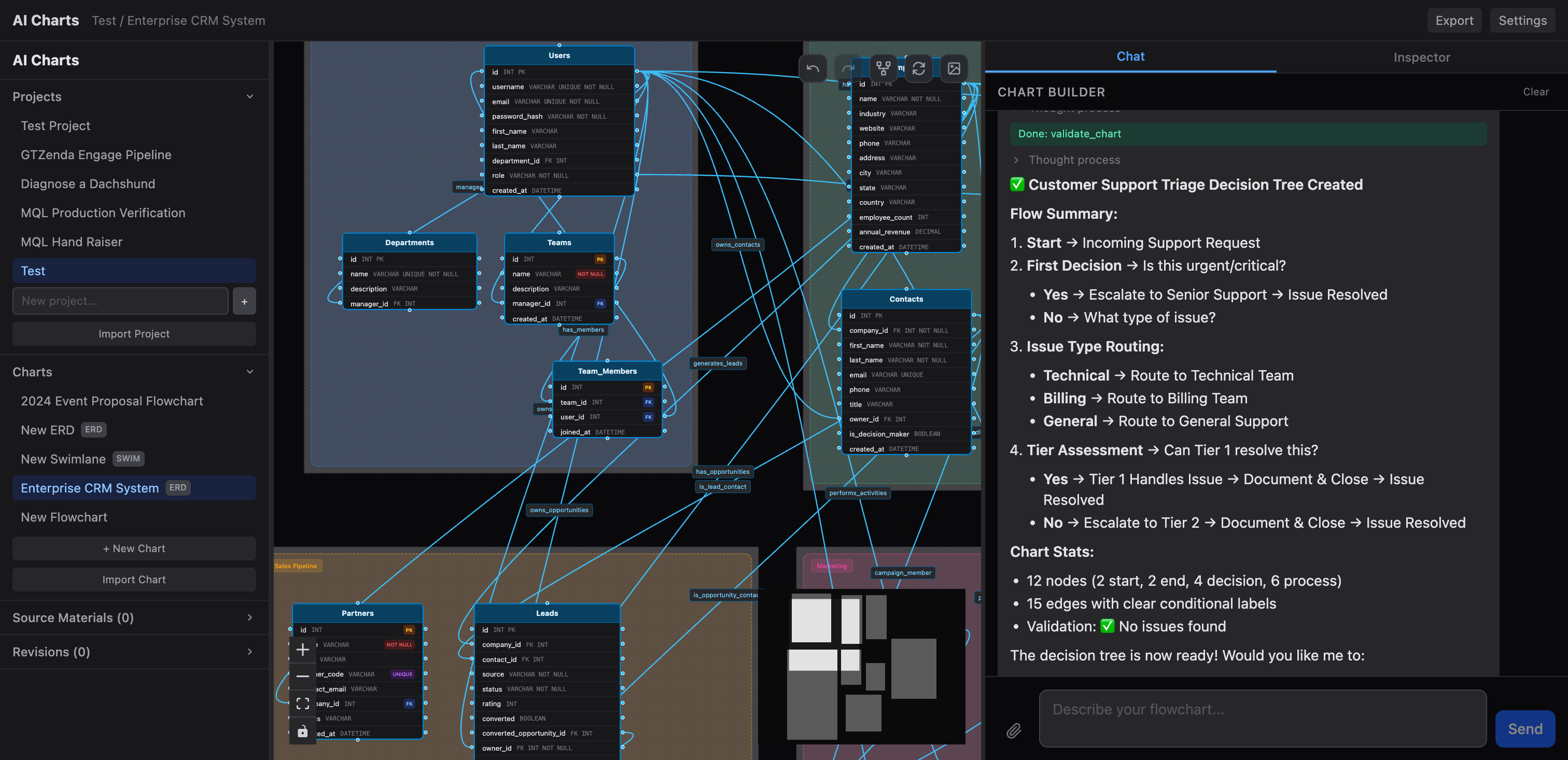
Three chart types — flowcharts, entity-relationship diagrams, and swimlane diagrams
Built-in AI assistant — setup wizard for new projects and a chart builder mode for iterating on diagrams through conversation
MCP server — 18+ tools for external AI integration; connect Claude Desktop, Cursor, or any MCP client to create and manage charts programmatically
Any LLM provider — works with Ollama, OpenAI, or any OpenAI-compatible API
Import/export — portable ZIP project archives, Mermaid syntax, Markdown summaries, and PDF export
Auto-layout & validation — ELK-based auto-layout, cycle detection, reachability analysis, and structural validation
Revision history — full undo/redo with event tracking
Dark-themed UI — built with React Flow for interactive diagram editing
Related MCP server: fcp-drawio
Prerequisites: Bun and an LLM provider (e.g. Ollama)
git clone https://github.com/tjameswilliams/ai-charts.git
cd ai-charts
bun install
bun run db:push
bun run dev
The app will be available at http://localhost:5174.
Configure your LLM provider through the Settings UI in the app. The default configuration points to a local Ollama instance:
Setting | Default |
API Base URL |
|
API Key |
|
Model |
|
To use OpenAI, set the base URL to https://api.openai.com/v1, add your API key, and choose a model like gpt-4o. Any OpenAI-compatible endpoint works the same way.
AI Charts exposes an MCP server so external AI tools can create and manage charts programmatically.
Run standalone:
bun run mcpConnect from Claude Desktop — add to your claude_desktop_config.json:
{
  "mcpServers": {
    "ai-charts": {
      "command": "bun",
      "args": ["run", "mcp"],
      "cwd": "/path/to/ai-charts"
    }
  }
}
Available tools include: list_projects, create_project, list_charts, create_chart, build_chart, add_node, add_edge, delete_node, delete_edge, resize_nodes, get_nodes, get_chart_status, validate_chart, export_mermaid, export_markdown, and more.
client/              React + Vite frontend
  src/
    components/      UI components
    store/           Zustand state management
    api/             API client
server/              Bun + Hono backend
  routes/            API endpoints
  db/                Drizzle ORM schema & migrations
  lib/
    llm.ts           LLM integration & tool definitions
    mcp/             MCP server & client manager
    export/          Export utilities (Mermaid, Markdown, PDF)
validation.ts Chart validationRuntime: Bun
Backend: Hono, SQLite via Drizzle ORM
Frontend: React 19, React Flow, Zustand, Tailwind CSS 4
AI: OpenAI-compatible chat completions, Model Context Protocol
Layout: ELK via elkjs
This server cannot be deployed
Create and manage Mermaid.js flowcharts and diagrams with AI agents via MCP.
Hosted MCP server for AI-driven data ops. Create apps, manage schemas, and CRUD structured data.
Render, verify, describe, and safely edit Mermaid diagrams through MCP.
MCP server that lets AI assistants use all OneSchema features exposed via the public API.