
MCP Terminal
The MCP Terminal server enables AI-assisted terminal command execution and file operations through a standardized interface.
Execute Terminal Commands: Run commands with configurable timeout and wait options, optionally retrieving their output.
Retrieve Terminal Information: Fetch details about the terminal type and platform being used.
Modify Files: Write, append, or insert content into files with options to specify position and create parent directories if needed.
Click on "Install Server".
Wait a few minutes for the server to deploy. Once ready, it will show a "Started" state.
In the chat, type
@followed by the MCP server name and your instructions, e.g., "@MCP Terminallist files in the current directory"
That's it! The server will respond to your query, and you can continue using it as needed.
Here is a step-by-step guide with screenshots.
MCP Terminal
MCP Terminal 是一个基于 MCP(Model Context Protocol)的终端控制服务器,专为与大型语言模型(LLM)和 AI 助手集成而设计。它提供了一个标准化的接口,使 AI 可以执行终端命令并获取输出结果。
English | 中文
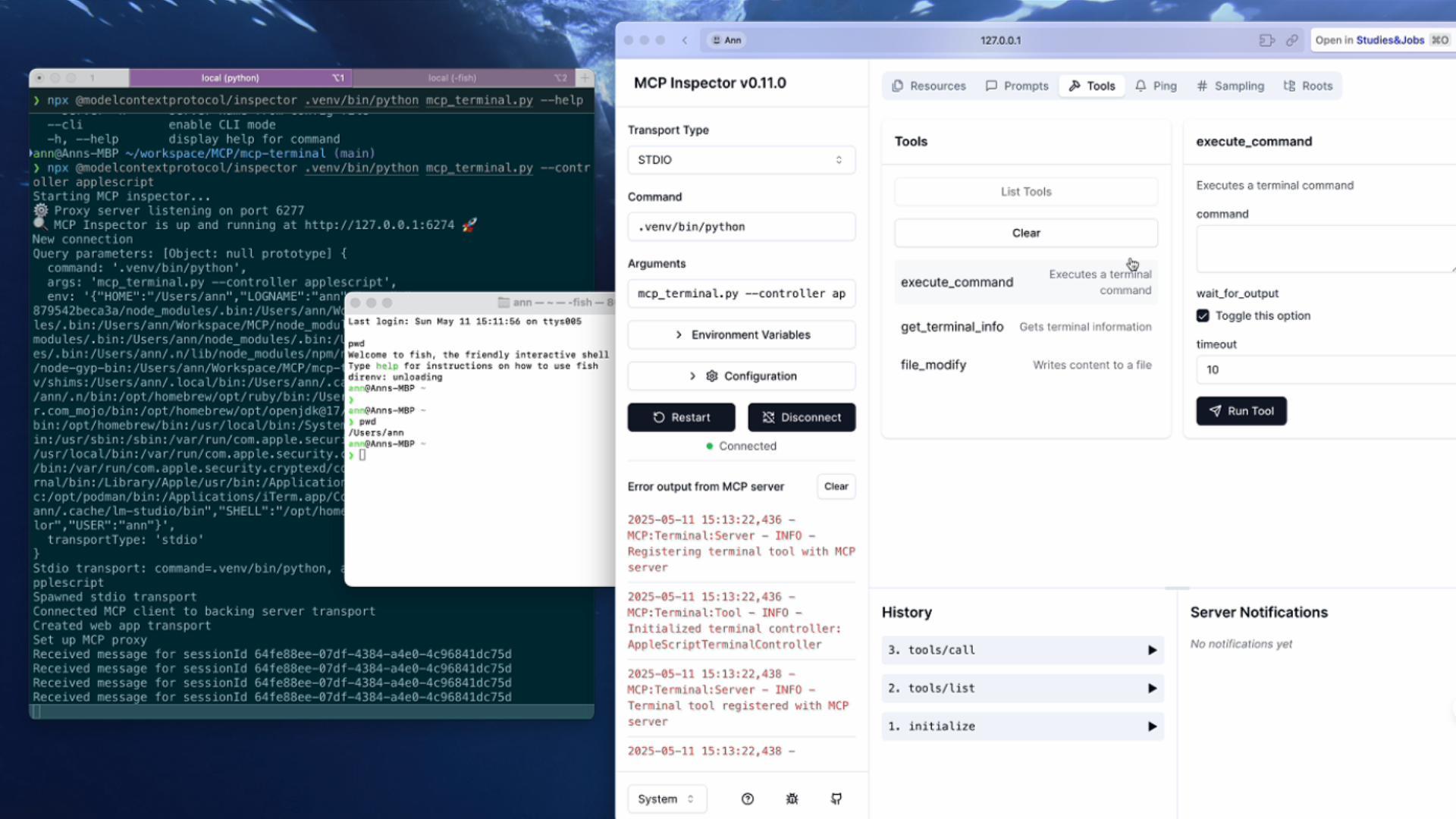
演示视频
Related MCP server: Lilith Shell
特性
使用官方 MCP SDK 实现
支持多种终端控制器:
iTerm2 控制器:在 macOS 上使用 iTerm2 的 Python API 提供高级控制
AppleScript 控制器:在 macOS 上使用 AppleScript 控制 Terminal 应用
Subprocess 控制器:在所有平台上通用的终端控制方式
支持多种服务器模式:
STDIO 模式:通过标准输入/输出与客户端通信
SSE 模式:通过 Server-Sent Events 提供 HTTP API
提供多种工具:
终端工具:执行命令并获取输出
文件工具:进行文件操作(读写、追加、插入)
自动检测最佳终端控制器
与 Claude Desktop 无缝集成
支持 Docker 部署
安装
先决条件
Python 3.8+
uv 包管理工具
如果您还没有安装 uv,可以通过以下命令安装:
# 在macOS上使用Homebrew
brew install uv

# 在其他平台上
pip install uv
使用 uv 安装(推荐)
克隆仓库并使用 uv 安装依赖:
# 克隆仓库
git clone https://github.com/yourusername/mcp-terminal.git
cd mcp-terminal

# 创建虚拟环境并安装基本依赖
uv venv
source .venv/bin/activate  # 在Windows上使用 .venv\Scripts\activate
uv pip install -e .

# 如果需要iTerm2支持 (仅限macOS)
uv pip install -e ".[iterm]"

# 如果需要开发工具(测试、代码格式化等)
uv pip install -e ".[dev]"
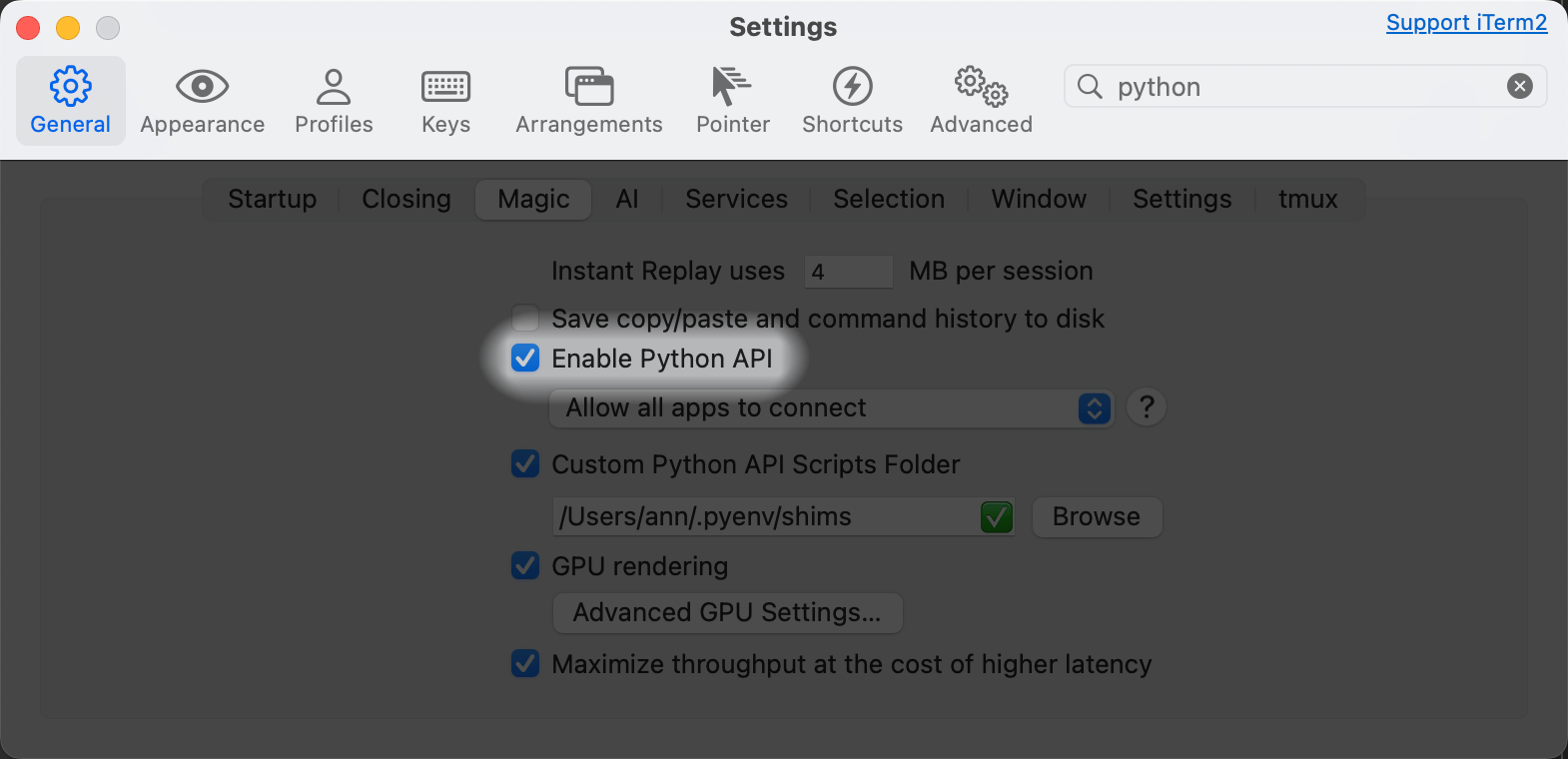
注意:如需使用 iTerm2 控制器,必须在 iTerm2 设置中启用 Python API。
打开 iTerm2,依次进入
Preferences→General→Magic,勾选 Enable Python API 选项,如下图所示:
使用 Makefile 安装
我们提供了 Makefile 来简化常见操作:
# 安装基本依赖
make setup

# 安装iTerm2支持
make setup-iterm

# 安装开发依赖
make setup-dev
使用 Docker 安装
我们提供了 Docker 支持,可以快速部署 MCP Terminal 服务器:
# 构建 Docker 镜像
docker build -t mcp-terminal .

# 运行 Docker 容器(SSE模式,端口8000)
docker run -p 8000:8000 mcp-terminal
或者使用 docker-compose:
# 启动服务
docker-compose up -d

# 查看日志
docker-compose logs -f

# 停止服务
docker-compose down
使用方法
运行 MCP 终端服务器
有多种方式可以启动服务器:
# 使用Python直接运行(默认使用stdio模式和自动检测终端控制器)
python mcp_terminal.py

# 使用Makefile运行(stdio模式)
make run-stdio

# 使用Makefile运行(SSE模式)
make run-sse

# 使用指定控制器
make run-iterm     # 使用iTerm2控制器
make run-applescript  # 使用AppleScript控制器
make run-subprocess   # 使用Subprocess控制器
使用 Docker 运行
使用 Docker 运行 MCP Terminal 服务器(默认使用 SSE 模式和 Subprocess 控制器):
# 直接运行
docker run -p 8000:8000 mcp-terminal

# 使用自定义端口
docker run -p 9000:8000 mcp-terminal

# 挂载当前目录(可访问本地文件)
docker run -p 8000:8000 -v $(pwd):/workspace mcp-terminal
默认配置:
服务器模式:SSE
主机:0.0.0.0(允许远程连接)
端口:8000
控制器:subprocess(适合容器环境)
您可以通过修改 Dockerfile 或 docker-compose.yml 文件来自定义配置。
在 Claude 或其他 AI 中使用 Docker 容器作为 MCP 服务
您可以将 Docker 容器配置为 MCP 服务,使 Claude 或其他支持 MCP 的 AI 可以直接使用容器化的工具。以下是在 Claude 配置文件中使用 Docker 容器作为 MCP 服务的示例:
{
  "mcp": {
    "servers": {
      "terminal": {
        "command": "docker",
        "args": [
          "run",
          "--rm",
          "-i",
          "--mount",
          "type=bind,src=${workspaceFolder},dst=/workspace",
          "mcp-terminal",
          "mcp-terminal",
          "--mode",
          "sse",
          "--host",
          "0.0.0.0",
          "--port",
          "8000"
        ]
      }
    }
  }
}
这种配置允许:
通过 Docker 容器隔离工具执行环境
无需在本地安装特定工具即可使用其功能
在不同环境中保持一致的工具版本和配置
使用
${workspaceFolder}变量将当前工作目录挂载到容器中通过
--rm标志确保容器使用后自动删除,保持环境清洁
您可以根据需要定义多个不同的 MCP 服务容器,每个容器专注于特定的功能。
Claude Desktop 集成配置示例
以下是 Claude Desktop 的配置示例:
{
  "mcpServers": {
    "terminal": {
      "command": "/Users/ann/Workspace/mcp-terminal/.venv/bin/python",
      "args": [
        "/Users/ann/Workspace/mcp-terminal/mcp_terminal.py",
        "--controller",
        "subprocess"
      ]
    }
  }
}
命令行选项
服务器支持多种命令行选项:
python mcp_terminal.py --help主要选项:
--controller或-c:指定终端控制器类型(auto, iterm, applescript, subprocess)--mode或-m:指定服务器模式(stdio, sse)--host:指定 SSE 模式主机地址--port或-p:指定 SSE 模式端口--log-level或-l:指定日志级别
与 Claude Desktop 集成
MCP Terminal 可以与 Claude Desktop 无缝集成,为 Claude 提供终端控制能力。
配置步骤
启动 MCP Terminal 服务器(以 stdio 模式):
# 在一个终端窗口中运行
make run-stdio
配置 Claude Desktop 使用 MCP 服务器:
打开 Claude Desktop,然后:
点击设置图标(通常在右上角)
导航到"扩展"或"工具"选项卡
启用"自定义工具"功能
添加 MCP Terminal 的配置:
工具名称:Terminal
工具路径:输入 mcp_terminal.py 的完整路径
使用 stdio 模式:勾选
保存配置
测试集成:
在与 Claude 的对话中,你现在可以请求 Claude 执行终端命令,例如:
"请列出我的主目录下的文件"
"检查我当前的 Python 版本"
"创建一个新目录并将当前日期写入一个文件"
故障排除
如果集成不正常工作:
确保 MCP Terminal 服务器正在运行
检查日志输出以查找错误
验证 Claude Desktop 的工具配置是否正确
尝试重启 Claude Desktop 和 MCP Terminal 服务器
API 规范
MCP Terminal 提供以下 MCP 函数:
execute_command
执行终端命令并获取输出结果。
参数:
command(string):要执行的命令wait_for_output(boolean, 可选):是否等待并返回命令输出,默认为 truetimeout(integer, 可选):等待输出的超时时间(秒),默认为 10
返回:
success(boolean):命令是否成功执行output(string, 可选):命令的输出结果error(string, 可选):如果命令失败,返回错误信息return_code(integer, 可选):命令的返回代码warning(string, 可选):警告信息
get_terminal_info
获取终端信息。
参数:无
返回:
terminal_type(string):正在使用的终端类型platform(string):运行平台
file_modify
写入、追加或插入内容到文件。
参数:
filepath(string):文件路径content(string):要写入的内容mode(string, 可选):写入模式,可选值为 "overwrite"(覆盖)、"append"(追加)或 "insert"(插入),默认为 "overwrite"position(integer, 可选):使用 "insert" 模式时的插入位置create_dirs(boolean, 可选):如果目录不存在,是否创建目录,默认为 true
返回:
success(boolean):操作是否成功error(string, 可选):如果操作失败,返回错误信息filepath(string):操作的文件路径details(object, 可选):额外的操作详情
安全考虑
MCP Terminal 允许执行任意终端命令,这可能带来安全风险。在生产环境中使用时,应该:
限制服务器只接受来自受信任来源的连接
考虑实现命令白名单或黑名单
定期审计执行的命令
在专用账户下运行服务器,限制其权限
开发
目录结构
mcp-terminal/
├── mcp_terminal.py            # 入口点脚本
├── pyproject.toml             # 项目配置和依赖
├── README.md                  # 项目文档
├── Makefile                   # 构建和运行命令
├── Dockerfile                 # Docker 构建配置
├── docker-compose.yml         # Docker Compose 配置
├── src/
│   ├── __init__.py
│   └── mcp_terminal/
│       ├── __init__.py
│       ├── server.py          # 主服务器实现
│       ├── controllers/
│       │   ├── __init__.py    # 控制器工厂和导入
│       │   ├── base.py        # 基础控制器接口
│       │   ├── subprocess.py  # 通用子进程控制器
│       │   ├── applescript.py # AppleScript控制器
│       │   └── iterm.py       # iTerm2 API控制器
│       └── tools/
│           ├── __init__.py
│           ├── terminal.py    # 终端操作工具
│           └── file.py        # 文件操作工具
└── tests/                     # 测试目录
    ├── __init__.py
    └── test_subprocess_controller.py
运行测试
# 使用pytest运行所有测试
make test

# 或者直接使用pytest
pytest tests/
代码格式化
# 检查代码格式
make lint

# 自动格式化代码
make format
贡献
欢迎贡献!请遵循以下步骤:
Fork 仓库
创建功能分支 (
git checkout -b feature/amazing-feature)提交更改 (
git commit -m 'Add some amazing feature')推送到分支 (
git push origin feature/amazing-feature)提交 Pull Request
许可证
此项目采用 MIT 许可证 - 详情见LICENSE文件。
Resources
Unclaimed servers have limited discoverability.
Looking for Admin?
If you are the server author, to access and configure the admin panel.
Latest Blog Posts
MCP directory API
We provide all the information about MCP servers via our MCP API.
curl -X GET 'https://glama.ai/api/mcp/v1/servers/sichang824/mcp-terminal'
If you have feedback or need assistance with the MCP directory API, please join our Discord server