
Opengraph io MCP
# OpenGraph MCP Server
`opengraph-io-mcp` is a Model Context Protocol (MCP) server that makes the [OpenGraph.io](https://opengraph.io) API available to AI agents such as Claude, Cursor and LangGraph through the standard MCP interface.
Why? If you already use OpenGraph.io to unfurl links, scrape HTML, extract article text, or capture screenshots, you can now give the same capabilities to your autonomous agents without exposing raw API keys.
## Global Installation
You can install this package globally via npm:
```
npm install -g opengraph-io-mcp
```
## Quick Install
### CLI Installer (Recommended)
The easiest way to configure OpenGraph MCP for any supported client:
```bash
# Interactive mode - guides you through setup
npx opengraph-io-mcp-install
# Direct mode - specify client and app ID
npx opengraph-io-mcp-install --client cursor --app-id YOUR_APP_ID
```
Supported clients: `cursor`, `claude-desktop`, `windsurf`, `vscode`, `zed`, `jetbrains`
### Claude Desktop Extension
For Claude Desktop, download the `.mcpb` extension from the [Releases page](https://github.com/securecoders/opengraph-io-mcp/releases) and open it. Claude Desktop asks for your App ID once and stores it securely.
## Authentication
The hosted server at `https://mcp.opengraph.io/mcp` uses **OAuth 2.1**. You sign in once in your browser and choose which OpenGraph.io API key to authorize; nothing secret goes into a config file, and you can revoke access from the dashboard at any time. OAuth also unlocks the Open Graph Audit and Link Preview tools.
How it works: when a client connects without credentials, the server answers `401` with a `WWW-Authenticate` header pointing to
```
GET /.well-known/oauth-protected-resource
→ { "authorization_servers": ["https://dashboard-api.opengraph.io"] }
```
The client discovers the authorization server from there and opens `https://dashboard.opengraph.io/oauth/consent` in your browser. Clients with built in OAuth support need nothing but the URL. Clients that can only launch local commands connect through [`mcp-remote`](https://github.com/punkpeye/mcp-remote), a small bridge that runs on your machine and handles the same browser sign in.
> **The `x-app-id` header is deprecated on the hosted server.** It still works for now, and responses to it carry a `Deprecation` header, but support is being removed. Move to one of the OAuth setups below. Running the server locally (the stdio transport, the CLI installer, or the Claude Desktop extension) uses your App ID directly and is not affected.
---
## Client Configuration
Every setup below connects to the hosted server with OAuth. The first time a tool is used, your browser opens to sign in.
[](https://cursor.com/install-mcp?name=opengraph&config=eyJ1cmwiOiJodHRwczovL21jcC5vcGVuZ3JhcGguaW8vbWNwIn0%3D)
[](https://insiders.vscode.dev/redirect/mcp/install?name=opengraph&config=%7B%22type%22%3A%22http%22%2C%22url%22%3A%22https%3A%2F%2Fmcp.opengraph.io%2Fmcp%22%7D)
[](https://insiders.vscode.dev/redirect/mcp/install?name=opengraph&config=%7B%22type%22%3A%22http%22%2C%22url%22%3A%22https%3A%2F%2Fmcp.opengraph.io%2Fmcp%22%7D&quality=insiders)
### Claude Code
```bash
claude mcp add --transport http opengraph https://mcp.opengraph.io/mcp
```
Then run `/mcp` inside Claude Code and choose **opengraph** to sign in.
### Claude Desktop
**Settings → Connectors → Add custom connector**, name it `OpenGraph`, and enter `https://mcp.opengraph.io/mcp`. Claude Desktop opens your browser to sign in.
If you prefer the config file (`~/Library/Application Support/Claude/claude_desktop_config.json` on macOS, `%APPDATA%\Claude\claude_desktop_config.json` on Windows), use the `mcp-remote` bridge:
```json
{
"mcpServers": {
"opengraph": {
"command": "npx",
"args": ["-y", "mcp-remote@0.14.3", "https://mcp.opengraph.io/mcp"]
}
}
}
```
### Cursor
Install the **OpenGraph.io** plugin from the Cursor Marketplace, or add the server yourself.
Config location: `~/.cursor/mcp.json`
```json
{
"mcpServers": {
"opengraph": {
"url": "https://mcp.opengraph.io/mcp"
}
}
}
```
### VS Code
Config location: `.vscode/mcp.json` (in your project directory)
```json
{
"servers": {
"opengraph": {
"type": "http",
"url": "https://mcp.opengraph.io/mcp"
}
}
}
```
### Windsurf, JetBrains AI Assistant, Zed and other clients
If your client supports OAuth for remote servers, point it at `https://mcp.opengraph.io/mcp` with no headers. Otherwise connect through `mcp-remote`:
**Windsurf** (`~/.codeium/windsurf/mcp_config.json`) and **JetBrains AI Assistant**:
```json
{
"mcpServers": {
"opengraph": {
"command": "npx",
"args": ["-y", "mcp-remote@0.14.3", "https://mcp.opengraph.io/mcp"]
}
}
}
```
**Zed** (`~/.config/zed/settings.json`, which uses `context_servers`):
```json
{
"context_servers": {
"opengraph": {
"command": "npx",
"args": ["-y", "mcp-remote@0.14.3", "https://mcp.opengraph.io/mcp"]
}
}
}
```
`mcp-remote` stores its sign in under `~/.mcp-auth`. Delete that folder to sign out.
### Legacy `x-app-id` header (deprecated)
Only for setups that cannot use OAuth yet, while the hosted server still accepts it. Send your [OpenGraph.io App ID](https://www.opengraph.io/) as a header; Open Graph Audit and Link Preview tools are not available this way.
```json
{
"mcpServers": {
"opengraph": {
"url": "https://mcp.opengraph.io/mcp",
"headers": { "x-app-id": "YOUR_OPENGRAPH_APP_ID" }
}
}
}
```
## Available Tools
> **Two authentication tiers:** Data and Image Generation tools work with OAuth, and also with a plain App ID when you run the server locally (the stdio transport or the Claude Desktop extension). Open Graph Audit and Link Preview tools require OAuth on the hosted server, since they bill against your organization's plan rather than a single API key.
### OpenGraph.io Data Tools
All scraping/metadata tools default to the **v3** API which enables `auto_render`, `auto_proxy`, and `retry` by default for higher success rates on complex pages. The `query` and `extract` tools use v1.1 (see notes).
| Tool Name | API Endpoint | Description | Documentation |
|-----------|--------------|-------------|---------------|
| **Get OG Data** | `/api/3.0/site/<URL>` | Fetch Open Graph metadata, HTML-inferred tags, and hybrid social preview data. Supports `use_ai`, `ai_sanitize`, load-more, proxy/retry, and all v3 smart defaults. | [Docs](https://www.opengraph.io/documentation#get-open-graph) |
| **Get OG Scrape Data** | `/api/3.0/scrape/<URL>` | Scrape raw HTML with full v3 rendering options including scroll-to-bottom, load-more clicks, and AI sanitization. | [Docs](https://www.opengraph.io/documentation#scrape-site) |
| **Get OG Screenshot** | `/api/3.0/screenshot/<URL>` | Capture a screenshot. Supports `full_page`, `dark_mode`, `capture_delay`, `navigationTimeout`, `hideSelectors`, and custom viewport dimensions. | [Docs](https://www.opengraph.io/documentation#screenshot-site) |
| **Get OG Query** | `/api/1.1/query/<URL>` | Ask a natural-language question about a page's content. Uses v1.1 (100–200 credits/request) until billing path is updated for v3. | [Docs](https://www.opengraph.io/documentation#query-site) |
| **Get OG Extract** | `/api/1.1/extract/<URL>` | Extract specific HTML elements (h1, p, a, img, etc.) by tag name. Stays on v1.1 — no v3 GET route exists for this endpoint. | [Docs](https://www.opengraph.io/documentation#extract-site) |
| **Get OG Markdown** | `/api/3.0/markdown/<URL>` | Convert any URL's HTML to clean Markdown. Strips nav/ads by default (`only_main_content: true`) and supports `include_tags`/`exclude_tags` selectors. For long pages, pass `query` with `chunking` to get back only the relevant passages, ranked, rather than the whole document. `include_links`/`include_images`/`include_headings` return structured link, image, and outline data. Returns page metadata, character and token usage, and — with `ai_sanitize` — a prompt-injection safety report. | [Docs](https://www.opengraph.io/documentation) |
**Language detection:** All tools send `accept_lang: auto` by default, which mirrors the request's `Accept-Language` header. Pass an explicit BCP 47 tag (e.g. `en-US`, `fr`) to override.
### Open Graph Audit & Link Preview Tools
**Requires OAuth 2.1** (see [Authentication](#authentication)) and a plan that includes Open Graph Audit. These tools are available on the hosted server only. They are not listed when you run the server locally (the CLI installer or the Claude Desktop extension) or connect with the `x-app-id` header, since they need your organization identity, not just an API key.
| Tool Name | Description |
|-----------|-------------|
| **Discover Site URLs** | Crawl a domain (sitemap + link discovery) and return every page found, grouped by depth, along with your remaining monthly audit quota. |
| **Start Open Graph Audit** | Kick off an async, multi-page SEO/social audit. Pass an explicit `urls[]` list (from discovery, a sitemap, or a codebase route scan) or let the backend crawl the domain itself. Returns an `auditId` immediately. |
| **Get Open Graph Audit Status** | Poll an in-progress audit (`QUEUED` → `CRAWLING` → `SCORING` → `COMPLETE`). |
| **Get Open Graph Audit Report** | Retrieve the full report once complete: overall score (0–100), an AI-generated executive summary, prioritized fixes, per-page scores, and Open Graph coverage rates. |
| **Preview Page Audit** | Instant, synchronous single-URL quality check with score + issues. Does not consume audit quota. |
| **Get Link Preview** | Instant, synchronous check of how a URL will render when shared — returns Facebook, Twitter/X, LinkedIn, and Google preview cards plus a quality score and fix list. Does not consume audit quota. |
| **Delete Open Graph Audit** | Permanently delete an audit and all of its results. Cannot be undone. |
### Monitoring & History Tools
Recurring audits, trend tracking, and change reporting. OAuth required; `setMonitoringSchedule` additionally requires the Open Graph Audit scheduling entitlement.
| Tool Name | Description |
|-----------|-------------|
| **List Websites** | Every site the organization has audited, with current score and trend against the previous run, critical issue and regression counts, known page count, and next scheduled run. Pass a `websiteId` for one in detail. |
| **List Open Graph Audits** | Past audits, newest first, filterable by domain, status, date range, or website. |
| **Get Open Graph Audit Changes** | What changed since the previous run — new, fixed, and regressed issues, pages added or removed, and the score delta — plus prioritized issue groups. A *regressed* issue is one previously verified as fixed that has come back; this is tracked across runs by durable issue identity, not by diffing two lists. |
| **Get Monitoring Schedule** | A website's recurring-audit settings: frequency, anchored day and time, paused state, next run. |
| **Set Monitoring Schedule** | Enable, change, or remove recurring audits. **Commits ongoing page-quota spend** and can trigger alert email. `enabled: false` deletes the configuration — use `paused: true` to keep it. Alert recipients are dashboard-only. |
| **Get Connection Context** | Which organization this connection acts for, and which Open Graph Audit features its plan allows. The organization is chosen during authorization and is what every tool defaults to. |
### Fix List Tools
Turn an audit into work a developer can action. OAuth required.
| Tool Name | Description |
|-----------|-------------|
| **List Fix Items** | Proposed metadata changes and notes saved against an audit, grouped by page, each with an ID. |
| **Save Fix Items** | Record proposed changes for one page. Overwrites existing items for the same page and field. A blank or unchanged `proposedValue` is rejected — it means "remove" upstream, so use **Delete Fix Item** deliberately. |
| **Delete Fix Item** | Permanently remove one entry. Fix items are hand-authored and are not regenerated by re-auditing. |
| **Export Fix Items CSV** | The fix list as CSV text for handoff. PDF export is available in the dashboard only. |
| **Email Open Graph Audit Report** | Email the report with PDF attachments to the authenticated account's own address. Sends real email on every call and is not idempotent; the recipient cannot be chosen. |
### Image Generation Tools
| Tool Name | Description |
|-----------|-------------|
| **Generate Image** | Create professional images: illustrations, diagrams (Mermaid/D2/Vega), icons, social cards, or QR codes |
| **Iterate Image** | Refine, modify, or create variations of existing generated images |
| **Inspect Image Session** | Retrieve session metadata and asset history for image generation sessions |
| **Export Image Asset** | Export generated image assets as inline base64, with optional disk write when running locally |
## Image Generation
The server includes powerful AI-driven image generation capabilities, perfect for creating social media cards, architecture diagrams, icons, and more.
### Generate Image
Create images from natural language prompts or diagram code.
**Supported Image Types (`kind`):**
- `illustration` - General-purpose AI-generated images
- `diagram` - Technical diagrams from Mermaid, D2, or Vega syntax
- `icon` - App icons and logos
- `social-card` - OG images optimized for social sharing
- `qr-code` - QR codes with optional styling
**Preset Aspect Ratios:**
- Social: `og-image`, `twitter-card`, `twitter-post`, `linkedin-post`, `facebook-post`, `instagram-square`, `instagram-portrait`, `instagram-story`, `youtube-thumbnail`
- Standard: `wide`, `square`, `portrait`
- Icons: `icon-small`, `icon-medium`, `icon-large`
**Style Presets:**
`github-dark`, `github-light`, `notion`, `vercel`, `linear`, `stripe`, `neon-cyber`, `pastel`, `minimal-mono`, `corporate`, `startup`, `documentation`, `technical`
**Diagram Templates:**
`auth-flow`, `oauth2-flow`, `crud-api`, `microservices`, `ci-cd`, `gitflow`, `database-schema`, `state-machine`, `user-journey`, `cloud-architecture`, `system-context`
**Example Usage:**
```
// Generate a social card
generateImage({
prompt: "A modern tech startup hero image with abstract geometric shapes",
kind: "social-card",
aspectRatio: "og-image",
stylePreset: "vercel",
brandColors: ["#0070F3", "#000000"]
})
// Generate a diagram from Mermaid syntax
generateImage({
prompt: "graph TD; A[User] --> B[API]; B --> C[Database]",
kind: "diagram",
diagramSyntax: "mermaid",
stylePreset: "github-dark"
})
```
### Iterate Image
Refine or modify an existing generated image.
**Use cases:**
- Edit specific parts: "change the background to blue"
- Apply style changes: "make it more minimalist"
- Fix issues: "remove the text", "make the icon larger"
- Crop to specific coordinates
**Example:**
```
iterateImage({
sessionId: "uuid-from-generate",
assetId: "uuid-from-generate",
prompt: "Change the primary color to #0033A0 and add a subtle drop shadow"
})
```
### Inspect Image Session
Review session details and find asset IDs for iteration.
**Returns:**
- Session metadata (creation time, name, status)
- List of all assets with prompts, toolchains, and status
- Parent-child relationships showing iteration history
**Example:**
```
inspectImageSession({
sessionId: "uuid-from-generate"
})
```
### Export Image Asset
Export a generated image asset by session and asset ID. Returns the image inline as base64 along with metadata (format, dimensions, size).
When running locally (stdio transport), you can optionally provide a `destinationPath` to save the image to disk. On hosted/HTTP transport, the path is ignored and the image is returned inline only.
Files are only written inside one export folder: `~/Downloads/opengraph-mcp` by default, or the folder in `MCP_EXPORT_DIR`. Pass a file name or a path inside that folder; anything outside it is refused, as are hidden files and folders. The extension must match the image type (a name without one gets it added). SVG images are never returned inline, because SVG can carry script; save them to disk instead.
**Examples:**
```
// Inline only (works everywhere)
exportImageAsset({
sessionId: "uuid-from-generate",
assetId: "uuid-from-generate"
})
// Save to disk (stdio/local only)
exportImageAsset({
sessionId: "uuid-from-generate",
assetId: "uuid-from-generate",
destinationPath: "hero.png" // saved as ~/Downloads/opengraph-mcp/hero.png
})
```
## Guided Workflows (Prompts)
In addition to tools, the server exposes named **prompts** — pre-built, multi-step workflows that MCP clients can surface directly to users (e.g. as slash commands) or that agents can invoke by name for a more reliable result than freeform tool-calling.
| Prompt Name | What it does |
|--------------|--------------|
| `analyze-webpage` | Fetches a page's metadata and readable content in parallel, then summarizes or answers a specific question about it. |
| `extract-structured-data` | Extracts named fields (title, price, SKU, etc.) from a page using CSS selectors — ideal for ecommerce, job listings, and articles. |
| `get-page-content` | Converts a URL to clean readable text/Markdown, stripping boilerplate — ready to read or pass to another model. |
| `run-site-audit` | Full site-audit workflow: asks the user their preferred scope (whole site / core pages / specific section / codebase scan), discovers URLs if needed, starts the audit, polls status, and returns a readable report. Requires OAuth. |
| `create-branded-diagram` | Guided workflow for creating diagrams (flowchart, sequence, architecture, ER, state) that match your brand identity. |
| `iterate-and-refine` | Best practices for iterating on a previously generated image to reach the desired result. |
| `create-asset-set` | Generates a visually consistent set of icons, social cards, diagrams, or illustrations. |
| `quick-icon` | Quickly generates a single icon with sensible defaults. |
## How it works
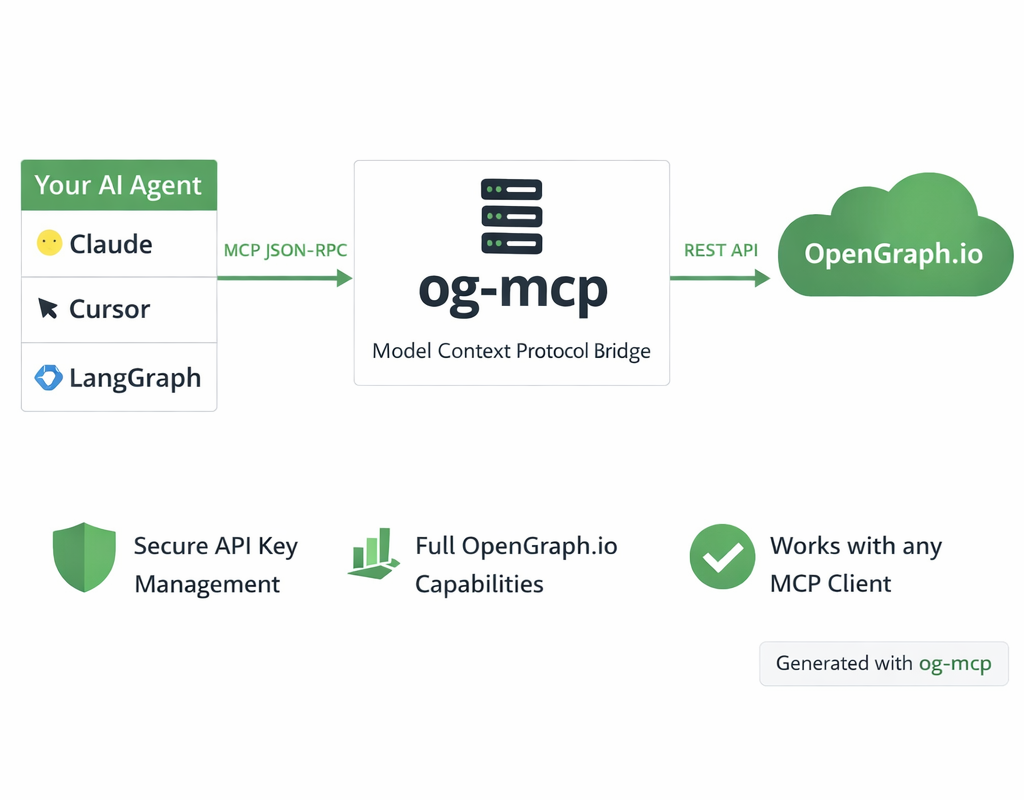
*<sup>Diagram generated with this server's image generation tools</sup>*
The server acts as a bridge between AI clients (like Claude or other LLMs) and the OpenGraph.io API:
1. AI client makes a tool call to one of the available MCP functions
2. The server receives the request and formats it for the OpenGraph.io API
3. OpenGraph.io processes the request and returns data
4. The server transforms the response into a format suitable for the AI client
5. AI client receives the structured data ready for use
This abstraction prevents exposing API keys directly to the AI while providing full access to OpenGraph.io capabilities.
## Running locally
The CLI installer and the Claude Desktop extension set this up for you. To configure a client by hand, run the package with `npx` and pass your [OpenGraph.io App ID](https://www.opengraph.io/):
```json
{
"mcpServers": {
"opengraph": {
"command": "npx",
"args": ["-y", "opengraph-io-mcp"],
"env": { "OPENGRAPH_APP_ID": "YOUR_OPENGRAPH_APP_ID" }
}
}
}
```
Or from a shell, after `npm install -g opengraph-io-mcp`:
```bash
opengraph-io-mcp --app-id YOUR_APP_ID
```
Running locally gives you the data and image generation tools. Open Graph Audit and Link Preview tools need OAuth, so use the hosted server for those (see [Client Configuration](#client-configuration)).
| Setting | Purpose |
|---|---|
| `OPENGRAPH_APP_ID` (or `APP_ID`) | Your OpenGraph.io App ID. `--app-id` on the command line does the same. |
| `MCP_EXPORT_DIR` | Folder exported images are saved into (default `~/Downloads/opengraph-mcp`). |
## Troubleshooting
- **Tools don't show up:** restart your client after changing its config, and check that the App ID is set. With the hosted server, finish the browser sign in when prompted.
- **Open Graph Audit tools are missing:** they are only offered by the hosted server with OAuth.
- **The agent doesn't use a tool:** ask for it by name, for example "use getOgMarkdown on this page".
## Contributing
```bash
npm install
npm run build
npm test
```
Node 24 is required (see `.nvmrc`). Tests live in `tests/`. See `CLAUDE.md` for how tools are registered.
TDQS
Scored across 10 tools
The six getOg* tools have overlapping web-scraping purposes, but each description includes an explicit 'Pick the right tool' guide that clarifies when to use which. The four image tools (generateImage, iterateImage, inspectImageSession, exportImageAsset) are clearly distinct. Minor confusion possible between getOgScrapeData and getOgExtract, but overall boundaries are well documented.
All tool names use camelCase and are readable. There are two sub-conventions: verb_noun for image tools (generateImage, exportImageAsset, inspectImageSession, iterateImage) and a getOg* prefix for web tools (getOgData, getOgMarkdown, etc.). The split is minor and consistent within each functional group.
At 10 tools, the set is well-scoped: four cover the image lifecycle (generate, iterate, inspect, export) and six cover distinct web-content extraction modes. Every tool appears to earn its place without excessive granularity.
The surface covers the core image workflow (generation, iteration, session inspection, export) and a comprehensive set of URL extraction modes (metadata, markdown, raw HTML, targeted extraction, screenshot, natural-language query). Minor gaps exist—e.g., no list/delete session or asset cleanup operations—but the main lifecycle is complete.