
Argus
by sahildayal
README.md
# Argus
[](https://github.com/sahildayal/argus/actions/workflows/ci.yml)
[](https://pypi.org/project/argus-screens/)
[](https://github.com/sahildayal/argus/blob/main/LICENSE)
Eyes for your AI tools across every monitor. Argus is an MCP server (plus a CLI and
a tray app) for Windows that lets Claude Code, Claude Desktop, VS Code, Codex,
Gemini CLI, Antigravity and other MCP clients see your screens. That covers the
window you're looking at, any monitor, any window or any region, at full
resolution when it matters.
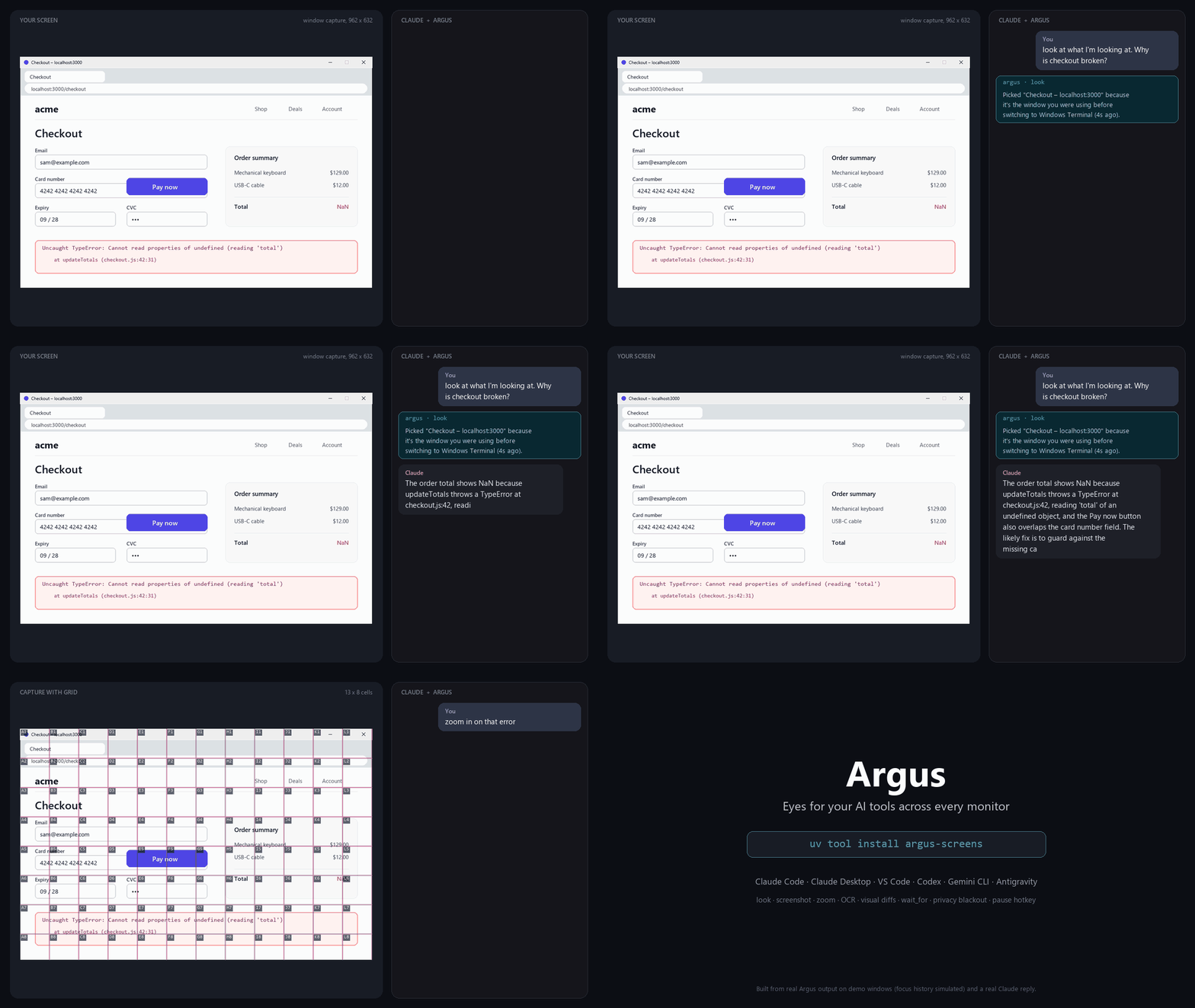
<sub>Built from real Argus output on demo windows and a real Claude reply ([how](https://github.com/sahildayal/argus/blob/main/docs/make_demo.py)).</sub>
> Named after Argus Panoptes, the hundred-eyed giant: one eye per monitor.
## What you can say
| You say | The AI calls |
| --- | --- |
| "Look at this", "what's wrong on my screen?", "fix what I'm looking at" | `look`: the window you were just in. The terminal/IDE you're chatting from is skipped. |
| "Check my right monitor", "screenshot the laptop screen", "show me all screens" | `screenshot(monitor="right" / "laptop" / "all")` |
| "Look at the Chrome window with localhost:3000" | `screenshot(window="localhost:3000")` |
| "Look at my snip" (after Win+Shift+S) | `latest_snip` |
| *(press Ctrl+Alt+S over a window)* "look at what I marked" | `look` (a fresh mark wins) / `latest_mark` |
| "What does that error say exactly?" | `read_text` (Windows OCR, offline) or `zoom` |
| "Where's the Submit button?" | `find_text("Submit")` |
| "Wait until the build finishes, then check it" | `wait_for(until="text", text="Compiled successfully")` |
| "Did my CSS change break the page?" | `save_baseline` → change → `compare(baseline=...)` |
## Install
You need **Windows 10 (1903+) or 11**, [uv](https://docs.astral.sh/uv/getting-started/installation/),
and at least one MCP-capable AI tool.
```powershell
uv tool install argus-screens --managed-python --python 3.13
argus install # registers Argus with the AI tools it finds; starts the tray app with Windows
argus doctor # checks monitors, OCR, the tray and each registration
```
To run the latest unreleased code, install from GitHub instead:
`uv tool install git+https://github.com/sahildayal/argus --managed-python --python 3.13`.
Then open a **new** session in your AI tool and say *"look at what I'm looking at"*.
Running sessions don't pick up new MCP servers, and Claude Desktop needs a quit and reopen.
`argus install` configures whichever of these it finds, using each tool's own
`mcp add` command where it has one:
| Tool | How it's registered |
| --- | --- |
| Claude Code | `claude mcp add -s user argus ...` |
| Claude Desktop | `%APPDATA%\Claude\claude_desktop_config.json` |
| VS Code (Copilot agent mode, MCP extensions) | `%APPDATA%\Code\User\mcp.json` |
| Codex CLI | `codex mcp add argus ...` |
| Gemini CLI | `gemini mcp add -s user argus ...` |
| Antigravity | `agy mcp add argus ...` |
JSON files are backed up first (`*.bak-argus-<time>`). Your AI tools will **ask before
each capture** by default. `argus install --trust` pre-approves Argus in Claude Code
and Gemini CLI instead. Other options: `--clients claude-code,vscode`,
`--no-startup` and `--dry-run`. `argus uninstall` reverses everything.
**Other MCP clients** (Cursor, Windsurf, Zed, JetBrains, Cline, ...): add a stdio
server that runs `argus-mcp`. Use the full path, which `where.exe argus-mcp` prints:
```json
{ "mcpServers": { "argus": { "command": "C:\\Users\\YOU\\.local\\bin\\argus-mcp.exe" } } }
```
**Updating:** `uv tool upgrade argus-screens` (for a GitHub install, re-run the install command with `--reinstall`).
> Use a uv-managed Python (the `--managed-python` flag), not the Microsoft Store one:
> Store Python silently redirects writes under `AppData` into a private sandbox, so
> edits to other apps' configs would never reach them.
## How "the window I'm looking at" works
When you type into a terminal or IDE, *that* window has focus, so it can't be
the answer. Argus keeps a per-session history of which windows had focus and works
out which program launched it (Windows Terminal, VS Code, Claude Desktop, ...). `look` then picks:
1. a **hotkey mark** you made in the last 2 minutes, if any;
2. otherwise the **active window**, if it isn't the chat itself (you switched after typing);
3. otherwise the **window you used just before switching to the chat**;
4. otherwise the **front-most other window**.
It always says why it chose that window and lists alternatives (for example the
window under your mouse), so the AI can correct course.
## Monitors
Monitors are numbered **left to right** (main row first, then any monitor above
or below), and each also answers to a position word worked out from your actual
layout: `left`, `center`, `right`, `center-left`, `top`, `bottom`, `top-left`...
Also: `primary`, `laptop`, `cursor` (where the mouse is), `active` (where the
focused window is), part of the model name (`dell`), or `all`. Mixed scaling and
monitors left of/above the primary (negative coordinates) are handled; the
layout is re-read on every call, so plugging and unplugging is fine.
## Tools (MCP)
| Tool | What it does |
| --- | --- |
| `look` | What you're looking at (see above). `scope="monitor"` for its whole monitor. |
| `screenshot` | A monitor, a window (covered windows render themselves), or a region; nothing = every monitor. |
| `zoom` | Full-resolution crop of an earlier capture by `box` or grid `cell` ("D7", "B2:D5"). Small areas are enlarged. |
| `list_screens` | Monitors and windows front to back, with handles and focus history. Text only, cheap. |
| `latest_snip` | Your newest Win+Shift+S / Snipping Tool / PrtScn snips, or a copied image. |
| `latest_mark` | Your newest hotkey mark (window or its monitor). |
| `read_text` | OCR text with positions (Windows' built-in engine, offline). |
| `find_text` | Where text is on screen, with a zoomed image of the best match. |
| `save_baseline` / `compare` | Visual regression: numbered red boxes around every change. |
| `wait_for` | Wait for `change`, `stable`, `text` or `text_gone`, then screenshot. |
Images are sent at up to **2000 px** on the long side. A 1080p monitor goes
through untouched, and long sessions full of screenshots stay inside the
API's limits for requests with many images. Every capture is also saved as a
full-resolution PNG (path in the reply) with its metadata embedded, so `zoom`
can reopen it later by path.
## Tray app and hotkeys
`argus-tray` runs in the notification area (and starts with Windows after `argus install`).
- **Ctrl+Alt+S**: mark the window under the mouse (falls back to the focused
window). A cyan outline flashes to show what was captured; the next `look`
uses it.
- **Ctrl+Alt+P**: pause or resume Argus. While paused, every tool in every AI
app refuses to capture (and the icon turns grey with a red slash).
- Menu: pause for 15 minutes, open captures/marks folders, edit settings.
Change the hotkeys in `~/.argus/config.toml`, then restart the tray.
## Privacy and security
Argus gives AI tools sight of your screens, so it's built to make that a
deliberate choice:
- **Blacked out before anything leaves Argus:** password managers, WhatsApp,
Signal, Telegram, Messenger, Phone Link, Windows notification toasts, and
browser tabs whose titles match banking/payments/messaging patterns. The AI
sees a dark box saying "Hidden by Argus" and never the title. The defaults are
a starting point, so add your own bank, sites, apps or keywords under
`[privacy]` in `~/.argus/config.toml`. Chrome doesn't put "Incognito" in its
window title, so private windows can't be detected automatically.
- **Pause** with Ctrl+Alt+P, the tray menu, or `argus pause [--minutes N]`.
- **Retention:** saved captures and marks are deleted after 7 days by default.
Baselines are kept until you delete them.
- **Where images go:** only to the AI tool that asked for them, and so to that
tool's model provider (Anthropic, OpenAI, Google, ...). Argus itself never
uploads anything, has no telemetry, and makes no network requests.
- **Prompt injection:** anything on screen is input to the agent. A web page or
document could try to steer an agent into capturing something. Keep
per-capture prompts on (the default) unless you trust your setup, and pause
Argus around sensitive work.
Everything personal lives in `~/.argus/` (settings, captures, marks, baselines and
logs), never in this repository. Set `ARGUS_HOME` to move it.
## CLI
The CLI is useful for scripts and tests, and for any agent that can run shell
commands but doesn't speak MCP. It prints the saved PNG path for each capture;
add `--json` for machine-readable output.
```powershell
argus list # monitors + windows
argus look # the window behind this terminal
argus shot -m right --grid # a monitor, with a labeled grid
argus shot -w "localhost:3000" -o page.png # a window, copied to page.png
argus zoom $env:USERPROFILE\.argus\captures\<date>\<file>.png --box 100,100,600,400
argus ocr -w "Windows Terminal" # exact text
argus find "Submit" -m cursor
argus wait text --text "Compiled successfully" -w "Terminal" -t 120 # exit 0 = seen, 1 = timeout
argus baseline save login -w "localhost:3000"; argus baseline compare login
argus pause --minutes 30; argus resume; argus status
```
## Settings: `~/.argus/config.toml`
Created with comments on first run. You can set the image size sent to the AI,
the grid default, the mouse marker, how fresh a mark must be for `look`, the
hotkeys, retention, and the privacy lists. Changes apply on the next capture;
hotkey changes need a tray restart.
## Troubleshooting
- **Start with `argus doctor`.** It checks DPI awareness, monitors, OCR, the tray
and each registration.
- **The AI doesn't see Argus.** Start a new session. In Claude Code,
`claude mcp get argus` should say *Connected*.
- **A hotkey does nothing.** Another app may own it, in which case the tray shows
a warning when it starts. Pick another in `config.toml` and restart `argus-tray`.
- **Small text looks blurry.** Ask the AI to `zoom` or `read_text` instead of guessing.
- **Logs:** `~/.argus/logs/server.log` and `~/.argus/logs/tray.log`.
## Uninstall
```powershell
argus uninstall [--purge] # unregisters everywhere, removes the startup entry, stops the tray
uv tool uninstall argus-screens
```
## Contributing
Issues and pull requests are welcome. See [CONTRIBUTING.md](https://github.com/sahildayal/argus/blob/main/CONTRIBUTING.md) for
setup, the two test suites, and the ground rules (tests never capture the real
screen; privacy defaults stay conservative).
## License
[MIT](https://github.com/sahildayal/argus/blob/main/LICENSE)
This server cannot be deployed
Maintenance
ActivityMaintained
ResponsivenessNo issues