Browserbase MCP Server
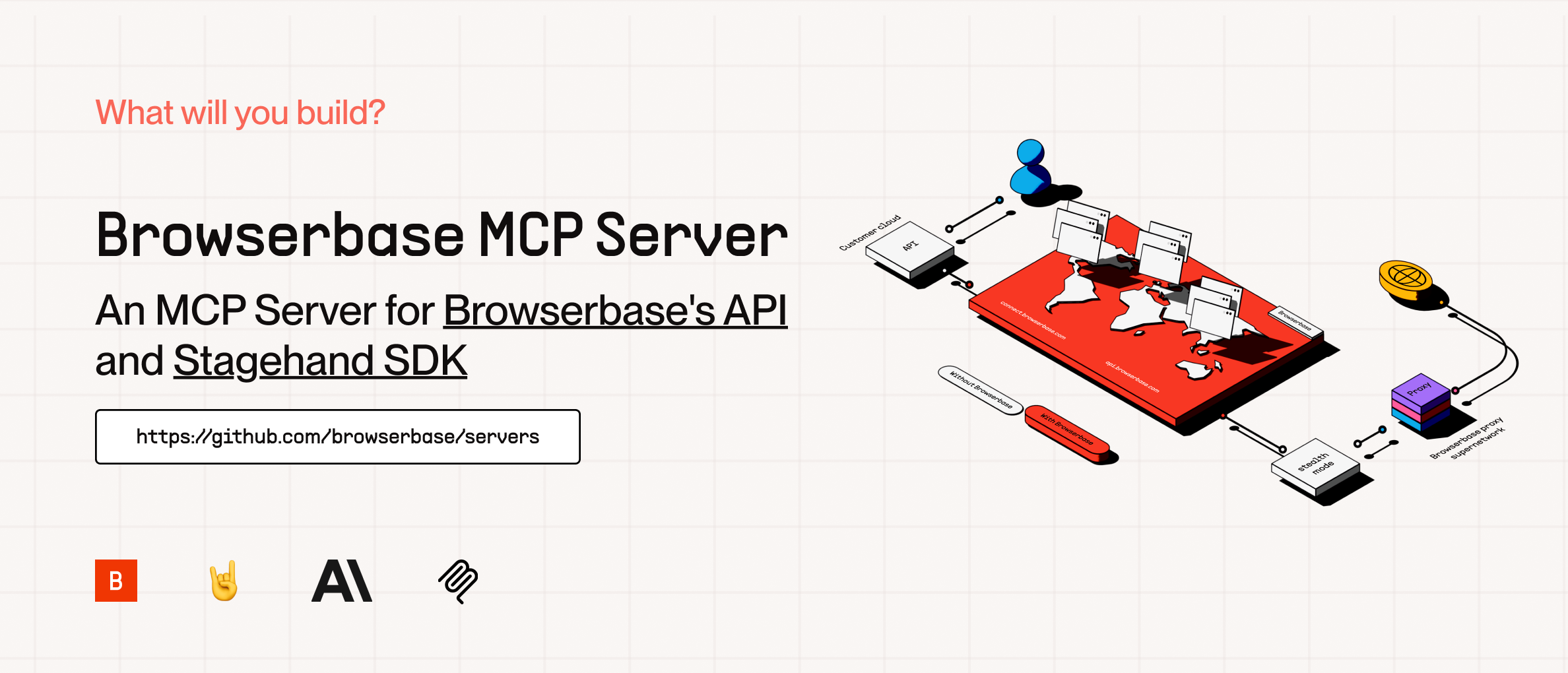
The Model Context Protocol (MCP) is an open protocol that enables seamless integration between LLM applications and external data sources and tools. Whether you're building an AI-powered IDE, enhancing a chat interface, or creating custom AI workflows, MCP provides a standardized way to connect LLMs with the context they need.
This server provides cloud browser automation capabilities using Browserbase and Stagehand. It enables LLMs to interact with web pages, take screenshots, extract information, and perform automated actions with atomic precision.
What's New in Stagehand v3
Powered by Stagehand v3.0, this MCP server now includes:
20-40% Faster Performance: Speed improvements across all core operations (act, extract, observe) through automatic caching
Enhanced Extraction: Targeted extraction and observation across iframes and shadow roots
Improved Schemas: Streamlined extract schemas for more intuitive data extraction
Advanced Selector Support: CSS selector support with improved element targeting
Multi-Browser Support: Compatible with Playwright, Puppeteer, and Patchright
New Primitives: Built-in page, locator, frameLocator, and deepLocator for simplified automation
Experimental Features: Enable cutting-edge capabilities with the --experimental flag
For more details, visit the Stagehand v3 documentation.
Related MCP server: Browserbase MCP Server
Features
Feature | Description |
Browser Automation | Control and orchestrate cloud browsers via Browserbase |
Data Extraction | Extract structured data from any webpage |
Web Interaction | Navigate, click, and fill forms with ease |
Screenshots | Capture full-page and element screenshots |
Model Flexibility | Supports multiple models (OpenAI, Claude, Gemini, and more) |
Vision Support | Use annotated screenshots for complex DOMs |
Session Management | Create, manage, and close browser sessions |
High Performance | 20-40% faster operations with automatic caching (v3) |
Advanced Selectors | Enhanced CSS selector support for precise element targeting |
How to Setup
Quickstarts:
Add to Cursor
Copy and Paste this link in your Browser:
cursor://anysphere.cursor-deeplink/mcp/install?name=browserbase&config=eyJjb21tYW5kIjoibnB4IEBicm93c2VyYmFzZWhxL21jcCIsImVudiI6eyJCUk9XU0VSQkFTRV9BUElfS0VZIjoiIiwiQlJPV1NFUkJBU0VfUFJPSkVDVF9JRCI6IiIsIkdFTUlOSV9BUElfS0VZIjoiIn19
We currently support 2 transports for our MCP server, STDIO and SHTTP. We recommend you use SHTTP with our remote hosted url to take advantage of the server at full capacity.
SHTTP:
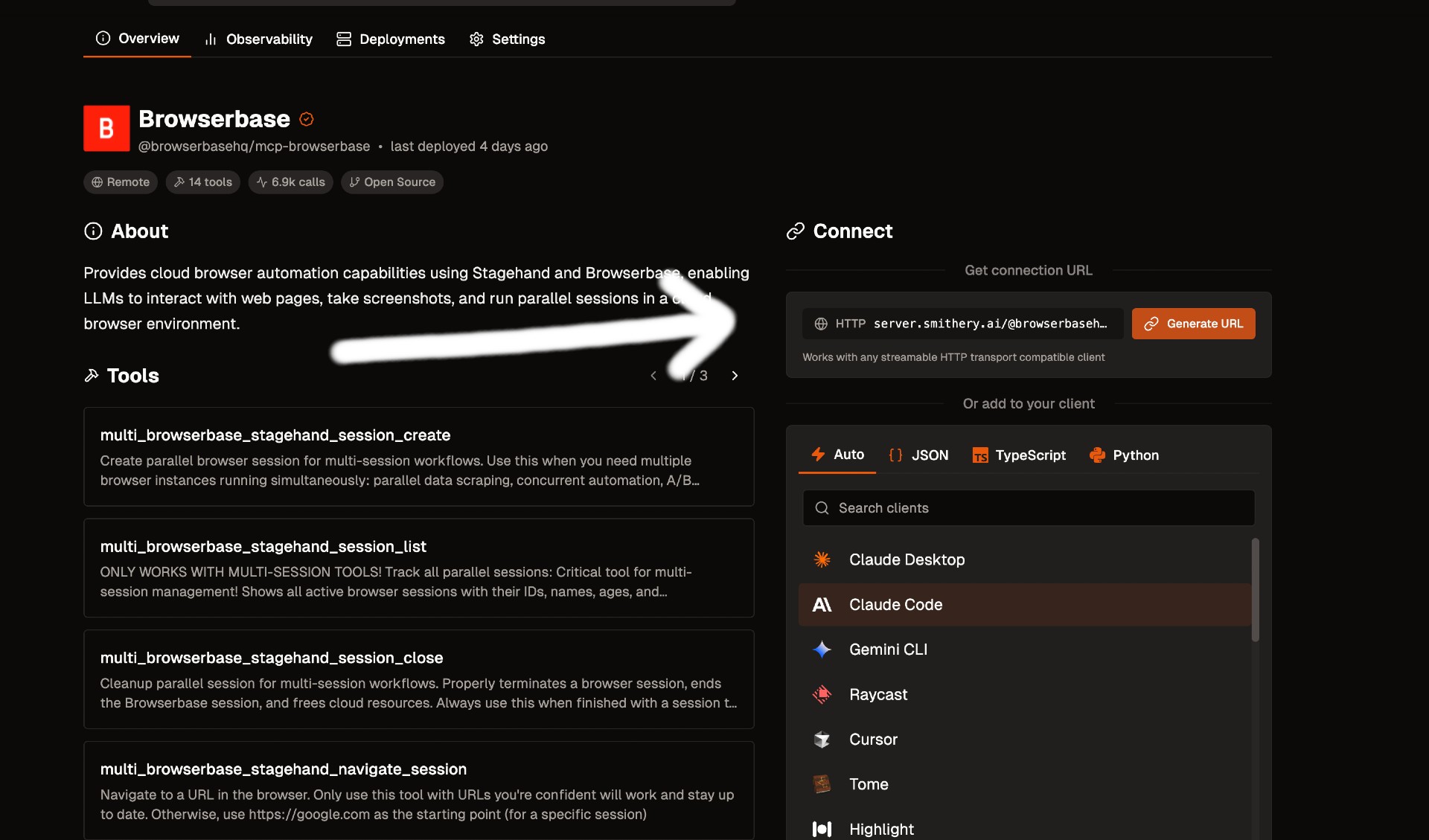
To use the Browserbase MCP Server through our remote hosted URL, add the following to your configuration.
Go to smithery.ai and enter your API keys and configuration to get a remote hosted URL.
When using our remote hosted server, we provide the LLM costs for Gemini, the best performing model in Stagehand.
If your client supports SHTTP:
{
  "mcpServers": {
    "browserbase": {
      "type": "http",
      "url": "your-smithery-url.com"
    }
  }
}
If your client doesn't support SHTTP:
{
  "mcpServers": {
    "browserbase": {
      "command": "npx",
      "args": ["mcp-remote", "your-smithery-url.com"]
    }
  }
}
STDIO:
You can either use our Server hosted on NPM or run it completely locally by cloning this repo.
❗️ Important: If you want to use a different model you have to add --modelName to the args and provide that respective key as an arg. More info below.
To run on NPM (Recommended)
Go into your MCP Config JSON and add the Browserbase Server:
{
  "mcpServers": {
    "browserbase": {
      "command": "npx",
      "args": ["@browserbasehq/mcp-server-browserbase"],
      "env": {
        "BROWSERBASE_API_KEY": "",
        "BROWSERBASE_PROJECT_ID": "",
        "GEMINI_API_KEY": ""
      }
    }
  }
}
That's it! Reload your MCP client and Claude will be able to use Browserbase.
To run 100% local:
Option 1: Direct installation
# Clone the Repo
git clone https://github.com/browserbase/mcp-server-browserbase.git
cd mcp-server-browserbase

# Install the dependencies and build the project
npm install && npm run build
Option 2: Docker
# Clone the Repo
git clone https://github.com/browserbase/mcp-server-browserbase.git
cd mcp-server-browserbase

# Build the Docker image
docker build -t mcp-browserbase .
Then in your MCP Config JSON run the server. To run locally we can use STDIO or self-host SHTTP.
STDIO:
Using Direct Installation
To your MCP Config JSON file add the following:
{
  "mcpServers": {
    "browserbase": {
      "command": "node",
      "args": ["/path/to/mcp-server-browserbase/cli.js"],
      "env": {
        "BROWSERBASE_API_KEY": "",
        "BROWSERBASE_PROJECT_ID": "",
        "GEMINI_API_KEY": ""
      }
    }
  }
}
Using Docker
To your MCP Config JSON file add the following:
{
  "mcpServers": {
    "browserbase": {
      "command": "docker",
      "args": [
        "run",
        "--rm",
        "-i",
        "-e",
        "BROWSERBASE_API_KEY",
        "-e",
        "BROWSERBASE_PROJECT_ID",
        "-e",
        "GEMINI_API_KEY",
        "mcp-browserbase"
      ],
      "env": {
        "BROWSERBASE_API_KEY": "",
        "BROWSERBASE_PROJECT_ID": "",
        "GEMINI_API_KEY": ""
      }
    }
  }
}
Then reload your MCP client and you should be good to go!
Configuration
The Browserbase MCP server accepts the following command-line flags:
Flag | Description |
--proxies
| Enable Browserbase proxies for the session |
--advancedStealth
| Enable Browserbase Advanced Stealth (Only for Scale Plan Users) |
--keepAlive
| Enable Browserbase Keep Alive Session |
--contextId <contextId>
| Specify a Browserbase Context ID to use |
--persist
| Whether to persist the Browserbase context (default: true) |
--port <port>
| Port to listen on for HTTP/SHTTP transport |
--host <host>
| Host to bind server to (default: localhost, use 0.0.0.0 for all interfaces) |
--browserWidth <width>
| Browser viewport width (default: 1024) |
--browserHeight <height>
| Browser viewport height (default: 768) |
--modelName <model>
| The model to use for Stagehand (default: gemini-2.0-flash) |
--modelApiKey <key>
| API key for the custom model provider (required when using custom models) |
--experimental
| Enable experimental features (default: false) |
These flags can be passed directly to the CLI or configured in your MCP configuration file.
NOTE:
Currently, these flags can only be used with the local server (npx @browserbasehq/mcp-server-browserbase or Docker).
Using Configuration Flags with Docker
When using Docker, you can pass configuration flags as additional arguments after the image name. Here's an example with the --proxies flag:
{
  "mcpServers": {
    "browserbase": {
      "command": "docker",
      "args": [
        "run",
        "--rm",
        "-i",
        "-e",
        "BROWSERBASE_API_KEY",
        "-e",
        "BROWSERBASE_PROJECT_ID",
        "-e",
        "GEMINI_API_KEY",
        "mcp-browserbase",
        "--proxies"
      ],
      "env": {
        "BROWSERBASE_API_KEY": "",
        "BROWSERBASE_PROJECT_ID": "",
        "GEMINI_API_KEY": ""
      }
    }
  }
}
You can also run the Docker container directly from the command line:
docker run --rm -i \
  -e BROWSERBASE_API_KEY=your_api_key \
  -e BROWSERBASE_PROJECT_ID=your_project_id \
  -e GEMINI_API_KEY=your_gemini_key \
  mcp-browserbase --proxies
Configuration Examples
Proxies
Here are our docs on Proxies.
To use proxies, set the --proxies flag in your MCP Config:
{
  "mcpServers": {
    "browserbase": {
      "command": "npx",
      "args": ["@browserbasehq/mcp-server-browserbase", "--proxies"],
      "env": {
        "BROWSERBASE_API_KEY": "",
        "BROWSERBASE_PROJECT_ID": "",
        "GEMINI_API_KEY": ""
      }
    }
  }
}
Advanced Stealth
Here are our docs on Advanced Stealth.
To use advanced stealth, set the --advancedStealth flag in your MCP Config:
{
  "mcpServers": {
    "browserbase": {
      "command": "npx",
      "args": ["@browserbasehq/mcp-server-browserbase", "--advancedStealth"],
      "env": {
        "BROWSERBASE_API_KEY": "",
        "BROWSERBASE_PROJECT_ID": "",
        "GEMINI_API_KEY": ""
      }
    }
  }
}
Contexts
Here are our docs on Contexts
To use contexts, set the --contextId flag in your MCP Config:
{
  "mcpServers": {
    "browserbase": {
      "command": "npx",
      "args": [
        "@browserbasehq/mcp-server-browserbase",
        "--contextId",
        "<YOUR_CONTEXT_ID>"
      ],
      "env": {
        "BROWSERBASE_API_KEY": "",
        "BROWSERBASE_PROJECT_ID": "",
        "GEMINI_API_KEY": ""
      }
    }
  }
}
Browser Viewport Sizing
The default viewport sizing for a browser session is 1024 x 768. You can adjust the Browser viewport sizing with browserWidth and browserHeight flags.
Here's how to use it for custom browser sizing. We recommend to stick with 16:9 aspect ratios (ie: 1920 x 1080, 1280 x 720, 1024 x 768)
{
  "mcpServers": {
    "browserbase": {
      "command": "npx",
      "args": [
        "@browserbasehq/mcp-server-browserbase",
        "--browserHeight 1080",
        "--browserWidth 1920"
      ],
      "env": {
        "BROWSERBASE_API_KEY": "",
        "BROWSERBASE_PROJECT_ID": "",
        "GEMINI_API_KEY": ""
      }
    }
  }
}
Experimental Features
Stagehand v3 includes experimental features that can be enabled with the --experimental flag. These features provide cutting-edge capabilities that are actively being developed and refined.
To enable experimental features:
{
  "mcpServers": {
    "browserbase": {
      "command": "npx",
      "args": ["@browserbasehq/mcp-server-browserbase", "--experimental"],
      "env": {
        "BROWSERBASE_API_KEY": "",
        "BROWSERBASE_PROJECT_ID": "",
        "GEMINI_API_KEY": ""
      }
    }
  }
}
Note: Experimental features may change or be removed in future releases. Use them at your own discretion.
Model Configuration
Stagehand defaults to using Google's Gemini 2.0 Flash model, but you can configure it to use other models like GPT-4o, Claude, or other providers.
Important: When using any custom model (non-default), you must provide your own API key for that model provider using the --modelApiKey flag.
Here's how to configure different models:
{
  "mcpServers": {
    "browserbase": {
      "command": "npx",
      "args": [
        "@browserbasehq/mcp-server-browserbase",
        "--modelName",
        "anthropic/claude-sonnet-4.5",
        "--modelApiKey",
        "your-anthropic-api-key"
      ],
      "env": {
        "BROWSERBASE_API_KEY": "",
        "BROWSERBASE_PROJECT_ID": ""
      }
    }
  }
}
Note: The model must be supported in Stagehand. Check out the docs here. When using any custom model, you must provide your own API key for that provider.
Resources
The server provides access to screenshot resources:
Screenshots (screenshot://<screenshot-name>)
Key Features
AI-Powered Automation: Natural language commands for web interactions
Multi-Model Support: Works with OpenAI, Claude, Gemini, and more
Screenshot Capture: Full-page and element-specific screenshots
Data Extraction: Intelligent content extraction from web pages
Proxy Support: Enterprise-grade proxy capabilities
Stealth Mode: Advanced anti-detection features
Context Persistence: Maintain authentication and state across sessions
For more information about the Model Context Protocol, visit:
For the official MCP Docs:
License
Licensed under the Apache 2.0 License.
Copyright 2025 Browserbase, Inc.

