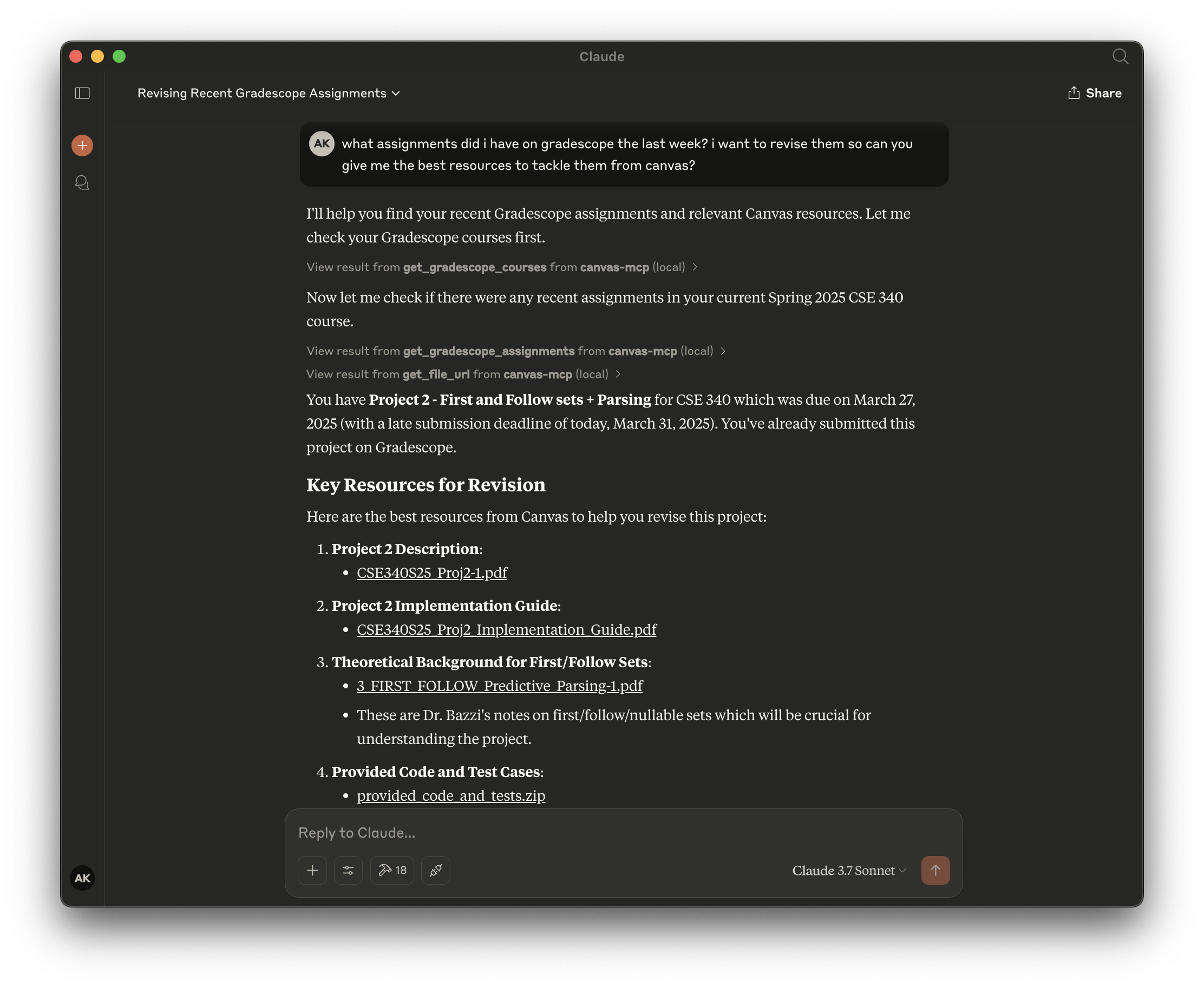
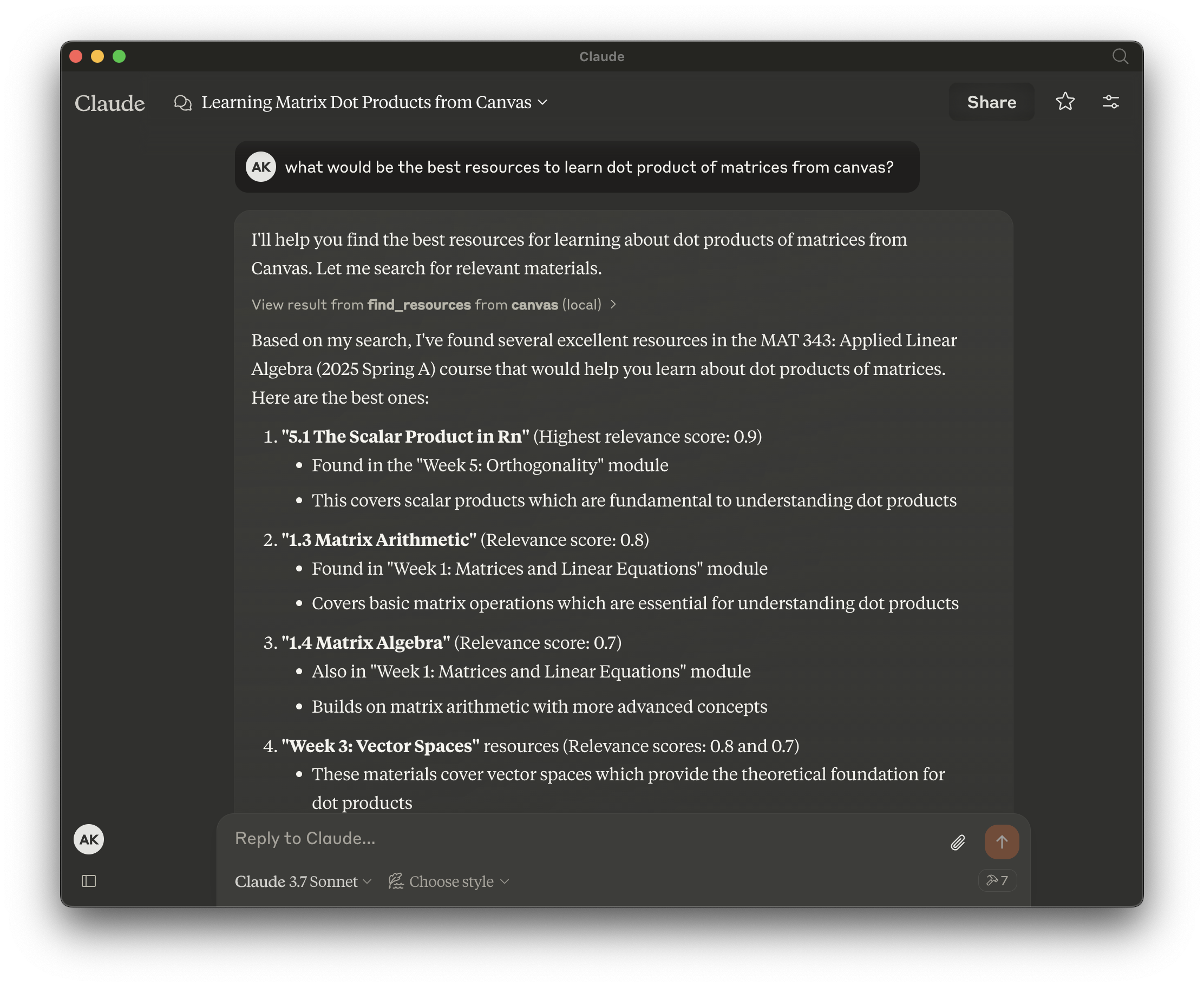
Canvas MCP
Provides tools for interacting with Canvas LMS, including querying courses, modules, assignments, calendar events, file URLs, and finding relevant resources through natural language queries.
Click on "Deploy Server".
Wait a few minutes for the server to deploy. Once ready, it will show a "Started" state.
In the chat, type
@followed by the MCP server name and your instructions, e.g., "@Canvas MCPwhat assignments are due this week in my calculus class?"
That's it! The server will respond to your query, and you can continue using it as needed.
Here is a step-by-step guide with screenshots.
Canvas MCP
Canvas MCP is a set of tools that allows your AI agents to interact with Canvas LMS and Gradescope.


Features
Find relevant resources - Ability to find relevant resources for a given query in natural language!
Query upcoming assignments - Not only fetch upcoming assignments, but also provide its breakdown for a given course.
Get courses and assignments from Gradescope - Query your Gradescope courses and assignments with natural language, get submission status, and more!
Get courses
Get modules
Get module items
Get file url
Get calendar events
Get assignments
and so much more...
Related MCP server: Canvas LMS MCP Server
Usage
Note down the following beforehand:
Canvas API Key from
Canvas > Account > Settings > Approved Integrations > New Access TokenGradescope Email and Password https://www.gradescope.com/
Installing via Smithery (Preferred)
To install Canvas MCP for Claude Desktop via Smithery:
npx -y @smithery/cli install @aryankeluskar/canvas-mcp --client claudeOr, for Cursor IDE to use canvas-mcp with other models:
npx -y @smithery/cli install @aryankeluskar/canvas-mcp --client cursorOr, for ChatGPT:
Enable Developer Mode in settings, if not already enabled
Go to
ChatGPT Settings > Connectorsand click Create to add this server URL:https://server.smithery.ai/@aryankeluskar/canvas-mcp/mcp
Manual Configuration (ONLY for local instances)
Create a .env file in the root directory with the following environment variables:
SNITHERY_API_KEY=your_snithery_api_keyAdd the following to your mcp.json or claude_desktop_config.json file:
{
"mcpServers": {
"canvas": {
"command": "npx",
"args": [
"-y",
"@smithery/cli",
"run",
"@aryankeluskar/canvas-mcp"
]
}
}
}Built by Aryan Keluskar :)
This server cannot be deployed
Maintenance
Related MCP Connectors
Connect your Moodle to AI assistants: courses, content, grading and reports from the chat.
- backrowOAuthai.backrow
Turn any recording or document into notes, flashcards and quizzes your agent can read and act on
Persistent memory and knowledge management for AI agents with semantic search and 50+ tools.
AI-powered LMS course builder: 89 tools, 17 skills, SCORM/xAPI export, agentic UI
Related MCP Servers
- FlicenseAqualityNot gradedmaintenanceEnables interaction with Canvas LMS courses and assignments directly from your LLM, allowing you to retrieve, search, and summarize course information, check due dates, and access assignment details without leaving your AI assistant.443-
- AlicenseAqualityCmaintenanceEnables AI systems to interact with Canvas Learning Management System data, allowing users to access courses, assignments, quizzes, planner items, files, and syllabi through natural language queries.227MIT
- AlicenseBqualityBmaintenanceEnables AI assistants to manage Canvas LMS courses, announcements, rubrics, assignments, modules, pages, and student data via the Canvas API.601212MIT
- AlicenseNot gradedqualityDmaintenanceEnables AI agents to interact with Canvas LMS via its REST API for reading courses, assignments, grades, announcements, discussions, and performing write actions with dry-run safety.101MIT