
imagine
by nitya-afk
README.md
# imagine
**Generate and edit images on your Mac, fully offline.** It uses FLUX.2 Klein image models on Apple silicon, from the terminal, from any app that speaks the OpenAI API, or from AI assistants over MCP. Image generation uploads nothing. The optional Assist tab can use internet search, WhatsApp or a frontier model when you enable those features.
The browser opens into a conversation: saved chats on the left, a quiet writing space, and a composer at the bottom. **Create** and **Edit** open the image studio. Model, routing and tool controls live behind the composer's settings button; **What can I do** opens the capability guide.
```bash
imagine "a cat blasting off from the sun, cinematic"
imagine "make it night time with a full moon, keep the cat" -i cat.png
```
| Generate | Edit it |
|---|---|
|  |  |
| `imagine "a cat blasting off from the sun, cinematic"` | `imagine "make it night time with a full moon, keep the cat" -i cat.png` |
| 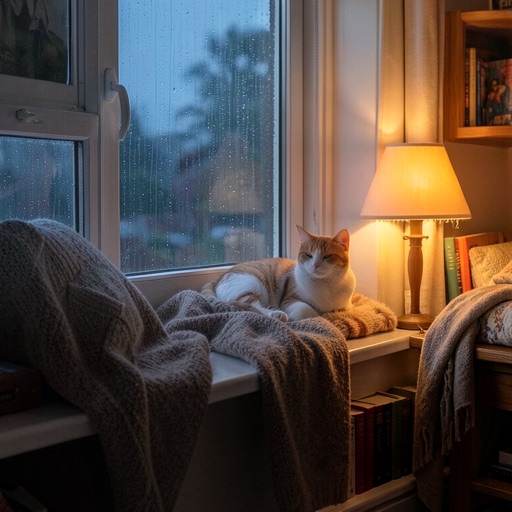 |  |
| `imagine "a cozy reading nook with a cat on a window seat, rainy evening, warm lamp light"` | `imagine "make it a sunny spring morning" -i nook.png` |
| 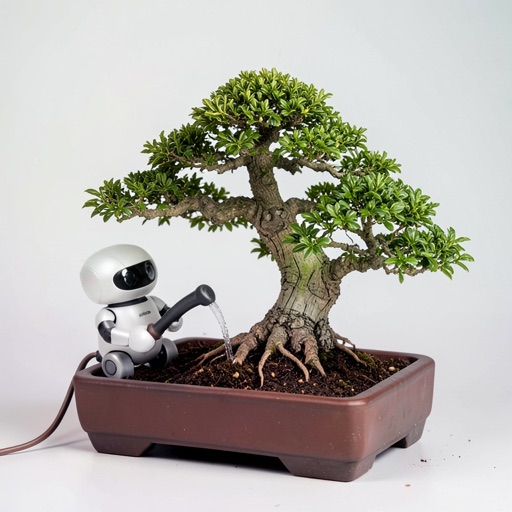 | 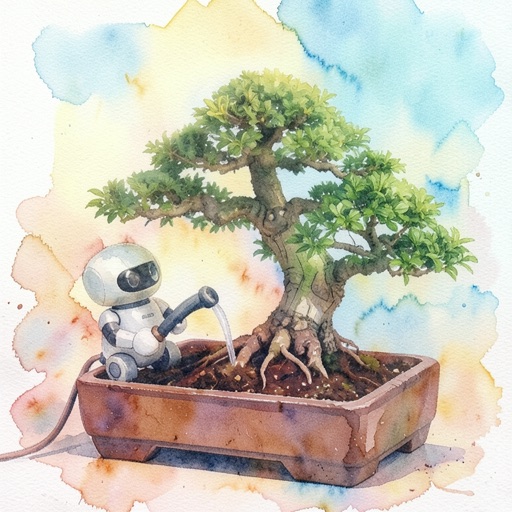 |
| `imagine "a tiny robot watering a bonsai tree, studio photo"` | `imagine "make it a watercolor painting" -i robot.png` |
All made on a MacBook Pro (M5 Pro, 24 GB) in 11–40 seconds each with FLUX.2 Klein 4B.
## What it can do
- **Generate images from text** with FLUX.2 Klein, fully offline, on any Apple silicon Mac.
- **Run Qwen-Image 2.1 GGUF locally** through a Metal-native backend, including the higher-quality uncensored Q6_K variant.
- **Use it in your browser** (`imagine ui`): create, upload a photo and edit it, compare before and after, and keep editing.
- **Use a local assistant** in the Assist tab: reasoning, writing, coding help, optional web lookup, persistent local memory, and bounded workers. Computer control and WhatsApp are opt-in.
- **Research the public web automatically** for public-person/current-information questions and uncertain answers: broad keyless search, public pages/feeds/PDFs, alternative sources and visible snippet/page-read provenance. A search API key is optional; inaccessible pages are reported, not bypassed.
- **Inspect and recover responses** with local run IDs, saved final answers, source/activity records and bounded diagnostic context. Longer chats disclose context omissions; interrupted actions are never automatically replayed.
- **Route text requests intelligently**: keep Assist local, explicitly choose a frontier tier, or use Smart routing that asks before a complex request goes to OpenAI. Set input, output and session token limits.
- **Edit photos like an editor**: remove or add things, change the background, change or swap faces, restyle, and extend the scene. Describe it in plain English and a local model plans the steps and checks each result.
- **Write better prompts for you** (`--enhance`), using a local chat model.
- **Reproduce any image**: every PNG remembers its prompt, seed and model (`imagine again`).
- **Quantize models** to MXFP8, MXFP4, INT8, INT4 or NVFP4, all running on native Apple silicon kernels.
- **Add LoRAs**: bake trained styles, characters or skills into a model.
- **Plug into apps and AI assistants** through an OpenAI-compatible API and an MCP server.
- **Benchmark your Mac** and share the result.
For setup, step-by-step task recipes, permission checks, troubleshooting and privacy, see the [full Assist guide](docs/ASSIST.md). In the app, **? What can I do** opens a ten-chapter field guide with example prompts and shortcuts to the relevant settings. Examples fill the composer without sending; shortcuts never turn on tools for you. The complete written guide is also available locally through its **Full written guide** link, without visiting GitHub.
## Contents
- [What it can do](#what-it-can-do)
- [Quick start](#quick-start)
- [Generate and edit](#generate-and-edit)
- [Edit photos](#edit-photos)
- [Use it in your browser](#use-it-in-your-browser)
- [Local assistant](#local-assistant)
- [Better prompts, reproducible images](#better-prompts-reproducible-images)
- [Models and quantization](#models-and-quantization)
- [Benchmark your Mac](#benchmark-your-mac)
- [Use it from your apps (OpenAI API)](#use-it-from-your-apps-openai-api)
- [Use it from AI assistants (MCP)](#use-it-from-ai-assistants-mcp)
- [Troubleshooting](#troubleshooting)
- [How it works](#how-it-works)
- [All commands](#all-commands) · [Configuration](#configuration) · [Update and uninstall](#update-and-uninstall) · [Development](#development)
## Quick start
You need a **Mac with Apple silicon** (M1 or newer) and about **7 GB of free disk space**. You don't need Ollama. If you already have it, `imagine` uses the models you've downloaded.
**1. Check your Mac.** Open Terminal and run:
```bash
uname -m # must print "arm64"
```
**2. Install Node.js 20 or newer**, if `node --version` doesn't already show v20 or higher. Either install it with [Homebrew](https://brew.sh) or use the installer from [nodejs.org](https://nodejs.org).
```bash
brew install node
```
**3. Install imagine:**
```bash
npm install -g https://github.com/nitya-afk/imagine/releases/latest/download/imagine-local.tgz
```
This gives you the `imagine` command. It always installs the latest release. If npm reports `EACCES`, your Node install needs admin rights for global packages: run the same command with `sudo`, or switch to Homebrew's Node.
This README documents the current `main` branch. The v1.6.1 packaged release predates the Qwen GGUF and Assist additions. Until a newer release is published, use a source checkout for those features:
```bash
git clone https://github.com/nitya-afk/imagine.git
cd imagine
npm ci
npm run build
npm link
```
**4. Download the image model** (FLUX.2 Klein 4B, 5.7 GB, one time):
```bash
imagine pull
```
**5. Make your first image:**
```bash
imagine "a red fox in a snowy forest at golden hour"
```
The first run also downloads the image engine (115 MB, one time) and loads the model, so allow a minute. After that, a 1024×1024 image takes about 15–25 seconds. Each image opens in Preview as soon as it's ready, and is saved to `~/Pictures/imagine`.
## Generate and edit
```bash
imagine "a red apple on a wooden table, soft window light"
imagine "neon city at night" --size 1536x1024 # landscape
imagine "a lighthouse at dusk" --seed 42 # the same seed gives the same image
imagine "a teapot" -n 4 -o ~/Desktop/teapots # four variations in a folder
```
**Edit** by giving it one or more pictures (up to 4) and describing the change:
```bash
imagine "make it a watercolor painting" -i photo.jpg
imagine "put this jacket on this person" -i person.jpg -i jacket.jpg
```
Without `--size`, the edited image keeps the input's shape. There's no mask or brush: describe the change in words.
| Option | Default | |
|---|---|---|
| `-m, --model` | `x/flux2-klein` | short names work: `flux2-klein:4b-fp8` |
| `-i, --image` | | picture to edit; repeat for more (up to 4) |
| `-s, --size` | `1024x1024` | 256–2048 per side, multiples of 16 |
| `--steps` | model default | denoising steps (4 for Klein) |
| `--seed` | random | written into the filename so you can reproduce an image |
| `-n, --count` | `1` | how many images to make |
| `-o, --out` | `~/Pictures/imagine` | a folder, or a `.png` file name |
| `--no-open` | | don't open the result in Preview (it opens automatically when you run `imagine` in Terminal) |
Only the saved file path goes to the terminal's output, and nothing pops open when `imagine` runs inside a script or pipe, so it's script-friendly: `path=$(imagine 'a fox')`. Add `--open` to open anyway, or set `IMAGINE_OPEN=0` to never open.
## Edit photos
`imagine edit` works like a photo editor you talk to. Describe the changes in plain English: a local chat model plans them into steps, and each step runs in turn on the result of the last.
```bash
imagine edit nook.png "remove the lamp, add a steaming cup of coffee next to the cat, and make it a sunny morning" --check
```
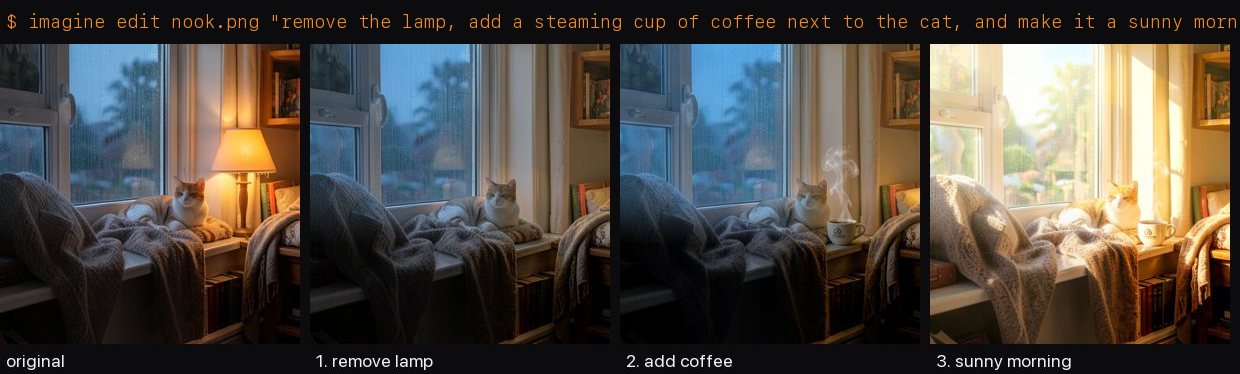
Or name the steps yourself:
| Flag | Does |
|---|---|
| `--remove "the car"` | removes something and fills the space naturally (repeatable) |
| `--add "a dog on the sofa"` | adds something, matching the light and perspective (repeatable) |
| `--background "a beach at sunset"` | replaces the background, keeping the subject exactly as is |
| `--face "an older man with a beard"` | changes a face, keeping the outfit, pose and background |
| `--swap-face face.jpg` | puts the face from another photo onto the person |
| `--style "a watercolor painting"` | restyles the picture, keeping the composition |
| `--extend 16:9` | widens or heightens the frame (`16:9`, `4:3`, `wider`, `taller`, or `WxH`) and fills in the new space |
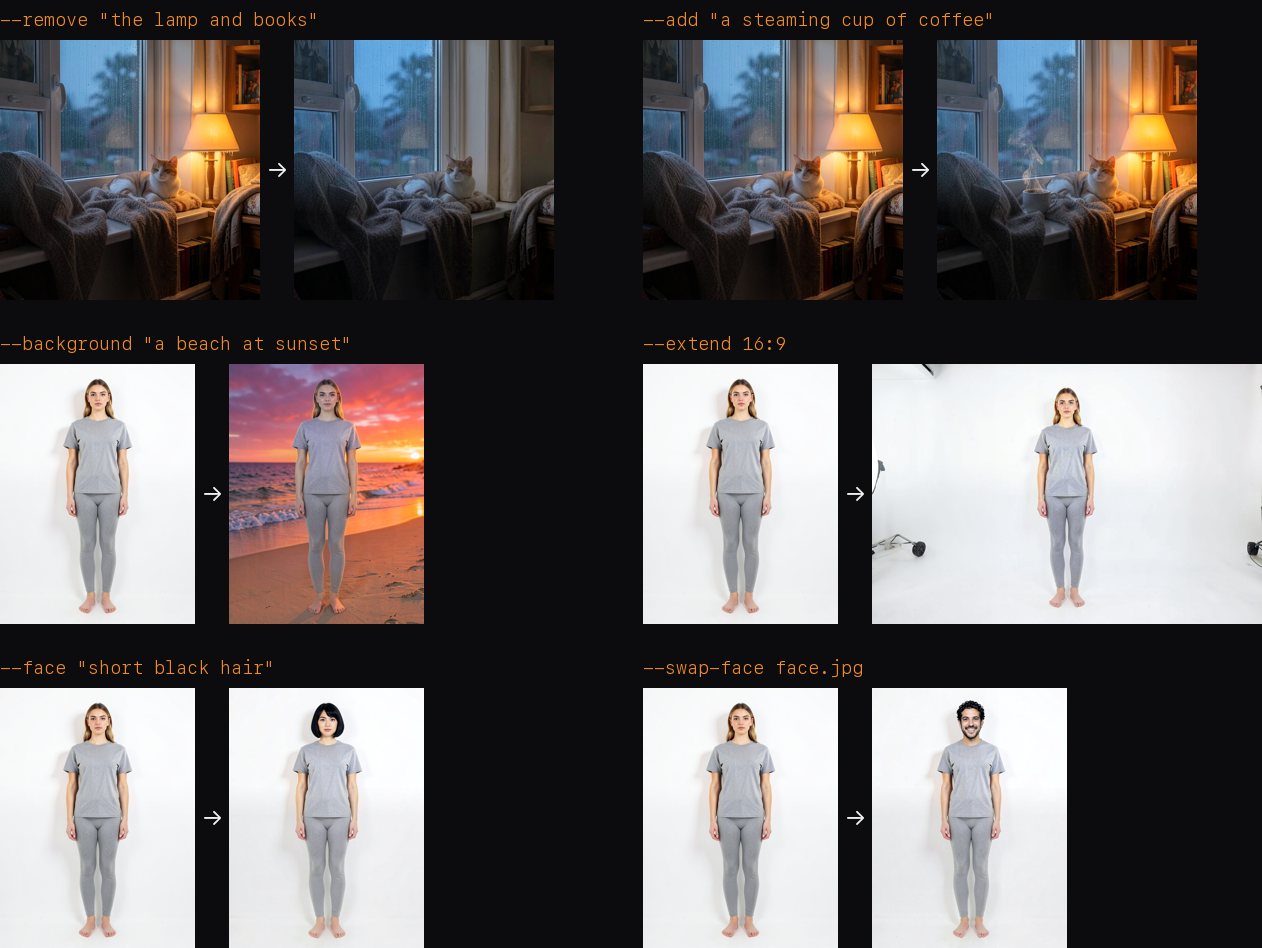
Steps chain in a sensible order (content first, then style, then the frame size):
```bash
imagine edit photo.heic --swap-face face.jpg --background "a neon-lit city street at night" --extend 16:9
```
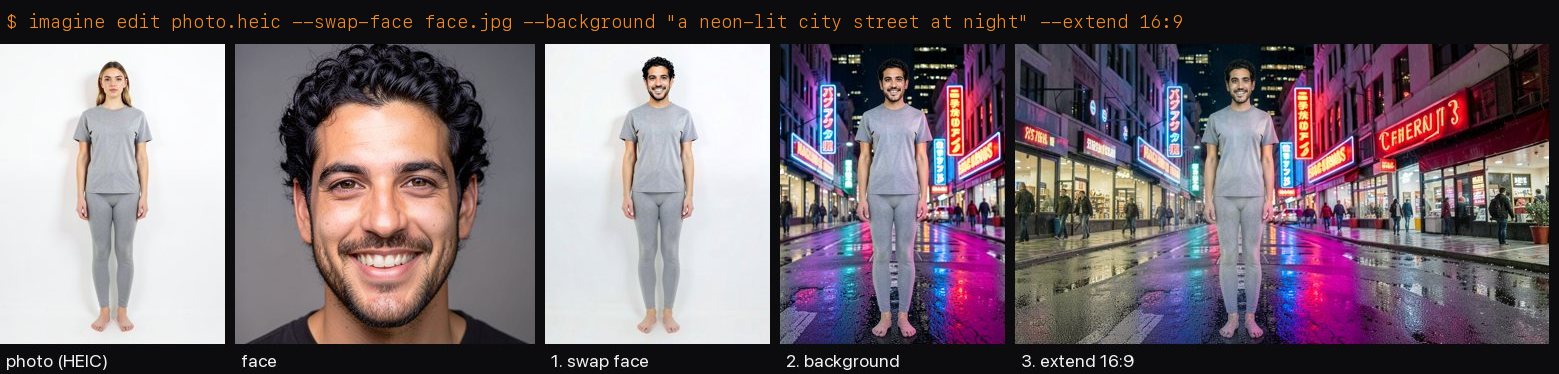
- **`--check`**: a vision-capable chat model in Ollama (for example `gemma4:12b`) looks at each result. For example it asks "is there a lamp in this picture?" and retries a step with a new seed if the edit didn't take.
- **`--keep-steps`**: also saves the picture after each step.
- **Photos from your phone just work.** HEIC, JPEG, PNG, WebP, TIFF, GIF and BMP are all accepted, and large photos are scaled to what the model can use.
- **Planning** uses the same local chat model as `--enhance`. Without one, the whole request runs as a single edit.
Every step regenerates the picture, so very fine details can drift a little over long chains. Two to four steps work best.
## Use it in your browser
Prefer clicking to typing? `imagine ui` opens a small app in your browser:
```bash
imagine ui
```

- **First screen**: a chat workspace with New conversation, searchable saved chats, starter prompts and a bottom composer. Enter sends; Shift + Enter adds a line. **? What can I do** opens the guide when you need it.
- **Conversations**: saved locally in this browser, including drafts and response activity. Local answers stream as they arrive. Responses support headings, lists, links and code blocks with copy controls. **Stop** cancels a running request and pending approvals; actions already completed are not undone.
- **Create**: write a prompt, pick a frame (square, portrait, landscape, wide), make up to four at once, and optionally let a local model enhance the prompt.
- **Edit**: drop in a photo (or paste one, or pick one you made), say what should change, and watch each planned step run. Quick buttons start a remove, add, background, face or style edit. You can also extend the frame to 16:9, 4:3, 1:1 or 9:16, or swap in a face from a second photo.
- **Before and after**: drag the slider to compare, then **Keep editing** to carry on from the result.
- **Contact sheet**: your recent images, with the prompt, seed and model each was made with. Download one, vary it, or edit it.
- **Delete**: hover over an image and press ×, use Delete on the open image, or Delete all. Deleting is permanent (the Trash is skipped), and Delete all only removes pictures imagine made, never other files in the folder.
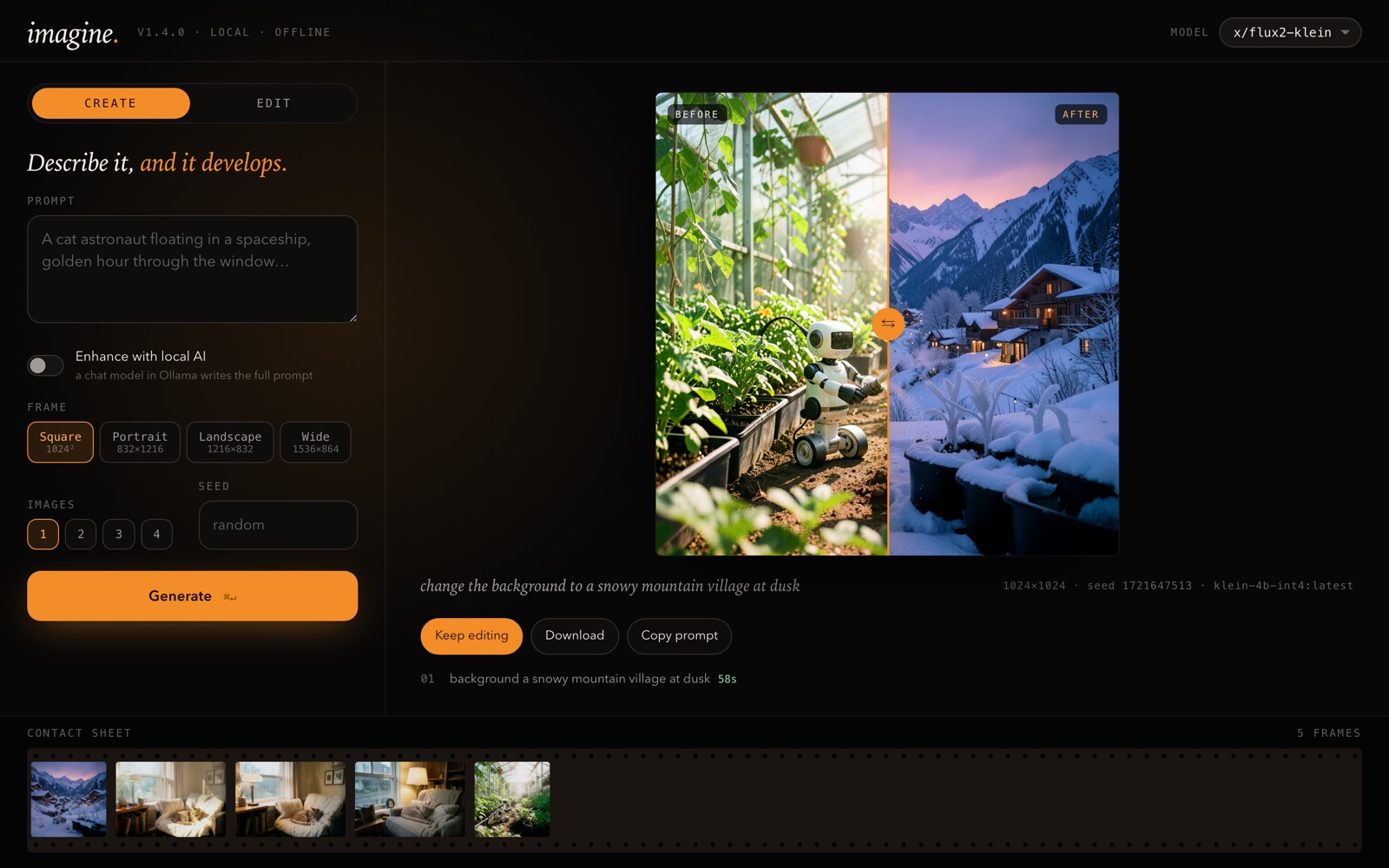
It runs on this Mac only. It listens on `127.0.0.1:11437` (change it with `--port`), and every request needs a token that's baked into the page when it opens, so other websites can't use it. Images are saved to the same folder as the command line's. Use `--no-open` to start it without opening the browser. Jobs run one at a time; a second one waits its turn.
## Local assistant
Install [Ollama](https://ollama.com/download), then download the small local language model and open Imagine:
```bash
ollama pull qwen3.5:4b
imagine ui
```
Choose **Assist**. Qwen 3.5 4B is about 3.4 GB on disk and is the default for 8 GB Macs; on a 16 GB or larger Mac, `ollama pull qwen3.5:9b` adds a stronger 6.6 GB option. The app only lists installed chat models that leave reasonable memory headroom. Deep reasoning is optional because it takes longer. The assistant uses an 8K working context to avoid overloading smaller machines; the advertised maximum context of a model is not a promise that it fits in 8 GB RAM.
Image and assistant jobs share one queue. On 8–16 GB Macs, Imagine unloads the chat model after each answer so the image model has memory available; the next assistant question will take a little longer to start.
Before an image job, Imagine also asks Ollama to release any chat model used in the current UI session, including on larger Macs.
For a community variant trained to refuse fewer prompts, install `ollama pull huihui_ai/qwen3.5-abliterated:4b` and select **less-filtered** in the model picker. It is optional: the official model remains the default because the community tuning has not been shown to improve reasoning or coding accuracy.
- **Internet lookup** can search Wikipedia and read public HTTPS pages without an account. For broad, current web search, set `BRAVE_SEARCH_API_KEY` before starting Imagine; otherwise obscure or breaking news may require you to give it a URL. Turn the option off for fully offline use.
- **Memory** saves facts only when you ask it to remember them. Facts are stored in `~/.imagine/assistant-memory.json`; view/remove them in chat settings. Conversations are stored in this browser's local storage and survive page reloads. Clearing browser data removes them; inference uses the most recent 12 messages.
- **Specialist workers** are optional and run sequentially through the same model to conserve unified memory.
- **Project files** are read-only and off by default. Enable them to let the assistant inspect files under the folder where you started `imagine ui`; symlinks cannot escape that folder.
- **Computer control** is off by default. Turn it on to allow screen viewing, app opening, clicks, typing and key presses; the browser asks for approval before every action. macOS may ask for Accessibility and Screen Recording permissions. There is no arbitrary shell-command tool.
- **WhatsApp** uses the unofficial Baileys library. Click **Connect WhatsApp** and scan the QR code in WhatsApp → Linked devices. The session keys stay in `~/.imagine/whatsapp-auth/`. Received text messages are available only after you enable WhatsApp access. Every outgoing message needs your approval; there are no automatic replies, group broadcasts or bulk sends. Baileys is not affiliated with WhatsApp and may stop working if WhatsApp changes its protocol.
Model capabilities and refusal behavior come from the model itself; a small local model cannot honestly be guaranteed to be “unrestricted” or to match a frontier model at reasoning. This integration uses the released model weights without fine-tuning. Tool use, memory and computer access are application features, not changes to the weights; fine-tuning would need a defined dataset and separate evaluation.
The Assist tab is not an unattended computer agent: it cannot run arbitrary shell commands or edit project files, and each computer action and outgoing WhatsApp message needs approval. See [the full Assist guide](docs/ASSIST.md) for example requests, setup and data locations.
The runtime is a bounded local assistant harness. It is not yet a proven production agent platform: durable run recovery, context compaction, sandboxed coding execution and task-quality evaluations remain to be built. See the [harness assessment](docs/HARNESS.md) for what is implemented and what remains.
### Optional frontier routing
Set `OPENAI_API_KEY` in the environment that launches `imagine ui` to enable OpenAI Responses. The key stays on the server and is never put into the browser page. Assist still starts in **Local only** mode:
- **Smart** uses a visible, zero-cost heuristic: focused requests stay local; longer coding, analysis or multi-step requests may be routed to a frontier model. You approve each cloud request before any text is sent.
- **Frontier** explicitly chooses **Fast** (GPT-6 Luna), **Balanced** (GPT-6.1 Sol) or **Best** (GPT-6 Astra), or lets Imagine choose a tier. Availability depends on your OpenAI API account. These are the current [official model tiers](https://developers.openai.com/api/docs/guides/latest-model).
- Cloud chat is **text-only**. It sends only the current message by default. You can opt in to include up to 12 previous chat turns, which may contain private information. Local files, screenshots, saved memory, WhatsApp messages and tool results are not automatically attached. Cloud mode does not run the local tool switches.
- **Max cloud input tokens** is checked with the [input-token counting endpoint](https://developers.openai.com/api/docs/guides/token-counting) before the completion. **Max answer tokens** is enforced by the provider for each response (including reasoning tokens). The default in-app session budget is 20,000 total tokens; Imagine reserves the counted input plus maximum output before sending and reconciles with reported usage. Set `IMAGINE_FRONTIER_SESSION_TOKENS` before launch to change it. The budget resets when the UI server restarts; set a separate spend limit in your provider account. No usage is incurred by Imagine's router heuristic itself.
This is an opt-in route, not a claim that local and frontier providers have identical privacy or tool behavior. The frontier integration is covered by mocked API tests; it has not been exercised with your own API key.
## Better prompts, reproducible images
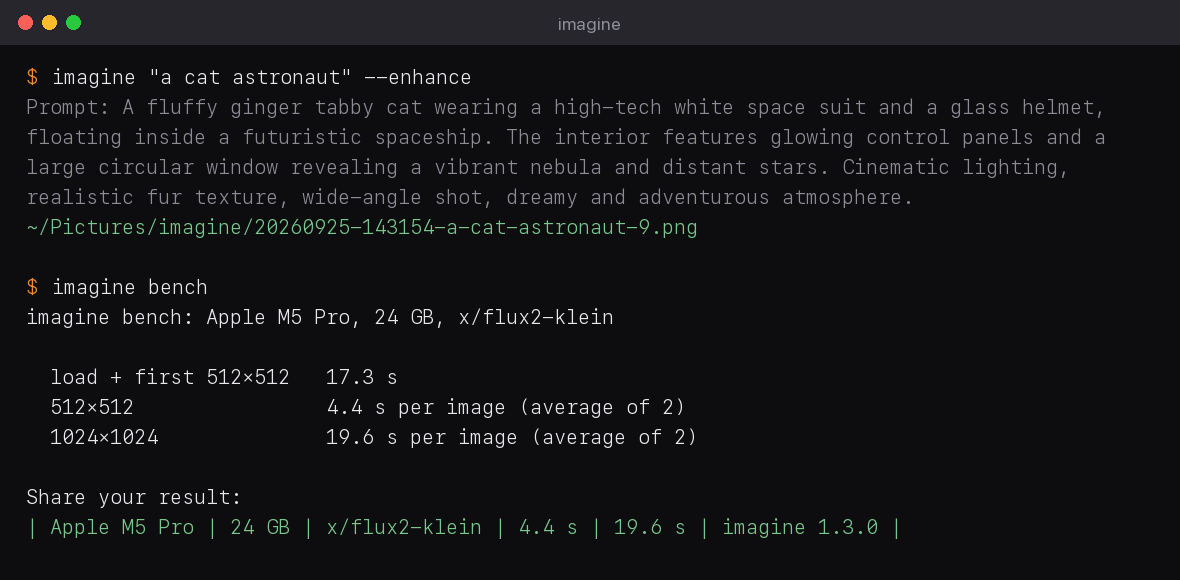
**Let a local chat model write the prompt.** Short ideas make flat images. `--enhance` hands your idea to a chat model in your own Ollama, which writes a detailed prompt (subject, setting, lighting, style) before the image is made. It's still fully offline, and the chat model is unloaded straight afterwards so it doesn't slow the image model.
```bash
imagine "a cat astronaut" --enhance
# Prompt: A fluffy ginger tabby cat wearing a high-tech white and gold spacesuit, complete with a glass
# helmet. The cat is floating inside a futuristic spaceship cabin with glowing control panels…
```
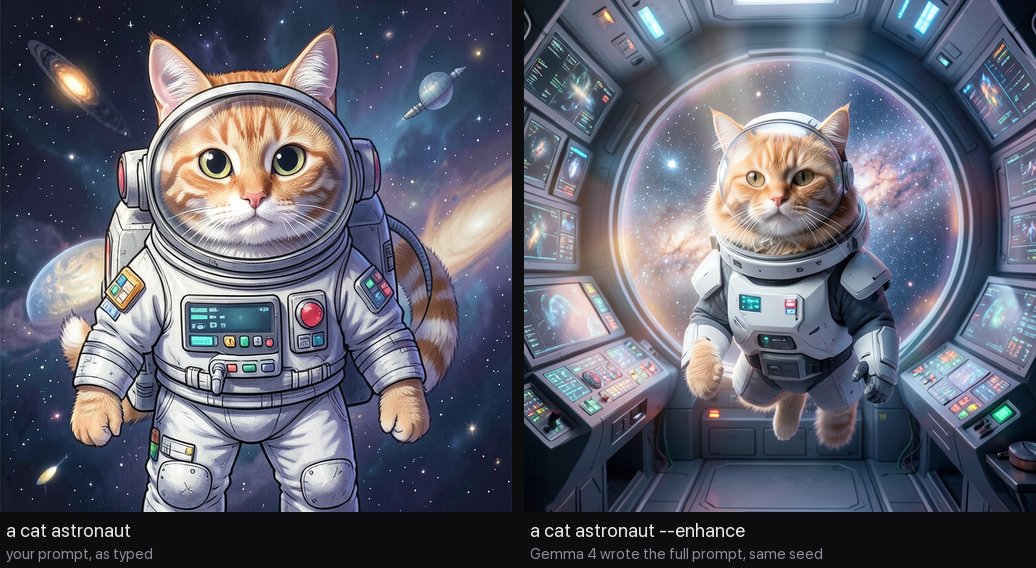
`--enhance` needs Ollama running with a chat model, for example `ollama pull gemma4:12b`. It picks the largest one that loads comfortably, or you can set `IMAGINE_ENHANCE_MODEL`.
**Every image remembers how it was made.** The prompt, seed, model, size and steps are saved inside each PNG, along with your original idea when you used `--enhance`. Other image tools can read them too (the `parameters` field). Recreate or riff on any image:
```bash
imagine again fox.png # the exact same image, byte for byte
imagine again fox.png --vary # same settings, new seed
imagine again fox.png --vary -n 4 --size 1536x1024
```
Edits can be redone too: add the original picture with `-i`.
## Models and quantization
```bash
imagine models
```
```
This Mac has 24 GB of memory.
MODEL SIZE MEMORY LICENCE EDITS
● x/flux2-klein:4b-fp4 5.7 GB fits Apache-2.0 yes (installed as x/flux2-klein:latest)
x/flux2-klein:4b-fp8 9.4 GB fits Apache-2.0 yes
x/flux2-klein:4b-bf16 16.0 GB tight Apache-2.0 yes
x/flux2-klein:9b-fp4 12.0 GB fits non-commercial yes
x/flux2-klein:9b-fp8 20.2 GB too big non-commercial yes
x/flux2-klein:9b-bf16 34.7 GB too big non-commercial yes
x/z-image-turbo:fp8 12.8 GB fits Apache-2.0 no
x/z-image-turbo:bf16 32.9 GB too big Apache-2.0 no
● installed · pull with: imagine pull flux2-klein:4b-fp8
```
The variants trade size for quality. `fp4` is 4-bit (smallest and fastest), `fp8` is 8-bit (a little sharper), and `bf16` is full precision. The 9B models are larger and more detailed, but their licence is non-commercial.
- `fits`: the model uses at most half your memory.
- `tight`: it loads, but leaves little room for other apps.
- `too big`: it's over the engine's limit of about ¾ of your memory, so `imagine pull` refuses it unless you add `--force`.
FLUX.2 Klein is the tested and recommended family. The Z-Image Turbo models are listed because the engine supports them, but they can't edit.
### Qwen-Image 2.1 Uncensored (GGUF)
The Q6_K build from `abenzerps/Qwen-Image-2.1-Uncensored-GGUF` runs through a bundled
`stable-diffusion.cpp` Metal backend. It is separate from the Ollama-compatible engine used for
FLUX.2 and Z-Image. The one-time pull downloads the 5.9 GB transformer, Qwen's 5.0 GB Q4 text
encoder, 752 MB vision projector, 676 MB VAE and a 35 MB runtime (about 12.3 GB total):
```bash
imagine pull qwen-image-2.1-uncensored
imagine "a cinematic portrait with a neon sign reading LOCAL" -m qwen-image-2.1-uncensored
```
Qwen uses 25 steps by default in imagine; pass `--steps` to change it. Width and height must be
divisible by 32. A 24 GB Mac can run this quantized combination, but close other memory-heavy apps
first. The model is under the Qwen Research License, and this particular checkpoint has no built-in
safety checker; you are responsible for lawful and consensual use.
On Macs with enough unified memory, imagine keeps the Q6 weights directly on Metal instead of
streaming them from CPU memory. This preserves the exact output settings while reducing generation
time by about 20% in the local M5 Pro test.
The browser UI offers three Qwen profiles. **Fast** uses 512 px and 20 steps with selective
transformer caching. **Balanced** uses about 640 px and the same 20-step schedule (about 2.5 minutes
on an M5 Pro). **Quality** keeps the original exact 1024 px, 25-step path. Tests below 20 steps leave
this base model visibly underdeveloped.
### Quantize your own
`imagine create` imports a FLUX.2 Klein model in diffusers format, from a local folder or straight from Hugging Face, and quantizes it:
```bash
imagine create klein-4b --from black-forest-labs/FLUX.2-klein-4B --quantize mxfp8
imagine "a watercolor fox" -m klein-4b
```
It supports all five formats Apple's MLX runs natively, including the new microscaling float formats (MXFP4, MXFP8, NVFP4). They run through native quantized matmul kernels, so the weights stay compressed in memory, not just on disk. These are FLUX.2 Klein 4B results at 768×768 on an M5 Pro:
| `--quantize` | Size | Time | Difference from `int8` | |
|---|---|---|---|---|
| `mxfp8` | 8.8 GB | 10.7 s | 17.8 | **best quality**: closest to full precision, and faster than `int8` |
| `mxfp4` | 5.0 GB | 10.0 s | 26.3 | **smallest and fastest** |
| `int8` | 9.0 GB | 12.1 s | reference | near-lossless integer |
| `int4` | 5.3 GB | 12.8 s | 21.7 | 4-bit integer |
| `nvfp4` | 5.3 GB | 10.3 s | 37.7 | 4-bit float; drifts the most in our tests |
| *(omitted)* | 16 GB | | | full precision (bf16) |
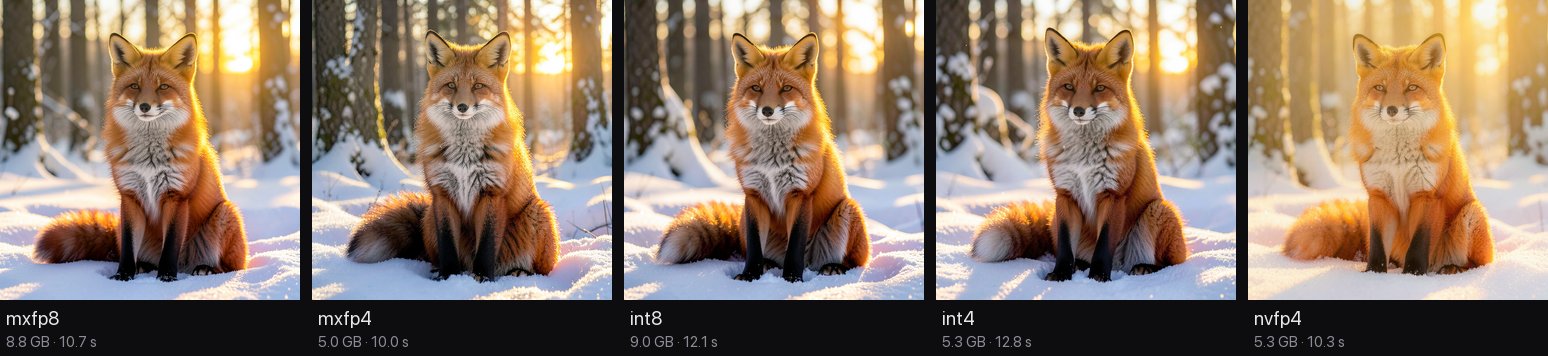
"Difference from `int8`" is the average per-pixel difference out of 255 for the same prompt and seed, so lower means closer. Importing takes 10 to 14 seconds once the files are on disk. The Hugging Face download (16 GB for FLUX.2 Klein 4B) resumes if it's interrupted, and it's kept in `~/.imagine/huggingface` so you can create other variants from it. Only the transformer and text-encoder layers are quantized; the VAE, embeddings and norms stay in full precision. For gated models such as FLUX.2 Klein 9B, accept the licence on Hugging Face and set `HF_TOKEN`.
### Add LoRAs
A LoRA adds a trained style, character, product or skill to a model. `imagine create --lora` bakes one or more LoRAs into the weights before quantizing. They then work with every format, and cost nothing extra per image.
```bash
imagine create klein-tryon --from black-forest-labs/FLUX.2-klein-4B \
--lora xocialize/tryon-FLUX.2-klein-4B-lora --quantize mxfp8
imagine create klein-styled --from black-forest-labs/FLUX.2-klein-4B \
--lora ./my-style.safetensors:0.8 --lora ./my-character.safetensors
```
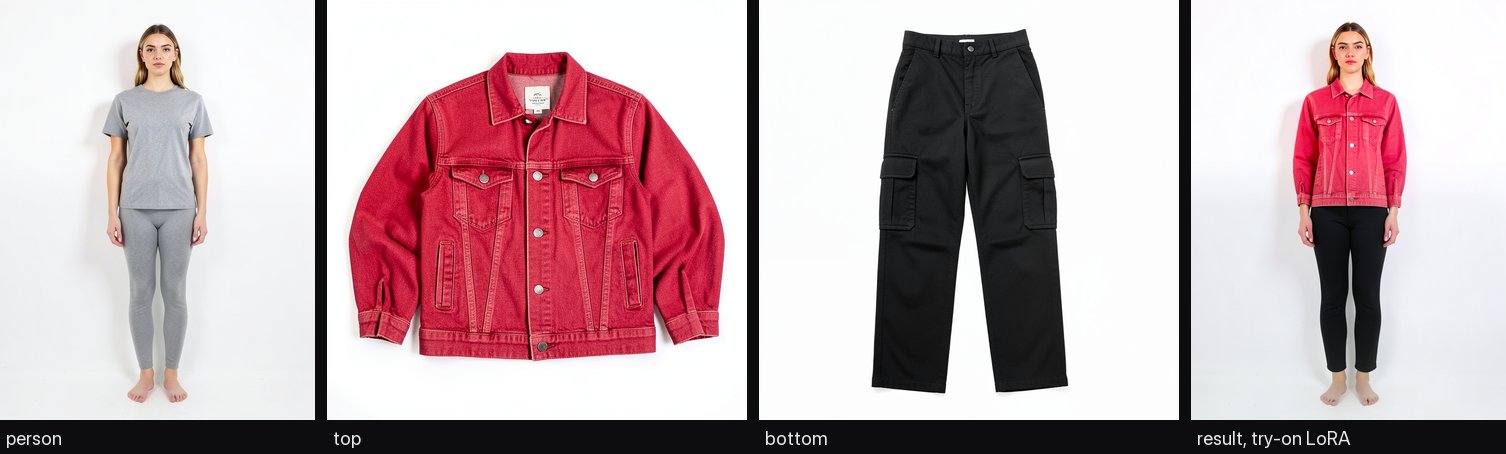
*Made with the [try-on LoRA](https://huggingface.co/xocialize/tryon-FLUX.2-klein-4B-lora): the person, top and bottom go in as references, and the result keeps the person's face and pose.*
- **Where LoRAs come from:** a local `.safetensors` file, or Hugging Face as `owner/name`. For a repo with several files, use `owner/name/path/file.safetensors`.
- **Strength:** set it with `:weight` after the name (the default is 1). Repeat `--lora` to stack them.
- **Formats:** both common layouts are understood, diffusers/PEFT (`transformer.…lora_A`) and ai-toolkit/BFL (`diffusion_model.double_blocks…`). Fused layers are split onto the model's own layers.
- **Safety:** a LoRA made for a different model is refused before anything is written, rather than half-applied.
- **Speed:** merging runs on all your CPU cores. A rank-32 LoRA takes about 26 seconds on FLUX.2 Klein 4B.
## Benchmark your Mac
```bash
imagine bench
```
```
imagine bench: Apple M5 Pro, 24 GB, x/flux2-klein
load + first 512×512 18.3 s
512×512 4.3 s per image (average of 2)
1024×1024 18.0 s per image (average of 2)
Share your result:
| Apple M5 Pro | 24 GB | x/flux2-klein | 4.3 s | 18.0 s | imagine 1.2.0 |
```
It uses a fixed prompt and seeds, so results from different Macs are comparable. Close other heavy apps first: memory pressure (for example a large chat model still loaded) can make it several times slower. [Open an issue](https://github.com/nitya-afk/imagine/issues) with your row and it'll go in a results table here.
## Use it from your apps (OpenAI API)
```bash
imagine serve # http://127.0.0.1:11436/v1 — keep this running
```
`POST /v1/images/generations` and `POST /v1/images/edits` follow OpenAI's format, so an app built on an OpenAI SDK only needs a new base URL:
```js
import OpenAI, { toFile } from 'openai';
import fs from 'node:fs';
const client = new OpenAI({ baseURL: 'http://127.0.0.1:11436/v1', apiKey: 'local' });
const made = await client.images.generate({ prompt: 'an astronaut riding a horse on mars', size: '1024x1024' });
fs.writeFileSync('astronaut.png', Buffer.from(made.data[0].b64_json, 'base64'));
const edited = await client.images.edit({
prompt: 'make it night time',
image: await toFile(fs.createReadStream('astronaut.png'), 'astronaut.png', { type: 'image/png' }),
});
```
```python
from openai import OpenAI
client = OpenAI(base_url="http://127.0.0.1:11436/v1", api_key="local")
made = client.images.generate(prompt="an astronaut riding a horse on mars", size="1024x1024")
edited = client.images.edit(prompt="make it night time", image=open("astronaut.png", "rb"))
```
```bash
curl http://127.0.0.1:11436/v1/images/generations \
-H 'content-type: application/json' \
-d '{"prompt": "a lighthouse at dusk", "size": "1024x1024"}'
```
How requests are handled:
- **`model`:** OpenAI names (`dall-e-*`, `gpt-image-*`) or no model at all use the local default. Anything else is used as a local model name.
- **`size`:** `WxH` or `auto`. For edits, `auto` keeps the input's shape.
- **`n`:** 1–4. Images are made one after another.
- **`response_format`:** `b64_json` (the default) or `url`. With `url`, the image is served from `/images/…`.
- **`seed` and `steps`:** accepted in addition to OpenAI's fields.
- **`quality`, `style` and similar fields:** ignored.
- **`mask`:** refused with a clear error.
- **`GET /v1/models`:** lists your installed image models.
The server only listens on your own Mac. To share it on your network, use `--bind 0.0.0.0 --api-key <key>`. To let web pages on other sites call it, add `--cors`; it's off by default so random websites can't use your GPU.
## Use it from AI assistants (MCP)
`imagine mcp` runs a [Model Context Protocol](https://modelcontextprotocol.io) server with three tools: `generate_image`, `edit_image` and `list_image_models`. Your assistant can then make and edit images on your Mac. Results appear in the chat and are saved to `~/Pictures/imagine`.
Desktop apps don't see your terminal's `PATH`, so give them the full path to `imagine` and a `PATH` that includes Node. Run `which imagine` to find the path. It's usually `/opt/homebrew/bin/imagine` with Homebrew's Node, or `/usr/local/bin/imagine` with the nodejs.org installer.
**Claude Desktop**: Settings → Developer → Edit Config, then add:
```json
{
"mcpServers": {
"imagine": {
"command": "/opt/homebrew/bin/imagine",
"args": ["mcp"],
"env": { "PATH": "/opt/homebrew/bin:/usr/local/bin:/usr/bin:/bin" }
}
}
}
```
Restart the app, then ask something like *"make an image of a lighthouse at dusk"*.
**Cursor** (`~/.cursor/mcp.json`), **VS Code**, **Zed** and other MCP apps: use the same `command`, `args` and `env`.
**Claude Code**:
```bash
claude mcp add imagine -- imagine mcp
```
## Troubleshooting
| You see | What to do |
|---|---|
| `zsh: command not found: imagine` | Run the install again (step 3 of the quick start) and open a new Terminal window. |
| `npm error code EACCES` while installing | Your Node needs admin rights for global packages: run the install command with `sudo` in front, or install Node with Homebrew. |
| `model 'x/flux2-klein' not found. Download it with: imagine pull x/flux2-klein` | Run the `imagine pull` command it shows. |
| `… needs about 20.2 GB and this Mac has 16 GB of memory, so it would not load` | Pick a smaller variant from `imagine models`, such as an `fp4` one. |
| `Port 11435 is already used by …` | Another program is on the engine's port. Stop it, or pick another port: `export IMAGINE_ENGINE_PORT=11445`. |
| `Could not download … Run the command again to resume.` | Your connection dropped. Run the same command again; it continues where it stopped. |
| `The image engine did not start. Its log is at ~/.imagine/engine.log` | Look at the end of that log, then run `imagine stop` and try again. |
| `--enhance needs a chat model in Ollama` | Install one, for example `ollama pull gemma4:12b`, and make sure Ollama is running. |
| `… doesn't carry imagine's settings` | `imagine again` only works on images made by imagine 1.2 or later. |
| `Couldn't read the photo` | Use a PNG, JPEG, WebP, HEIC, TIFF, GIF or BMP file. |
| `--check needs a chat model that can see images` | Install one, for example `ollama pull gemma4:12b`. |
| `this model does not support image editing` | Only FLUX.2 Klein can edit. Leave out `-m`, or pick a `flux2-klein` model. |
| `imagine needs a Mac with Apple silicon` | The engine needs Apple's Metal GPU. Intel Macs, Windows and Linux aren't supported. |
| The first image is slow | That's the one-time engine download plus loading the model. Later images are much faster, and the model stays loaded for 5 minutes. |
| An AI assistant says the tool failed to start | Use the full path and the `env` `PATH` shown in [the MCP section](#use-it-from-ai-assistants-mcp). |
`imagine status` shows which engine is doing the work, where images go and where the log is.
## How it works
Ollama added image generation for macOS in early 2026 and then [removed it in v0.32.6](https://github.com/ollama/ollama/pull/16615) ("to be re-introduced on the new MLX runner in the future"). The [model pages](https://ollama.com/x/flux2-klein) still say macOS works, so newer versions of Ollama download the models and then reply `image generation models are not currently supported` ([ollama#17893](https://github.com/ollama/ollama/issues/17893)).
`imagine` doesn't depend on which Ollama you have, or whether you have it at all:
```
imagine (terminal, OpenAI API, MCP)
├─ generate ─► your Ollama, if it can still make images
│ otherwise ─► imagine-engine (127.0.0.1:11435)
└─ edit ─────► imagine-engine
└─ models live in ~/.ollama/models, shared with Ollama
```
- **imagine-engine** is Ollama 0.32.5's image engine built from source in this repo ([`engine/`](https://github.com/nitya-afk/imagine/tree/main/engine)) with three fixes:
- **Image editing.** FLUX.2 Klein can edit, but 0.32.5 ignored your input images.
- **Importing and quantizing models.** Ollama removed this, and its last releases that had it crash on current Macs.
- **Native MXFP4, MXFP8 and NVFP4.** These formats used to be expanded at load, or misread.
The engine is built on GitHub Actions with a signed build provenance attestation, downloaded once from this repo's release, checked against a pinned SHA-256, and runs in the background on its own port.
- **Your models are shared.** Anything you pulled with Ollama works here, and anything you pull or create here shows up in `ollama list`. Nothing is downloaded twice.
- **It steps aside when Ollama catches up.** Plain generation tries your own Ollama first. When a version that can make images again ships, `imagine` notices and uses it.
### Verify the engine
Every engine release is built from this repo's source by GitHub Actions ([`engine.yml`](https://github.com/nitya-afk/imagine/blob/main/.github/workflows/engine.yml)) and signed with a build provenance attestation. To check that a download came from that workflow and commit:
```bash
gh release download v1.3.0 -R nitya-afk/imagine -p 'imagine-engine-*.tar.gz'
gh attestation verify imagine-engine-*.tar.gz --repo nitya-afk/imagine
```
## All commands
```bash
imagine "<prompt>" [options] # generate, or edit with -i
imagine edit <photo> ["request"] [--remove …] [--add …] [--background …] [--face …] [--swap-face img] [--style …] [--extend 16:9] [--check]
imagine "<idea>" --enhance # a local chat model writes the full prompt
imagine again <image.png> [--vary] # recreate an image from its saved settings
imagine bench # measure this Mac's speed
imagine models # models, sizes, and what fits this Mac
imagine pull [model] # download a model (default x/flux2-klein)
imagine create <name> --from <src> [--quantize fmt] [--lora src[:w]] # import, quantize, add LoRAs
imagine ui [--port 11437] [--no-open] # the browser app: create, edit and local assistant
imagine serve [--port 11436] [--bind …] [--api-key …] [--cors] # OpenAI-compatible API
imagine mcp # MCP server for AI assistants
imagine status # which engine is running, where files go
imagine stop # stop the background engine
imagine --help # every option
```
## Configuration
| Variable | Default | |
|---|---|---|
| `IMAGINE_MODEL` | `x/flux2-klein` | default model |
| `IMAGINE_OUTPUT_DIR` | `~/Pictures/imagine` | where images are saved |
| `IMAGINE_OPEN` | `1` | set to `0` to never open images in Preview |
| `IMAGINE_ENHANCE_MODEL` | largest chat model that fits | the Ollama chat model `--enhance` uses |
| `IMAGINE_ENGINE_PORT` | `11435` | port for imagine-engine |
| `IMAGINE_OLLAMA_HOST` | | always use this server instead (for example an Ollama that can make images) |
| `IMAGINE_HOME` | `~/.imagine` | engine, logs and downloads |
| `IMAGINE_API_KEY` | | same as `serve --api-key` |
| `HF_TOKEN` | | for gated Hugging Face models |
| `OLLAMA_HOST` | `127.0.0.1:11434` | your normal Ollama, read the same way Ollama reads it |
| `OLLAMA_MODELS` | `~/.ollama/models` | the model folder shared with Ollama |
| `BRAVE_SEARCH_API_KEY` | | optional official Brave API for more reliable web search; keyless Brave/DuckDuckGo and limited Wikipedia are fallbacks |
| `OPENAI_API_KEY` | | enables optional frontier text chat through the OpenAI Responses API |
| `IMAGINE_FRONTIER_SESSION_TOKENS` | `20000` | maximum total cloud tokens reserved for this running UI server; not an account billing cap |
## Update and uninstall
To update, run the install command from the quick start again.
To uninstall:
```bash
imagine stop
npm uninstall -g imagine-local
rm -rf ~/.imagine
```
Models stay in `~/.ollama/models`. To remove one, run `ollama rm <model>`, or delete the folder to remove them all if you don't use Ollama.
## Development
```bash
git clone https://github.com/nitya-afk/imagine.git && cd imagine
npm install
npm run build # compile to dist/
npm run check # type check
npm test # unit and HTTP tests, no GPU needed
npm link # use your checkout as the `imagine` command
engine/build.sh # rebuild imagine-engine from source (needs Go 1.26+)
```
Found a bug or have an idea? [Open an issue](https://github.com/nitya-afk/imagine/issues).
## Licences
`imagine` is MIT-licensed. `imagine-engine` is Ollama (MIT) plus MLX (MIT, © Apple); see [`engine/NOTICE.md`](https://github.com/nitya-afk/imagine/blob/main/engine/NOTICE.md). Models have their own licences: FLUX.2 Klein 4B and Z-Image Turbo are Apache-2.0, and FLUX.2 Klein 9B is non-commercial.
---
Made by [Nitya Prakhar](https://github.com/nitya-afk). Not affiliated with or endorsed by Ollama, Black Forest Labs or Apple.
This server cannot be deployed
Maintenance
ActivityMaintained
ResponsivenessNo issues