Glama
Video & Audio Editing MCP Server

Video & Audio Editing MCP Server

by misbahsy

๐ŸŽฌ Video & Audio Editing MCP Server

A comprehensive Model Context Protocol (MCP) server that provides powerful video and audio editing capabilities through FFmpeg. This server enables AI assistants to perform professional-grade video editing operations including format conversion, trimming, overlays, transitions, and advanced audio processing.

License: MIT Python 3.8+ MCP Compatible

โœจ Features

  • ๐ŸŽฅ Video Processing: Format conversion, resolution scaling, codec changes, frame rate adjustment

  • ๐ŸŽต Audio Processing: Format conversion, bitrate adjustment, sample rate changes, channel configuration

  • โœ‚๏ธ Editing Tools: Video trimming, speed adjustment, aspect ratio changes

  • ๐ŸŽจ Overlays & Effects: Text overlays, image watermarks, subtitle burning

  • ๐Ÿ”— Advanced Editing: Video concatenation with transitions, B-roll insertion, silence removal

  • ๐ŸŽญ Transitions: Fade in/out effects, crossfade transitions between clips

Related MCP server: ffmpeg-mcp

๐Ÿ› ๏ธ Available Tools

Core Video Operations

  • extract_audio_from_video - Extract audio tracks from video files

  • trim_video - Cut video segments with precise timing

  • convert_video_format - Convert between video formats (MP4, MOV, AVI, etc.)

  • convert_video_properties - Comprehensive video property conversion

  • change_aspect_ratio - Adjust video aspect ratios with padding or cropping

  • set_video_resolution - Change video resolution with quality preservation

  • set_video_codec - Switch video codecs (H.264, H.265, VP9, etc.)

  • set_video_bitrate - Adjust video quality and file size

  • set_video_frame_rate - Change playback frame rates

Audio Processing

  • convert_audio_format - Convert between audio formats (MP3, WAV, AAC, etc.)

  • convert_audio_properties - Comprehensive audio property conversion

  • set_audio_bitrate - Adjust audio quality and compression

  • set_audio_sample_rate - Change audio sample rates

  • set_audio_channels - Convert between mono and stereo

  • set_video_audio_track_codec - Change audio codec in video files

  • set_video_audio_track_bitrate - Adjust audio bitrate in videos

  • set_video_audio_track_sample_rate - Change audio sample rate in videos

  • set_video_audio_track_channels - Adjust audio channels in videos

Creative Tools

  • add_subtitles - Burn subtitles with custom styling

  • add_text_overlay - Add dynamic text overlays with timing

  • add_image_overlay - Insert watermarks and logos

  • add_b_roll - Insert B-roll footage with transitions

  • add_basic_transitions - Apply fade in/out effects

Advanced Editing

  • concatenate_videos - Join multiple videos with optional transitions

  • change_video_speed - Create slow-motion or time-lapse effects

  • remove_silence - Automatically remove silent segments

  • health_check - Verify server status

๐Ÿš€ Quick Start

Prerequisites (local installation)

  1. Python 3.8+ - Download Python

  2. FFmpeg - Install FFmpeg

  3. uv (recommended) - Install uv or use pip

Installation

Option 1: Using Smithery (Easiest) โญ

The simplest way to get started is through the Smithery MCP registry:
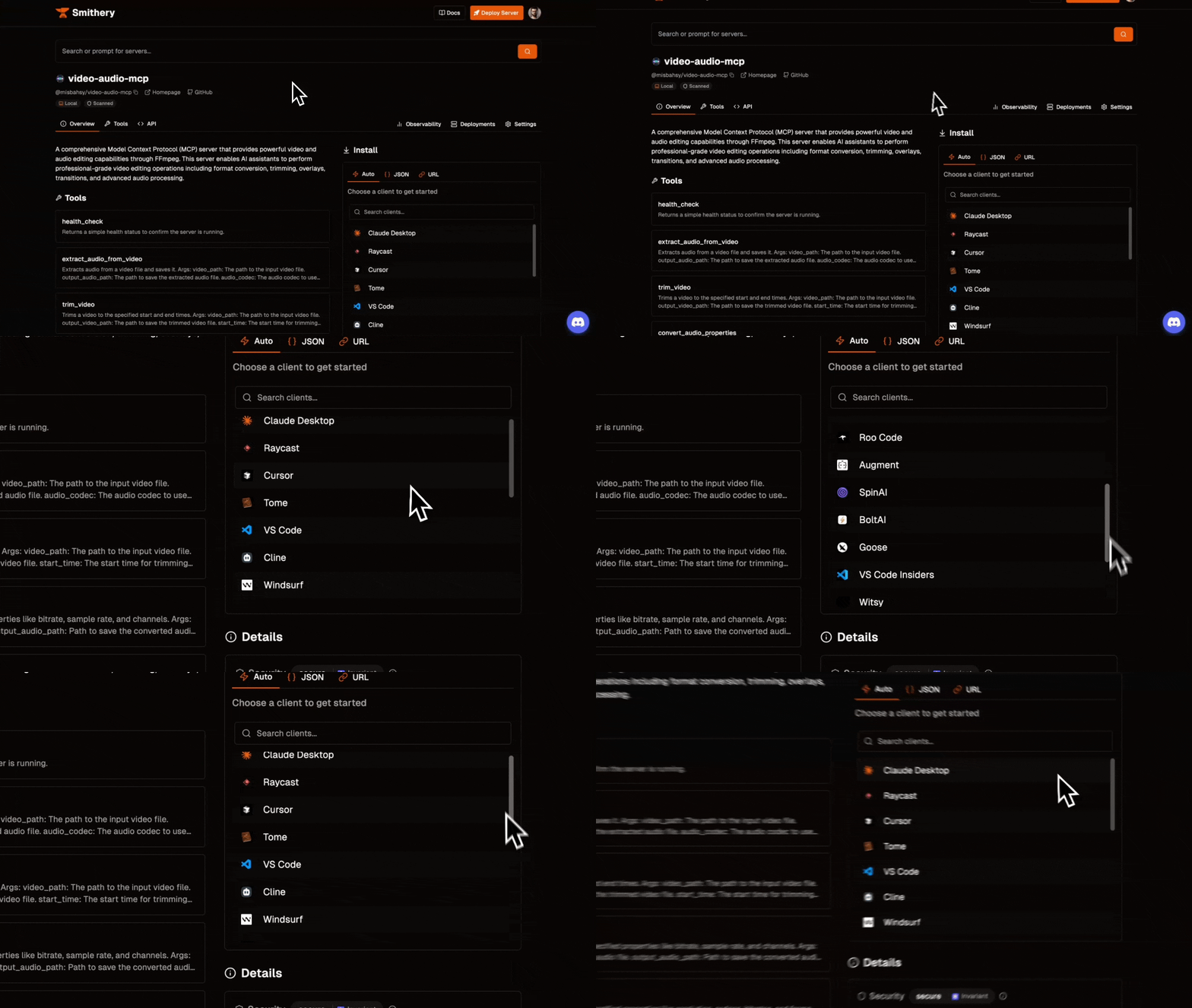
Clipboard-20250524-191433-493

# Install uv if you haven't already
curl -LsSf https://astral.sh/uv/install.sh | sh

# Clone the repository
git clone https://github.com/misbahsy/video-audio-mcp.git
cd video-audio-mcp

# Install dependencies with uv
uv sync

# Verify FFmpeg installation
ffmpeg -version

Running the Server

# With uv (recommended)
uv run server.py

# Or with traditional python
python server.py

# Or with specific transport
python -c "from server import mcp; mcp.run(transport='stdio')"

๐Ÿ”ง Client Configuration

Add to your claude_desktop_config.json:

macOS: ~/Library/Application Support/Claude/claude_desktop_config.json Windows: %APPDATA%\Claude\claude_desktop_config.json

{
  "mcpServers": {
    "VideoAudioServer": {
      "command": "uv",
      "args": [
        "--directory",
        "/path/to/your/video-audio-mcp",
        "run",
        "server.py"
      ]
    }
  }
}

Alternative (using Python directly):

{
  "mcpServers": {
    "VideoAudioServer": {
      "command": "python",
      "args": ["/path/to/video-audio-mcp/server.py"]
    }
  }
}
  1. Open Cursor Settings: File โ†’ Preferences โ†’ Cursor Settings โ†’ MCP

  2. Click "Add New Server"

  3. Configure:

    • Name: VideoAudioServer

    • Type: command

    • Command: uv --directory /path/to/your/video-audio-mcp run server.py

Alternative configuration:

  • Command: /path/to/python /path/to/video-audio-mcp/server.py

Windsurf

Add to your MCP configuration:

{
  "mcpServers": {
    "VideoAudioServer": {
      "command": "uv",
      "args": [
        "--directory",
        "/path/to/your/video-audio-mcp",
        "run",
        "server.py"
      ],
      "env": {}
    }
  }
}

Why Use uv?

The uv command is recommended because it:

  • Automatically manages dependencies without needing to activate virtual environments

  • Faster installation and dependency resolution

  • Better isolation - each project gets its own environment automatically

  • More reliable - handles Python version and dependency conflicts better

  • Modern tooling - the future of Python package management

Using NPX (Alternative)

For easier distribution, you can also run via npx if packaged:

{
  "mcpServers": {
    "VideoAudioServer": {
      "command": "npx",
      "args": ["-y", "video-audio-mcp-server"]
    }
  }
}

๐Ÿ“– Usage Examples

Basic Video Editing

"Can you convert this MP4 file to MOV format?"
โ†’ Uses: convert_video_format

"Trim the video from 30 seconds to 2 minutes"
โ†’ Uses: trim_video

"Extract the audio from this video as MP3"
โ†’ Uses: extract_audio_from_video

Advanced Editing Workflows

"Create a highlight reel by concatenating these 3 clips with fade transitions"
โ†’ Uses: concatenate_videos with transition effects

"Add my logo watermark to the top-right corner of this video"
โ†’ Uses: add_image_overlay

"Remove all silent parts from this podcast recording"
โ†’ Uses: remove_silence

"Add subtitles to this video with custom styling"
โ†’ Uses: add_subtitles

Professional Workflows

"Convert this 4K video to 1080p, reduce bitrate to 2Mbps, and change to H.265 codec"
โ†’ Uses: convert_video_properties

"Create a social media version: change to 9:16 aspect ratio, add text overlay, and compress"
โ†’ Uses: change_aspect_ratio, add_text_overlay, set_video_bitrate

"Insert B-roll footage at 30 seconds with a fade transition"
โ†’ Uses: add_b_roll

๐ŸŽฏ Real-World Use Cases

Content Creation

  • YouTube Videos: Automated editing, thumbnail generation, format optimization

  • Social Media: Aspect ratio conversion, text overlays, compression for platforms

  • Podcasts: Audio extraction, silence removal, format conversion

Professional Video Production

  • Corporate Videos: Logo watermarking, subtitle addition, quality standardization

  • Educational Content: Screen recording processing, chapter markers, accessibility features

  • Marketing Materials: B-roll integration, transition effects, brand consistency

Workflow Automation

  • Batch Processing: Convert entire video libraries to new formats

  • Quality Control: Standardize video properties across projects

  • Archive Management: Extract audio for transcription, create preview clips

๐Ÿ” Tool Reference

Video Format Conversion

# Convert MP4 to MOV with specific properties
convert_video_properties(
    input_video_path="input.mp4",
    output_video_path="output.mov",
    target_format="mov",
    resolution="1920x1080",
    video_codec="libx264",
    video_bitrate="5M",
    frame_rate=30
)

Text Overlays with Timing

# Add multiple text overlays with different timings
add_text_overlay(
    video_path="input.mp4",
    output_video_path="output.mp4",
    text_elements=[
        {
            "text": "Welcome to our presentation",
            "start_time": "0",
            "end_time": "3",
            "font_size": 48,
            "font_color": "white",
            "x_pos": "center",
            "y_pos": "center"
        },
        {
            "text": "Chapter 1: Introduction",
            "start_time": "5",
            "end_time": "8",
            "font_size": 36,
            "box": True,
            "box_color": "black@0.7"
        }
    ]
)

Advanced Concatenation

# Join videos with crossfade transition
concatenate_videos(
    video_paths=["clip1.mp4", "clip2.mp4"],
    output_video_path="final.mp4",
    transition_effect="dissolve",
    transition_duration=1.5
)

๐Ÿ›ก๏ธ Error Handling

The server includes comprehensive error handling:

  • File Validation: Checks for file existence before processing

  • Format Support: Validates supported formats and codecs

  • Graceful Fallbacks: Attempts codec copying before re-encoding

  • Detailed Logging: Provides clear error messages for troubleshooting

๐Ÿ”ง Troubleshooting

Common Issues

FFmpeg not found

# Install FFmpeg
# macOS: brew install ffmpeg
# Ubuntu: sudo apt install ffmpeg
# Windows: Download from https://ffmpeg.org/

Permission errors

# Ensure file permissions
chmod +x server.py

MCP server not connecting

  1. Check file paths in configuration

  2. Verify Python environment

  3. Test server manually: python server.py

  4. Check client logs for detailed errors

Debug Mode

Run with debug logging:

python server.py --log-level DEBUG

๐Ÿงช Testing

This project includes a comprehensive test suite that validates all video and audio editing functions. The tests ensure reliability and help catch regressions during development.

Test Coverage

The test suite covers:

  • โœ… Core Functions: All 30+ video/audio editing tools

  • ๐ŸŽฌ Video Operations: Format conversion, trimming, resolution changes, codec switching

  • ๐ŸŽต Audio Processing: Bitrate adjustment, sample rate changes, channel configuration

  • ๐ŸŽจ Creative Tools: Text overlays, image watermarks, subtitle burning

  • ๐Ÿ”— Advanced Features: Video concatenation, B-roll insertion, transitions

  • โšก Performance: Speed changes, silence removal, aspect ratio adjustments

  • ๐Ÿ›ก๏ธ Error Handling: Invalid inputs, missing files, unsupported formats

Running Tests

Prerequisites for Testing

# Install test dependencies
pip install pytest

# Ensure FFmpeg is installed and accessible
ffmpeg -version

Basic Test Execution

# Run all tests
pytest tests/

# Run with verbose output
pytest tests/ -v

# Run specific test file
pytest tests/test_video_functions.py

# Run specific test function
pytest tests/test_video_functions.py::test_extract_audio

Advanced Test Options

# Run tests with detailed output and no capture
pytest tests/ -v -s

# Run tests and stop on first failure
pytest tests/ -x

# Run tests with coverage report
pytest tests/ --cov=server

# Run only failed tests from last run
pytest tests/ --lf

Test Environment Setup

The test suite automatically creates:

  • Sample Files: Test videos, audio files, and images

  • Output Directory: tests/test_outputs/ for generated files

  • Temporary Files: B-roll clips and transition test materials

# Test files are created in:
tests/
โ”œโ”€โ”€ test_outputs/          # Generated test results
โ”œโ”€โ”€ sample_files/          # Auto-generated sample media
โ”œโ”€โ”€ test_video_functions.py # Main test suite
โ””โ”€โ”€ sample.mp4            # Primary test video (if available)

Sample Test Output

$ pytest tests/test_video_functions.py -v

tests/test_video_functions.py::test_health_check PASSED
tests/test_video_functions.py::test_extract_audio PASSED
tests/test_video_functions.py::test_trim_video PASSED
tests/test_video_functions.py::test_convert_audio_properties PASSED
tests/test_video_functions.py::test_convert_video_properties PASSED
tests/test_video_functions.py::test_add_text_overlay PASSED
tests/test_video_functions.py::test_add_subtitles PASSED
tests/test_video_functions.py::test_concatenate_videos PASSED
tests/test_video_functions.py::test_add_b_roll PASSED
tests/test_video_functions.py::test_add_basic_transitions PASSED
tests/test_video_functions.py::test_concatenate_videos_with_xfade PASSED

========================= 25 passed in 45.2s =========================

Test Categories

๐ŸŽฏ Core Functionality Tests

  • Video format conversion and property changes

  • Audio extraction and processing

  • File trimming and basic operations

๐ŸŽจ Creative Feature Tests

  • Text overlay positioning and timing

  • Image watermark placement and opacity

  • Subtitle burning with custom styling

๐Ÿ”— Advanced Editing Tests

  • Multi-video concatenation with transitions

  • B-roll insertion with various positions

  • Speed changes and silence removal

๐Ÿ›ก๏ธ Error Handling Tests

  • Invalid file paths and missing files

  • Unsupported formats and codecs

  • Edge cases and boundary conditions

Writing Custom Tests

To add new tests for additional functionality:

def test_new_feature():
    """Test description"""
    # Setup
    input_file = "path/to/test/file.mp4"
    output_file = os.path.join(OUTPUT_DIR, "test_output.mp4")
    
    # Execute
    result = your_new_function(input_file, output_file, parameters)
    
    # Validate
    assert "success" in result.lower()
    assert os.path.exists(output_file)
    
    # Optional: Validate output properties
    duration = get_media_duration(output_file)
    assert duration > 0

Continuous Integration

The test suite is designed to work in CI/CD environments:

# Example GitHub Actions workflow
- name: Install FFmpeg
  run: sudo apt-get install ffmpeg

- name: Install dependencies
  run: pip install -r requirements.txt pytest

- name: Run tests
  run: pytest tests/ -v

Performance Testing

Some tests include performance validation:

  • Duration Checks: Verify output video lengths match expectations

  • Quality Validation: Ensure format conversions maintain quality

  • File Size Monitoring: Check compression and bitrate changes

Test Data Management

  • Automatic Cleanup: Tests clean up temporary files

  • Sample Generation: Creates test media files as needed

  • Deterministic Results: Tests produce consistent, reproducible results

๐Ÿ’ก Tip: Run tests after any changes to ensure functionality remains intact. The comprehensive test suite catches most issues before they reach production.

๐Ÿค Contributing

We welcome contributions! Please see our Contributing Guide for details.

Development Setup

# Clone and setup development environment
git clone https://github.com/misbahsy/video-audio-mcp.git
cd video-audio-mcp

# Create virtual environment
python -m venv venv
source venv/bin/activate  # On Windows: venv\Scripts\activate

# Install development dependencies
pip install -r requirements-dev.txt

# Run tests
pytest tests/

๐Ÿ“„ License

This project is licensed under the MIT License - see the LICENSE file for details.

๐Ÿ™ Acknowledgments

๐Ÿ“ž Support


Made with โค๏ธ for the MCP community

Available Tools

27 tools
add_basic_transitionsB

Adds basic fade transitions to the beginning or end of a video.

Args: video_path: Path to the input video file. output_video_path: Path to save the video with the transition. transition_type: Type of transition. Options: 'fade_in', 'fade_out'. (Note: 'crossfade_from_black' is like 'fade_in', 'crossfade_to_black' is like 'fade_out') duration_seconds: Duration of the fade effect in seconds. Returns: A status message indicating success or failure.

Inputs: duration_seconds (required), output_video_path (required), transition_type (required), video_path (required).

add_b_rollC

Inserts B-roll clips into a main video as overlays. Args listed in previous messages (docstring unchanged for brevity here)

Inputs: broll_clips (required), main_video_path (required), output_video_path (required).

add_image_overlayA

Adds an image overlay (watermark/logo) to a video.

Args: video_path: Path to the input video file. output_video_path: Path to save the video with the image overlay. image_path: Path to the image file for the overlay. position: Position of the overlay. Options: 'top_left', 'top_right', 'bottom_left', 'bottom_right', 'center'. Or specify custom coordinates like 'x=10:y=10'. opacity: Opacity of the overlay (0.0 to 1.0). If None, image's own alpha is used. start_time: Start time for the overlay (HH:MM:SS or seconds). If None, starts from beginning. end_time: End time for the overlay (HH:MM:SS or seconds). If None, lasts till end. width: Width for the overlay image (e.g., '100', 'iw0.1'). Original if None. height: Height for the overlay image (e.g., '50', 'ih0.1'). Original if None.

Returns: A status message indicating success or failure.

Inputs: image_path (required), output_video_path (required), video_path (required), end_time, +5 more.

add_subtitlesA

Burns subtitles from an SRT file onto a video, with optional styling.

Args: video_path: Path to the input video file. srt_file_path: Path to the SRT subtitle file. output_video_path: Path to save the video with subtitles. font_style (dict, optional): A dictionary for subtitle styling. Supported keys and example values: - 'font_name': 'Arial' (str) - 'font_size': 24 (int) - 'font_color': 'white' or '&H00FFFFFF' (str, FFmpeg color syntax) - 'outline_color': 'black' or '&H00000000' (str) - 'outline_width': 2 (int) - 'shadow_color': 'black' (str) - 'shadow_offset_x': 1 (int) - 'shadow_offset_y': 1 (int) - 'alignment': 7 (int, ASS alignment - Numpad layout: 1=bottom-left, 7=top-left etc. Default often 2=bottom-center) - 'margin_v': 10 (int, vertical margin from edge, depends on alignment) - 'margin_l': 10 (int, left margin) - 'margin_r': 10 (int, right margin) Default is None, which uses FFmpeg's default subtitle styling.

Returns: A status message indicating success or failure.

Inputs: output_video_path (required), srt_file_path (required), video_path (required), font_style.

add_text_overlayA

Adds one or more text overlays to a video at specified times and positions.

Args: video_path: Path to the input main video file. output_video_path: Path to save the video with text overlays. text_elements: A list of dictionaries, where each dictionary defines a text overlay. Required keys for each text_element dict: - 'text': str - The text to display. - 'start_time': str or float - Start time (HH:MM:SS, or seconds). - 'end_time': str or float - End time (HH:MM:SS, or seconds). Optional keys for each text_element dict: - 'font_size': int (default: 24) - 'font_color': str (default: 'white') - 'x_pos': str or int (default: 'center') - 'y_pos': str or int (default: 'h-th-10') - 'box': bool (default: False) - 'box_color': str (default: 'black@0.5') - 'box_border_width': int (default: 0) Returns: A status message indicating success or failure.

Inputs: output_video_path (required), text_elements (required), video_path (required).

change_aspect_ratioC

Changes the aspect ratio of a video, using padding or cropping. Args listed in PRD. Returns: A status message indicating success or failure.

Inputs: output_video_path (required), target_aspect_ratio (required), video_path (required), padding_color, +1 more.

change_video_speedA

Changes the playback speed of a video (and its audio).

Args: video_path: Path to the input video file. output_video_path: Path to save the speed-adjusted video file. speed_factor: The factor by which to change the speed (e.g., 2.0 for 2x speed, 0.5 for half speed). Must be positive.

Returns: A status message indicating success or failure.

Inputs: output_video_path (required), speed_factor (required), video_path (required).

concatenate_videosA

Concatenates multiple video files into a single output file. Supports optional xfade transition when concatenating exactly two videos.

Args: video_paths: A list of paths to the video files to concatenate. output_video_path: The path to save the concatenated video file. transition_effect (str, optional): The xfade transition type. Options: - 'dissolve': Gradual blend between clips - 'fade': Simple fade through black - 'fadeblack': Fade through black - 'fadewhite': Fade through white - 'fadegrays': Fade through grayscale - 'distance': Distance transform transition - 'wipeleft', 'wiperight': Horizontal wipe - 'wipeup', 'wipedown': Vertical wipe - 'slideleft', 'slideright': Horizontal slide - 'slideup', 'slidedown': Vertical slide - 'smoothleft', 'smoothright': Smooth horizontal slide - 'smoothup', 'smoothdown': Smooth vertical slide - 'circlecrop': Rectangle crop transition - 'rectcrop': Rectangle crop transition - 'circleopen', 'circleclose': Circle open/close - 'vertopen', 'vertclose': Vertical open/close - 'horzopen', 'horzclose': Horizontal open/close - 'diagtl', 'diagtr', 'diagbl', 'diagbr': Diagonal transitions - 'hlslice', 'hrslice': Horizontal slice - 'vuslice', 'vdslice': Vertical slice - 'pixelize': Pixelize effect - 'radial': Radial transition - 'hblur': Horizontal blur Only applied if exactly two videos are provided. Defaults to None (no transition). transition_duration (float, optional): The duration of the xfade transition in seconds. Required if transition_effect is specified. Defaults to None.

Returns: A status message indicating success or failure.

Inputs: output_video_path (required), video_paths (required), transition_duration, transition_effect.

convert_audio_formatA

Converts an audio file to the specified target format. Args: input_audio_path: Path to the source audio file. output_audio_path: Path to save the converted audio file. target_format: Desired output audio format (e.g., 'mp3', 'wav', 'aac'). Returns: A status message indicating success or failure.

Inputs: input_audio_path (required), output_audio_path (required), target_format (required).

convert_audio_propertiesA

Converts audio file format and ALL specified properties like bitrate, sample rate, and channels.

Args: input_audio_path: Path to the source audio file. output_audio_path: Path to save the converted audio file. target_format: Desired output audio format (e.g., 'mp3', 'wav', 'aac'). bitrate: Target audio bitrate (e.g., '128k', '192k'). Optional. sample_rate: Target audio sample rate in Hz (e.g., 44100, 48000). Optional. channels: Number of audio channels (1 for mono, 2 for stereo). Optional. Returns: A status message indicating success or failure.

Inputs: input_audio_path (required), output_audio_path (required), target_format (required), bitrate, +2 more.

convert_video_formatA

Converts a video file to the specified target format, attempting to copy codecs first. Args: input_video_path: Path to the source video file. output_video_path: Path to save the converted video file. target_format: Desired output video format (e.g., 'mp4', 'mov', 'avi'). Returns: A status message indicating success or failure.

Inputs: input_video_path (required), output_video_path (required), target_format (required).

convert_video_propertiesC

Converts video file format and ALL specified properties like resolution, codecs, bitrates, and frame rate. Args listed in PRD. Returns: A status message indicating success or failure.

Inputs: input_video_path (required), output_video_path (required), target_format (required), audio_bitrate, +7 more.

extract_audio_from_videoB

Extracts audio from a video file and saves it.

Args: video_path: The path to the input video file. output_audio_path: The path to save the extracted audio file. audio_codec: The audio codec to use for the output (e.g., 'mp3', 'aac', 'wav'). Defaults to 'mp3'. Returns: A status message indicating success or failure.

Inputs: output_audio_path (required), video_path (required), audio_codec.

health_checkA

Returns a simple health status to confirm the server is running.

Inputs: no named parameters.

remove_silenceA

Removes silent segments from an audio or video file.

Args: media_path: Path to the input audio or video file. output_media_path: Path to save the media file with silences removed. silence_threshold_db: The noise level (in dBFS) below which is considered silence (e.g., -30.0). min_silence_duration_ms: Minimum duration (in milliseconds) of silence to be removed (e.g., 500).

Returns: A status message indicating success or failure.

Inputs: media_path (required), output_media_path (required), min_silence_duration_ms, silence_threshold_db.

set_audio_bitrateB

Sets the bitrate for an audio file. Args: input_audio_path: Path to the source audio file. output_audio_path: Path to save the audio file with the new bitrate. bitrate: Target audio bitrate (e.g., '128k', '192k', '320k'). Returns: A status message indicating success or failure.

Inputs: bitrate (required), input_audio_path (required), output_audio_path (required).

set_audio_channelsA

Sets the number of channels for an audio file (1 for mono, 2 for stereo). Args: input_audio_path: Path to the source audio file. output_audio_path: Path to save the audio file with the new channel layout. channels: Number of audio channels (1 for mono, 2 for stereo). Returns: A status message indicating success or failure.

Inputs: channels (required), input_audio_path (required), output_audio_path (required).

set_audio_sample_rateA

Sets the sample rate for an audio file. Args: input_audio_path: Path to the source audio file. output_audio_path: Path to save the audio file with the new sample rate. sample_rate: Target audio sample rate in Hz (e.g., 44100, 48000). Returns: A status message indicating success or failure.

Inputs: input_audio_path (required), output_audio_path (required), sample_rate (required).

set_video_audio_track_bitrateA

Sets the audio bitrate of a video's audio track, attempting to copy the video stream. Args: input_video_path: Path to the source video file. output_video_path: Path to save the video with the new audio bitrate. audio_bitrate: Target audio bitrate (e.g., '128k', '192k'). Returns: A status message indicating success or failure.

Inputs: audio_bitrate (required), input_video_path (required), output_video_path (required).

set_video_audio_track_channelsB

Sets the number of audio channels of a video's audio track, attempting to copy the video stream. Args: input_video_path: Path to the source video file. output_video_path: Path to save the video with the new audio channel layout. audio_channels: Number of audio channels (1 for mono, 2 for stereo). Returns: A status message indicating success or failure.

Inputs: audio_channels (required), input_video_path (required), output_video_path (required).

set_video_audio_track_codecB

Sets the audio codec of a video's audio track, attempting to copy the video stream. Args: input_video_path: Path to the source video file. output_video_path: Path to save the video with the new audio codec. audio_codec: Target audio codec (e.g., 'aac', 'mp3'). Returns: A status message indicating success or failure.

Inputs: audio_codec (required), input_video_path (required), output_video_path (required).

set_video_audio_track_sample_rateB

Sets the audio sample rate of a video's audio track, attempting to copy the video stream. Args: input_video_path: Path to the source video file. output_video_path: Path to save the video with the new audio sample rate. audio_sample_rate: Target audio sample rate in Hz (e.g., 44100, 48000). Returns: A status message indicating success or failure.

Inputs: audio_sample_rate (required), input_video_path (required), output_video_path (required).

set_video_bitrateA

Sets the video bitrate of a video, attempting to copy the audio stream. Args: input_video_path: Path to the source video file. output_video_path: Path to save the video with the new video bitrate. video_bitrate: Target video bitrate (e.g., '1M', '2500k'). Returns: A status message indicating success or failure.

Inputs: input_video_path (required), output_video_path (required), video_bitrate (required).

set_video_codecA

Sets the video codec of a video, attempting to copy the audio stream. Args: input_video_path: Path to the source video file. output_video_path: Path to save the video with the new video codec. video_codec: Target video codec (e.g., 'libx264', 'libx265', 'vp9'). Returns: A status message indicating success or failure.

Inputs: input_video_path (required), output_video_path (required), video_codec (required).

set_video_frame_rateA

Sets the frame rate of a video, attempting to copy the audio stream. Args: input_video_path: Path to the source video file. output_video_path: Path to save the video with the new frame rate. frame_rate: Target video frame rate (e.g., 24, 30, 60). Returns: A status message indicating success or failure.

Inputs: frame_rate (required), input_video_path (required), output_video_path (required).

set_video_resolutionA

Sets the resolution of a video, attempting to copy the audio stream. Args: input_video_path: Path to the source video file. output_video_path: Path to save the video with the new resolution. resolution: Target video resolution (e.g., '1920x1080', '1280x720', or '720' for height). Returns: A status message indicating success or failure.

Inputs: input_video_path (required), output_video_path (required), resolution (required).

trim_videoB

Trims a video to the specified start and end times.

Args: video_path: The path to the input video file. output_video_path: The path to save the trimmed video file. start_time: The start time for trimming (HH:MM:SS or seconds). end_time: The end time for trimming (HH:MM:SS or seconds). Returns: A status message indicating success or failure.

Inputs: end_time (required), output_video_path (required), start_time (required), video_path (required).

Tool Schema Changelog

Recent tool additions, removals, and schema changes observed during successful MCP inspections.

Loading tool schema changelogโ€ฆ

    TDQS

    B3.1/5.0

    Scored across 27 tools

    Disambiguation2/5

    Several tools have overlapping or ambiguous purposes that could cause confusion. For example, convert_audio_format and convert_audio_properties both handle audio format conversion, with the latter being a superset of the former. Similarly, there are multiple tools for setting individual audio/video properties (e.g., set_audio_bitrate, set_audio_sample_rate) that overlap with the more comprehensive convert_audio_properties and convert_video_properties tools. While descriptions help clarify, the boundaries between these tools are unclear, making it difficult for an agent to choose the right one without deep understanding of the domain.

    Naming Consistency4/5

    The naming follows a consistent verb_noun pattern throughout, with all tools using snake_case (e.g., add_basic_transitions, convert_audio_format). The verbs are generally descriptive and appropriate for the actions (add, convert, set, extract, etc.). There are minor deviations like health_check (which is more of a utility) and remove_silence (which could be phrased as trim_silence), but overall the pattern is predictable and readable.

    Tool Count2/5

    With 27 tools, the count feels excessive for a video and audio editing server. Many tools are highly specialized (e.g., separate tools for setting individual audio properties like bitrate, sample rate, and channels) that could be consolidated into more general tools. This large number increases cognitive load and makes the toolset feel bloated, especially when compared to typical well-scoped servers that have 3-15 tools.

    Completeness4/5

    The toolset covers a wide range of video and audio editing operations, including transitions, overlays, subtitles, concatenation, format conversion, property adjustments, and trimming. There are no major gaps in core functionalities like editing, conversion, or enhancement. However, some advanced editing features (e.g., color correction, audio mixing, special effects) are missing, but the existing tools support most common workflows without dead ends.

    Maintenance

    ActivityInactive
    ResponsivenessOutdated data

    Related MCP Connectors

    Related MCP Servers