🎬 Video & Audio Editing MCP Server
A comprehensive Model Context Protocol (MCP) server that provides powerful video and audio editing capabilities through FFmpeg. This server enables AI assistants to perform professional-grade video editing operations including format conversion, trimming, overlays, transitions, and advanced audio processing.



✨ Features
🎥 Video Processing: Format conversion, resolution scaling, codec changes, frame rate adjustment
🎵 Audio Processing: Format conversion, bitrate adjustment, sample rate changes, channel configuration
✂️ Editing Tools: Video trimming, speed adjustment, aspect ratio changes
🎨 Overlays & Effects: Text overlays, image watermarks, subtitle burning
🔗 Advanced Editing: Video concatenation with transitions, B-roll insertion, silence removal
🎭 Transitions: Fade in/out effects, crossfade transitions between clips
Related MCP server: ffmpeg-mcp
🛠️ Available Tools
Core Video Operations
extract_audio_from_video - Extract audio tracks from video files
trim_video - Cut video segments with precise timing
convert_video_format - Convert between video formats (MP4, MOV, AVI, etc.)
convert_video_properties - Comprehensive video property conversion
change_aspect_ratio - Adjust video aspect ratios with padding or cropping
set_video_resolution - Change video resolution with quality preservation
set_video_codec - Switch video codecs (H.264, H.265, VP9, etc.)
set_video_bitrate - Adjust video quality and file size
set_video_frame_rate - Change playback frame rates
Audio Processing
convert_audio_format - Convert between audio formats (MP3, WAV, AAC, etc.)
convert_audio_properties - Comprehensive audio property conversion
set_audio_bitrate - Adjust audio quality and compression
set_audio_sample_rate - Change audio sample rates
set_audio_channels - Convert between mono and stereo
set_video_audio_track_codec - Change audio codec in video files
set_video_audio_track_bitrate - Adjust audio bitrate in videos
set_video_audio_track_sample_rate - Change audio sample rate in videos
set_video_audio_track_channels - Adjust audio channels in videos
Creative Tools
add_subtitles - Burn subtitles with custom styling
add_text_overlay - Add dynamic text overlays with timing
add_image_overlay - Insert watermarks and logos
add_b_roll - Insert B-roll footage with transitions
add_basic_transitions - Apply fade in/out effects
Advanced Editing
concatenate_videos - Join multiple videos with optional transitions
change_video_speed - Create slow-motion or time-lapse effects
remove_silence - Automatically remove silent segments
health_check - Verify server status
🚀 Quick Start
Prerequisites (local installation)
Python 3.8+ - Download Python
FFmpeg - Install FFmpeg
uv (recommended) - Install uv or use pip
Installation
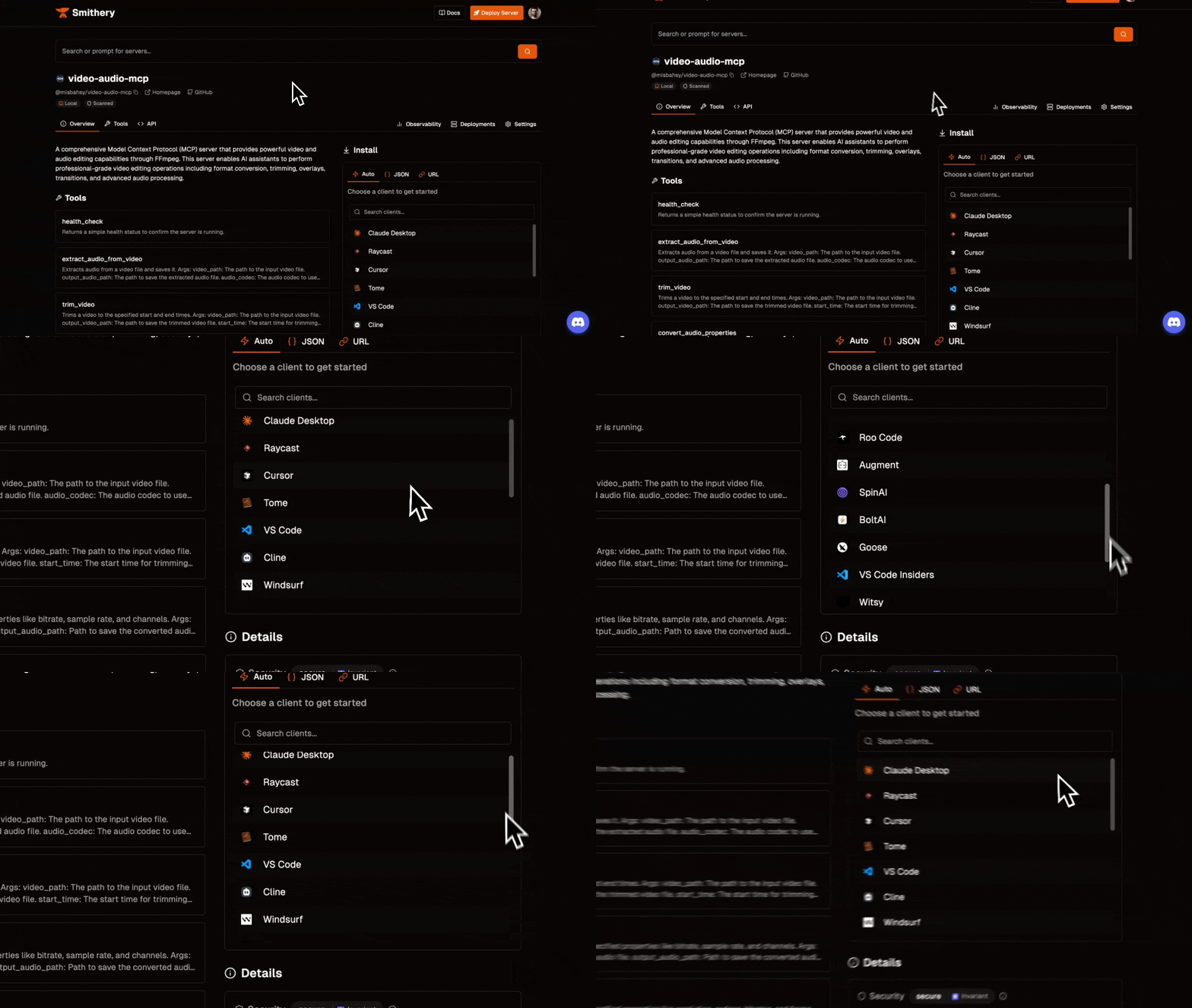
Option 1: Using Smithery (Easiest) ⭐
The simplest way to get started is through the Smithery MCP registry:
Option 2: Using uv (Recommended for Development)
# Install uv if you haven't already
curl -LsSf https://astral.sh/uv/install.sh | sh

# Clone the repository
git clone https://github.com/misbahsy/video-audio-mcp.git
cd video-audio-mcp

# Install dependencies with uv
uv sync

# Verify FFmpeg installation
ffmpeg -version
Running the Server
# With uv (recommended)
uv run server.py

# Or with traditional python
python server.py

# Or with specific transport
python -c "from server import mcp; mcp.run(transport='stdio')"
🔧 Client Configuration
Claude Desktop (Recommended Configuration)
Add to your claude_desktop_config.json:
macOS: ~/Library/Application Support/Claude/claude_desktop_config.json
Windows: %APPDATA%\Claude\claude_desktop_config.json
{
  "mcpServers": {
    "VideoAudioServer": {
      "command": "uv",
      "args": [
        "--directory",
        "/path/to/your/video-audio-mcp",
        "run",
        "server.py"
      ]
    }
  }
}
Alternative (using Python directly):
{
  "mcpServers": {
    "VideoAudioServer": {
      "command": "python",
      "args": ["/path/to/video-audio-mcp/server.py"]
    }
  }
}
Cursor IDE (Recommended Configuration)
Open Cursor Settings: File → Preferences → Cursor Settings → MCP
Click "Add New Server"
Configure:
Alternative configuration:
Windsurf
Add to your MCP configuration:
{
  "mcpServers": {
    "VideoAudioServer": {
      "command": "uv",
      "args": [
        "--directory",
        "/path/to/your/video-audio-mcp",
        "run",
        "server.py"
      ],
      "env": {}
    }
  }
}
Why Use uv?
The uv command is recommended because it:
Automatically manages dependencies without needing to activate virtual environments
Faster installation and dependency resolution
Better isolation - each project gets its own environment automatically
More reliable - handles Python version and dependency conflicts better
Modern tooling - the future of Python package management
Using NPX (Alternative)
For easier distribution, you can also run via npx if packaged:
{
  "mcpServers": {
    "VideoAudioServer": {
      "command": "npx",
      "args": ["-y", "video-audio-mcp-server"]
    }
  }
}
📖 Usage Examples
Basic Video Editing
"Can you convert this MP4 file to MOV format?"
→ Uses: convert_video_format

"Trim the video from 30 seconds to 2 minutes"
→ Uses: trim_video

"Extract the audio from this video as MP3"
→ Uses: extract_audio_from_video
Advanced Editing Workflows
"Create a highlight reel by concatenating these 3 clips with fade transitions"
→ Uses: concatenate_videos with transition effects

"Add my logo watermark to the top-right corner of this video"
→ Uses: add_image_overlay

"Remove all silent parts from this podcast recording"
→ Uses: remove_silence

"Add subtitles to this video with custom styling"
→ Uses: add_subtitles
Professional Workflows
"Convert this 4K video to 1080p, reduce bitrate to 2Mbps, and change to H.265 codec"
→ Uses: convert_video_properties

"Create a social media version: change to 9:16 aspect ratio, add text overlay, and compress"
→ Uses: change_aspect_ratio, add_text_overlay, set_video_bitrate

"Insert B-roll footage at 30 seconds with a fade transition"
→ Uses: add_b_roll
🎯 Real-World Use Cases
Content Creation
YouTube Videos: Automated editing, thumbnail generation, format optimization
Social Media: Aspect ratio conversion, text overlays, compression for platforms
Podcasts: Audio extraction, silence removal, format conversion
Professional Video Production
Corporate Videos: Logo watermarking, subtitle addition, quality standardization
Educational Content: Screen recording processing, chapter markers, accessibility features
Marketing Materials: B-roll integration, transition effects, brand consistency
Workflow Automation
Batch Processing: Convert entire video libraries to new formats
Quality Control: Standardize video properties across projects
Archive Management: Extract audio for transcription, create preview clips
🔍 Tool Reference
Video Format Conversion
# Convert MP4 to MOV with specific properties
convert_video_properties(
    input_video_path="input.mp4",
    output_video_path="output.mov",
    target_format="mov",
    resolution="1920x1080",
    video_codec="libx264",
    video_bitrate="5M",
    frame_rate=30
)
Text Overlays with Timing
# Add multiple text overlays with different timings
add_text_overlay(
    video_path="input.mp4",
    output_video_path="output.mp4",
    text_elements=[
        {
            "text": "Welcome to our presentation",
            "start_time": "0",
            "end_time": "3",
            "font_size": 48,
            "font_color": "white",
            "x_pos": "center",
            "y_pos": "center"
        },
        {
            "text": "Chapter 1: Introduction",
            "start_time": "5",
            "end_time": "8",
            "font_size": 36,
            "box": True,
            "box_color": "black@0.7"
        }
    ]
)
Advanced Concatenation
# Join videos with crossfade transition
concatenate_videos(
    video_paths=["clip1.mp4", "clip2.mp4"],
    output_video_path="final.mp4",
    transition_effect="dissolve",
    transition_duration=1.5
)
🛡️ Error Handling
The server includes comprehensive error handling:
File Validation: Checks for file existence before processing
Format Support: Validates supported formats and codecs
Graceful Fallbacks: Attempts codec copying before re-encoding
Detailed Logging: Provides clear error messages for troubleshooting
🔧 Troubleshooting
Common Issues
FFmpeg not found
# Install FFmpeg
# macOS: brew install ffmpeg
# Ubuntu: sudo apt install ffmpeg
# Windows: Download from https://ffmpeg.org/
Permission errors
# Ensure file permissions
chmod +x server.py
MCP server not connecting
Check file paths in configuration
Verify Python environment
Test server manually: python server.py
Check client logs for detailed errors
Debug Mode
Run with debug logging:
python server.py --log-level DEBUG
🧪 Testing
This project includes a comprehensive test suite that validates all video and audio editing functions. The tests ensure reliability and help catch regressions during development.
Test Coverage
The test suite covers:
✅ Core Functions: All 30+ video/audio editing tools
🎬 Video Operations: Format conversion, trimming, resolution changes, codec switching
🎵 Audio Processing: Bitrate adjustment, sample rate changes, channel configuration
🎨 Creative Tools: Text overlays, image watermarks, subtitle burning
🔗 Advanced Features: Video concatenation, B-roll insertion, transitions
⚡ Performance: Speed changes, silence removal, aspect ratio adjustments
🛡️ Error Handling: Invalid inputs, missing files, unsupported formats
Running Tests
Prerequisites for Testing
# Install test dependencies
pip install pytest

# Ensure FFmpeg is installed and accessible
ffmpeg -version
Basic Test Execution
# Run all tests
pytest tests/

# Run with verbose output
pytest tests/ -v

# Run specific test file
pytest tests/test_video_functions.py

# Run specific test function
pytest tests/test_video_functions.py::test_extract_audio
Advanced Test Options
# Run tests with detailed output and no capture
pytest tests/ -v -s

# Run tests and stop on first failure
pytest tests/ -x

# Run tests with coverage report
pytest tests/ --cov=server

# Run only failed tests from last run
pytest tests/ --lf
Test Environment Setup
The test suite automatically creates:
Sample Files: Test videos, audio files, and images
Output Directory: tests/test_outputs/ for generated files
Temporary Files: B-roll clips and transition test materials
# Test files are created in:
tests/
├── test_outputs/          # Generated test results
├── sample_files/          # Auto-generated sample media
├── test_video_functions.py # Main test suite
└── sample.mp4            # Primary test video (if available)
Sample Test Output
$ pytest tests/test_video_functions.py -v

tests/test_video_functions.py::test_health_check PASSED
tests/test_video_functions.py::test_extract_audio PASSED
tests/test_video_functions.py::test_trim_video PASSED
tests/test_video_functions.py::test_convert_audio_properties PASSED
tests/test_video_functions.py::test_convert_video_properties PASSED
tests/test_video_functions.py::test_add_text_overlay PASSED
tests/test_video_functions.py::test_add_subtitles PASSED
tests/test_video_functions.py::test_concatenate_videos PASSED
tests/test_video_functions.py::test_add_b_roll PASSED
tests/test_video_functions.py::test_add_basic_transitions PASSED
tests/test_video_functions.py::test_concatenate_videos_with_xfade PASSED

========================= 25 passed in 45.2s =========================
Test Categories
🎯 Core Functionality Tests
Video format conversion and property changes
Audio extraction and processing
File trimming and basic operations
🎨 Creative Feature Tests
Text overlay positioning and timing
Image watermark placement and opacity
Subtitle burning with custom styling
🔗 Advanced Editing Tests
Multi-video concatenation with transitions
B-roll insertion with various positions
Speed changes and silence removal
🛡️ Error Handling Tests
Invalid file paths and missing files
Unsupported formats and codecs
Edge cases and boundary conditions
Writing Custom Tests
To add new tests for additional functionality:
def test_new_feature():
    """Test description"""
    # Setup
    input_file = "path/to/test/file.mp4"
    output_file = os.path.join(OUTPUT_DIR, "test_output.mp4")

    # Execute
    result = your_new_function(input_file, output_file, parameters)

    # Validate
    assert "success" in result.lower()
    assert os.path.exists(output_file)

    # Optional: Validate output properties
    duration = get_media_duration(output_file)
    assert duration > 0
Continuous Integration
The test suite is designed to work in CI/CD environments:
# Example GitHub Actions workflow
- name: Install FFmpeg
  run: sudo apt-get install ffmpeg

- name: Install dependencies
  run: pip install -r requirements.txt pytest

- name: Run tests
  run: pytest tests/ -v
Performance Testing
Some tests include performance validation:
Duration Checks: Verify output video lengths match expectations
Quality Validation: Ensure format conversions maintain quality
File Size Monitoring: Check compression and bitrate changes
Test Data Management
Automatic Cleanup: Tests clean up temporary files
Sample Generation: Creates test media files as needed
Deterministic Results: Tests produce consistent, reproducible results
💡 Tip: Run tests after any changes to ensure functionality remains intact. The comprehensive test suite catches most issues before they reach production.
🤝 Contributing
We welcome contributions! Please see our Contributing Guide for details.
Development Setup
# Clone and setup development environment
git clone https://github.com/misbahsy/video-audio-mcp.git
cd video-audio-mcp

# Create virtual environment
python -m venv venv
source venv/bin/activate  # On Windows: venv\Scripts\activate

# Install development dependencies
pip install -r requirements-dev.txt

# Run tests
pytest tests/
📄 License
This project is licensed under the MIT License - see the LICENSE file for details.
🙏 Acknowledgments
📞 Support
Made with ❤️ for the MCP community


