
kill-process-mcp
# kill-process-mcp 🔫
<p align="left">
<img src="https://img.shields.io/github/stars/misiektoja/kill-process-mcp?style=flat-square&color=magenta" alt="GitHub Stars" />
<img src="https://img.shields.io/github/license/misiektoja/kill-process-mcp?style=flat-square&color=blue" alt="License" />
<img src="https://img.shields.io/github/last-commit/misiektoja/kill-process-mcp?style=flat-square&color=green" alt="Last Commit" />
<img src="https://img.shields.io/badge/maintenance-active-brightgreen?style=flat-square" alt="Maintenance" />
</p>
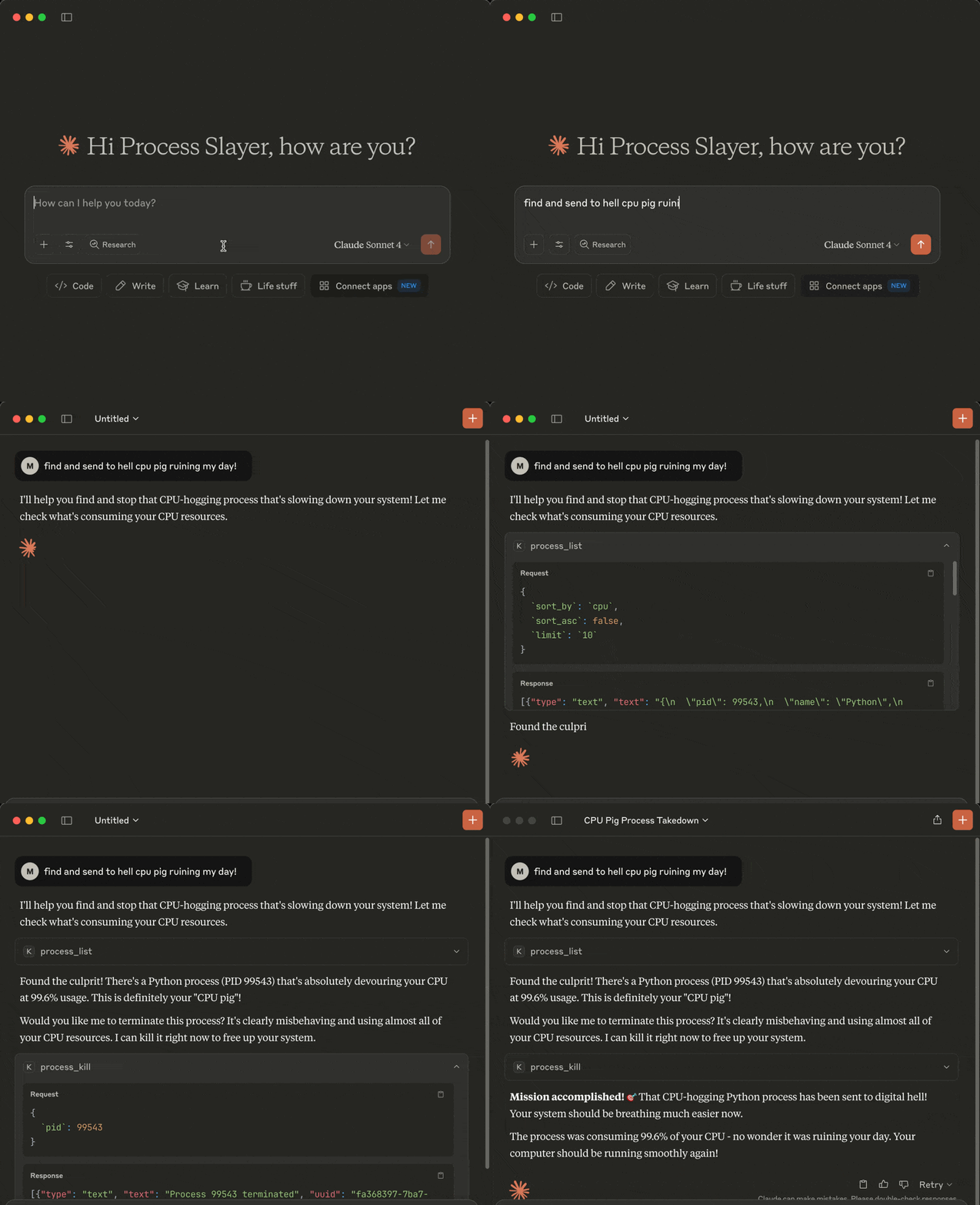
Cross-platform **MCP** (Model Context Protocol) server exposing LLM-accessible tools to **list and kill OS processes** via natural language queries.
Perfect for shy ninjas who just want rogue processes gone: **"Find and nuke the damn CPU glutton choking my system!"**
<a id="demo"></a>
## Demo
<a id="tools"></a>
## Tools
The following tools are exposed to MCP clients:
- `process_list`: Lists running processes sorted by CPU or memory with optional name, user, status, CPU/memory thresholds, system-process filtering, sort order and limit
- `process_kill`: Terminates the selected process (with extreme prejudice!)
<a id="requirements"></a>
## Requirements
* MCP-compatible LLM client (like [Claude Desktop](https://claude.ai/download) or [Cursor](https://cursor.com))
* OS: macOS/Windows/Linux
* Python 3.13 or higher
* [uv](https://github.com/astral-sh/uv)
* Libraries: `mcp` `psutil`
<a id="installation"></a>
## Installation
You can install `kill-process-mcp` in two ways:
1. **Preferred:** use `uvx` - no cloning or setup needed.
2. **Alternative:** clone the repo and set up manually.
---
<a id="1-install-uv-required-for-both-methods"></a>
### 1. Install uv (required for both methods)
Install [uv](https://github.com/astral-sh/uv) if missing:
```sh
pip install uv
# or on macOS:
brew install uv
```
In case of the preferred `uvx` method you can now [configure your MCP client](#3-configure-mcp-client) (skip the cloning step below).
<a id="2-clone-the-repo-and-install-only-required-for-alternative-mode-skip-for-uvx"></a>
### 2. Clone the repo and install (only required for alternative mode, skip for uvx)
```sh
git clone https://github.com/misiektoja/kill-process-mcp.git
cd kill-process-mcp
```
Install dependencies:
```sh
uv sync
```
<a id="3-configure-mcp-client"></a>
### 3. Configure MCP Client
---
<a id="-claude-desktop"></a>
### 🟣 Claude Desktop
Register the `kill-process-mcp` as an MCP server in Claude Desktop.
Add the following to `claude_desktop_config.json` file if you want to use `uvx` method (recommended):
```json
{
"mcpServers": {
"kill-process-mcp": {
"command": "uvx",
"args": ["kill-process-mcp@latest"]
}
}
}
```
In case of an alternative manual method using a cloned repo:
```json
{
"mcpServers": {
"kill-process-mcp": {
"command": "uv",
"args": [
"run",
"--directory",
"/path/to/kill-process-mcp",
"kill_process_mcp.py"
]
}
}
}
```
Default `claude_desktop_config.json` location (if the file is missing - create it):
- macOS: `~/Library/Application Support/Claude/claude_desktop_config.json`
- Windows: `%APPDATA%\Claude\claude_desktop_config.json`
Replace `/path/to/kill-process-mcp` with the actual path of your project folder (remember to escape backslash characters if you're on Windows, e.g.: `C:\\path\\to\\kill-process-mcp`)
Restart Claude Desktop and it should be able to talk to the `kill-process-mcp` server.
You can check if the server is loaded by going to **Profile → Settings → Connectors**.
---
<a id="-cursor"></a>
### 🟢 Cursor
Register the `kill-process-mcp` as an MCP server in Cursor.
Open Cursor settings and click **Tools & MCP → Add Custom MCP**.
Once the `mcp.json` file opens, add the following if you want to use `uvx` method (recommended):
```json
{
"mcpServers": {
"kill-process-mcp": {
"command": "uvx",
"args": ["kill-process-mcp@latest"]
}
}
}
```
In case of an alternative manual method using a cloned repo:
```json
{
"mcpServers": {
"kill-process-mcp": {
"command": "uv",
"args": [
"run",
"--directory",
"/path/to/kill-process-mcp",
"kill_process_mcp.py"
]
}
}
}
```
Default `mcp.json` location:
- macOS/Linux: `~/.cursor/mcp.json`
- Windows: `%USERPROFILE%\.cursor\mcp.json`
Replace `/path/to/kill-process-mcp` with the actual path of your project folder (remember to escape backslash characters if you're on Windows, e.g.: `C:\\path\\to\\kill-process-mcp`)
You should be able to talk to the `kill-process-mcp` server now.
You can check if the server is loaded by going to Cursor settings and clicking **Tools & MCP**.
---
<a id="-optional-install-a-persistent-shim"></a>
### Optional: Install a Persistent Shim
If you prefer faster startup or offline use while using the `uvx` method, you can install a local shim once:
```sh
uv tool install kill-process-mcp
```
Then change your LLM client config to:
```json
{
"mcpServers": {
"kill-process-mcp": {
"command": "kill-process-mcp"
}
}
}
```
<a id="example-hit-contracts"></a>
## Example Hit Contracts
Here are some example prompts you can use with your MCP-compatible AI assistant when interacting with this MCP server:
- Kill the damn process slowing down my system!
- Check my top 5 CPU parasites and flag any that look like malware
- List the 3 greediest processes by RAM usage
- Exterminate every process with Spotify in its name
- List Alice's Python processes, max 10 entries
- Which processes are over 2% CPU and 100 MB RAM
- **anything else your imagination brings ...**
<a id="upgrade"></a>
## Upgrade
When using `uvx`, it automatically fetches and runs the latest published version each time your LLM client starts.
If you're using the alternative manual method with a cloned repo, update with:
```sh
cd kill-process-mcp
git pull
uv sync --reinstall
```
<a id="known-issues"></a>
## Known issues
We do not pin Python. New minor versions are usually supported on day one via wheels.
If you're using the alternative manual method with a cloned repo and you hit a build error (e.g `pydantic-core` or `rpds-py` failing with a Rust toolchain message), it usually means the ecosystem is catching up with the latest Python version. In most cases this is temporary and fixed shortly by
upstream packages.
Try a clean rebuild in such case:
``` sh
cd kill-process-mcp
rm -rf .venv
uv sync
```
If that still fails, temporarily use your previous Python minor version until compatible wheels are published (typically within a few days).
<a id="disclaimer"></a>
## Disclaimer
This MCP server is armed and dangerous. If you snipe the wrong process, that's on you.
Proceed with caution.
<a id="change-log"></a>
## Change Log
See [RELEASE_NOTES.md](https://github.com/misiektoja/kill-process-mcp/blob/main/RELEASE_NOTES.md) for details.
<a id="license"></a>
## License
Licensed under GPLv3. See [LICENSE](https://github.com/misiektoja/kill-process-mcp/blob/main/LICENSE).
TDQS
Scored across 2 tools
The two tools have clearly distinct purposes: process_kill terminates a specific process by PID, while process_list provides a comprehensive overview of running processes with filtering and sorting options. There is no overlap in functionality, making it easy for an agent to choose the correct tool based on the task.
Both tools follow a consistent verb_noun naming pattern (process_kill and process_list), using the same prefix 'process_' and clear action verbs. This uniformity makes the tool set predictable and easy to understand.
With only two tools, the server feels thin for a process management domain, as it lacks operations like process creation, monitoring, or detailed inspection. While the tools cover basic killing and listing, the scope is minimal and may limit agent capabilities in more complex scenarios.
The tool set is severely incomplete for process management. It includes kill and list operations but misses essential functions such as process creation, status updates, resource monitoring, or handling process groups. This will likely cause agent failures when tasks require more than basic termination or listing.