
fLMCP
# fLMCP — FL Studio MCP server (macOS)
**Model Context Protocol server that gives Claude (or any MCP client) end-to-end
control of FL Studio — transport, patterns, channels, mixer, plugins, piano roll,
playlist, arrangement, automation, and rendering.**
This is a macOS port of [geezoria/FLStudioMCP](https://github.com/geezoria/FLStudioMCP).
The original repo has a good overview of the architecture and what is possible —
this fork adapts it for macOS where FL Studio's Python interpreter blocks sockets,
threads, and subprocesses, requiring a file-bus approach instead of TCP.
## What's new in 0.2.0
This fork extends the port with (see [CHANGELOG.md](CHANGELOG.md) for details):
- **Live metering** — per-track mixer peaks + per-channel VU during playback
(gain staging, clipping detection) without any audio capture.
- **Per-step parameters** — velocity/pan/pitch/mod per step-sequencer step.
- **Snap mode control** — set the global snap (`bar`, `beat`, …) by name.
- **Browser navigation** — walk the FL browser, audition and load samples and
presets programmatically.
- **Performance mode** — live-clip status + triggering.
- **Score log dump** — turn what you just jammed (unrecorded) into a pattern.
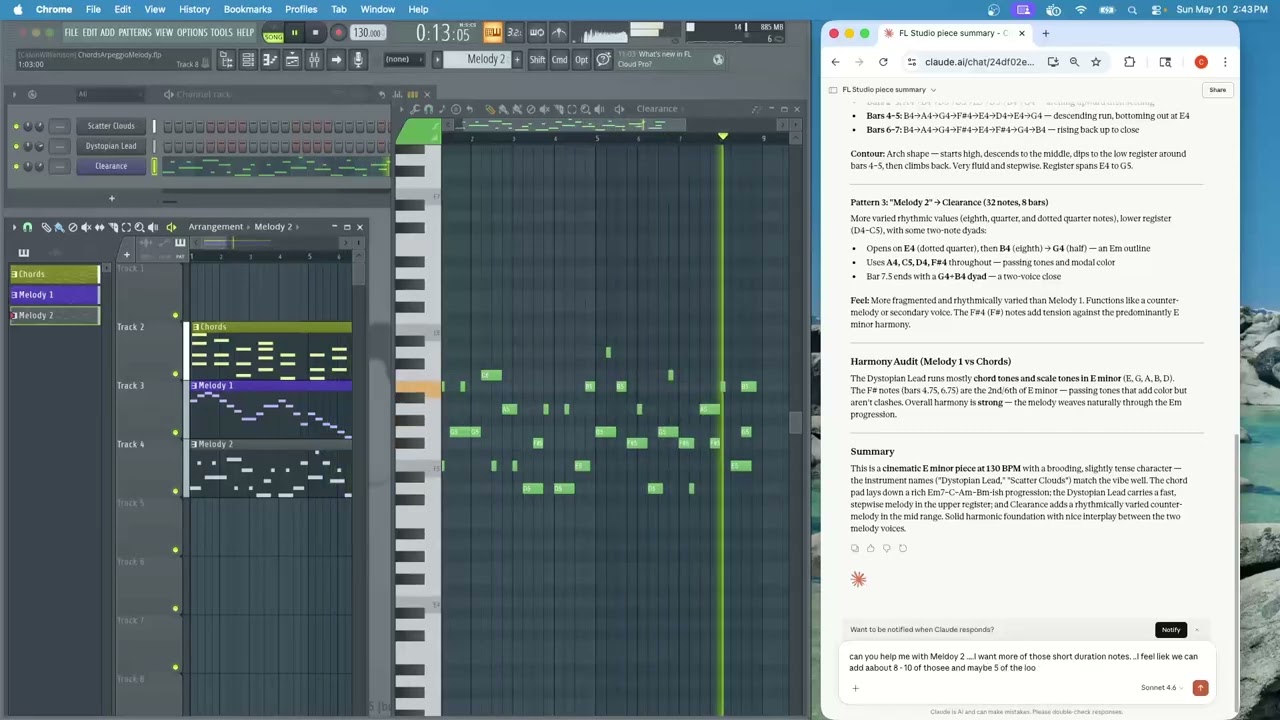
**See it in action (Web based Claude.ai using FL Studio):**
[](https://youtu.be/np0DxRHHmsQ?si=1u5Bi02eK1uj5EIz)
## Two ways to use it
**Agentic tools (Claude Code, OpenCode, Codex)** — the MCP server runs on your
Mac as a subprocess of your coding agent using stdio transport. This is the
default mode and requires no networking.
**Web-based remote MCP connectors (Claude.ai, Mistral.ai)** — the server runs
as a persistent HTTP process on your Mac and is exposed via a public URL using
a cloudflared tunnel. Both Claude.ai and Mistral.ai support remote MCP connectors,
including on their **free tiers**, so you can control FL Studio from either site
without a paid subscription.
## Requirements
- macOS 12+
- FL Studio 2025 (Producer Edition or higher — needs MIDI scripting)
- Python 3.10+
- Accessibility permission granted to your terminal app (needed for `pynput` to
send `Cmd+Opt+Y`)
## Install
```bash
git clone https://github.com/calvinw/MacFLStudioMCP.git
cd MacFLStudioMCP
./install_mac.sh
```
The installer:
1. Copies `fl_bridge/device_FLStudioMCP.py` to
`~/Documents/Image-Line/FL Studio/Settings/Hardware/fLMCP Bridge/`
2. Copies `fl_bridge/piano_roll/ComposeWithLLM.pyscript` to
`~/Documents/Image-Line/FL Studio/Settings/Piano roll scripts/`
3. Pre-creates `fLMCP_request.json` and `fLMCP_state.json` as empty stubs.
4. Creates the `bus/` directory.
5. Creates `.venv/` and installs the package with Mac dependencies (`pip install -e ".[mac]"`).
6. Registers the server with Claude Code via `claude mcp add`.
## One-time setup
### IAC Driver
1. Open **Audio MIDI Setup** (Applications → Utilities).
2. Menu: **Window → Show MIDI Studio**.
3. Double-click **IAC Driver**.

4. Check **Device is online**.
5. Add a port named `fLMCP` (rename the default `Bus 1`).

6. Click **Apply**.
### Accessibility permission
System Settings → Privacy & Security → Accessibility → enable your terminal
app (e.g. iTerm2, Terminal) **and** Claude Code. Without this `pynput` cannot
send `Cmd+Opt+Y` and piano-roll edits will silently fail.
## FL Studio activation
### One-time MIDI setup
1. Launch FL Studio 2025.
2. **Options → MIDI Settings → Input**: find the `fLMCP` IAC Driver row. Set
**Controller type** = `fLMCP Bridge`, **Port** = 1, click **Enable**.
3. **Options → MIDI Settings → Output**: same `fLMCP` row, Port = 1.
*(The IAC Driver requires both Input and Output to be bound — FL only keeps
a controller script's `OnIdle` firing when both directions are active.)*

4. To confirm everything is working, go to **View → Script Output** and look for
`[fLMCP] bridge ready`.
FL remembers these settings — you only need to do this once.
### Each launch
1. Start FL Studio.
2. Open the Piano Roll editor window, click the **scripts dropdown** (top-left
corner), and choose **ComposeWithLLM**. You need to do this before working
with the LLM. FL forgets this on quit, so repeat each time you relaunch FL.
## Using with Claude Code (stdio)
The installer registers the server via `claude mcp add`. Once installed, just
start Claude Code as normal — the FL Studio MCP server will be available automatically.
## Using with Claude.ai (HTTP)
Start the MCP server in HTTP mode. It will run on your local Mac and we will
use a Cloudflare tunnel to allow Claude.ai to connect to it as a Remote MCP
server (or connector). Make sure you are in the `MacFLStudioMCP` folder, then
run this in a terminal window and keep it running while using the MCP server:
```bash
.venv/bin/python -m fl_studio_mcp --transport http --port 8000 --host 0.0.0.0
```
### Setting up Cloudflared to Tunnel Your Mac to Claude.ai
Claude.ai runs in the cloud and cannot reach `127.0.0.1` directly. We use
[cloudflared](https://developers.cloudflare.com/cloudflare-one/connections/connect-networks/downloads/)
to create a free tunnel with a random public URL — no account required.
Install cloudflared if you haven't already:
```bash
brew install cloudflared
```
Then run the tunnel in a second terminal window and keep it running:
```bash
cloudflared tunnel --url http://localhost:8000
```
It prints a line like:
```
Your quick Tunnel has been created! Visit it at (it may take some time to be fully reachable):
https://random-words-here.trycloudflare.com
```
Copy that `https://…trycloudflare.com` URL — you'll use it in the next step.
> **Security note:** the tunnel exposes your FL Studio instance to anyone who
> knows the URL. The random URL is unguessable, but stop the tunnel when you're
> done to close access.
### Add the server in Claude.ai
1. Go to **[claude.ai/customize/connectors](https://claude.ai/customize/connectors)**.

2. Click **Add custom connector**.
3. Fill in the fields:
- **Name:** `FLStudioMCP`
- **URL:** `https://random-words-here.trycloudflare.com/mcp`
*(replace `random-words-here` with the actual subdomain from your tunnel)*
- **Authentication:** None

4. Click **Save**. Claude.ai will connect and list the available tools.
## Credits & lineage
- Original concept & Windows implementation: [geezoria/FLStudioMCP](https://github.com/geezoria/FLStudioMCP)
- macOS port (file-bus bridge): [calvinw/MacFLStudioMCP](https://github.com/calvinw/MacFLStudioMCP)
- 0.2.0 extensions (metering, step params, snap, browser, performance mode): this fork
## License
MIT — see [`LICENSE`](LICENSE). Changes are documented in
[`CHANGELOG.md`](CHANGELOG.md).
TDQS
Scored across 160 tools
Many tools have overlapping responsibilities: channel_all/channel_info/channel_selected/ui_selected_channel, mixer_all_tracks/mixer_track_info/mixer_get_peaks, and fl_ping/fl_bridge_info/piano_roll_status all require careful reading to tell apart. The detailed descriptions help, but with 160 tools, an agent will frequently select the wrong read/status variant.
The vast majority of tools follow a clear domain-prefix_snake_case pattern (transport_, channel_, mixer_, playlist_, piano_roll_), which is very predictable. Minor deviations like fl_ping, fl_call_raw, ui_selected_channel, and channel_all break the pattern slightly, but the overall convention is strong and readable.
160 tools is an extreme surface area for an MCP server, even for a full DAW like FL Studio. This will impose significant context/token costs and make tool selection much harder; many read/status tools could be consolidated into parameterized or bulk endpoints.
The server covers a remarkably wide range of FL Studio capabilities: transport, patterns, channels, mixer, plugins, playlist, piano roll, project, and browser. However, there are notable gaps such as creating/removing channels or mixer tracks, inserting/replacing plugins, and editing existing automation clips, which are core DAW workflows.